Fixed – Error – “Microsoft SQL: A network-related or instance-specific error occurred while establishing a connection to SQL Server” – while trying to use Dataverse connector in Power BI


While trying to use Dataverse connector inside Power BI Desktop

we got the below error

Details: “Microsoft SQL: A network-related or instance-specific error occurred while establishing a connection to SQL Server. The server was not found or was not accessible. Verify that the instance name is correct and that SQL Server is configured to allow remote connections. (provider: Named Pipes Provider, error: 40 – Could not open a connection to SQL Server)”

Later we realized we were not entering the environment details in the correct format as expected

i.e.

[orgname].[crm].dynamics.com

We were entering it incorrectly  below with the https

Entering URL in correct format fixed the issue for us.

In case if TDS endpoint it not enabled –

we will get the below error

i.e. Microsoft SQL: TDS Protocol endpoint is disabled for this organization.

Check more posts on Power BI

https://nishantrana.me/category/power-bi/

Hope it helps..

Advertisements

Agent scripts in Omnichannel and Customer Service Workspace – Dynamics 365


Agent scripts are available within the Productivity pane in the Customer Service workspace and Omnichannel for the Customer Service app.

Agent scripts contains series of steps that will guide the agents while working, helping them to be more efficient.

More on Customer Service Workspace – https://nishantrana.me/2020/08/13/new-customer-service-workspace-app-preview-in-dynamics-365-2020-release-wave-2/

Omnichannel for Customer Servicehttps://nishantrana.me/category/omnichannel/

Smart Assisthttps://nishantrana.me/2020/08/17/ai-suggestions-for-similar-knowledge-articles-and-cases-in-dynamics-365-2020-release-2020-wave-2/

To define Agent Scripts – navigate to Customer Service Hub > Service Management > Agent Scripts or Omnichannel Administration > Agent Experience > Agent Scripts


Create a new Agent script record, and specify steps for the same by creating new agent script step record.
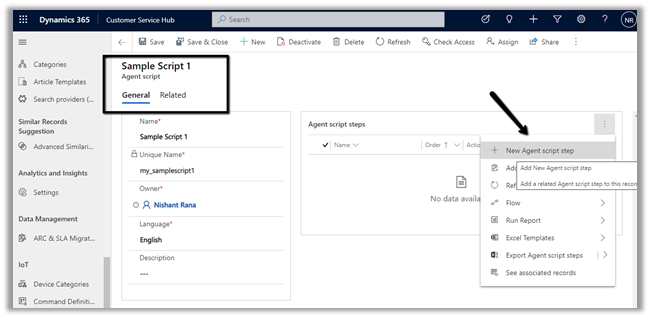

We can define 3 different types of Action – Text, Macro, and Script.
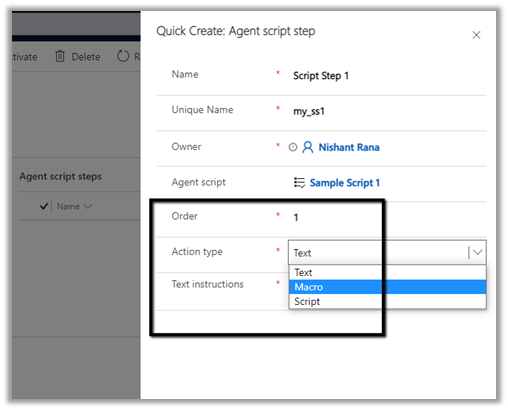

For simplicity, we have selected Text here.


We have defined 2 script steps for the agent script as shown below.


Next, we need to associate the Agent Script with the Session template.

Inside the Omnichannel Administration > Agent Experience > Sessions, select the template we want the script to be associated.

Here let us select the Case entity session – default template
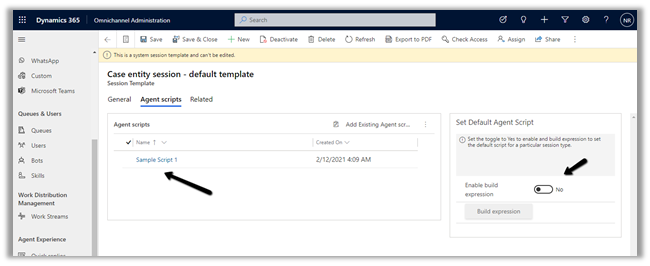
We can also define the conditions for the default agent script to be applied using the Enable Build expression option.

https://docs.microsoft.com/en-us/dynamics365/app-profile-manager/agent-scripts#set-the-default-agent-script-for-agents
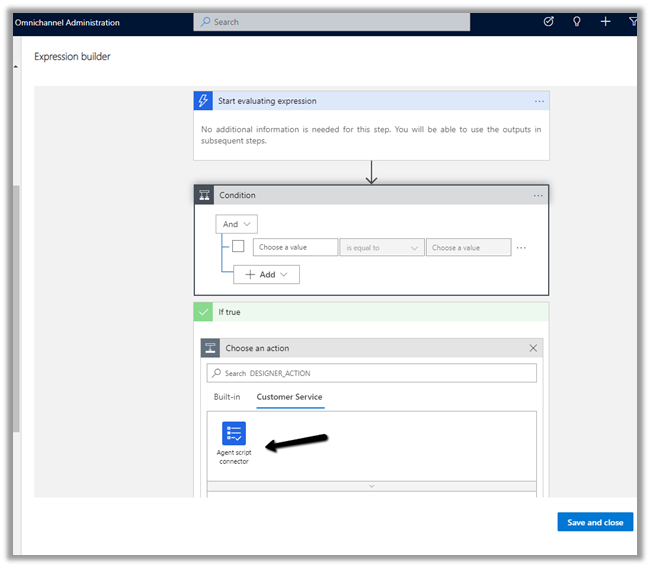
For now to make the example simple, we leave it as No (default).

Back in Customer Service Workspace or Omnichannel for Customer Service App– Shift + click the case record to open the new session in the Active Cases grid.
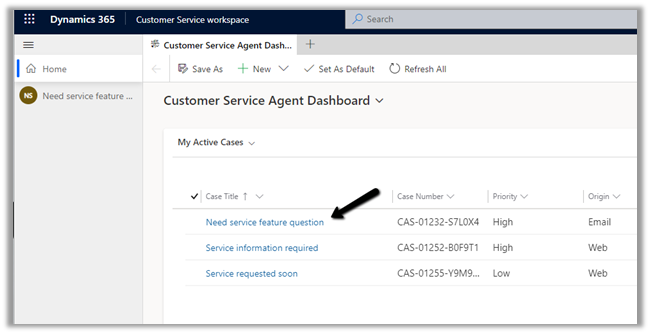
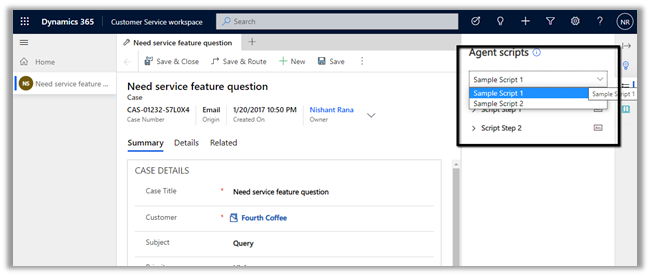
We can see the script populated there for the agent on the case record opened.

If we have multiple scripts associated with the Session template – the agent has the option to select the appropriate script.
Hope it helps..

Advertisements

In-app or Push notification – Model-driven App – 2021 Release Wave 1 Power Apps / Dynamics 365


With 2021 Release Wave 1, the in-app notifications feature has been added to the Model-driven app, earlier it was only available for Canvas Apps.

To see it in action à

Login to Power Automate

https://us.flow.microsoft.com/en-us/

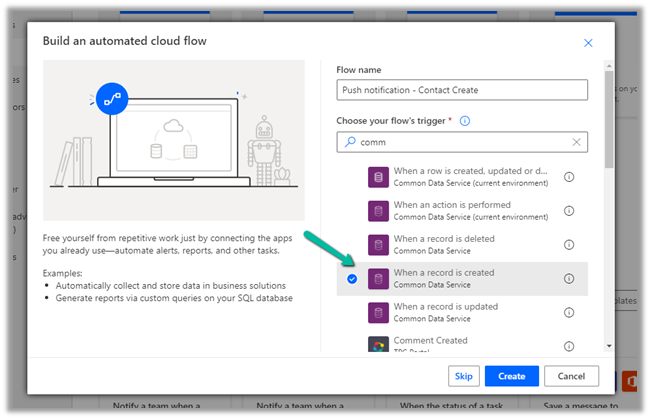
Create a new flow, select start from blank – Automated cloud flow, make sure the appropriate environment is selected.

Specify the flow name along with the trigger

Here for the trigger, we have specified the condition as contact creation.

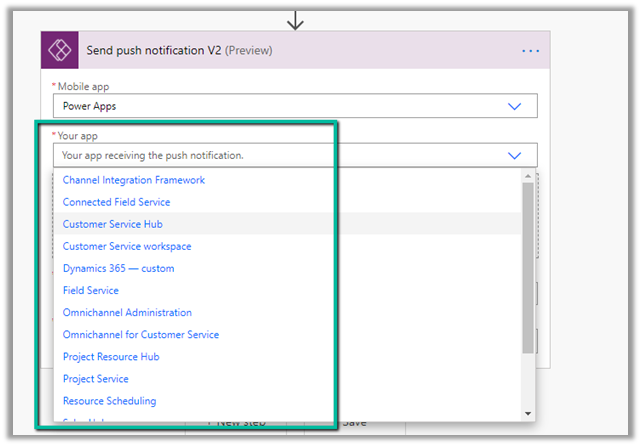
For the action, select Send Push Notification V2 (preview)

For Mobile App, we can select either Power Apps or Field Service app to send the notifications to.

Here we have selected Power Apps mobile app.

Your app field will list down all the Model-driven apps available for the environment.

In recipients specify the email address and define the message.

In the Open App option, we can specify whether to open the app or not, on tap of the notification.

Finally, we can specify the entity, form for that entity (or view) to be opened.

We are setting the record id (of the contact record created) that should be opened in the form.

Save the flow.

Creating a contact record will trigger the flow and will send the notification to the mobile as shown below.

We can click on the notification, which takes us to the record as shown below.

Get all details here

https://powerapps.microsoft.com/es-es/blog/now-available-model-driven-app-push-notifications/

Blog posts on 2021 Release Wave 1 – Dynamics 365

Hope it helps..

Advertisements

Dynamics 365 Sales mobile app (preview)


The new Dynamics 365 Sales mobile app (preview), has been introduced specifically for the field sellers who need quick access and intuitive management of the customer information on the go while travelling / meeting the customers.

Check other posts on 2020 Release Wave 2

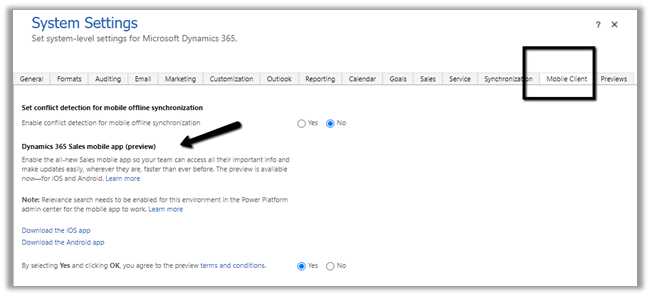
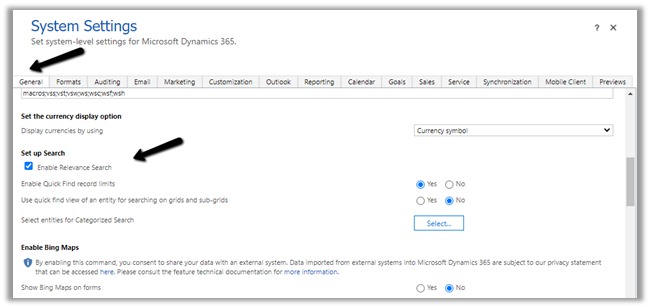
To enable the App, navigate to Advanced Settings from the Sales Hub and then to Administration > System Settings > Mobile Client tab
We also need to enable Relevance search on the environment for the mobile app’s search to work.

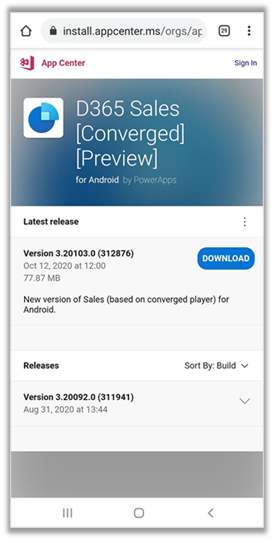
For iOS

https://go.microsoft.com/fwlink/p/?linkid=2151689

For Android

https://go.microsoft.com/fwlink/p/?linkid=2152008

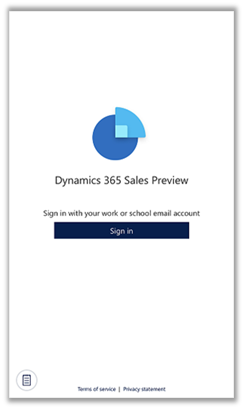
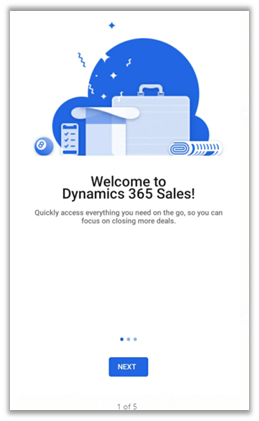
After installation open the app and sign in

From the list of apps, select the App to be used. Here we clicked on the Sales Hub app.

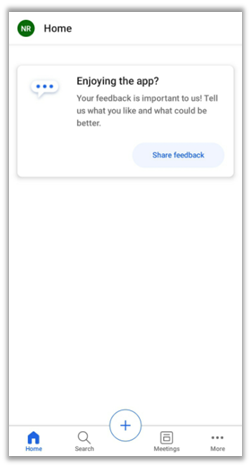
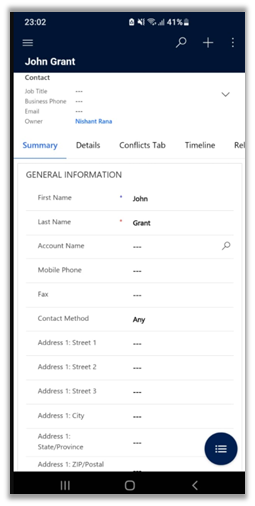
Below is the home page of the app.

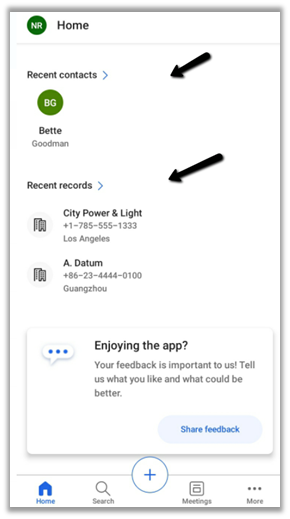
The home page provides quick access to recent contacts and recent records along with reminders and insights.

More on Assistant –

https://docs.microsoft.com/en-us/dynamics365/ai/sales/assistant

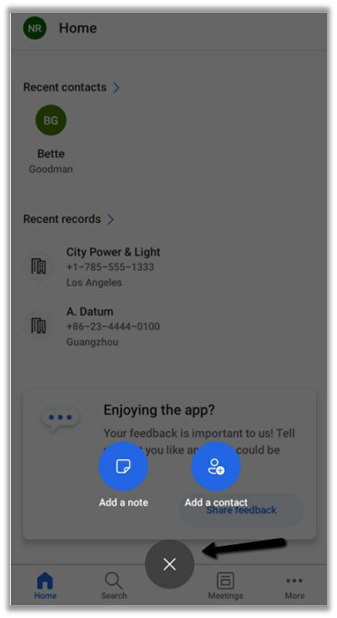
The + option allows for the quick creation of Note and Contact records.

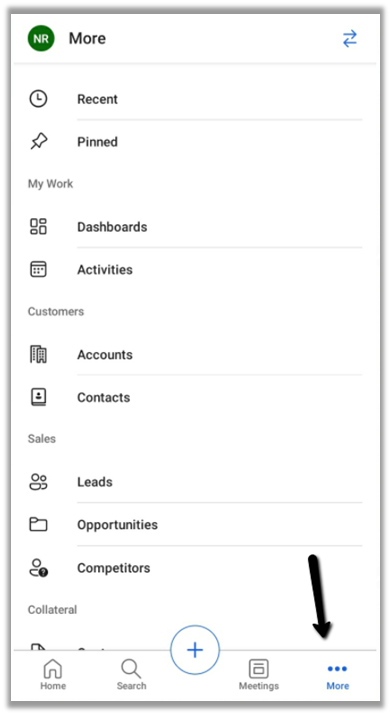
The more options allow access to the navigate to other part of the apps – dashboard and the other entities.

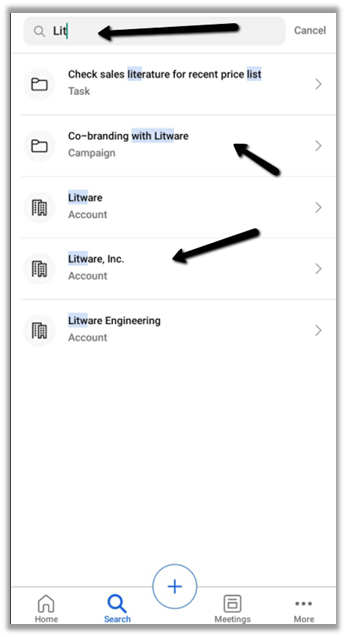
Search suggestions provide results while we are typing and grouping of search results to quickly find the information needed.

Other sub grid and form tab improvements in the app –

https://nishantrana.me/2020/09/28/sub-grid-and-form-tabs-improvements-in-power-apps-mobile-app/

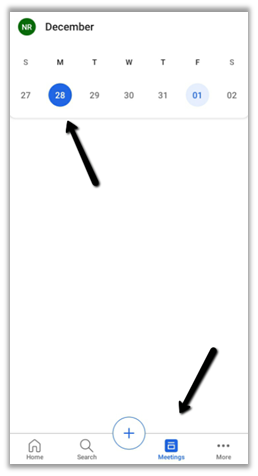
The meetings option shows the calendar view and the meetings that are scheduled in the outlook.

We cannot create meetings from the Sales Mobile app.

Get all the details here –

Overview of the Dynamics 365 Sales mobile app

Blog posts on 2021 Release Wave 1 – Dynamics 365

Hope it helps..
 

Recent Posts – 

Something went wrong. Please refresh the page and/or try again.

Fixed – 401 Unauthorized error while calling Dynamics 365 Web API


We were recently getting the below error while trying to call Dynamics 365 Web API through Postman.

“401 Unauthorized”

It turned out that we were using the incorrect Token.

To generate the correct token,

For OAuth 2.0 token endpoint (v1) Version 1

  • We need to specify resource with Dynamics 365 URL.


For OAuth 2.0 token endpoint (v2) Version 2

  • We need to specify scope with
    Dynamics 365 URL followed by .default instead of a resource.

The correct token results in the successful call to the Web API

References –

https://matthijs.hoekstraonline.net/2020/04/27/v1-and-v2-identity-and-access-tokens-with-azure-active-directory/

https://crmchap.co.uk/generating-oauth2-v2-0-endpoint-tokens-for-dynamics-365-the-common-data-service/

Hope it helps..

Advertisements

How to – Check user’s access to a record – upcoming feature in Dynamics 365


Was going through the Model-Driven Apps documentation and found the below article

https://docs.microsoft.com/en-us/powerapps/user/access-checker

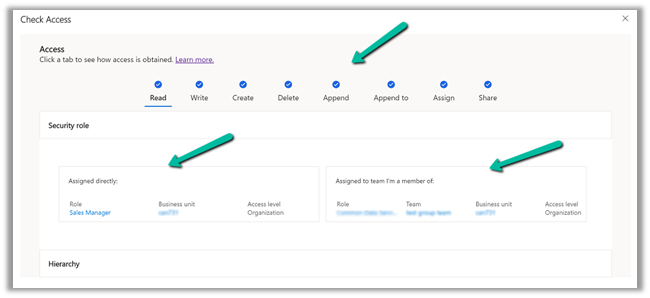
It talks about a Check access button on the command bar of a record which will list down all the rights/access/privileges on that particular record.

And also how the user has got those accesses, through security roles directly assigned or through the team the user belongs.

We can also check the access of the other users as well through user lookup.

More on Access in Dynamics 365

Hope it helps..

Advertisements
Advertisements