Security Enhancements – 24 hours maximum user session timeout in Dynamics 365 / CRM


With recent security enhancements in Customer engagement apps, the maximum user session timeout of 24 hours is removed.

https://docs.microsoft.com/en-us/power-platform/admin/user-session-management#user-session-timeout-management

Now it uses the Azure AD Session Policy to manage user session timeout, which by default has Azure AD refresh token expiration set as 90 days.

https://docs.microsoft.com/en-us/azure/active-directory/develop/active-directory-configurable-token-lifetimes#refresh-and-session-token-lifetime-policy-properties

Refresh toke lifetime and expiration – https://docs.microsoft.com/en-us/azure/active-directory/develop/refresh-tokens#refresh-token-lifetime

Use Configuring sign-in frequency in Conditional Access to define the periods before a user is required to sign-in again – https://docs.microsoft.com/en-us/azure/active-directory/conditional-access/howto-conditional-access-session-lifetime

Earlier the default session timeout used to be 24 hours with 20 minutes for warning the user – https://nishantrana.me/2017/11/17/configure-session-timeout-and-inactivity-timeout-dynamics-365/

However, we can still override the default Azure AD Session policy, by setting the session timeout and/or inactivity timeout for the individual environment.

To set the same navigate to –

Environments > [Environment] > Settings > Privacy + Security in Power Platform Admin Center.

Specify appropriate values and save the changes.

Get all the details here –

https://docs.microsoft.com/en-us/power-platform/admin/user-session-management#configure-session-timeout

Hope it helps..


Advertisements

Sample Code to Test and Enable Mailbox programmatically C# (Dynamics 365/CRM)


Suppose we want to Test & Enable Mailbox of the below user programmatically.

We can see the below notification for the disabled mailbox.

This mailbox is disabled for email processing. For more information, see the alerts.

Below is the sample code –

On running the code, we can see the notification removed and the mailbox for the user enabled successfully.

C# Code –

      CrmServiceClient svc = new CrmServiceClient(ConnectionString);

            if (svc.IsReady)
            {
                var mailBox = new Entity("mailbox", new Guid("C88A539A-F493-EC11-B400-000D3A4F37D3"));

                // testemailconfigurationscheduled = Indicates if the email configuration test has been scheduled for a mailbox record
                mailBox.Attributes["testemailconfigurationscheduled"] = true;

                svc.Update(mailBox);

Hope it helps..

Advertisements

Sample Code to Approve Email – Mailbox programmatically C# (Dynamics 365/CRM)


Suppose we want to Approve the Email for the mailbox of the user(s) programmatically.

We’d see the below notification for the user whose mailbox is not yet approved.

Email won’t be processed for this mailbox until the email address of the mailbox is approved by an Office 365 Global Administrator or by an Exchange Administrator. For more information, contact your system administrator.

Below is the sample code –

On running the code, we can see the notification for the email address approval removed or the mailbox approved for the user.

C# Code –

            CrmServiceClient svc = new CrmServiceClient(ConnectionString);

            if (svc.IsReady)
            {

                var systemUser = new Entity("systemuser", new Guid("C48A539A-F493-EC11-B400-000D3A4F37D3"));

                // emailrouteraccessapproval - status of the primary email address
                //0	= Empty, 1 = Approved, 2 = Pending Approval, 3 = Rejected
                systemUser.Attributes["emailrouteraccessapproval"] = new OptionSetValue(1);

                svc.Update(systemUser)

The code should run under the context of the user who has either Global Admin or Exchange Admin role.

Hope it helps..

Advertisements

How to – Define System Filters for Synchronization using SavedQuery in Dynamics 365 / CRM


We covered a few Synchronization topics in the last few blogs, here we will look at defining system filters to manage which records could be synced.

How to – Synchronize Appointments between Dynamics 365 and Outlook using Server-Side Synchronization

How are tasks, letters, fax, phone call synchronized between Dynamics 365 and Outlook

We can see few default User Filters already defined that syncs records owned by the current user.

Users can create new filters, edit the existing filters, delete, activate, deactivate and reset the filters.

These filters like personal filters applied to that particular user only.

The same can also be accessed from Personalization Settings

Personal Options > Synchronization tab

Similar to User Filters we can define System Filters that apply to the entire organization or all the users.

As we can see there are no options (no new button) to create new System Filters from the user interface. The only way we can create them is through SDK.

Suppose we don’t want any tasks to be synced.

For this, we can create a filter like “sync only those tasks where created on doesn’t have value” which will always evaluate to false.

On executing the below code

We can see the system filter created successfully.

Hope it helps..

Entity savedQuery = new Entity("savedquery");
                savedQuery.Attributes["name"] = "System Filter for Task";
                savedQuery.Attributes["description"] = "To restrict sync of tasks";            
                savedQuery.Attributes["isquickfindquery"] = false;

                // saved query is of type outlook fiter
                savedQuery.Attributes["querytype"] = SavedQueryQueryType.OutlookFilters;
                
                savedQuery.Attributes["returnedtypecode"] = "task";

                // sync only those tasks which have created on as null
                // this is to restrict task sync

                savedQuery.Attributes["fetchxml"] = 
                    @"<fetch>" +
                     "<entity name='task'>"+
                     "<attribute name='activityid'/>" +
                     "<filter>" +
                     "<condition attribute='createdon' operator='null'/>" +
                     "</filter>" +
                     "</entity>" +
                     "</fetch>";

                var response= svc.Create(savedQuery);
Advertisements

How are tasks, letters, fax, phone call synchronized between Dynamics 365 and Outlook


In the previous post, we saw how Appointment Synchronization works, for other activity entities the  is more or less similar.

How to – Synchronize Appointments between Dynamics 365 and Outlook using Server-Side Synchronization

Below is the list of activity entities that are synced by default (we cannot configure custom entities for sync)

Let us start by creating a sample record for fax, letter, phone call, and task in Dynamics 365.

After some time we can see all of these activities synced to Outlook as Tasks.

Let us mark the task record as complete in Dynamics 365.

Similarly, let us mark the phone call as completed in Outlook.

After a few mins, we can see the task marked as completed in Dynamics 365 marked completed in outlook after the sync.

And phone call marked as completed in outlook, marked completed in Dynamics 365 and moved to closed activities view in Dynamics 365.

Now let us delete the Letter record from Dynamics 365.

And delete the Fax record from outlook.

After successful sync, we can see the corresponding records deleted from both Outlook and Dynamics 365.

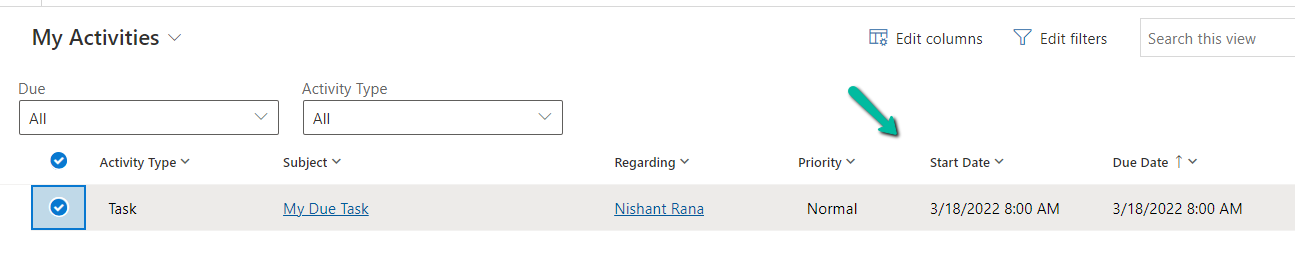
Also if we create a task with due date more than a day, a reminder is also set in Outlook, when synced.

tasks

In Outlook after sync- 

reminder

Get all the details here –

https://docs.microsoft.com/en-us/power-platform/admin/sync-logic#syncing-tasks

Hope it helps..

Advertisements

How to – Synchronize Appointments between Dynamics 365 and Outlook using Server-Side Synchronization


Appointments, Contacts, Fax, letters, Tasks, etc. entities can be synced both ways between Dynamics 365 and Outlook.

This setting is configurable.

Navigate to System Settings >> Synchronization tab

Click on Synchronized Fields. It lists down all the entities there.

We can define the synchronization direction by clicking on the arrow of the attribute for a particular entity type.
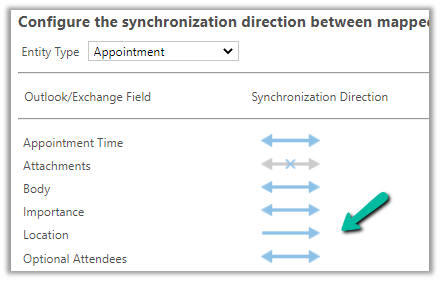
Email synchronization is handled separately as we can see below.

We cannot have a custom activity entity enabled for Synchronization.

https://community.dynamics.com/crm/f/microsoft-dynamics-crm-forum/269218/sync-custom-activity-to-outlook/862671

Now to get it working the next step is to approve, test, and enable the user’s mailbox.

And set Appointment, Contacts, and Tasks to Server-Side Synchronization. (default = none).

Now let us create an Appointment record in Dynamics 365.

We have specified values for the Required and Subject field.
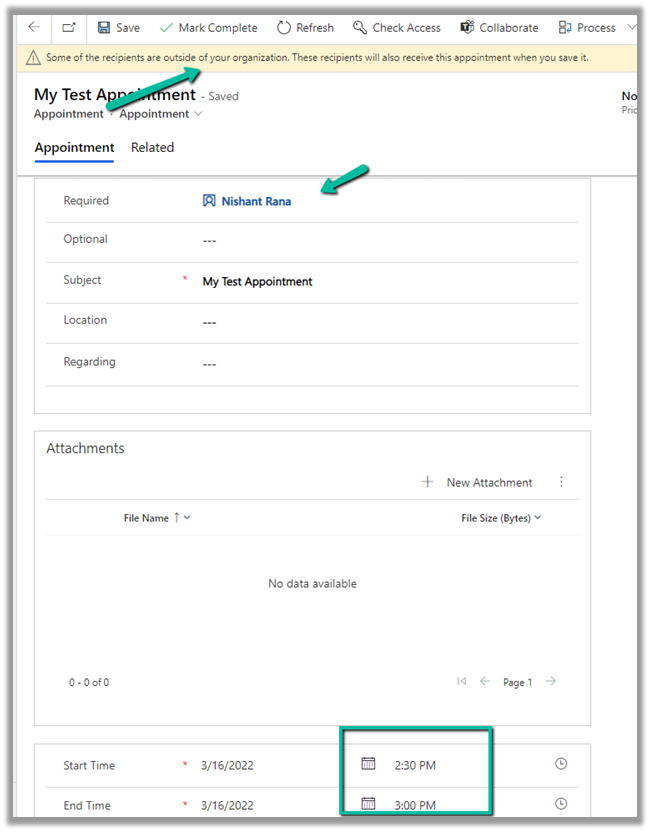
We get a notification before saving the record. Here the contact record specified had the Hotmail id associated.
Some of the recipients are outside of your organization. These recipients will also receive this appointment when you save it.

After saving the record we can see the Appointment reflected in Outlook along with the reminder after few mins.
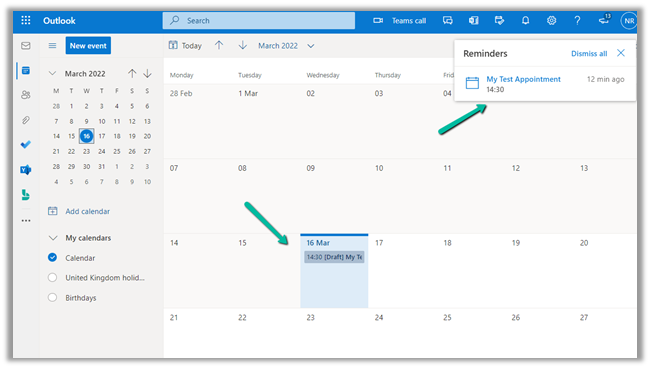
We can see it categorized as “Tracked to Dynamics 365“

Now let us update the same appointment inside Outlook and send it.
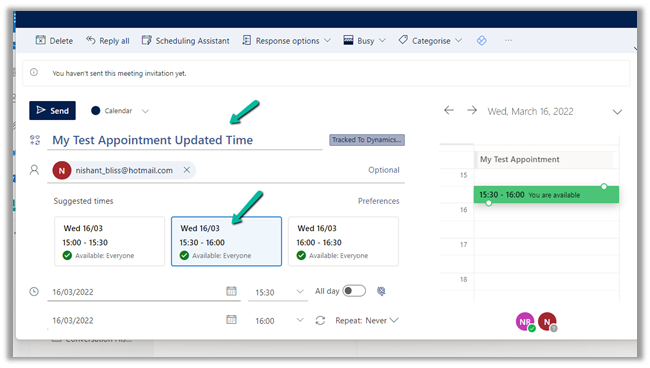
After a couple of minutes, we could see the record updated back in CRM.

Now for new appointments created in Outlook to reflect in CRM, we need to have either of the following conditions in place –

It has to be created or tracked in Dynamics 365 from Dynamics 365 for Outlook App.

Or from within the Outlook app, we need to apply Tracked to Dynamics 365 Category to it.

The same record in CRM –

Now let us delete one of the appointments in Dynamics 365

It is already synced to Outlook.

We will see the appointment deleted in Outlook because it fulfills the below criteria i.e.

The appointment is in the future and the user is also the appointment organizer.

This will also send the cancellation to the users/attendees.

And similarly, if we cancel an appointment in Outlook, it will send the cancellation to the attendees and will also delete the record in Dynamics 365.

The appointment record canceled in Dynamics 365 doesn’t sync to Outlook as canceled by default.
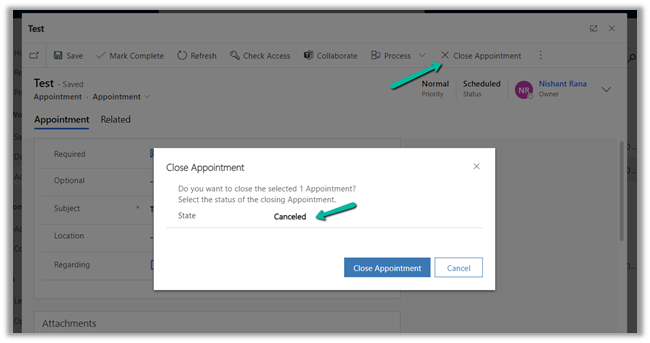
We need to enable SSSPropagateAppointmentCancellationsToExchange settings in OrgDbOrgSettings for it.

https://github.com/seanmcne/OrgDbOrgSettings/releases

https://support.microsoft.com/en-us/topic/orgdborgsettings-tool-for-microsoft-dynamics-crm-20a10f46-2a24-a156-7144-365d49b842ba

After this is enabled, the appointment is canceled in Outlook also, and cancellation is sent to the attendees.

Get all the details here – https://docs.microsoft.com/en-us/power-platform/admin/sync-logic#syncing-canceled-and-deleted-appointments-from-dynamics-365-to-exchange

https://learn.microsoft.com/en-us/dynamics365/outlook-addin/user-guide/delete-records-that-have-been-tracked#appointments

https://community.dynamics.com/365/sales/f/dynamics-365-for-sales-forum/426757/externally-cancelled-tracked-appointment-not-marked-as-cancelled-in-dynamics

Hope it helps..

Advertisements