How to – Export Dataverse (Dynamics 365) data to Azure SQL using Azure Data Factory pipeline template


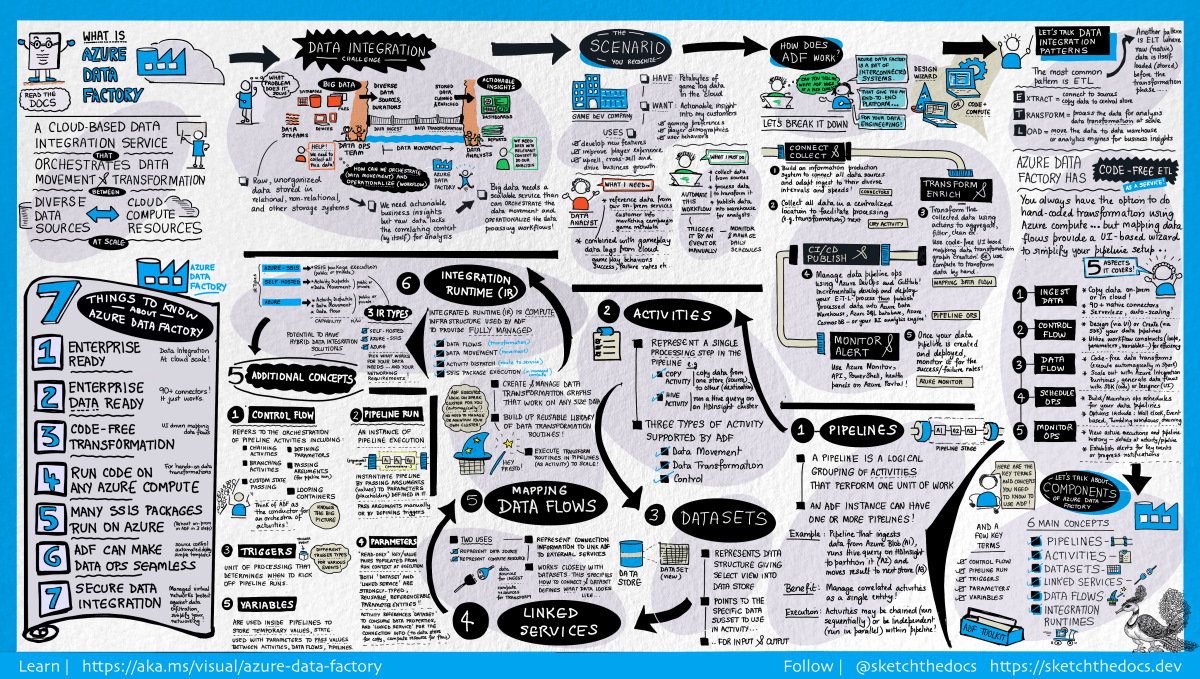
[Visual Guide to Azure Data Factory - https://acloudguru.com/blog/engineering/a-visual-guide-to-azure-data-factory]

Using the new Azure Data Factory pipeline template – Copy Dataverse data from Azure Data Lake to Azure SQL – we can now easily export the Dataverse data to Azure SQL Database.

https://docs.microsoft.com/en-us/power-platform-release-plan/2021wave1/data-platform/export-dataverse-data-azure-sql-database

Check other posts on Azure Data Factory

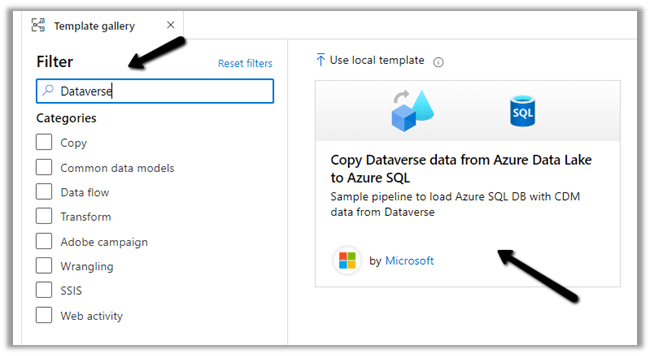
Select Pipeline from template option inside the Data Factory

Search for Dataverse and select the Copy Dataverse data from Azure Data Lake to Azure SQL template
Let us specify the User Inputs required by the template – i.e. Azure SQL Database and the Data Lake Storage.

First we have created the linked service for the Azure SQL Database.

We’d use it to connect to the below table MyContacts.

Similarly create a linked service to Azure Data Lake Gen 2, which holds our Dataverse data.

Get the URL from the Container’s property. (replace blob with dfs in the URL)

To get the storage account key, select Access Keys >> Show Keys >> Copy the Key for the Storage Account.

Here we have already configured Azure Synapse Link for Dataverse

https://nishantrana.me/2020/09/07/export-data-from-common-data-service-to-azure-data-lake-storage-gen2/

Now as we have defined the User Inputs, select Use this template.
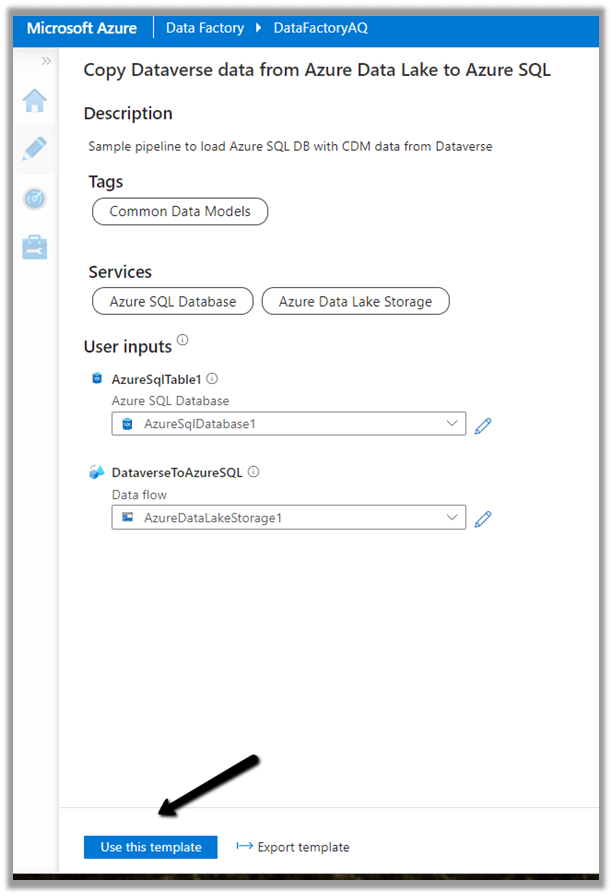
Navigate to the data flow created – DataverseToAzureSQL

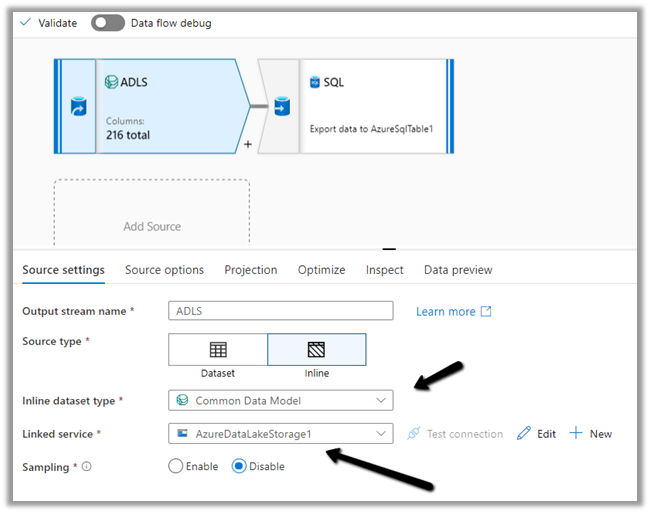
Select our source ADLS and check and configure its properties.

Source Settings

Here we have the Inline dataset type set to Common Data Model and the Linked service is the AzureDataLakeStorage1 we created earlier.
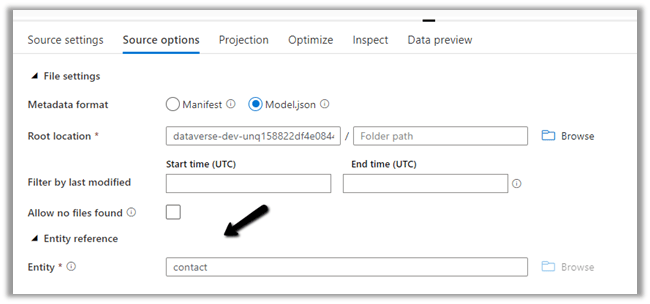
Source Option

Specify the Dataverse folder for the Root Location.

Here we have specified the contact entity from our Data Lake Storage.
Projection

In the projection we have cleared the generated schema using Clear Schema, also selected Schema options >> Allow schema drift


We have enabled Allow schema drift option which will create the required columns in the destination Azure SQL Table.

Optimize

Inspect
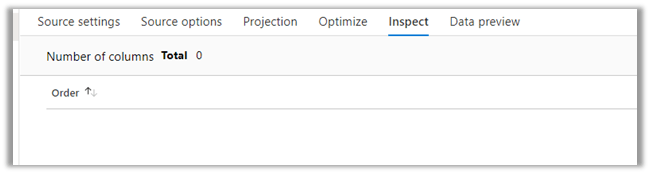
Data preview

As we have not turned on Debug mode, there is nothing to preview
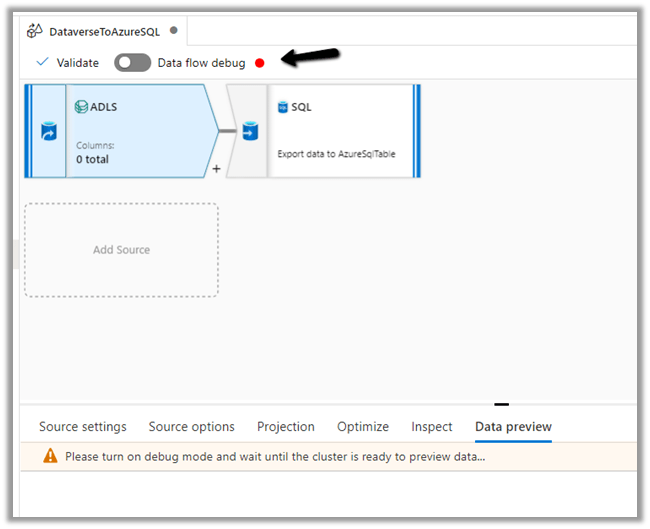
Now let us move to our Destination – SQL.

Sink

Here we have AzureSQLTable dataset connected to contact table in Azure SQL and have checked Allow schema drift option.


Below is our AzureSQLTable Dataset connected to the MyContacts table.

Settings

Here we have selected Allow Insert as the Update Method and Table
action as Recreate table – as we want the destination table to be re-created dynamically based on the source.

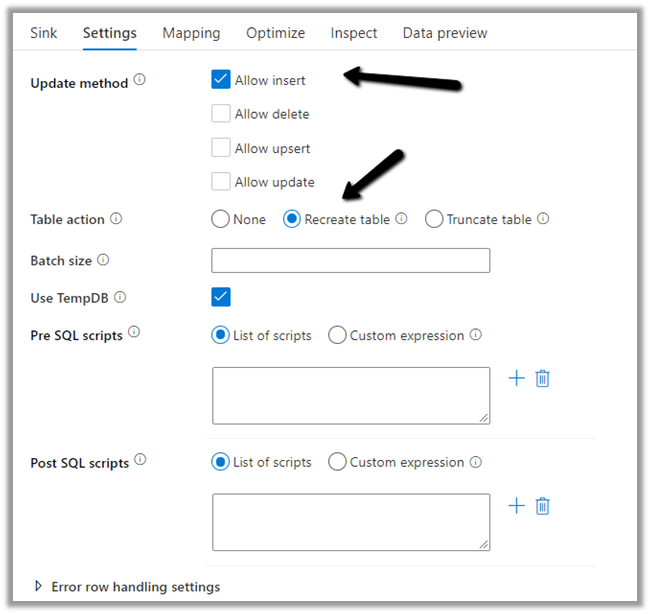
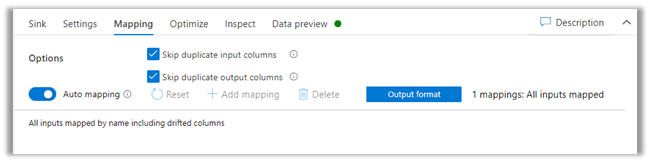
Mapping

We have left it to Auto mapping.
Optimize

Inspect

Data preview

Let us Publish All our changes and Debug our pipeline.

Let us monitor our pipeline run.

We can see that pipeline has run successfully and took around 4 minutes.
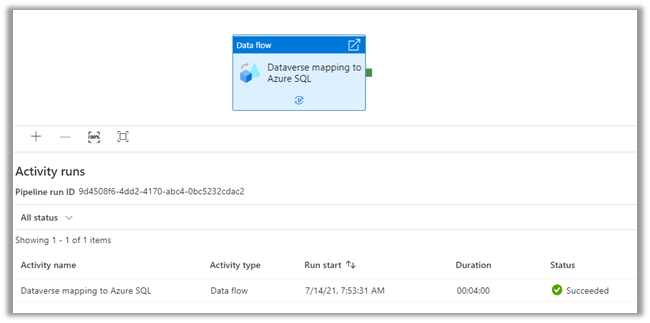
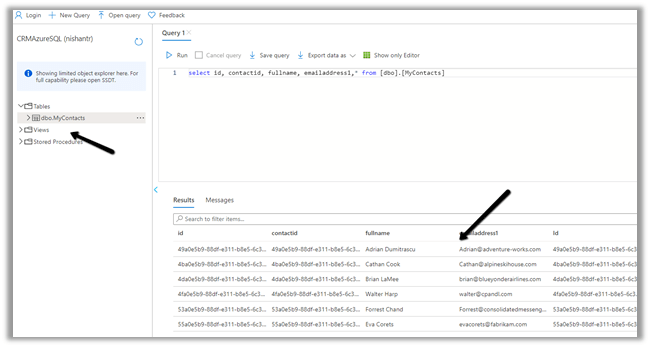
We can see the contact’s data copied to our Azure SQL successfully.
So here we covered the insert operation, in the next posts we’d see how we can configure update, upsert and delete operation.

Also, check

Posts on Azure Data Factory

Posts on Azure Data Lake

Hope it helps..
Update Personal Options / Personalization Settings using UpdateUserSettingsSystemUser Request – Dynamics 365


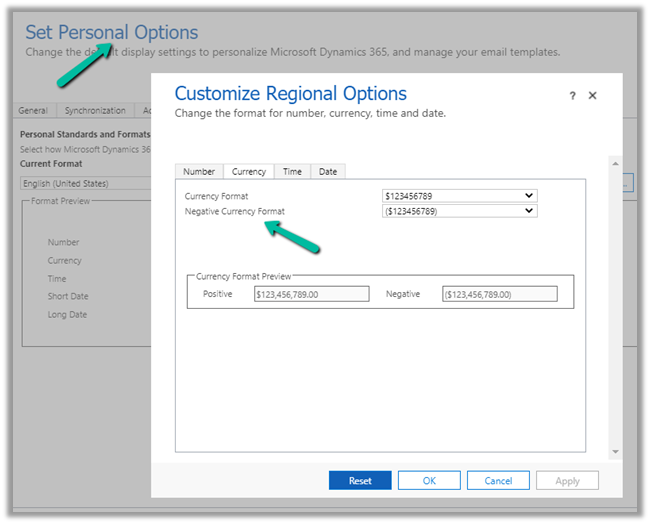
Recently we had a requirement to update the “Negative Currency Format” – Regional Options for all the users.

We could not find this option in our favorite plugin – User Settings Utility.

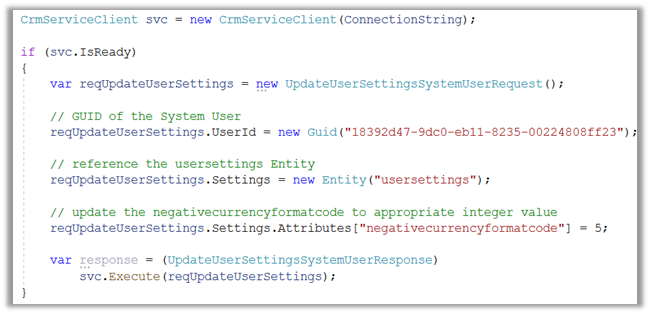
So to programmatically update it we use the below code.

Or using our most favorite plugin – SQL 4 CDS

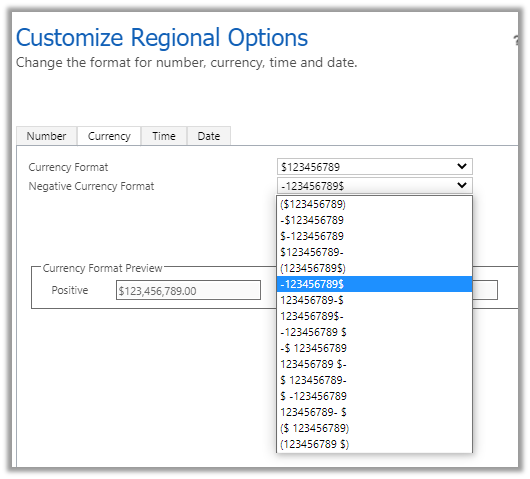
Updating it to the required format – 5

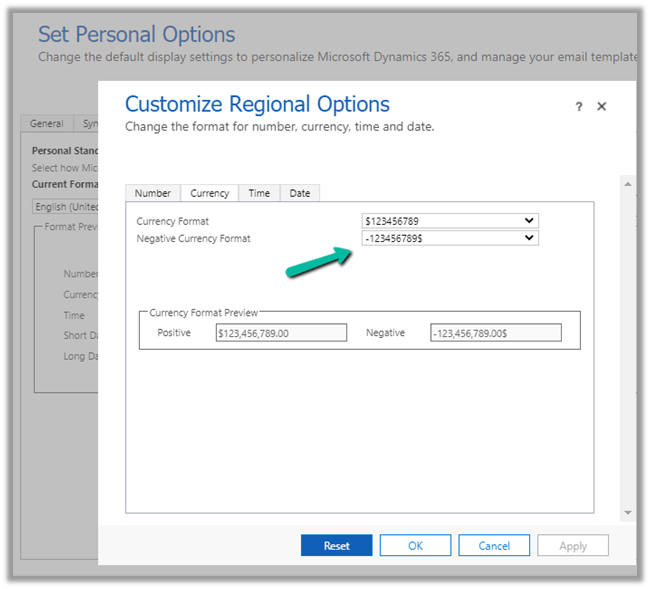
The Result –

Get more details here-

https://docs.microsoft.com/en-us/dynamics365/customer-engagement/web-api/usersettings?view=dynamics-ce-odata-9

Hope it helps..
C# Code –

  CrmServiceClient svc = new CrmServiceClient(ConnectionString);
            
            if (svc.IsReady)
            {
                var reqUpdateUserSettings = new UpdateUserSettingsSystemUserRequest();

                // GUID of the System User
                reqUpdateUserSettings.UserId = new Guid("18392d47-9dc0-eb11-8235-00224808ff23");

                // reference the usersettings Entity
                reqUpdateUserSettings.Settings = new Entity("usersettings");

                // update the negativecurrencyformatcode to appropriate integer value
                reqUpdateUserSettings.Settings.Attributes["negativecurrencyformatcode"] = 5;

                var response = (UpdateUserSettingsSystemUserResponse)
                    svc.Execute(reqUpdateUserSettings);
            }

SQL –

update usersettings 
set negativecurrencyformatcode = 5
where systemuserid = '18392d47-9dc0-eb11-8235-00224808ff23'
Advertisements

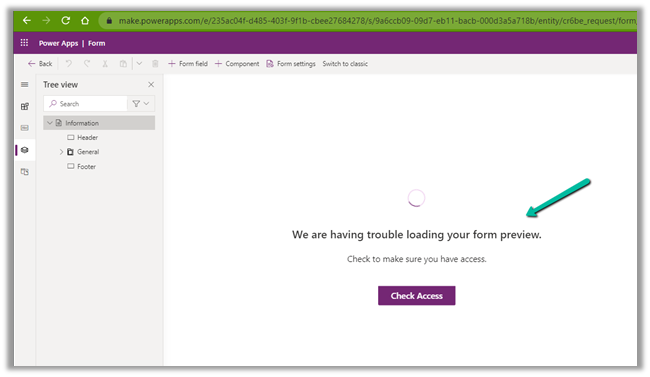
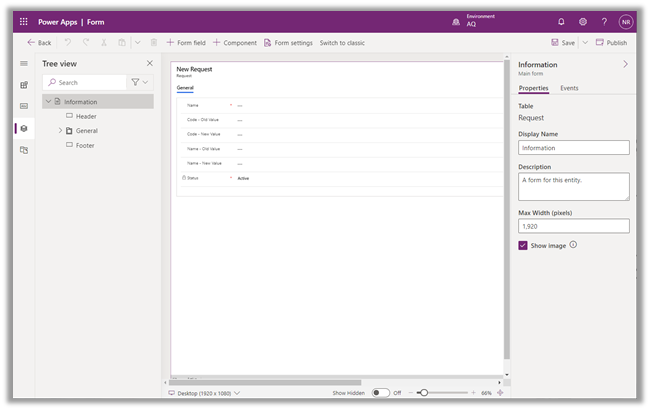
Fixed – We are having trouble loading your form preview. Check to make sure you have access error in Power Apps


While trying to open a form for customization for a custom entity we were getting below error within the maker portal.

The user was an admin user.

The same was the case in both Chrome and Edge browsers.

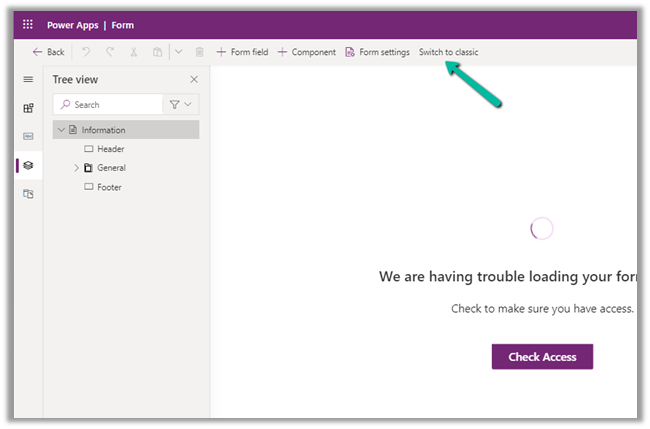
The only way we could proceed was by switching to classic experience.

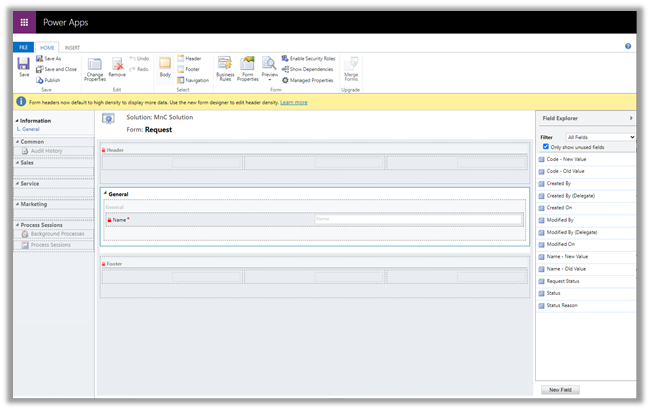
Switching to Classic worked

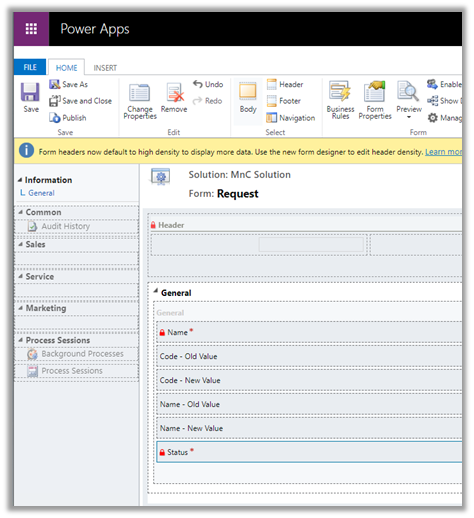
After updating the form in classic and publishing the changes, the form started working properly in the maker portal also.

We were able to customize the form in both Chrome and Edge.

Hope it helps..
How to – Use Advanced lookup in Model-driven Power Apps / Dynamics 365


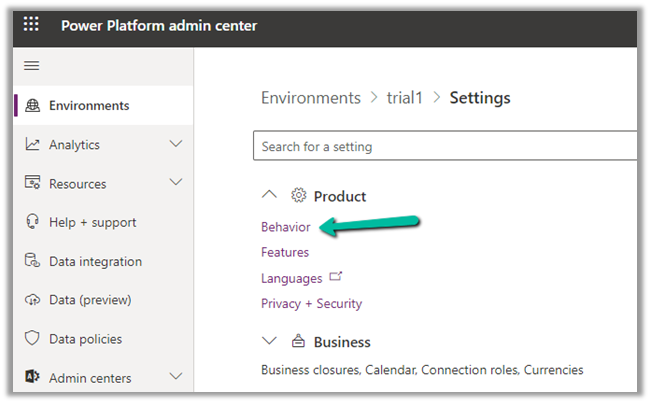
To enabled Advanced Lookup, log into to Power Platform Admin Center, navigate to

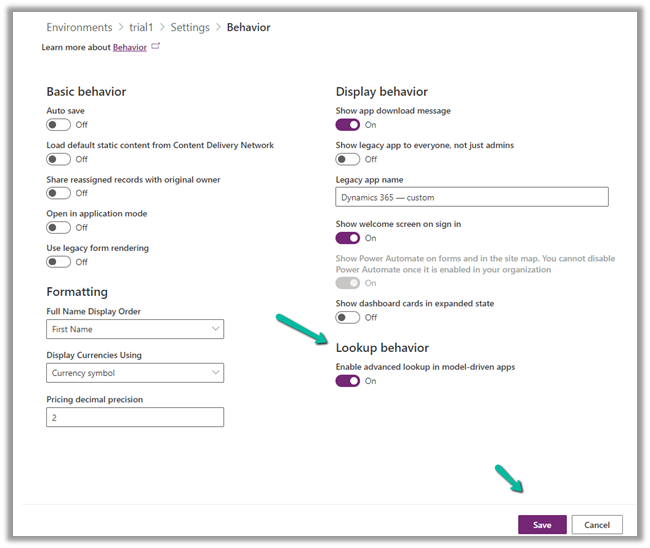
Environment >> [Select Environment] >> Settings >> Behavior

Enable the Lookup behavior and Save.

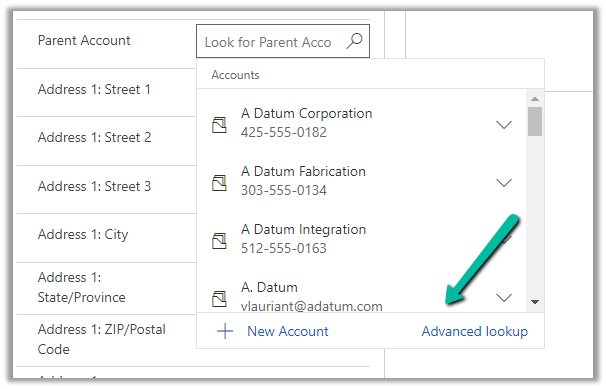
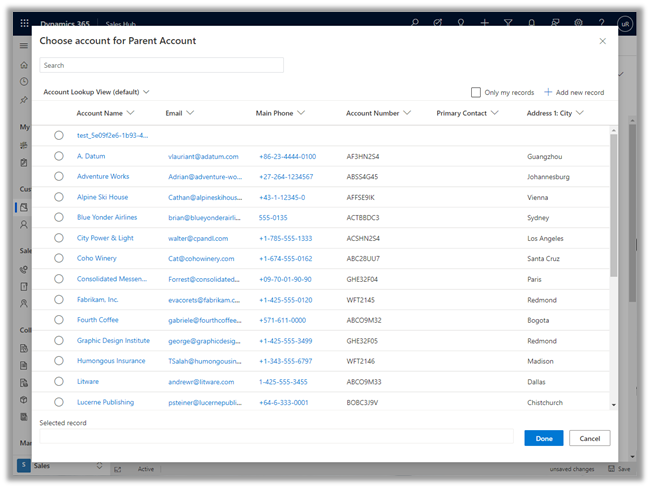
This adds the Advanced Lookup option in the Lookup dialog.


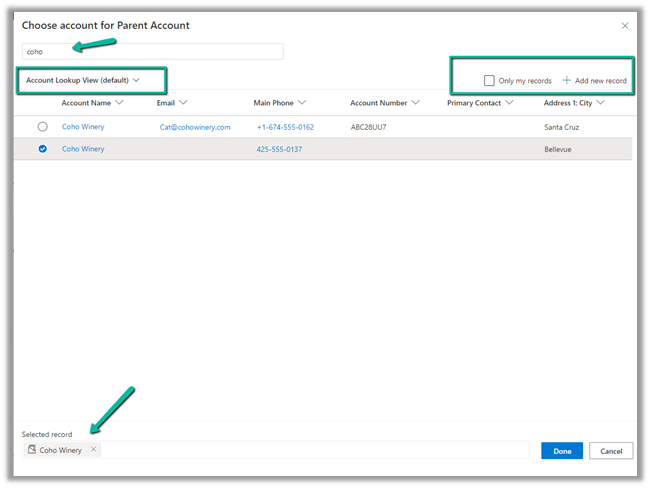
Clicking on it opens the Advanced Lookup Grid 


We can perform SEARCH within a selected View, CHANGE a view, can FILTER it the results further to show only records owned, ADD a new record, SORT the grid.


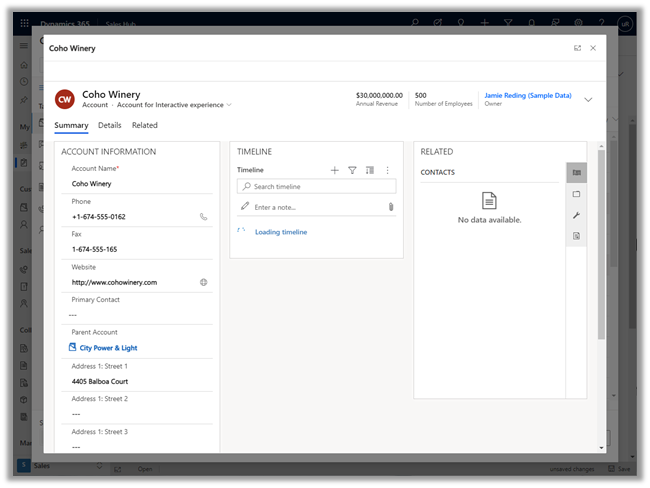
The best part is we can open/edit an existing record as well as add new ones without losing the existing context.

Opening an existing record from the result opens the record in the new pop-up window as shown below.

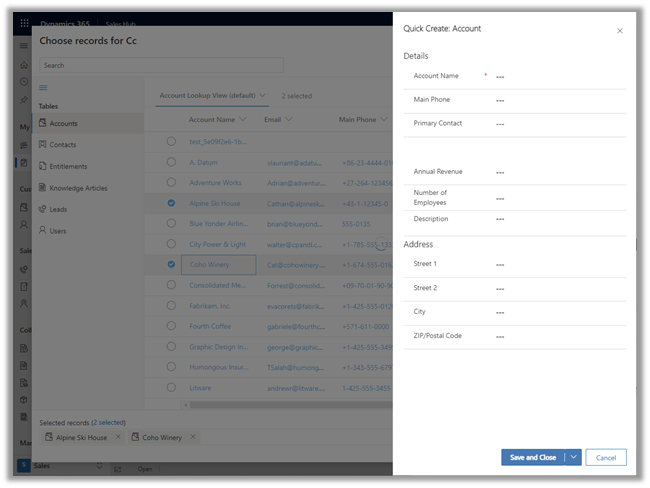
Similarly, the Add new option opens the Quick Create form.

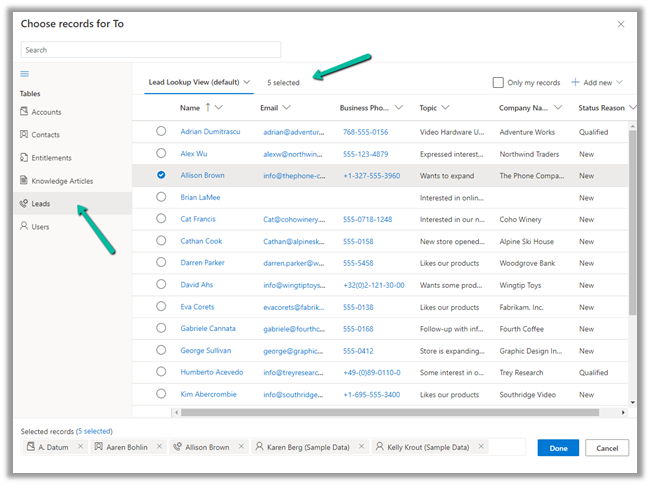
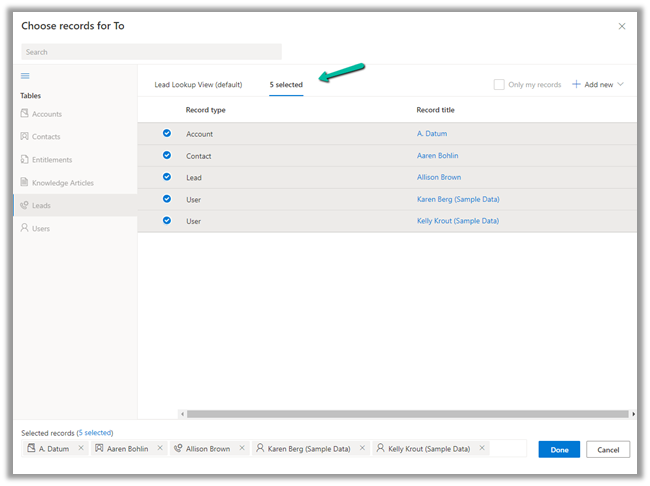
In case of special data type like Party List or Regarding, we can select multiple records of different entities we are presented with.

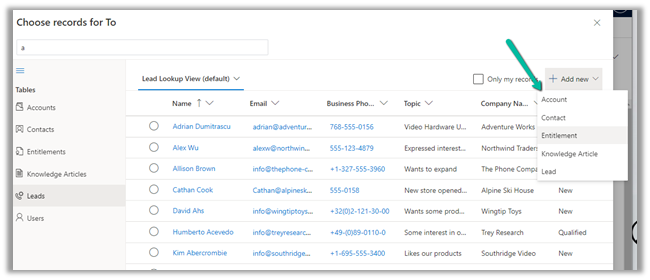
Similar the option to Add new records list all the tables/entities applicable to that lookup.

Thus the new advanced lookup makes working with Lookup much simpler and effective and we should start adapting / using it.

Blog posts on 2021 Release Wave 1 – Dynamics 365

Hope it helps..

Advertisements

Solved – window onload undefined error in Dynamics 365


Recently we got the below issue raised by the user on form load of one of the entities.


Most of the times this issue will arise because of the control / attribute being referenced in the JavaScript, being not available on the form.

And same was the case here, one of the JavaScript’s associated with the ribbon button, was referring to business process field (header_process_xxxxx) which was not available on the form.

Hope it helps..

Scan business cards in Dynamics 365 for Sales – 2019 Release Wave 2 (Unified Interface)


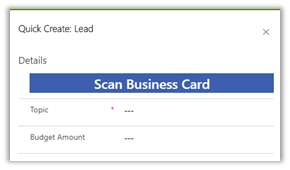
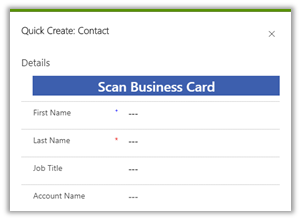
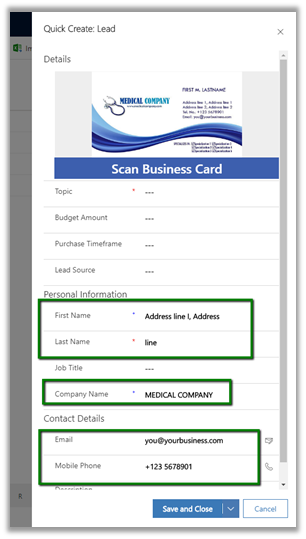
The scan business card feature added as part of release wave 2, allows salespeople to quickly scan business cards using the Quick Create Form. The scanner reads the information from the card and populates the corresponding mapped fields in the record.

Out of the box, it is available in quick create form of lead and contact entity.

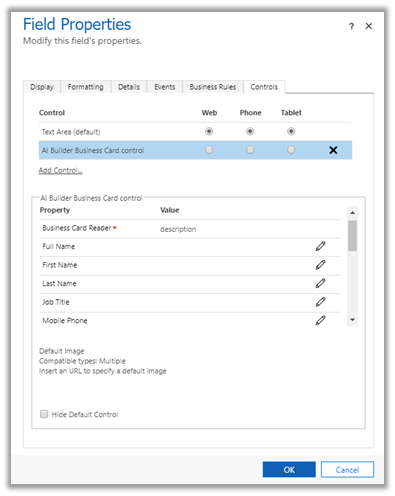
To specify the mapping for the business card control fields, navigate to Settings – Customizations and open the Quick Create form and select the Business Card Control and go to the Controls tab for its properties.

Click on the edit icon for the field and specify the mapping.

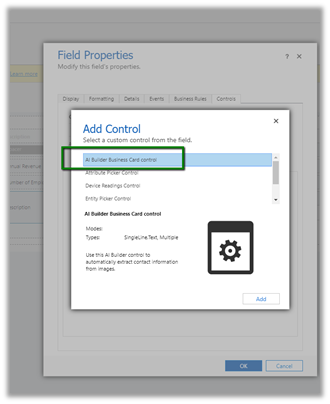
To enable for entities other than lead and contact, open the quick create form of that entity for customization and select either single or multiple lines of text field as a placeholder and add the business card control to it.

Followed by appropriate mapping of properties to the fields of that entity.

To see it in action let us create a new lead record using it’s quick create form. On click on the Scan Business Card button and selecting an image we get the values populated on the form.

Make sure to enable the free trial of AI Builder.

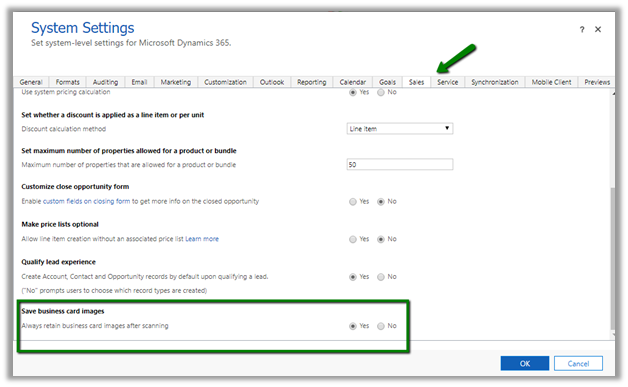
We can see the business card attached/saved with the record.

This behaviour can be configured.

Navigate to Sales Tab of System Settings

Few points to consider here

  • This feature is only available in North America and the EMEA region for now.
  • The mapping of address fields is not supported currently.
  • The users need to have a Common Data Service User role to use the control.

Hope it helps..