Upcoming updates to Azure Synapse Link / Export to Data Lake Service – 2020 Release Wave 2


As we know – Export to Data Lake service enables continues replication of CDS entity data to Azure Data Lake Gen 2

Below are some the interesting update coming to it –

Configurable Snapshot Interval – currently the snapshots are created hourly– which will be configurable.

Cross Tenant Support – Currently Azure Data Lake Gen2 and CDS environment needs to be in same tenant. With the new update we will be able to use Azure Storage part of a different tenant.

Dashboard support that will show the count and visual trend of records especially helpful for large data sets.

Parquet format support – currently the CDS entity data is exported in .csv format, going forward with 2020 Release wave 2, the support for Parquet format will be added for improved efficiency terms of storage and performance.

Support for exporting Audit data that can be used for analysis and reporting.

Support for entities with attachments

Soft Delete – Deleting data from source but still keeping it in the Data Lake.

Get all details here –

https://docs.microsoft.com/en-us/power-platform-release-plan/2020wave2/cdm-data-integration/export-data-lake

Posts on Azure Data Lake

Hope it helps..

Advertisements

Child flows in Power Automate Compared to Child Workflows


Great article- comparing child workflow and child flow

Sara Lagerquist's avatarSara Lagerquist

The child flow feature in Power Automate differs from how the child workflow feature from the classic workflow engine in Dynamics 365 works. This article will take you through how you can build your first child flows in Power Automate and what to expect to be different from what you might be used to.


View original post 828 more words

Manage Parent Child Cases in CRM


anilambadan's avatarcrmcooking

In Microsoft Dynamics CRM you can manage multiple cases efficiently using parent and child cases. If you want to records same issue for multiple customers, you can open a primary case called parent case and then create a secondary case called child case.

Please consider the following scenario. Multiple customers are calling about to report ‘No water supply’ in an area/postcode related to burst pipeline. Instead of creating a new case for each customer , you can create a master case to record the pipe burst incident and then create child cases when customers call in about to report ‘water supply’ issue in the same area.

Before creating the parent child cases, We can set Parent and Child case settings like the attributes to be copied from parent case to child case and case closure preferences.

Setting–>Service Management–>Parent and Child case Settings

Case Settings

Using Case Settings screen, we will be able…

View original post 273 more words

Improved duplicate detection and merge experience in Dynamics 365 for Sales– 2020 Release Wave 2


2020 Release Wave 2 brings improvement in duplicate detection and merge capabilities.

Check other posts on Release 2020 Wave 2

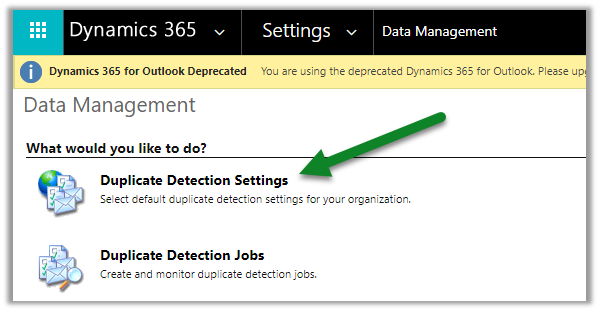
To enable it, navigate to – Settings > Data Management > Duplicate Detection Settings

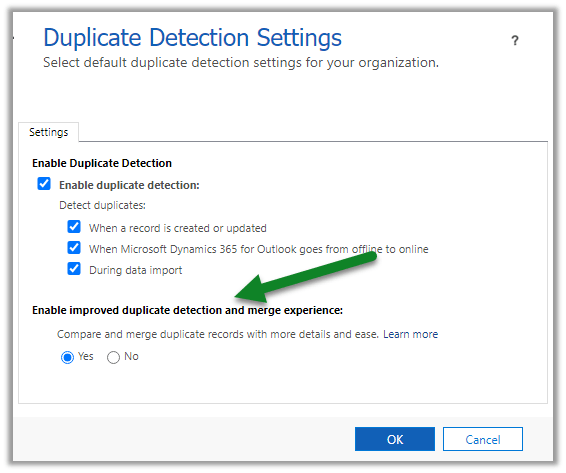
Enable it –

With this enabled, the user can see why a record is being flagged as duplicate, it also allows users to merge the record using the improved Merge dialog box while the record is being added, updated, or quailed as in case of lead.

On creating a duplicate contact record with the same last name and first name, the dialog box opens up.

We can select any of the matched records and click on the Merge button to merge it.

We can see the different options within the merge dialog box.

Selecting the appropriate options, and clicking on Ok merges the record.

Hope it helps ..

Advertisements

D365 CE: Show/Hide and Enable/Disable same field placed in multiple tabs using JavaScript


Ajit Patra's avatarAjit Patra

We often put the same fields in different tabs based on business requirements.

To Hide/Show such fields we need to use below script:

var formContext = executionContext.getFormContext();
formContext.getAttribute("fieldName").controls.forEach(
function (control, i) {
     control.setVisible(false/true);
});

Similarly, to Enable/Disable such fields we need to use below script:

formContext.getAttribute("fieldName").controls.forEach(
function (control, i) {
        control.setDisabled(false/true);
    });

Without using the loop the script only works for the first occurrence of the field.

Hope it helps !!

View original post

Snapshot in Azure Data Lake (Dynamics 365 / CDS) – Azure Synapse Link


In the previous post, we saw how to export CDS data to Azure Data Lake Gen 2

https://nishantrana.me/2020/09/07/export-data-from-common-data-service-to-azure-data-lake-storage-gen2/

Here let us have a look how the sync and snapshot work.

We have already done the configuration and have synced the Account and Contact entity.

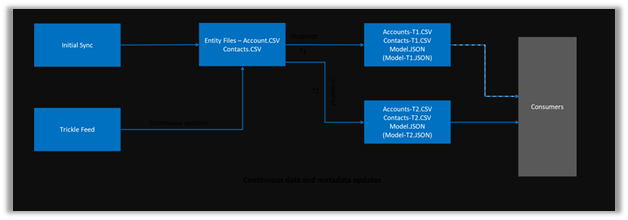
As the diagram depicts – there is initial sync followed by incremental writes for both entity data and metadata.
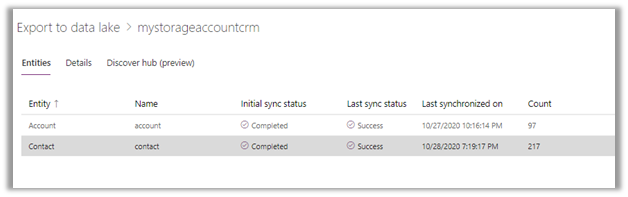
Below we can see we had initial sync completed for both contact and account entity, followed by an update in contact record which triggered another incremental sync – last synchronized on.
Within our storage container, we can see a folder created for each of the entities selected for sync.

As a part of initial sync or export, the entity data is written in CSV files
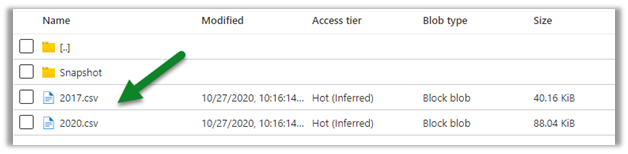
Changes in CDS are pushed to the CSV files continuously. (create, update and delete) along with a snapshot.

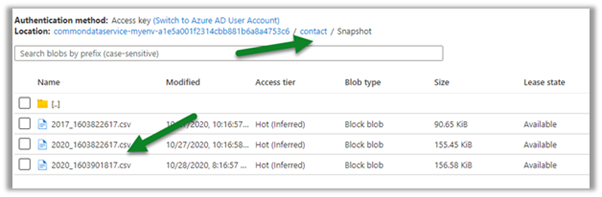
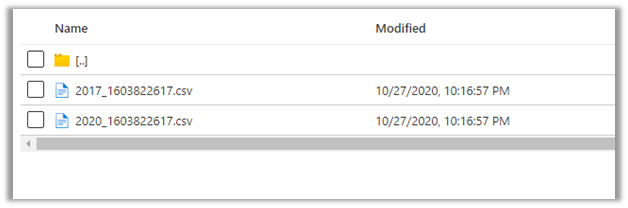
Within the Snapshot folder, we can see the snapshot added if there any change in the entity’s data.

Here for an account, we had no change.
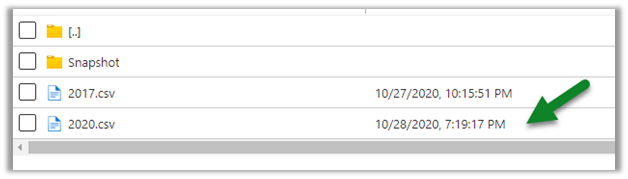
Now let us look at the contact entity, here we can see the update in the 2020.csv file.
Let us look at the snapshot generated for contact; it shows no update as we have checked it within a 1-hour window of the update.

Snapshot is a read-only copy of data, which is updated at regular interval i.e. 1 hour, this ensures that the user is looking at a data which is not constantly getting refreshed.
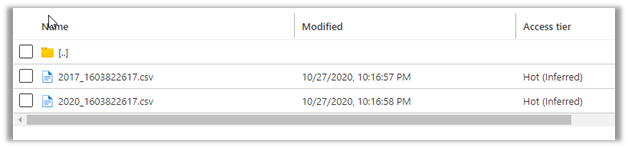
Refreshing after some time, we can see the new snapshot added for the Contact entity.

As expected, no new snapshot for the Account entity as there was no change.
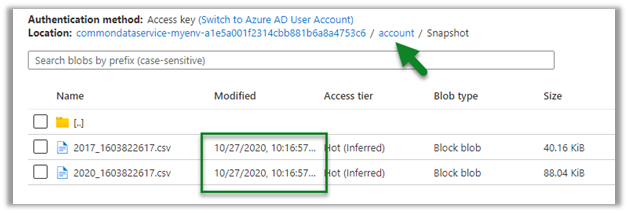
Let us create a new contact record, and see when we see the update in the CSV file and when does the new snapshot gets created.

We have created a new contact record around 8:30.

This was earlier before the update was made
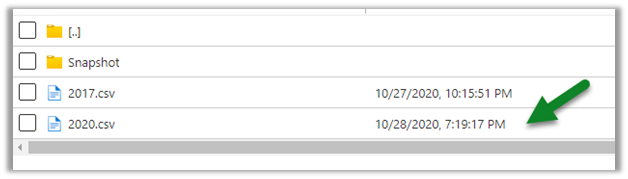
Within 5 minutes we can see the update in the CSV file
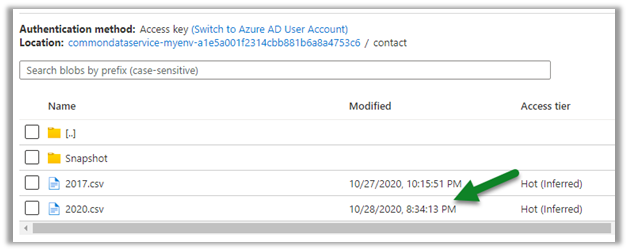
And as expected another snapshot at 9:16 exactly after one hour of the first snapshot.

Get all the details here

https://docs.microsoft.com/en-us/powerapps/maker/common-data-service/export-to-data-lake

Posts on Azure Data Lake

Hope it helps..

Advertisements