Power Apps now lets us render a column’s data as a small graphic in the grid – a gauge, a sparkline, a colored bar, or stars – instead of plain text. We tried it out on a couple of our own columns, and here’s a quick step-by-step on how to set it up, along with the data format each visualization expects.
This is a preview feature, so it’s best tried out in Dev/Sandbox for now rather than rolled out to production grids.
Pick a Visualization for the Column
Sign in to Power Apps (make.powerapps.com) → Solutions → open the table.
Open the column to edit (or create a new one).
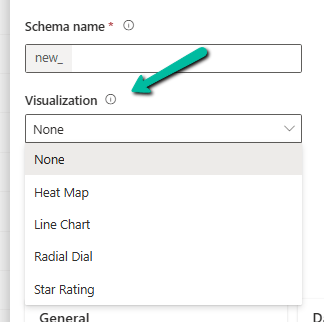
Expand Advanced options → “Visualization”.
Select one of: Heat Map, Line Chart, Radial Dial, Star Rating.
Save. Every grid or view showing that column now shows the graphic automatically.
That’s it – it’s a one-time setting on the column, not something you configure per view.
Know What Data Each One Expects
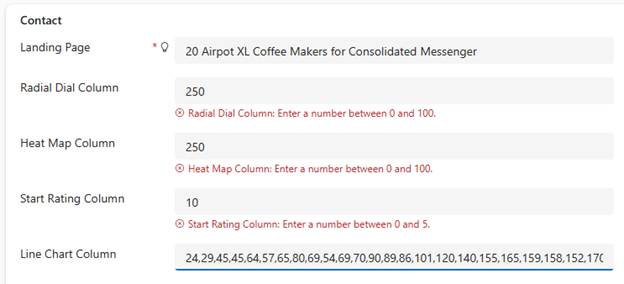
This is the part that actually matters – each visualization is strict about the shape of the data behind it.
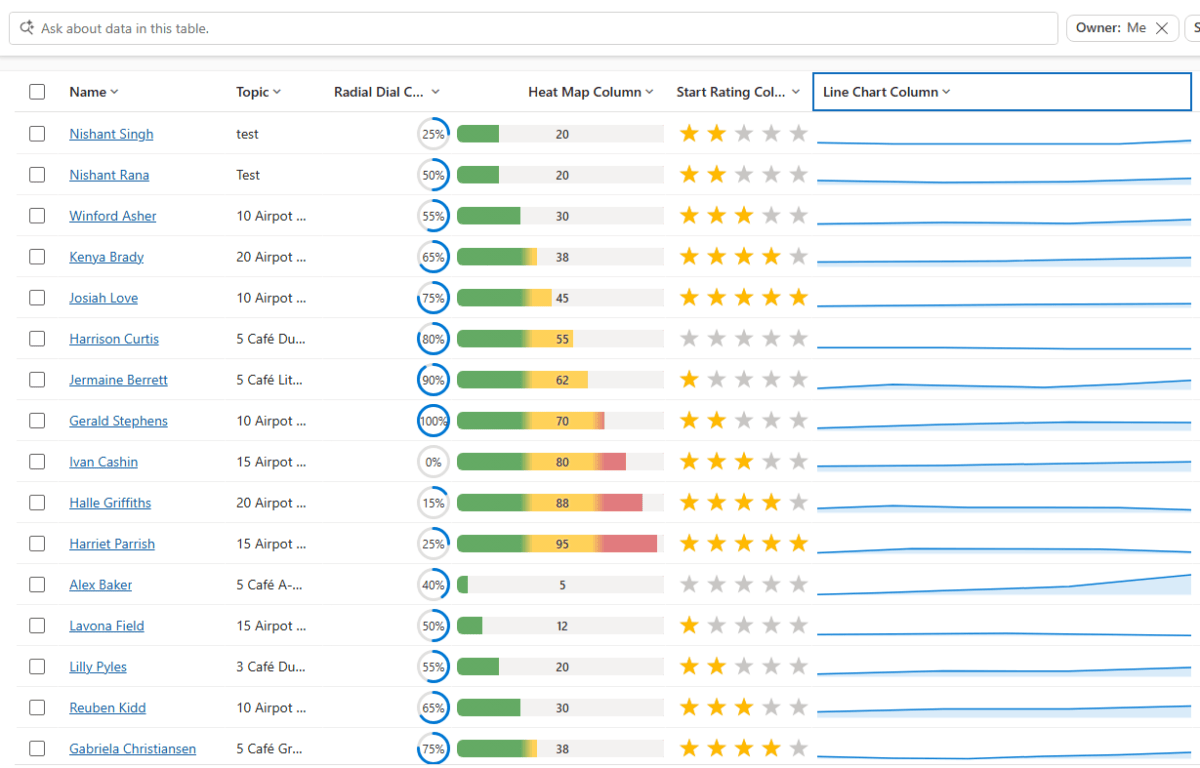
Radial Dial: expects a single value, 0–100. Example: 60 → ring 60% full.
Heat Map: expects a single value, 0–100 by default. Example: 90 → bar colored red (high).
Star Rating: expects a value from 0 to the star count, 5 by default. Example: 3 → three stars filled.
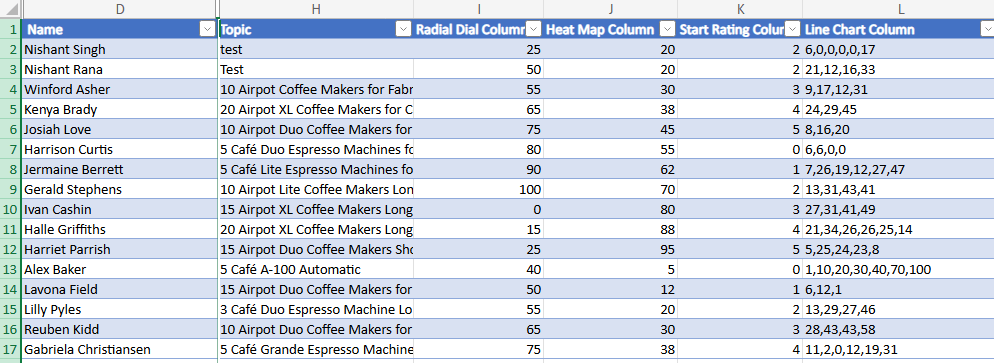
Line Chart: expects comma-separated numbers, 100 characters maximum length. Example: 10,20,30,45 → a trend line.
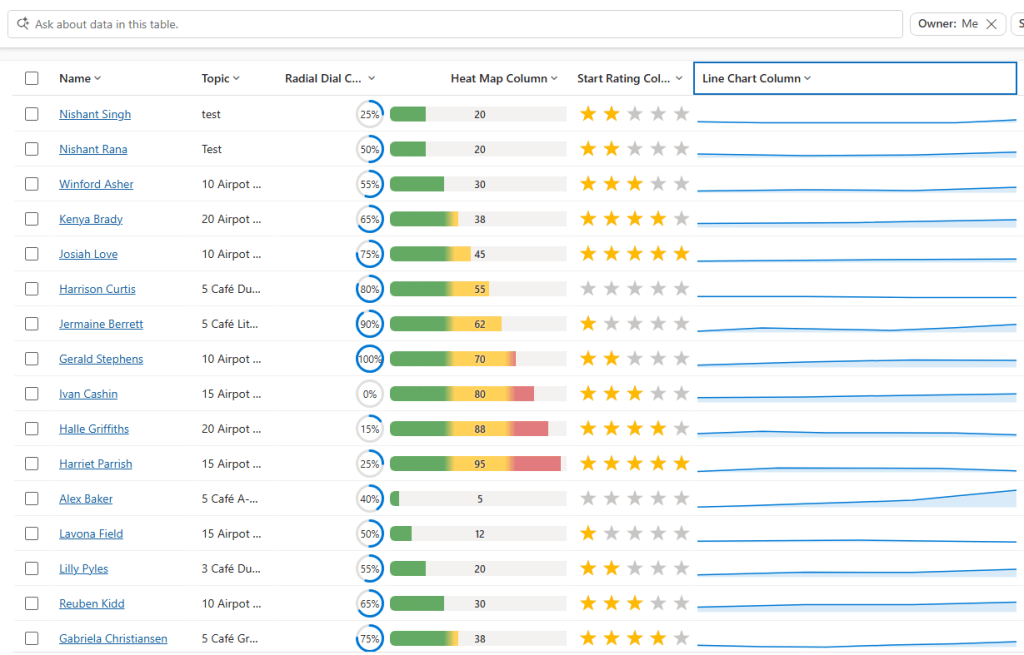
For .e.g the data for these columns –
Below is how they are rendered in a view.
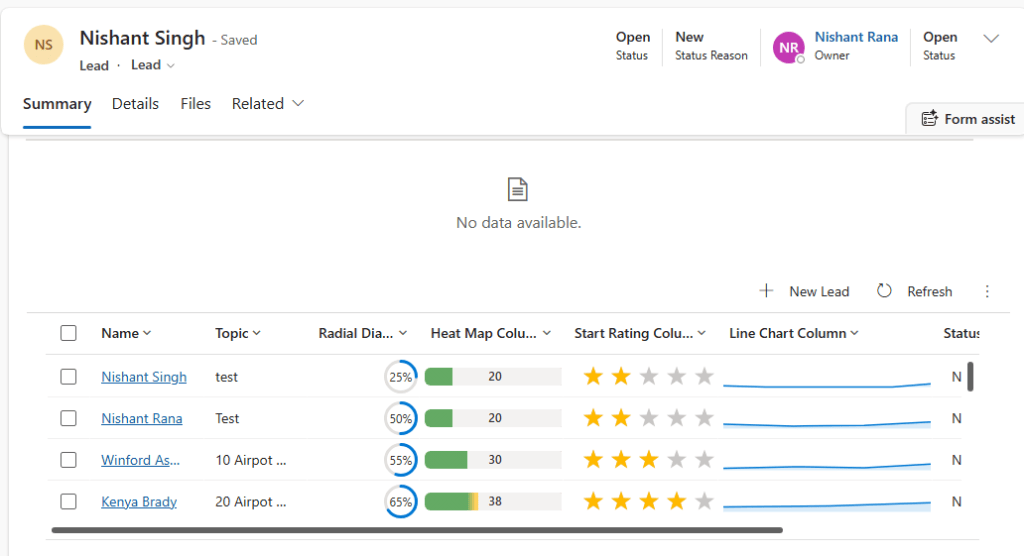
And this is as a subgrid.
Key Takeaway
Set the visualization once on the column, keep the underlying data clean (0–100 for Radial Dial/Heat Map, comma-separated numbers for Line Chart, 0 to 5 for Star Rating), and every grid using that column just works. Most issues we ran into came down to one thing – the value wasn’t stored the way the visualization expected.
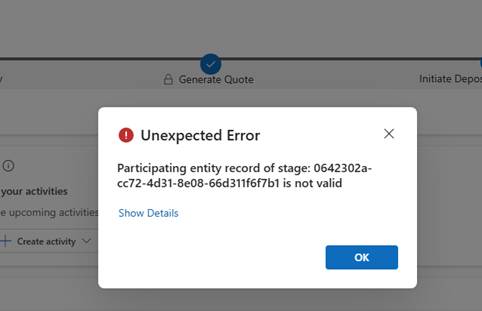
Working on a custom multi-entity Business Process Flow (Opportunity → Quote) recently, we ran into this error while trying to reactivate the process:
The BPF (custom_salesprocess) had already traversed several stages — Generate Opportunity → Qualify → Generate Quote → Initiate Deposit/Bank Guarantee → Sales Completion — before landing on PM Completion, which sits in the “Close” category.
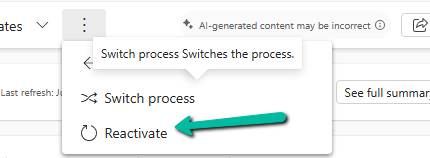
Reactivating the process at that point is where it failed.
In a multi-entity BPF, each stage is bound to a specific entity via processstage.primaryentitytypecode, and the BPF instance record carries a lookup column per non-primary entity used in the flow (e.g. bpf_opportunityid, bpf_quoteid). When a stage tries to activate, Dataverse resolves the “participating entity” for that stage — and if the corresponding lookup on the instance is null, or points to a record that no longer exists (or the user can’t read), we get exactly this error.
Diagnosis
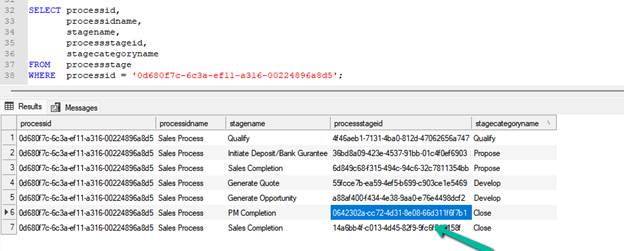
First, we check for the processtageid we got in the error – 0642302a-cc72-4d31-8e08-66d311f6f7b1
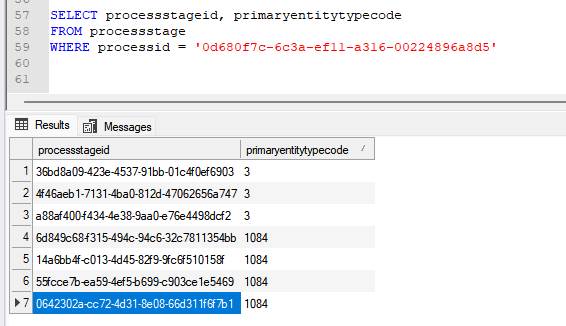
SELECT processstageid, primaryentitytypecode
FROM processstage
WHERE processid = '0d680f7c-6c3a-ef11-a316-00224896a8d5'
Then we confirm what entity each stage actually maps to using the processid:
PM Completion resolves to Quote (1084) — not Opportunity — which meant the BPF instance needed a valid bpf_quoteid to activate it.
Checked the instance directly:
SELECT * FROM custom_salesprocess WHERE businessprocessflowinstanceid = '682f0586-3660-f111-a826-00224892607c' or bpf_opportunityid = '9e5bdc52-62d4-4773-8d30-fba2089ceba2'
bpf_quoteid and bpf_quoteidname both came back NULL — despite an active Quote already existing against the Opportunity. Something along the way (likely the Quote being created outside the BPF’s native “generate related record” flow) never linked it back.
Fix
A quote existed, so it was a matter of linking it. The preferred route is the related-entity picker on the BPF stage bar in the Opportunity form (safest, goes through supported platform logic). Where that’s not viable, updating the lookup directly works:
UPDATE custom_salesprocess SET bpf_quoteid = '18cc66e2-9280-f111-ab0f-7c1e528a7a2a' WHERE businessprocessflowinstanceid = '682f0586-3660-f111-a826-00224892607c';
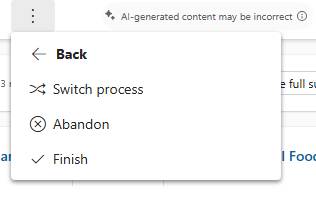
After the update, the process reactivated cleanly.
We got the options to Abandon and Finish the flow.
Rules of thumb
Multi-entity BPF errors on activation → check the stage’s primaryentitytypecode first. If it’s not the primary entity you’re working from, the instance needs a valid lookup to that other entity.
The instance table always carries one lookup column per entity in the flow (bpf_<entity>id) — go straight to that table and check for nulls before looking anywhere else.
A null lookup with a record that already exists usually means the record was created outside the BPF’s intended path (manually, via integration, or via a process that bypasses the stage’s native record-generation step) and never got linked back.
Before manually setting the lookup, confirm the target record’s statecode/statuscode — a Won/Closed or inactive record may satisfy the lookup but still fail stage entry criteria if a business rule checks for an active state.
Prefer the BPF’s own related-entity picker on the form over a direct table update where available — it’s the supported path and won’t skip any platform-side validation.
Key takeaway
“Participating entity record of stage: X is not valid (0x80040216)” on a multi-entity BPF almost always means the stage’s bound entity has no valid linked record on the BPF instance. Trace the stage to its entity via primaryentitytypecode, check the corresponding bpf_<entity>id lookup on the instance, and link a valid, active record.
We recently refactored a large JavaScript solution — replacing a number of deprecated methods with their supported equivalents, along with some performance improvements — the kind of change that touches a lot of files without changing what any of them are actually supposed to do. That solution needed to go out to three Production environments, and before rolling it out, we wanted to be sure of one thing: were all three Prod environments currently running the same JavaScript to begin with? If one of them had quietly drifted from the others over time — a direct hotfix, a missed deployment — we wanted to know that before deploying, not after.
That’s what led us to write this utility. And while our own case was three Prod environments, there’s nothing about it that ties it specifically to Dev/UAT/Prod — that’s just the most common shape for this kind of check. The source is really just “the environment whose solution I want to treat as the baseline,” and the target(s) are “however many environments I want to check that baseline against.” You could just as easily point the source at UAT and compare it against multiple Staging / DM / UAT instances, or point it at Prod and verify a DR/failover environment matches — any number of targets can be listed, and each is compared against the source independently, so you always know exactly which environment(s) are out of step rather than just “something, somewhere, differs.”
To keep this post simple, we’ll walk through a smaller example here — a Dev environment with two solutions that between them contain a handful of JS web resources — and compare it against UAT and Prod to confirm all three environments.
The approach
Rather than matching components by name across environments, we used the solutioncomponent entity to pull the exact web resource GUIDs belonging to our solution from the source environment (Dev). This matters because a component’s GUID stays the same wherever it travels via solution import — so the same GUID can be looked up directly in every other environment, with no name-matching guesswork involved.
For each web resource, in each environment:
Retrieve the content field (base64-encoded) and decode it.
Compute a SHA-256 hash of the decoded bytes.
If two environments produce the same hash for the same GUID, the files are guaranteed byte-identical. If the hashes differ, something changed — even a single character is enough to produce a completely different hash.
Sample Code –
private const int COMPONENTTYPE_WEBRESOURCE = 61;
private const int WEBRESOURCETYPE_JSCRIPT = 3;

private static List<Guid> GetJavaScriptWebResourceIds(IOrganizationService svc, List<string> solutionUniqueNames)
{
    var solutionQuery = new QueryExpression("solution")
    {
        ColumnSet = new ColumnSet("solutionid")
    };
    solutionQuery.Criteria.AddCondition("uniquename", ConditionOperator.In,
        solutionUniqueNames.Cast<object>().ToArray());
    var solutionIds = svc.RetrieveMultiple(solutionQuery).Entities
        .Select(s => s.Id).Cast<object>().ToArray();

    var compQuery = new QueryExpression("solutioncomponent")
    {
        ColumnSet = new ColumnSet("objectid")
    };
    compQuery.Criteria.AddCondition("solutionid", ConditionOperator.In, solutionIds);
    compQuery.Criteria.AddCondition("componenttype", ConditionOperator.Equal, COMPONENTTYPE_WEBRESOURCE);

    var allWebResourceIds = svc.RetrieveMultiple(compQuery).Entities
        .Select(e => (Guid)e["objectid"])
        .Distinct()
        .ToArray();

    // The Web Resource component type covers every kind of web resource in the solution -
    // JS, HTML, CSS, PNG, SVG, and so on - not JavaScript specifically. We only want the
    // actual scripts, so we filter again on the webresource entity's own type field.
    var wrQuery = new QueryExpression("webresource")
    {
        ColumnSet = new ColumnSet("name")
    };
    wrQuery.Criteria.AddCondition("webresourceid", ConditionOperator.In, allWebResourceIds.Cast<object>().ToArray());
    wrQuery.Criteria.AddCondition("webresourcetype", ConditionOperator.Equal, WEBRESOURCETYPE_JSCRIPT);

    return svc.RetrieveMultiple(wrQuery).Entities
        .Select(e => e.Id)
        .ToList();
}

private static string GetContentHash(IOrganizationService svc, Guid webResourceId)
{
    var e = svc.Retrieve("webresource", webResourceId, new ColumnSet("content"));
    var bytes = Convert.FromBase64String((string)e["content"]);

    using (var sha = SHA256.Create())
    {
        var hash = sha.ComputeHash(bytes);
        return BitConverter.ToString(hash).Replace("-", "");
    }
}
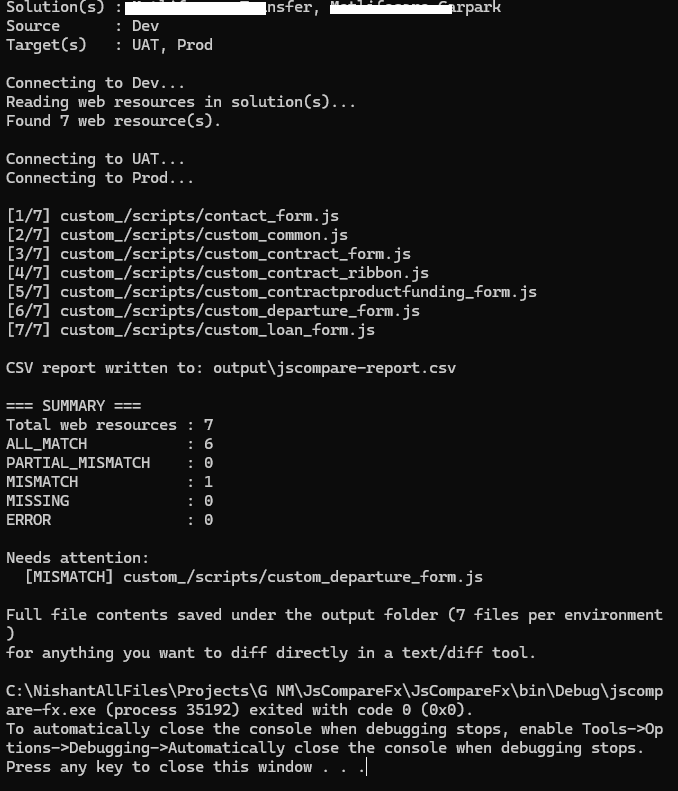
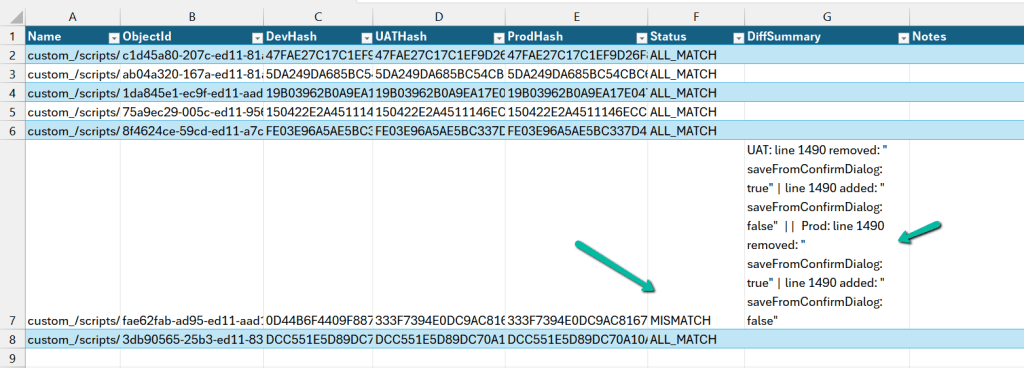
Running this against Dev + UAT + Prod, for every JavaScript web resource GUID found, gives a simple report per environment: MATCH, MISMATCH, or MISSING.
Going a step further — showing what actually changed
A MISMATCH on its own only tells you that something differs, not what. So we extended it to also diff the two files line by line whenever the hashes didn’t match, using a classic LCS (Longest Common Subsequence) based diff — the same underlying idea git diff uses.
private static List<string> DiffTextLines(string baseline, string other, int maxDiffs = 6)
{
    var a = baseline.Replace("\r\n", "\n").Split('\n');
    var b = other.Replace("\r\n", "\n").Split('\n');

    int n = a.Length, m = b.Length;
    var dp = new int[n + 1, m + 1];
    for (int i = n - 1; i >= 0; i--)
        for (int j = m - 1; j >= 0; j--)
            dp[i, j] = a[i] == b[j] ? dp[i + 1, j + 1] + 1 : Math.Max(dp[i + 1, j], dp[i, j + 1]);

    var diffs = new List<string>();
    int x = 0, y = 0;
    while (x < n && y < m && diffs.Count < maxDiffs)
    {
        if (a[x] == b[y]) { x++; y++; continue; }
        if (dp[x + 1, y] >= dp[x, y + 1]) { diffs.Add($"line {x + 1} removed: \"{a[x]}\""); x++; }
        else { diffs.Add($"line {y + 1} added: \"{b[y]}\""); y++; }
    }
    return diffs;
}
This walks a dynamic-programming grid to find the longest sequence of lines common to both files. Everything outside that common sequence is, by definition, either a removed line or an added one — which is exactly what shows up in the report instead of a plain “files differ”.
Every result also gets written out to a CSV, one row per web resource, with a hash column per environment, a Status column, and a DiffSummary column showing the actual line-level differences for anything that doesn’t match.
How it works, end to end
Connects to the source environment (Dev) and reads solutioncomponent for the solution’s unique name, filtered to web resources only.
For each web resource GUID found, fetches that same GUID from every target environment listed (UAT, Prod, or as many as you configure).
Hashes the content from each environment and compares every target’s hash against the source’s hash — independently, so you know exactly which target(s) differ, not just that “something” differs.
For anything that doesn’t match, runs the LCS diff and records the specific lines that changed.
Writes a CSV report and saves every environment’s actual file content to disk, so any mismatch can be opened directly in a diff tool if the summary line isn’t enough.
Using it yourself
The console app is config-driven — no code changes needed to point it at your own solution and environments. config.json looks like this:
SolutionNames — the unique name(s) of the solution(s) holding your web resources. You can list more than one, as in the example above, if your JS is spread across a couple of solutions.
Source — the environment you trust as the baseline (usually Dev).
Targets — as many environments as you want to check, each compared independently against Source.
Once config.json is filled in, just run:
jscompare-fx.exe config.json
and the report and diffed files show up under the configured output folder.
This time, instead of just explaining the root cause again, we put together a quick reference table for converting an Advanced Find date range into the correct SQL4CDS UTC boundary, for any user time zone.
The Scenario
Advanced Find query on Work Orders, filtered on Created On:
On or After 01/01/2026
On or Before 05/01/2026
The user running this is in Auckland, New Zealand. (User’s Time Zone is Auckland)
We were running SQL4CDS in UTC mode. A query that simply matches the literal date strings against createdon will not reliably reproduce the Advanced Find count, because Advanced Find evaluates the date range in the user’s local time zone, while createdon is stored in UTC. The two only line up once the date range is converted to explicit UTC boundaries.
The Reliable Formula
StartBoundaryUTC = StartDate 00:00:00 (user’s local time) → converted to UTC
EndBoundaryUTC = (EndDate + 1 day) 00:00:00 (user’s local time) → converted to UTC
WHERE createdon >= StartBoundaryUTC AND createdon < EndBoundaryUTC
Two points worth calling out:
The upper boundary always uses End Date + 1 day, with a strict <, not <=. This avoids any ambiguity around milliseconds and reliably captures the entire end date.
For time zones ahead of UTC (New Zealand, India), convert by subtracting the offset. For time zones behind UTC (Hawaii, US), convert by adding the offset.
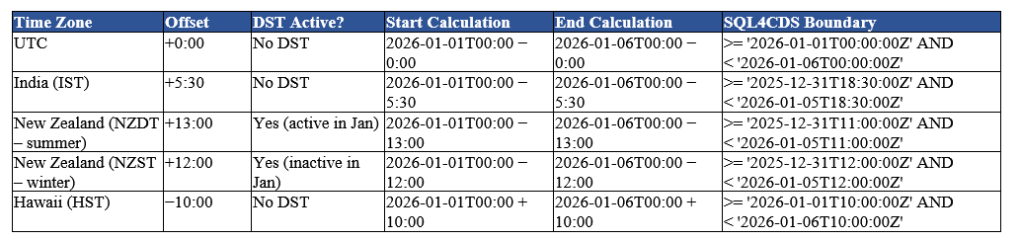
Quick Reference Table
Boundary used below: 1/01/2026 to 5/01/2026 (end boundary = 6/01/2026 local, converted to UTC).
Time Zone
Offset
DST Active?
Start Calculation
End Calculation
SQL4CDS Boundary
UTC
+0:00
No DST
2026-01-01T00:00 − 0:00
2026-01-06T00:00 − 0:00
>= ‘2026-01-01T00:00:00Z’ AND < ‘2026-01-06T00:00:00Z’
India (IST)
+5:30
No DST
2026-01-01T00:00 − 5:30
2026-01-06T00:00 − 5:30
>= ‘2025-12-31T18:30:00Z’ AND < ‘2026-01-05T18:30:00Z’
New Zealand (NZDT – summer)
+13:00
Yes (active in Jan)
2026-01-01T00:00 − 13:00
2026-01-06T00:00 − 13:00
>= ‘2025-12-31T11:00:00Z’ AND < ‘2026-01-05T11:00:00Z’
New Zealand (NZST – winter)
+12:00
Yes (inactive in Jan)
2026-01-01T00:00 − 12:00
2026-01-06T00:00 − 12:00
>= ‘2025-12-31T12:00:00Z’ AND < ‘2026-01-05T12:00:00Z’
Hawaii (HST)
−10:00
No DST
2026-01-01T00:00 + 10:00
2026-01-06T00:00 + 10:00
>= ‘2026-01-01T10:00:00Z’ AND < ‘2026-01-06T10:00:00Z’
Since January falls in NZ summer, the Auckland user’s boundary above uses NZDT (+13:00):
SELECT count(1)
FROM msdyn_workorder
WHERE createdon >= '2025-12-31T11:00:00Z'
AND createdon < '2026-01-05T11:00:00Z'
This reproduces the Advanced Find count for the same range.
NZ DST Transition Windows
New Zealand does not stay on a single offset year-round, so the correct value depends on the date range being queried, not the date the query is run.
Period
Offset
Late Sep – early Apr (NZDT)
UTC+13
Early Apr – late Sep (NZST)
UTC+12
Confirm the exact transition dates for the specific year, as they shift slightly.
Rules of Thumb
Rule
Reason
End boundary = End Date + 1 day, use < not <=
Captures the full end date without truncating time
Time zones ahead of UTC: subtract the offset
UTC = Local − Offset
Time zones behind UTC: add the offset
UTC = Local + Offset
Check DST for the query dates, not today’s date
The same time zone can have two different offsets depending on the time of year
Key Takeaway
When running SQL4CDS in UTC mode, the reliable and repeatable approach is to convert the Advanced Find date range into explicit UTC boundaries using the local-time offset (accounting for DST where applicable), and query using >= / < against those boundaries.
Reference
For more background on how SQL4CDS interprets date and time values in UTC vs Local mode, see Mark Carrington’s article: Date/Time handling in SQL 4 CDS
While optimising the performance of a Dataverse plugin, we noticed a QueryExpression using ColumnSet(true). The business logic only required a few attributes, so replacing ColumnSet(true) with a minimal ColumnSet looked like an easy performance improvement. The query also used Distinct = true, which we left unchanged because it had always been there and everything was working correctly.
The Original Query
query.ColumnSet = new ColumnSet(true);
query.Distinct = true;
We changed the query to retrieve only the attributes required by the business logic:
query.ColumnSet = new ColumnSet(
    "msdyn_systemstatus",
    "msdyn_datewindowstart",
    "custom_cancelledreason");
query.Distinct = true;
The optimisation looked perfectly valid. The query returned the expected records, but part of the plugin logic suddenly stopped working.
The Unexpected Bug
The plugin compared Work Orders using Entity.Id to determine whether a record already existed in a collection. During debugging, we discovered that every retrieved entity had Guid.Empty as its Id, causing the comparison logic to fail and duplicate records to be added.
Finding the Root Cause
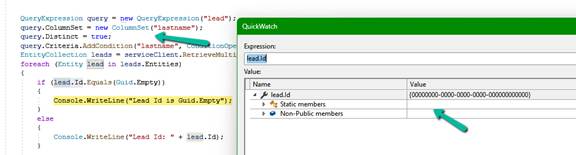
To isolate the problem, we reproduced the behaviour with a simple Lead query.
QueryExpression query = new QueryExpression("lead");
query.ColumnSet = new ColumnSet("lastname");
query.Distinct = true;
Once again, the record was returned successfully, but Entity.Id was Guid.Empty.
While reading the Microsoft documentation for QueryExpression.Distinct, we found the following remark:
“When the Distinct property is true, the results returned don’t include primary key values for each record because they represent an aggregation of all the distinct values.”
The Fix
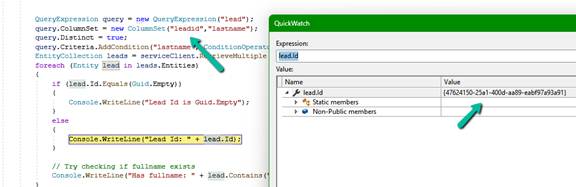
Including the primary key in the ColumnSet resolved the issue.
query.ColumnSet = new ColumnSet("leadid", "lastname");
query.Distinct = true;
After this change, both Entity.Id and the leadid attribute were populated correctly.
One More Observation
While investigating the issue, we realised something else. The original query used ColumnSet(true) together with Distinct = true. Since ColumnSet(true) retrieves every readable attribute, including the primary key, every record is already unique because the primary key itself is unique. In that particular QueryExpression there were no LinkEntity joins or other scenarios that could naturally produce duplicate rows. That meant Distinct = true was not really providing any value. In fact, once we reviewed the query, removing Distinct = true was a cleaner solution than simply adding the primary key back into the ColumnSet. This serves as a useful reminder that performance optimisation is not just about reducing the columns retrieved. It is also a good opportunity to question whether every part of the original query is still necessary.
Lessons Learned
• Replacing ColumnSet(true) with a minimal ColumnSet is a good optimisation. • If a query uses Distinct = true and the code relies on Entity.Id, include the primary key in the ColumnSet. • Review whether Distinct = true is actually required. In many QueryExpression scenarios, especially those without joins, it may be redundant. • Small performance improvements can sometimes expose subtle behaviours that are easy to overlook.
In one of our recent projects, we implemented Cloudflare Turnstile (Invisible) for a Dynamics 365 Customer Insights – Journeys Real-Time Marketing form. In this post, we’ll look at how to configure Cloudflare Turnstile, integrate it with the marketing form using JavaScript, and validate submissions on the server using the msdynmkt_validateformsubmission plugin.
Cloudflare Turnstile provides an invisible verification mechanism that evaluates the request in the background and only requires additional verification when necessary.
For marketing forms, this means: • Better user experience • Reduced spam and bot submissions • Server-side verification
Solution Overview
The implementation consists of two major components.
The first component is a JavaScript that runs inside the Marketing form. It loads the Cloudflare Turnstile library, renders an invisible widget, requests a token when the user submits the form, writes that token into a hidden form field, and then allows the submission to continue.
The second component is a Dataverse plugin registered on the msdynmkt_validateformsubmission message. The plugin retrieves the Turnstile token, reads the Cloudflare secret key from a Dataverse Environment Variable, validates the token against the Cloudflare SiteVerify API, and finally tells Customer Insights whether the submission should be accepted.
Solution Flow
Visitor │ ▼ Customer Insights – Journeys Form │ ▼ JavaScript │ ├── Loads Cloudflare Turnstile ├── Executes Invisible Challenge └── Stores Token in Hidden Field │ ▼ Form Submission │ ▼ msdynmkt_validateformsubmission Plugin │ ├── Reads Token ├── Retrieves Secret Key from Environment Variable ├── Calls Cloudflare SiteVerify API └── Returns Validation Result │ ▼ Lead / Contact Created
Step 1 – Create a Cloudflare Account
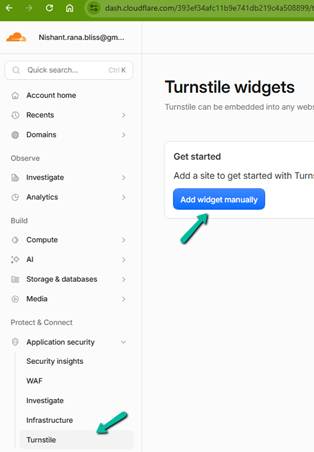
Create a free Cloudflare account and navigate to Application Security > Turnstile. Turnstile widgets are managed from this area.
Step 2 – Create an Invisible Turnstile Widget
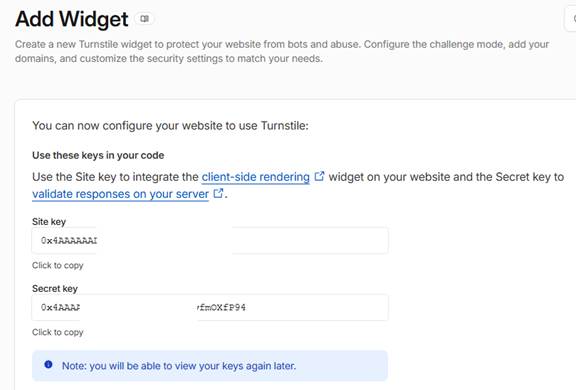
Create a new widget, select Invisible mode, and configure all hostnames that will serve the Customer Insights form.
e.g. hostname – assets-oce.mkt.dynamics.com
Cloudflare generates a Site Key and Secret Key. The Site Key is used by JavaScript while the Secret Key is kept securely on the server and used by the plugin.
Step 3 – Create a Dataverse Environment Variable
Create an environment variable to hold the Secret Key that will be used by the plugin for server-side validation of the token.
Step 4 – Configure the Marketing Form
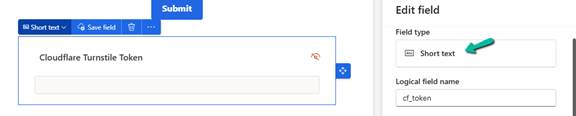
Add an unmappedhidden Short Text field named cf_token to the form. This field temporarily stores the token generated by Cloudflare.
Enable data-validate-submission=”true” and add the JavaScript to the form between the closing form and body tag : </form> <Script>JavaScript </Script></body> (added in the next section)
JavaScript Implementation
The JavaScript is responsible for integrating the Customer Insights form with Cloudflare Turnstile.
At a high level, it performs the following tasks:
• Defines configuration such as the Site Key and token field name. • Dynamically loads the Cloudflare Turnstile JavaScript library. • Renders an invisible Turnstile widget inside the marketing form. • Waits until the user clicks Submit. • Executes Turnstile to obtain a fresh token. • Stores the token in the hidden cf_token field. • Resubmits the form after the token has been written.
The implementation also caches tokens for a short period and automatically refreshes expired tokens, ensuring that only valid tokens are submitted.
(function () {
   'use strict';

   // ---------------------------------------------------------------------
   // Configuration
   // ---------------------------------------------------------------------

   var TURNSTILE_SITE_KEY = 'SITEKEY';
   var TURNSTILE_SCRIPT_URL = 'https://challenges.cloudflare.com/turnstile/v0/api.js?render=explicit';

   var FORM_SELECTOR = 'form.marketingForm';
   var SUBMIT_EVENT = 'd365mkt-formsubmit';
   var AFTER_LOAD_EVENT = 'd365mkt-afterformload';

   // Refresh tokens after four minutes.
   // Cloudflare tokens expire after approximately five minutes.
   var TOKEN_STALE_MS = 4 * 60 * 1000;

   // Hidden unmapped field added through the Customer Insights – Journeys
   // form designer. The generated Turnstile token is copied into this field
   // before the form is submitted.
   var TOKEN_FIELD_NAME = 'cf_token';

   var scriptPromise = null;

   // Stores the Turnstile widget state for each form instance without
   // preventing the form from being garbage collected.
   var widgetState = new WeakMap();

   function loadTurnstileScript() {
      if (scriptPromise) return scriptPromise;

      scriptPromise = new Promise(function (resolve, reject) {

         if (window.turnstile) {
            resolve();
            return;
         }

         var script = document.createElement('script');
         script.src = TURNSTILE_SCRIPT_URL;
         script.async = true;
         script.defer = true;

         script.onload = function () {
            resolve();
         };

         script.onerror = function () {
            scriptPromise = null;
            reject(new Error('[CIJ Turnstile] Failed to load Turnstile script.'));
         };

         document.head.appendChild(script);
      });

      return scriptPromise;
   }

   function renderWidget(formEl) {

      if (widgetState.has(formEl)) {
         return widgetState.get(formEl);
      }

      // The widget container must exist inside the form so that Cloudflare's
      // internally managed hidden field is created within the form element.
      var container = document.createElement('div');
      container.style.display = 'none';
      formEl.appendChild(container);

      var entry = {
         widgetId: null,
         token: null,
         tokenAt: 0,
         resolve: null,
         reject: null
      };

      entry.widgetId = window.turnstile.render(container, {
         sitekey: TURNSTILE_SITE_KEY,

         // Execute Turnstile only when the user submits the form.
         execution: 'execute',

         // Keep the widget completely invisible.
         appearance: 'execute',

         callback: function (token) {
            entry.token = token;
            entry.tokenAt = Date.now();

            if (entry.resolve) {
               entry.resolve(token);
               entry.resolve = null;
               entry.reject = null;
            }
         },

         'error-callback': function (code) {
            console.error('[CIJ Turnstile] Widget error:', code);

            if (entry.reject) {
               entry.reject(new Error('Turnstile error: ' + code));
               entry.resolve = null;
               entry.reject = null;
            }
         },

         'expired-callback': function () {
            entry.token = null;
            entry.tokenAt = 0;
         }
      });

      widgetState.set(formEl, entry);

      return entry;
   }

   function getToken(formEl) {

      return loadTurnstileScript().then(function () {

         var entry = renderWidget(formEl);

         var isFresh =
            entry.token &&
            entry.tokenAt &&
            (Date.now() - entry.tokenAt) < TOKEN_STALE_MS;

         if (isFresh) {
            return Promise.resolve(entry.token);
         }

         return new Promise(function (resolve, reject) {

            entry.resolve = resolve;
            entry.reject = reject;

            window.turnstile.reset(entry.widgetId);
            window.turnstile.execute(entry.widgetId);
         });
      });
   }

   function getFormFromEvent(evt) {

      var target = evt && evt.target;

      if (!target) {
         return null;
      }

      if (target.tagName === 'FORM') {
         return target;
      }

      if (target.querySelector) {
         var nested = target.querySelector('form');

         if (nested) {
            return nested;
         }
      }

      return target.closest ? target.closest('form') : null;
   }

   function setTokenField(formEl, token) {

      var input = formEl.querySelector('[name="' + TOKEN_FIELD_NAME + '"]');

      if (!input) {
         console.error(
            '[CIJ Turnstile] Could not find field "' +
            TOKEN_FIELD_NAME +
            '". Add an unmapped field with this name in the Customer Insights – Journeys form designer.'
         );
         return false;
      }

      input.value = token;

      return true;
   }

   function getSubmitButton(formEl) {
      return formEl.querySelector('button[type="submit"], input[type="submit"]');
   }

   function showWaiting(formEl) {

      var btn = getSubmitButton(formEl);

      if (btn) {
         btn.disabled = true;
         btn.style.opacity = '0.6';
         btn.style.cursor = 'wait';
      }
   }

   function hideWaiting(formEl) {

      var btn = getSubmitButton(formEl);

      if (btn) {
         btn.disabled = false;
         btn.style.opacity = '';
         btn.style.cursor = '';
      }
   }

   function onFormSubmit(evt) {

      var formEl = getFormFromEvent(evt);

      if (!formEl || formEl._cijResubmitting) {
         return;
      }

      // Allow the re-submitted request to continue once a valid token
      // has already been written to the hidden field.
      if (formEl._cijTurnstileReady) {
         formEl._cijTurnstileReady = false;
         return;
      }

      evt.preventDefault();

      if (evt.stopImmediatePropagation) {
         evt.stopImmediatePropagation();
      }

      showWaiting(formEl);

      getToken(formEl)

         .then(function (token) {

            setTokenField(formEl, token);

            formEl._cijTurnstileReady = true;
            formEl._cijResubmitting = true;

            // Re-submit the form after a valid Turnstile token has been obtained.
            if (formEl.requestSubmit) {
               formEl.requestSubmit();
            } else {
               formEl.submit();
            }

            setTimeout(function () {
               formEl._cijResubmitting = false;
            }, 0);
         })

         .catch(function (err) {

            // Do not allow the form to continue without a valid token.
            // The server-side plugin will also reject missing or invalid tokens.
            console.error('[CIJ Turnstile] Could not obtain token. Submission blocked.', err);

            hideWaiting(formEl);
         });
   }

   function wireForm(formEl) {

      if (formEl._cijTurnstileWired) {
         return;
      }

      formEl._cijTurnstileWired = true;

      loadTurnstileScript().then(function () {
         renderWidget(formEl);
      });
   }

   function findAndWireForms(root) {
      (root || document)
      .querySelectorAll(FORM_SELECTOR)
         .forEach(wireForm);
   }

   document.addEventListener(AFTER_LOAD_EVENT, function (evt) {

      var formEl = getFormFromEvent(evt);

      if (formEl) {
         wireForm(formEl);
      } else {
         findAndWireForms(document);
      }
   });

   document.addEventListener(SUBMIT_EVENT, onFormSubmit);

   // Handle forms that were rendered before this script was loaded.
   if (document.readyState !== 'loading') {
      findAndWireForms(document);
   } else {
      document.addEventListener('DOMContentLoaded', function () {
         findAndWireForms(document);
      });
   }

})();
Plugin Implementation
The plugin performs the server-side verification. The Execute method first retrieves the form submission payload supplied by Customer Insights. From that payload, it reads the cf_token field. The plugin then retrieves the Cloudflare Secret Key from the Dataverse Environment Variable. If the Environment Variable has not been configured, the plugin throws an exception because verification cannot continue.
Once both values are available, the plugin calls the Cloudflare SiteVerify endpoint using HttpClient. Cloudflare returns a JSON payload indicating whether the token is valid. Only successful responses allow the submission to continue. Finally, the plugin creates a ValidateFormSubmissionResponse object and returns it to Customer Insights. The cf_token field is included in ValidationOnlyFields, so it is ignored during entity creation.
using Microsoft.Xrm.Sdk;
using System;
using System.Collections.Generic;
using System.IO;
using System.Linq;
using System.Net.Http;
using System.Runtime.Serialization;
using System.Runtime.Serialization.Json;
using System.Text;

namespace SamplePlugin
{
    /// <summary>
    /// Validates Customer Insights - Journeys form submissions by verifying
    /// the Cloudflare Turnstile token before allowing record creation.
    /// Registered on:
    /// Message: msdynmkt_validateformsubmission
    /// Stage: PostOperation
    /// Mode: Synchronous
    /// </summary>
    public class ValidateTurnstilePlugin : IPlugin
    {
        private const string TurnstileVerifyUrl =
            "https://challenges.cloudflare.com/turnstile/v0/siteverify";

        private const string TokenFieldName = "tokenfieldname";

        private const string FailureMessage =
            "Captcha validation failed. Please refresh the page and try again.";

        private const string SecretKeyEnvironmentVariableSchemaName =
            "environmentvariablename";

        public void Execute(IServiceProvider serviceProvider)
        {
            var tracing =
                (ITracingService)serviceProvider.GetService(typeof(ITracingService));

            var context =
                (IPluginExecutionContext)serviceProvider.GetService(typeof(IPluginExecutionContext));

            if (!context.InputParameters.Contains("msdynmkt_formsubmissionrequest"))
            {
                tracing.Trace(
                    "[Turnstile] Input parameter 'msdynmkt_formsubmissionrequest' not found.");
                return;
            }

            var serviceFactory =
                (IOrganizationServiceFactory)serviceProvider.GetService(
                    typeof(IOrganizationServiceFactory));

            var service = serviceFactory.CreateOrganizationService(null);

            string secretKey = GetEnvironmentVariableValue(
                service,
                tracing,
                SecretKeyEnvironmentVariableSchemaName);

            if (string.IsNullOrWhiteSpace(secretKey))
            {
                throw new InvalidPluginExecutionException(
                    $"Environment Variable '{SecretKeyEnvironmentVariableSchemaName}' does not contain a value.");
            }

            var request = Deserialize<FormSubmissionRequest>(
                (string)context.InputParameters["msdynmkt_formsubmissionrequest"]);

            var fields = request?.Fields ?? new List<FormField>();

            string token = fields
                .FirstOrDefault(f => f.Key == TokenFieldName)?
                .Value;

            if (string.IsNullOrWhiteSpace(token))
            {
                tracing.Trace(
                    $"[Turnstile] Token field '{TokenFieldName}' is empty.");

                SetValidationResponse(
                    context,
                    false,
                    FailureMessage);

                return;
            }

            bool isValid = VerifyTurnstile(
                secretKey,
                token,
                tracing);

            tracing.Trace(
                $"[Turnstile] Validation Result = {isValid}");

            SetValidationResponse(
                context,
                isValid,
                isValid ? null : FailureMessage);
        }

        private bool VerifyTurnstile(
            string secretKey,
            string token,
            ITracingService tracing)
        {
            var formContent =
                new FormUrlEncodedContent(
                    new Dictionary<string, string>
                    {
                        { "secret", secretKey },
                        { "response", token }
                    });

            using (var httpClient = new HttpClient())
            {
                string body;

                try
                {
                    var response =
                        httpClient.PostAsync(
                            TurnstileVerifyUrl,
                            formContent).Result;

                    body =
                        response.Content.ReadAsStringAsync().Result;

                    if (!response.IsSuccessStatusCode)
                    {
                        tracing.Trace(
                            $"[Turnstile] siteverify returned HTTP {(int)response.StatusCode}. " +
                            $"Body: {(string.IsNullOrWhiteSpace(body) ? "<empty>" : body)}");

                        return false;
                    }
                }
                catch (Exception ex)
                {
                    tracing.Trace(
                        "[Turnstile] Exception calling siteverify: " +
                        ex);

                    return false;
                }

                var verifyResponse =
                    Deserialize<TurnstileVerifyResponse>(body);

                tracing.Trace(
                    $"[Turnstile] success={verifyResponse.Success}, " +
                    $"hostname={verifyResponse.Hostname}, " +
                    $"errors={(verifyResponse.ErrorCodes == null ? "none" : string.Join(", ", verifyResponse.ErrorCodes))}");

                return verifyResponse.Success;
            }
        }

        private void SetValidationResponse(
    IPluginExecutionContext context,
    bool isValid,
    string error)
        {
            var response = new ValidateFormSubmissionResponse
            {
                IsValid = isValid,
                ValidationOnlyFields = new List<string>
                {
                    TokenFieldName
                },
                Error = error
            };

            context.OutputParameters["msdynmkt_validationresponse"] =
                Serialize(response);
        }

        private string GetEnvironmentVariableValue(
            IOrganizationService service,
            ITracingService tracing,
            string schemaName)
        {
            tracing.Trace(
                "[Turnstile] Retrieving Environment Variable: {0}",
                schemaName);

            var request = new OrganizationRequest(
                "RetrieveEnvironmentVariableValue")
            {
                Parameters =
                {
                    ["DefinitionSchemaName"] = schemaName
                }
            };

            var response = service.Execute(request);

            if (response.Results.Count == 0)
            {
                tracing.Trace(
                    "[Turnstile] Environment Variable '{0}' not found.",
                    schemaName);

                return null;
            }

            var value = response.Results
                .Values
                .FirstOrDefault()
                ?.ToString();

            tracing.Trace(
                "[Turnstile] Environment Variable '{0}' retrieved successfully.",
                schemaName);

            return value;
        }

        private static T Deserialize<T>(string json)
        {
            using (var stream =
                new MemoryStream(Encoding.UTF8.GetBytes(json)))
            {
                return (T)new DataContractJsonSerializer(typeof(T))
                    .ReadObject(stream);
            }
        }

        private static string Serialize<T>(T value)
        {
            using (var stream = new MemoryStream())
            {
                new DataContractJsonSerializer(typeof(T))
                    .WriteObject(stream, value);

                return Encoding.UTF8.GetString(stream.ToArray());
            }
        }

        #region Models

        [DataContract]
        private class FormField
        {
            [DataMember(Name = "Key")]
            public string Key { get; set; }

            [DataMember(Name = "Value")]
            public string Value { get; set; }
        }

        [DataContract]
        private class FormSubmissionRequest
        {
            [DataMember(Name = "Fields")]
            public List<FormField> Fields { get; set; }
        }

        [DataContract]
        private class ValidateFormSubmissionResponse
        {
            [DataMember(Name = "IsValid")]
            public bool IsValid { get; set; }

            [DataMember(Name = "ValidationOnlyFields")]
            public List<string> ValidationOnlyFields { get; set; }

            [DataMember(Name = "Error")]
            public string Error { get; set; }
        }

        [DataContract]
        private class TurnstileVerifyResponse
        {
            [DataMember(Name = "success")]
            public bool Success { get; set; }

            [DataMember(Name = "hostname")]
            public string Hostname { get; set; }

            [DataMember(Name = "error-codes")]
            public string[] ErrorCodes { get; set; }

            [DataMember(Name = "action")]
            public string Action { get; set; }

            [DataMember(Name = "challenge_ts")]
            public string ChallengeTimestamp { get; set; }
        }

        #endregion
    }
}
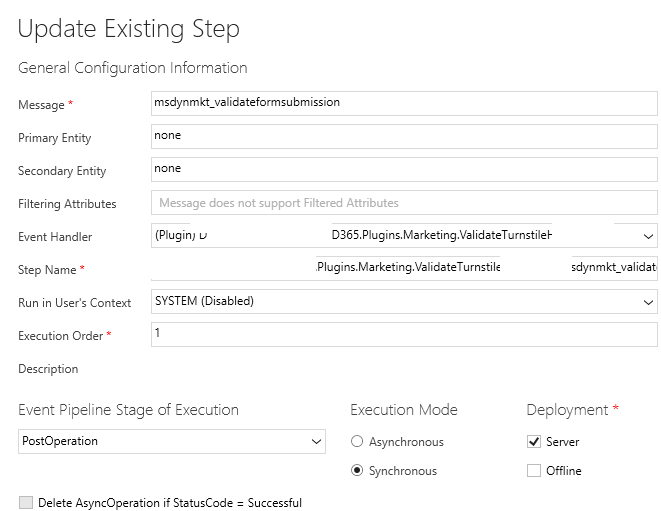
Register a synchronous plugin step on the msdynmkt_validateformsubmission message.
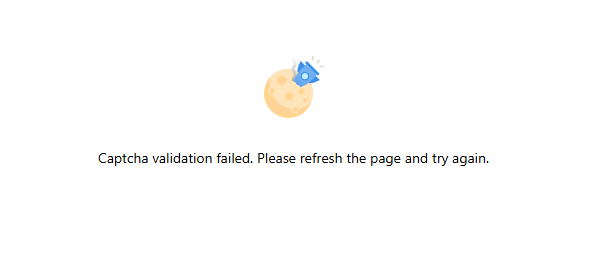
On failure – we get the message specified in the plugin
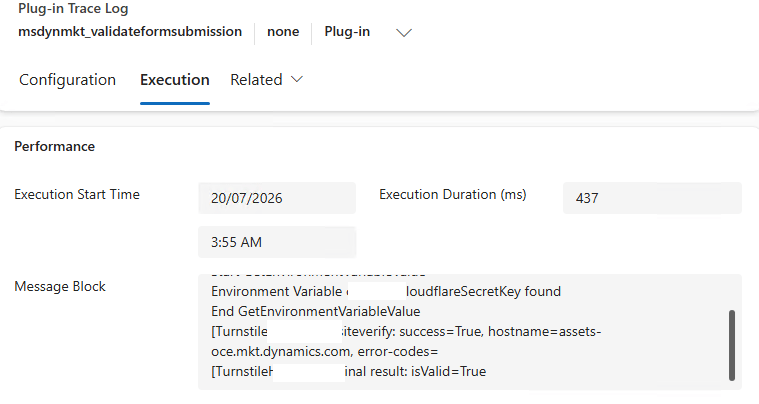
On the successful submission, we can see the marketing form submitted successfully and the details in our plugin trace log.













 Nishant Rana's Weblog