Recently, while cleaning up some old customizations in Dynamics 365, we came across an interesting dependency issue that was not immediately obvious from the user interface. What initially looked like a simple Business Process Flow deletion turned into a deeper investigation into how Dataverse manages published dependencies internally.
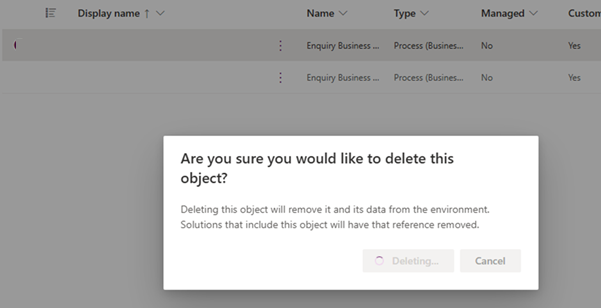
While trying to delete a BPF, Dataverse returned the following error: – Failed to delete (). Object dependencies exist, please review before deleting.
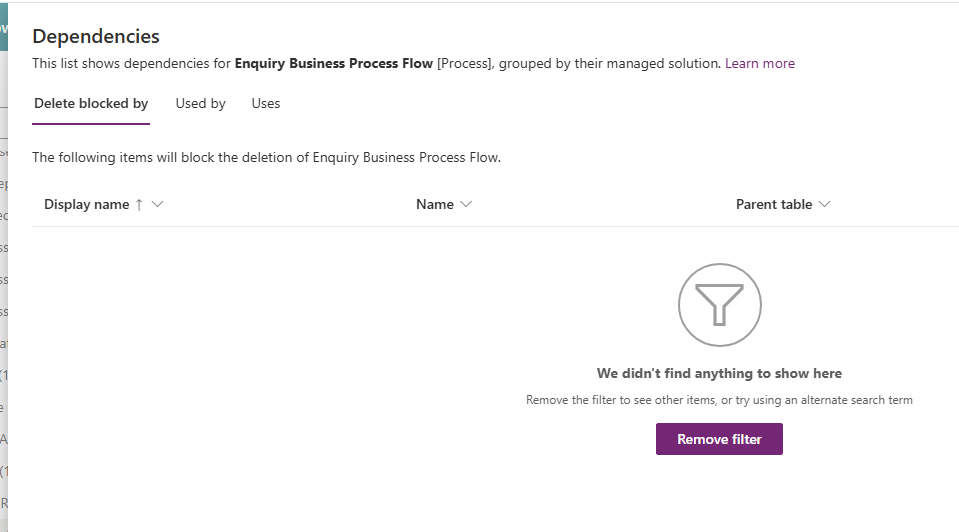
Normally, the first step in this situation is to use the built-in dependency viewer. However, in this case, the dependency screen itself was not particularly helpful. Even though the platform clearly stated that dependencies existed, the dependency dialog was not showing any actual records / components blocking the deletion.
To investigate further, we opened the browser developer tools and inspected the network response generated during the delete operation. The response payload contained much more detail than what was shown in the UI, including the GUID of the component and information indicating that dependencies still existed behind the scenes.
The Entity(99980477-1249-447b-8514-6d11fe6f1b1e) component cannot be deleted because it is referenced by 7 other components.
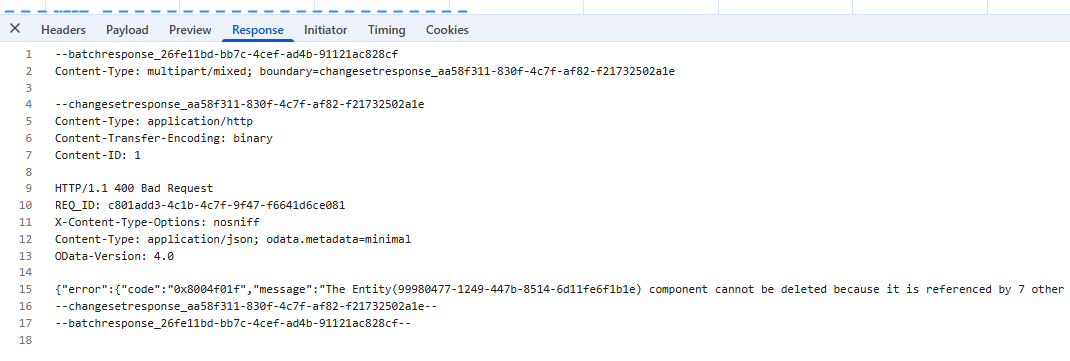
{“error”:{“code”:”0x8004f01f”,”message”:”The Entity(99980477-1249-447b-8514-6d11fe6f1b1e) component cannot be deleted because it is referenced by 7 other components. For a list of referenced components, use the RetrieveDependenciesForDeleteRequest.”}}
–changesetresponse_aa58f311-830f-4c7f-af82-f21732502a1e–
–batchresponse_26fe11bd-bb7c-4cef-ad4b-91121ac828cf—
With the component GUID available, we switched to SQL 4 CDS to query the dependency table directly. The following query was used:
SELECT *
FROM dependency
WHERE requiredcomponentobjectid = ‘99980477-1249-447b-8514-6d11fe6f1b1e’
The results immediately started revealing useful information. One of the most important columns in the results was:
dependencytype = 2, dependencytypename = Published
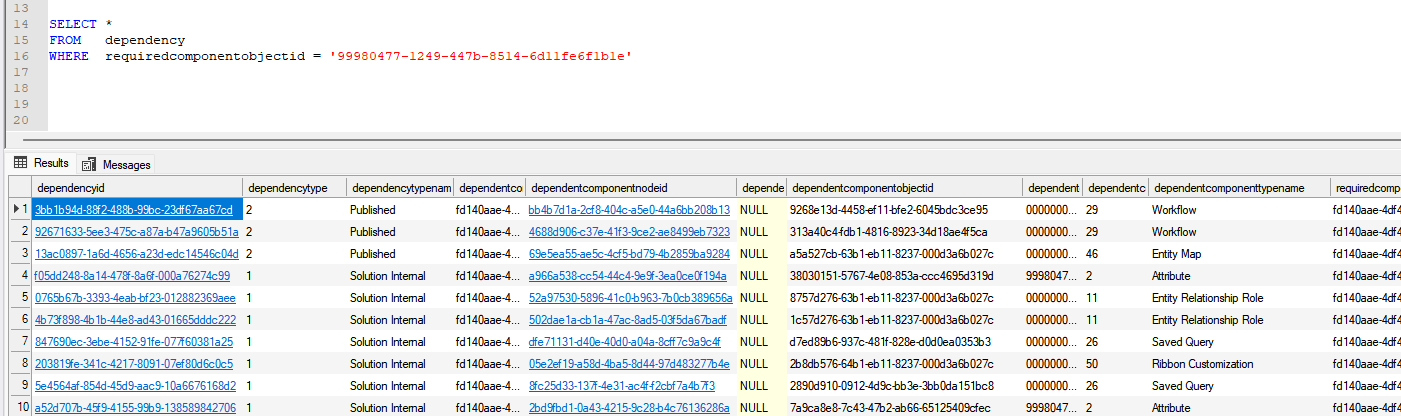
This turned out to be the key detail. A dependency type of Published means the reference is actively present in the environment and is currently preventing deletion of the component.
The dependency records also showed the following values:
dependentcomponenttype = 29, dependentcomponenttypename = Workflow
That told us the blocking component was actually a workflow. To identify the workflow names, we queried the workflow table directly using the workflow IDs returned by the dependency query, which took us to the below Workflow. When we opened this workflow, we found that it still contained a step creating or referencing the process we were attempting to remove.
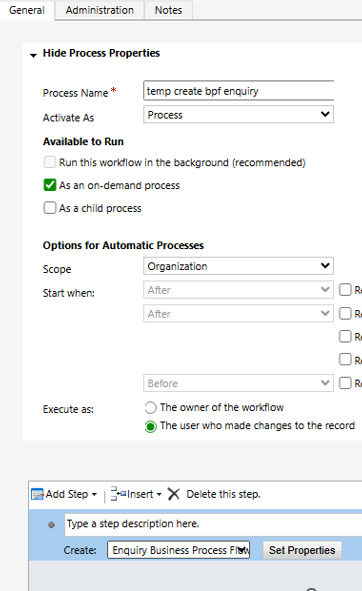
We removed the workflow referencing the process, published the changes, and then retried the deletion. Once the workflow dependency was removed, the process was deleted successfully without any further errors.
This was a useful reminder that the dependency viewer in Dynamics 365 and Dataverse does not always surface every dependency clearly, especially with older workflows and process-related customizations. In these situations, SQL 4 CDS and direct dependency table queries can be extremely valuable for identifying hidden references.
Hope this helps..