Fixed: Action not appearing in Plugin Registration tool (Dynamics 365 / CE)


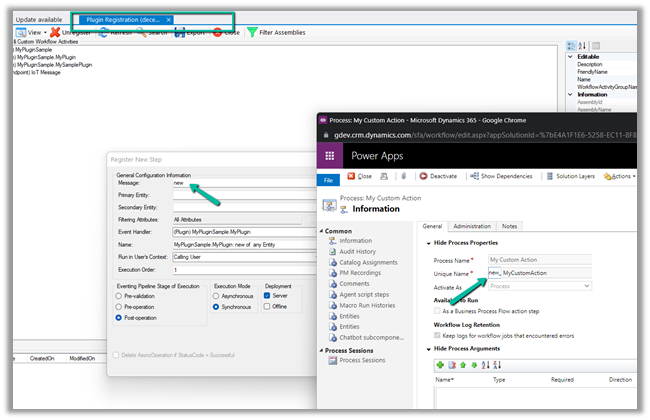
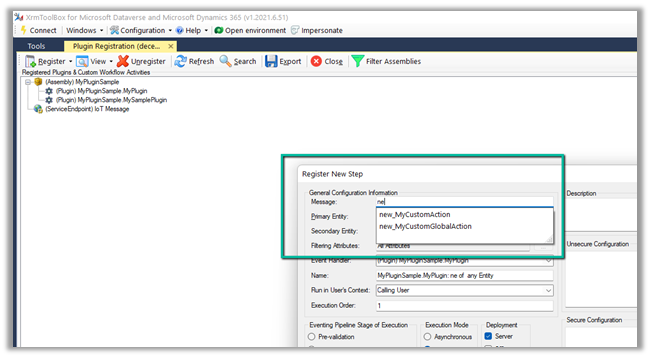
We had couple of actions created, but they were not appearing in the Plugin Registration Tool Plugin of XrmToolBox as shown below.

Refreshing the plugin, re-connecting to the organization, republishing the action, etc. didn’t work.

Eventually, we restarted the XrmToolBox and our messages started appearing.

Could be something related to Metadata cache.

Hope it helps..

Advertisements

Fixed – Unified routing was unable to provision error while trying to configure Unified routing


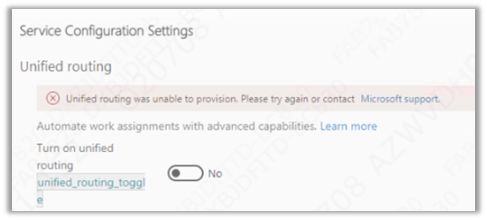
Recently while trying to set up Unified Routing, we got the below error.

“Unified routing was unable to provision. Please try again or contact Microsoft Support”

The user had the system administrator role and we already had the global administrator’s consent, which should be good enough to set up unified routing.

We tried with different system administrator users but that doesn’t resolve that error.

Eventually, we tried the setup with the same user but in a different VDI (Virtual Desktop Infrastructure), and the setup worked properly without any error. One probable reason could be, that the appropriate URLs being accessed during setup were already whitelisted in the other VDI, which wasn’t the case in the first VDI where we were trying.

Hope it helps..

Advertisements

How to – Use the new command designer to customize the command bar – Dynamics 365 / Power Apps


Using the modern app designer either open an existing model-driven app or create a new model-driven app in https://make.powerapps.com/

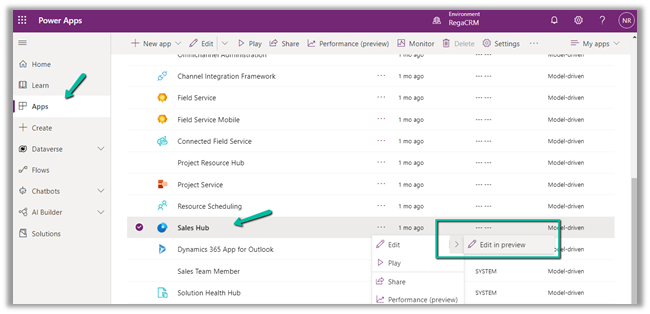
Select Edit >> Edit in preview

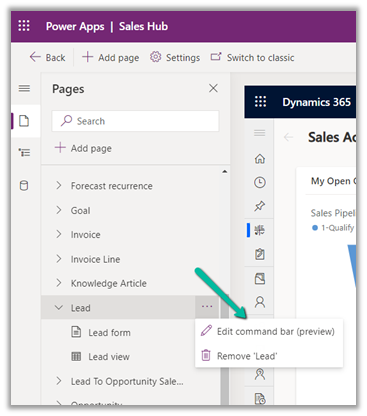
Select any entity/table and select the Edit command bar (preview)

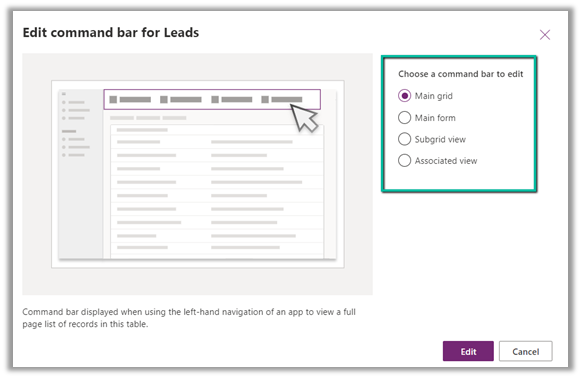
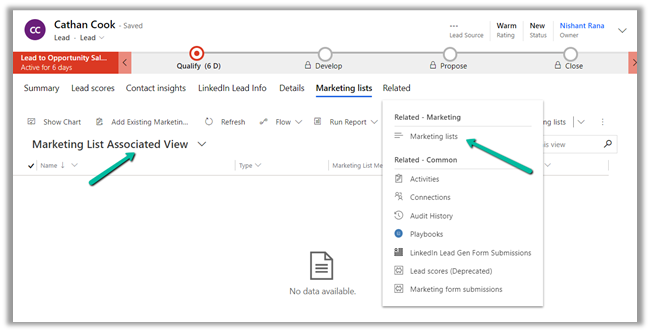
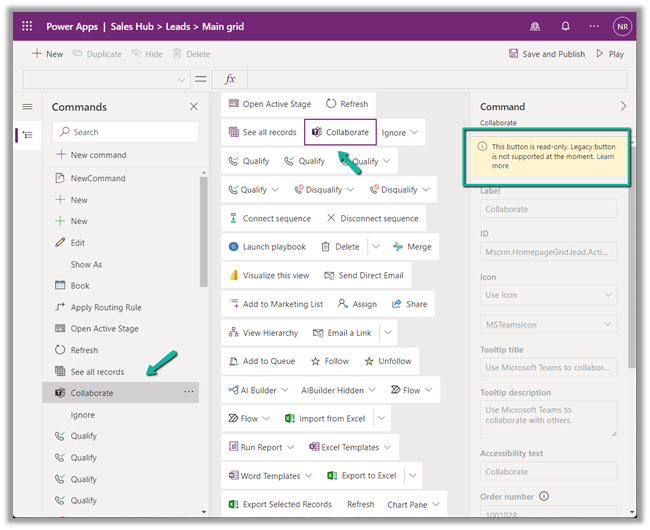
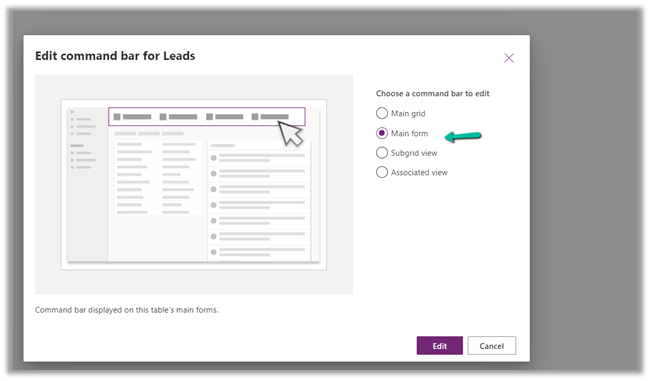
The different command bars that can be edited are the Main grid, main form, subgrid view, and the associated view.

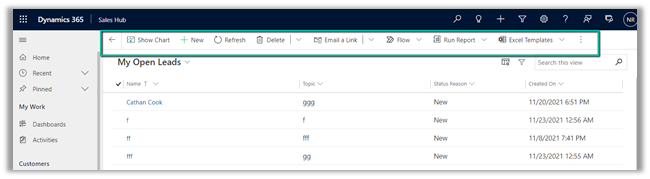
  • Main Grid view

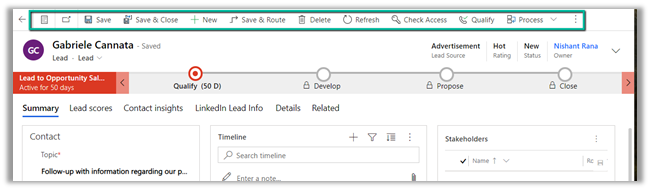
  • Main Form view –

  • Subgrid view–

  • Associated view –

The legacy / classic button is not supported currently.

Check out all the known limitations

https://docs.microsoft.com/en-gb/powerapps/maker/model-driven-apps/command-designer-limitations

limi

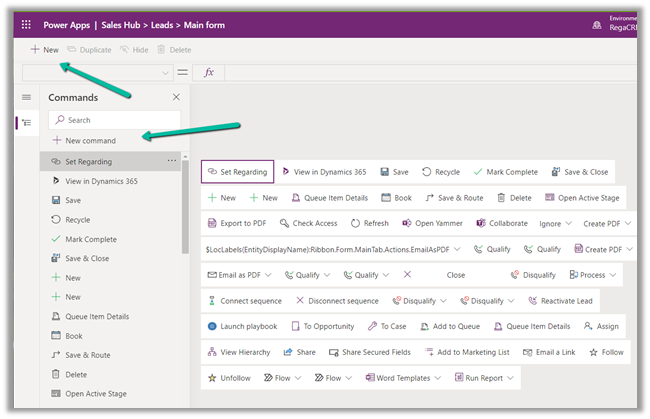
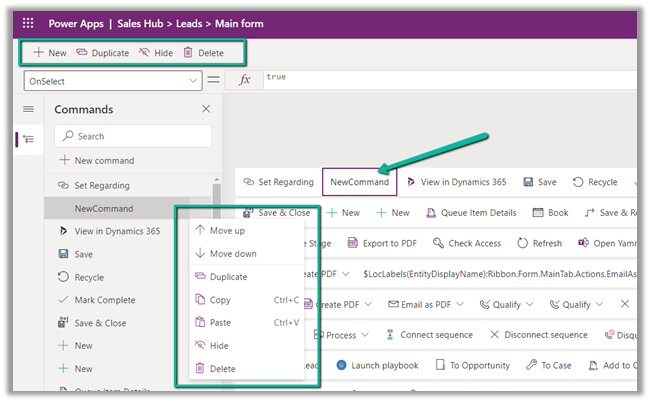
Let us try adding a new command/button in the Main Form, and see what options do we get there.

Select + New command or the + New option

It adds a new button with the label NewCommand with options to duplicate, hide, move up and down, etc.

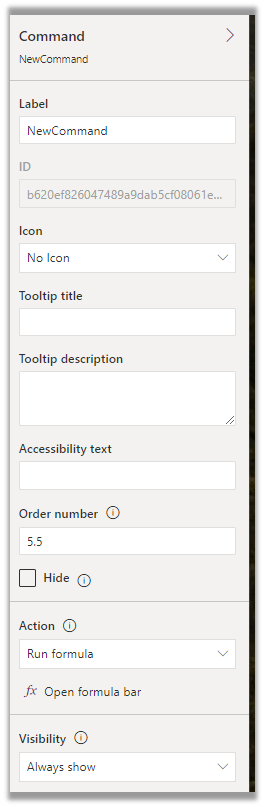
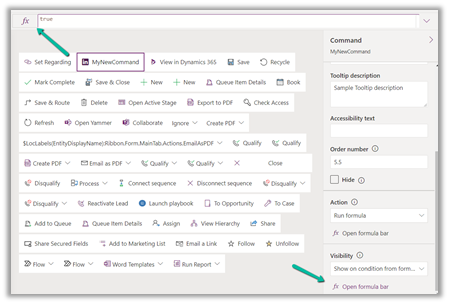
The different properties that can be configured for the new command –

Property

Description


Label

To set the label

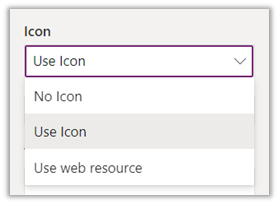
Icon

To set the icon either using icon or web resource

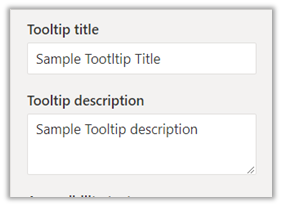
Tooltip

Set tooltip title and its description.

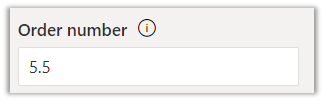
Order Number

Customize the Order of the command

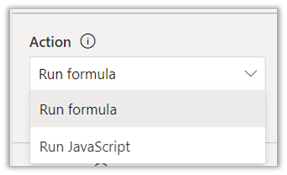
Action

Either run formula or run javascript


Open Formula Bar


Library for Run JavaScript

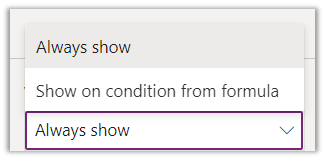
Visibility


Open Formula Bar for Show on Condition

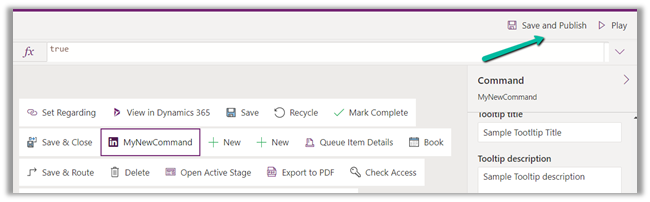
Let us Save and Publish

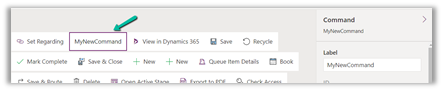
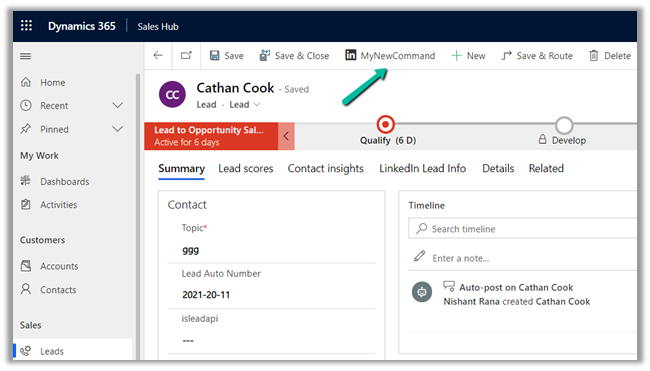
Click on Play and open a lead form.

We can see the new command added.

Get all the details here –

https://docs.microsoft.com/en-gb/powerapps/maker/model-driven-apps/command-designer-overview

Hope it helps..

Advertisements

Fixed – You do not have a license to use Microsoft Dynamics 365


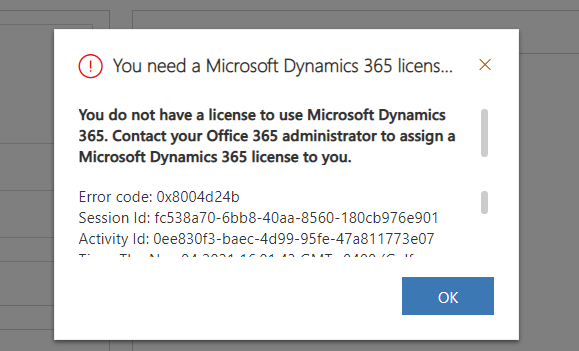
Recently we started getting the below error  suddenly in one of our environments for all the users.

You need a Microsoft Dynamics 365 license to continue. You do not have a license to use Microsoft Dynamics 365. Contact your Office 365 administrator to assign a Microsoft Dynamics 365 license to you.”

The users had the required CRM licenses and this error was only coming for the case entity.

Eventually, we realized that a Plugin / Workflow was running under the context (owner for Workflow) of a user who had recently left the organization and had his account disabled inside CRM.

Updating the context and owner of the workflow to run under the Service Account (with appropriate roles) fixed the issue.

Hope it helps..


Few key points – Auto Number field in Dataverse (Dynamics 365 CE / CRM)


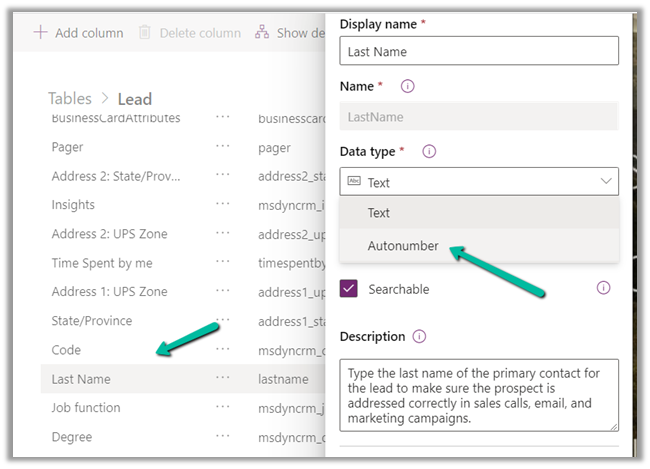
  • Can we convert the existing text field to the Auto Number field?

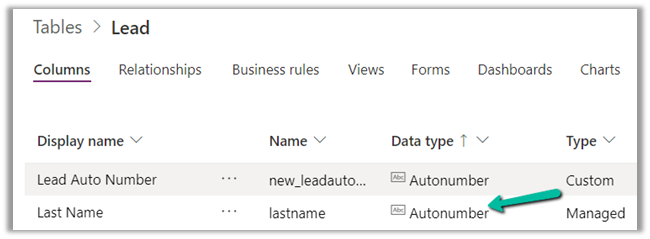
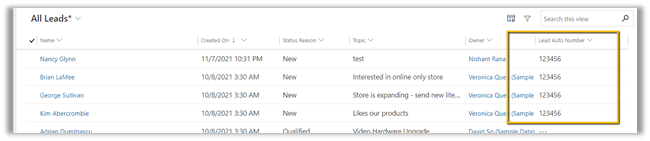
Yes, e.g. we can update the Last Name attribute of the lead’s data type to be of Auto number from Text.

  • Can we convert the auto number field back to the normal text field?

Yes


  • Can the auto number field have duplicate values?

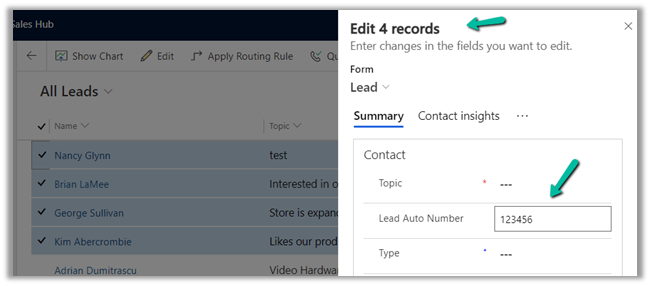
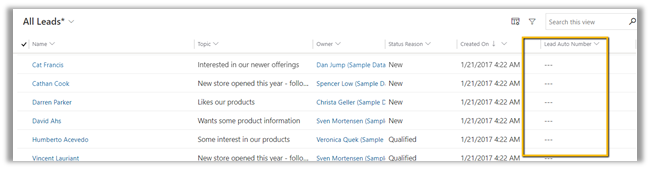
Yes, the platform allows having more than one record to have the same value. It doesn’t throw an error.

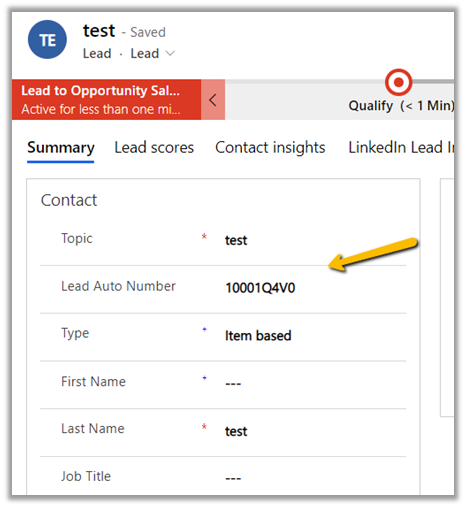
Multiple lead records have null values for the auto number field as shown below.

  • What if the Seed value increases than the digits specified?

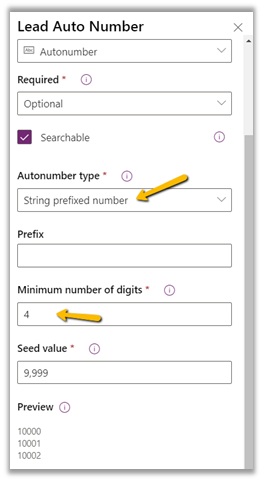
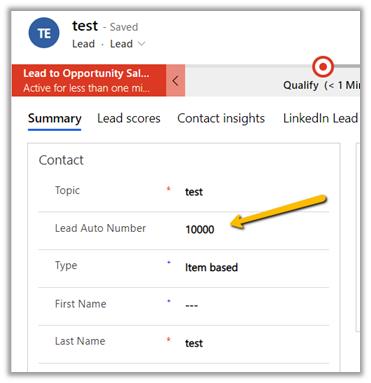
The platform will assign the next value and will not throw an exception.

  • Can we change the format of the existing auto number field?

Yes

It will affect any new records created.

  • What other things we can do with the auto number fields?

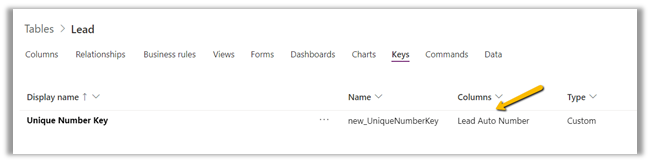
We can make the field readonly in the form so that users do enter the values manually, we make the field required and for uniqueness, we can enable alternate keys on it.


  • What is the min and max length of the RANDSTRING placeholders?

Between 1-6

  • What about maximum seed value?

The auto number field is similar to a text field, it is different in that it generates a unique number when there is no value specified for it.

Get all details here –

https://docs.microsoft.com/en-us/powerapps/developer/data-platform/create-auto-number-attributes

https://jonasr.app/2017/10/anm/

Hope it helps..

Advertisements

Route Case (routecase) attribute and msdyn_ApplyRoutingRuleEntityRecord Action in Dynamics 365 Customer Service


The case entity/table in Dynamics 365 CE has a Boolean type field named Route Case.

It has a default value as Yes.

On manually creating the record from the user interface, although Route Case shows the default value as Yes
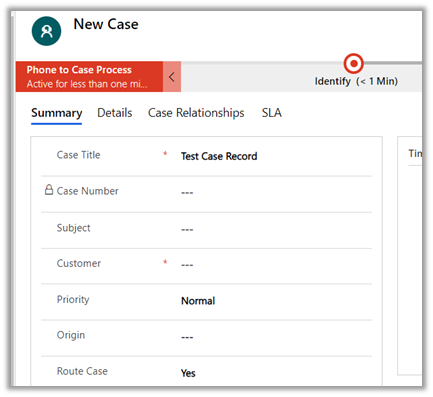
On saving the record, the value changes to No, the field is also locked.

So basically no routing rules are applied when a case record is created from the user interface.

To apply routing rules, we need to use the “Save and Route” option
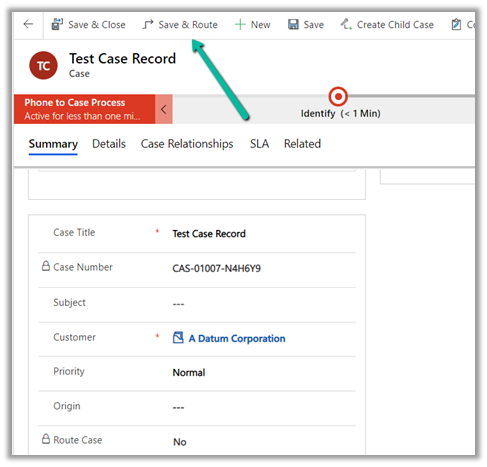
Or “Apply Routing Rule” command from the Grid
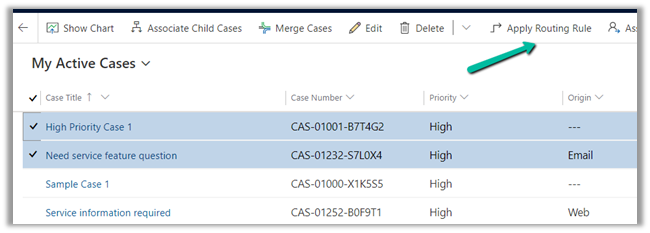
This also however will not update or set the Route Case field to Yes on the case record.

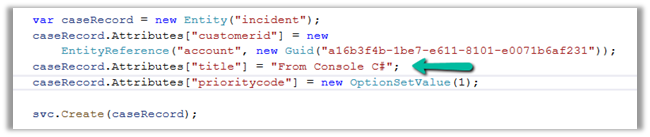
Now if we create the case record programmatically, the field would be set and saved with its default values as Yes.
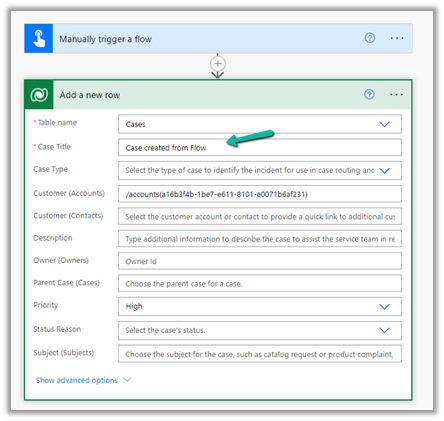
The same goes for cases created from Flow.
Route Case is set to Yes.
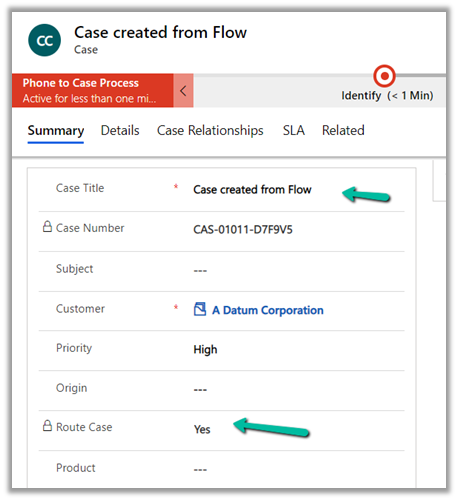
So basically routing rules will be triggered on the records created from outside the User Interface as Route Case will be set Yes for those records.

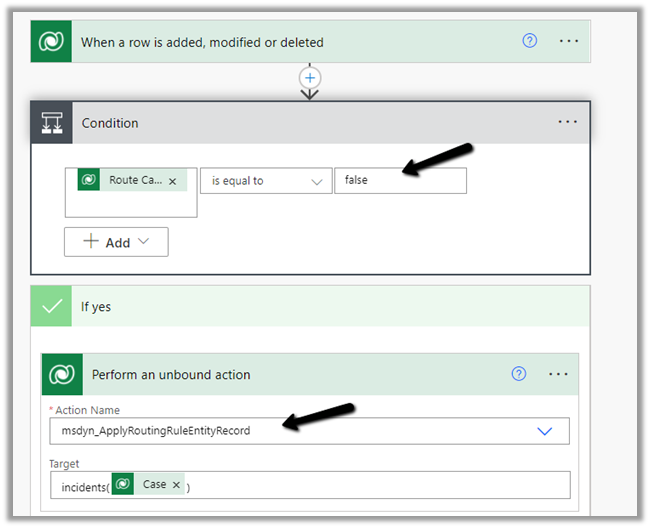
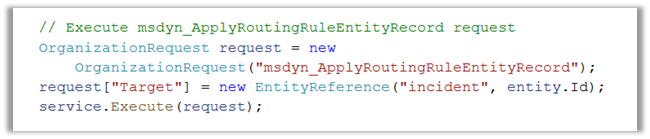
Now if we want to run the routing rules against the case record created from the user interface, we can make use of the following action –

msdyn_ApplyRoutingRuleEntityRecord

Within Flow –
Within Plugin or any custom code–
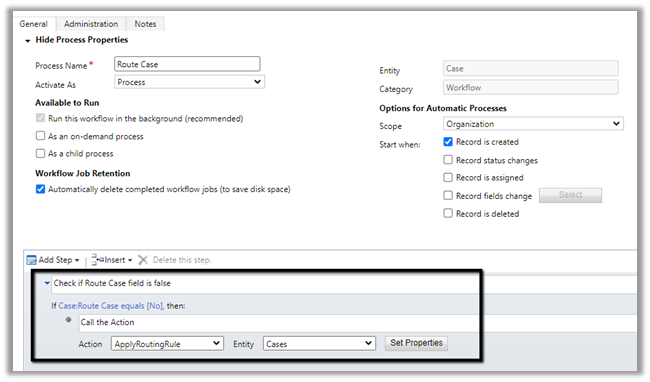
msdyn_ApplyRoutingRuleEntityRecord can be used for other entities apart from the case.

In the case of Case entity, we can also make use ApplyRoutingRule action also.

Hope it helps..


Advertisements