Anonymous Visitor tracking behavior in Dynamics 365 Marketing


Suppose, we have the below page opened in the browser, which has an embedded marketing form in it.

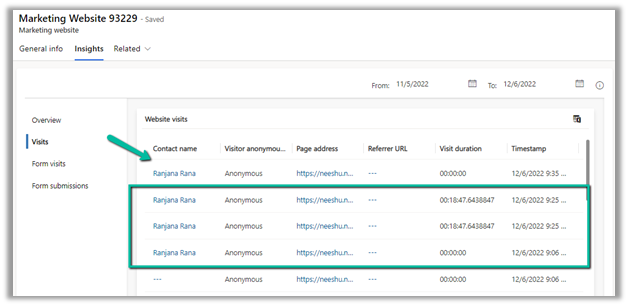
Opening the marketing website record associated with the marketing form, we can see the anonymous visit being tracked.

Here the user had opened the page a couple of times.

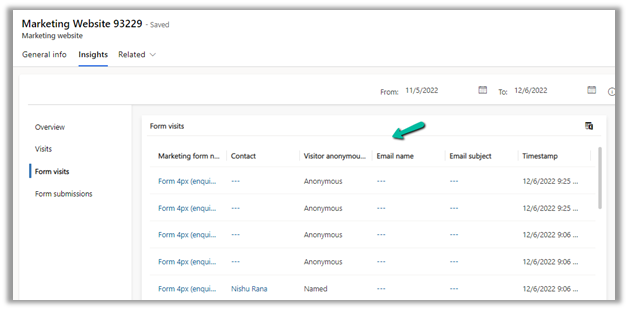
Form Visits also have the corresponding details.

Form submission – No records right now as the form hasn’t been submitted by the visitor on the page.

Now let us submit the form

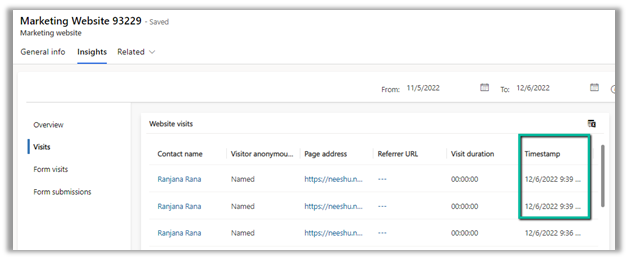
After the successful submission of the form which created the contact record, we can now see a new record added on the website visitors

as well as all the previous anonymous records also updated with the same contact.

Same for Form Visits

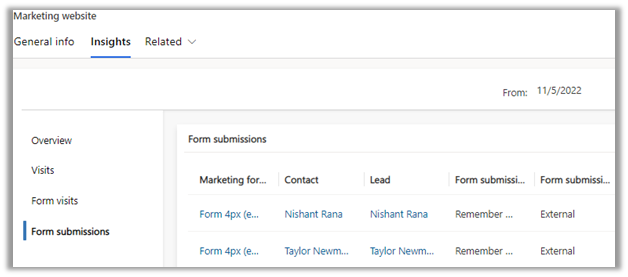
And as expected a new form submission record.

Now any future visit to the page gets tracked with the Contact created for that user.

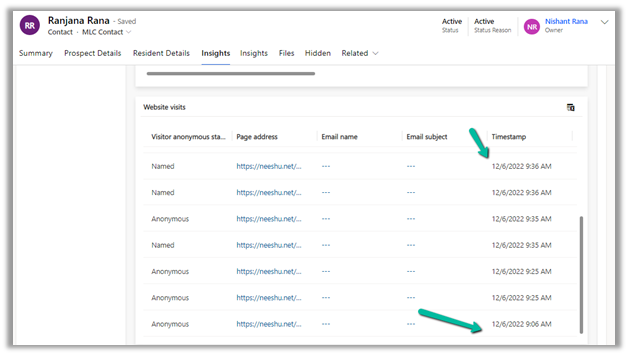
In the contact record, also all the website visits get associated.

To read more about it – https://learn.microsoft.com/en-us/dynamics365/marketing/known-issues#websites

To learn more about Dynamics 365 Marketing – https://meganvwalker.com/category/dynamics-marketing/

Hope it helps..

Fixed – change the owner of the Flow or Flow client error returned with the status code “Forbidden” and ConnectionAuthorizationFailed in Power Automate


Recently while trying to change the owner of the workflow we were getting the below error 

Flow client error returned with status code “Forbidden” and details “(“error”:X [“code”: “ConnectionAuthorizationFailed”, “message”: “The caller object id is ‘ffcdd1fc-2858-4019-9a96-19d73ae124c8″. Connection ‘providers/Microsoft.PowerApps/APIs/shared_commondataserviceforapps/connections/shared-commondataser-87229e07-1003-4e05-8172-fdaf112ceb98’ to ‘shared_commondataserviceforapps cannot be used to activate this flow, either because this is not a valid connection or because it is not a connection you have access permission for. Either replace the connection with a valid connection you can access or have the connection owner activate the flow, so the connection is shared with you in the context of this flow.”}}”.

Below are the steps we were following to change the owner of the cloud flow –

https://learn.microsoft.com/en-us/power-automate/change-cloud-flow-owner

Select Edit for the flow, specify the owner and save.


In our case, the owner had left the organization and the user’s record was not available in the CRM. Finally, we managed to change the owner and fix the issue, by assigning the new owner to the corresponding modern flow record through the below steps – 

  • Open Advanced Find
  • Search for Process Type equals Modern Flow


  • Select the flow, click on the Assign Process button and specify the new owner.


This way we were able to change the owner without any error and got the flow working properly.

Hope it helps..

Advertisements

How to – Authenticate Domain in Dynamics 365 Marketing


Domain authentication is required for marketing email messages and for hosting the marketing form externally. Authentication of the email domain confirms that you have been approved by the organization to send messages on their behalf, this also increases the deliverability of the email. And in the case of an externally embedded form, domain authentication establishes that you own the domain, which is also required for the pre-filling of the form to work.

Best practices for email marketing

When Marketing is installed, we can see a default pre-authenticated domain (ending in – dyn365mktg.com) already added. We can use it for testing and demo purpose.

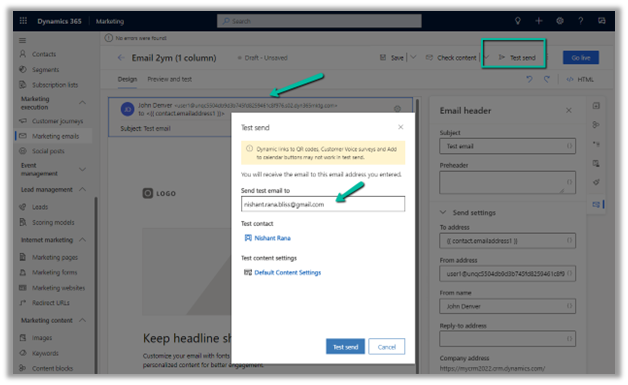
Here using Test send we are sending an email that uses the from address using the pre-authenticated default domain.
We can see the email received from marketing.

Now let us add a new domain record and authenticate/configure it for both External Form Hosting and Email Sending.

Navigate to Settings >> Email marketing >> Domains and create a new record.

Enter the domain name and check both the enable form hosting and email options.

If we uncheck Enable email sending, we will be only presented with the option of Verify ownership.

Click on Add will take us to the next screen having the TXT type DNS record/ownership key to be added to the DNS provider’s portal.

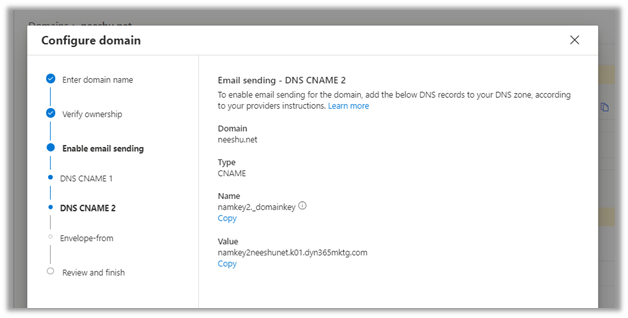
Clicking on Next will take us to the CNAME DNS records details, to be added to the DNS Zone

In the last step, we are again presented with all the DNS records to be placed in the DNS zone, along with the option to Verify or Save and Close the record for later verification.

Let us add these DNS records in our DNS Zone (here we are using Azure DNS Zone, the process would be similar in case of another DNS provider/ Site) and click on Verify.
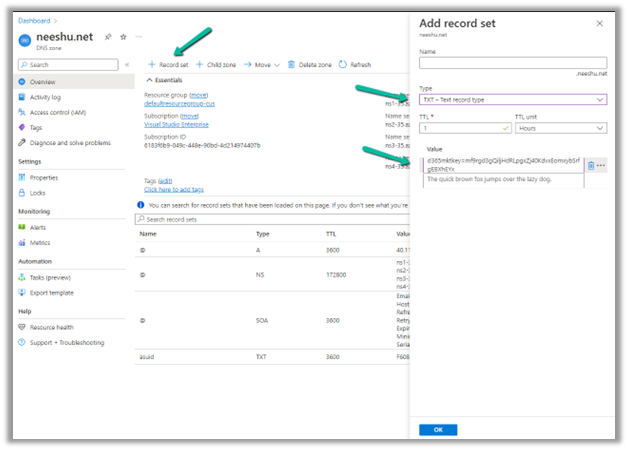
Similarly, add the remaining DNS records.

With all the DNS records added, let us click on Verify-in Configure Domain wizard.

Here we can also Save and close the configure domain wizard and do the verification later by opening the record created.
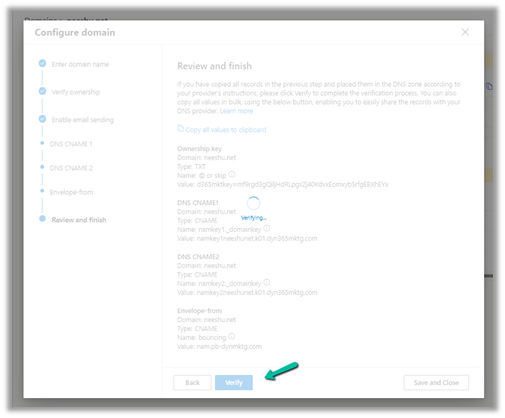
On successful verification –

Here we have successfully configured the domain as shown by confirmed and verified status.

Read more about it here

Authenticate your domains

Real-time marketing domain authentication

And to learn more about Dynamics 365 Marketing  – https://meganvwalker.com/category/dynamics-marketing/ 

Hope it helps..

Advertisements

How to – configure website tracking in Dynamics 365 Marketing


We can create a website record in Dynamics 365 Marketing to trace visitors to the website.

To setup Dynamics 365 Marketing (trial) – https://nishantrana.me/2021/11/13/step-by-step-configure-dynamics-365-marketing-in-a-dataverse-environment

Navigate to Outbound marketing >> Internet Marketing >> Marketing websites and create a new marketing website record.

Marketing will record closely grouped visits from a single browser as a single session. A new session will start after the timeout specified period of inactivity – 20 min is the default.

On saving the record, JavaScript Code and Form capture code is generated. The URL field and Description are for entering details for the website record for our use, it doesn’t affect the codes generated.

JavaScript code can be added to any page that we want to track. We can reuse the same code across multiple pages or can have different website records (code) for each page as per our requirements. JavaScript uses cookies for tracking, the users will remain anonymous till they register themselves through the landing page.

Form capture code is used when we want to integrate with a form created externally. We will look at it in later posts when we discuss marketing forms.

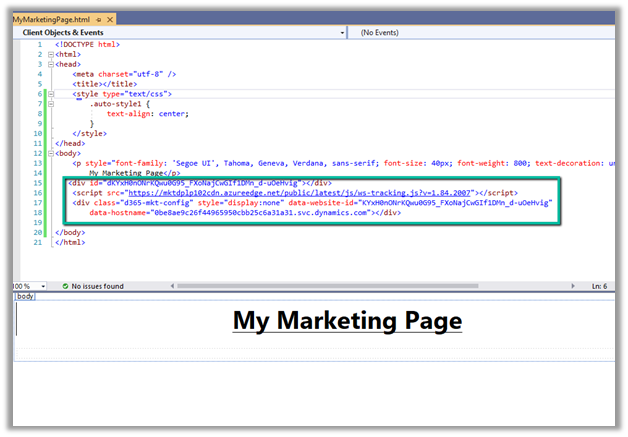
Below we have added the JavaScript code to one of the HTML pages inside Visual Studio.

Let us open the page in the browser.

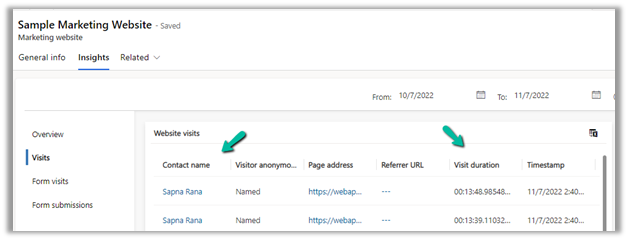
Go to Insights >> Visits in the marketing website record, we can see the visits being tracked.

Now we have published the page in the Azure App Service, just to see what details are captured this time.

This time we can see it tracking the Page Address, unlike last time when we were running it locally.

If the user has registered through the landing page (through marketing form submission, which we’d cover in the next post), we will get more details about the visitor as shown below.

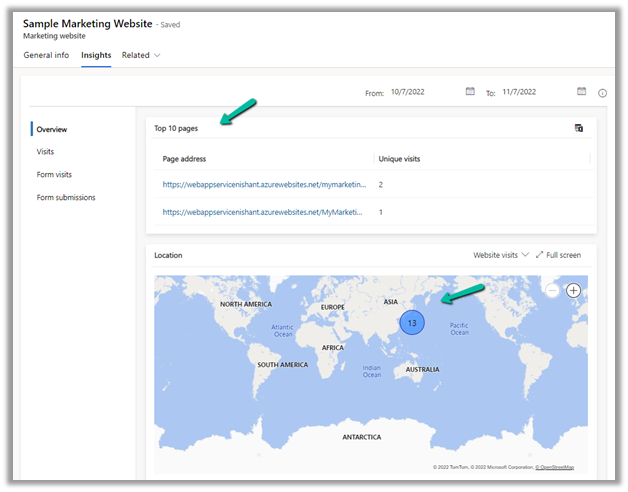
Within the overview section, we can get a few more details as shown below.

Hope it helps..

Advertisements

How to – Access Dataverse environment storage using SAS Token


We can access our environment’s storage using a SAS token. 

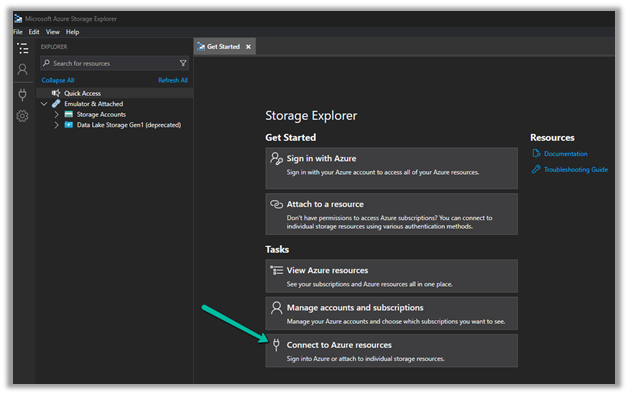
Download – Azure Storage Explorerhttps://azure.microsoft.com/features/storage-explorer/#overview

Select Connect to Azure resources option

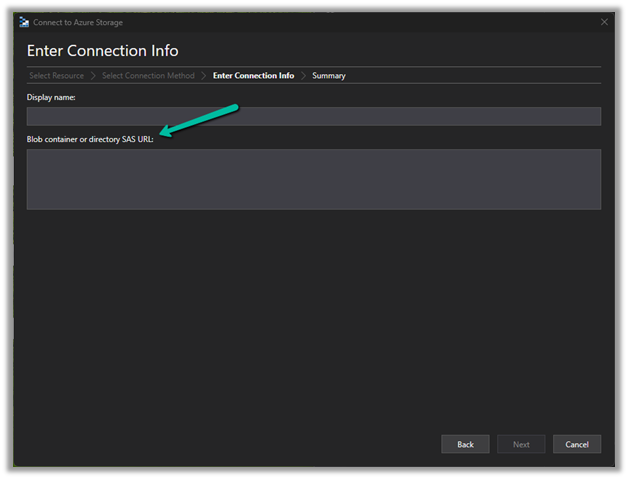
Select ADLS Gen2 container or directory for the Azure storage type.

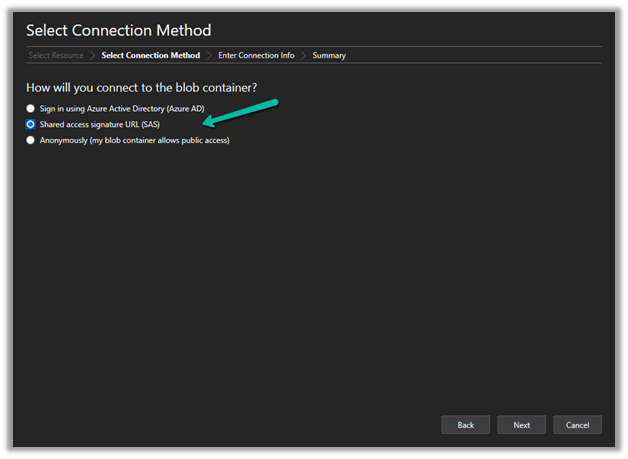
Select the Shared access signature URL for the connection

To get the SAS URLhttps://[ContainerURL]/CDS?[SASToken],

we need ContainerURL and SASToken.

To get Container URL use the below link –

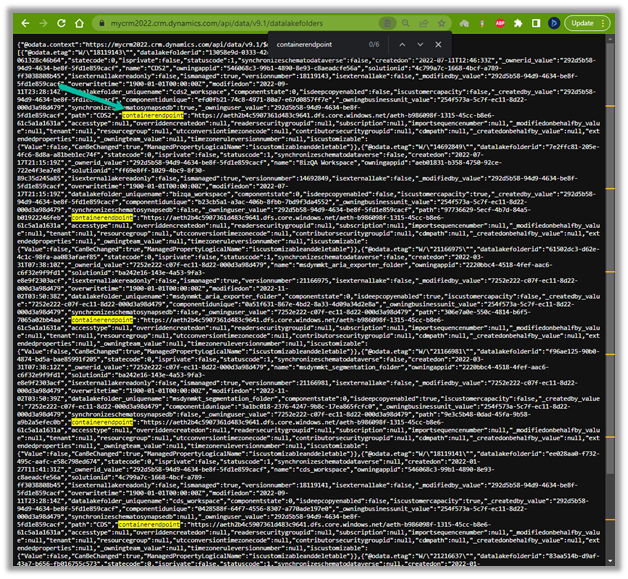
ContainerURL = <a href="https:///api/data/v9.1/datalakefolders”>https://&lt;EnvironmentURL>/api/data/v9.1/datalakefolders

In our case – https://mycrm2022.crm.dynamics.com/api/data/v9.1/datalakefolders

The containerendpoint = https://aeth2b4c5907361d483c9641.dfs.core.windows.net/aeth-b986098f-1315-45cc-b8e6-61c5a1a1631a

Copy the value of containerendpoint (ContainerURL)


Navigate to the below URL by replacing the value of the Environment URL and Container URL

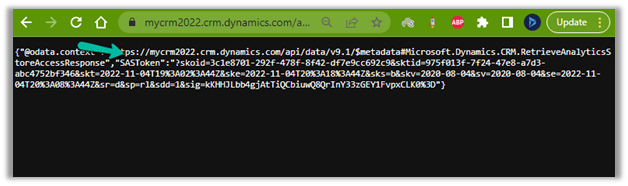
<a href="https:///api/data/v9.1/RetrieveAnalyticsStoreAccess(Url=@a,ResourceType=’Folder&#8217;,Permissions=’Read,List’)?@a=’/CDS”>https://&lt;EnvironmentURL>/api/data/v9.1/RetrieveAnalyticsStoreAccess(Url=@a,ResourceType=’Folder’,Permissions=’Read,List’)?@a='<ContainerURL>/CDS’

i.e.

https://mycrm2022.crm.dynamics.com/api/data/v9.1/RetrieveAnalyticsStoreAccess(Url=@a,ResourceType=’Folder’,Permissions=’Read,List’)?@a=%27https://aeth2b4c5907361d483c9641.dfs.core.windows.net/aeth-b986098f-1315-45cc-b8e6-61c5a1a1631a/CDS%27

to get the SAS token (the SAS Token will expire after 1 hour)


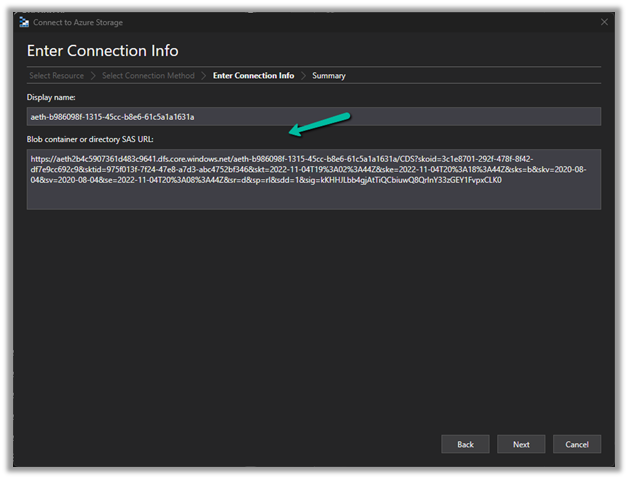
Construct the SAS URL which we will use in the Azure Explorer’s connection info  <a href="https:///CDS?https://<ContainerURL>/CDS?<SASToken&gt;

https://aeth2b4c5907361d483c9641.dfs.core.windows.net/aeth-b986098f-1315-45cc-b8e6-61c5a1a1631a/CDS?skoid=3c1e8701-292f-478f-8f42-df7e9cc692c9&sktid=975f013f-7f24-47e8-a7d3-abc4752bf346&skt=2022-11-04T19%3A02%3A44Z&ske=2022-11-04T20%3A18%3A44Z&sks=b&skv=2020-08-04&sv=2020-08-04&se=2022-11-04T20%3A08%3A44Z&sr=d&sp=rl&sdd=1&sig=kKHHJLbb4gjAtTiQCbiuwQ8QrInY33zGEY1FvpxCLK%03D0

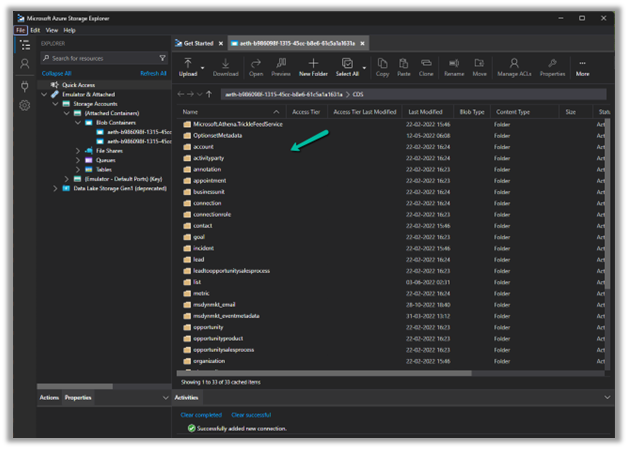
Now we have access to the storage

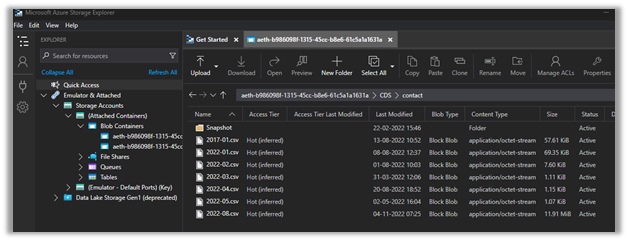
Here we have opened the contact folder just as an example


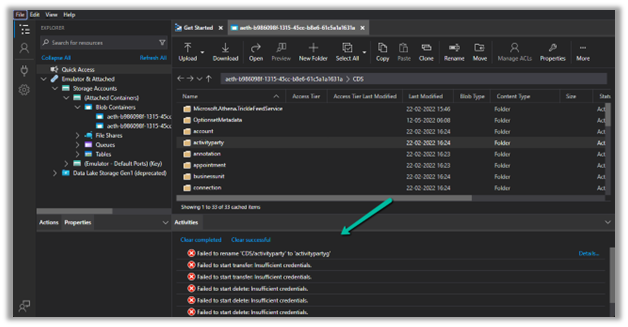
We only have read-only access, any other access like delete, rename, upload, etc. will fail


Get all the details here – https://learn.microsoft.com/en-us/power-platform/admin/storage-sas-token

Hope it helps..

Advertisements

How to – quickly find Tenant Id https://www.whatismytenantid.com/


Recently we had to find the tenant id, usually, we will log in to Azure Portal and within Azure Active Directory we will get the tenant id.

However, in this case, we only had the user’s email address.

So we had https://www.whatismytenantid.com/ to help us here.

Just enter the domain name, and click on Find my tenant ID.

The result –

The corresponding PowerShell script – https://craigporteous.com/azure-tenant-id-powershell/

Hope it helps..

Advertisements