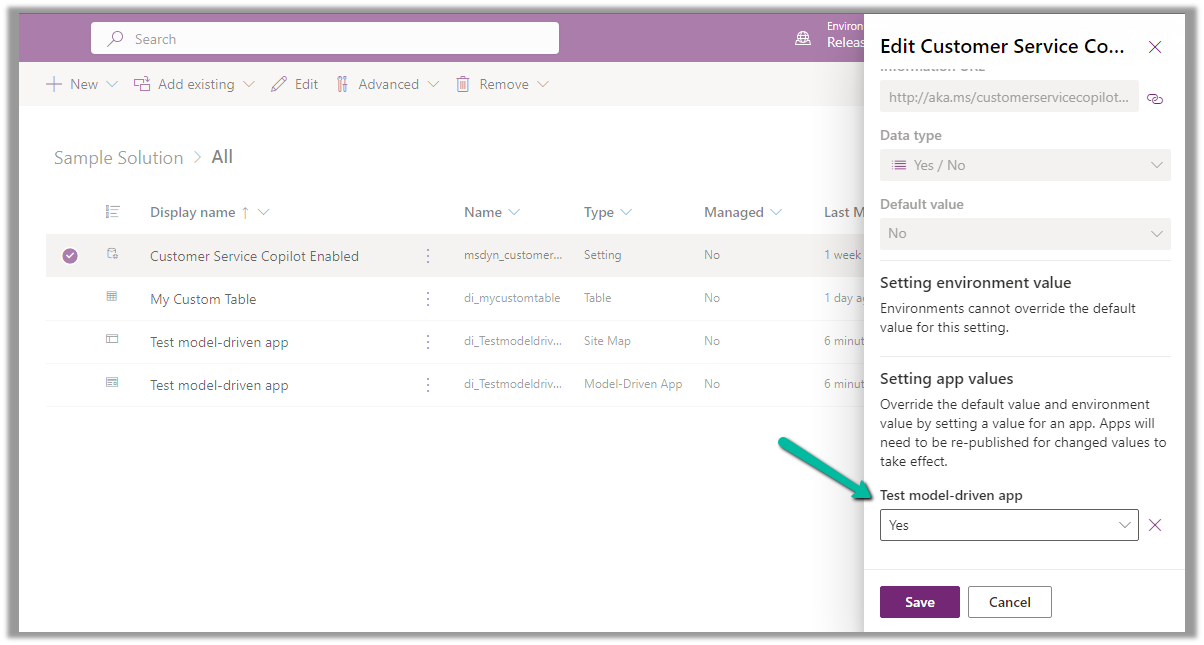
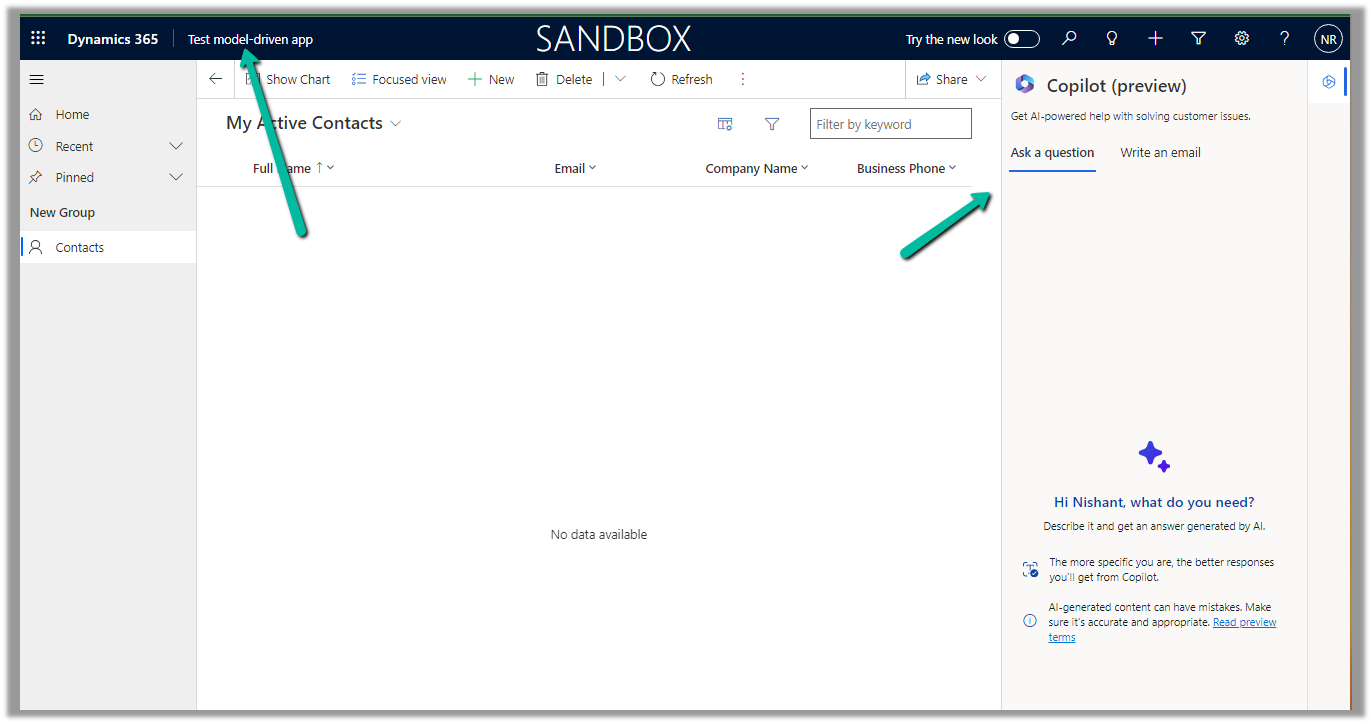
In this blog post, we will cover deploying Web Resources and Plugin directly from Visual Studio using the Kupp Code Analytics extension, which makes the process more efficient and less error-prone compared to doing it manually.
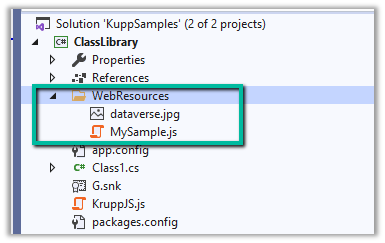
Suppose we have the following JavaScript and Image file that we want to deploy to our Dataverse / Dynamics 365.
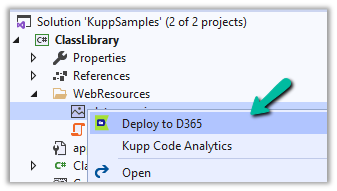
We can right-click the file and select the option “Deploy to D365“
In the Output window, we can see both the Web Resources created.
Now let us make changes to our JavaScript file – MySample.cs and click on Deploy to D365.
This time in the output window we can see the file getting updated instead of getting created.
We can see the Web Resources files created and updated for the connected environment inside the Maker Portal.
Similarly, we can deploy or update our Plugins from within Visual Studio. Here we need to make sure our Plugin Assembly is already registered.
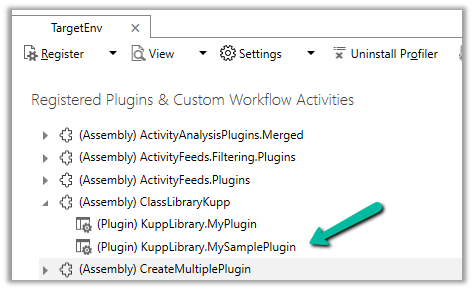
Below we have the following assembly already registered.
Let us update our Plugin Class and select the “Deploy to D365” option for the plugin project. We have added a new plugin class called MySamplePlugin.
As expected we can see our plugin updated from the Output window.
From Plugin Registration Tool we can see our plugin assembly updated.
Microsoft has always recommended managed solution(s), apart from the some of benefits that managed solutions offer over unmanaged, Microsoft is also adding features to the managed solution, making it easy for teams to adopt and transition to Managed solutions, like focusing on making the solution import faster and adding ALM-specific features to it.
Let us take a simple example to see it working –
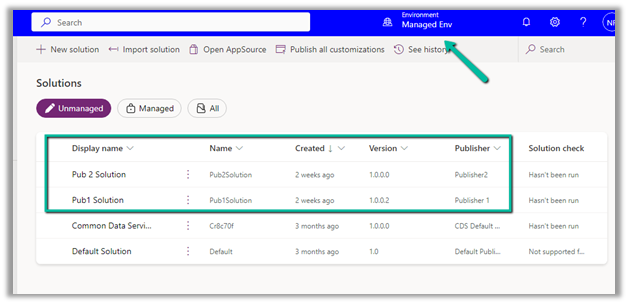
Suppose we have 2 environments, a Test and a Managed environment.
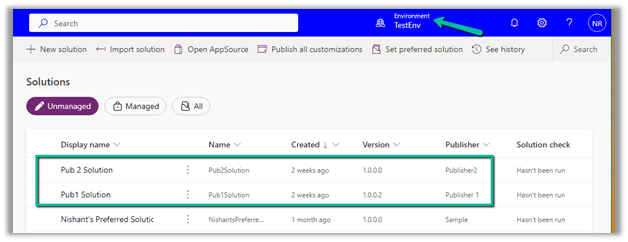
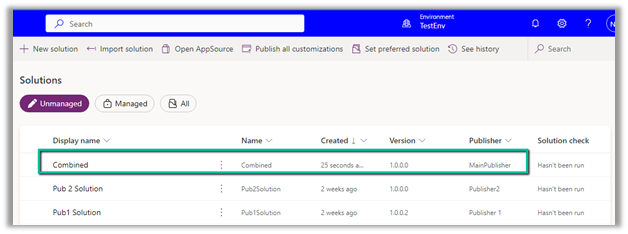
The test environment has 2 unmanaged solutions from different publisher that is already deployed to the target environment as unmanaged.
Source –
Target –
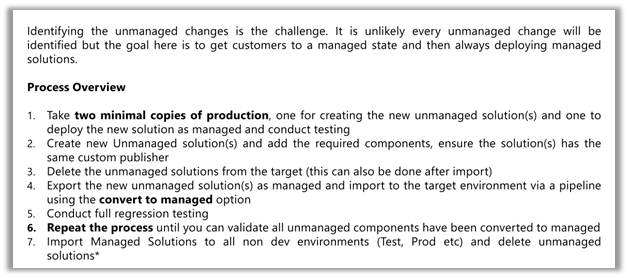
Ideally, we should be creating 2 copies of production environments, one for creating the new unmanaged solution (s) containing the components to be converted to managed and the other environment where the unmanaged solution (s) will be converted to managed and will be used for testing and validation.
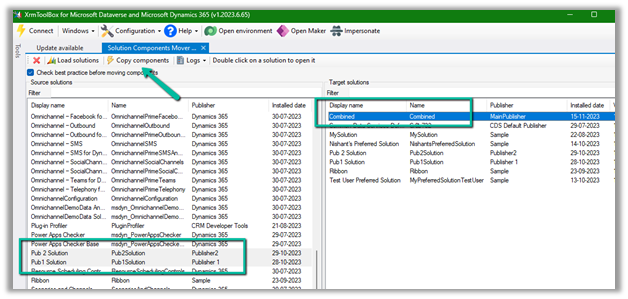
Select source solutions and the target solution (combined) in our case, and click on Copy Components.
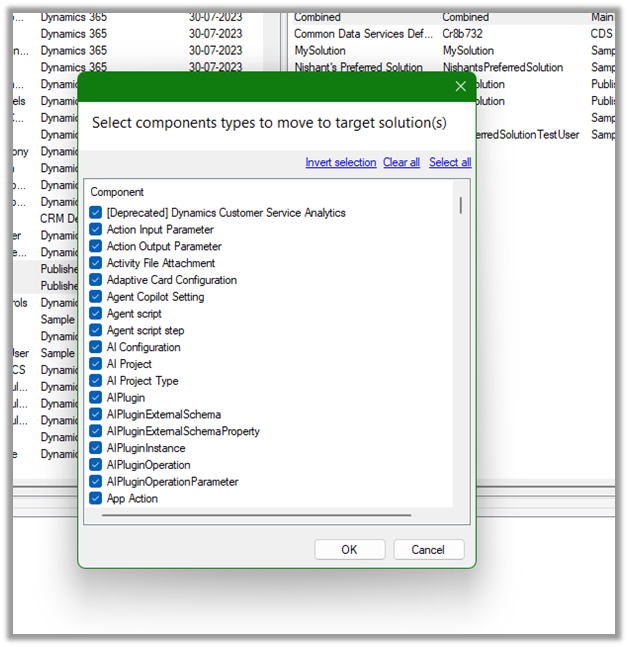
Here we have selected all the component types.
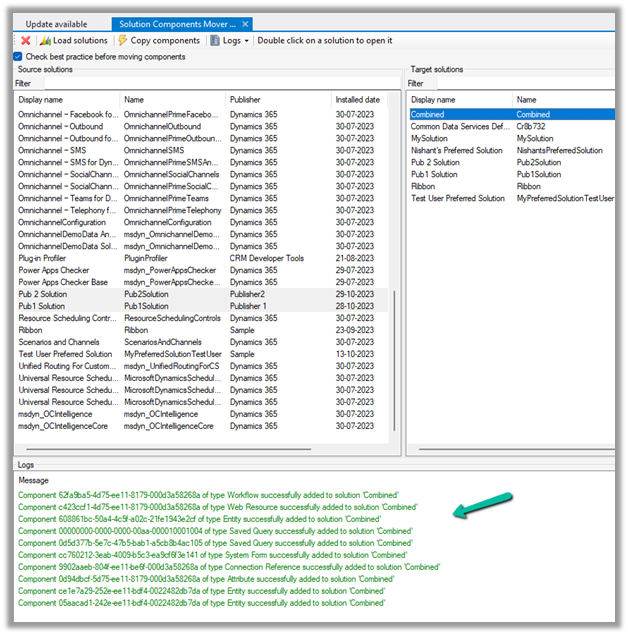
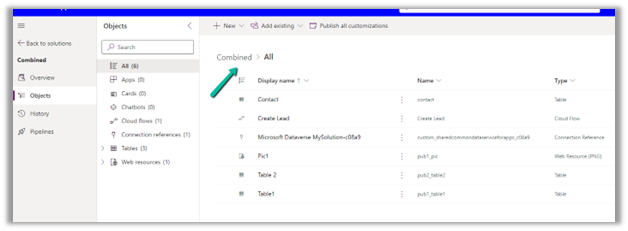
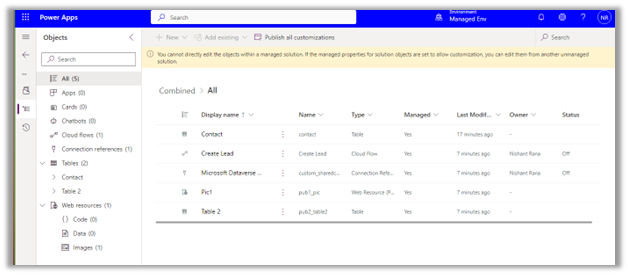
Back in our TestEnv, we can see the components of the solution added from Pub 1 and Pub 2 solutions to the combined solution.
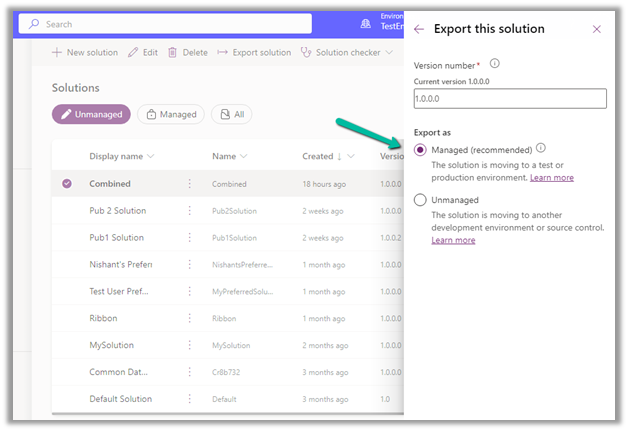
Let us export the combined solution as managed.
The other way to create the combined solution would be to “Include all objects” for unmanaged components like custom tables. For managed components, like out-of-the-box tables lead, contact, case, etc, we’d only select the components customized.
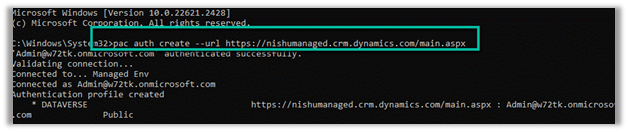
Run the below command, to connect to the destination (managedenv) environment.
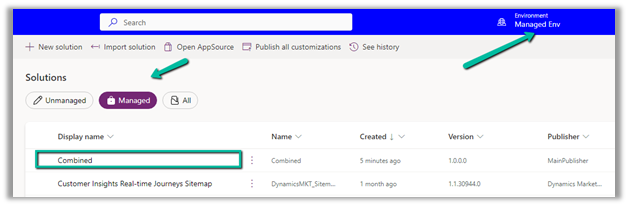
We can see the managed solution imported successfully to our target environment.
For quick reference –
Unmanaged
Managed
Unmanaged solutions are intended to be used in the development environment.
Managed solutions are intended to be distributed and installed.
Unmanaged solutions can be exported either as managed or unmanaged.
Managed solutions cannot be exported
Components can be directly edited within an unmanaged solution.
Components inside the managed solutions cannot be edited directly. Editing can only be done in the corresponding unmanaged solution or an additional unmanaged solution in dev and then exported and imported as managed in the target environment.
The unmanaged solution can be seen as the source code
A managed solution can be seen as a compiled code.
Deleting an unmanaged solution only deletes the solution container, all unmanaged customizations remain in effect and are applied to the default solution of the environment
Deleting a managed solution removes the customizations from the environment.
Benefits
Benefits
Unmanaged solutions allow for real-time customization directly within the environment.
The managed solution secures the solution components in the environment, by restricting the user from making changes or removing components from it.
Developers can make changes on the fly without the need for importing/exporting solutions
Ability to uninstall/roll back. In case of issues or undesired changes, managed solutions make it easier to roll back to a previous version. This can be crucial for maintaining system stability and ensuring minimal disruption to ongoing operations
The managed solution supports layering allowing multiple solutions to be installed simultaneously without conflicts.
Clearly defined component ownership in the case of multiple publishers/solutions.
Improved solution import performance with reduced performance impact on the environment.
Copilot (preview) for Dynamics 365 Customer Service provides the following features –
Case Summary
Conversation Summary
Ask a question
Write an email
Draft a chat response.
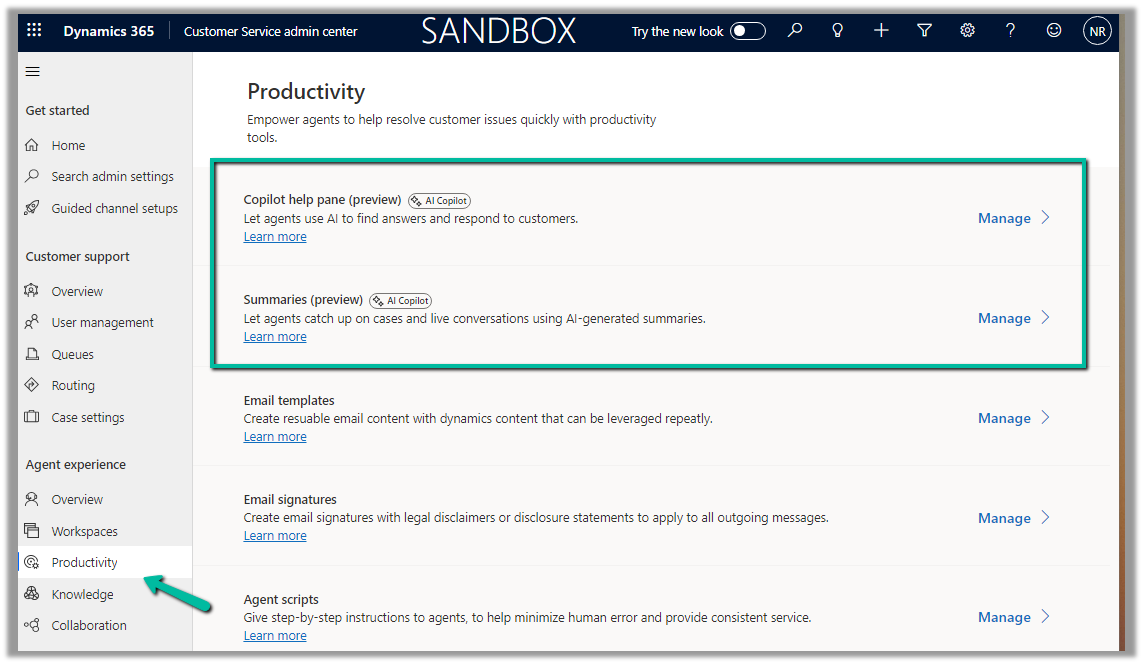
To enable it, navgiate to Customer Service Admin Center >> Agent Experience >> Productivity >> Manage (Copilot help pane and Summaries)
Check the required Copilot help pane settings and save.
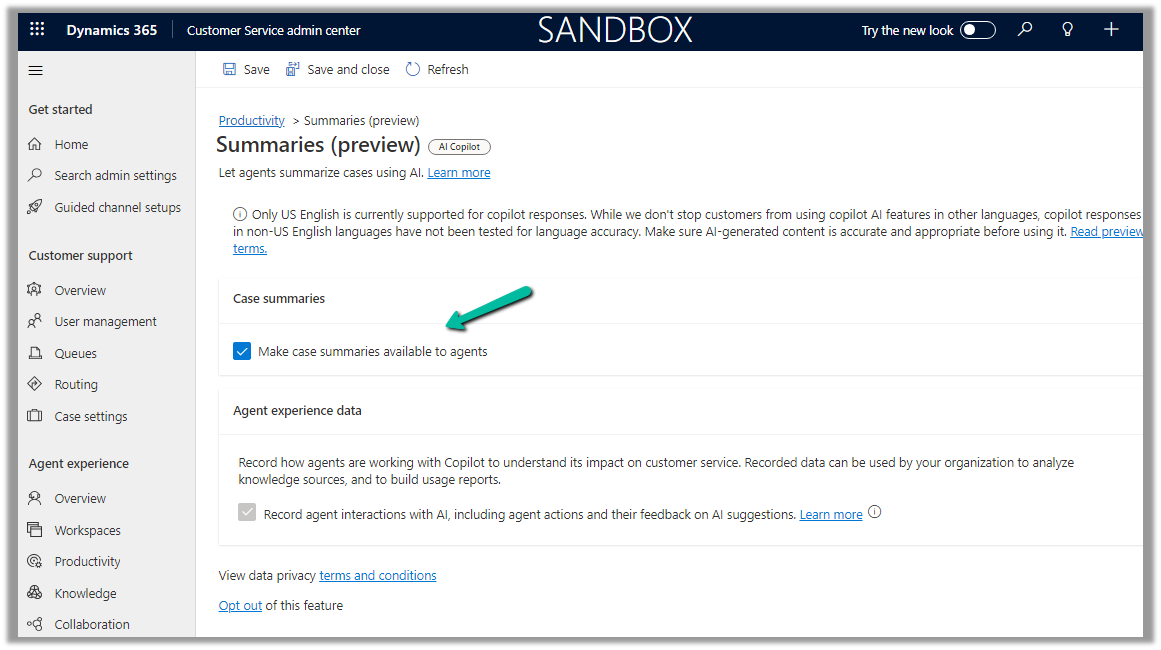
Similarly for Summaries
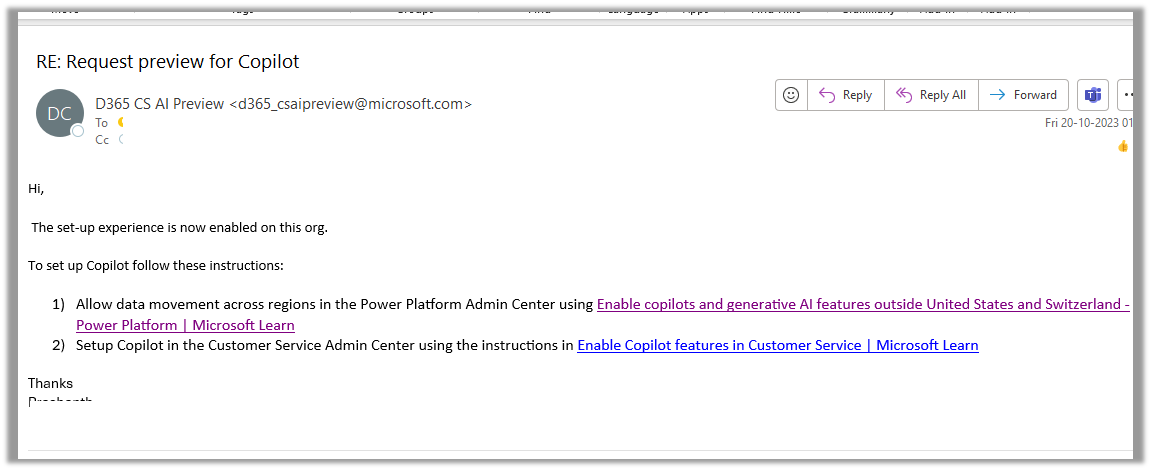
For geographies outside the United States, to enable the Copilot features for Customer Service, we need to send an email to d365_csaipreview@microsoft.com with the Organization ID to enable the preview.
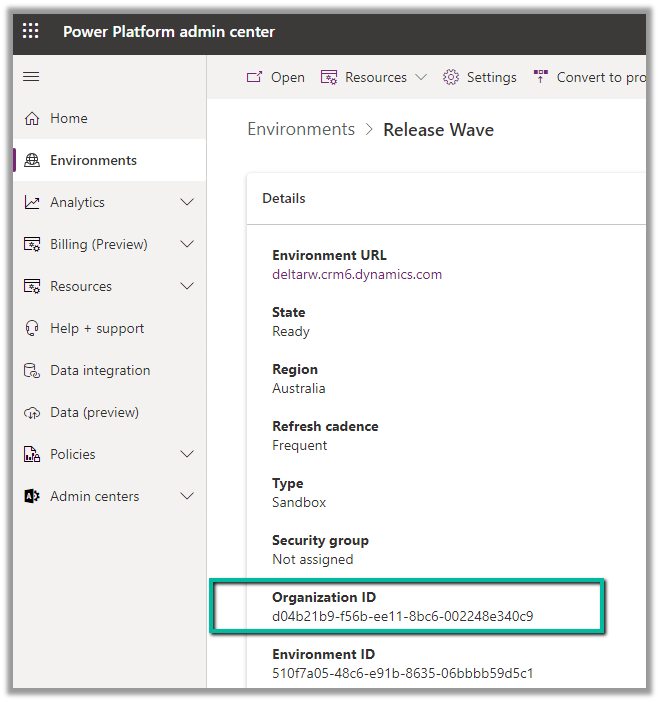
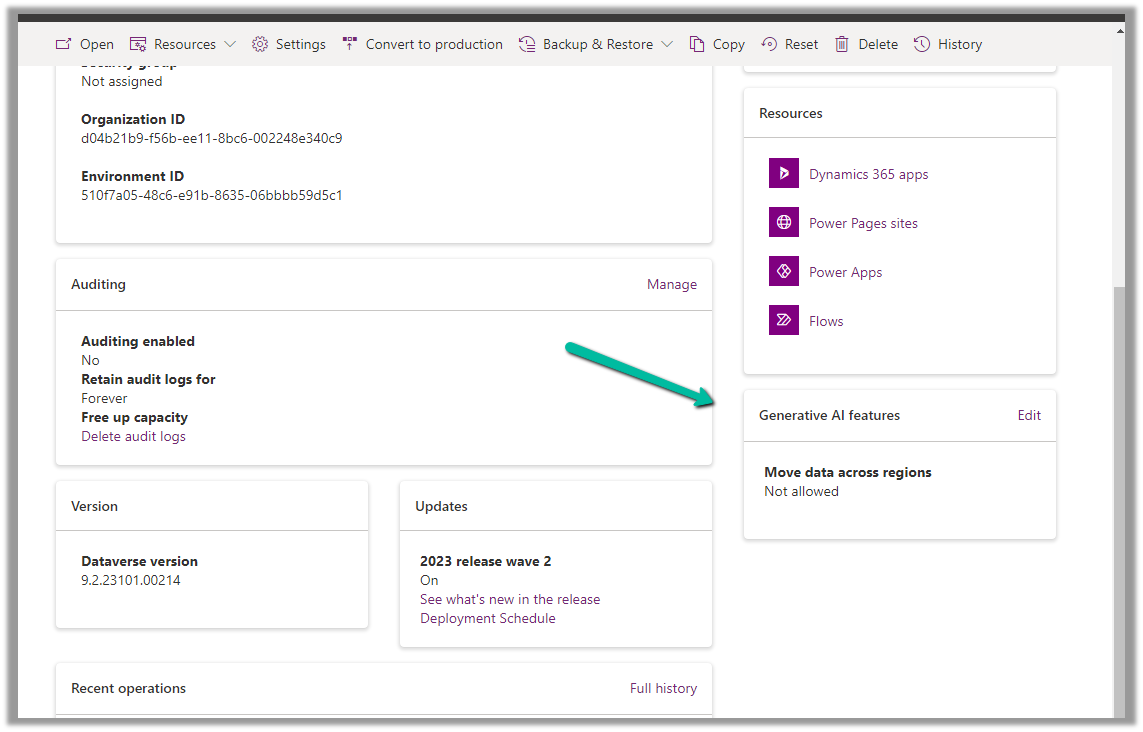
We can get the Organization ID from the Power Platform admin center for the environment.
As our environment was in the Australia region, we followed the same and within the next day, we got a response from Microsoft that it had been enabled in our Environment.
As per the email, the next step is to Enable copilots and generative AI features outside the US and Switzerland, for this again open the environment in the Power Platform admin center, and select Edit for Generative AI Features.
Check the Move data across regions option and enable it. (We need Global Admin or Power Platform admin role to enable it)
Once we have followed the above steps it adds the Copilot help pane in the Customer Service Hub app.
Similarly, for the Customer Service Workspace app, we can manage it in the corresponding Agent Experience profile.
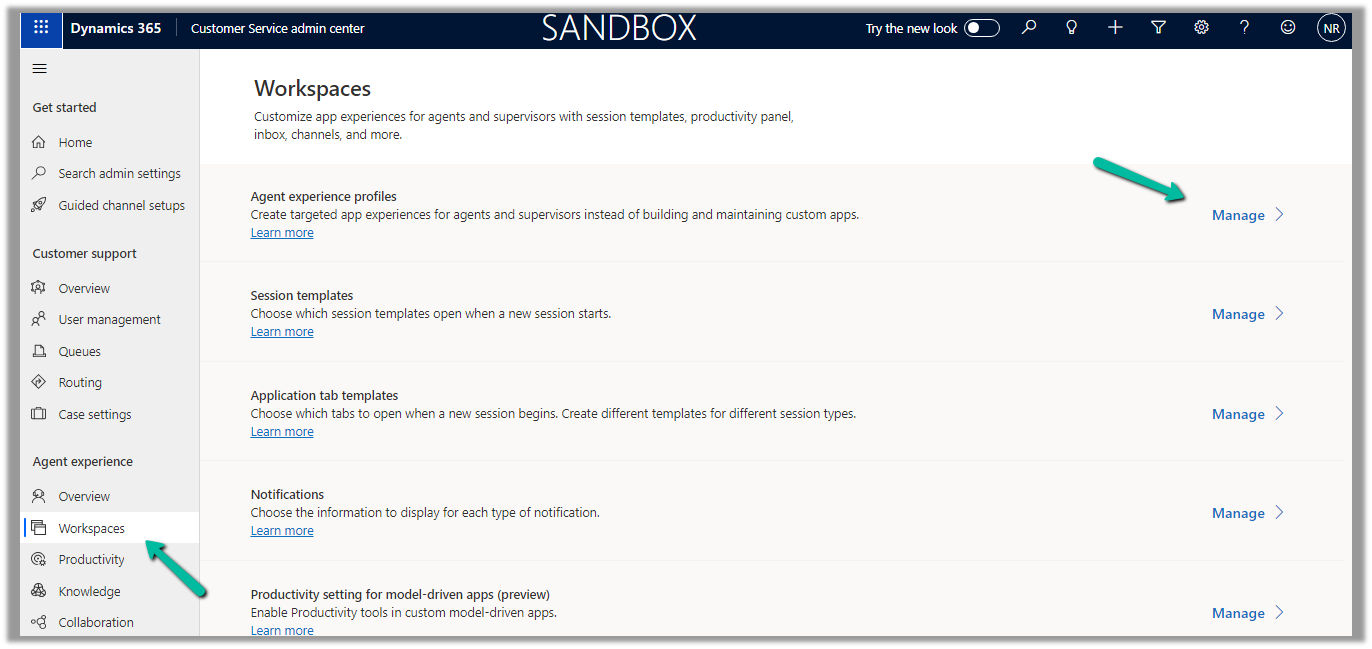
Navigate to the Agent Experience >> Workspaces >> Manage (Agent Experience profiles)
We can see the Copilot AI features section (below is the out-the-box Customer Service workspace – default profile), we can accordingly update the corresponding agent experience profile(s) records configured/used for the agents.
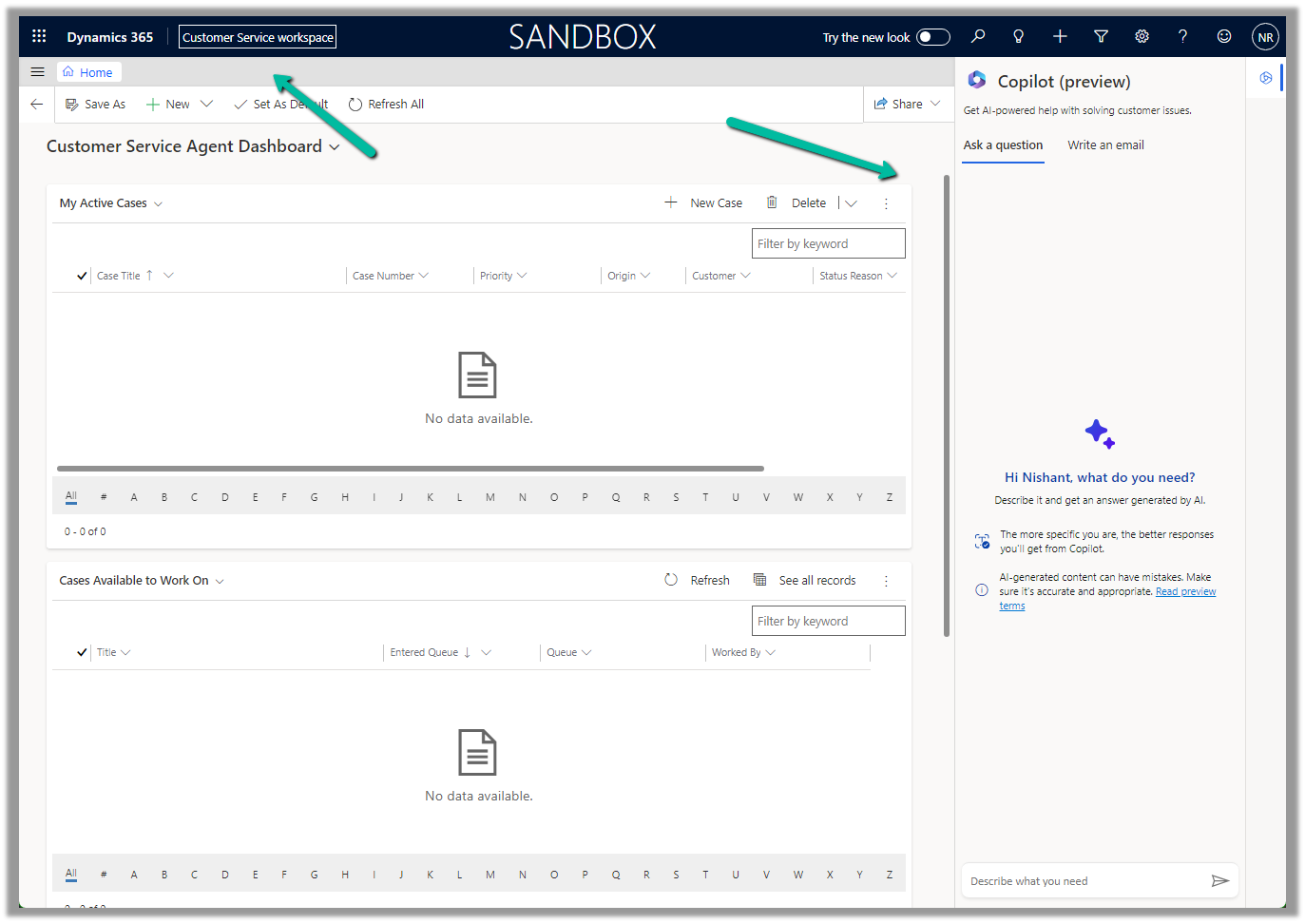
Below we can see the Copilot help pane in the Customer Service workspace app.