How to- Enable Microsoft Team chats in Dynamics 365 Apps


Enabling Microsoft Team chats inside Dynamics 365 allows the agents/sellers to start a new chat from a record or connect an existing chat to a record from within the application itself.

We can enable it from the Power Platform Admin Center or the corresponding Sales, Customer Service, Marketing, and Field Service applications.

Inside Power Platform Admin Center – Navigate to Environment >> Setting >> Team Integration Settings

We can either enable it for all the Dynamics 365 Apps or specify the apps.

Here we have specified the Customer Service Hub and Sales Hub.


We also have the option to specify the record types for Teams chats.

Let us open a contact record inside Sales Hub to see it in action.

We can see 2 sections on the Team chats pane, Chats connected to the record and Other chats.

As we have not connected chat currently, we see the option New connected chat to connect the record to the team chat.

The Other chats section lists the top 200 chat conversations on the Team, from where we can select any conversation to connect it to the record.

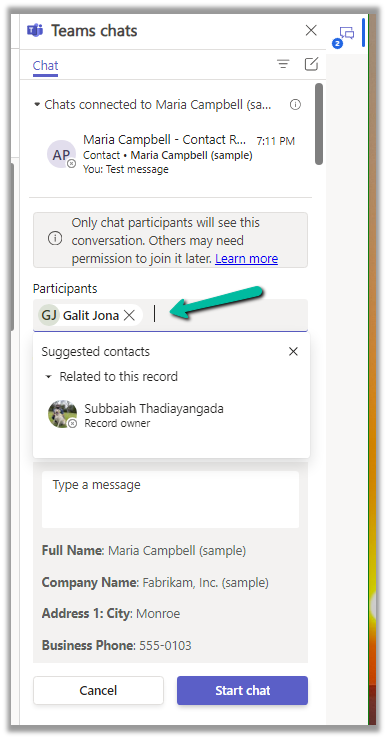
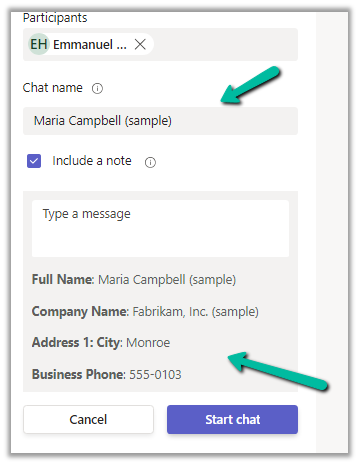
Clicking on the New connected chat allows us to search the Participants whom we want to chat with, update the chat name (suggested), and include a note as well.

It also suggests the participant (as the record is owned by a user, it will suggest the name of the record’s owner)

More on the record suggestions.

We can also select a user from the Other chat section, and select the Start a connected chat option, which populates the participant.

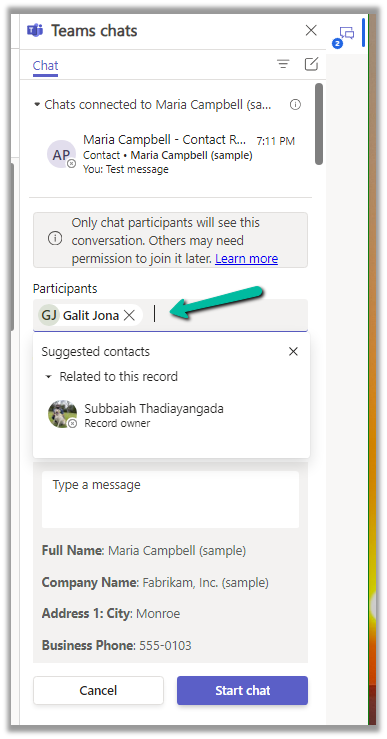
We can also have multiple participants added.
Add the required details and click on the Start chat

We can see the chat window opening with the participant selected and details / message added.

We can also connect other chats to that record using the Connect to this record option.

We can also disconnect the chat using the Disconnect form this record option.

Similarly, we can also start a regular chat (not associated with any record) using the compose icon in the Teams Chat panel.

This opens the New chat window as shown below.

As we saw earlier, we can use the + Add record types option to add more record types to connect to Teams Chats. (including custom table)

For each record type added, we get the following settings.

Here we can specify who can join and disconnect the chat.

We can also specify if the record’s title can be used for the Chat name, should the note be included or not, and which view fields to be considered for the Message.
Get all the details here.

Hope it helps..

Advertisements

Use tag parameter to add a shared variable to the plugin – Dataverse / Dynamics 365


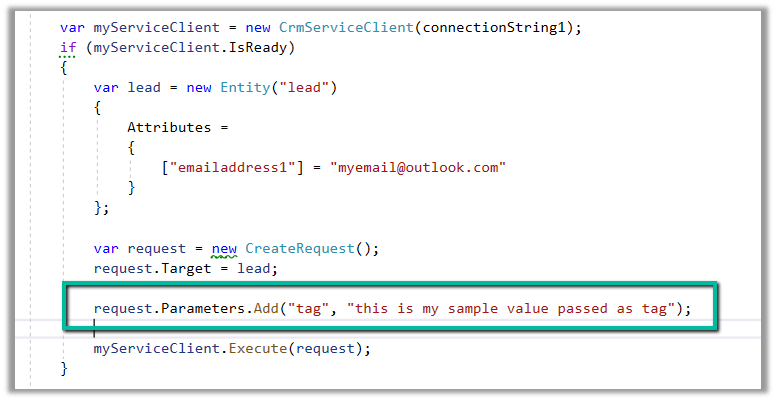
We can use the tag parameter in the request to pass any additional information to the plugin. This is added as a shared variable to the plugin execution context.

Below we are creating a lead record and passing the tag parameter in the CreateRequest

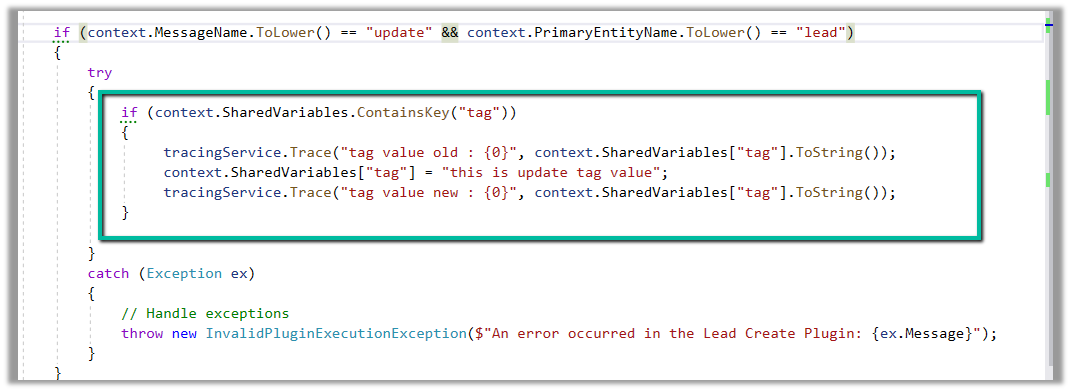
And below is our plugin, that gets the tag parameter passed from the shared variable collection.

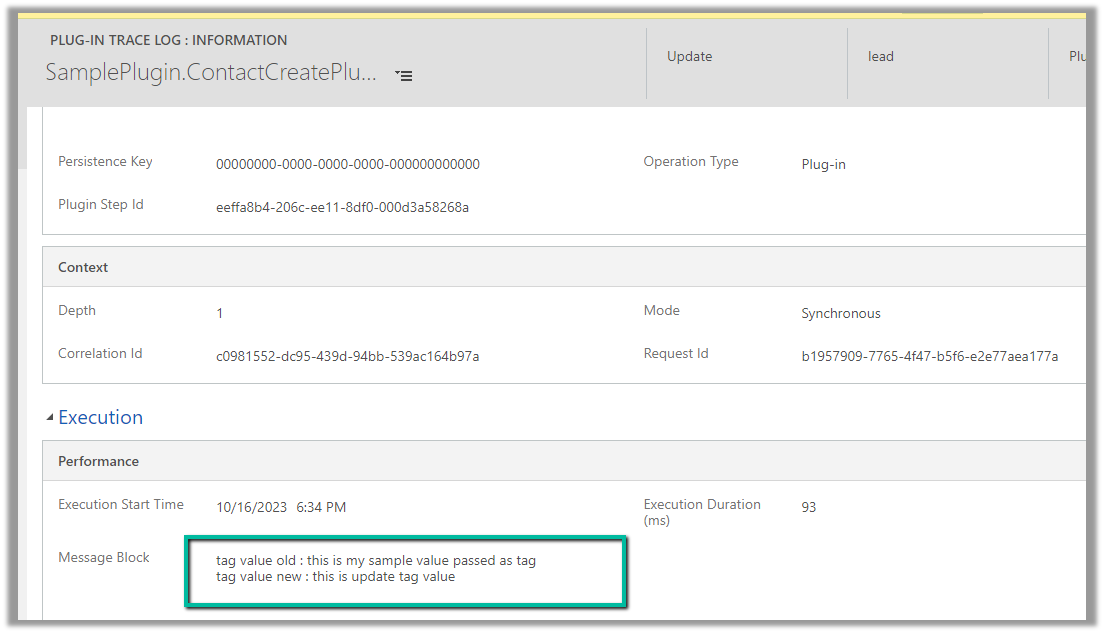
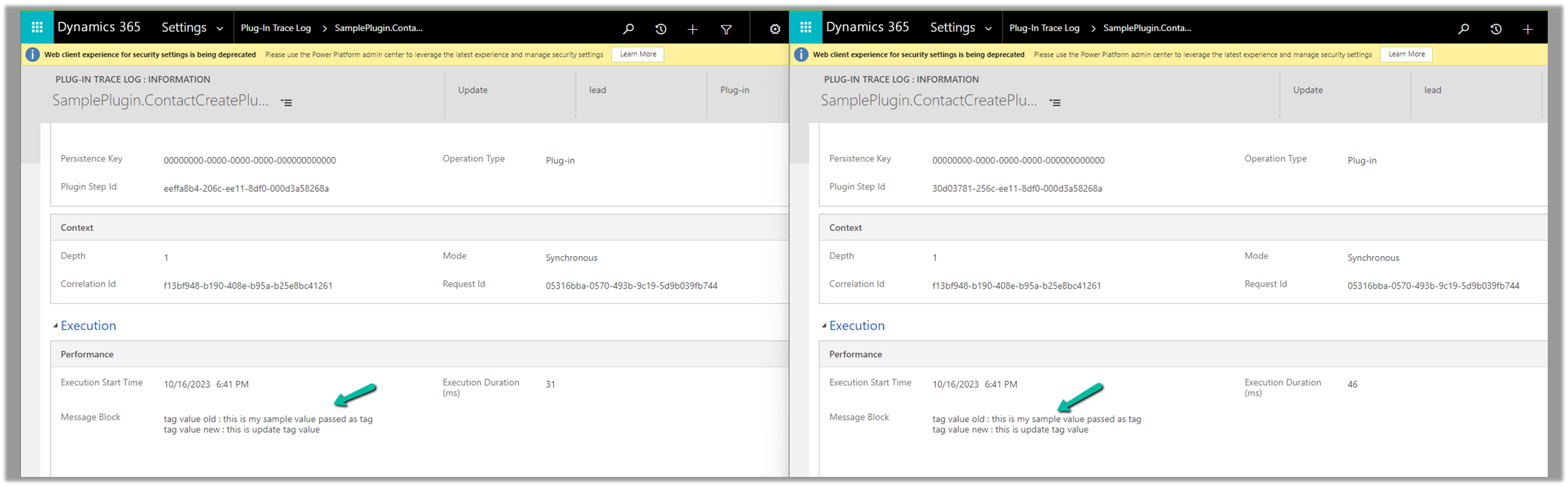
We can see the value of the tag parameter in the trace log.

Below is an example of where we are passing it in UpdateRequest

The trace log –

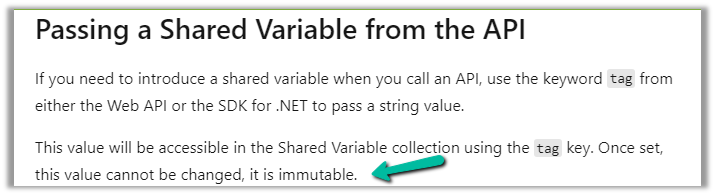
Also, the tag parameter is immutable, once set from the API, its value cannot be changed.

Below we had the same plugin registered in pre and post-operation, and we were getting the same value for the tag passed during the create request.

As per the Microsoft documentation, we can use this field to pass any additional details from the client application, that we can use to apply specific logic in the plugin.

Get more details here

Refer to for more details

Hope it helps..

Advertisements

Preferred Solution (preview) in Dataverse / Dynamics 365


With the preferred solution (preview), now we can specify a solution to which all our changes, that are made outside of the context of the unmanaged solution, should get automatically added.

To enable it, navigate to Settings >> Features >> Preferred solution (Preview)

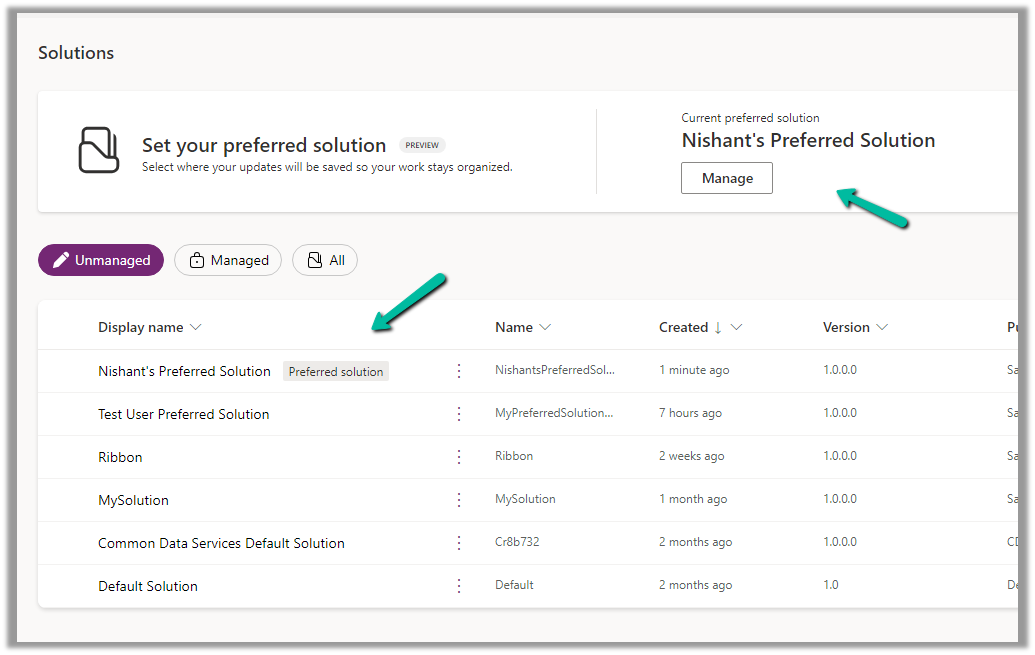
Inside the Maker Portal, now we can see a new section added, asking us to specify the preferred solution, and we can see Common Data Services Default solution set as the preferred solution as default.

We can click on Manage to specify any of the existing unmanaged solutions as the preferred solution or to create a new solution.

Here we have set one of the solutions as the preferred solution.

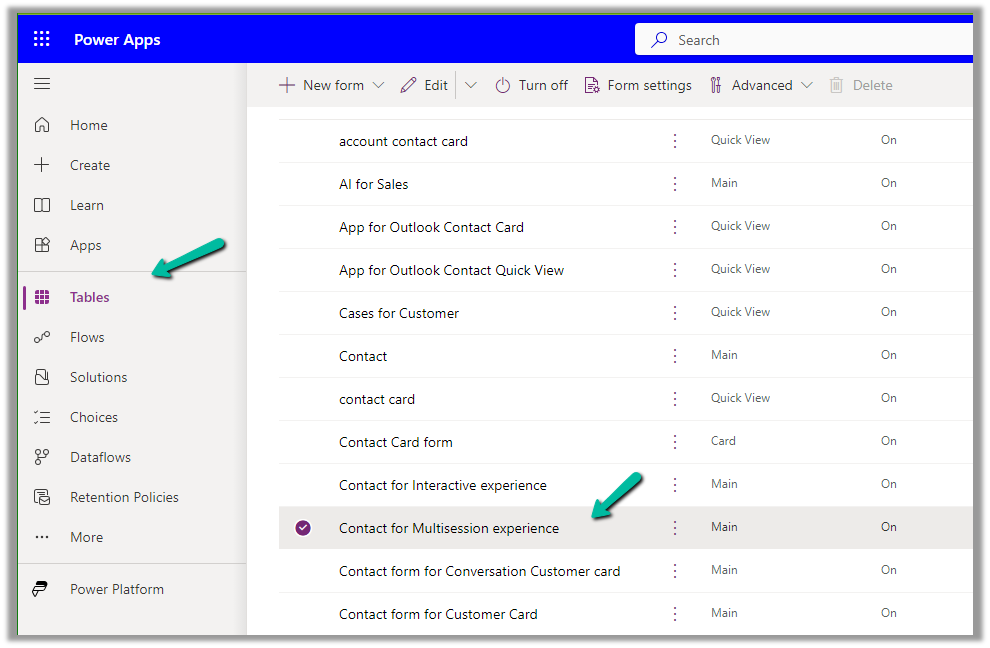
Now let us add an update existing table outside the context of the solution. Here we are updating its form by rearranging some of the fields in it.

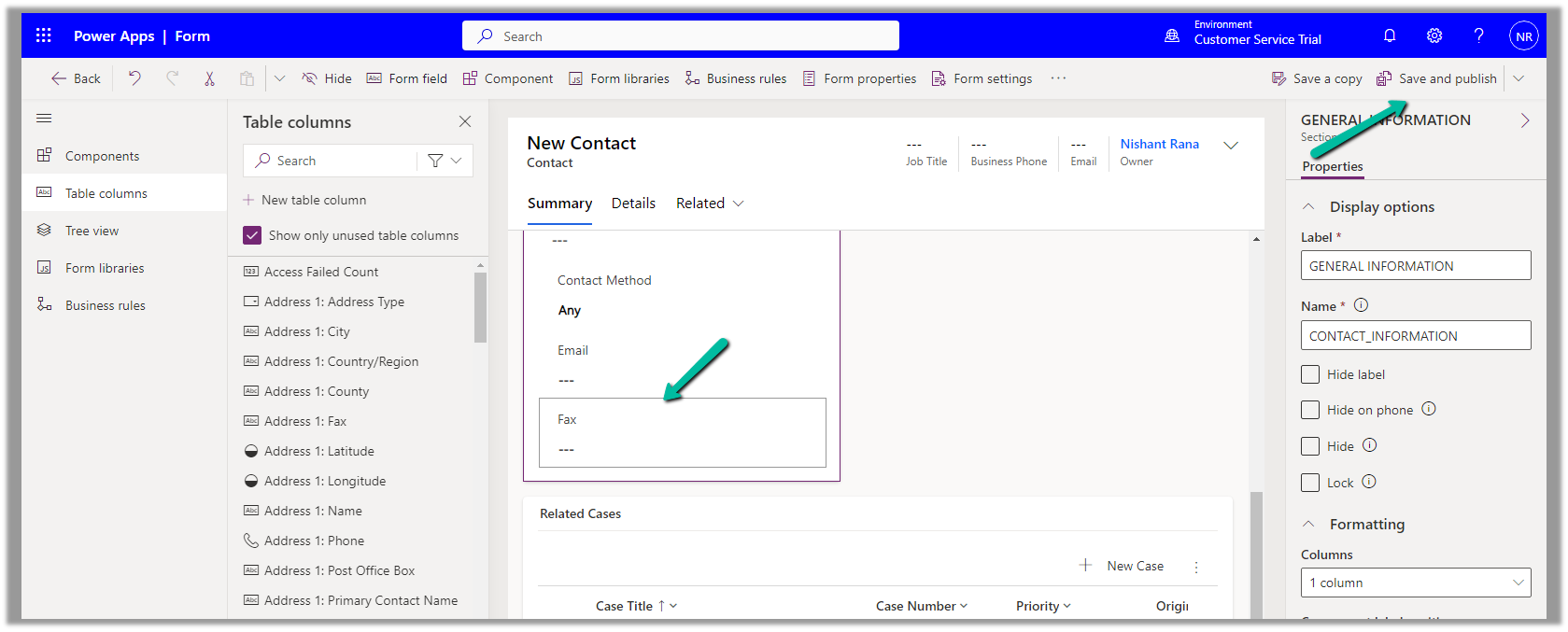
We have moved the Fax field to be the last field in that General Information section and have published the changes.

Back in our preferred solution, we can see the form we updated, automatically added.

Similarly, any other changes, i.e. any solution components added or updated, outside the context of the unmanaged solution, will be added to the preferred solution. (apart from changing the Default Solution where all the solution components reside).

Also, other users/makers can specify their preferred solution.

To add the cloud flows or canvas apps, created outside the context of the solution, in the preferred solution, we can enable the below features.

Here we have created this sample flow from outside the solution and also a canvas app.

We can see them added to our preferred solution.

Get all the details here

Hope it helps..

Advertisements

How to – Connect Dynamics 365 records and views to Microsoft Team channels – Dynamics 365


To enable the feature that allows linking existing Dynamics 365 records and views to a Team channel,

we need select the environment and navigate to Settings >> Team Integration Settings

Select Yes for the “Turn on the linking of Dynamics 365 records to Microsoft Teams channels” and save it.

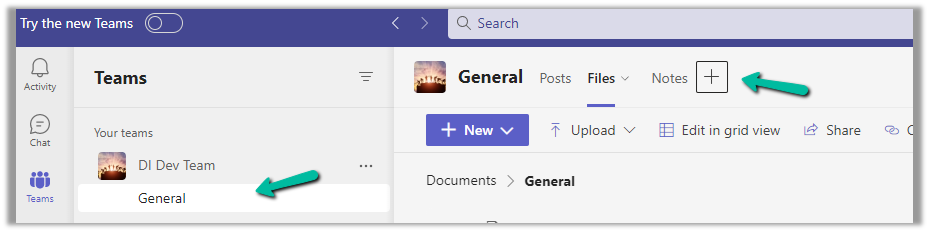
Now back in Microsoft Teams, from a team channel, select the Add (+) option

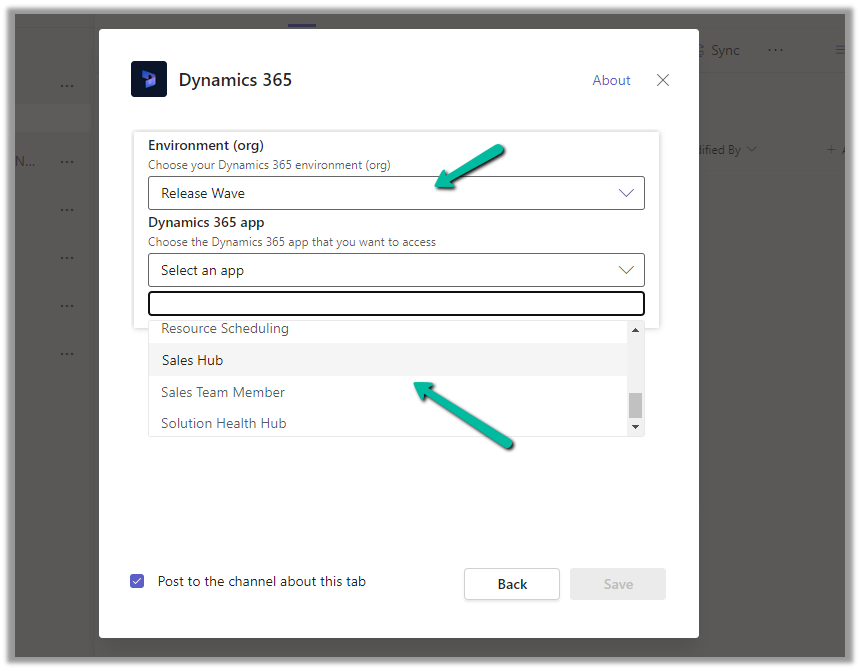
Select Dynamics 365

Specify the environment, and the corresponding Dynamcis 365 Apps in it.

Check Rememer this preference and click on Select.

Next, we get the option to search and filter for a record to link to.

Here we have selected the contact Nancy Anderson record, click on Save.

We can see the selected contact record pinned.

We also get the below options for the record tab added.


Similarly, if we want to link to a view, we can select the table and then its corresponding view to select and click on Save.

We can see the selected view added.

Also for both records and views pinned, we get the option of starting the conversation.

Clicking in Start conversation adds the below message with the link to the tab where the view or the record has been added or linked.

Get all the details here

Hope it helps..

Advertisements

Use Sales Copilot to compose email messages (preview)– Dynamics 365


Sales Copilot can generate and suggest email content while composing or replying to an email in Dynamics 365 in the context of a Lead or Opportunity record.

Allow data movement across regions in the Power Platform Admin Center using Enable copilots and generative AI features outside United States and Switzerland – Power Platform | Microsoft Learn

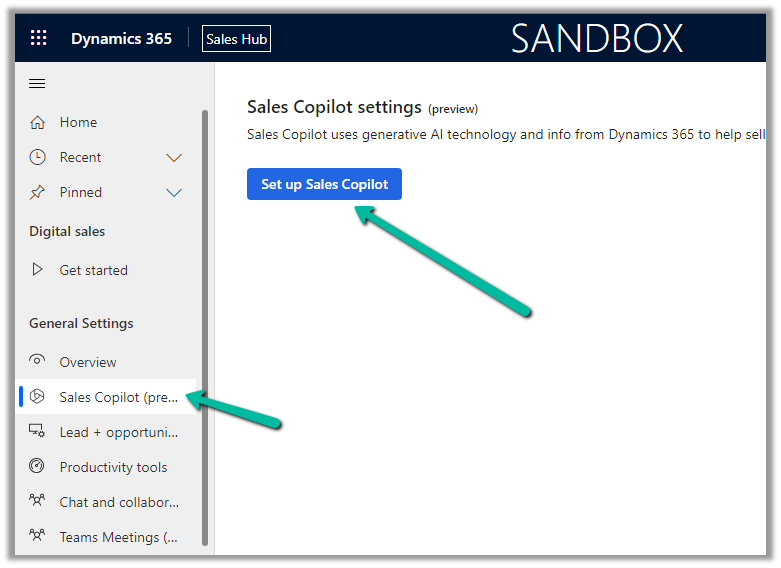
To enable Sales Copilot, navigate to

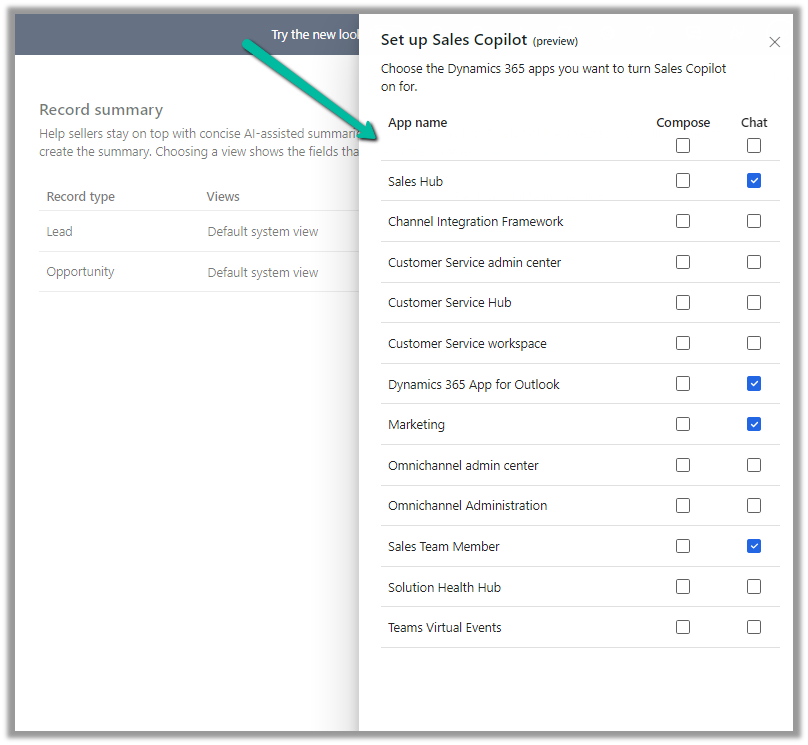
Sales Hub >> App Settings >> Sales Copilot (preview) >> Set up Sales Copilot

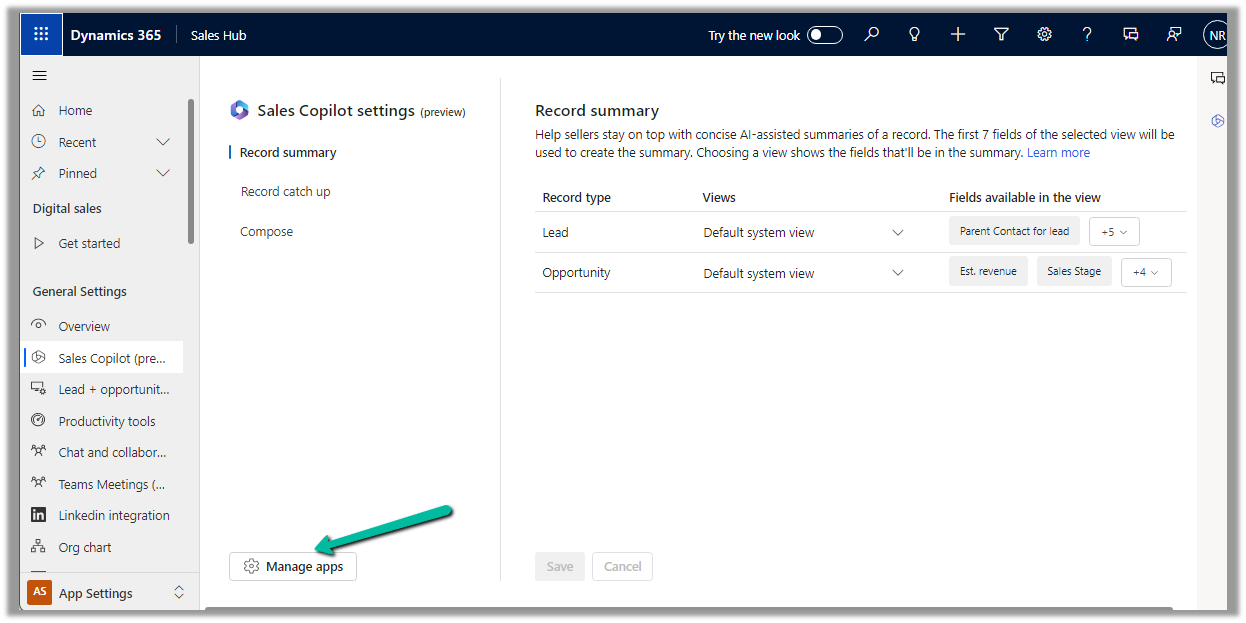
Or if we have already enabled it, we can manage the features provided along with the different apps we want to apply the Sales Copilot using the Manage apps option.

Here we can specify to which apps we want to enable the Compose and Chat feature

The Compose refers to the AI-driven email insights here.

Let us create a new Email from the timeline of the lead record.

We can see the Sales Copilot Compose in the inactive state right now. It becomes active when opening an email record or creating a new email record with either lead or opportunity in the Regarding field.

On the new email record, we can see the Compose tab enabled, and the option Describe the email you want.

We get the option to specify the statement, for which the content should be generated.

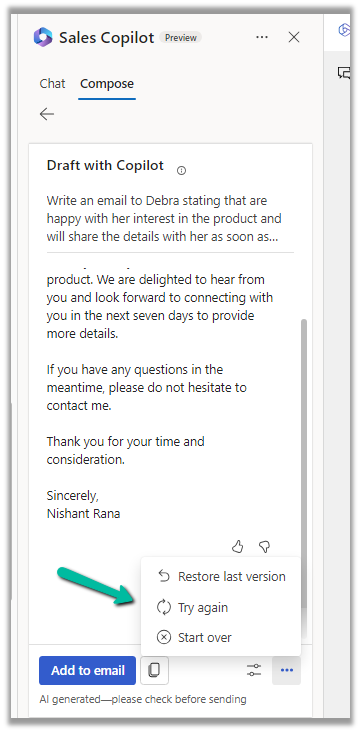
Below we can see the suggested content

We also get the option to Add content to the Email, Copy it

Adust tone and add more details

Also, Restore the last version, Try again, Start Over

Similarly, in the case of replying to an email we get the below options to start with along with an Email Conversation Summary.

Selecting the Address a Concern option generates the following content.

Get all the details here

Hope it helps..

Advertisements

Date Time Fields (Date Only and User Local – Behaviour) in Power Automate (Dataverse)


Recently we faced an issue in our flow that was showing a different date that the date entered by the user for a date time field.

Let us look at the below scenario to understand it.

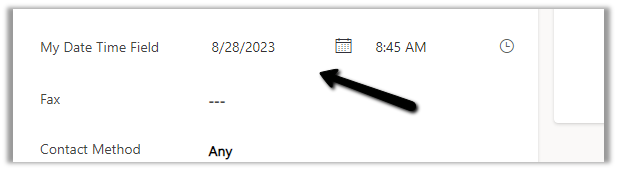
Say we have the below field Date and Time with Time Zone Adjustment as User Local created in CRM / Dataverse.

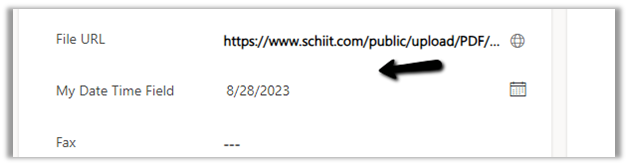
Now user enters the below value in in the field and saves the record which triggers the flow.

The user’s time zone is set as below

Now in our Power Automate flow, we can see the UTC date for it.

2023-08-27T20:00:00Z

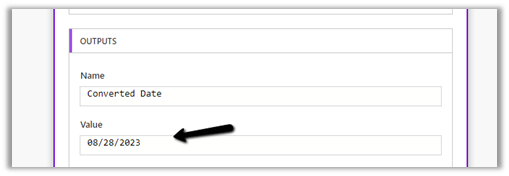
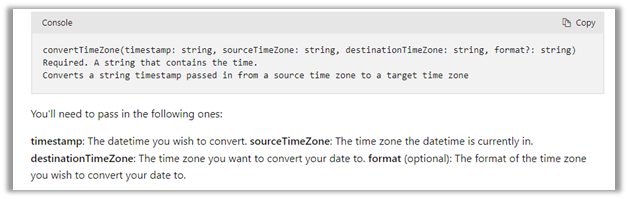
Now to convert to the user’s New Zealand Time Zone we can make use convertTimeZone function here

convertTimeZone(triggerOutputs()?[‘body/cr0e8_mydatetimefield’],’UTC’, ‘New Zealand Standard Time’, ‘MM/dd/yyyy’)

We get the date as expected i.e. 28th

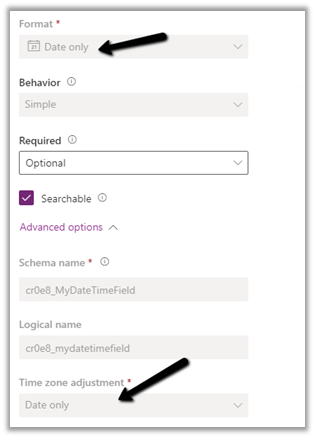
Now let us change the Format of the field to Date Only, and we keep the Time zone adjustment as User Local only.

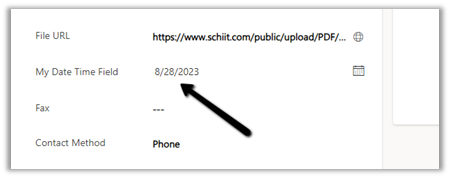
Let us trigger the flow again. (now we don’t have the time part)

We get the date without time part as expected.

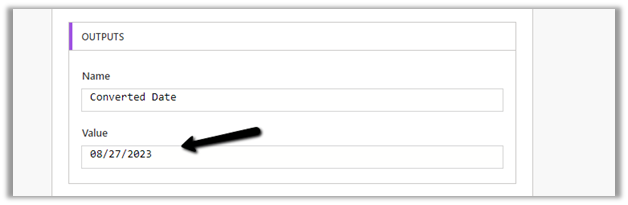
But this time the convertTimeZone
function doesn’t work, as we only have the Date part and it is not in the UTC format.

convertTimeZone(triggerOutputs()?[‘body/cr0e8_mydatetimefield’],’UTC’, ‘New Zealand Standard Time’, ‘MM/dd/yyyy’)


Check this thread that talks about it –

https://powerusers.microsoft.com/t5/Building-Flows/Dataverse-Date-only-field-is-set-1-day-off-from-original-value/td-p/805859

Here one quick fix could be to change the Time zone adjustment to Date Only or Time zone independent for that field(i.e. no time zone conversion).

https://learn.microsoft.com/en-us/power-apps/maker/data-platform/behavior-format-date-time-field#date-and-time-column-behavior-and-format

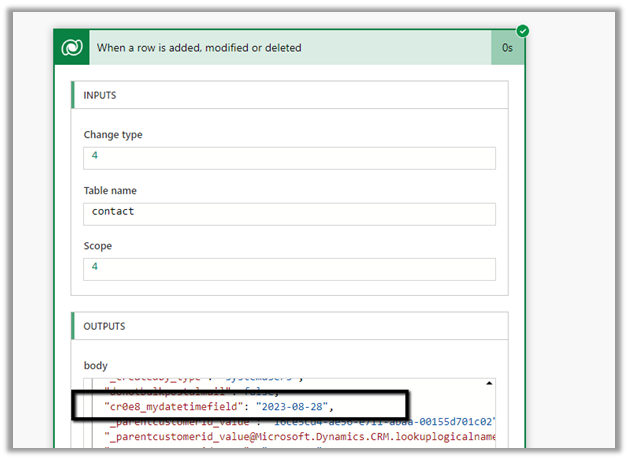
Now triggering the flow again, we get the below values –

as now there is no time zone conversion for that field.

Hope it helps..

Advertisements