How to – configure Facebook Webhook Validation with Power Automate Flow (Dataverse / Dynamics 365)


Recently we were working on Facebook Leads integration with Dynamics 365. Webhook for Leads can be configured to send real-time notifications of the Leads ads changes.

The first step of setting up Webhook requires creating an HTTPS endpoint that can process 2 types of HTTP Requests – Verification and Event notifications.

Here we will see how to configure the Power Automate flow for verification.

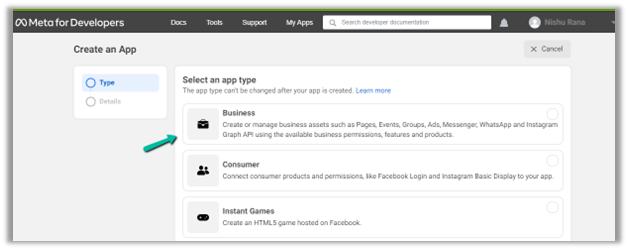
Login to Meta for Developers – Facebook and create an app.

https://developers.facebook.com/

Select Business for the app type.

After the App is created, select Webhooks to be added to the app. Click on Set up.

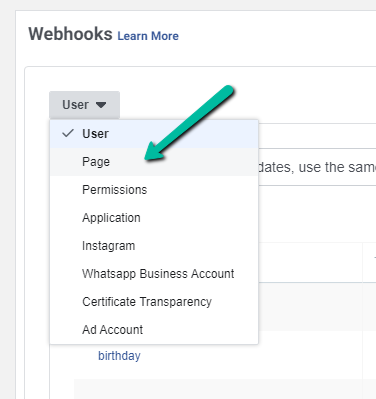
Next click Subscribe to this object. Here we have User selected.

For getting leads notification we need to select Page 

FBPagePreview in new tab

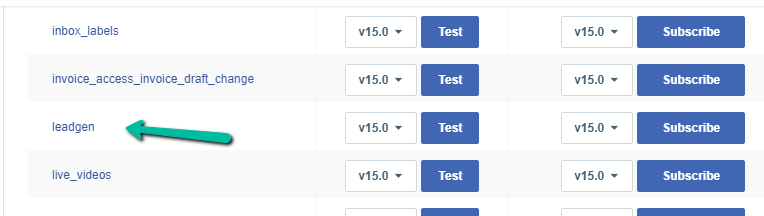
And subscribe to leadgen object

leadgen

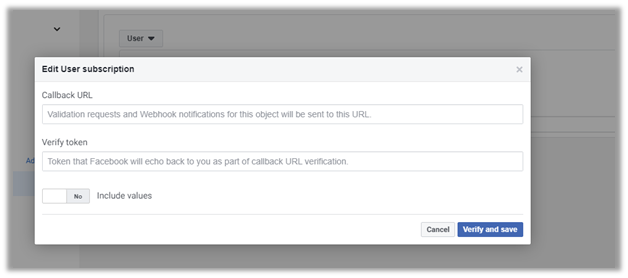
It asks us to specify the Callback URL and Verify token.

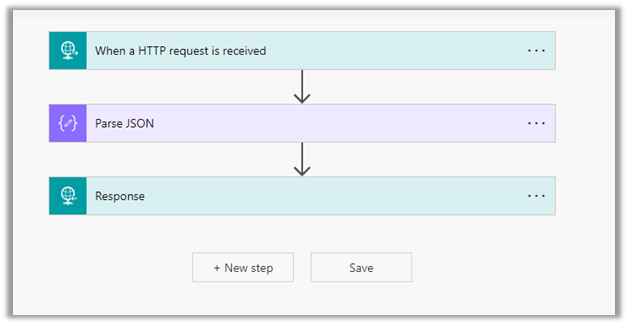
Back in Power Automate create a Flow with Request type Trigger, followed by Parse JSON and Response actions.

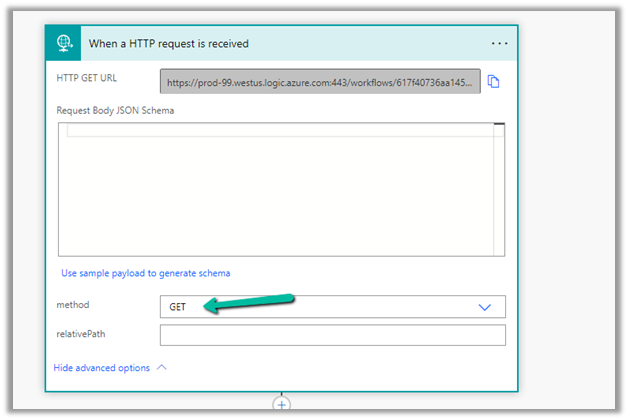
For HTTP Request, select GET as the method, as FB will send a GET request to the endpoint URL, with the verification requests included in the endpoint of the URL.

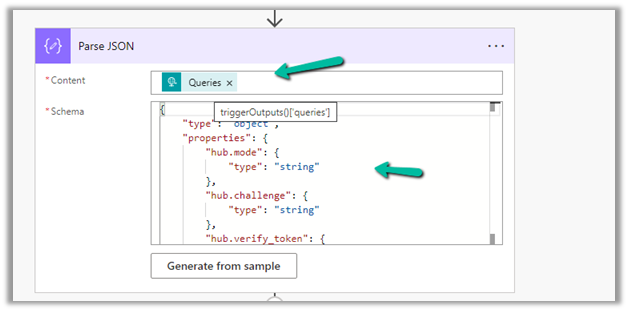
Next, Parse the JSON and specify the Content and Schema

Content – 

 triggerOutputs()['queries']

Schemajson


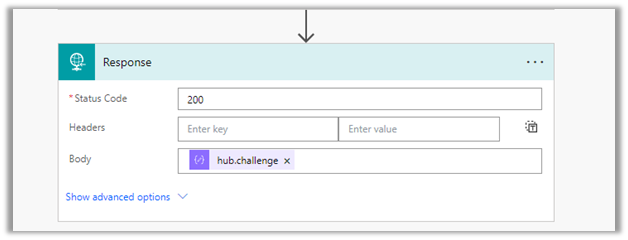
Lastly in Response, set Status Code as 200 and Body as hub.challenge.

Here FB expects the Endpoint to verify the hub.verify_token (which we haven’t set up yet) and respond with hub.challenge value after verification.

Save the Flow, and copy the URL generated for the HTTP Request trigger.

Back in Meta for Developers, in edit user subscription paste the Callback URL and for now in place of token specify any value and click on Verify and Save.

We should now have a Webhook endpoint (Flow) successfully configured

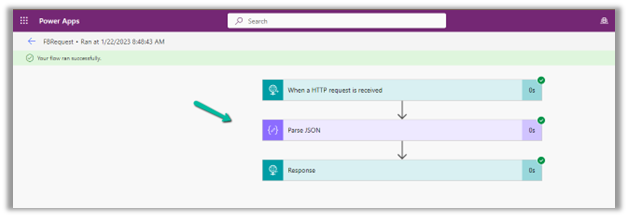
We can also see our Flow ran successfully.

Here in the example we configured the webhook validation for User events, for Facebook Lead we need to configure it for Page, the other options available are Permissions, Application, Instagram etc.

Please check – 

https://powerautomate.microsoft.com/nl-nl/blog/connect-facebook-workplace-to-sharepoint/


Hope it helps..

{
    "type": "object",
    "properties": {
        "hub.mode": {
            "type": "string"
        },
        "hub.challenge": {
            "type": "string"
        },
        "hub.verify_token": {
            "type": "string"
        }
    }
}
Advertisements

Fixed – The product cannot be added because it is not active while creating Quote Product – Dynamics 365 / Dataverse


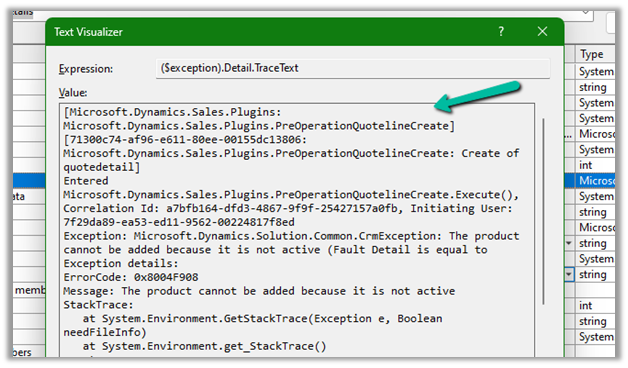
We got the below error while trying to create a quote product programmatically.

As the error message specifies, this is because we are trying to add/associate a DRAFT product to the Quote Product.

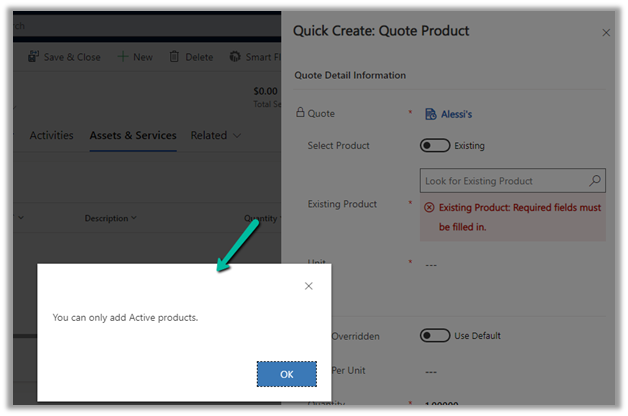
We will get a similar error from the application as well if we try adding a draft product as an existing product to either a quote product or an opportunity product.


Below is the product in the Draft status.

Publish the product to make it Active.

Hope it helps..


Advertisements

How to – Filter data source to get the active records Dataverse / PowerApps


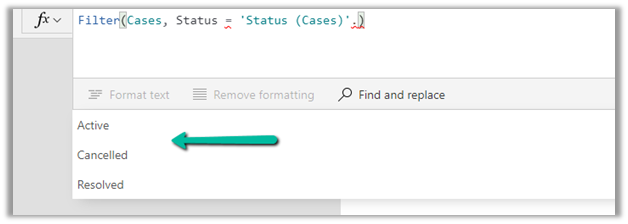
Just sharing the syntax, that we can use to filter the data source based on the status field.

Below is our gallery bound to Cases (Data Source) and showing only the Active cases.

Items

Filter(Cases, Status = ‘Status (Cases)’.Active) 

Filter(Datasource, Status = ‘Status (Datasource)’.[value])

Hope it helps..


Advertisements

How to – Filter using related table(lookup)’s Multi Choices or MultiSelect Option Set column– PowerApps / Dataverse / Dynamics 365


Continuing our previous example, here we have added a new choice field in Table B.

Here Table A has a lookup of Table B which has the new multichoice column added to it. (Also Table B has a lookup of Table C in it)

Based on the values selected in the multiple-choice field’s combo box we will filter the gallery.

The syntax to bind the multichoice column to the combo box.

Choices(Table[@choicecolumn])

First, for the Items property of the Main Gallery, we have added the new column ColorChoices to Table A using the AddColumns and the Lookup function.

Then filtered based on selected items of the combo color choices, using the new ColorChoices column added.

ChoiceColumn[@Value] in comboBox.SelectedItems

We have also used the newly added ColorChoices column to bind it to the gallery inside the main gallery as it would have multiple values.

The result –

Thanks to –

Hope it helps..

Advertisements

How to – Filter Collection / Items in Gallery based on the related (Lookup) record’s value – Power Apps / Canvas Apps (Dataverse/Dynamics 365)


Suppose we have 3 tables, Table A, Table B, and Table C related to each other as

Table A (n-1) Table B (n-1) Table C i.e.

Table A has a lookup of Table B and Table B has a lookup of Table C.

Below is our sample canvas app that has a gallery and a combo box.

What we would want is based on the Table C record’s name selected in the combo box, we want to filter the collection to only show those records that are related to it.

One of the ways we could implement this is by using the AddColumns to add Table C data to Table A and apply the Filter to it.

Below is the formula to achieve the same.

In Table A, add a column name “TableCName”.

To get the Table C name, perform a Lookup on Table B, where Table B GUID is equal to Table A’s Table B lookup field, and then fetch the Table C Lookup’s name from Table B.

And lastly, perform a Filter on this new column TableCName, based on the selected value in the combo box.

See it working –

https://www.screencast.com/t/XZNDEsykAw

On selecting Table C1 in the combo box –

Similarly on selecting Table C2 in the combo box

Thanks to Debajit for guiding – https://debajmecrm.com/how-to-use-addcolumns-with-lookup-fields-of-sharepoint-in-power-apps/

To read more on AddColumns, Filter, and Lookup.

Hope it helps..

Advertisements

Product Table has Village Lookup in it and Village table has Region lookup in this sample screenshot

InvalidPluginExecutionException error dialog not showing up – Dynamis 365 / Dataverse


One of the reasons why throwing the InvalidPluginExecutionException doesn’t show up error dialog could be that you would have Profiled that step with profile storage as Persist to Entity.


Stop Profiling and it should work as expected.

error

Check for more details on InvalidPluginExecutionException

https://learn.microsoft.com/en-us/power-apps/developer/data-platform/handle-exceptions#cancelling-the-current-operation

https://learn.microsoft.com/en-us/power-apps/developer/data-platform/best-practices/business-logic/use-invalidpluginexecutionexception-plugin-workflow-activities

Hope it helps..

Advertisements