We can make use of copilot to summarize the cases. It applies to cases that are canceled and resolved also.
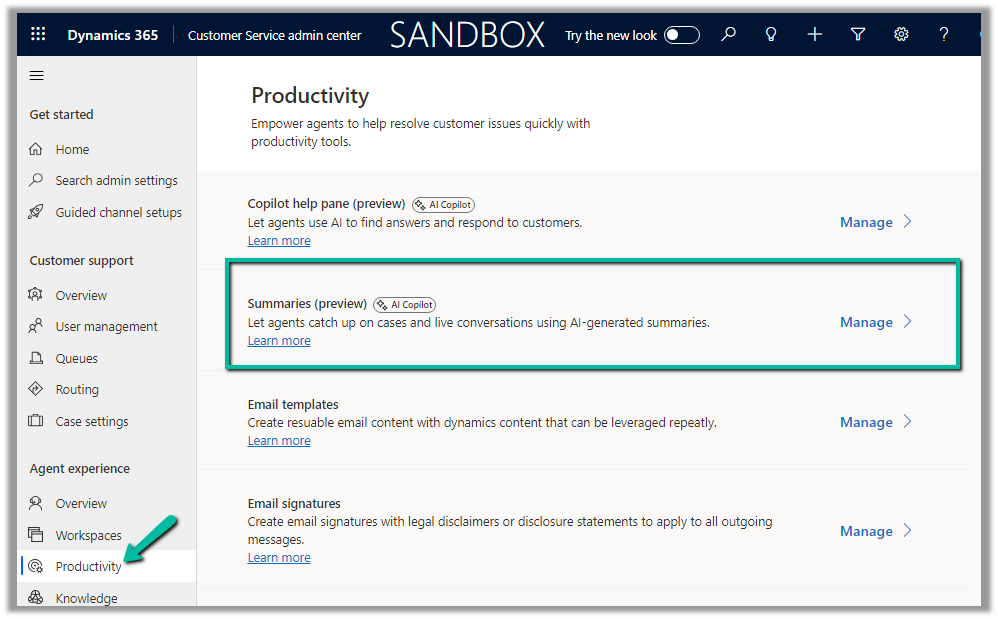
To enable it Navigate to the Customer Service admin center >> Agent Experience >> Productivity >> Summaries (Manage)
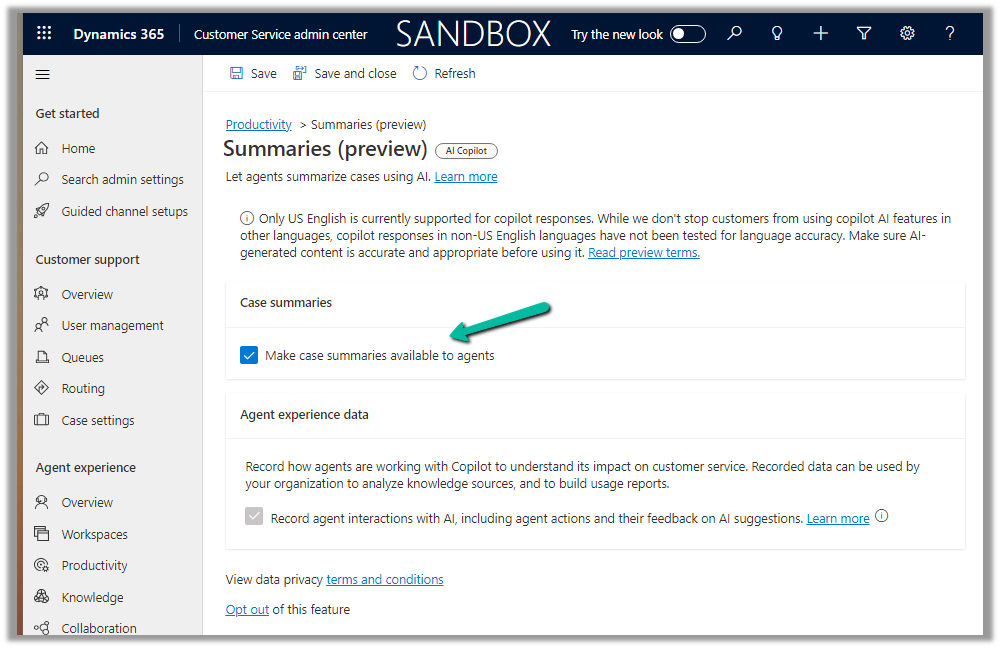
Check the Make case summaries available to agents option and save the setting.
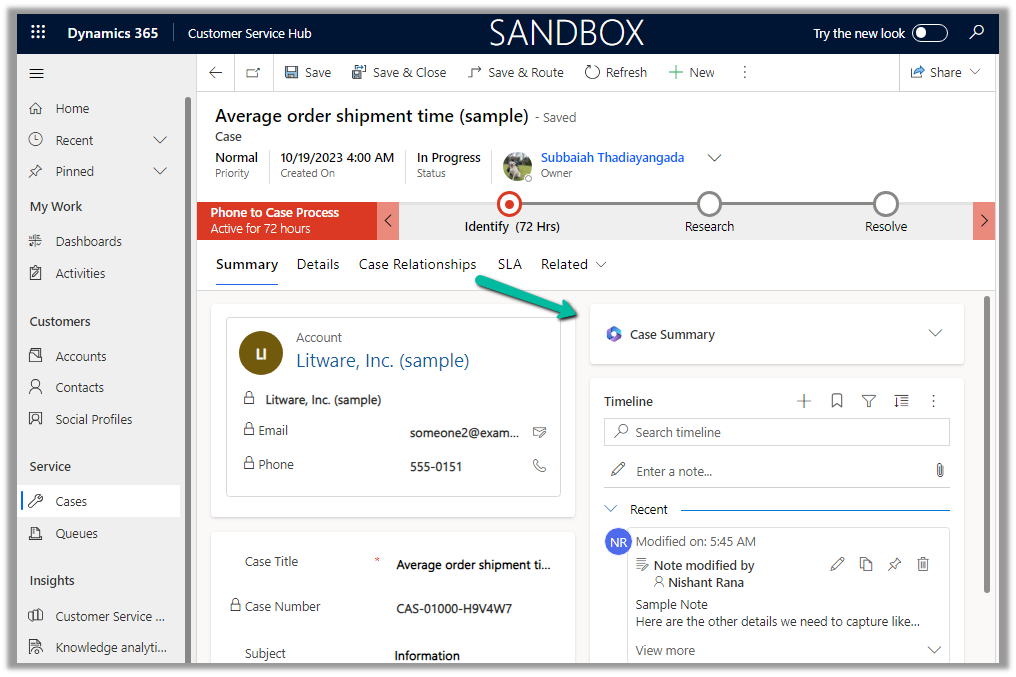
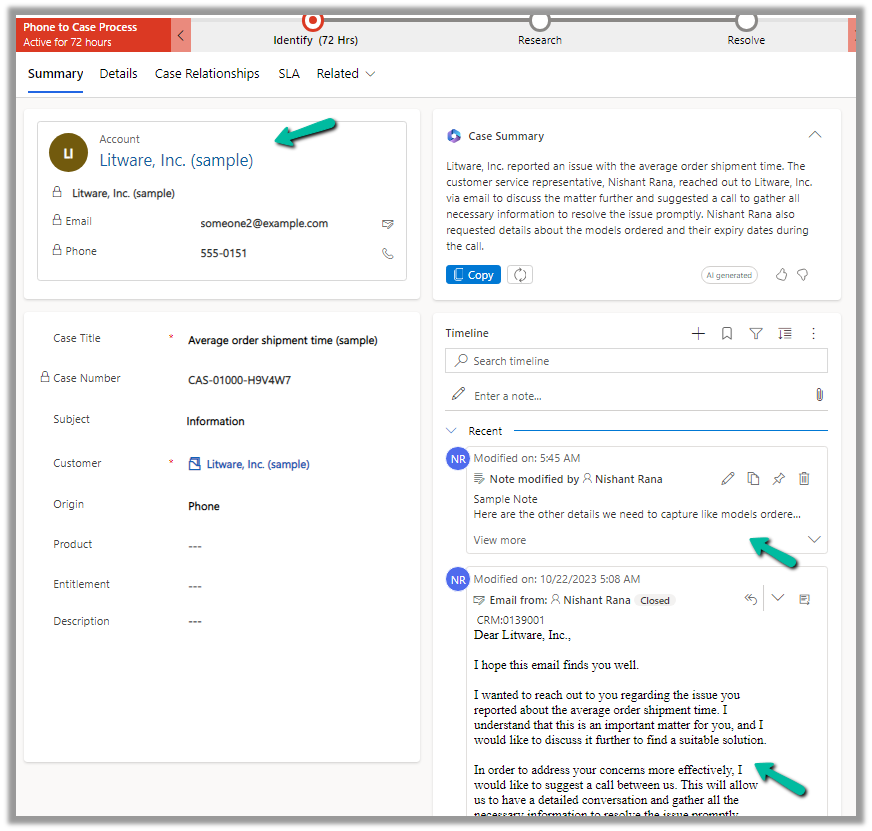
Now when we open a Case record, we can see the Case Summary card added, collapsed by default.
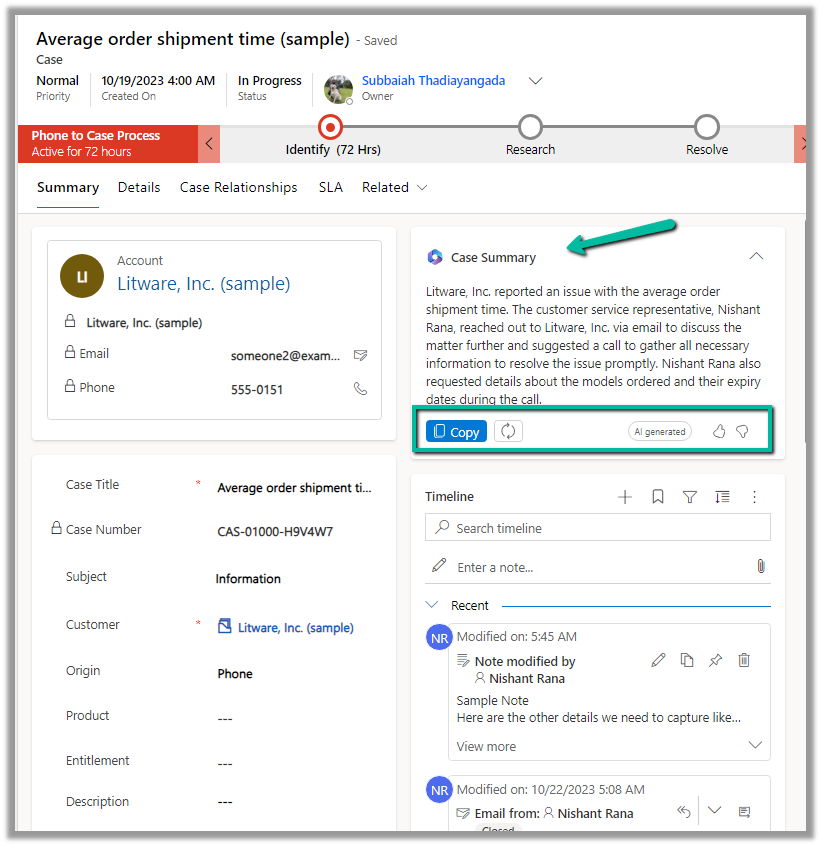
We can expand it to see the summary generated.
We can copy it, regenerate it, provide feedback etc.
The case summary considers key Case details like Case Title, Subject, Priority, Case Type, Description, Product, Emails, and Linked Notes as shown below.
The agents can quickly get the required details from the case summary instead of going through all the key fields, emails, and notes associated, thus allowing them to resolve the case quickly.
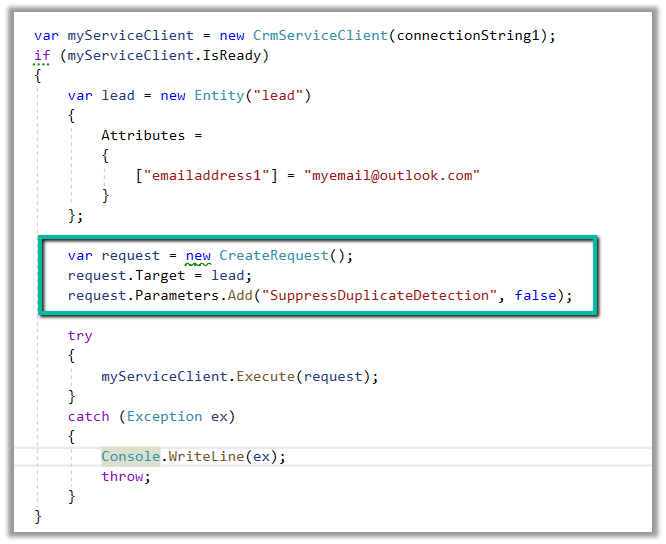
We can make use SuppressDuplicateDetection optional parameter of the Request if we want the configured duplicate detection rules to run and throw an exception while creating or updating the record.
We will use the below out-of-the-box duplicate detection rule, that checks for lead having same email address.
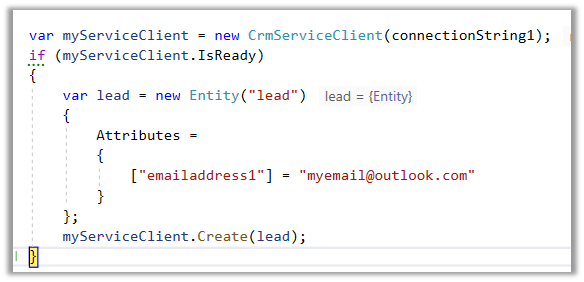
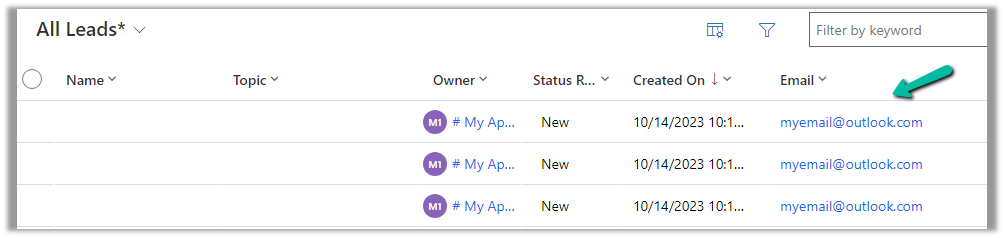
Below is our code and we can see the lead records with the same email address getting created without any exception.
Now we have updated the code to use the SuppressDuplicateDetection optional parameter. We have set it as false.
As expected this time we get the exception.
“The record was not created or updated because a duplicate of the current record already exists.”
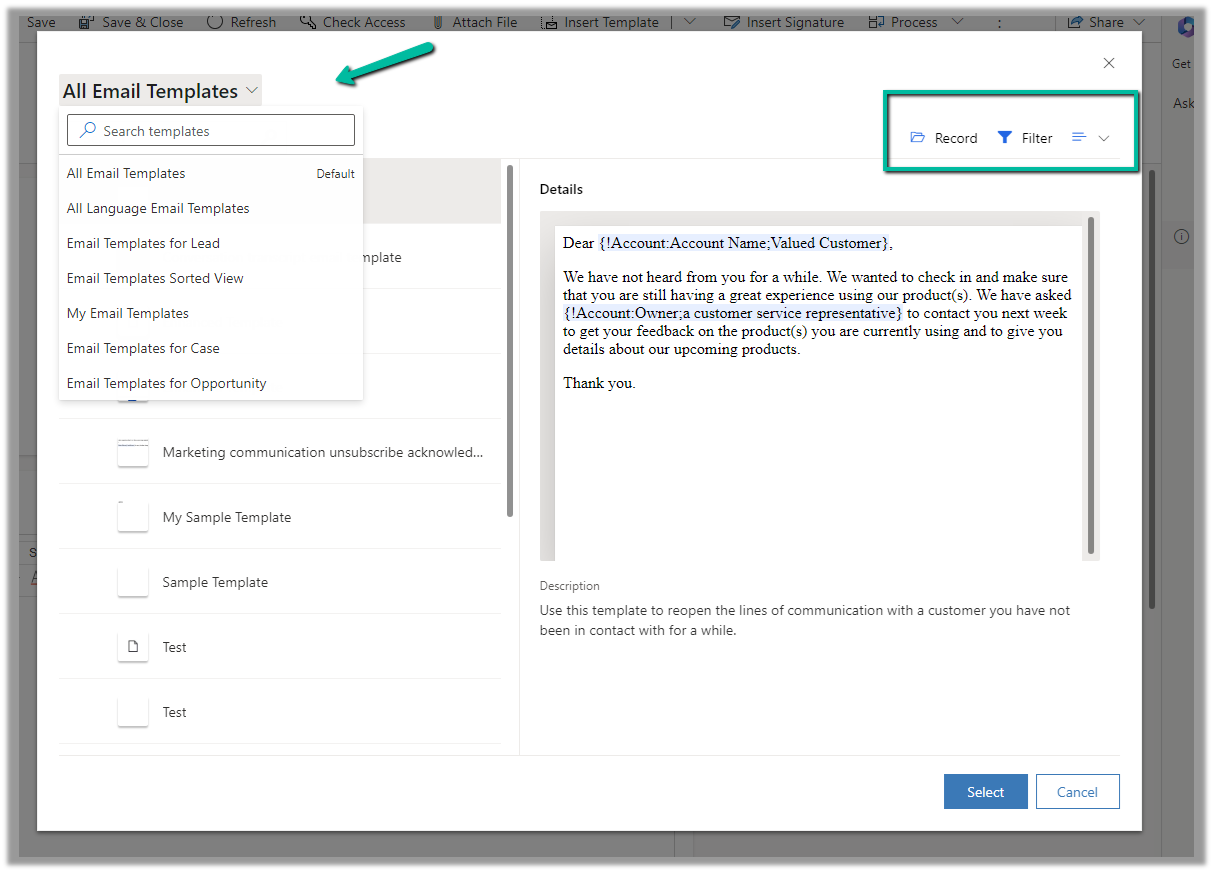
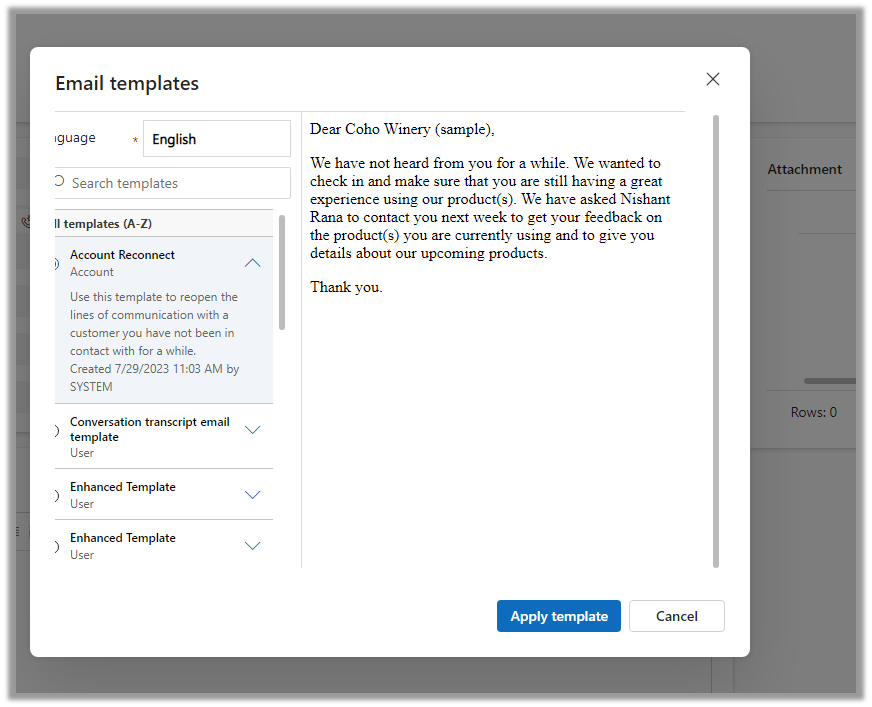
The new insert template dialog box adds features to quickly find and insert the appropriate email template.
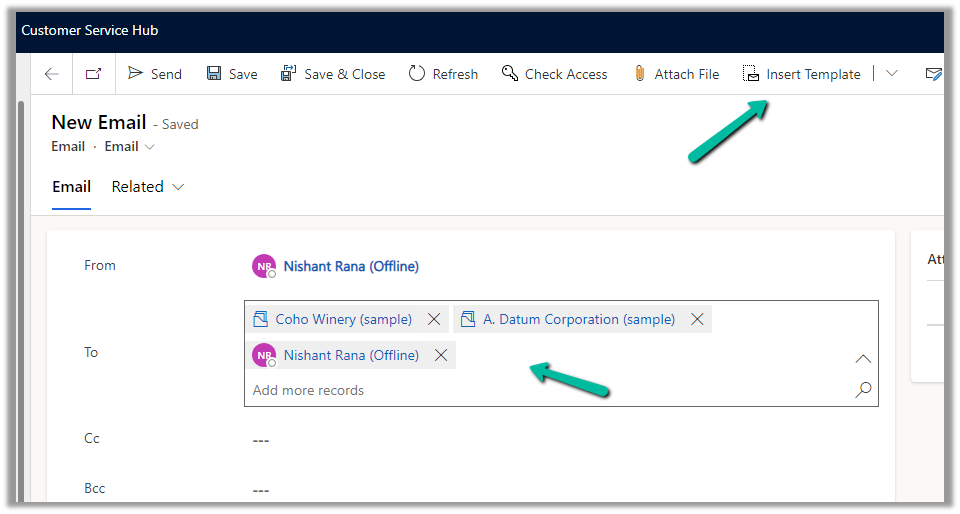
For the below email record, we have a contact, account, and usertype record selected in To (Regarding), click on Insert Template to open the dialog box.
The new dialog box allows selecting the view for filtering the email templates.
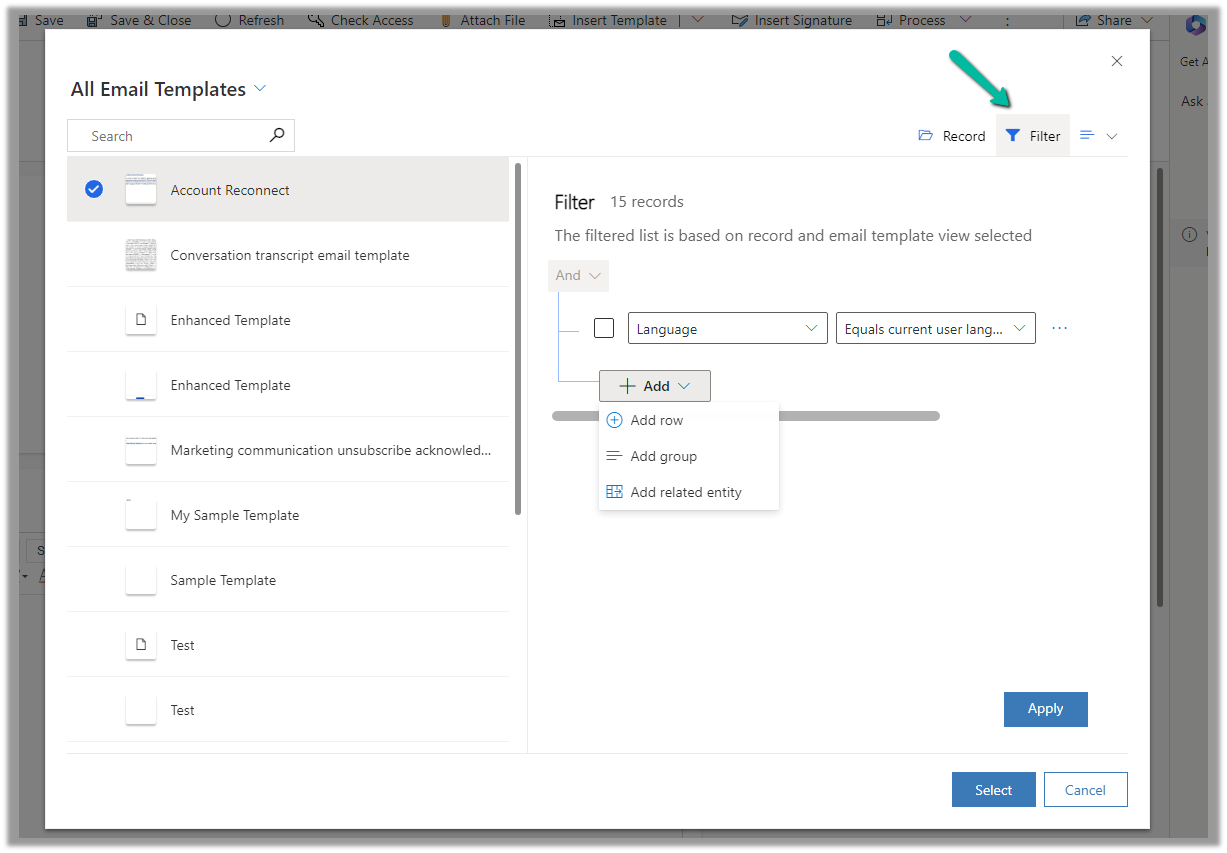
Clicking on Filter shows the filter for the selected view, and allows updating the filter to find the required template.
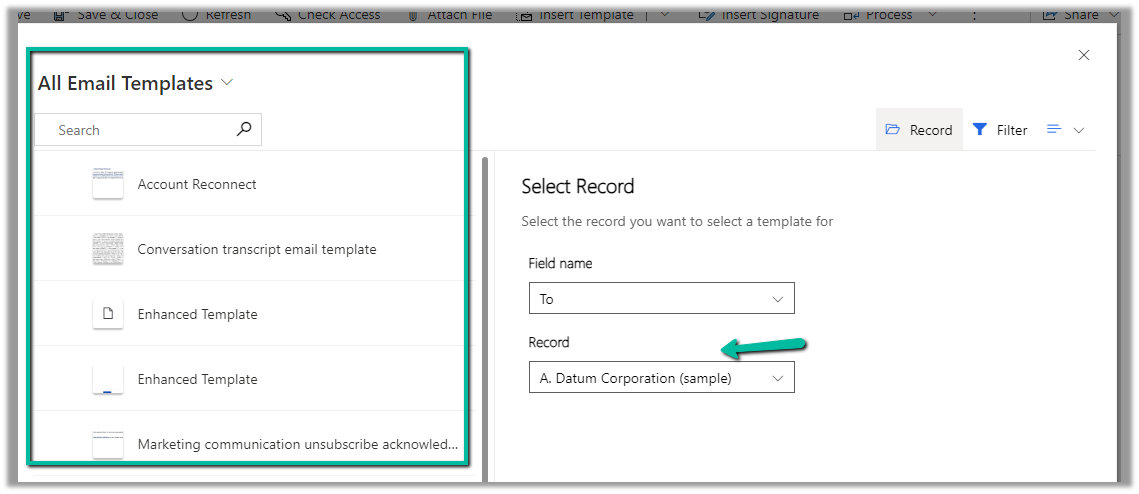
The Record options allow filtering the views based on the record type specified in the To (Regarding)
Selecting the A. Datum Corporation (Sample) account record, filters the view to show email templates related to the account.
We can also specify the type of view – either List (default), Grid, or Tiles.
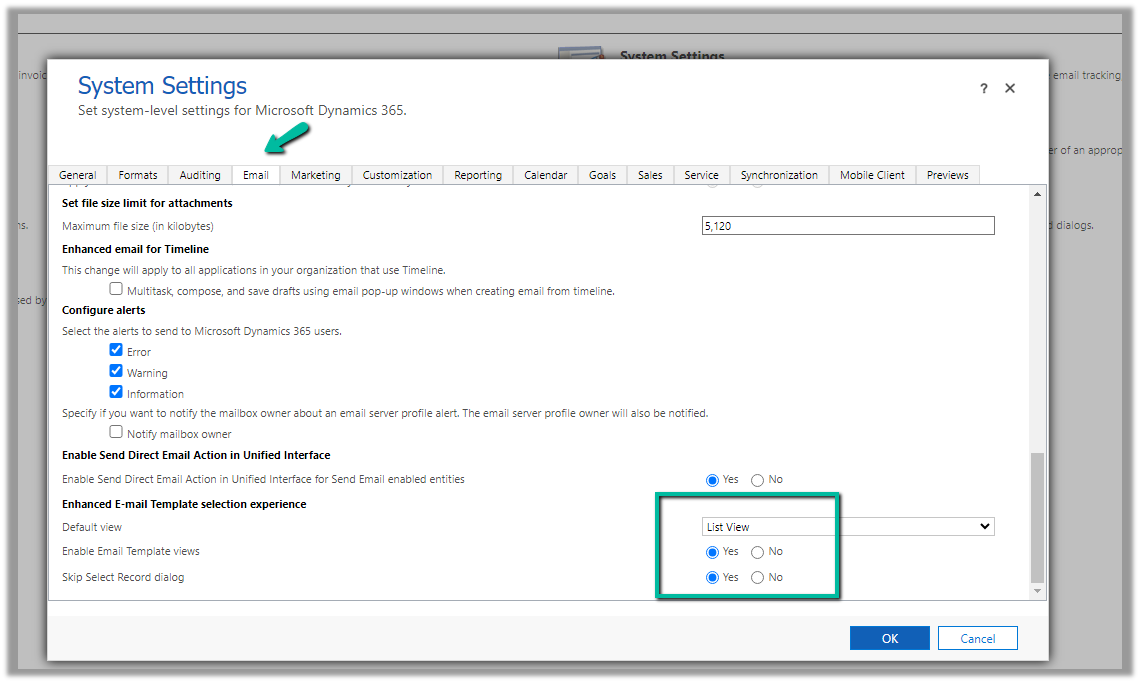
From Advanced Settings >> System Settings >> Email tab, we can control these options i.e. specify the default view, and show and hide for Record and Filter options.
The enhanced email template selection is enabled for default for Customer Service Workspace and Customer Service Hub Apps.
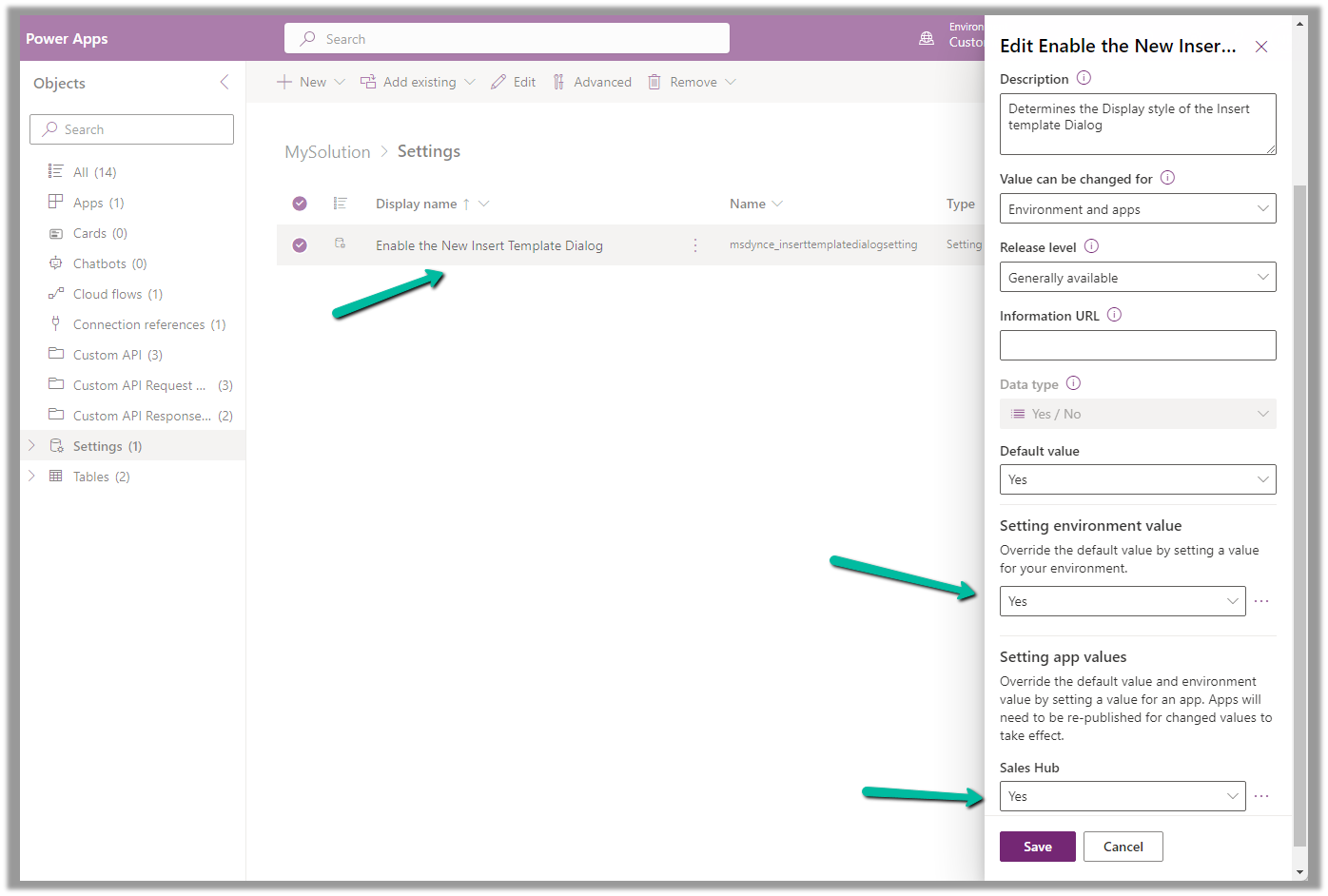
To enable it for other Model-driven apps, add and enable the following setting “Enable the New Insert Template Dialog” in the solution.
Below is how the old Insert Email Template dialog box looks
We can define the Custom API’s binding type as Global, Entity, or Entity Collection. In this post, we can see how a Global and Entity binding type Custom API can be defined, write a corresponding plugin, and then invoke/test through Postman.
We can create Custom API through Plugin Registration Tool, Power Apps, Code, Solution files, and or can use XrmToolBox Plugin – Custom API Manager.
Below we have defined a Custom API name custom_GlobalAPI, with binding type as Global and one Request (input) parameter and Response (output) Property of type string.
Below is how we define the plugin type for it and can access the input and output parameters through context.
To test it we can use the XrmToolBox Custom API Tester plugin as shown below
And from Postman, once we have the access token, we can call the Custom API as shown below.
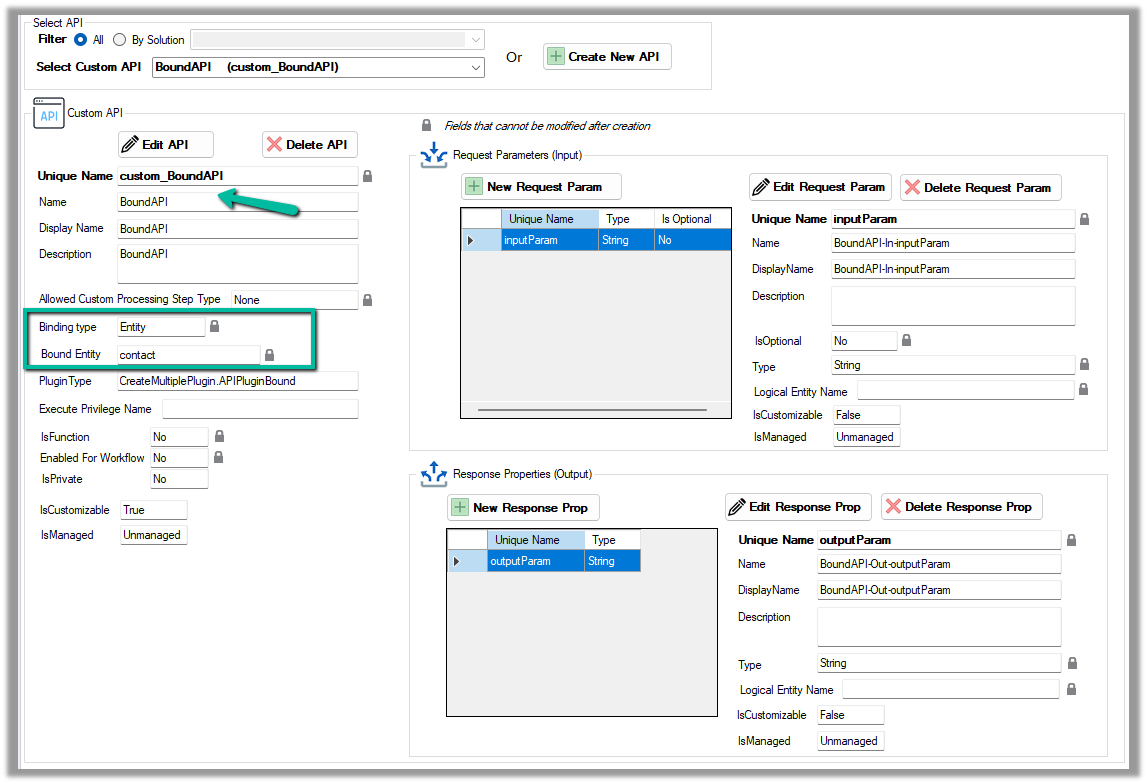
Now for a Bound Custom API, we have the following definition. It is bound to the Contact table and has one input parameter and one output parameter similar to our Global Custom API.
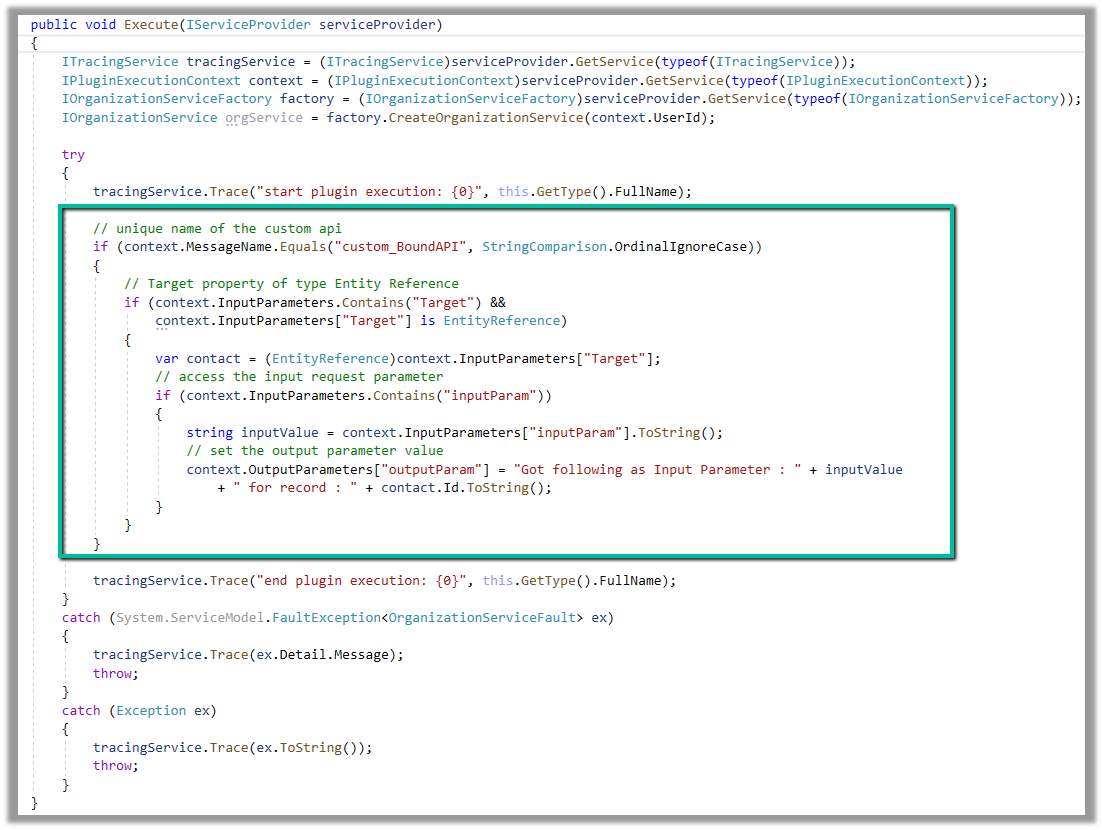
Below is how we define the plugin type for it, and can access the input and output parameters similar to Global Custom API.
However, in the case of binding type Entity, we will have the Request parameter named Target of type Entity Reference for the bound entity added automatically.
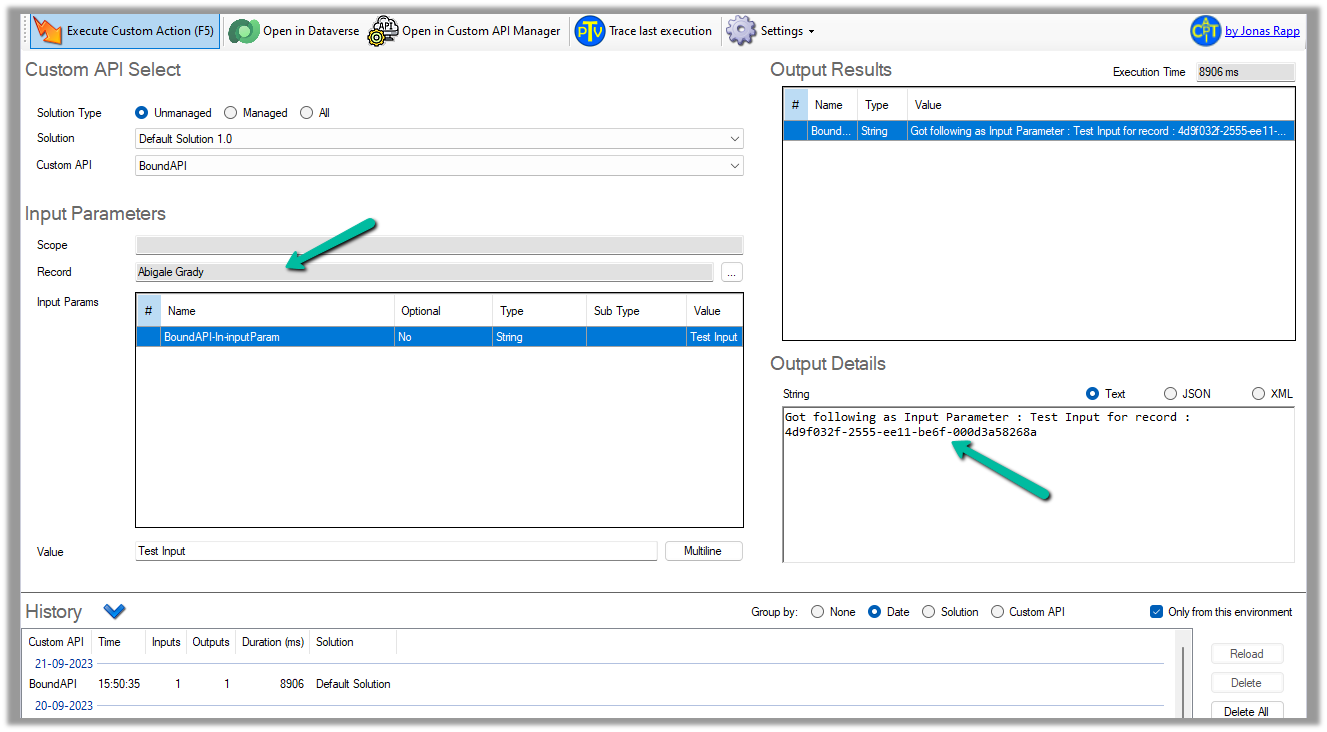
We can test it using the Custom API Tester plugin, however as it is bound type, we need to select/specify the contact record (the table it is bound to), before we can execute it.
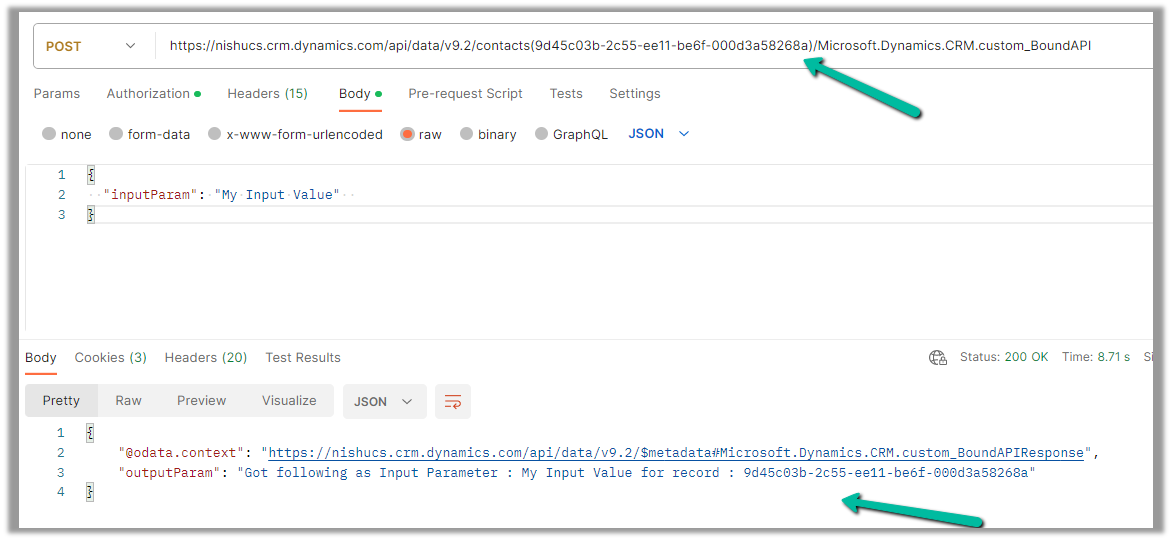
To call it from Postman, we need to use the fully qualified name i.e. Microsoft.Dynamics.CRM.[unique name of the Custom API] unlike Global one.
 public class APIPluginGlobal : IPlugin
    {
        public void Execute(IServiceProvider serviceProvider)
        {
            ITracingService tracingService = (ITracingService)serviceProvider.GetService(typeof(ITracingService));
            IPluginExecutionContext context = (IPluginExecutionContext)serviceProvider.GetService(typeof(IPluginExecutionContext));
            IOrganizationServiceFactory factory = (IOrganizationServiceFactory)serviceProvider.GetService(typeof(IOrganizationServiceFactory));
            IOrganizationService orgService = factory.CreateOrganizationService(context.UserId);

            try
            {
                tracingService.Trace("start plugin execution: {0}", this.GetType().FullName);

                // check for the message name i.e. Unique Name of the Custom API
                if (context.MessageName.Equals("custom_GlobalAPI", StringComparison.OrdinalIgnoreCase))
                {
                    // check for the request parameter in the inputparamters of the context
                    if (context.InputParameters.Contains("inputParam"))
                    {
                        // get the value of the input parameter
                        string inputValue = context.InputParameters["inputParam"].ToString();
                        // set the value of response property through outputparameters
                        context.OutputParameters["outputParam"] = "Got following value as Input : " + inputValue;
                    }
                }

                tracingService.Trace("end plugin execution: {0}", this.GetType().FullName);
            }
            catch (System.ServiceModel.FaultException<OrganizationServiceFault> ex)
            {
                tracingService.Trace(ex.Detail.Message);
                throw;
            }
            catch (Exception ex)
            {
                tracingService.Trace(ex.ToString());
                throw;
            }
        }
    }
public class APIPluginBound : IPlugin
    {
        public void Execute(IServiceProvider serviceProvider)
        {
            ITracingService tracingService = (ITracingService)serviceProvider.GetService(typeof(ITracingService));
            IPluginExecutionContext context = (IPluginExecutionContext)serviceProvider.GetService(typeof(IPluginExecutionContext));
            IOrganizationServiceFactory factory = (IOrganizationServiceFactory)serviceProvider.GetService(typeof(IOrganizationServiceFactory));
            IOrganizationService orgService = factory.CreateOrganizationService(context.UserId);

            try
            {
                tracingService.Trace("start plugin execution: {0}", this.GetType().FullName);

                // unique name of the custom api
                if (context.MessageName.Equals("custom_BoundAPI", StringComparison.OrdinalIgnoreCase))
                {
                    // Target property of type Entity Reference
                    if (context.InputParameters.Contains("Target") &&
                        context.InputParameters["Target"] is EntityReference)
                    {
                        var contact = (EntityReference)context.InputParameters["Target"];
                        // access the input request parameter
                        if (context.InputParameters.Contains("inputParam"))
                        {
                            string inputValue = context.InputParameters["inputParam"].ToString();
                            // set the output parameter value
                            context.OutputParameters["outputParam"] = "Got following as Input Parameter : " + inputValue
                                + " for record : " + contact.Id.ToString();
                        }
                    }
                }

                tracingService.Trace("end plugin execution: {0}", this.GetType().FullName);
            }
            catch (System.ServiceModel.FaultException<OrganizationServiceFault> ex)
            {
                tracingService.Trace(ex.Detail.Message);
                throw;
            }
            catch (Exception ex)
            {
                tracingService.Trace(ex.ToString());
                throw;
            }
        }
    }
Recently for setting up a new environment, we created a new sandbox environment and copied the production environment to it. Next, we had to reduce the storage space occupied by this new environment.
We followed the below steps
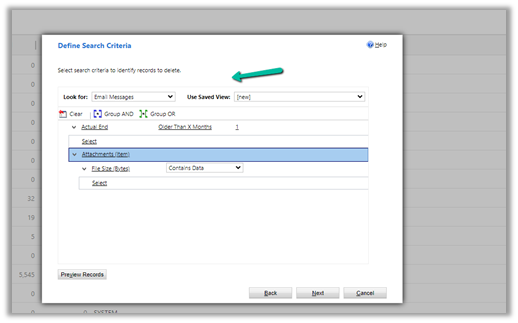
Bulk Deletion Job – Delete Email Messages having Attachments older than 1 month.
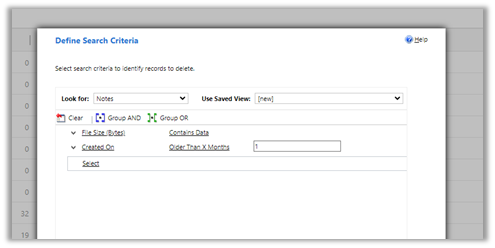
Bulk Deletion Job – Delete Notes having attachments older than 1 month.
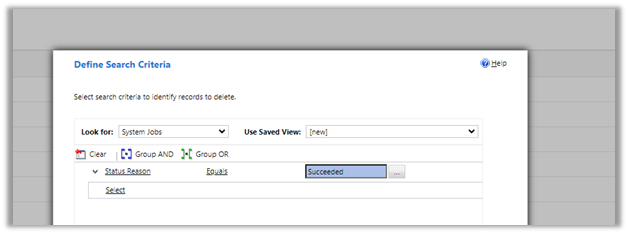
Delete System Job with Status as Succeeded.
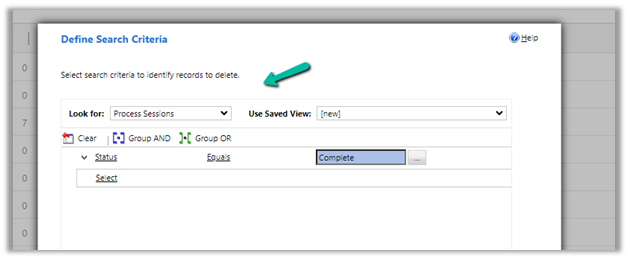
Delete Process Session with Status as Complete
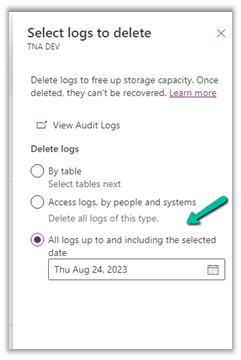
For Logs, we deleted Audit Logs
Similarly, we can also delete Plugin Trace Logs records.
These steps allowed us to decrease the Database Usage from 110 GB to 65 GB.




















 Nishant Rana's Weblog