How to -Configure Data Export Service in Microsoft Dynamics 365


*Updated 19 Sep – 2018 : Check out this powerful tool DBSync’s CRM connector, which could be used for bi-directional seamless integration of all the popular Application and Database with Microsoft Dynamcis 365- https://www.mydbsync.com/product/microsoft-dynamics-365-crm-integration

Data Export Service is an add-on that allows replicating CRM Online Data to Azure SQL Database.

The below video by expert Scott Durow is the best resource to learn about it

https://www.youtube.com/watch?v=txms2Yvn6Vc

Below are the steps we need to follow to configure it.

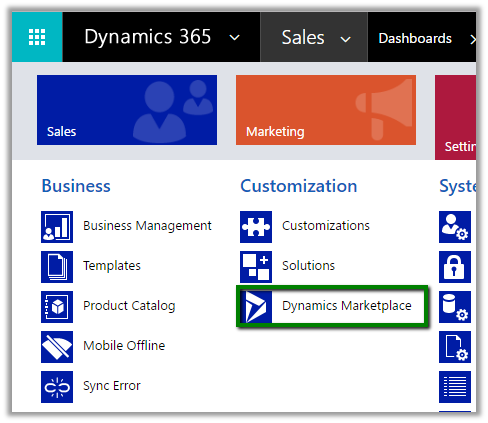
  • Go to Settings – Dynamics Marketplace

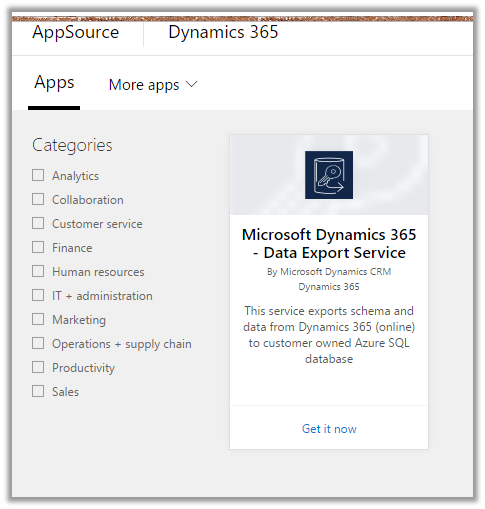
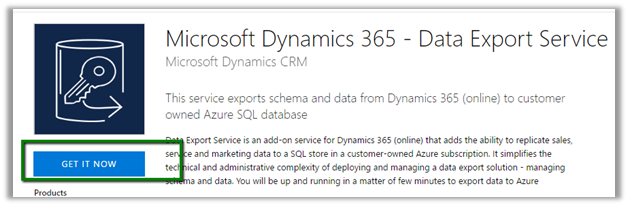
  • Search for Dynamics 365 Export Service

  • Click on GET IT NOW

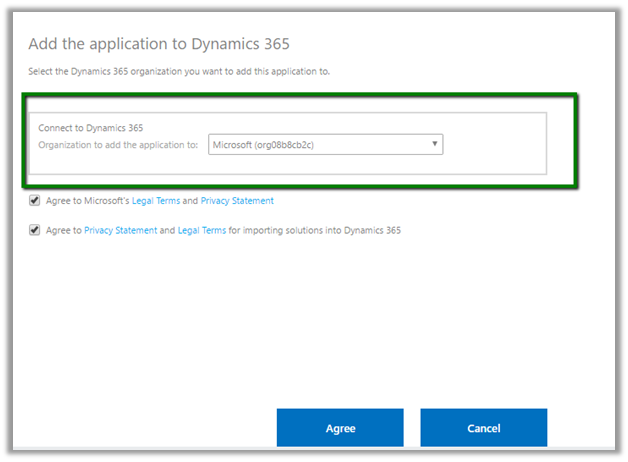
  • Click on Agree

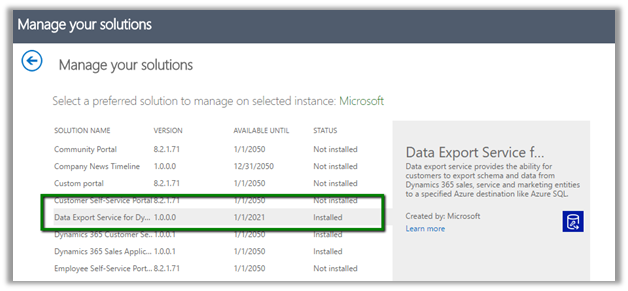
  • This will install the Data Export Service solution

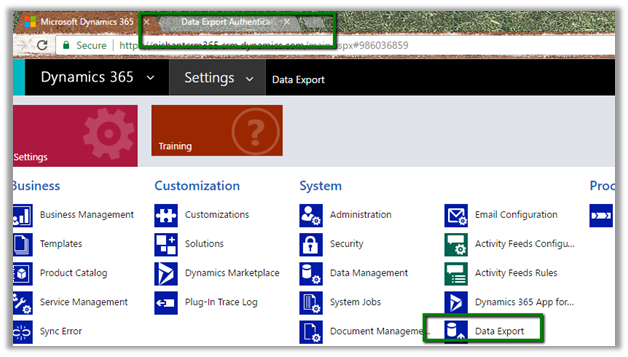
  • Back in CRM – Go to Settings – Data Export. (Pop up window will open up a page for Data Export Authentication, so we need to enable pop up)

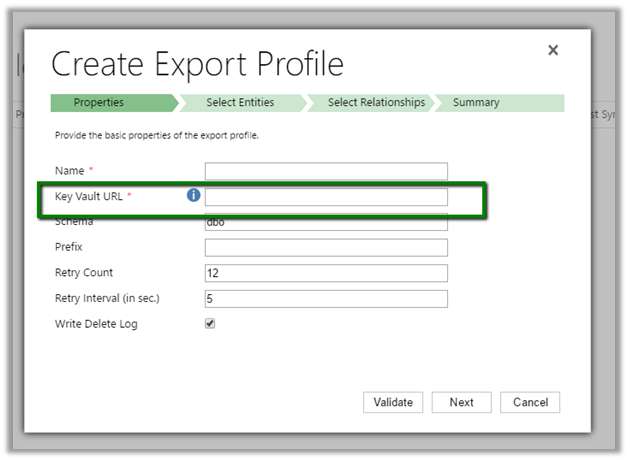
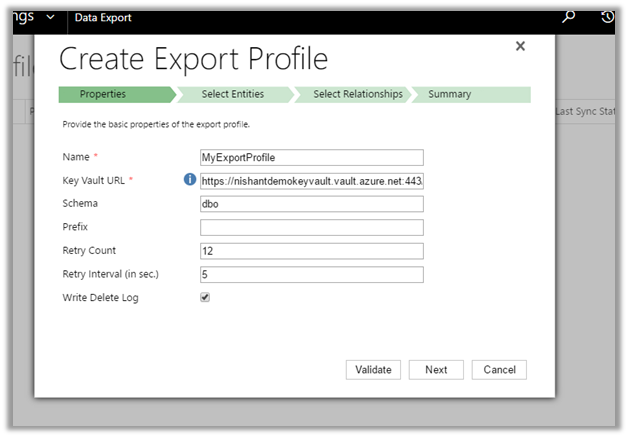
  • Click on New to create a new Data Export File.

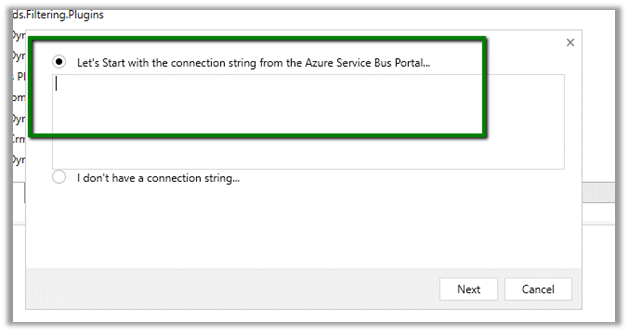
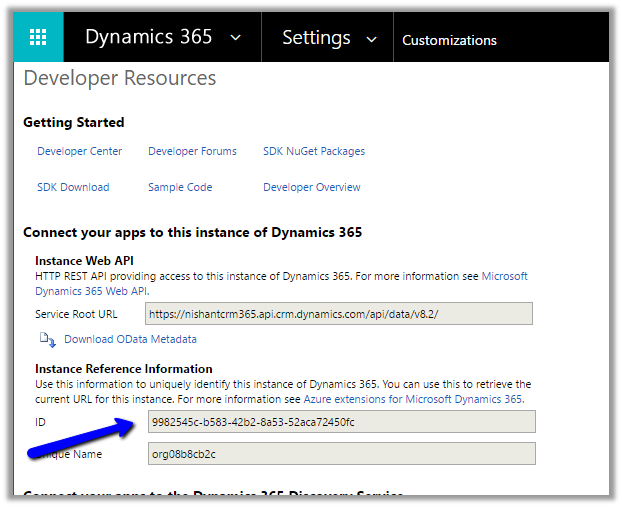
Basically, here we need the Key Vault URL here which stores the database connection string securely.

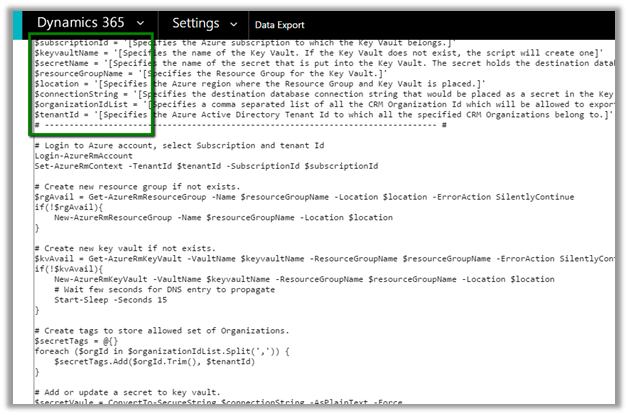
Clicking on the information icon opens up the dialog box with the below PowerShell script, which needs value for variables like subscription id, key vault name, secret name, tenant id etc.

i.e.

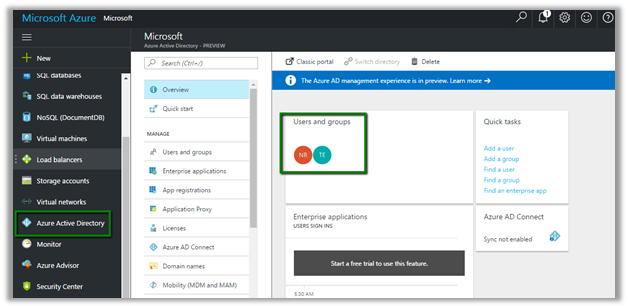
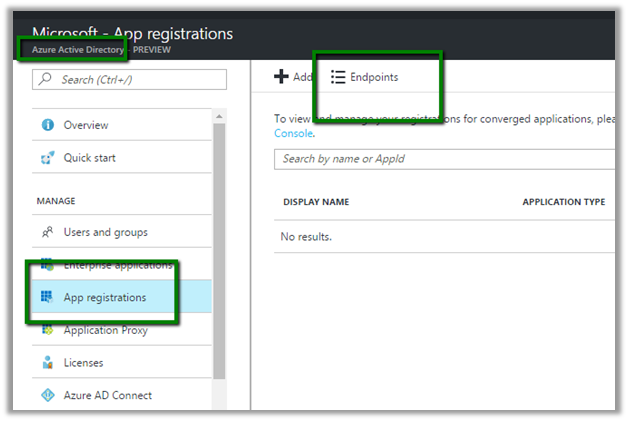
So as a first step here we need to configure Azure Active Directory (if Office 365 and Azure Tenant are separate)

https://docs.microsoft.com/en-us/azure/billing/billing-add-office-365-tenant-to-azure-subscription

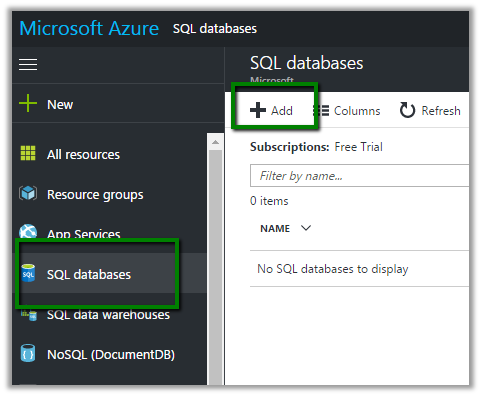
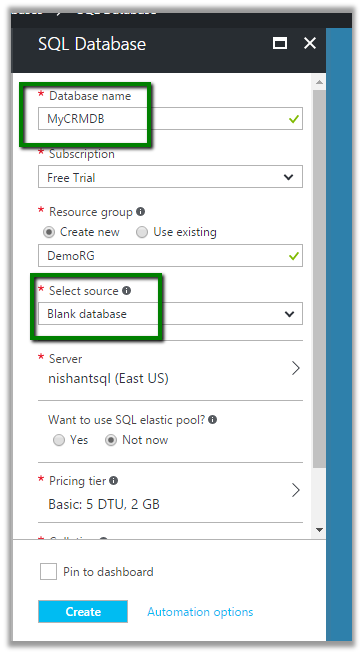
  • Next step is to create Azure SQL database. Search for SQL databases in All Resources and click on Add

  • Specify the required information and click Create.

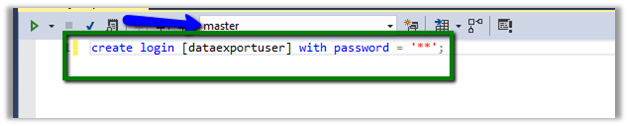
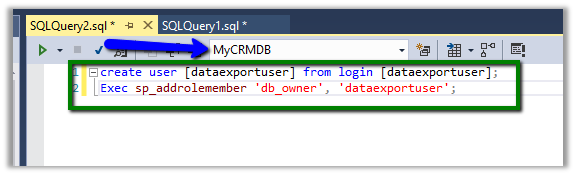
Next we need to create a User that will be used to configure Data Export Service and has appropriate rights in the database

Here the user has been assigned db owner role


For the minimum rights required check the below article

https://technet.microsoft.com/en-us/library/mt744592.aspx

Now let us replace the below placeholders one by one

  • Subscription ID
  • Key Vault Name – NishantDemoKeyVault
  • Secret Name – DataExport
  • Resource Group – DemoRG
  • Location – East US
  • Connection String

  • Organization ID List

KeyVault record created in Azure à

  • Going back to our Export Profile wizard, we need to paste the Key Vault URL

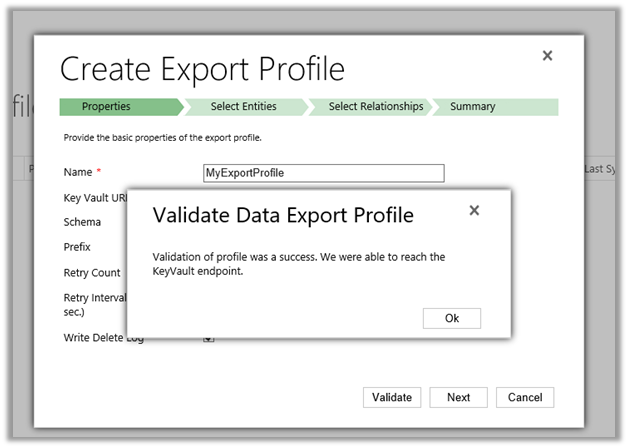
  • Click on Validate

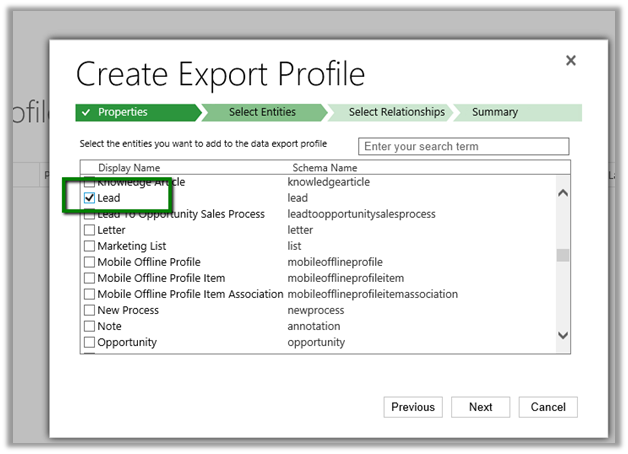
  • Select the entity or entities for which profile needs to be created

  • Select any relationships 

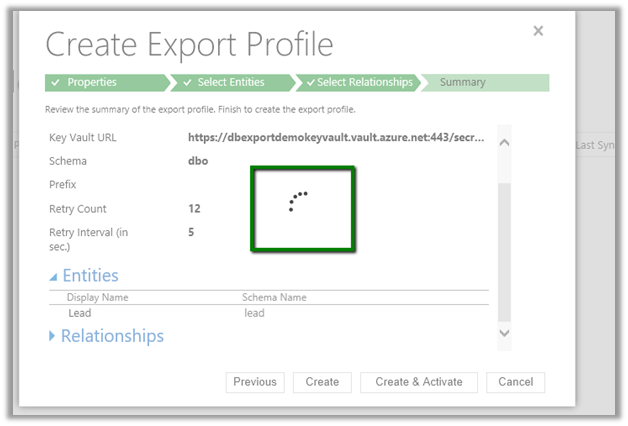
  • Next click on Create and Activate

This creates the profile record in CRM

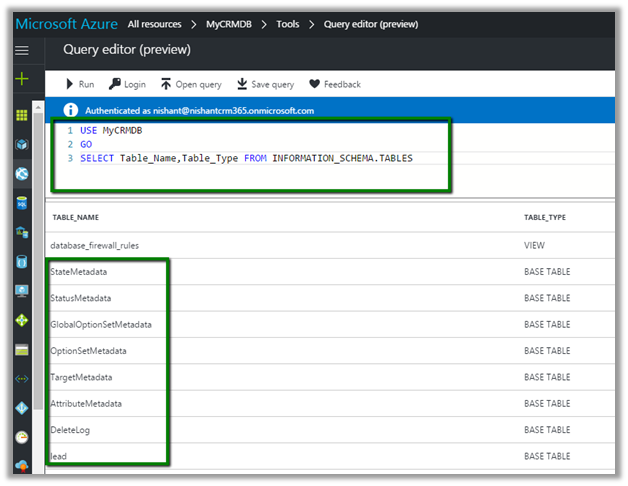
  • Once Initial Sync Status shows as completed we can see the tables created in the Azure Database.

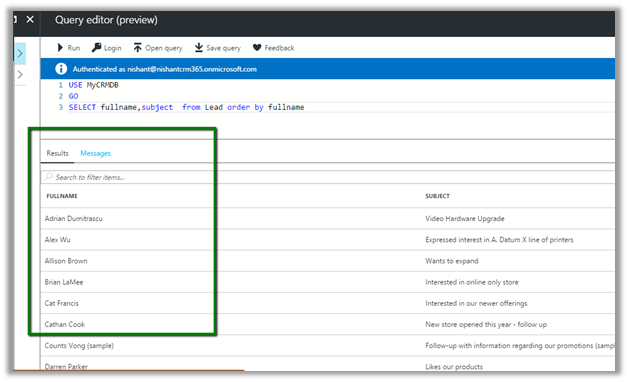
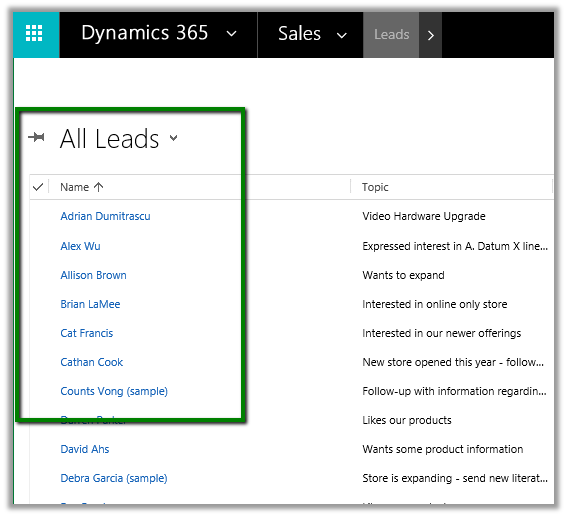
The records synchronized –

Let us delete the below selected lead records –

Delete Log table will hold the information of the deleted lead records

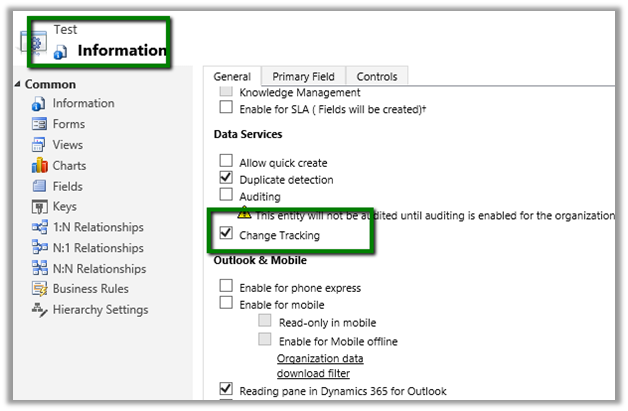
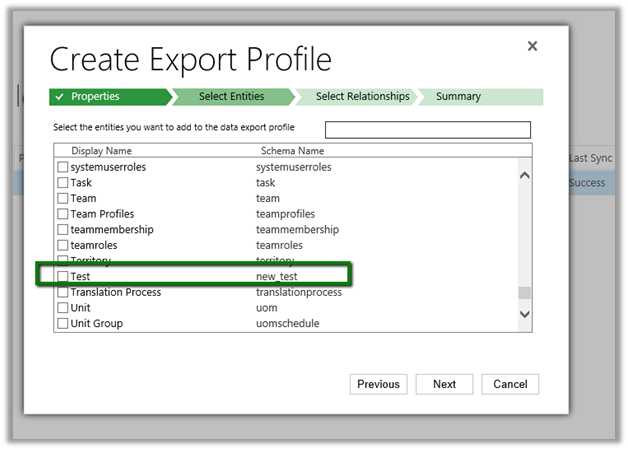
To create export profile for a custom entity, (say for e.g. entity named Test in our case)

We need to enable Change Tracking in it.

Get all the details here

http://develop1.net/public/post/Dynamic365-Data-Export-Service.aspx

https://technet.microsoft.com/library/a70feedc-12b9-4a2d-baf0-f489cdcc177d

Hope this helps..

Advertisements

Portal Blog Post List


Using Multiple Choice Matrix and Likert Scape Option Sets in Web Form in Dynamics 365.


Let us continue with our previous example wherein we have already setup a sample Survey Web Form and added a Multi choice Field

https://nishantrana.me/2017/03/06/configuring-multiple-choice-field-for-web-form-in-portal-dynamics-365/

Here we would be making use of Multiple Choice Matrix.

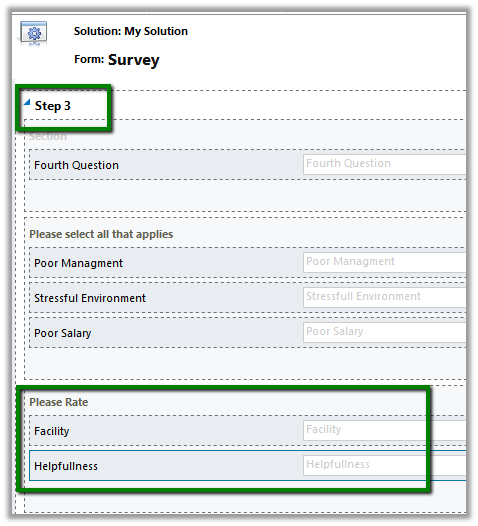
For this first let us create 2 option sets in our Survey Entity. We’d put those field in Step 3 Tab.

  • Here we will use the existing global option set for Likert Scale which is added by the Portal in CRM.

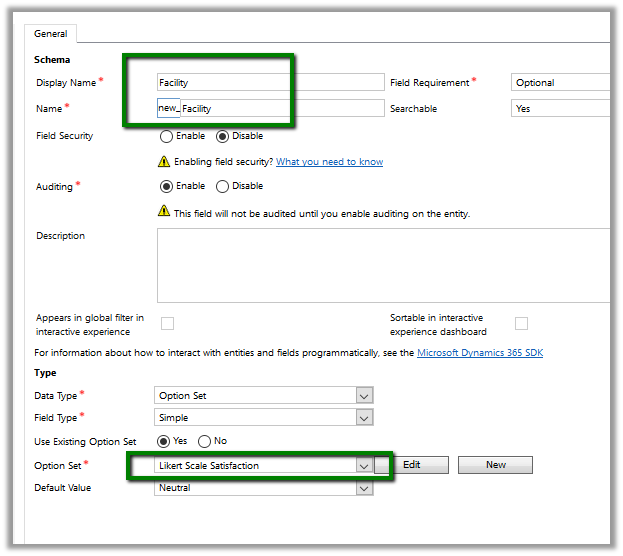
Our first field – FacilityLikert Scale Satisfaction.

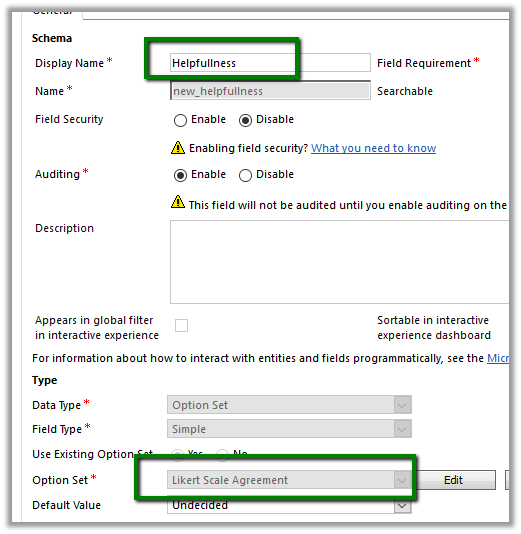
Our second field

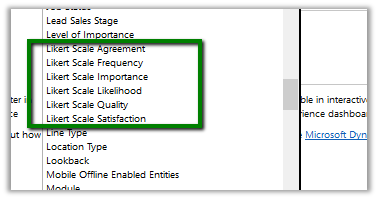
Below are the different Likert Scale Global Option Set available within CRM added by Portal.

Now in the Survey form we have added a section named “Please Rate” and with the newly created fields inside it.

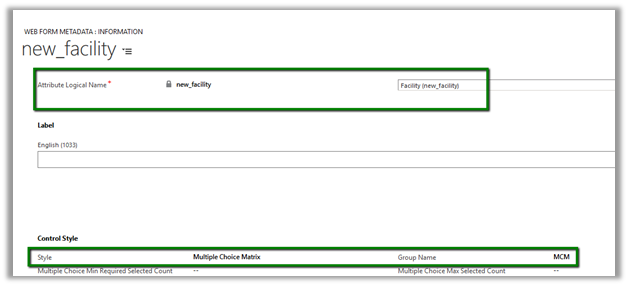
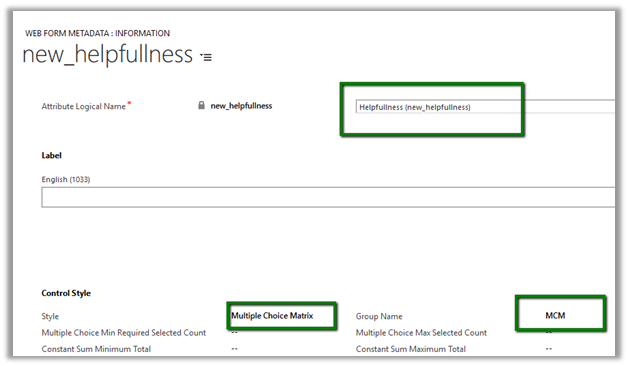
In the Web Form Step corresponding to the Step 3 tab and we added Web Form Metadata records one for each of the fields.

Style Multiple Choice Matrix
Group Name MCM

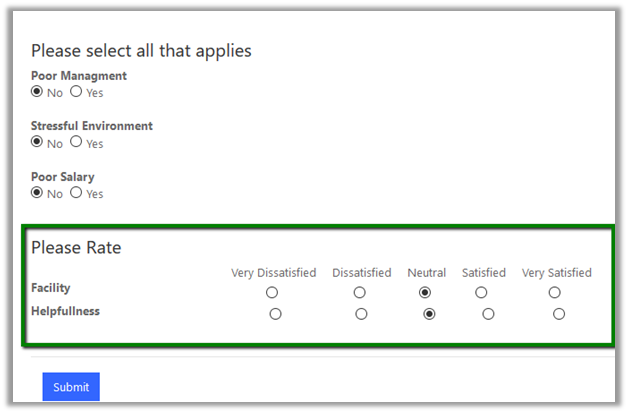
Refreshing the page in the Portal shows the option sets as Multi Choice Matrix

Hope it helps..

Configuring Multiple Choice field for Web Form in Portal (Dynamics 365)


Let us continue with our previous example and add a Multiple-Choice field for Step 3 Web Form Step as shown below.

https://nishantrana.me/2017/03/06/using-conditional-branching-in-web-form-in-portal-dynamics-365/

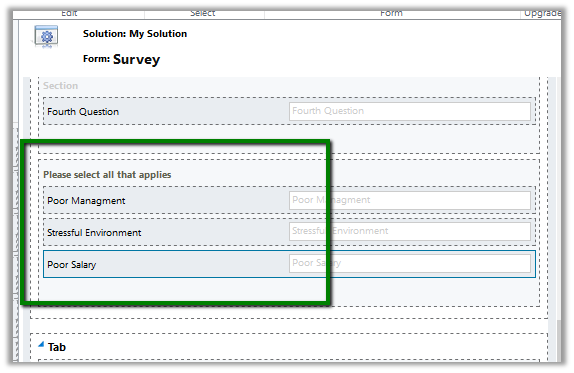
To configure this, add a section named “Please select all that applies” to Step 3 Tab and 3 two options (Boolean) fields in the Survey Form.

Now go to Step 3 Web Form Step and add Web Form Metadata for each of these bool fields.

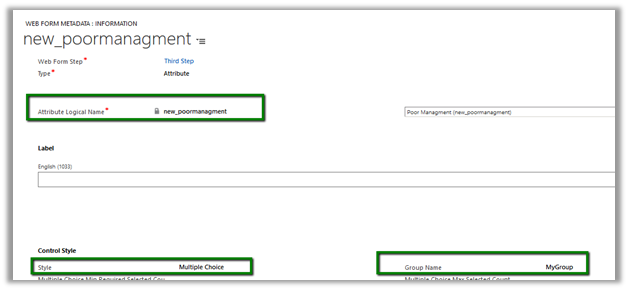
For the poor management field,

  • Style – Multiple Choice
  • Group Name – MyGroup

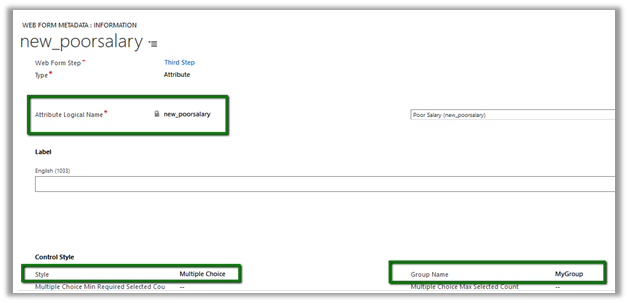
For the poor salary field, specify the same value for style and group name field

  • Style – Multiple Choice
  • Group Name – MyGroup

Do same for the third two options field.

The main point to remember here is that the Group Name should be same.

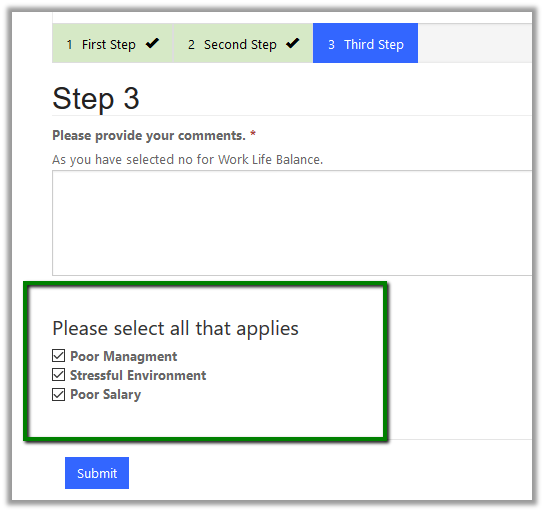
Now open the portal page and go to the web form step.

The page shows the newly added Boolean Fields in the Web Form Step as checkboxes.

Hope it helps..

Advertisements

Using Conditional Branching in Web Form in Portal (Dynamics 365)


Let us continue with our previous example of Employee Exit Survey and add conditional branching step to it.

https://nishantrana.me/2017/03/05/using-web-form-to-create-a-simple-survey-in-portal-dynamics-365/

Here we’d add a conditional web form step which will check the response of the user for Work Life Balance question and in case if it false, it shows one more step to the user and asks for the comments.

So, let us first create a web form of type Condition with below details

Type Condition
Target Entity Logical Name Our custom survey entity
Next Step Web Form Step when condition is true
Condition If new_thirdquestion is true

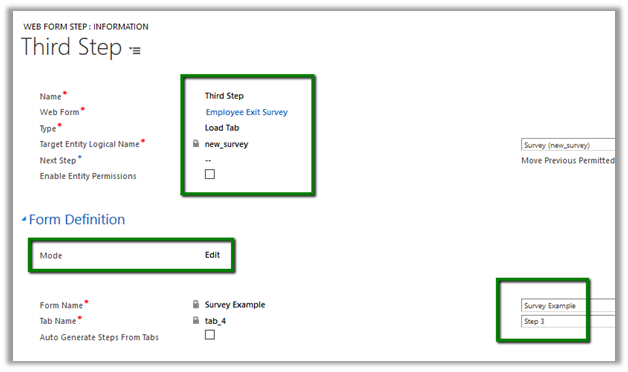
Now let us see the details of web form step – third step which we have defined as Next Step for the condition Web Step above.

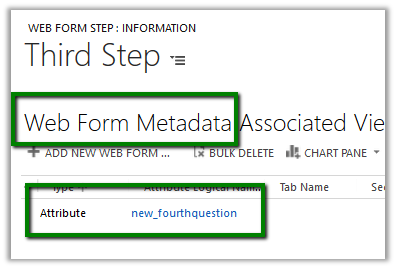
We have also created associated Web Form Metadata record of the type attribute for defining the label and other properties for the new field named fourth question in our survey form.

Adding label –

Adding Description –

Making field required –

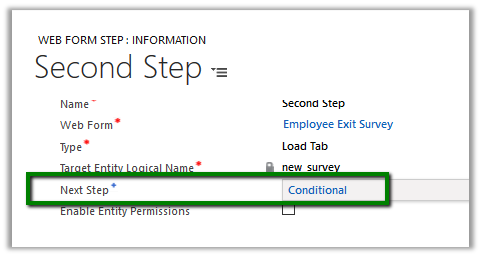
Finally update the Second Web Form Step to point to the Condition Step

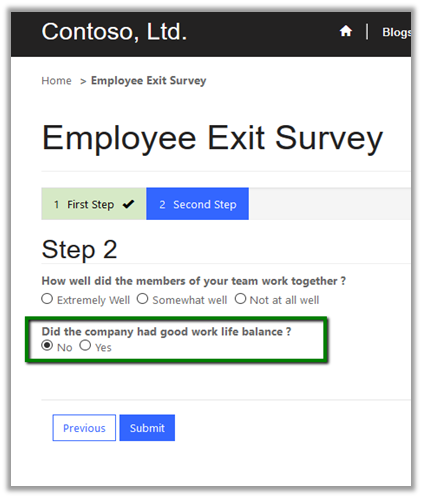
We are done with our configuration, now going back to our web page shows the Web Form with all the 3 steps.

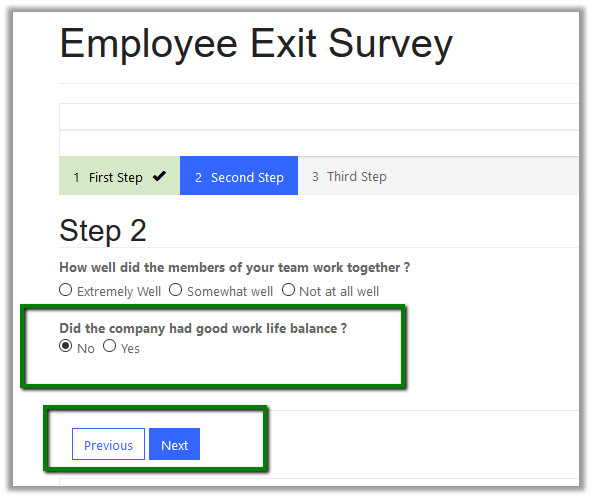
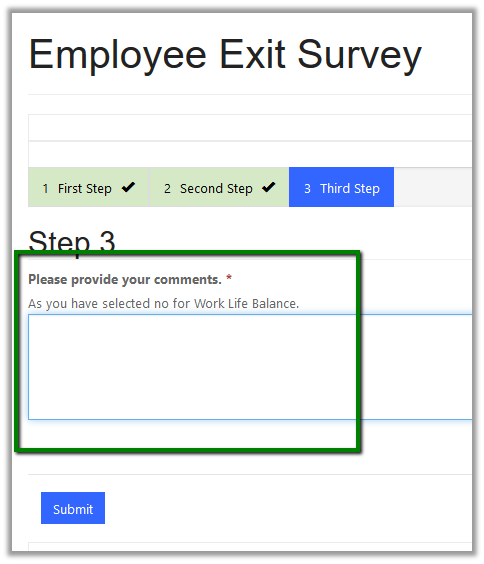
Clicking on next with No as the answer for the Work Life balance Question shows the third web form step. Note here we can see the label defined, description defined and also the field is mandatory which we did using Webform Metadata.

Clicking on submit without specifying comments shows the required field message

All the details here

https://community.adxstudio.com/products/adxstudio-portals/documentation/configuration-guide/web-forms/web-form-steps/conditional-step/

Hope it helps..
Advertisements

Using Web Form to create a simple survey in Portal (Dynamics 365)


Web Form are an extension of Entity Form, which can be used for Surveys, Registration or any wizard sort of interfaces etc. which could involve conditions and span across multiple entities.

To understand Web Form, let us create a simple Employee Exit Survey having 3 questions and 2 web form steps.

Basically, we have one Web Form which can have one or more than one Web Form Steps. Here we will use tabs within a single form for web form step (we can also use multiple forms as steps)

Let us first create a custom entity named Survey which we will use in Web Form having 2 Tabs Step 1 and Step 2, which we will use to define our Web Form Steps respectively.

Here each field/ attribute defined is one question in our Survey.

Using Web Form Metadata we can specify the label for the fields above and can do some formatting as well.

Below is our Web Form record –

Start Step is where we define the Web Form Step, which are similar to Entity Form.

Below is our First Step Web Form Step.

Type Load Tab – as we are loading the tab here
Target Entity Logical Name new_survery
Next Step Second Step – the next web form step.
Mode Insert – as we are creating the record
Form Name Name of the form
Tab Name Tab inside it

Also here we will create a related Web Form Step Metadata of type attribute to define the label for the field named new_firstquestion.

Let see the definition of the next Web Form Step i.e. Second Step

Mode Edit – Here the mode is edit as the record will already be created in the first step and will be updated in this next step.
Move Previous Permitted Allowing user to move back to the first step.
Next Step Blank – so this will be the last step.
Source Type Result From Previous Step
Entity Source Step First Step – the previous step.

Below is the Web Form Metadata for the below 2 fields of the Step 2 Tab. One of the fields is Option Set and the other is Boolean.

Metadata for second question field –

Metadata for third question field –

Finally, the web page that displays the Web Form

This is how the Web Form renders in the portal

On Submitting the Survey

This creates the Survey record in CRM

Hope it helps..