Recently we observed that our plugin registered on the Delete message of appointment on the PreValidation stage was not getting triggered when we were deleting or updating the occurrence of the Recurring Appointment.
For both of the below operations, our plugin was not getting triggered. The plugin had the logic to delete a few associated records to the appointment record.
Delete operation – This deletes all the existing appointment.
Recurrence Update –This deletes the existing appointment and creates new appointment records based on the new recurrence.
On trying out different things, we saw that the plugin was getting triggered if registered on the PreOperation.
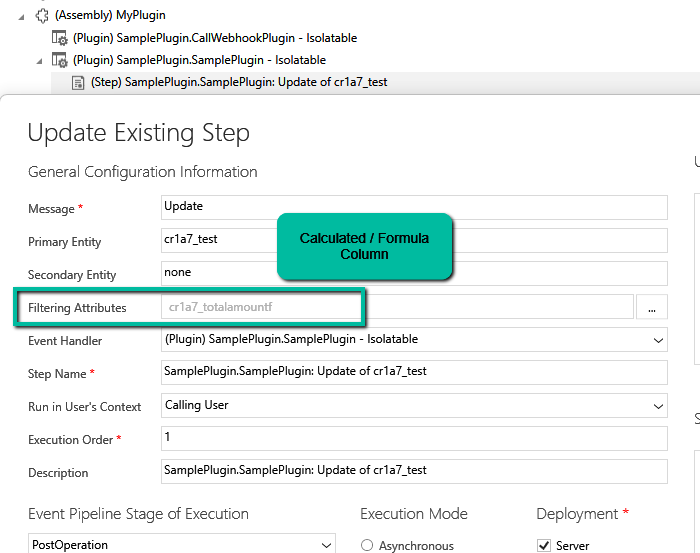
For testing, we registered a sample plugin that throws the InvalidPluginExecutionException and saw it getting triggered in case of PreOpertaion as shown below.
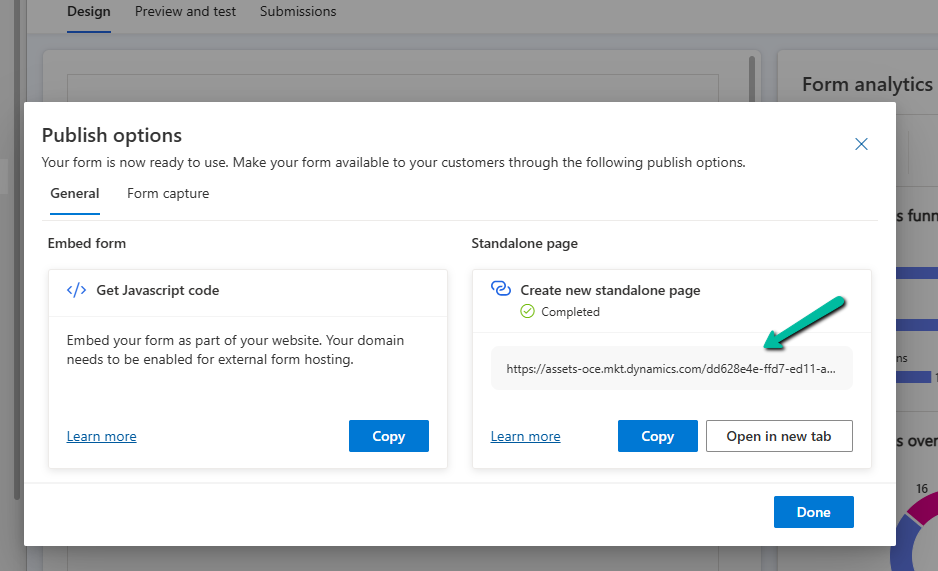
Recently we migrated the Real-time marketing forms from our Dev environment to UAT environment using the Configuration Migration Tool. Here what we noticed was on submitting the form using the standalone page in UAT, the submissions were going back to the Dev environment instead of UAT.
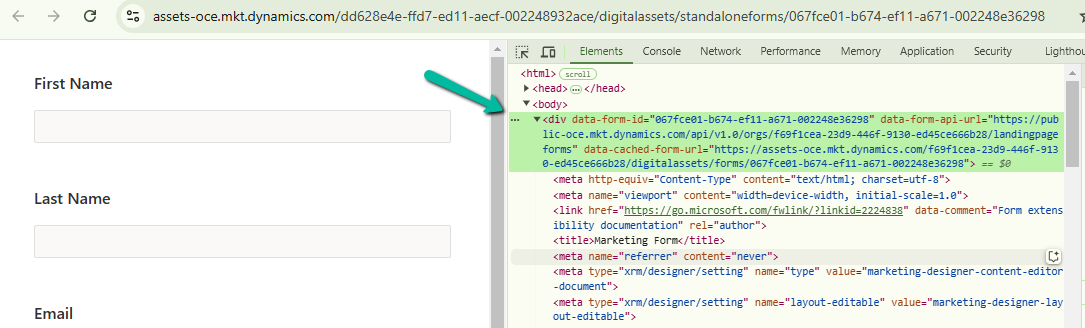
This was because the data-form-api-url and data-cached-form-url property of msdynmkt_standalonehtml field of msdynmkt_marketingform record was still referencing the organization id of the Dev environment instead of UAT.
update msdynmkt_marketingform
set msdynmkt_standalonehtml = '<div data-form-id=''067fce01-b674-ef11-a671-002248e36298''
data-form-api-url=''https://public-oce.mkt.dynamics.com/api/v1.0/orgs/dd628e4e-ffd7-ed11-aecf-002248932ace/landingpageforms''
data-cached-form-url=''https://assets-oce.mkt.dynamics.com/dd628e4e-ffd7-ed11-aecf-002248932ace/digitalassets/forms/067fce01-b674-ef11-a671-002248e36298'' >
</div><script src = ''https://cxppusa1formui01cdnsa01-endpoint.azureedge.net/oce/FormLoader/FormLoader.bundle.js''></script>'
where msdynmkt_marketingformid = '067fce01-b674-ef11-a671-002248e36298'
After the update we can see submission reflecting back to the correct UAT environment.
The query we used to update all the forms with UAT’s Id
-- replace Dev Org ID with UAT Org ID in all the marketing forms
UPDATE msdynmkt_marketingform
SET msdynmkt_standalonehtml = REPLACE(msdynmkt_standalonehtml, 'dd628e4e-ffd7-ed11-aecf-002248932ace', '2deea9c2-77e5-ed11-a809-0022489424c2')
where msdynmkt_standalonehtml LIKE '%dd628e4e-ffd7-ed11-aecf-002248932ace%'
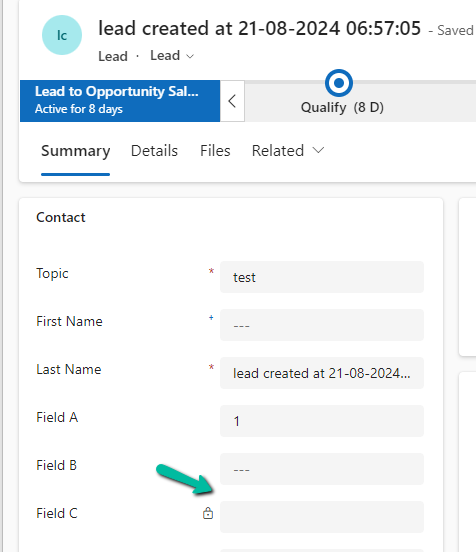
Suppose we have the following whole number fields, where Field C is the calculated column and is the sum of Field A and Field B
Field C calculated column –
However, if any of the fields used for calculation is null, Field C will also show null.
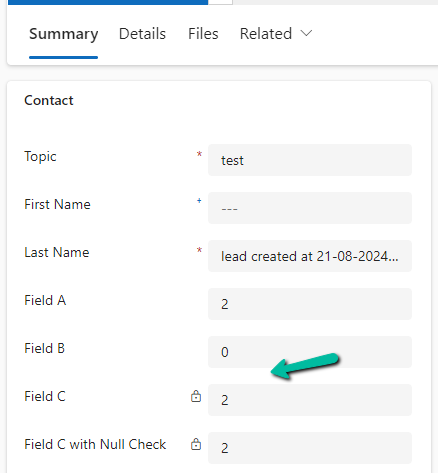
The way we can resolve it is to put a null check in the formula.
We have created a new calculated column with the below definition.
The other option that we can consider is using JavaScript / Business Rules / Additional Calculated Columns to set the default value to 0 in case of null, for the fields being used for calculation.
In the case of 0 also, the calculated columns will work properly.
Finally, now that we have Fx Formula Columns available we can make use of them instead of Calculated Columns.
The formula columns work properly and we do not have to put the null check.
Select the appropriate environment and click on New copilot option (Create+)
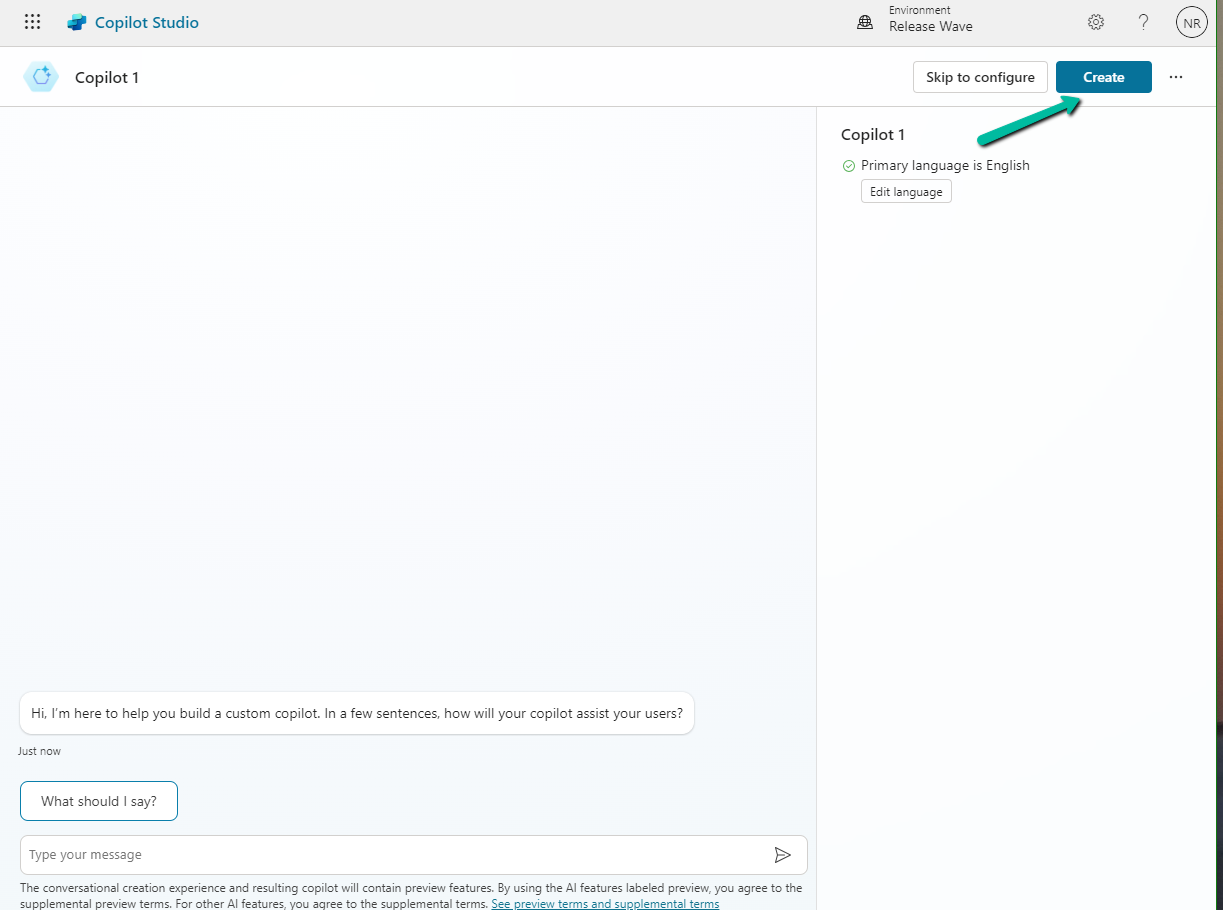
Select Create
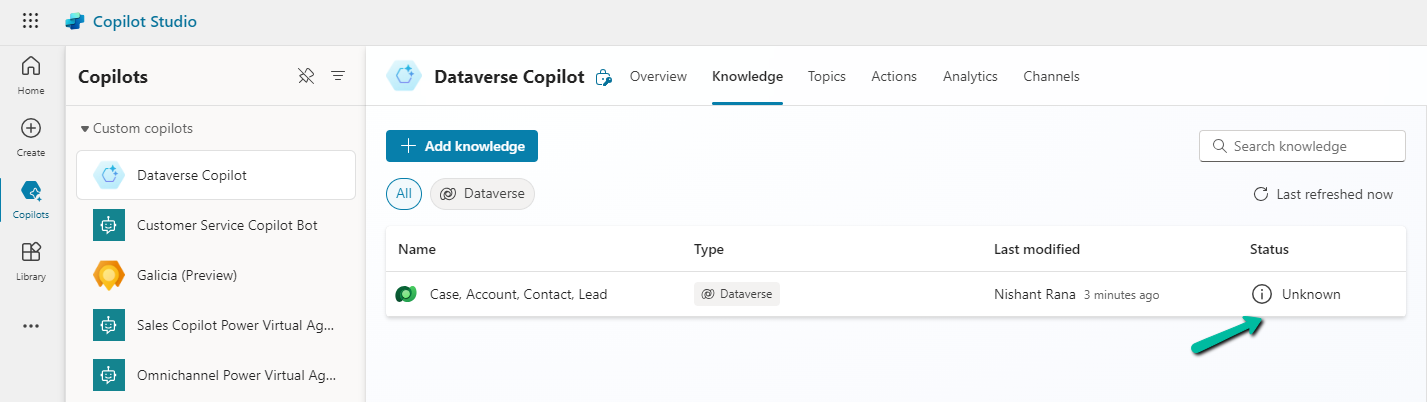
Here we have renamed the Copilot, next click on Add knowledge to add Dataverse as the source.
Add Dataverse
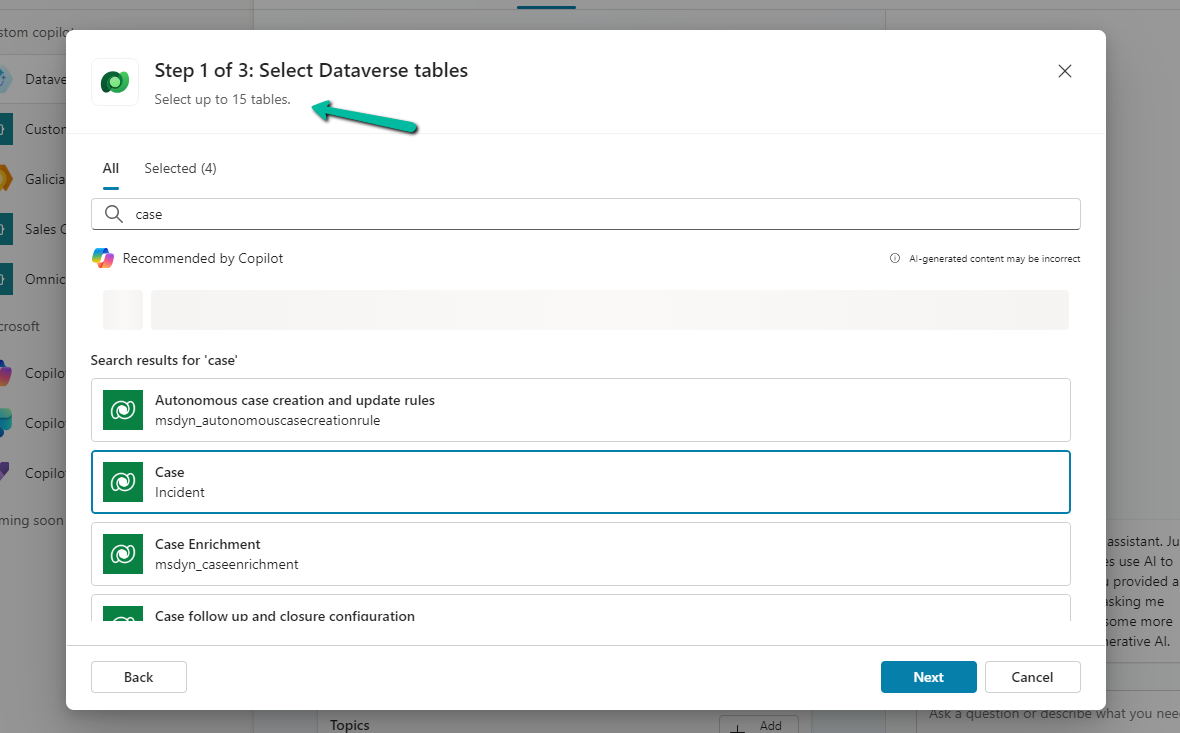
We can select up to 15 tables, and we have specified lead, contact, account, and case for now.
Next, we get the option to review the data for the tables selected.
In the last step, we get the option to review it. Here we can add/ edit the synonyms and glossaries that would make it easier for the copilot to understand and fetch the data. We’d skip it just to see how it works without configuring them.
Our copilot is ready now. The other things that we can do are to add actions, build topics, and publish which we’d leave as it is for now.
Click on the Knowledge tab. In a short time, we’d see the status changed to In Progress
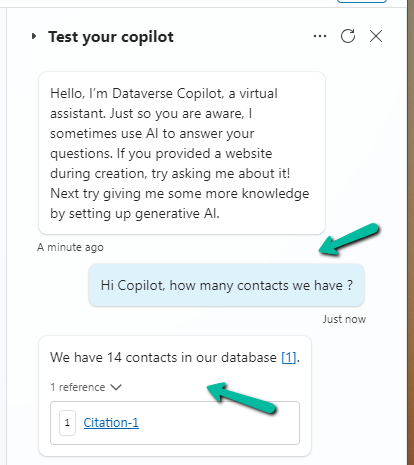
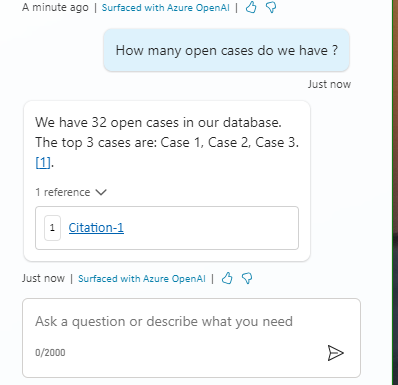
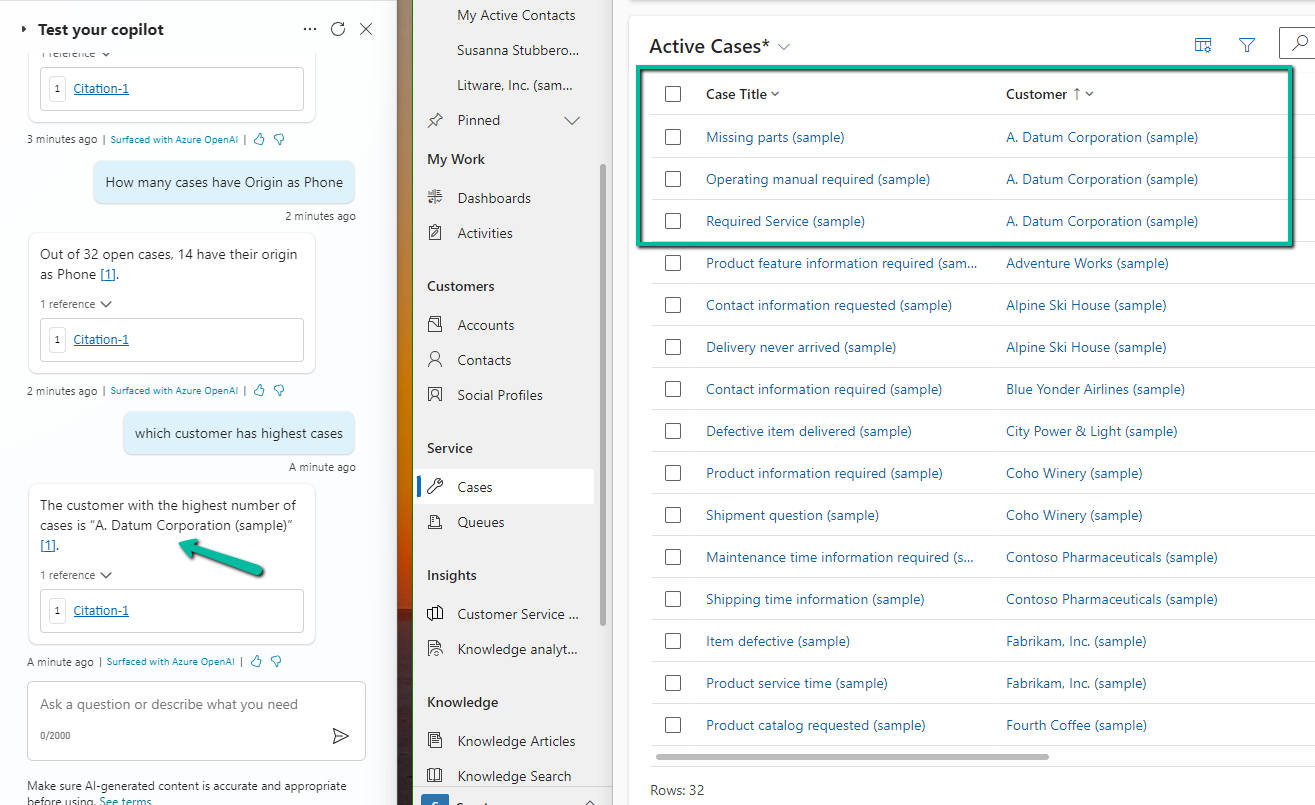
Meanwhile, we can still go ahead and test it.
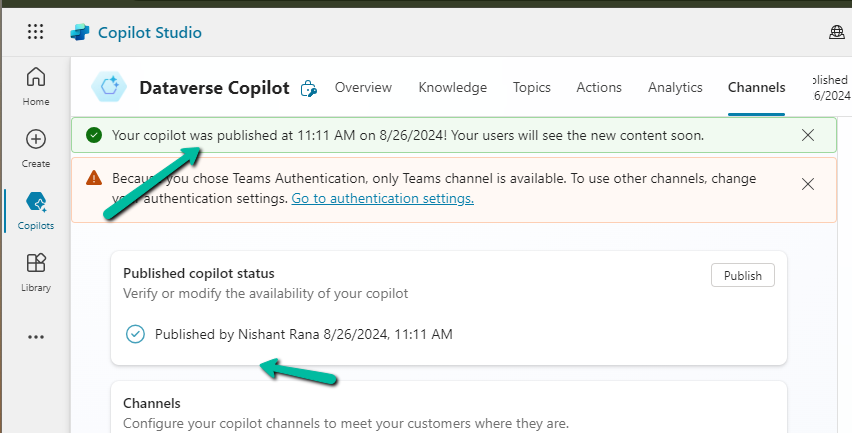
As we are done with the testing let us try publishing it, before that let us check the authentication for it.
Navigate to Settings >> Security >> Authentication, here we can see Authenticate with Microsoft selected. We’d leave it like that.
Based on the Authentication mode selected, we will have different channels enabled / disabled.
Let us select the Microsoft Teams channel for our copilot.
Select Turn on Teams
Select Edit details
Add / Edit the details and click on Save.
Now time to Publish our copilot.
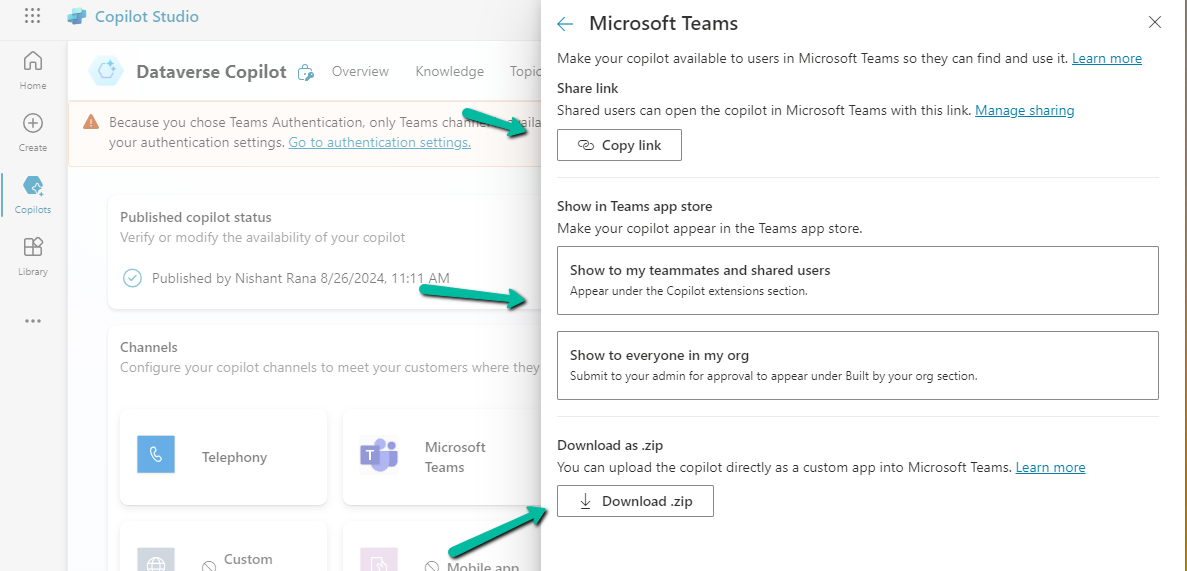
We can now again open the Microsoft Teams channel and select the Availability options.
Here we can see multiple options, one is to share the link, upload the zip, and show it in the teams store.
We selected the Show to my teammates and shared users option. We can add search and add users to share it with them.
The other option is to Copy link and share the link.
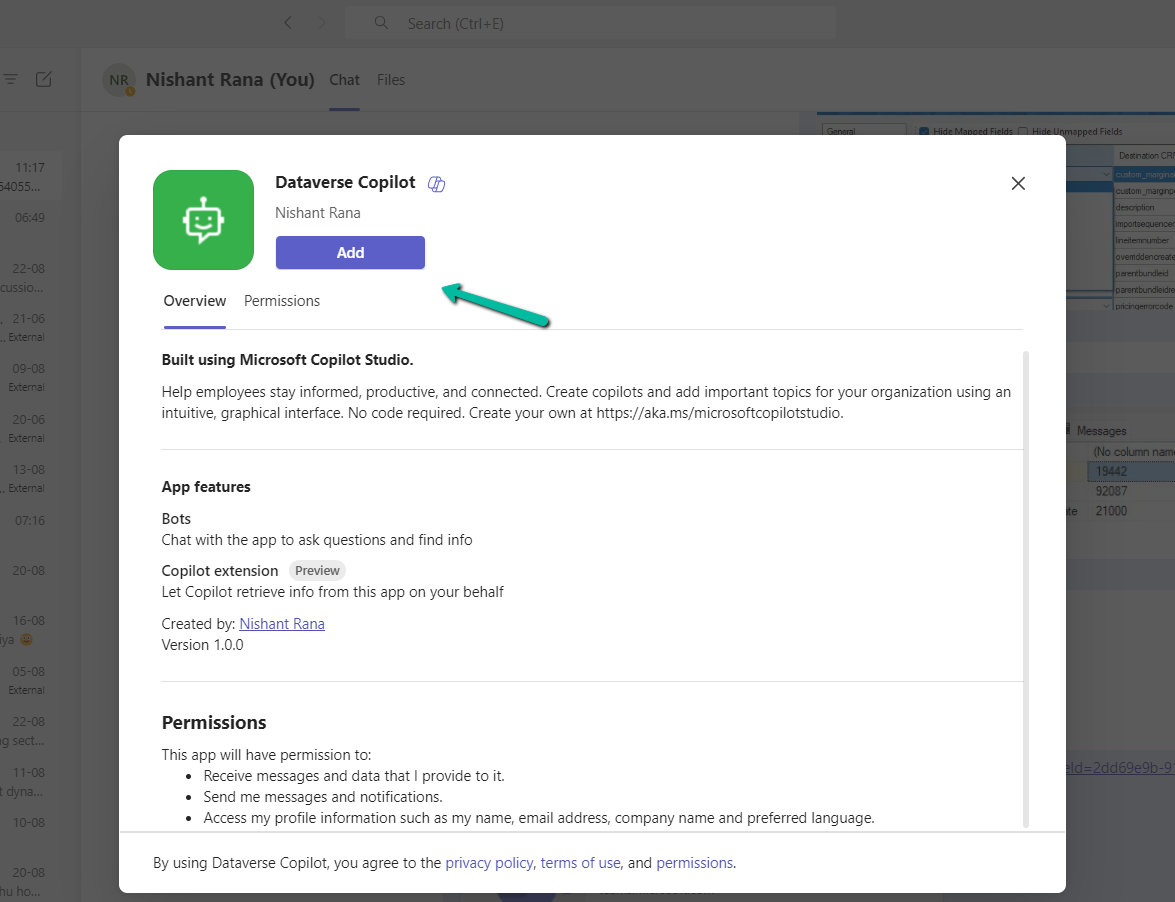
On opening the link, we get the option to add the app.
We can see our app added in the Manage your apps section in Teams.
Finally now we can start interacting with our copilot.
By default, we can only specify the contact associated with the customer for the case record. If we try specifying a contact record that is not associated with the Customer selected, we will get the below error message.
Invalid Contact – The specified contact doesn’t belong to the account selected as the customer. Specify a contact that belongs to the selected account, and then try again.
Also, CRM will filter the lookup to show only the associated contact record
However, if we do not want this validation, we can remove it using the environment variable.
Search for Customer Entities Relationship For Incidents / msdyn_IncidentShouldValidatePrimaryContact
Set the new value as 0.
Now we will be able to save the record using an unassociated contact.