Recently, we faced an interesting import failure while moving a solution containing a Custom API.
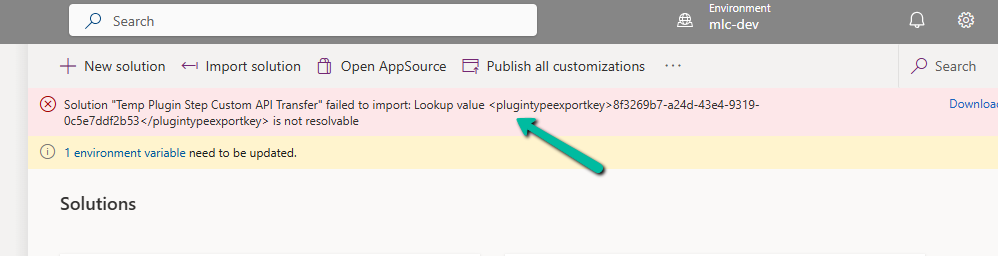
Solution “Temp Plugin Step Custom API Transfer” failed to import: Lookup value 8f3269b7-a24d-43e4-9319-0c5e7ddf2b53 is not resolvable.
This clearly pointed to a lookup resolution issue — the solution import process was trying to bind the Custom API to a Plugin Type (class), but couldn’t find the referenced plugin in the target environment.
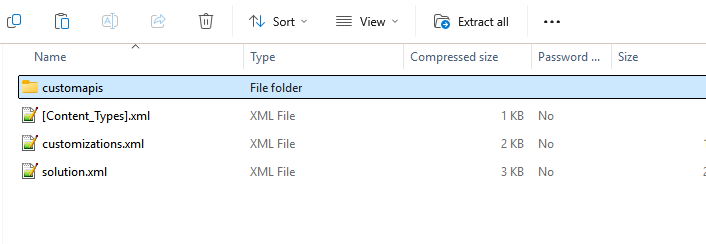
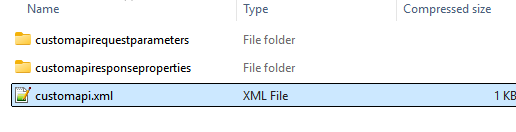
Each Custom API will have its own folder inside the Solution.
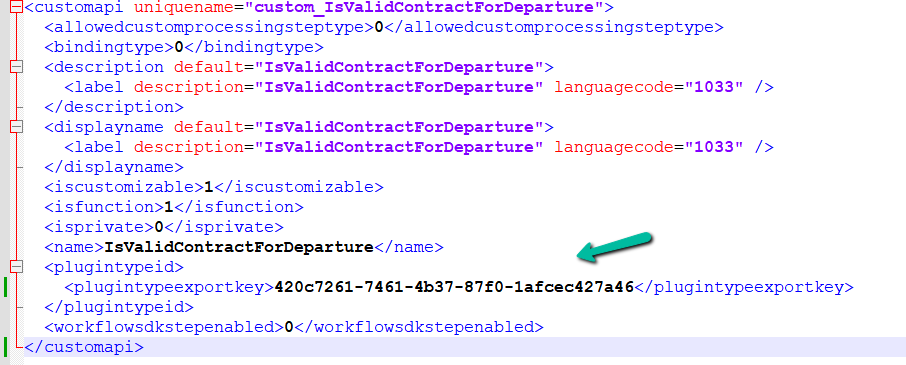
Looking into the solution files (specifically the customapi.xml) of that particular Custom API, we found this section:
Notice the <plugintypeexportkey> tag. This is where the Custom API references the Plugin Type (the actual C# class implementing the logic).
When a Plugin class is created in Dynamics 365, it gets assigned a unique Plugin Type Id (GUID).
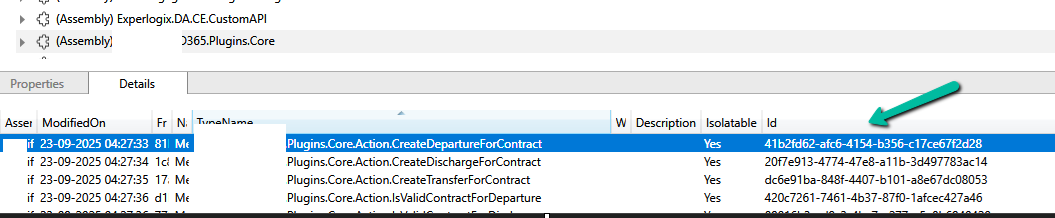
In the source environment, the Custom API was tied to a plugin with ID 420c7261-7461-4b37-87f0-1afcec427a46. However, in the destination environment, which was another development environment, a different plugin class was already created for that custom api. So during solution import, Dataverse tried to match the GUID 420c7261… but couldn’t find it in the target environment. Hence, the lookup resolution failed, and the solution import was blocked.
To resolve this, we manually updated the GUID in the customapi.xml to match the Plugin Type Id of the destination environment. Below, we are getting the ID from the Plugin Registration tool. The other option to fix would have been to remove the Plugin reference from the source, export, and then import.
After making this change, we re-imported the solution, and it worked successfully.
Sometimes when we are writing JavaScript in Dynamics 365, we need the exact schema name of a field’s control so that we can hide, show, or manipulate it properly. While the attribute’s schema name is straightforward, controls may have numbered names like gendercode1, gendercode2, etc., depending on how many times the field is placed on the form.
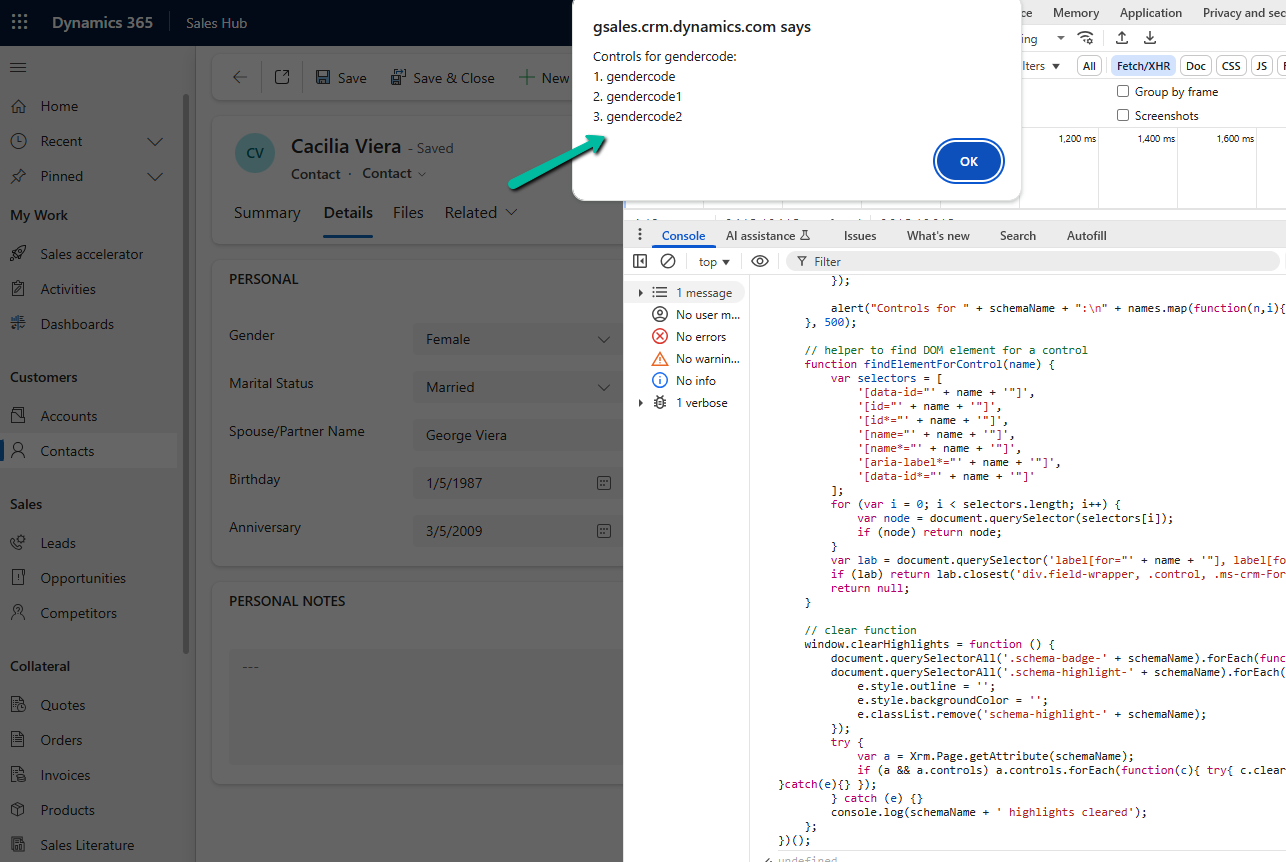
To quickly figure this out, we can run a small helper script directly in the browser console. This script highlights all instances of the field on the form, expands tabs/sections if they are collapsed, and shows the schema names against each control.
Here’s the script for the field gendercode: – specify the schema name and run it in console.
(function () {
    // configurable schema name
    var schemaName = "gendercode"; // change this as needed

    var formContext = Xrm.Page;
    var attr = formContext.getAttribute(schemaName);
    if (!attr) { alert(schemaName + " not found"); return; }

    // clear old highlights/badges
    document.querySelectorAll('.schema-badge-' + schemaName).forEach(function(b){ b.remove(); });
    document.querySelectorAll('.schema-highlight-' + schemaName).forEach(function(e){
        e.style.outline = '';
        e.style.backgroundColor = '';
        e.classList.remove('schema-highlight-' + schemaName);
    });

    var names = [];
    var tabsExpanded = {};

    // expand tabs/sections containing the control
    attr.controls.forEach(function (ctrl) {
        var name = ctrl.getName();
        names.push(name);

        try {
            var section = ctrl.getParent && ctrl.getParent();
            var tab = section && section.getParent && section.getParent();
            if (tab && typeof tab.setDisplayState === 'function') {
                var tabName = tab.getName ? tab.getName() : null;
                if (!tabsExpanded[tabName]) {
                    try { tab.setDisplayState('expanded'); } catch (e) {}
                    tabsExpanded[tabName] = true;
                }
            }
            if (section && typeof section.setVisible === 'function') {
                try { section.setVisible(true); } catch (e) {}
            }
        } catch (e) {}
    });

    // highlight after expansion
    setTimeout(function () {
        attr.controls.forEach(function (ctrl, index) {
            var name = ctrl.getName();
            var el = findElementForControl(name);

            if (el) {
                el.classList.add('schema-highlight-' + schemaName);
                el.style.outline = "2px solid orange";
                el.style.backgroundColor = "#fff8e1";

                var badge = document.createElement("div");
                badge.className = "schema-badge-" + schemaName;
                badge.textContent = schemaName + " " + (index + 1);
                badge.style.cssText = "font-size:11px;color:white;background:orange;padding:1px 6px;margin-top:4px;border-radius:3px;display:inline-block";
                (el.parentElement || el).appendChild(badge);
            } else {
                console.warn("Could not find DOM element for control:", name);
            }
        });

        alert("Controls for " + schemaName + ":\n" + names.map(function(n,i){ return (i+1)+". "+n; }).join("\n"));
    }, 500);

    // helper to find DOM element for a control
    function findElementForControl(name) {
        var selectors = [
            '[data-id="' + name + '"]',
            '[id="' + name + '"]',
            '[id*="' + name + '"]',
            '[name="' + name + '"]',
            '[name*="' + name + '"]',
            '[aria-label*="' + name + '"]',
            '[data-id*="' + name + '"]'
        ];
        for (var i = 0; i < selectors.length; i++) {
            var node = document.querySelector(selectors[i]);
            if (node) return node;
        }
        var lab = document.querySelector('label[for="' + name + '"], label[for*="' + name + '"]');
        if (lab) return lab.closest('div.field-wrapper, .control, .ms-crm-Form-Field-Container') || lab.parentElement;
        return null;
    }

    // clear function
    window.clearHighlights = function () {
        document.querySelectorAll('.schema-badge-' + schemaName).forEach(function(b){ b.remove(); });
        document.querySelectorAll('.schema-highlight-' + schemaName).forEach(function(e){
            e.style.outline = '';
            e.style.backgroundColor = '';
            e.classList.remove('schema-highlight-' + schemaName);
        });
        try {
            var a = Xrm.Page.getAttribute(schemaName);
            if (a && a.controls) a.controls.forEach(function(c){ try{ c.clearNotification && c.clearNotification(); }catch(e){} });
        } catch (e) {}
        console.log(schemaName + ' highlights cleared');
    };
})();
When we run this in the console, it: Highlights all instances of the field with an orange outline and light background. Adds a small badge like gendercode 1, gendercode 2 next to each control. Alerts and logs the schema names so we can directly use them in our scripts.
This makes it very easy for us to identify which control name we should be using in our JavaScript.
When working with historical or test data in Dynamics 365 Field Service, we often come across the need to clean up old Work Orders and their related records. While it might seem straightforward to just delete the Work Order, there are quite a few interdependent entities and plugin validations that can make this task tricky.
We wanted to delete all msdyn_workorder records created before a certain date along with their related child records such as:
Work Order Products
Work Order Services
Work Order Incidents
Bookable Resource Bookings
Time Entries, Service Tasks, Resolutions, etc.
The Field Service solution has many plugins that enforce business rules during deletion.
If a Work Order is in a Posted state (msdyn_systemstatus = 690970004), attempting to delete any of its child records will throw errors like:
Failed to delete msdyn_workorderproduct {GUID}: A record can’t be deleted if the work order has been posted.
So to delete the Posted work order, we had to update its status to Cancelled.
If the Work Order has any associated Bookable Resource Booking records, deletion is blocked:
Work order can’t be deleted because there are associated Resource Booking records. Please delete these records first.
And while deleting Bookings, we might hit even deeper integration issues, like this one from a virtual entity plugin
This error originates from the FnO Virtual Entity plugin and usually appears if the user linked to the Booking doesn’t exist in the FnO system — a hard blocker for environments with dual-write enabled.
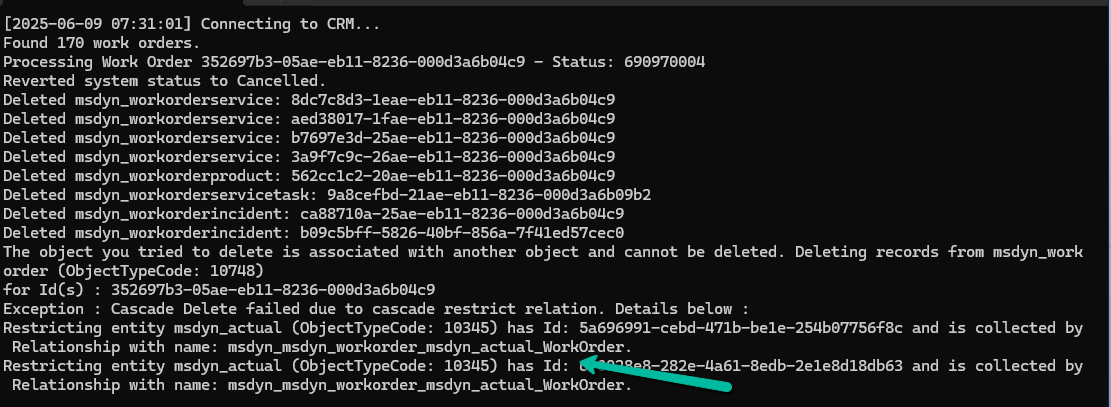
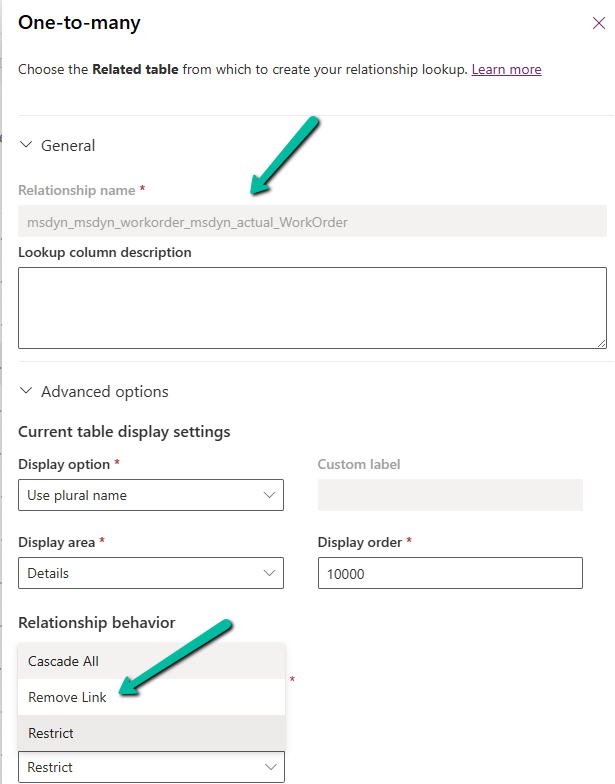
Also, we had to temporarily change the Delete action to Remove Link from Restrict for the relationship between msdyn_workorder and msdyn_actual_workorder.
Here’s a high-level overview of what we did:
Fetched work orders based on our criteria. Loop through each work order:
Revert the status if it is Posted (so it becomes deletable)
Delete all child records in a proper order
Delete the Work Order itself
Below is the sample code we used for deleting the work orders and its associated records successfully.
   public void DeleteAllWorkOrders()
        {

            QueryExpression query = new QueryExpression("msdyn_workorder");
            query.ColumnSet = new ColumnSet("msdyn_workorderid", "msdyn_name", "createdon", "msdyn_systemstatus");

            query.Criteria = new FilterExpression();
            query.Criteria.Conditions.Add(
                new ConditionExpression("createdon", ConditionOperator.LessThan, new DateTime(2025, 1, 1))
            );
            query.Orders.Add(new OrderExpression("createdon", OrderType.Descending));
            var workOrders = _service.RetrieveMultiple(query).Entities;
            Console.WriteLine($"Found {workOrders.Count} work orders.");

            try
            {
                foreach (var wo in workOrders)
                {
                    var woId = wo.Id;
                    var systemStatusCode = wo.Contains("msdyn_systemstatus") ? ((OptionSetValue)wo["msdyn_systemstatus"]).Value : 0;
                    try
                    {
                        //// 1. If Posted revert status
                        if (systemStatusCode == 690970004) // Posted
                        {
                            var revert = new Entity("msdyn_workorder", woId)
                            {
                                ["msdyn_systemstatus"] = new OptionSetValue(690970005) // Canceled
                            };

                            _service.Update(revert);
                            Console.WriteLine("Reverted system status to Cancelled.");
                        }

                        // 2. Delete dependencies
                        DeleteRelatedRecords("msdyn_workorderservice", "msdyn_workorder", woId);
                        DeleteRelatedRecords("msdyn_workorderproduct", "msdyn_workorder", woId);
                        DeleteRelatedRecords("msdyn_workorderservicetask", "msdyn_workorder", woId);
                        DeleteRelatedRecords("msdyn_workorderincident", "msdyn_workorder", woId);
                        DeleteRelatedRecords("msdyn_workorderresolution", "msdyn_workorder", woId);
                        DeleteRelatedRecords("bookableresourcebooking", "msdyn_workorder", woId);
                        DeleteRelatedRecords("msdyn_timeentry", "msdyn_workorder", woId);

                        // 3. Delete the Work Order
                        _service.Delete("msdyn_workorder", woId);
                        Console.WriteLine($"Deleted Work Order: {woId}\n");
                    }
                    catch (Exception ex)
                    {
                        Console.WriteLine($"Error processing Work Order {woId}: {ex.Message}");
                        Console.WriteLine("Continuing with the next Work Order...\n");
                    }
                }
            }
            catch(Exception ex)
            {
                Console.WriteLine(ex.Message);
            }

            Console.WriteLine("All Work Orders cleaned up.");
            Console.WriteLine("Press any key to continue !");
        }

        private void DeleteRelatedRecords(string entityName, string lookupField, Guid workOrderId)
        {
            var query = new QueryExpression(entityName)
            {
                ColumnSet = new ColumnSet(false),
                Criteria =
            {
                Conditions =
                {
                    new ConditionExpression(lookupField, ConditionOperator.Equal, workOrderId)
                }
            }
            };

            var records = _service.RetrieveMultiple(query).Entities;

            foreach (var record in records)
            {
                try
                {
                    _service.Delete(entityName, record.Id);
                    Console.WriteLine($"Deleted {entityName}: {record.Id}");
                }
                catch (Exception ex)
                {
                    Console.WriteLine($"Failed to delete {entityName} {record.Id}: {ex.Message}");
                }
            }
        }
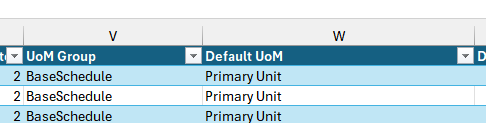
Recently while trying to import the product records in our Dynamics 365 Sales, we got the below error – “The Default Unit is not a member of the specified Unit Group”
We were providing the correct UoM Group and Default UoM in our Excel file to be imported.
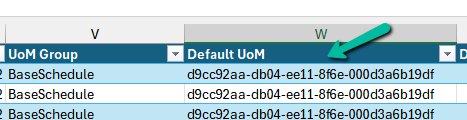
After some troubleshooting, we realized that we had 2 units with the same name “Primary Unit”, because of which the system was not able to identify the correct unit to be used during the import.
To fix this issue, we replaced the Name with the Guid of the record in our excel file.
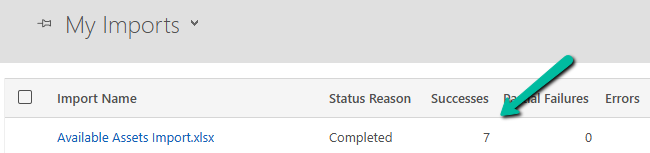
This fixed the issue for us and we were able to import the product records successfully.
While working on a LINQ query using early-bound classes in a Dynamics 365 plugin, we encountered a familiar error.
“Could not find an implementation of the query pattern for source type. ‘Where’ not found”
At a glance, everything looked fine. The query was syntactically correct, and the early-bound class was generated properly.
After spending some time, we realized that the error message wasn’t due to the query or the early-bound class itself. It was because we forgot to include the following directive:
using System.Linq;
Without this, C# doesn’t recognize LINQ query methods like Where, Select, or ToList.
Adding this single line at the top of the file resolved the issue immediately, the LINQ query compiled and executed as expected.
Recently, we had to write a small utility—a console application—that would go and update a bunch of existing records in our Dynamics 365 environment. However, we didn’t want any of my custom plugins to trigger during this update. Because the updates were internal, more like data correction / cleanup, and had nothing to do with business rules or processes enforced via plugins. Triggering them would’ve not only been unnecessary but could also lead to unwanted side effects like auto-assignments, email sends, or data syncing. Thankfully, the Dataverse platform provides us with two powerful properties that allow us to selectively bypass plugin execution logic.
BypassCustomPluginExecution – This allows us to bypass all the plugin steps for an operation – create, update, delete, etc.
BypassBusinessLogicExecutionStepIds – If we do not want to skip all the plugin steps, but just a few specific ones, we can use this property.
We have the below sample plugin registered that throws InvalidPluginExecutionException on the update of the lead record.
On updating the record through the console app, we will get the same exception.
To bypass all the plugins that are registered on Update, we can use the BypassCustomPluginExecution property as shown below.
To bypass only the specific plugin steps that are registered on Update, we can use the BypassBusinessLogicExecutionStepIds property as shown below.
One point to remember is these flags do not bypass system plugins or platform logic—only custom plugin steps we’ve registered.
This was a really handy trick in our recent utility and helped us to safely update the records without triggering the plugin. The other options could have been to either temporarily deactivate the plugin step, add certain conditions to the plugin based on calling user, flag/fields on the record etc.

![Fixed –Lookup value plugintypeexportkey [Guid] is not resolvable – Solution Import error (Dynamics 365 / Dataverse)](https://nishantrana.me/wp-content/uploads/2025/09/pexels-photo-4482033.jpeg?w=1200)