Execute Privilege Name (ExecutePrivilegeName) property of Custom API in Dynamics 365 / Microsoft Dataverse


In the previous post, we created a simple custom API  https://nishantrana.me/2021/01/13/use-custom-api-to-create-custom-messages-in-dynamics-365/

Let us look at its different properties starting with ExecutePrivilegeName

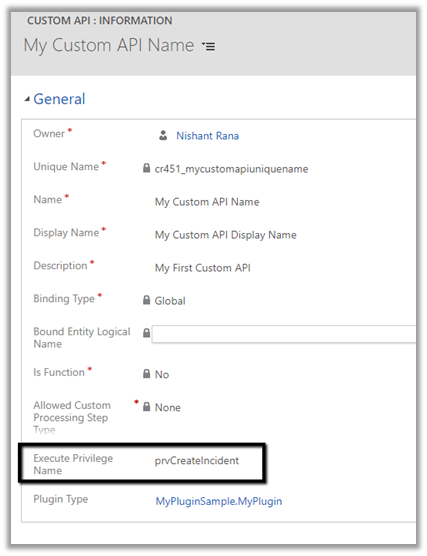
Execute Privilege Name attribute of custom API allows us to specify the name of the privilege that allows execution of the custom API.

Let us update the custom API and specify the privilege name.

For simplification, we have used prvCreateIncident here i.e. Create Case / Incident Privilege.

To get the Privilege name

https://%5Borgname%5D.api.crm.dynamics.com/api/data/v9.1/privileges?$select=name


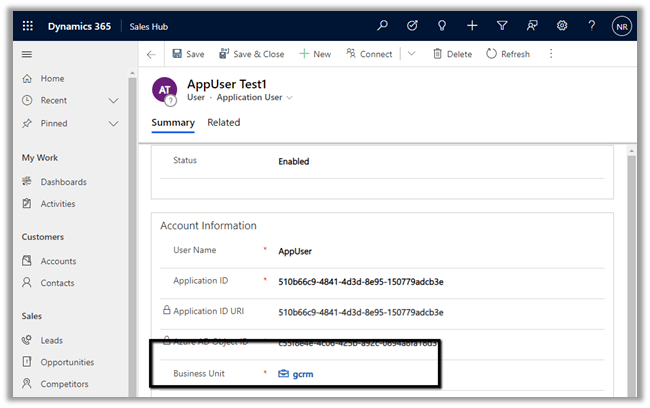
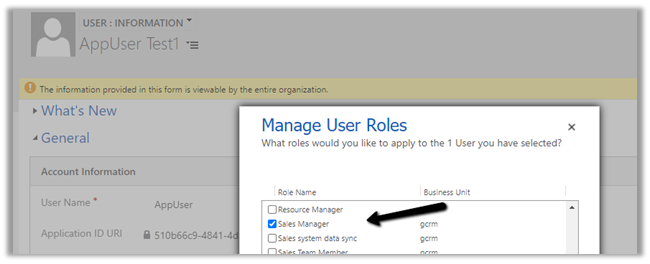
To test, we updated the security of the Application User to Sales Manager role which doesn’t have the create incident privilege.

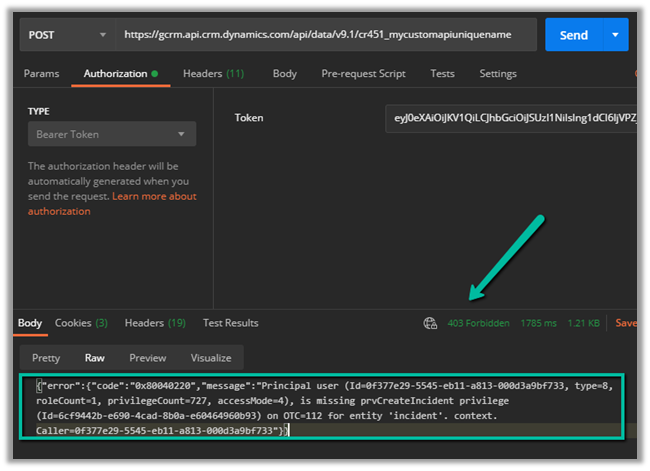
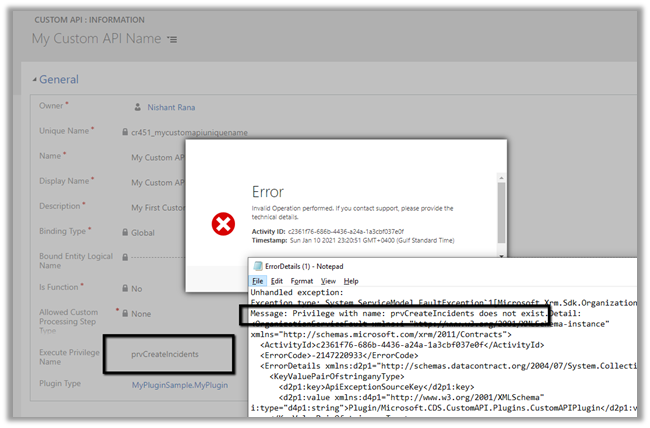
Calling the custom API this time as expected gave us the below error

{“error”:{“code”:”0x80040220″,”message”:”Principal user (Id=0f377e29-5545-eb11-a813-000d3a9bf733, type=8, roleCount=1, privilegeCount=727, accessMode=4), is missing prvCreateIncident privilege (Id=6cf9442b-e690-4cad-8b0a-e60464960b93) on OTC=112 for entity ‘incident’. context.Caller=0f377e29-5545-eb11-a813-000d3a9bf733″}}


If we specify an incorrect privilege name we would get the below error and will not be able to save the record.


Hope it helps..


Advertisements

How to – Use Custom API to create custom messages in Dynamics 365


Custom API (preview) allows us to define our custom messages that can be called from web services, similar to Custom Actions. Usually, we would be creating custom workflow actions just to create a new message, to which we can hook our plugin, without defining any logic in the workflow. For this scenario or pattern now we can use Custom API instead.

There are different ways of creating a custom API.

  • Through the Maker Portal.
  • Using Web API or Organization Service.
  • Editing the solution files.

The 3 key entities involved here are

  1. CustomAPI
  2. CustomAPIRequestParameter
  3. CustomAPIResponseProperty

Let us try creating a CustomAPI through the maker portal.

Create a new solution, and click on New and select Custom API

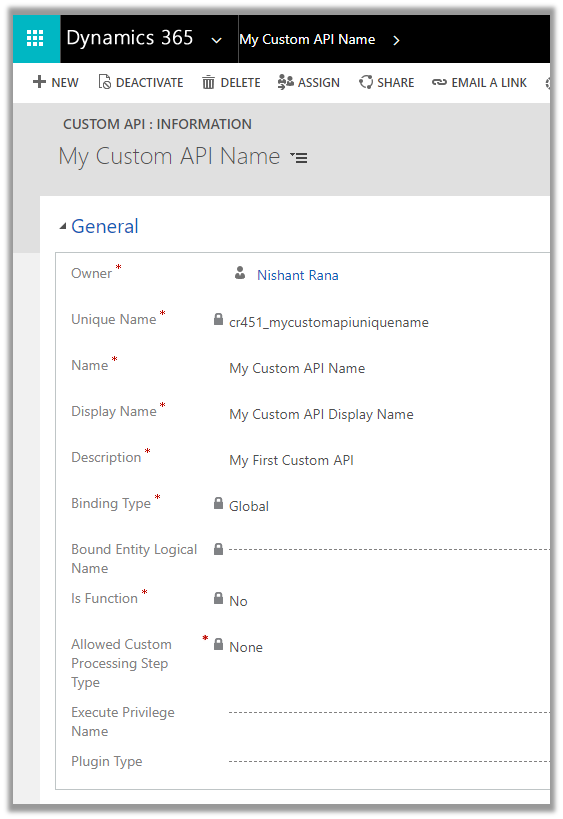
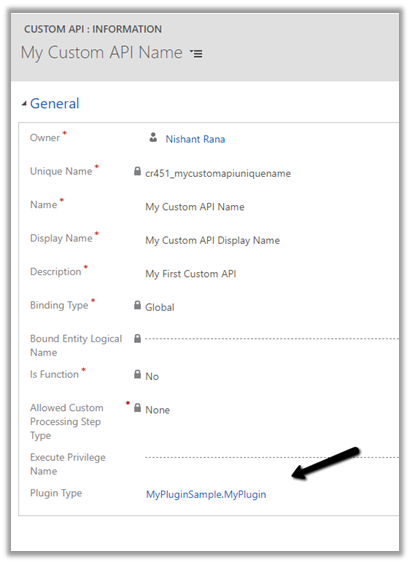
Let us start with a very basic custom action.

Unique Name

This will be the name of the message. Should have the prefix same as solution’s publisher. 

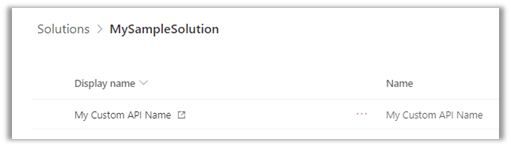
Name

The name of the Custom API will show up inside the solution

Display Name

Localized display name of the Custom API

Description  

Localized description of the Custom API 

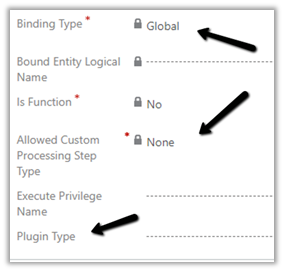
Binding Type 

  • Value: 0 Label: Global
  • Value: 1 Label: Entity
  • Value: 2 Label: EntityCollection

Bound Entity Logical Name 

Logical name of the entity in case of binding type – Entity and EntityCollection.

Is Function 

  • Value: 0 Label: No
  • Value: 1 Label: Yes

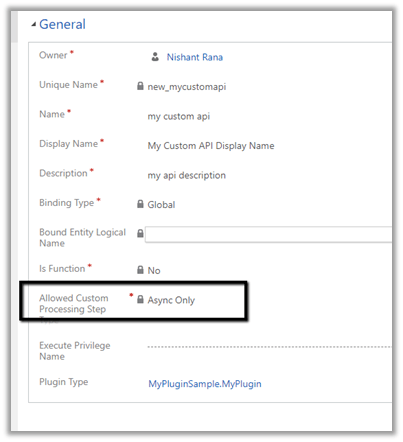
Allowed Custom Processing Step Type 

  • Value: 0 Label: None Meaning: No custom processing steps allowed.
  • Value: 1 Label: Async Only Meaning: Only asynchronous custom processing steps allowed
  • Value: 2 Label: Sync and Async Meaning: No restriction. 3rd party plug-ins can add synchronous logic to change the behavior of the message

Execute Privilege Name


Name of the Privilege that is required for the execution of the Custom API.

Plugin Type

Reference of the plugin registered for the Custom API 

So right now we have a very basic custom API registered of Global type, which doesn’t allow any steps to be registered and doesn’t need any privileges to execute

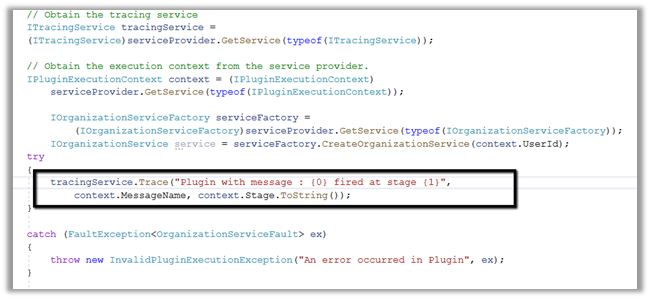
Let us write a sample plugin and associate with this new message.

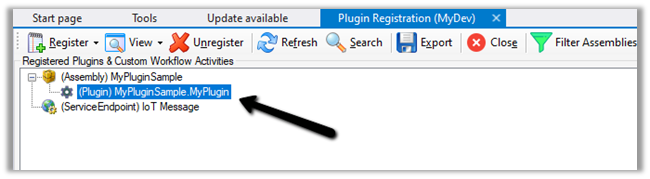
Let us register the assembly

Now let us go back to our Custom API record and associate the Plugin registered.

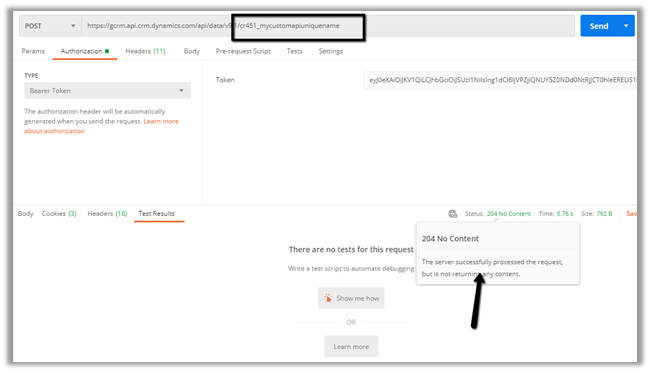
Let us trigger the plugin by calling the Custom API through the Postman.

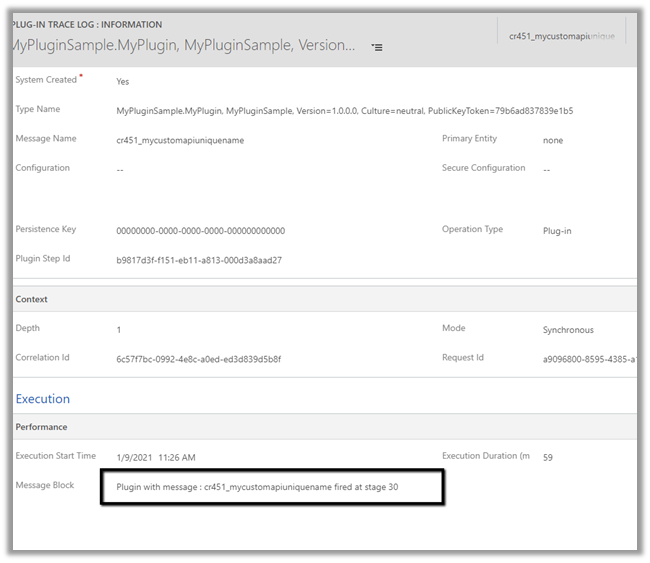
Let us check the plugin trace log inside Dynamics 365 App.

Get all details here 

https://docs.microsoft.com/en-us/powerapps/developer/data-platform/custom-actions

Hope it helps..

Blog posts on 2021 Release Wave 1 – Dynamics 365

Advertisements

RECENT POSTS –

Something went wrong. Please refresh the page and/or try again.

Improved search experience in Dynamics 365 / PowerApps


To enable the new search experience, we need to turn on the relevance search on that environment.

Login to the admin portal and environments section

https://admin.powerplatform.microsoft.com/environments

Navigate to Settings -> Features and turn on the Relevance Search


This places the search bar in the header, making it easy to access while navigating across different pages.

With Relevance search turned off à

On clicking the search icon à we are navigated to the categorized search page.

The search result for the term “alex” with Relevance Search on–

Even before we can enter our query in the search box, the search box displays the recent terms (seems like max 3) used for search along with recent records (seems like max 6) accessed.

Provides increment search or real-time suggestions while we are tying the search term

Get all the details here

And must-read article on the new search experience à

https://jukkaniiranen.com/2020/11/make-your-power-apps-search-experience-more-relevant/

Blog posts on 2021 Release Wave 1 – Dynamics 365

Hope it helps..


Advertisements
Advertisements

Sample Code – Dynamics 365 Web API / Organization Service


Refer appropriate connection string as required with CrmServiceClient- 

https://docs.microsoft.com/en-us/powerapps/developer/data-platform/xrm-tooling/use-connection-strings-xrm-tooling-connect#connection-string-examples

the connection string parameters

Replace Office 365 authentication with OAuth

https://docs.microsoft.com/en-us/powerapps/developer/data-platform/authenticate-office365-deprecation

Advertisements

Recent Posts –

Something went wrong. Please refresh the page and/or try again.

Dynamics 365 Sales mobile app (preview)


The new Dynamics 365 Sales mobile app (preview), has been introduced specifically for the field sellers who need quick access and intuitive management of the customer information on the go while travelling / meeting the customers.

Check other posts on 2020 Release Wave 2

To enable the App, navigate to Advanced Settings from the Sales Hub and then to Administration > System Settings > Mobile Client tab
We also need to enable Relevance search on the environment for the mobile app’s search to work.

For iOS

https://go.microsoft.com/fwlink/p/?linkid=2151689

For Android

https://go.microsoft.com/fwlink/p/?linkid=2152008

After installation open the app and sign in

From the list of apps, select the App to be used. Here we clicked on the Sales Hub app.

Below is the home page of the app.

The home page provides quick access to recent contacts and recent records along with reminders and insights.

More on Assistant –

https://docs.microsoft.com/en-us/dynamics365/ai/sales/assistant

The + option allows for the quick creation of Note and Contact records.

The more options allow access to the navigate to other part of the apps – dashboard and the other entities.

Search suggestions provide results while we are typing and grouping of search results to quickly find the information needed.

Other sub grid and form tab improvements in the app –

https://nishantrana.me/2020/09/28/sub-grid-and-form-tabs-improvements-in-power-apps-mobile-app/

The meetings option shows the calendar view and the meetings that are scheduled in the outlook.

We cannot create meetings from the Sales Mobile app.

Get all the details here –

Overview of the Dynamics 365 Sales mobile app

Blog posts on 2021 Release Wave 1 – Dynamics 365

Hope it helps..


Recent Posts – 

Something went wrong. Please refresh the page and/or try again.

How to – Consume Dynamics 365 Web API using MSAL.NET


Sharing a sample code to consume Dynamics 365 Web API using MSAL.NET

Create a console application and add the following NuGet Package

  • Microsoft.Identity.Client

More on Microsoft identity platform

https://docs.microsoft.com/en-us/azure/active-directory/develop/

We are using ConfidentialClientApplicationBuilder create method.

https://docs.microsoft.com/en-gb/azure/active-directory/develop/msal-net-initializing-client-applications

The sample code –

using Microsoft.Identity.Client;
using System;
using System.Net.Http;
using System.Net.Http.Headers;
using System.Threading.Tasks;

namespace CrmAppMSAL
{
class Program
{
static async Task Main(string[] args)
{

string clientId = "fc34502a-74db-4977-8c83-***********";
string secret = "5~mByJeQ8dDO2LZP_H_J2**********";
string[] scope = new string[] { "https://orgname.crm15.dynamics.com/.default" };
string webAPI = "https://[org].crm15.dynamics.com//api/data/v9.0/leads";
string authority = "https://login.microsoftonline.com/7bc93881-0733-48ab-baa1-ee3ed7717633";

var clientApp = ConfidentialClientApplicationBuilder.Create(clientId: clientId)
.WithClientSecret(clientSecret: secret)
.WithAuthority(new Uri(authority))
.Build();

try
{
AuthenticationResult authResult = await clientApp.AcquireTokenForClient(scope).ExecuteAsync();

var httpClient = new HttpClient();
httpClient.DefaultRequestHeaders.Add("OData-MaxVersion", "4.0");
httpClient.DefaultRequestHeaders.Add("OData-Version", "4.0");
httpClient.DefaultRequestHeaders.Accept.Add(new MediaTypeWithQualityHeaderValue("application/json"));
httpClient.DefaultRequestHeaders.Authorization = new AuthenticationHeaderValue("Bearer", authResult.AccessToken);

httpClient.BaseAddress = new Uri(webAPI);

var response = httpClient.GetAsync("WhoAmI").Result;

if (response.IsSuccessStatusCode)
{
var userDetails = response.Content.ReadAsStringAsync().Result;
Console.WriteLine(userDetails);
Console.WriteLine(authResult.AccessToken);
Console.WriteLine(authResult.ExpiresOn);
Console.ReadLine();
}

}
catch (Exception ex)
{
string errorMessage = ex.Message;
}
}
}
}

Result –

Reference –

https://medium.com/capgemini-microsoft-team/access-tokens-for-dynamics-365-using-microsoft-authentication-library-2b16c9f794b

Sample Code – Dynamics 365 Web API / Organization Service

Hope it helps..

Advertisements