Attachment Control – Dynamics 365


The new attachment control allows users to upload , download, delete, and view attachments that are added to a table through notes or emails or directly (for Case Table).

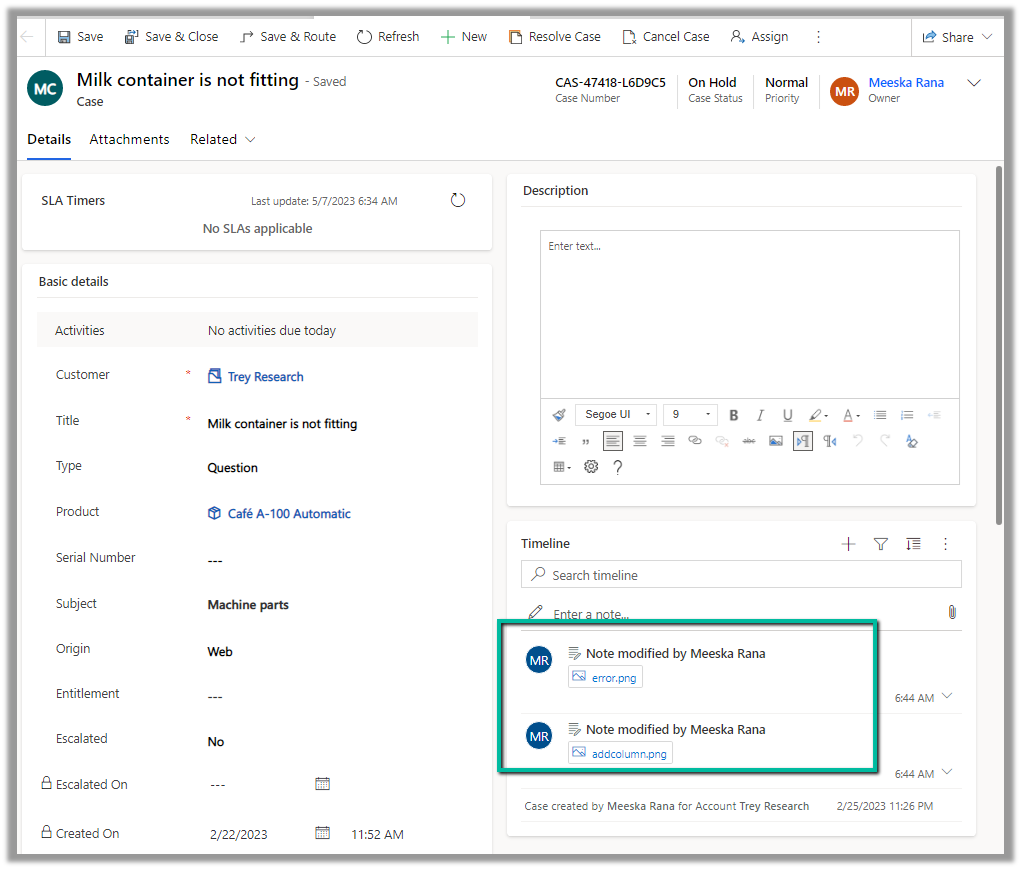
Below we have 2 attachments added to the case record.
We can see both the attachments there in the Attachments control along with an additional attachment directly added (Direct Upload) .
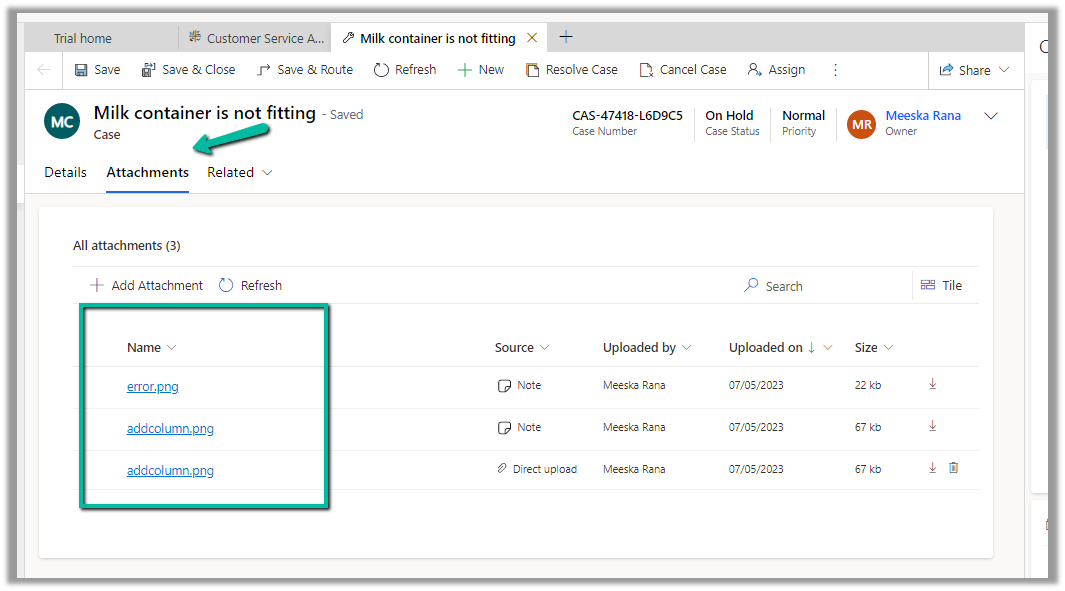
We can perform a search as well as change the view.

The Tile view –
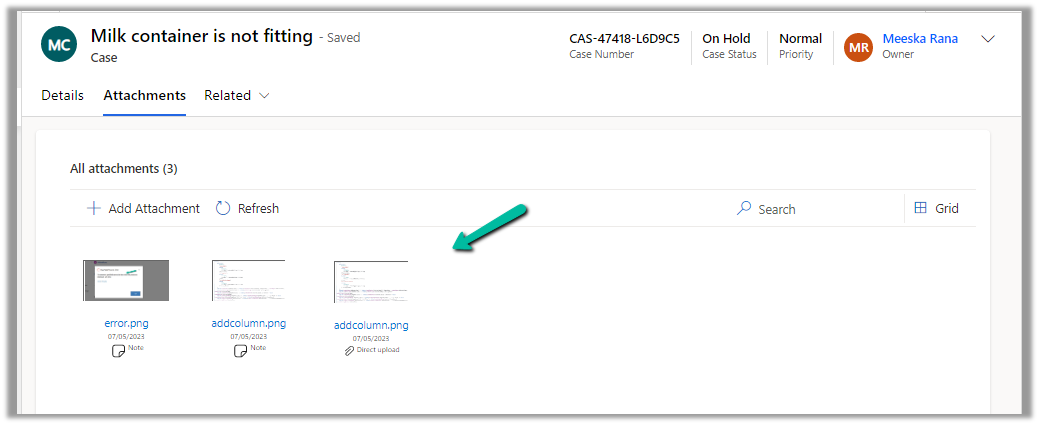
The Delete option is only available in the case of files directly uploaded not the ones showing up from notes / emails.

For the Case table, the table column property is mapped to the Pre Create Entity Attachments Id field, which allows uploading attachments even before saving or creating the case record. (This is only available for the Case table)

Below we have uploaded attachments to a new case record.

We can add the Attachment Control to other tables as well.

Below we are adding it to the Contact form.
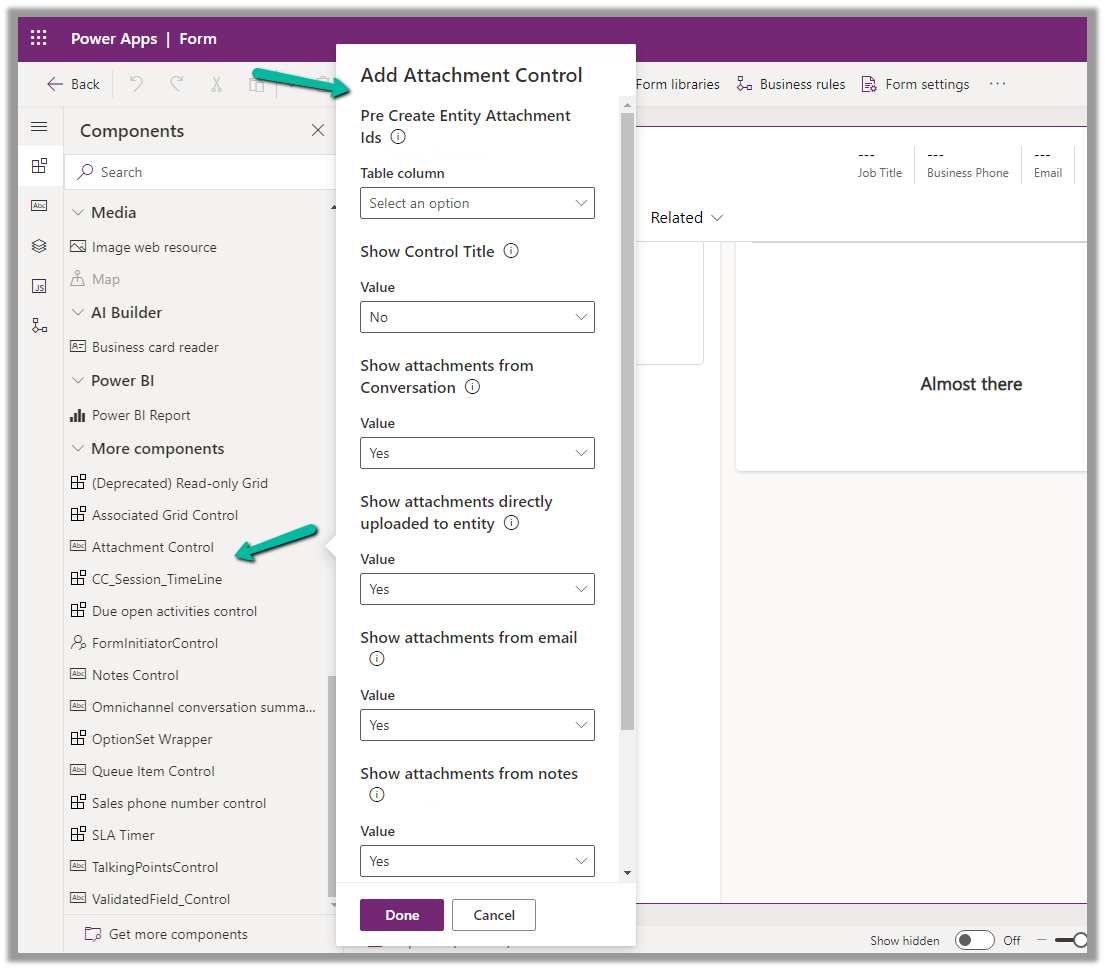
For tables other than Case, it can only be used to View the Attachments, we do not get the option to upload there.

Get all the details here

Due Open Activities Control – https://nishantrana.me/2023/05/09/due-open-activities-control-dynamics-365/

Notes Control – https://nishantrana.me/2023/05/10/notes-control-dynamics-365/

Hope it helps..

Advertisements

How to set Date Picker as Blank (Null)- Canvas Apps / Dataverse


If no dates are selected the Date Picker control will display a default date.

This comes from the InputTextPlaceholder property

We can update the formula to set the field as blank.

If(IsBlank(Self.SelectedDate), Text(Blank()))

Hope it helps..

Advertisements

Enable email address validation (preview) in the Model Driven app / Dynamics 365


To enable the new email address validation feature (preview), log in to Power Platform Admin Center >> Settings >> Features >> Data Validation


Switch On – Data Validation. (Interestingly in one of the environments enabling this setting was enough to get the smart email validation working however in another environment had to enable the below settings as well to get that working)

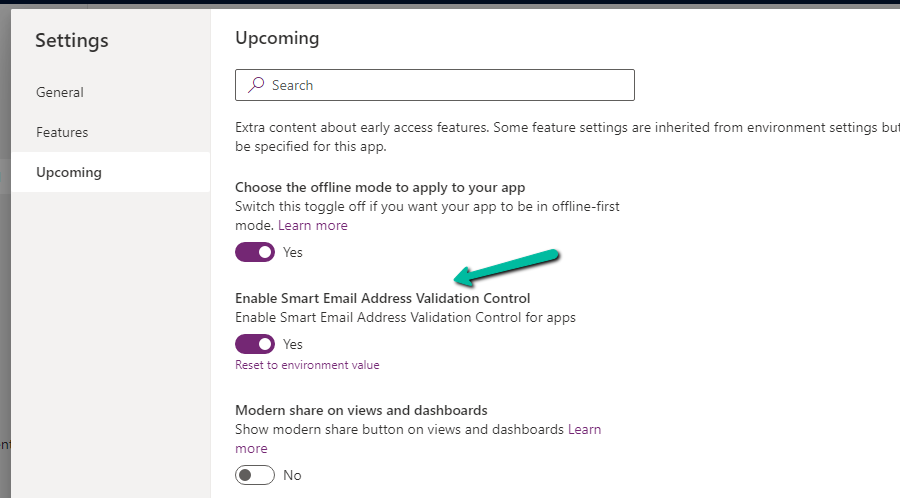
Next open the Model Driven App in Maker Portal – App Designer and switch on  Enable Smart Email Address Validation Control 

EmailOn

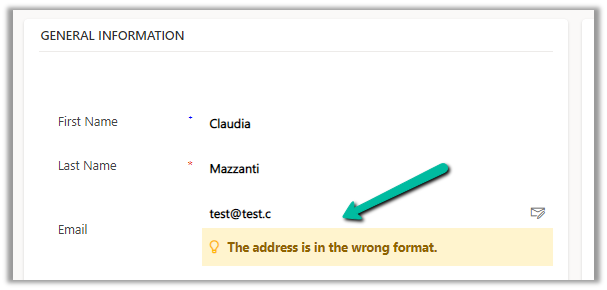
Below we can see it validating the email address while we enter its value

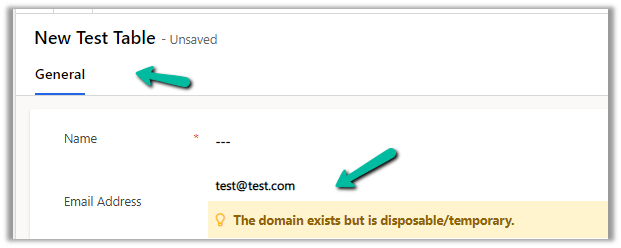
We get the below messages

And this works for the email field in a custom entity as well.

Refer – https://learn.microsoft.com/en-us/power-apps/maker/data-platform/data-validation-email-column

Also, check the similar feature we have for Sales Hub App

Hope it helps..

Advertisements

How to – Extend (Recover) the trial environment (Dataverse / Dynamics 365)


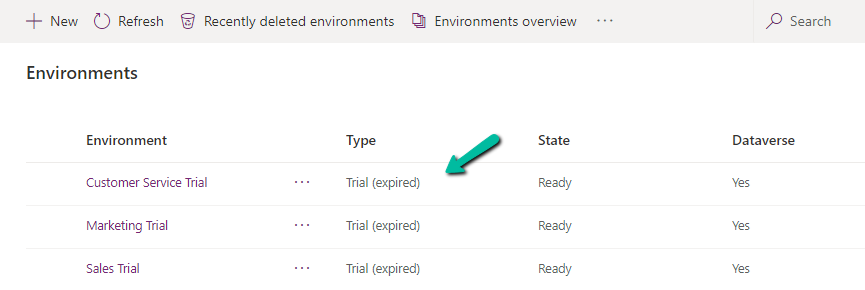
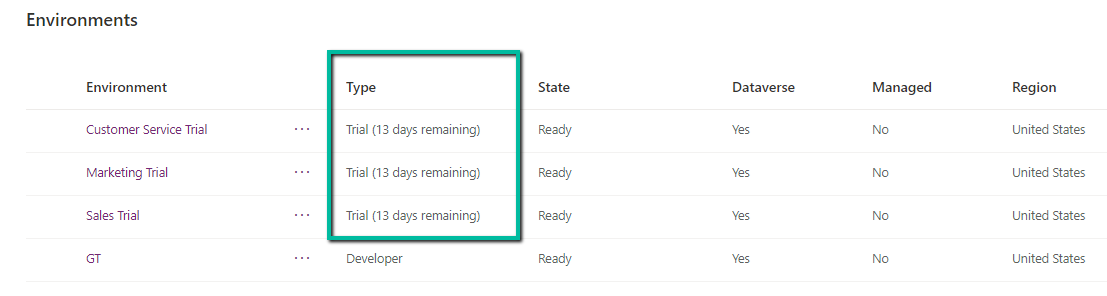
On logging into Power Platform Admin Center, we would see our trial environment as expired

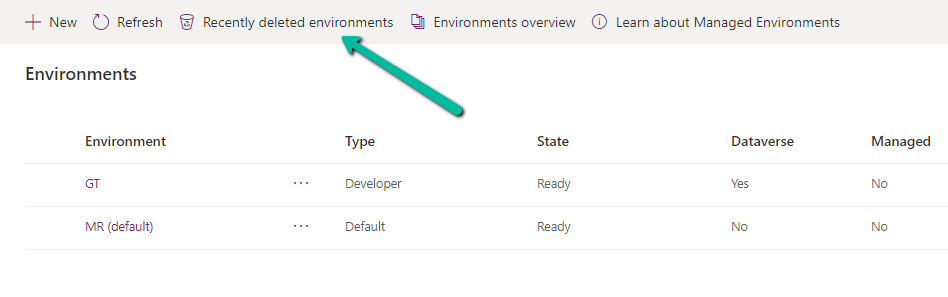
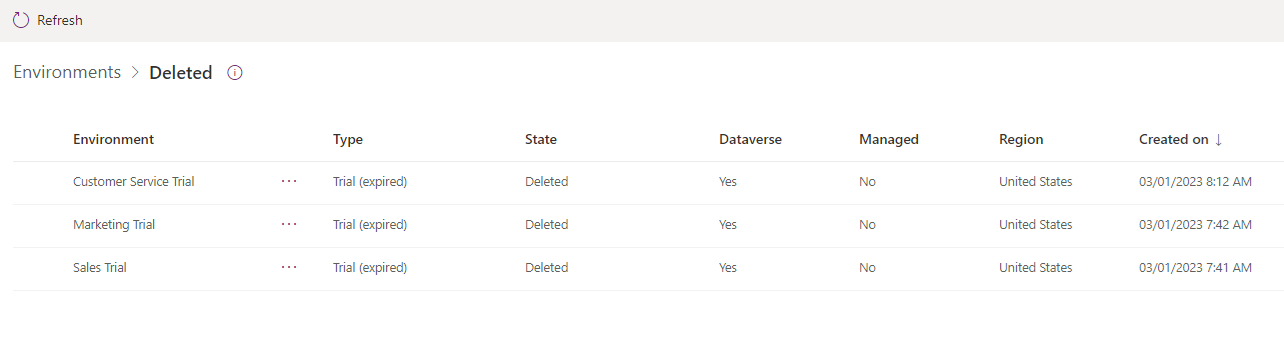
And then within one day or so, we would see them deleted inside Recently deleted environments

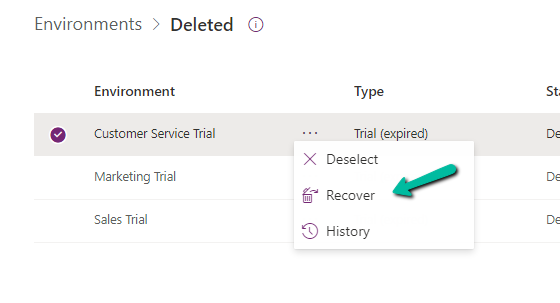
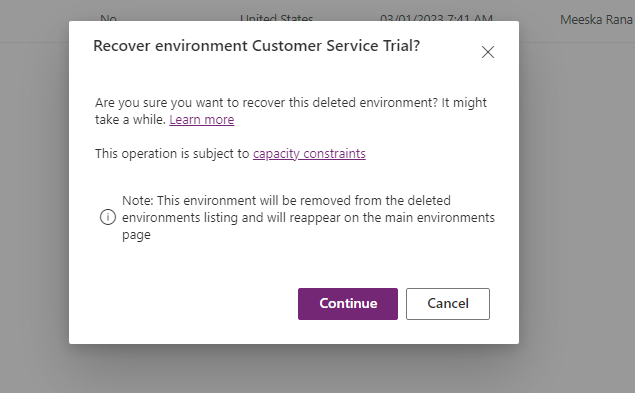
Select the deleted environment and Select Recover

Within 10 -15 minutes we can see the environment recovered with the trial extended for 13 more days.

Hope it helps..

Manage Security Roles using the new modern UI (preview) – Power Platform Admin Center


Security roles can be now managed using the new modern UI (preview).

Select Security Roles (See all) for an environment, within Power Platform Admin Center.

Select Edit for a security role.

We can see here Display only parent security roles option is On by default.

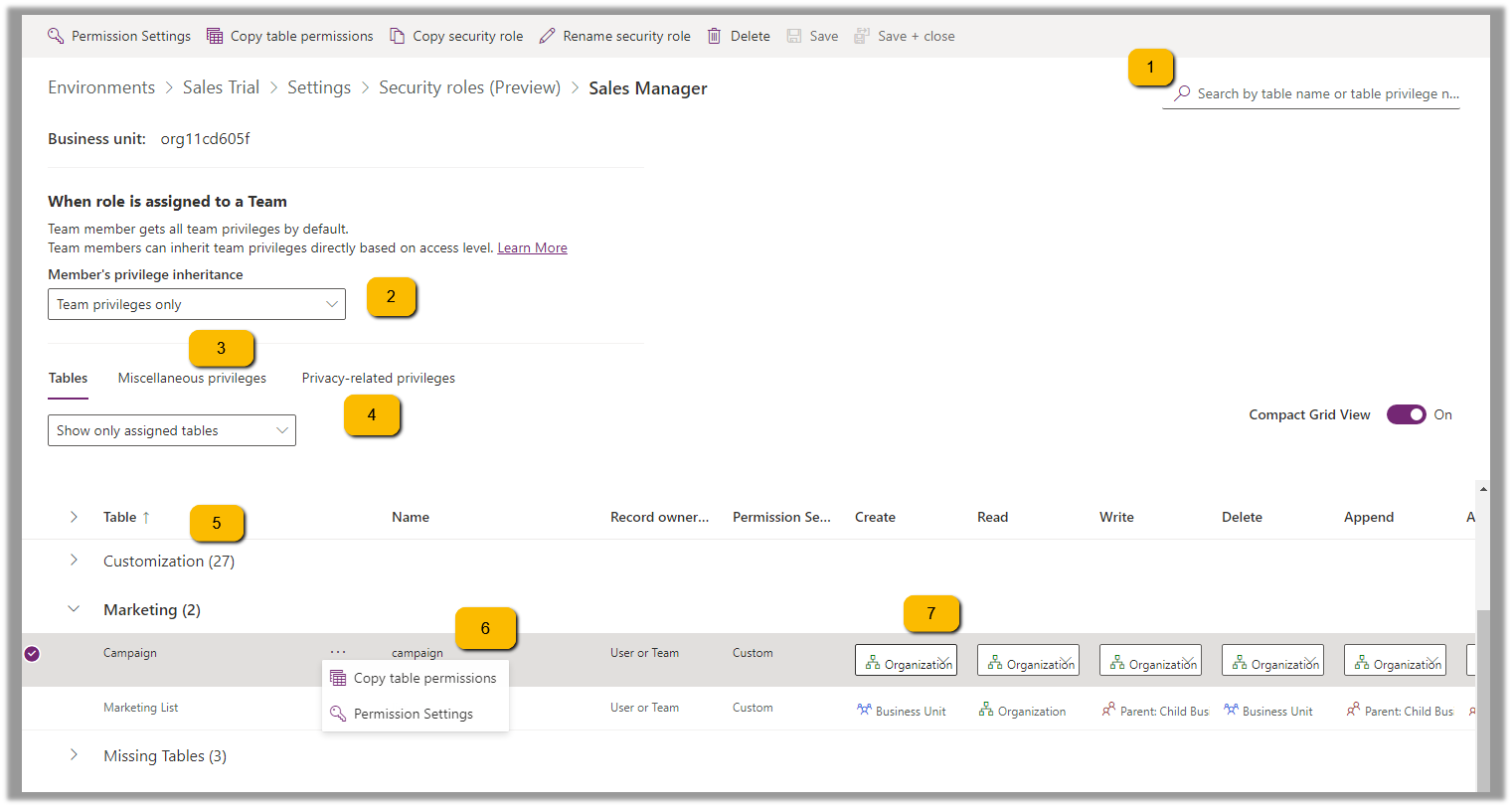
We can see the different options.

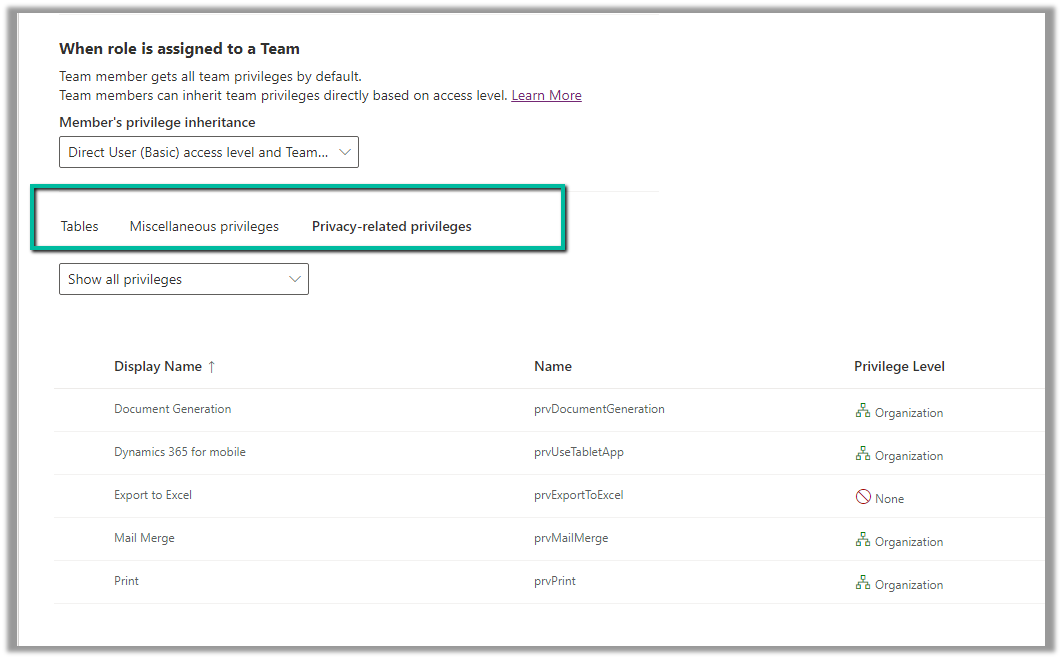
  1. Filter based on table or privileges

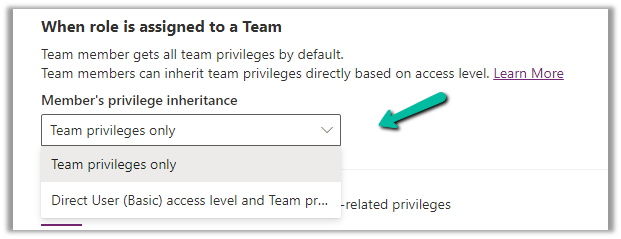
2. Specify Member’s privilege inheritance option

https://learn.microsoft.com/en-us/power-platform/admin/security-roles-privileges#define-the-privileges-and-properties-of-a-security-role

Nicely explained here –

https://debajmecrm.com/team-members-privilege-inheritance-what-is-this-doing-in-security-role-screen-of-dynamics-365/

3. Tabs for Table specific, Miscellaneous, and Privacy-related privileges

4. Filter privileges further by all, assigned or unassigned.

5. Collapsible

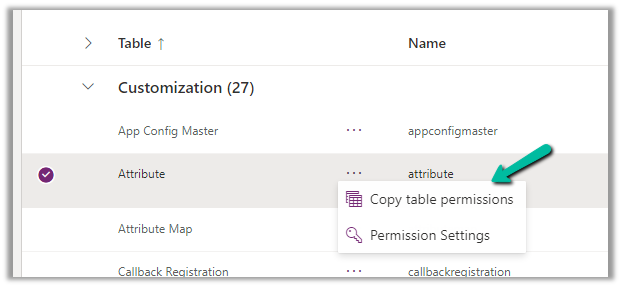
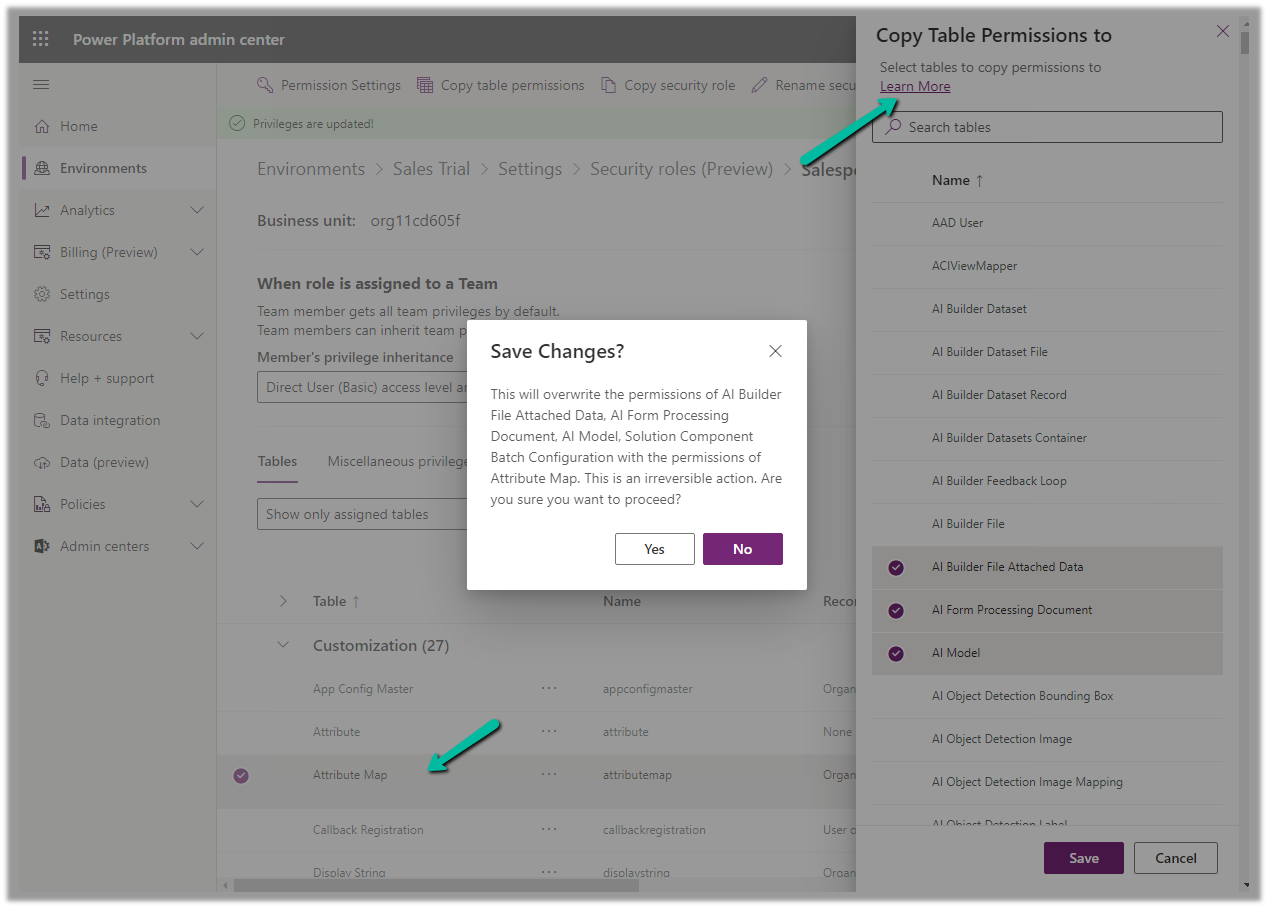
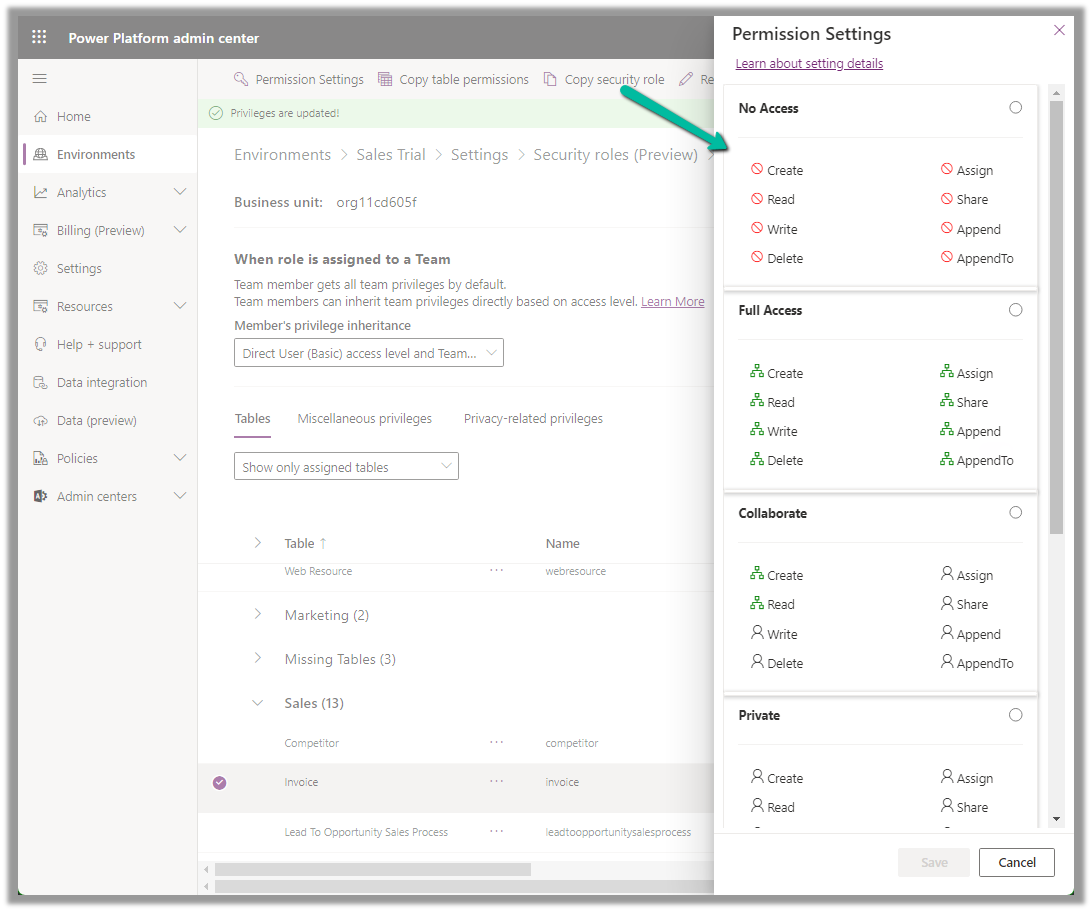
6. Option to Copy Table Permission to another table(s) and apply predefined Permission Settings i.e. Access Levels.

Copy table permissions to multiple tables

Permission Settings (Access Levels)

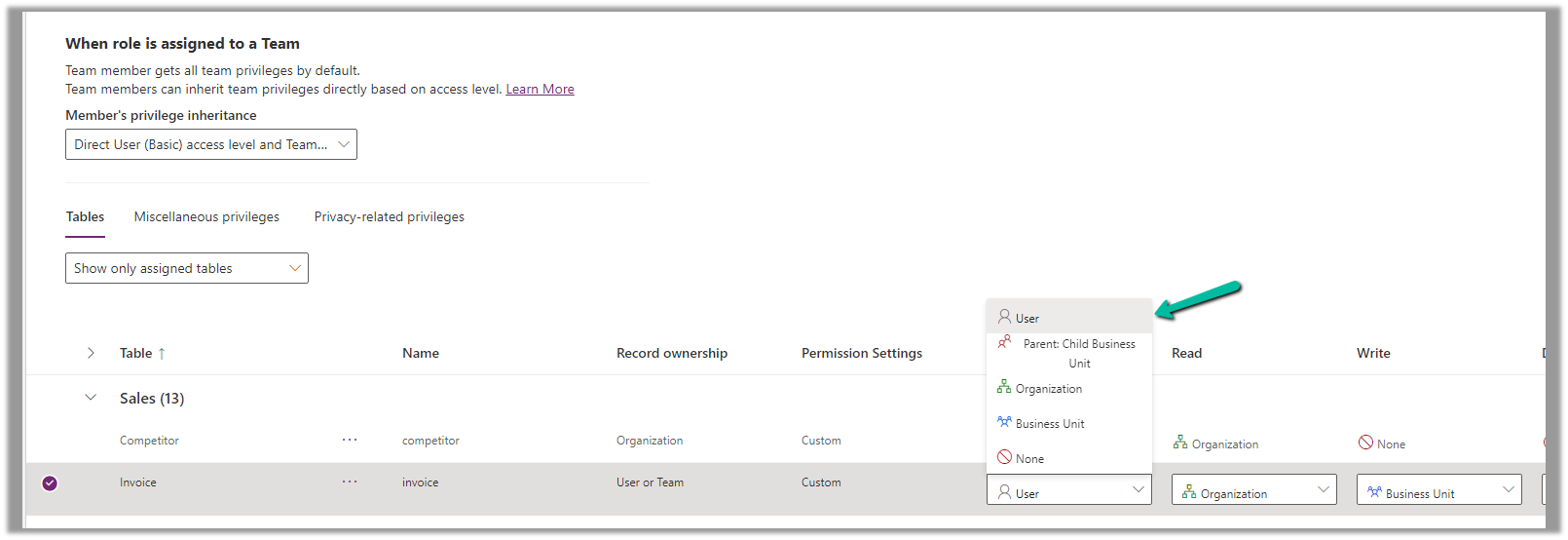
7. Specify Access Level for Privileges

Get all the details here – Security Roles and new modern UI

Hope it helps..

Advertisements

Get RequiredAttendee (Required) from the Meeting (appointment) table – Power Automate / Dataverse


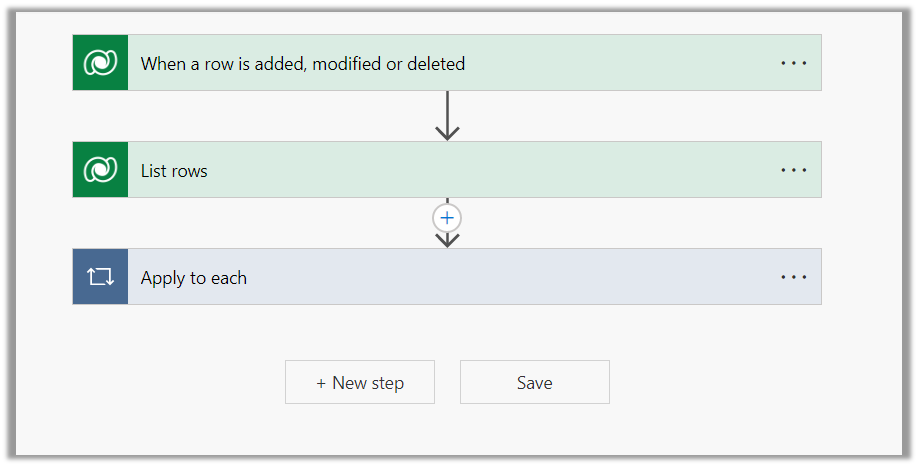
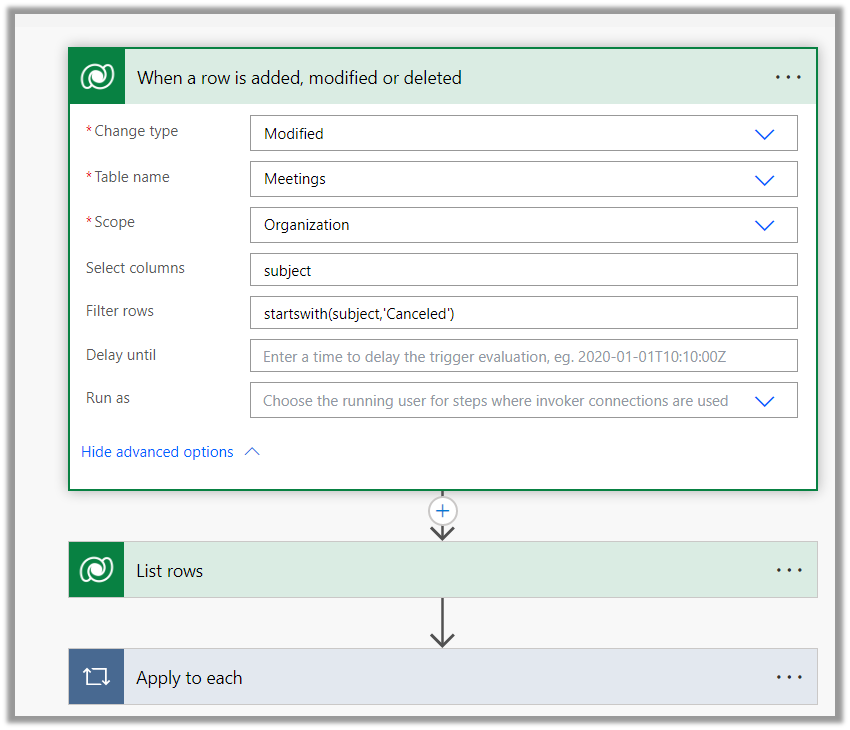
Below is the sample flow we can use to retrieve the Required (requiredattendees) field’s value from the Meeting table (on the update of the record).

Here we are triggering the flow, if there is an update in the subject field of the meeting record.

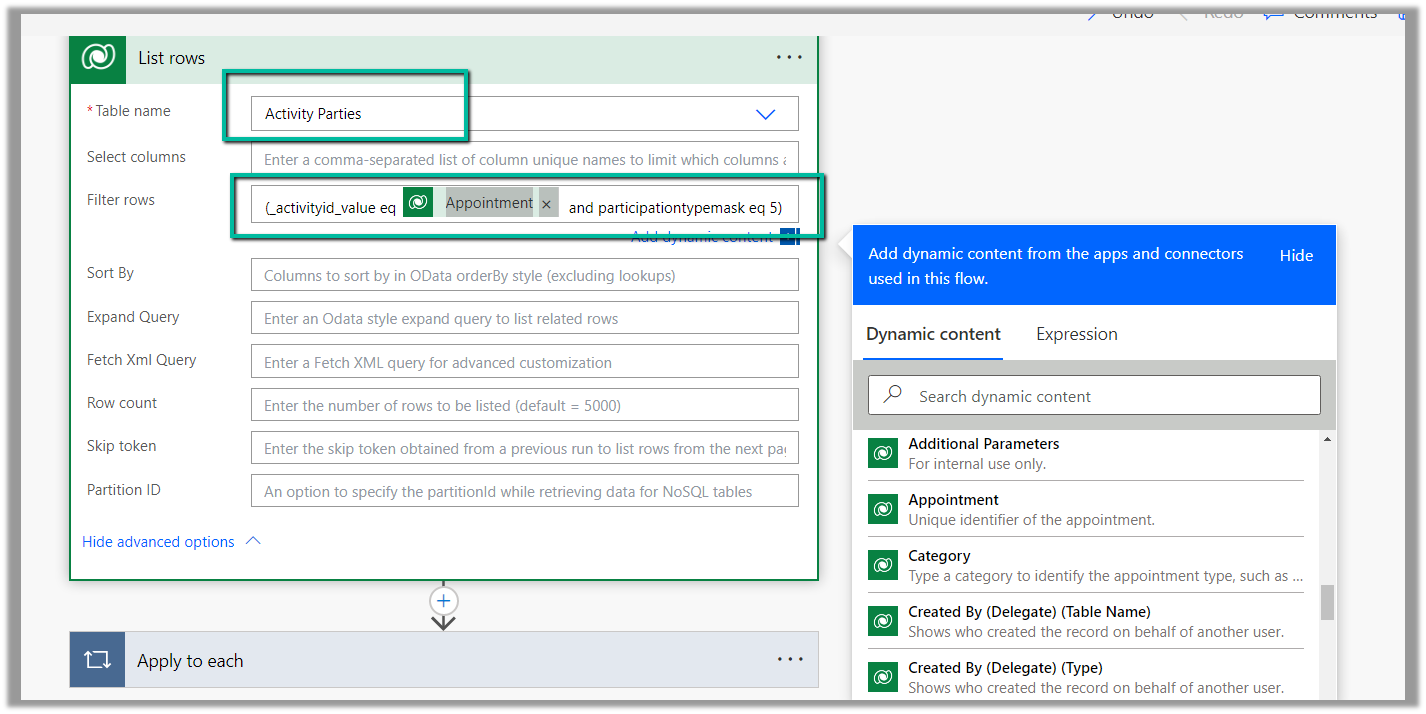
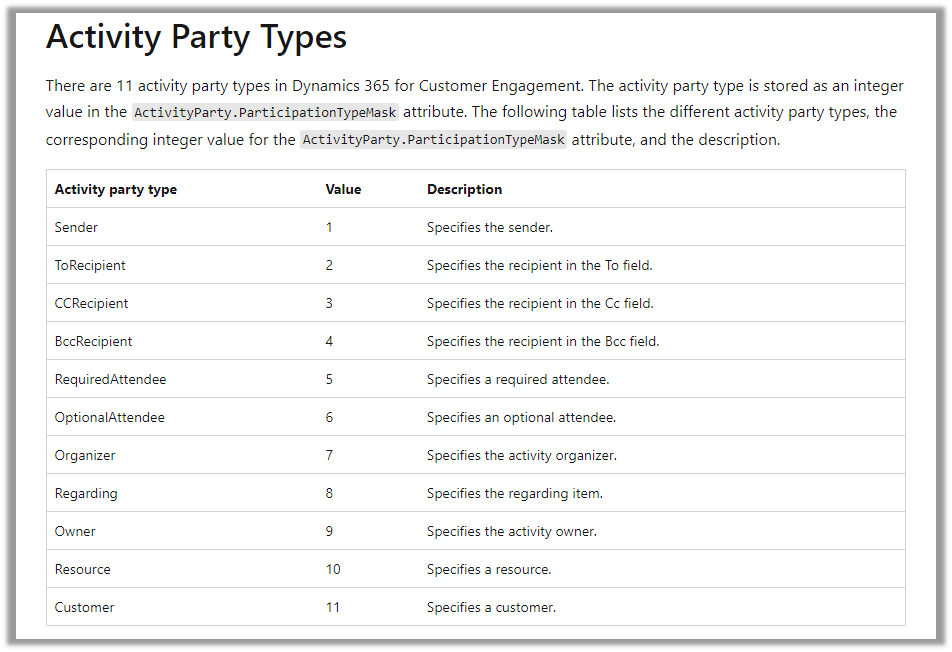
Then using the List rows action we are fetching the Activity Parties record associated using the Appointment’s unique identifier and participation mask as 5.

More on participation type mask

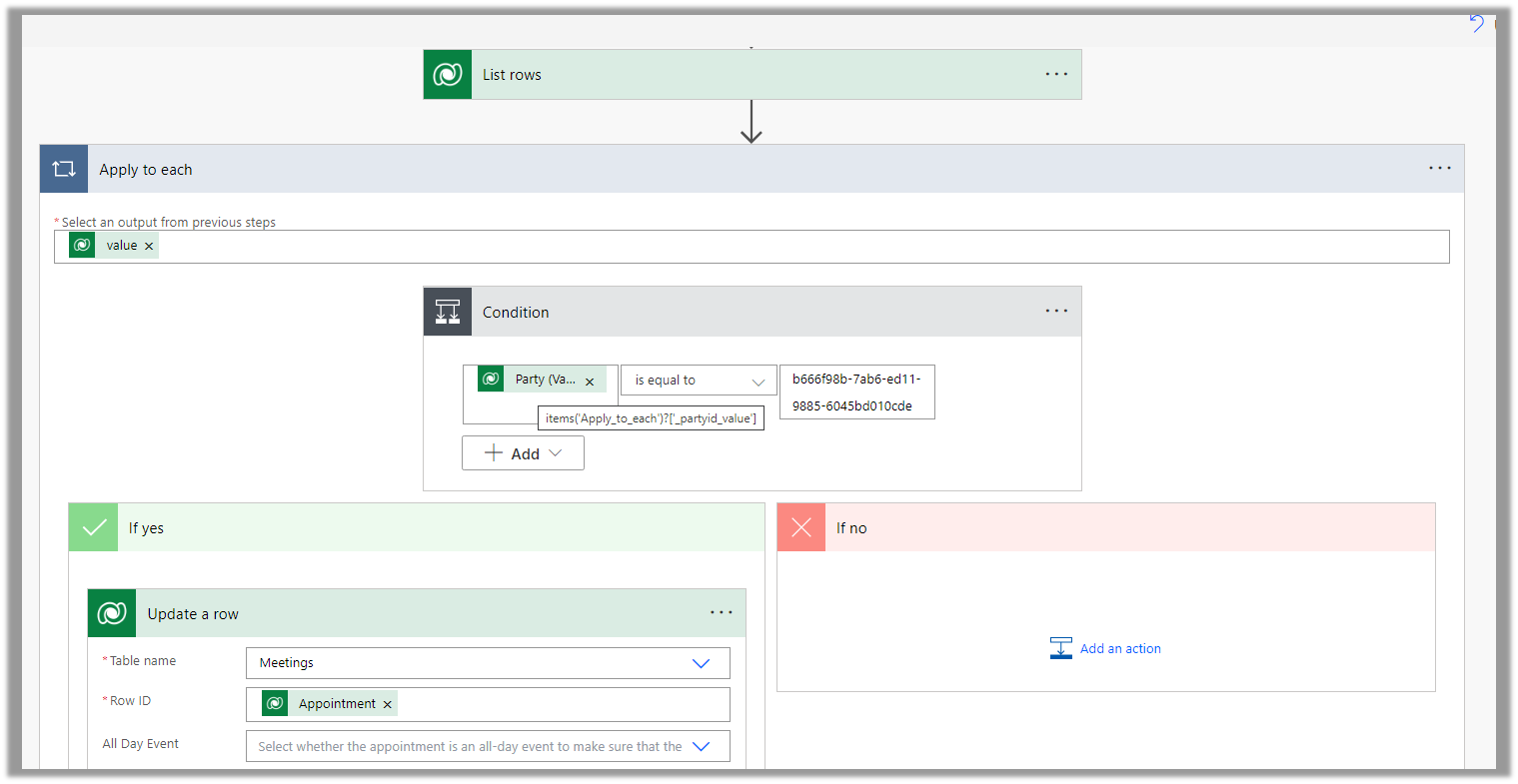
And in the last step, we are checking for all the associated Activity Party GUIDs for a specific GUID and then update the record or cancel the record.

Hope it helps..
Advertisements