Using SQL Server Transactional Replication to move data from SQL Server (On-Prem) to Azure SQL


Hi,

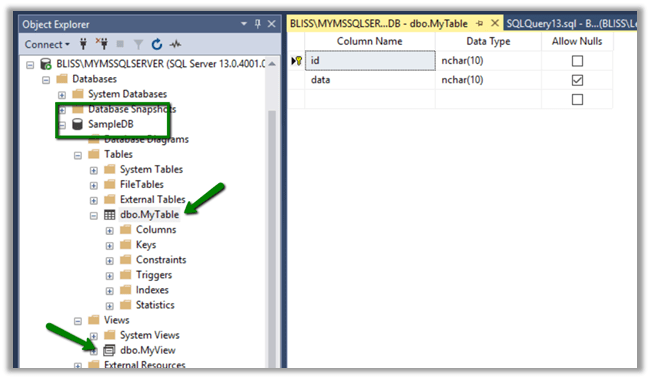
Let us say we want to move data from Table named MyTable and view MyView from my SQL Server DB On-Prem to one of the Azure SQL Database.
The components involved here would be Publisher that publishes this data, Distributor that holds the information about the data to be published and Subscriber who subscribes to the data.

For Transaction Replication to work, the Azure SQL DB or any subscriber needs to have the matching schema as the published table. This can be achieved through Snapshot Agent which applies the snapshot. Distribution Agent distributes this snapshot to the Subscribers.

Transaction Replication Log Reader Agent looks for any changes in the published data. This agent runs at the distributor for “Push” subscriptions. It can run continuously and or can be scheduled. It looks for Insert, Update, Delete operations or any schema changes and pushes this to the Subscriptions.

Let us start by configuring the Distributor first. The distributor can be at the local or remote server.

We’d be creating a local Distributor here.

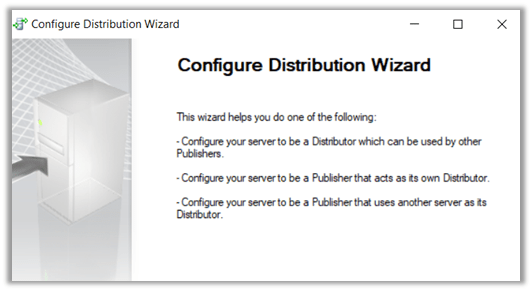
Right-click the Replication and select Configure Distribution

We are using the local server as Distributor.
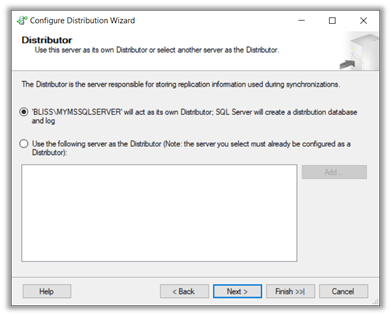
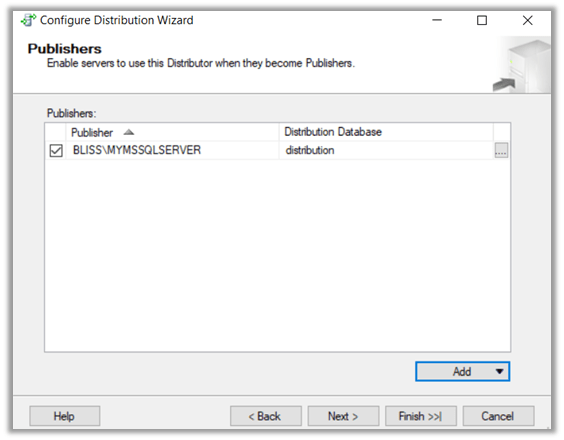
Click Next.
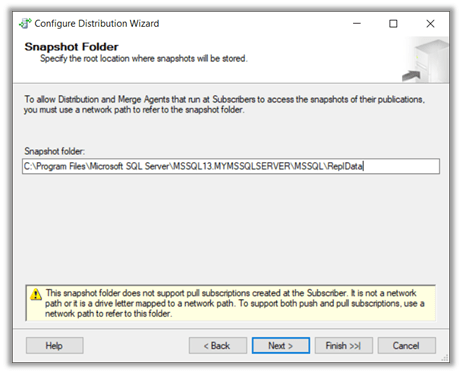
Click Finish to complete the wizard.

This creates the distribution database in our Local Server.
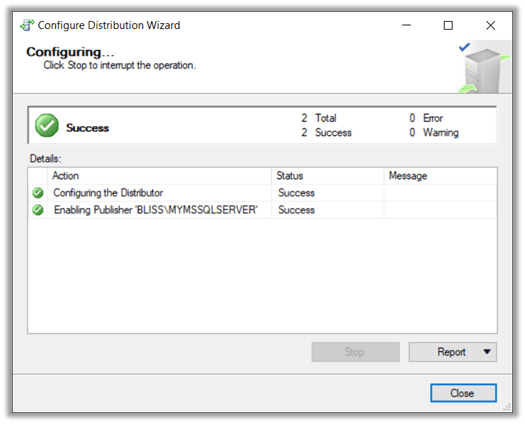
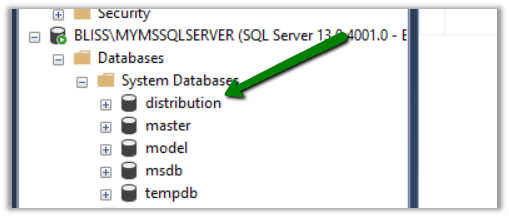
Now let us configure the Publication.

Right-click the publication and select new publication. SampleDB is the DB from whose table and view we want to publish.

Select SampleDb

Select Transactional Publication

Select the table and the view

As we are publishing a view, we get the below message
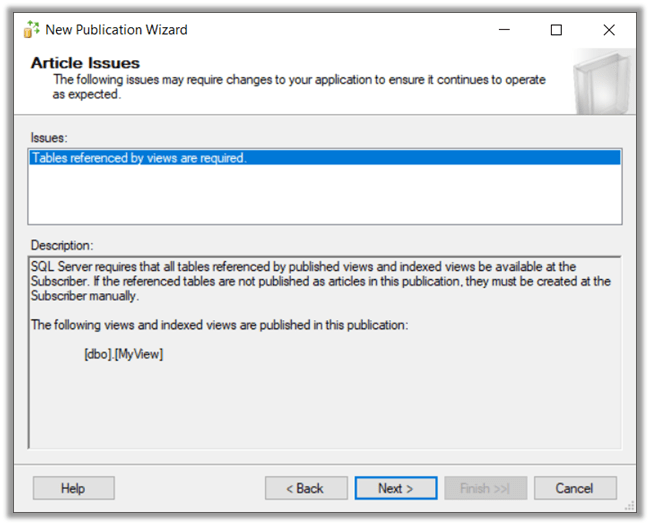
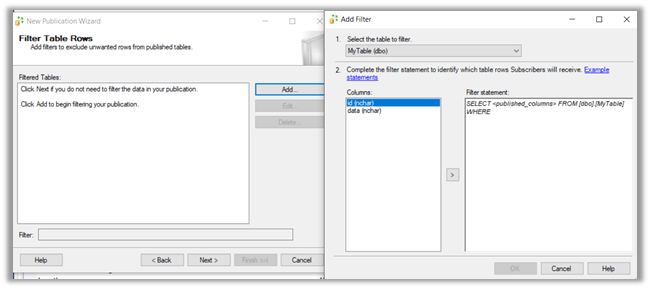
We can click on Add to specify any filtering on the data to be published.
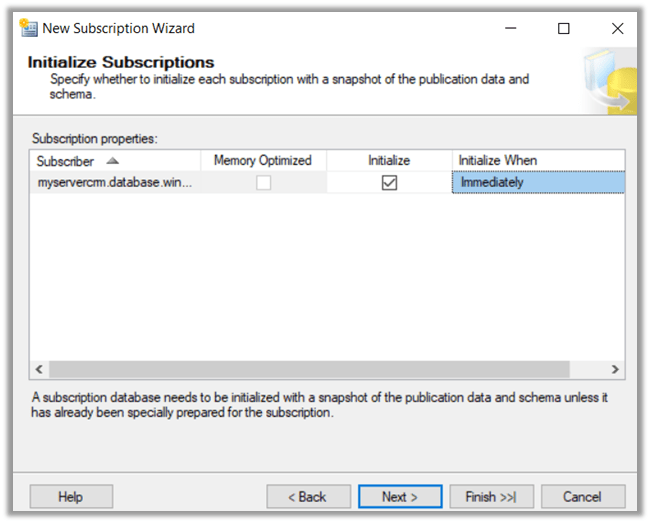
We can specify if we want to snapshot to be created immediately so that it is available while defining subscriptions. We can also schedule the Snapshot Agent or we can run it continuously.

Here we are specifying SQL Server Agent account.

Specify Publication Name and click on Finish to create the publication.

Now let us create the Subscription.

Right-click the publication created earlier, and select new Subscription

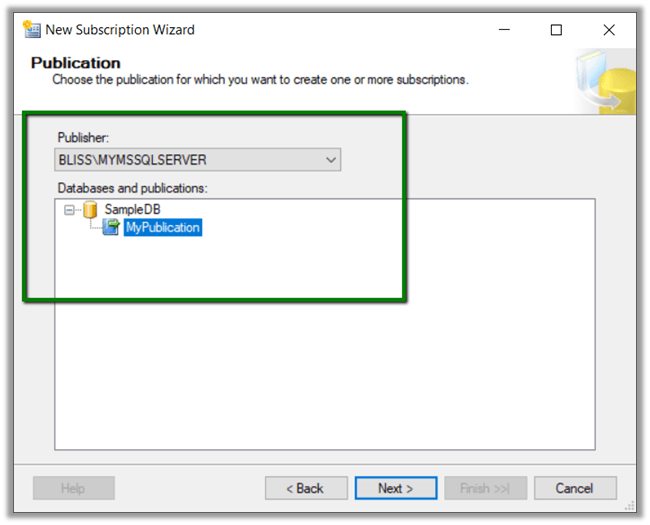
Select the publication
We can specify the type of subscriptions either Push or Pull. In our case, we are selecting Push.

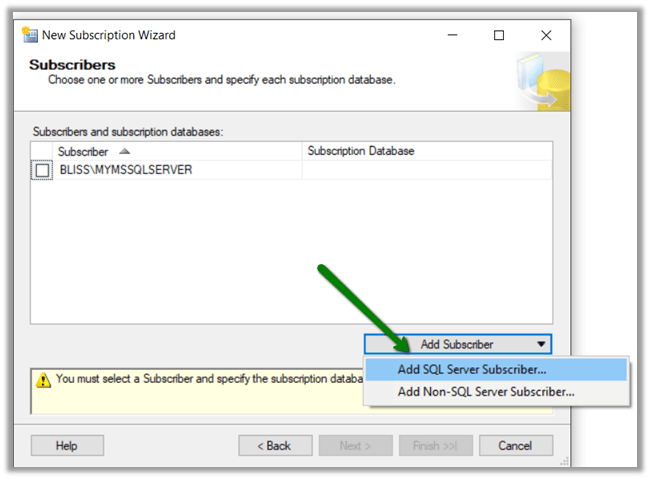
Select Add SQL Server Subscriber to add our Azure SQL DB as the subscriber here.
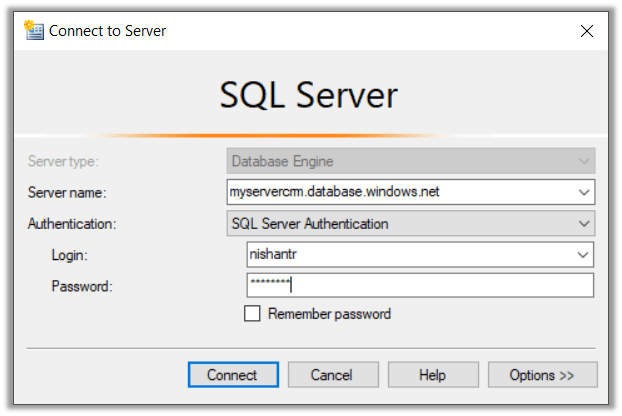
Connect to the Azure SQL DB.
Here MyDB is the Azure DB to which we want to push the data.

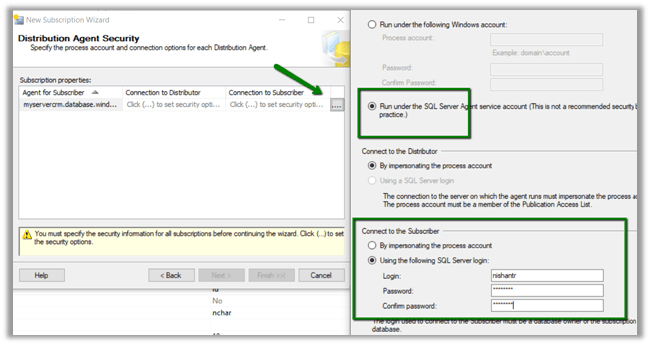
Now specify the account for the Distribution Agent and to connect the Azure SQL DB.

Select Agent schedule as Run Continuously.
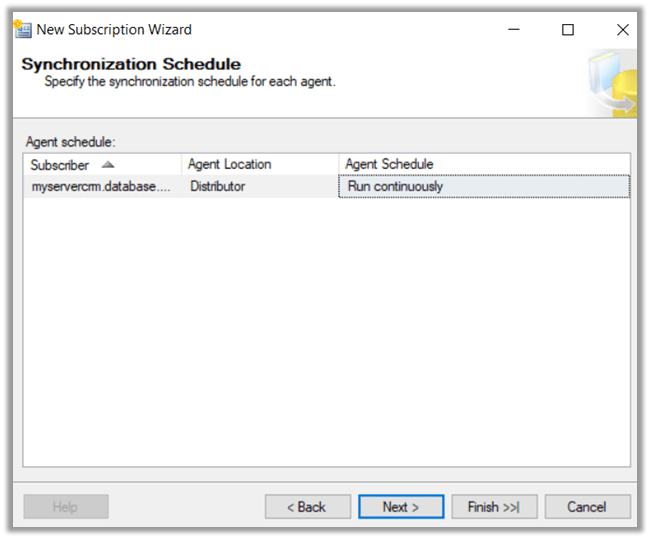
Click Finish to create the subscription.

Back in our Azure SQL DB, we can see the table and the view created with the data.

In Job Activity Monitor, we can see the details.

REPL-LogReader, REPL-Distribution and REBP-Snapshot.

Now just to test it, let us add 2 new rows in our Sample DB’s MyTable.

Back in our Azure DB, we can see the data being added to it.

More details below

https://www.pluralsight.com/courses/sqlserver-transactional-replication-fundamentals

https://docs.microsoft.com/en-us/sql/relational-databases/replication/publish/publish-data-and-database-objects

https://www.mssqltips.com/sqlservertip/5024/using-transactional-replication-with-an-azure-sql-database/

Hope it helps..

Sample code – Upload file to Azure Blob Storage from CRM Online Plugin


Sharing a sample code which we can use to upload files to Azure Blog Storage from within a CRM Online Plugin. Here we’d be making use of the REST API to simplify things (instead of using Windows Azure Storage library) in our Plugin.

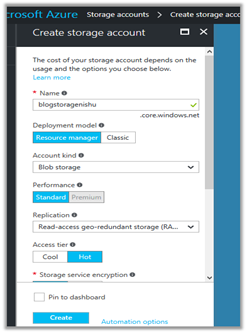
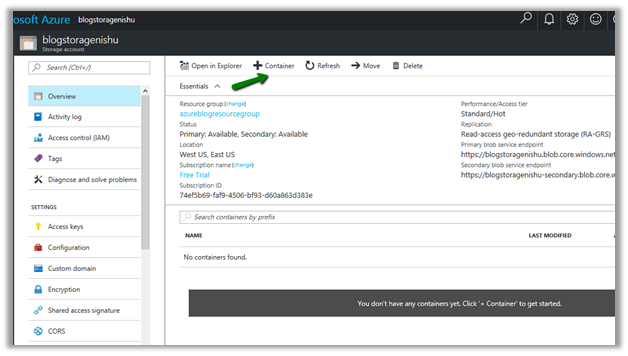
First, we will be creating a storage account of type blob storage and a container inside it.

Log in to Azure Portal

https://portal.azure.com

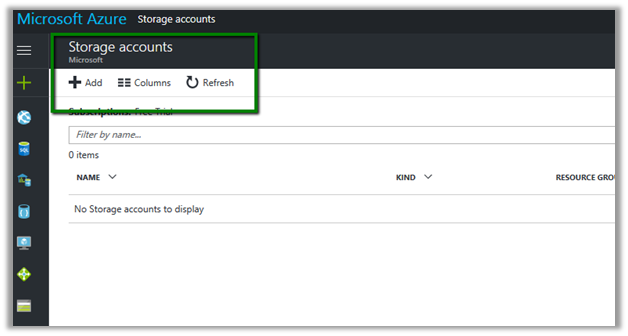
Click on Add to add a new storage account.


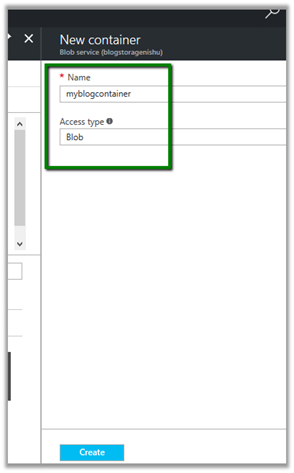
Create a new container in it to store the blob files


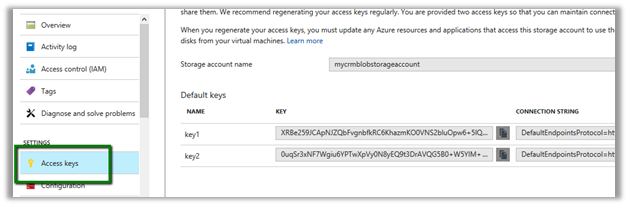
In Azure Portal – Storage Account, go to Access Keys and copy the key


And also note down the storage account name and container name which will be used to construct the URL.


We can also go to container, select its properties and copy the url.


Here we have written the plugin on Create of Annotation, which then retrieves the attachment and uploads its content to the container.

Let us first see it in action.

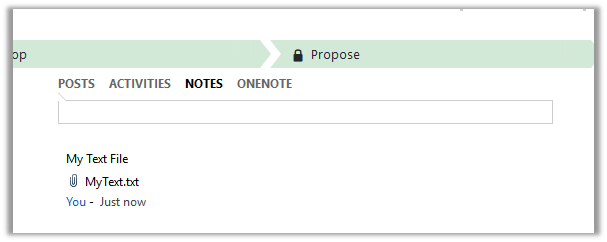
We have created a new note and attached a text file to it.


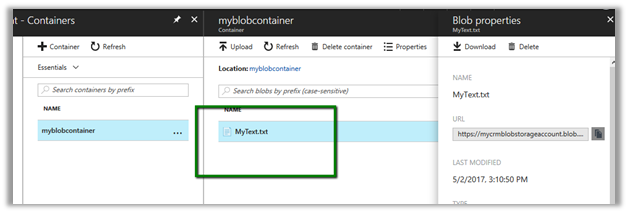
Going back to our portal, we can see the file in our container.


The sample code for the plugin.

<br />
using Microsoft.Xrm.Sdk;<br />
using System;<br />
using System.IO;<br />
using System.Net;<br />
using System.Security.Cryptography;<br />
using System.Text;<br />
namespace MyTestPlugin<br />
{</p>
<p>public class UploadFile : IPlugin<br />
{<br />
public void Execute(IServiceProvider serviceProvider)<br />
{<br />
try<br />
{<br />
// Obtain the execution context from the service provider.<br />
IPluginExecutionContext context = (IPluginExecutionContext)serviceProvider.GetService(typeof(IPluginExecutionContext));</p>
<p>// The InputParameters collection contains all the data passed in the message request.<br />
if (context.InputParameters.Contains("Target") &amp;&amp; context.InputParameters["Target"] is Entity)<br />
{<br />
// Obtain the target entity from the input parameters.<br />
Entity noteEntity = (Entity)context.InputParameters["Target"];<br />
byte[] doumentBody = Convert.FromBase64String(noteEntity.Attributes["documentbody"].ToString());<br />
string content = Encoding.UTF8.GetString(doumentBody);<br />
string fileName = noteEntity.Attributes["filename"].ToString();</p>
<p>// Upload the attached text file to Azure Blog Container<br />
UploadFileToAzureBlobStorage(content, fileName);</p>
<p>}<br />
}<br />
catch (Exception ex)<br />
{<br />
throw new InvalidPluginExecutionException(ex.Message);<br />
}<br />
}</p>
<p>void UploadFileToAzureBlobStorage(string content, string fileName)<br />
{</p>
<p>string storageKey = "storagekey";<br />
string storageAccount = "storageaccountname";<br />
string containerName = "strogaecontaninername";<br />
string blobName = fileName;</p>
<p>string method = "PUT";<br />
string sampleContent = content;<br />
int contentLength = Encoding.UTF8.GetByteCount(sampleContent);</p>
<p>string requestUri = $"https://{storageAccount}.blob.core.windows.net/{containerName}/{blobName}";</p>
<p>HttpWebRequest request = (HttpWebRequest)WebRequest.Create(requestUri);</p>
<p>string now = DateTime.UtcNow.ToString("R");</p>
<p>request.Method = method;<br />
request.ContentType = "text/plain; charset=UTF-8";<br />
request.ContentLength = contentLength;</p>
<p>request.Headers.Add("x-ms-version", "2015-12-11");<br />
request.Headers.Add("x-ms-date", now);<br />
request.Headers.Add("x-ms-blob-type", "BlockBlob");<br />
request.Headers.Add("Authorization", AuthorizationHeader(method, now, request, storageAccount, storageKey, containerName, blobName));</p>
<p>using (Stream requestStream = request.GetRequestStream())<br />
{<br />
requestStream.Write(Encoding.UTF8.GetBytes(sampleContent), 0, contentLength);<br />
}</p>
<p>using (HttpWebResponse resp = (HttpWebResponse)request.GetResponse())<br />
{<br />
if(resp.StatusCode == HttpStatusCode.OK)<br />
{<br />
// successfully uploaded<br />
}<br />
}</p>
<p>}</p>
<p>public string AuthorizationHeader(string method, string now, HttpWebRequest request, string storageAccount, string storageKey, string containerName, string blobName)<br />
{<br />
string headerResource = $"x-ms-blob-type:BlockBlob\nx-ms-date:{now}\nx-ms-version:2015-12-11";<br />
string urlResource = $"/{storageAccount}/{containerName}/{blobName}";<br />
string stringToSign = $"{method}\n\n\n{request.ContentLength}\n\n{request.ContentType}\n\n\n\n\n\n\n{headerResource}\n{urlResource}";</p>
<p>HMACSHA256 hmac = new HMACSHA256(Convert.FromBase64String(storageKey));<br />
string signature = Convert.ToBase64String(hmac.ComputeHash(Encoding.UTF8.GetBytes(stringToSign)));</p>
<p>String AuthorizationHeader = String.Format("{0} {1}:{2}", "SharedKey", storageAccount, signature);<br />
return AuthorizationHeader;<br />
}<br />
}</p>
<p>}</p>
<p>

Hope it helps.

Advertisements

Using Azure Functions for writing Scheduled Jobs for Dynamics CRM


Update -26 – Sep- 2018

https://nishantrana.me/2018/09/26/changing-the-target-runtime-version-of-azure-functions/

https://nishantrana.me/2018/09/25/the-type-or-namespace-name-xrm-could-not-be-found-are-you-missing-a-using-directive-or-an-assembly-reference-error-while-using-azure-functions-2-x/


In our previous post we saw how we can invoke CRM from within the Azure Function.

https://nishantrana.me/2017/04/28/call-dynamics-crm-from-azure-functions/

Using that knowledge, let us now write an Azure Function that will run periodically.

Here we will take a simple example of creating a lead record every 2 minutes. Obviously real world scenario would involve much complex scenario like checking the status of all the open records and update them daily something of that sort.

Another way of writing a scheduled job is using Web Job I have written about it over here.

https://nishantrana.me/2017/03/21/dynamics-crm-web-job-and-azure-scheduler/

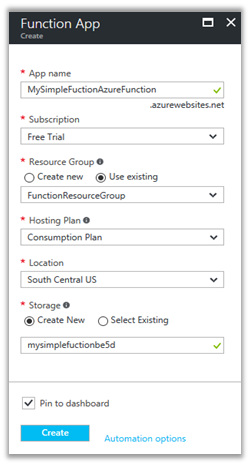
Login to Azure Portal and create a new Function App

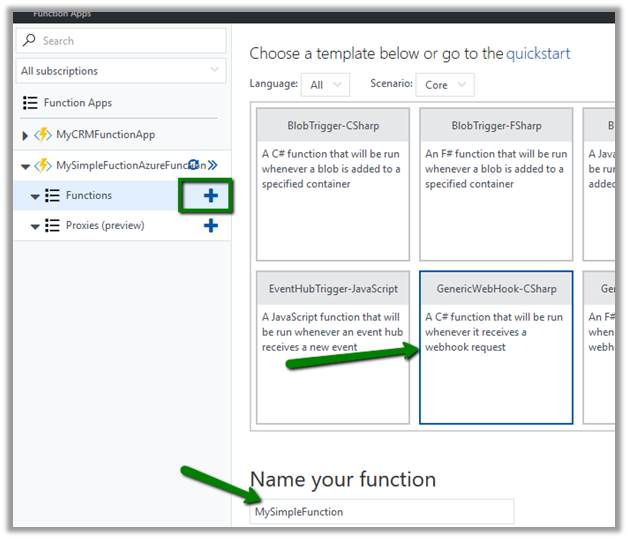
Create a new function with Timer and CSharp template.

function.json bindings defines the schedule for the timer, it take a CRON expression for value schedule.

CRON Expression format: –

If we want it to run every 2 minute

Back to our code let us click on Run and test it.

Now let us quickly plumb the code to create Lead in CRM.

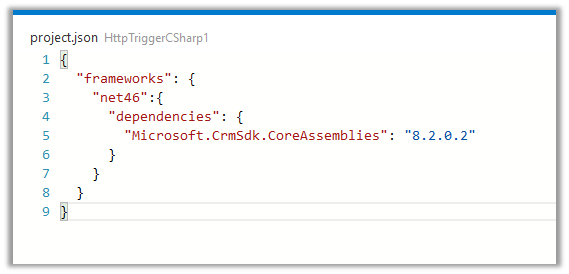
Go to App Service Editor for the Function App and add new a file named project.json which refers to the CRM Nuget Package.

Sample code that creates the lead record in CRM.


using System.Net;
using Microsoft.Xrm.Sdk;
using Microsoft.Xrm.Sdk.Client;

public static void Run(TimerInfo myTimer, TraceWriter log)
{
IServiceManagement orgServiceManagement = ServiceConfigurationFactory.CreateManagement(new Uri("https://nishutrial.crm.dynamics.com/XRMServices/2011/Organization.svc"));

AuthenticationCredentials authCredentials = new AuthenticationCredentials();
authCredentials.ClientCredentials.UserName.UserName = "test@test.onmicrosoft.com";
authCredentials.ClientCredentials.UserName.Password = "*******";
AuthenticationCredentials tokenCredentials = orgServiceManagement.Authenticate(authCredentials);

OrganizationServiceProxy organizationProxy = new OrganizationServiceProxy(orgServiceManagement, tokenCredentials.SecurityTokenResponse);
Entity lead = new Entity("lead");
lead.Attributes["subject"] = "Lead Created at" + DateTime.Now ;
organizationProxy.Create(lead);

log.Info($"C# Timer trigger function executed at: {DateTime.Now}");
}

Inside CRM

To monitor our Azure Function please select Monitor

Click on live event stream to monitor it real-time.

To stop or disable the function, select Manage and click on function state Disabled.

Hope it helps..

How to – Call Dynamics CRM from Azure Functions


Update -26 – Sep- 2018

https://nishantrana.me/2018/09/26/changing-the-target-runtime-version-of-azure-functions/

https://nishantrana.me/2018/09/25/the-type-or-namespace-name-xrm-could-not-be-found-are-you-missing-a-using-directive-or-an-assembly-reference-error-while-using-azure-functions-2-x/


Let us take a look at a simple Azure Function that refers our CRM assemblies and creates contact record in CRM.

Log in to Azure Portal, search for Function App and create a Function App.

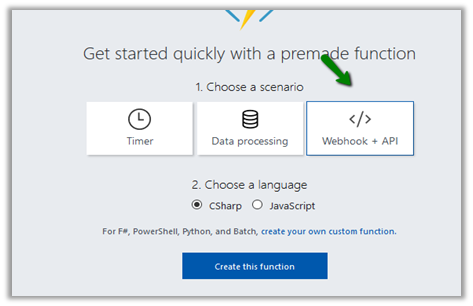
Here we have specified WebHook + API and CSharp Template. Click on Create this function.

Select the function app, go to Platform features tab and click on App Service Editor.

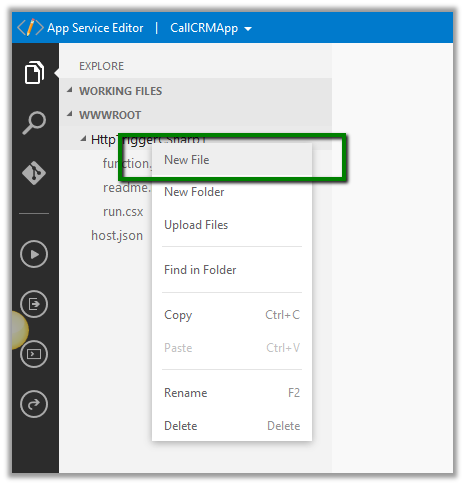
Right click the function and add a new file named project.json. It is within this file we will refer our Nuget Packages that we need in our function.

https://docs.microsoft.com/en-us/azure/azure-functions/functions-reference-csharp

Here we will reference the following Nuget Package for CRM

https://www.nuget.org/packages/Microsoft.CrmSdk.CoreAssemblies/

</p>
<p>{<br />
"frameworks": {<br />
"net46":{<br />
"dependencies": {<br />
"Microsoft.CrmSdk.CoreAssemblies": "8.2.0.2"<br />
}<br />
}<br />
}<br />
}</p>
<p>

Back in our Function when we click on Save or Run, we can see the required assemblies being installed in our Log.

The sample code for the Azure Function (just for simplicity the values are all hardcoded)

</p>
<p>using System.Net;<br />
using Microsoft.Xrm.Sdk;<br />
using Microsoft.Xrm.Sdk.Client;</p>
<p>public static async Task Run(HttpRequestMessage req, TraceWriter log)<br />
{<br />
log.Info("C# HTTP trigger function processed a request.");</p>
<p>// parse query parameter<br />
string firstname = req.GetQueryNameValuePairs()<br />
.FirstOrDefault(q =&gt; string.Compare(q.Key, "firstname", true) == 0)<br />
.Value;</p>
<p>string lastname = req.GetQueryNameValuePairs()<br />
.FirstOrDefault(q =&gt; string.Compare(q.Key, "lastname", true) == 0)<br />
.Value;</p>
<p>IServiceManagement orgServiceManagement = ServiceConfigurationFactory.CreateManagement(new Uri("https://nishutrial.crm.dynamics.com/XRMServices/2011/Organization.svc"));</p>
<p>AuthenticationCredentials authCredentials = new AuthenticationCredentials();<br />
authCredentials.ClientCredentials.UserName.UserName = "abc@abc.onmicrosoft.com";<br />
authCredentials.ClientCredentials.UserName.Password = "*****";<br />
AuthenticationCredentials tokenCredentials = orgServiceManagement.Authenticate(authCredentials);</p>
<p>OrganizationServiceProxy organizationProxy = new OrganizationServiceProxy(orgServiceManagement, tokenCredentials.SecurityTokenResponse);<br />
Entity contact = new Entity("contact");<br />
contact.Attributes["firstname"] = firstname;<br />
contact.Attributes["lastname"] = lastname;<br />
var contactId = organizationProxy.Create(contact);<br />
// Get request body<br />
dynamic data = await req.Content.ReadAsAsync();</p>
<p>string fullname = "";<br />
return fullname == null<br />
? req.CreateResponse(HttpStatusCode.BadRequest, "Please pass a name on the query string or in the request body")<br />
: req.CreateResponse(HttpStatusCode.OK, "Contact created in CRM " + contactId.ToString());<br />
}</p>
<p>

Let us now test our function.

The function expects 2 query string parameter firstname and lastname and creates the contact record in CRM.

In our CRM, we can see the contact record created.

Hope it helps..


Advertisements

A simple implementation using Azure Functions, Microsoft Flow, Microsoft PowerApps, Dynamics CRM and SendGrid


Let us  implement a simple scenario where we create a lead record in CRM which then talks with Flow (and Power App).

The Flow calls an Azure Function (Custom API) that sends mail to the lead’s email address using SendGrid

1) Let us create an Azure Function that uses SendGrid to send email to the lead’s email address.

Login to Azure Portal and create a new Function App.

https://portal.azure.com

Let us create a Function using Generic Web Hook CSharp template

To keep it simple let us only enable GET method. Go to Integrate tab and in Allowed HTTP Methods Select Selected Methods and check GET.

Also set mode as Standard and Authorization Level as anonymous, which means we do not need a API Key to be passed as query parameter to talk with the function.

Now let us add a new Output

Select SendGrid as the template

Click on Save.

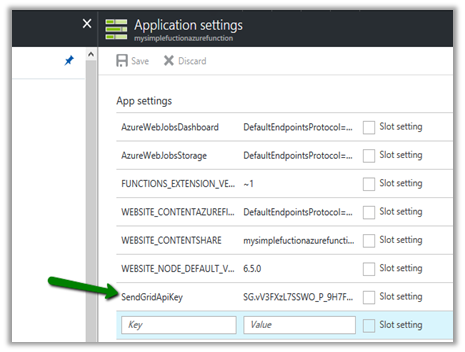
Here we would need to define SendGridApiKey.

Go to SendGrid portal and create a free account over there

https://sendgrid.com

Create and API Key and copy it’s value.

Now go to Application Settings of the Function App and set this key value with SendGridApiKey as the key name.

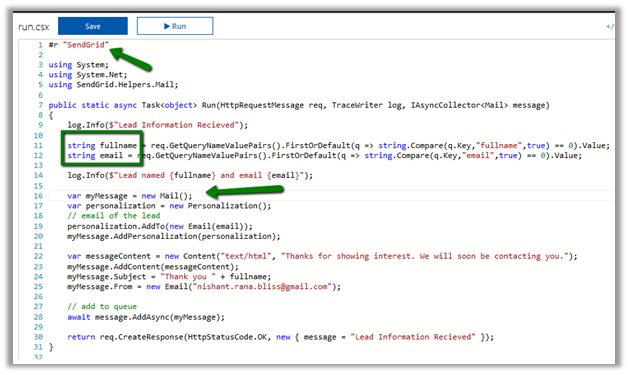
Now let us go back to our code and update it to work with lead object and Mail class which would be used for sending email using SendGrid API.

Here first we are referring the SendGrid assembly, then getting fullname and email from query string and then creating Mail object.

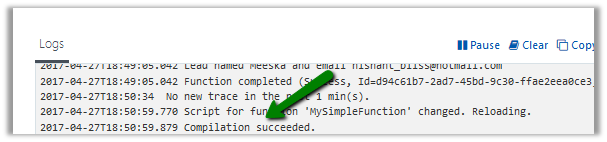
Save and check the log if the compilation succeeded or not.

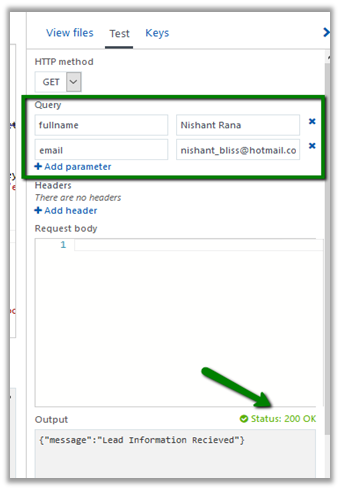
Testing our Function.

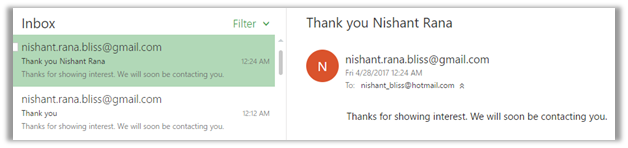
We can see the mail in the mail box.

This completes our first part.

2) Now let us create the Swagger definition for it which we will use in Power Apps and Microsoft Flows for using this Azure Function as Custom API.

Select our function and click on API definition.

Click on Function.

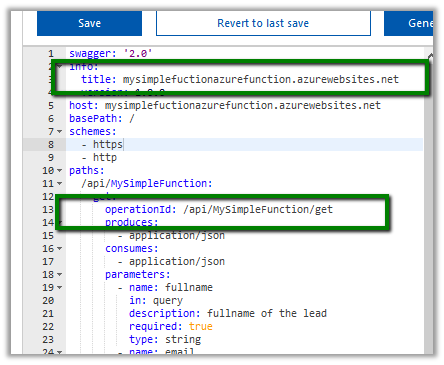
Update the generated API Definition Template with query parameter details and also test it.

As it is running successfully, click on Export to Power Apps + Flow

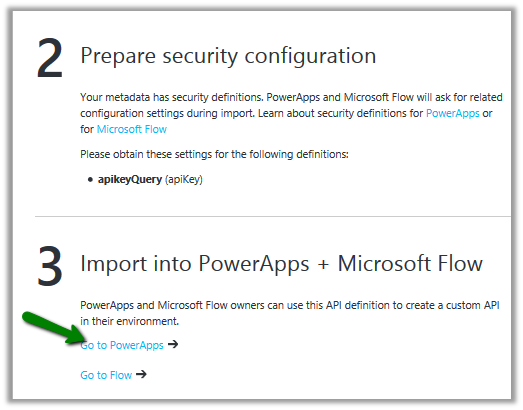
This opens up the new section that details the steps we need to follow for using our Azure Function with Power Apps and Microsoft Flow.

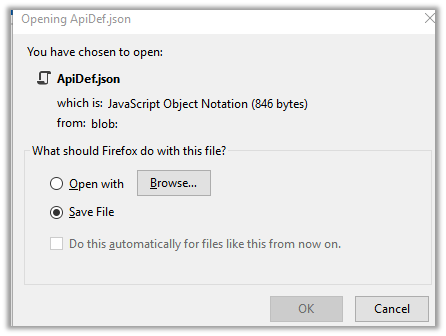
There click on Download button.

Click on Go to PowerApps

It opens up the PowerApps portal (asks for log in) and opens the New Connection page.

https://web.powerapps.com

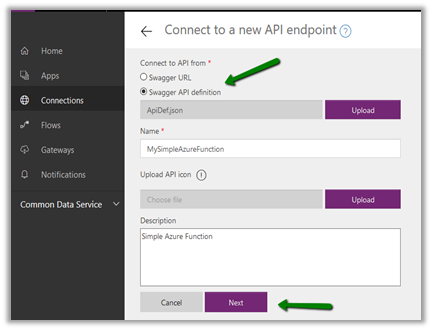
Upload the JSON Definition file for our Azure Function, provide name and description and click on Next.

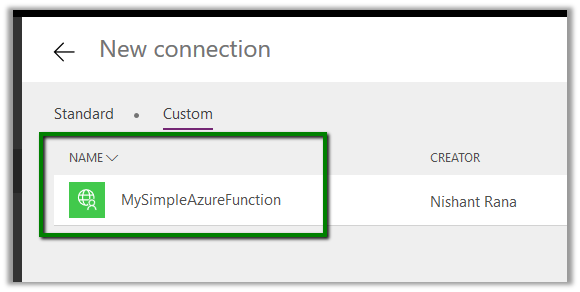
Click on Create.

Let us quickly test our new connection.

Click on New App in our PowerApps web portal.

Select PowerApps Studio for Web. Let us create a Blank App Phone.

Add a new Data Source and select our Azure Function there.

To get the API Key go to our function and expand API Definition Key.

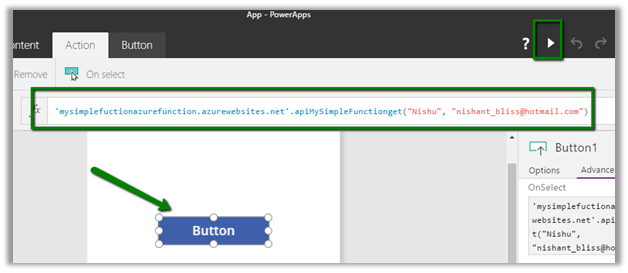
It works properly.

3) Now let us move to our last step, wherein we use it inside Microsoft Flow and integrate it with Dynamics CRM.

The good thing is to configure the same for Microsoft Flow, we do not have to do any extra step as both Microsoft Flow and PowerApps share the same connection infra.

Go to Microsoft Flow portal

https://flow.microsoft.com/

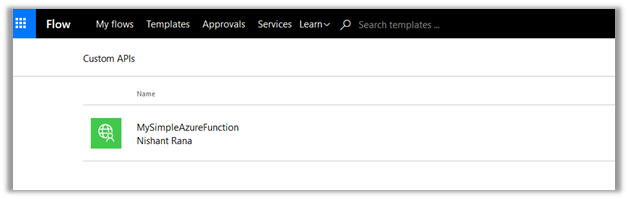
We can find our Custom API already added there.

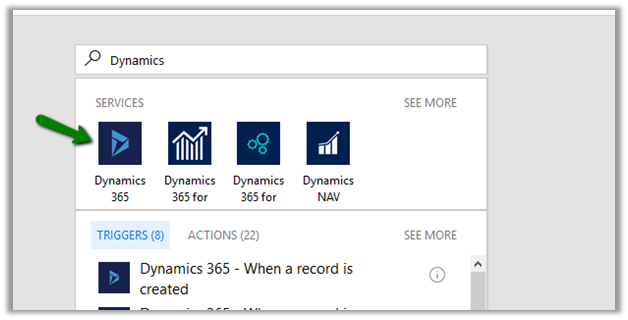
Let us create a new flow. Start with Dynamics 365.

When a record is created. Select Organization Name and Leads as the entity and click on Add an Action.

Search for our Custom API.

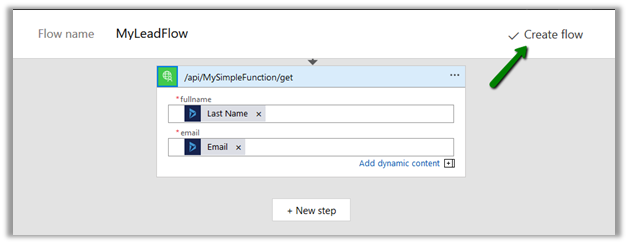
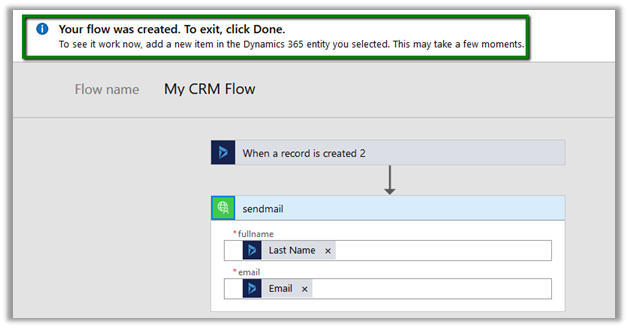
Select LastName and Email as Dynamic Content from the lead record created.

Click on Create Flow to create the flow.

Unfortunately, we get the below error

Let us go back to our Swagger Definition and update it.

We have updated it as following

Let us quickly test it, import it in Power Apps as new connection and come back to our Flow.

Edit the connection there and specify the API Key as we had done earlier inside Power Apps and update it.

Open Flow and quickly add the required steps and click on Create Flow.

We have successfully created our flow. Now let us test it.

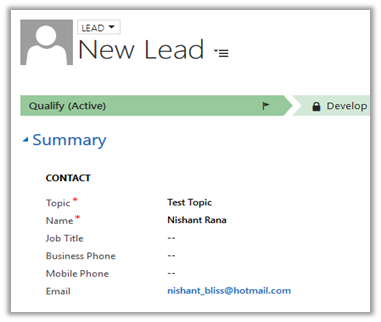
Let us create a new lead record

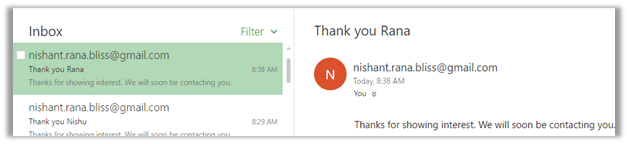
Our flow runs and sends the mail

That’s it we are done with our simple implementation. The main purpose of this post was to show the integration possibilities which could help us design and implement real world complex scenarios.

Hope it helps..

How to – Post a JSON body in Swagger


Recently working with an Azure Functions , we had to define its REST Signature using Swagger to be able to use it within PowerApps.

The Azure Function expected the code query parameter basically the apiKey for the function and JSON Body with custom object named Lead having following properties as POST method.

  • topic
  • fullname
  • email

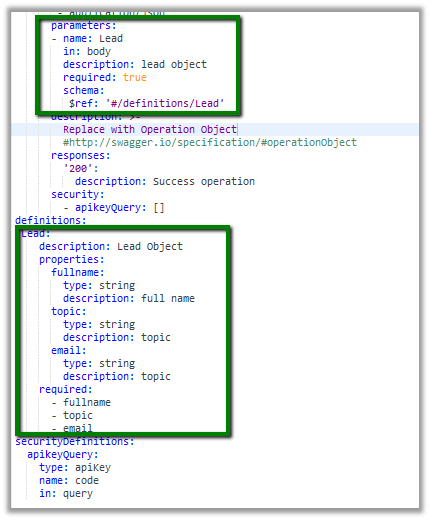
This is how we’d define our Lead Object and pass it as one of the parameters in the body.


swagger: '2.0'
info:
title: mycrmfunctionapp.azurewebsites.net
version: 1.0.0
host: mycrmfunctionapp.azurewebsites.net
basePath: /
schemes:
- https
- http
paths:
/api/MyLeadWebHook:
post:
operationId: /api/MyLeadWebHook/post
produces:
- application/json
consumes:
- application/json
parameters:
- name: Lead
in: body
description: lead object
required: true
schema:
$ref: '#/definitions/Lead'
description: >-
Replace with Operation Object
#http://swagger.io/specification/#operationObject
responses:
'200':
description: Success operation
security:
- apikeyQuery: []
definitions:
Lead:
description: Lead Object
properties:
fullname:
type: string
description: full name
topic:
type: string
description: topic
email:
type: string
description: topic
required:
- fullname
- topic
- email
securityDefinitions:
apikeyQuery:
type: apiKey
name: code
in: query

We can use the Swagger Editor built-in with Azure Functions or http://editor.swagger.io/#/ to edit and test our Swagger.

Hope it helps..