How to – Create an Instant low-code plug-in (Dataverse) (experimental)


Low-code plug-in is a new experimental feature released by Microsoft, for early adopters, not meant to be used in production. As per Microsoft, “the experimental features can change radically or completely disappear at any time“.

There are 2 types of low-code plug-ins we can write – Instant and Automated.

Instant plug-ins are triggered manually and support parameters, whereas automated plug-in as the name suggests, runs when a particular event (create, update, or delete) occurs on a table and they do not support parameters.

As a prerequisite, we need to first install the Dataverse Accelerator

We can install it from Admin Center >> Resources >> Dynamics 365 Apps

Or from the App Source, look for Dataverse Accelerator and click Get in now.

https://appsource.microsoft.com/en-us/product/dynamics-365/microsoftpowercatarch.dataversekit1?exp=kyyw

Specify the Environment to start the installation. (Should take around 5 minutes)

Open the Dataverse Accelerator App.

Click on + New plugin for the Instant Plugins

Provide the display name and the description for the plugin, and also select the appropriate solution.

We can specify optional Input and Output parameters along with the Expression that uses Power FX formulas to define the logic for the plugin.

Our sample plugin takes City as the Input Parameter and returns the total number of contact records having that same city.

Save the plugin and click on Test.

Provide the value for the input parameter and click on Run.

We can see the status as Success and the output parameter Result having a value of 4.

This completes our plugin.

Now to use it, click on the Integrate tab.

The tab provide us the required details.

We can copy the Power FX expression and use it inside the Canvas App.

We get the output as expected.

Below we are calling it from within the Power Automate Flow from a Perform an unbound action

The result –

Get more details and Check out the known limitations

Hope it helps..

Advertisements

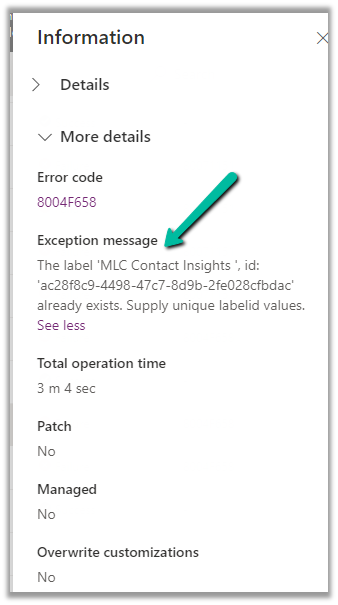
Fix – The label ‘ ‘, id: ” already exists. Supply unique labelid values while importing solution – Dynamics 365


Recently while trying to import the solution, we got the below error –

The tab tag was missing the labelid property. Adding it back to the FormXml using FormXml
Manager XrmToolBox plugin fixed it.

Also check – https://nishantrana.me/2022/11/11/adding-contact-insights-account-insights-to-the-form-dynamics-365-marketing/

Hope it helps..

Advertisements

Using Customer Lookup in Canvas Apps (Dataverse)


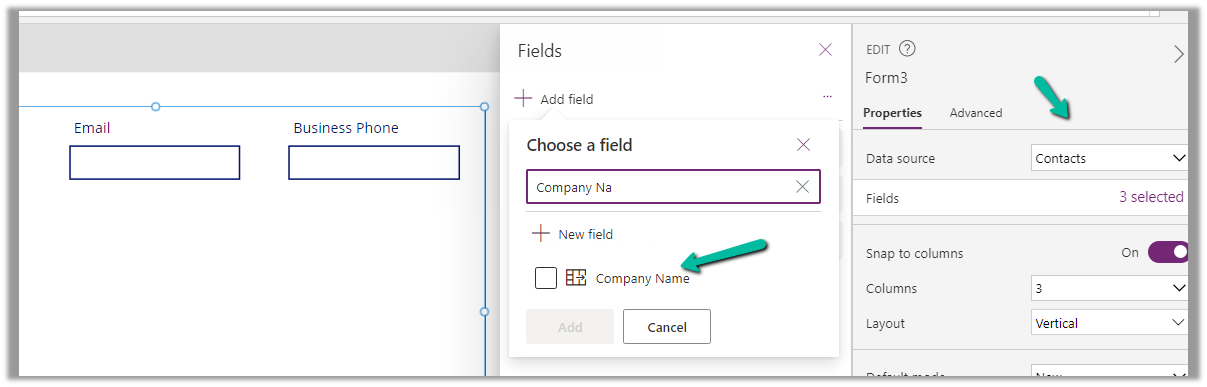
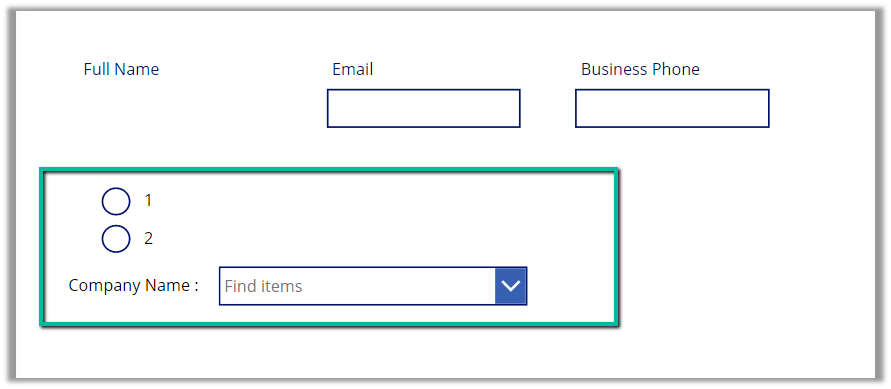
For this example, we are taking the Company Name customer lookup column of the contact table.

We start by adding the Customer Name field to the form.

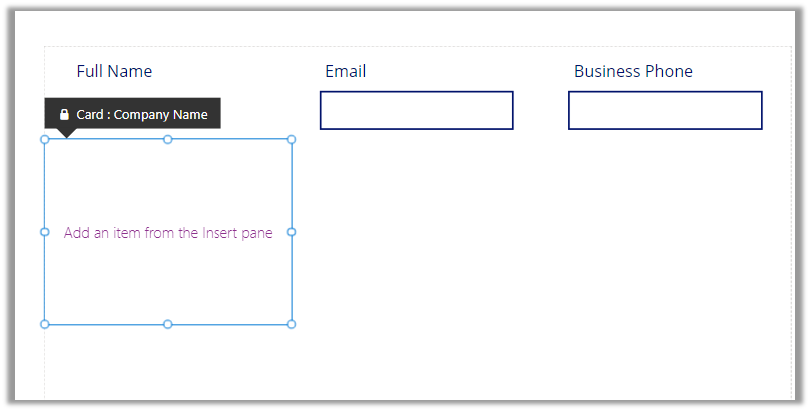
That adds a card to the form, let us add the required controls to get it working

Radio Button, Combo box, and Text Label for the combo box.

Change the Items property of the radio button to show the contact and account option.

Also, change the Layout to Horizontal and Default as Contact.

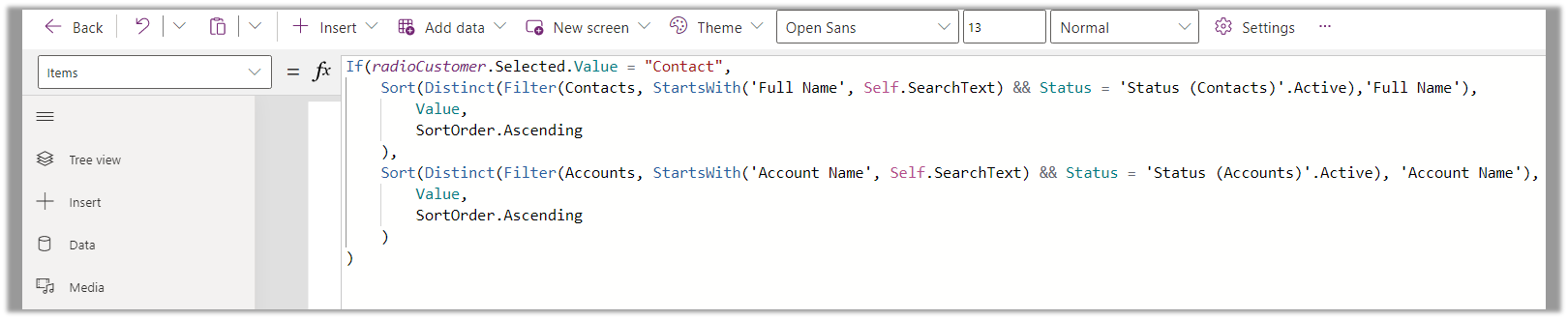
And set the Items property of the Combo box as below –

Based on the value selected in the radio button, we are setting the Data Source and also applying the Sort and Distinct function to it, along with StartsWith for delegation.

We have also set Allow searching as On for the combo box.

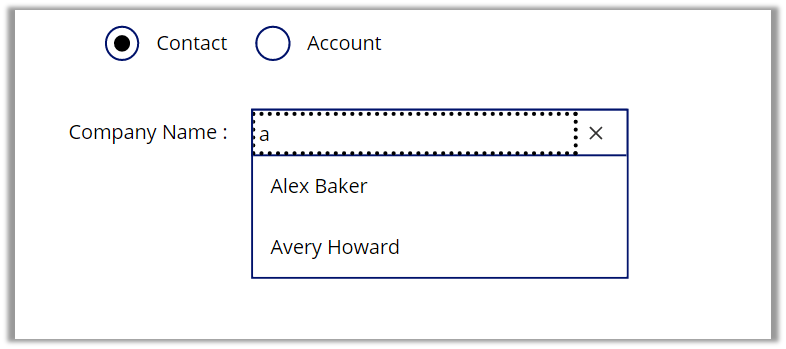
For the Contact option selected –

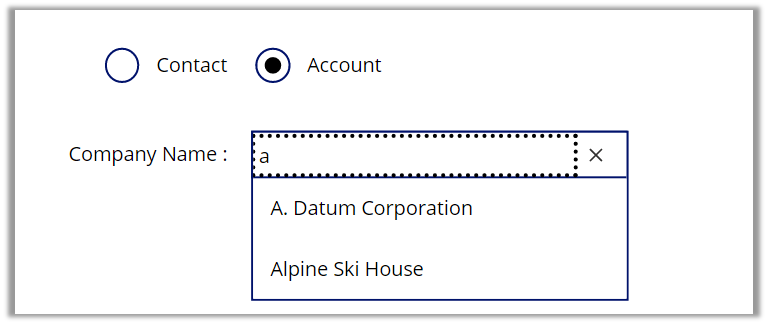
For the Account option selected –

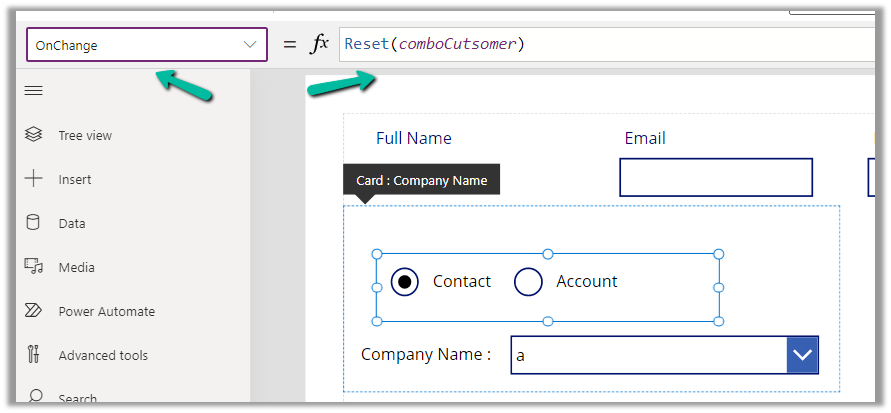
Also, we can set the OnChange property of the radio button to Reset(comboControl) to clear the selection when the user switches between Contact and Account options.

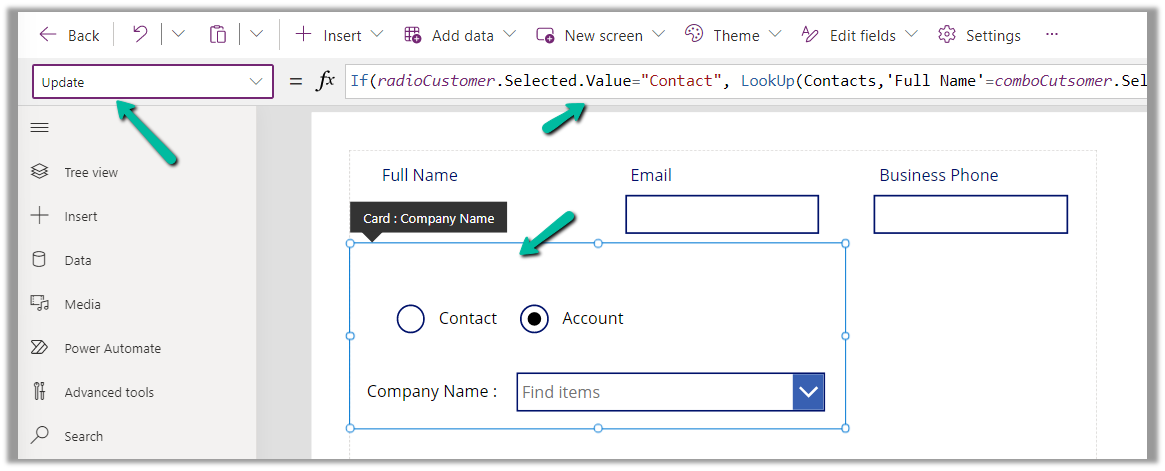
Now to have this value saved back we can specify the Update property of the custom data card in which we have placed these controls.

References –

https://www.youtube.com/watch?v=y-VvNDwy_Jw&t=1191s

https://debajmecrm.com/configure-customer-lookup-to-show-either-contacts-or-accounts-in-canvas-apps/

https://learn.microsoft.com/en-us/power-apps/maker/canvas-apps/working-with-references#show-the-columns-of-a-customer

Hope it helps..
Advertisements

Manage Security Roles using the new modern UI (preview) – Power Platform Admin Center


Security roles can be now managed using the new modern UI (preview).

Select Security Roles (See all) for an environment, within Power Platform Admin Center.

Select Edit for a security role.

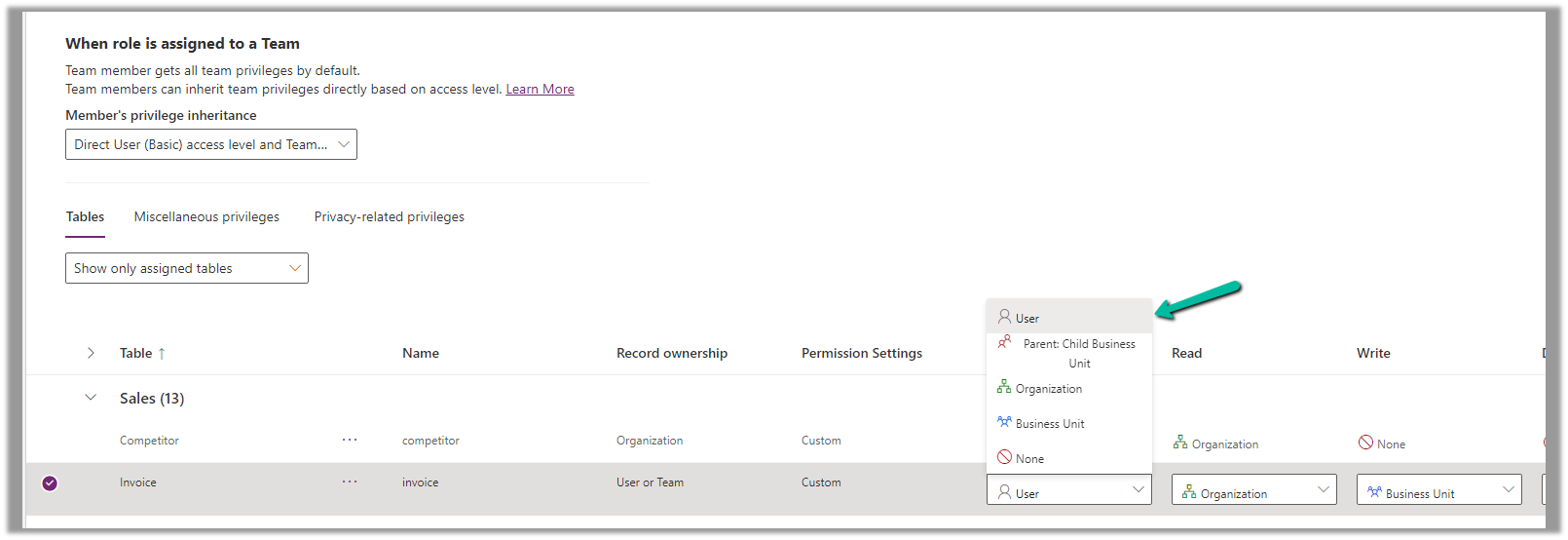
We can see here Display only parent security roles option is On by default.

We can see the different options.

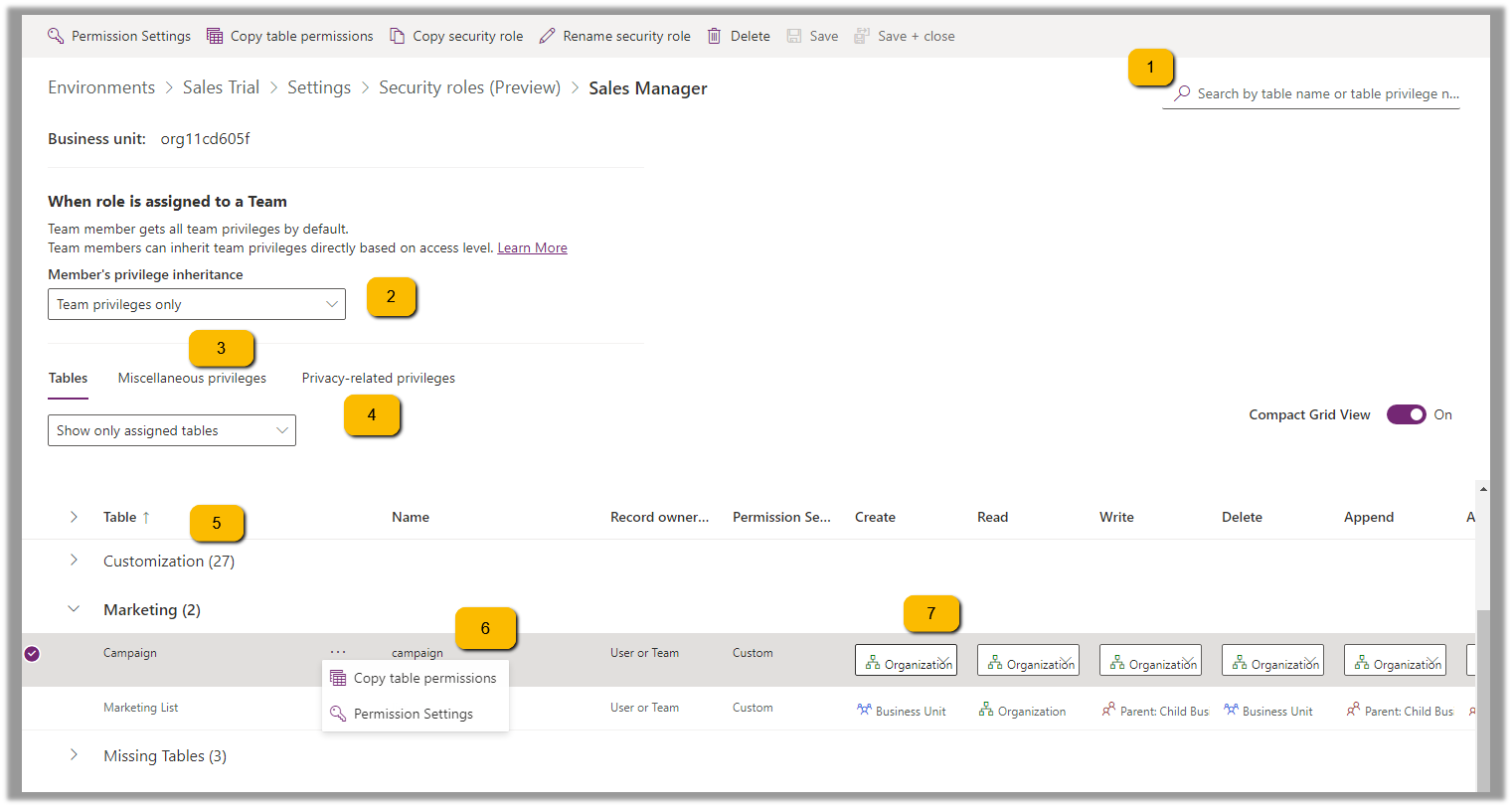
  1. Filter based on table or privileges

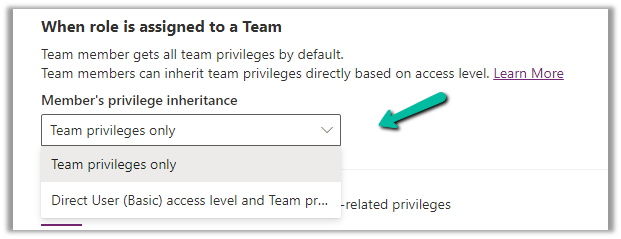
2. Specify Member’s privilege inheritance option

https://learn.microsoft.com/en-us/power-platform/admin/security-roles-privileges#define-the-privileges-and-properties-of-a-security-role

Nicely explained here –

https://debajmecrm.com/team-members-privilege-inheritance-what-is-this-doing-in-security-role-screen-of-dynamics-365/

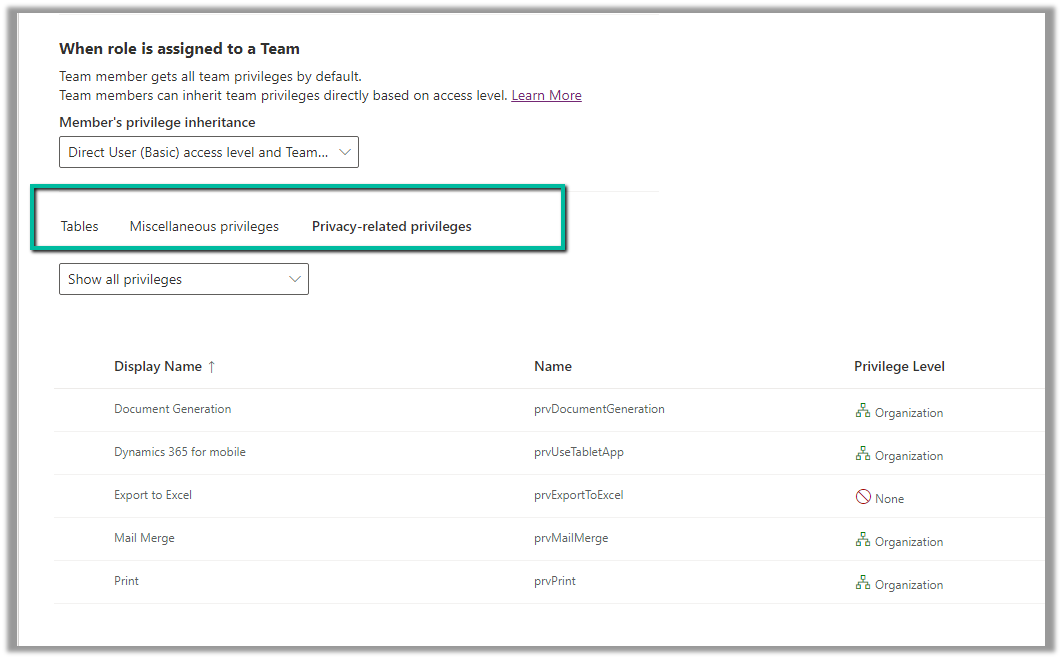
3. Tabs for Table specific, Miscellaneous, and Privacy-related privileges

4. Filter privileges further by all, assigned or unassigned.

5. Collapsible

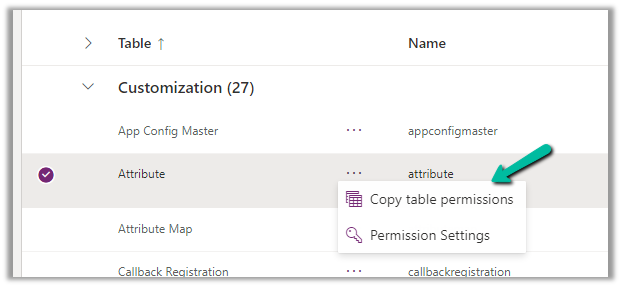
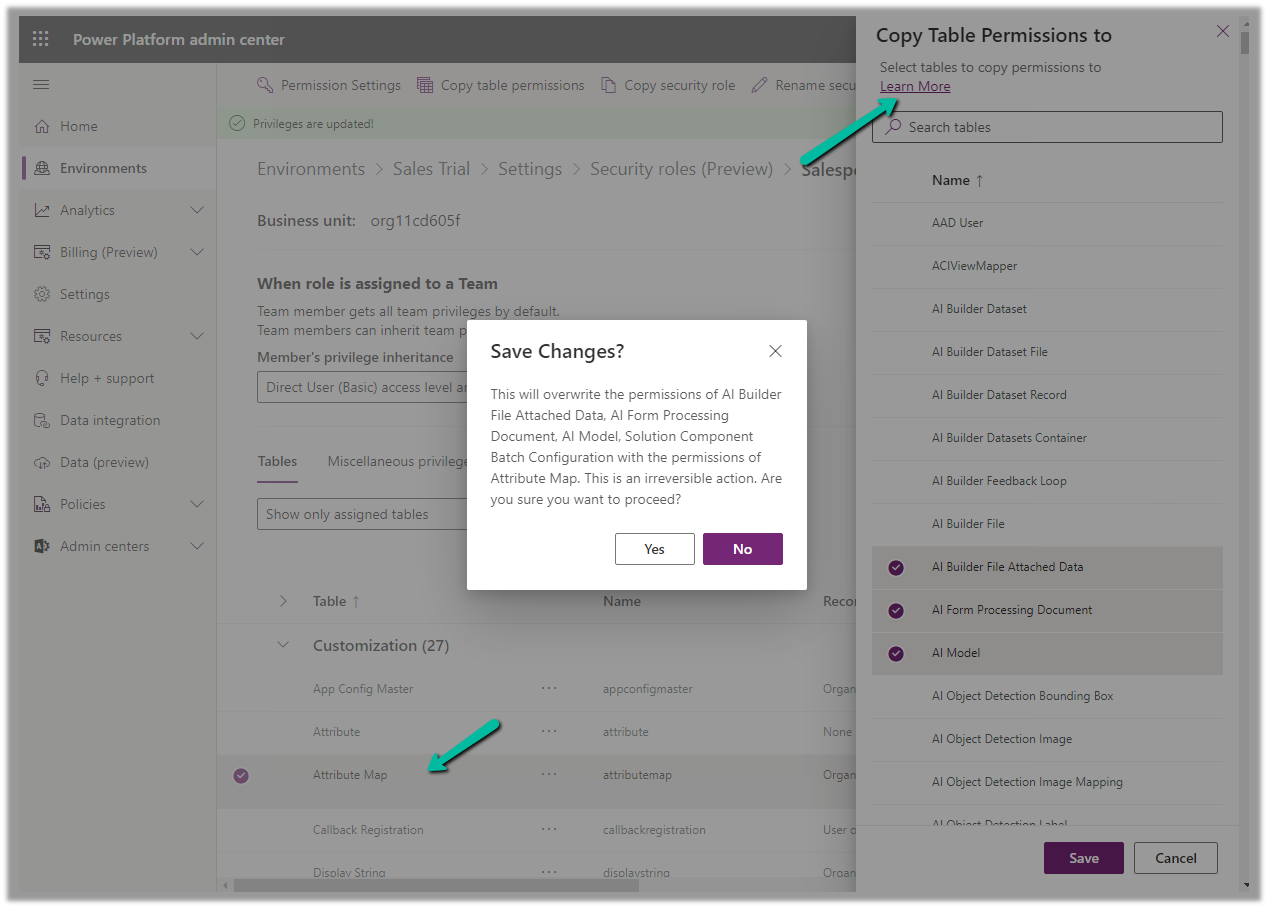
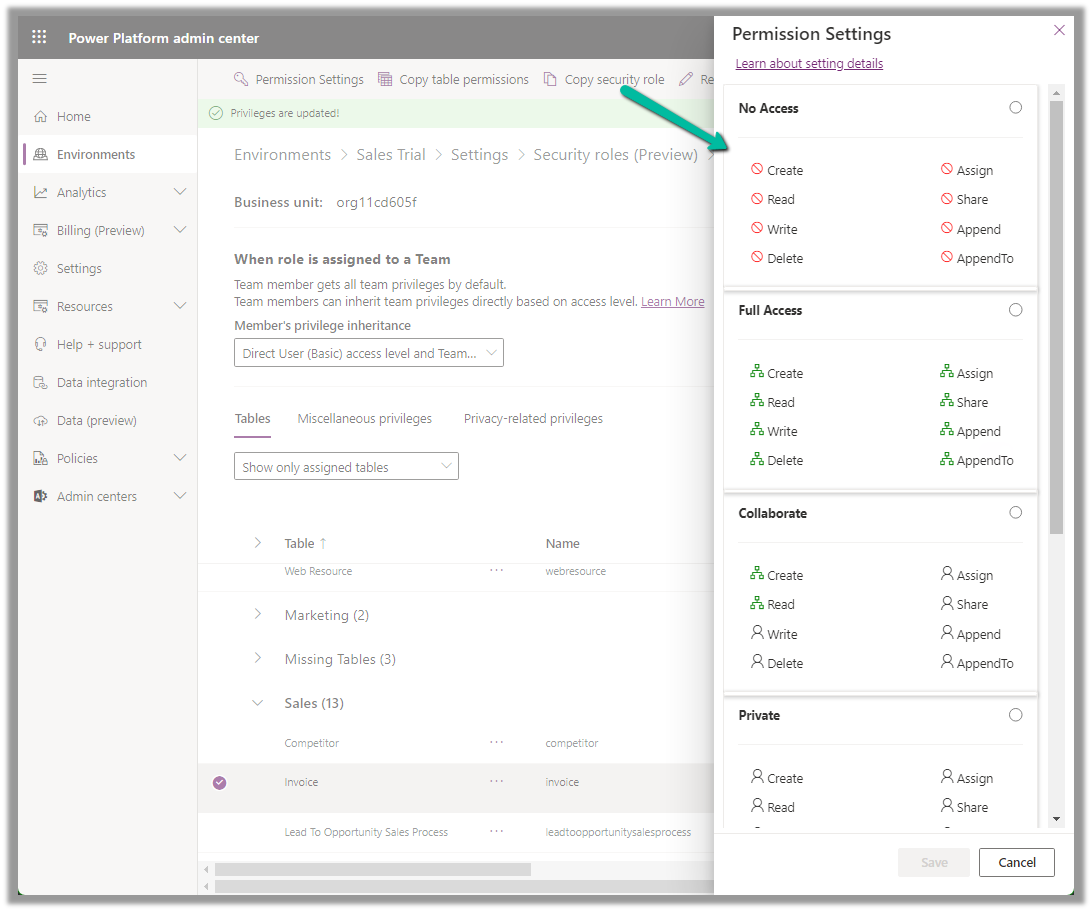
6. Option to Copy Table Permission to another table(s) and apply predefined Permission Settings i.e. Access Levels.

Copy table permissions to multiple tables

Permission Settings (Access Levels)

7. Specify Access Level for Privileges

Get all the details here – Security Roles and new modern UI

Hope it helps..
Advertisements

Using existing Web Resources (image) and Icons for button/ command – Dynamics 365 / Model-driven apps


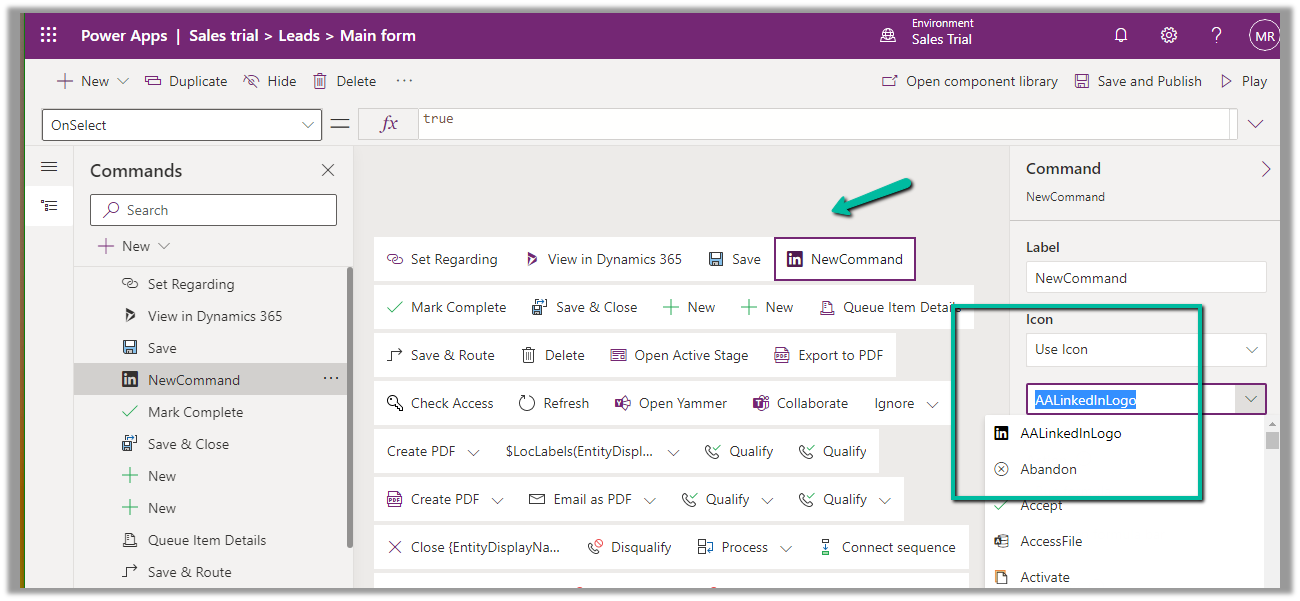
In case of a new command that is added through Command Designer, we can specify an existing Icon using the Use Icon option.

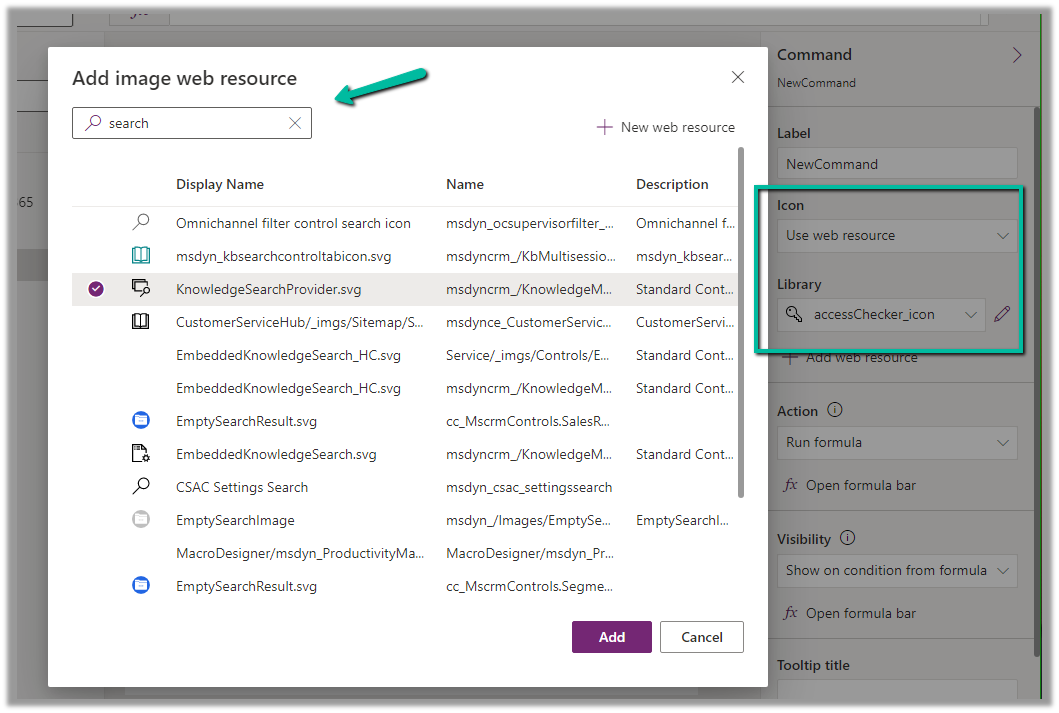
We can also search and specify an existing Web Resource

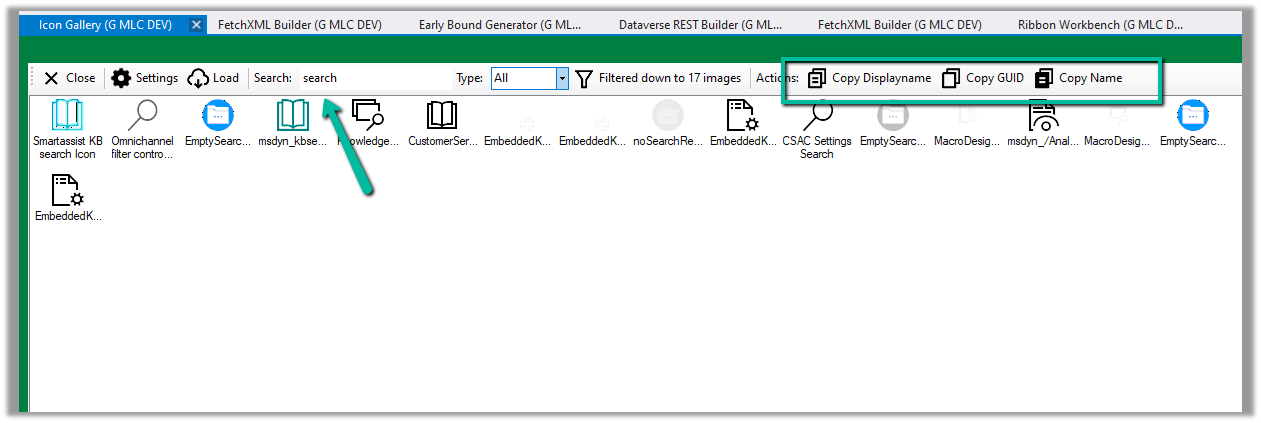
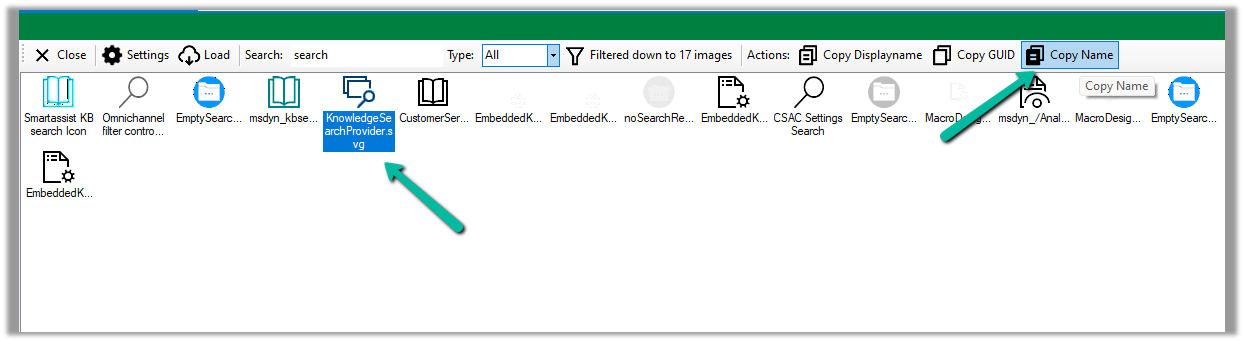
Similarly, we can use Icon Gallery (XrmToolBox Plugin) to search for the existing web resource image and icons.

We can then use Copy Name option to get the full path of the web resource

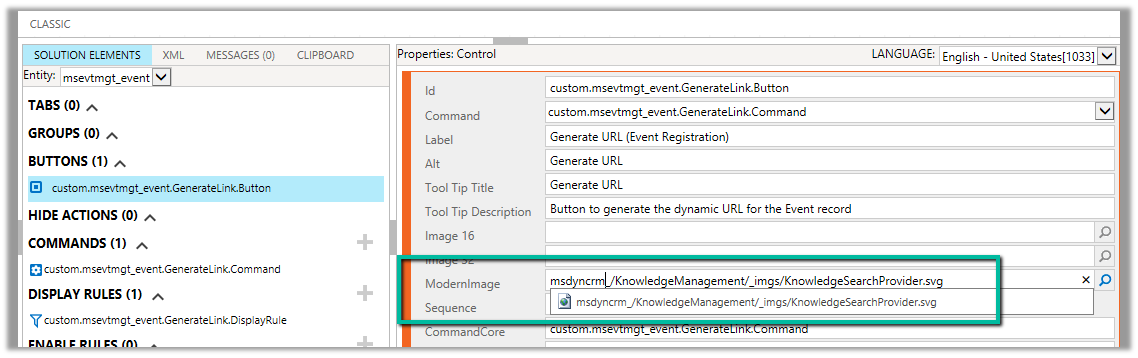
msdyncrm_/KnowledgeManagement/_imgs/KnowledgeSearchProvider.svg

use it to specify Modern Image for our buttons

Hope it helps..
Advertisements

Using Coalesce Function to handle null value in Power Automate – Dataverse


Recently in one of our flows, we were getting the below error –

InvalidTemplate. Unable to process template language expressions in action ‘List_rows_:_Region’ inputs at line ‘0’ and column ‘0’: ‘The template language function ‘replace’ expects its first parameter ‘string’ to be a string. The provided value is of type ‘Null’. Please see https://aka.ms/logicexpressions#replace for usage details.’.

One or more fields provided is of type ‘Null’, a different type is expected.

This was because the replace function that we were using for the Filter rows property of List Rows (Dataverse) had the variable value as null.

Below was our dynamics expression where we replaced apostrophe with 2 single quotes – https://nishantrana.me/2023/02/27/how-to-handle-single-quote-apostrophe-in-filter-rows-in-power-automate-dataverse/

replace(replace(variables(‘varFieldData’)?[‘myVariable’],‘_’,’ ‘),””,”””)

The solution was to use coalesce function, to replace null with a blank string as shown below.

replace(replace(coalesce(variables(‘varFieldData’)?[‘myVariable’],”),‘_’,’ ‘),””,”””)

Similarly, we can use coalesce function to provide a default value.

The coalesce function will evaluate its arguments in order and will return the first non-blank or non-empty value. If all the arguments are blank or empty strings, the function will return blank.

After using the coalesce function, our flow was successful.

More on COALESCE

A similar example in SQL –

Hope it helps..

Advertisements