List Rows, Select Columns, and Lookup field – Power Automate / Dataverse


Suppose we want to retrieve the value of the source campaign lookup of the lead records.

The schema name of Source Campaign is – campaignid

To get its GUID in the Select columns of list rows we can specify it as

_campaignid_value i.e. _lookupschemaname_value

The other option is if we specify the schema name in select columns then we need to use the expand property to get the GUID as well if we want any other attribute values e.g. text/label of the lookup field.


Hope it helps..

Advertisements

How to – Set Default value for the combo box in Canvas Apps (Dataverse)


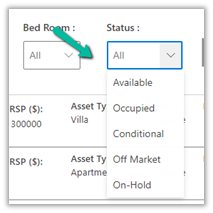
Suppose we have the following Combo Box named Status bind to one of the choice fields of Dataverse.

Items = Asset Status option set field of table Product.

Now if we want Available to be the default selected value for it, we can use the DefaultSelectedItems property of the combo box.

DefaultSelectedItems = Filter(Choices(Products[@’Asset Status’]), Value = ‘Asset Status’.Available)

Also if we want to set the value of the Villages combo box based on the value selected in the Region combo box. The region is a lookup field in the Villages table.

We can update the Items property of the Villages combo box from

Villages (Data Source)

to

If(IsBlank(comboRegion.Selected),Villages, Filter(Villages, Region.Region = comboRegion.Selected.Region))

Hope it helps..

Advertisements

How to – Handle single quote/apostrophe in Filter Rows in Power Automate (Dataverse)


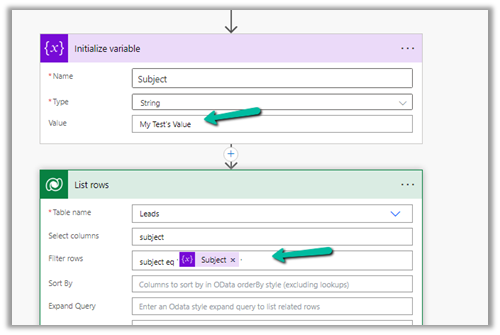
Say for e.g. we have the below flow, which finds the lead having subject as “My Test’s Value”

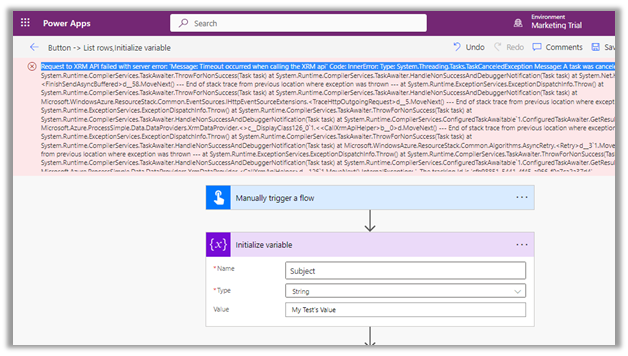
On running it we get the below error

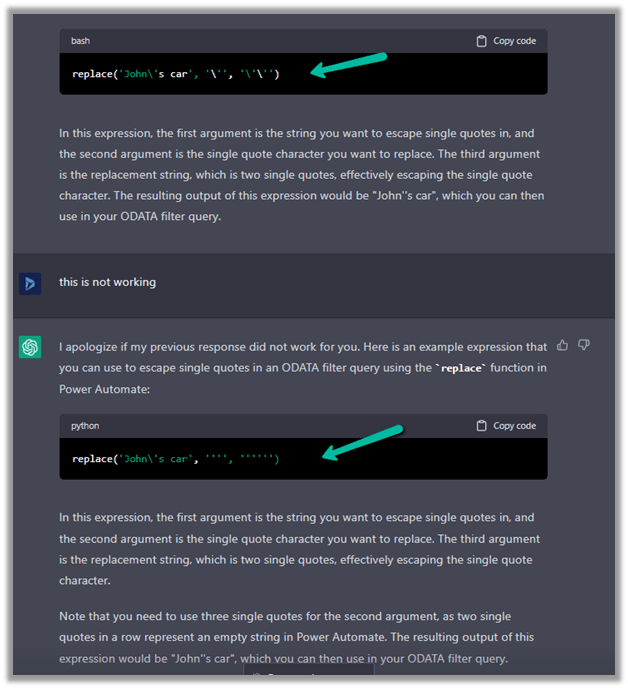
To make it work we can make use of replace function here.

replace(variables('Subject'),'''','''''')

‘ = to espace

‘ = special character

replace(variables(‘Subject’),‘‘‘‘,‘‘‘‘‘‘)

Please refer to the helpful post- https://techcommunity.microsoft.com/t5/power-apps-power-automate/how-to-handle-single-quotes-in-the-filter-property-with-get/m-p/2617747

This time it works successfully.

ChatGPT – quick to correct and give the right answer.

Hope it helps..


Advertisements

Resolved – Request to XRM API failed with server error: ‘Message: Timeout occurred when calling the XRM api’ Code: InnerError: Type: System.Threading.Tasks.TaskCanceledException Message: A task was canceled in Power Automate


We were getting below Timeout error while trying to save our Power Automate flow.

Request to XRM API failed with server error: ‘Message: Timeout occurred when calling the XRM api’ Code: InnerError: Type: System.Threading.Tasks.TaskCanceledException Message: A task was canceled. 

It could be because of some issues at the product end – some outage or server load. It lasted for around 15-20 minutes for us, after which we were able to save and test our flow successfully.

Hope it helps..

Advertisements

Use Command checker (ribbondebug=true) to identify the Ribbon Customizations Issue – Dataverse / Dynamics 365


Appending ribbondebug=true to the record’s URL adds the new Command checker button in the command bar, which could help us in troubleshooting any unexpected behavior with ribbon.

More on this – https://powerapps.microsoft.com/en-us/blog/introducing-command-checker-for-model-app-ribbons/

Recently we added one enable rule to an existing button (Go Live) in the Customer Journey table. The rule was calling a JavaScript web resource based on the security role assigned to the user hiding or showing the button on the form.

Click on the Command checker to open the window on the side pane, where we can then select our button.

In the command properties tab, we can see our custom enable rule showing an error.

Also here clicking in View rule definition solution layers provides us the detail that this rule has been added as part of an unmanaged layer.

Clicking on the Unmanaged layer further provides us with the definition of the enable rule.

Going back to the error, we figured out that the function was missing from the web resource, and adding the function fixed the issue for us.

Back in the Command checker, we can see the custom Enable Rule getting evaluated correctly.

Check the Troubleshooting Guide

Hope it helps..

Advertisements

Format property missing in Date Picker in custom page – Dataverse / PowerApps


Recently while designing the custom page, we realized that the format property is missing for the Date Picker control. This is because Date Picker control is based on Fluent UI Library.

One option earlier was to enable the Classic Controls from Settings

And replace the existing control with the classic control

Also, check – https://debajmecrm.com/get-todays-date-format-dates-in-power-apps-canvas-app/

https://powerusers.microsoft.com/t5/Building-Power-Apps/Date-picker-missing-format-property/td-p/903794

https://powerusers.microsoft.com/t5/Building-Power-Apps/Custom-Page-Date-Picket-Format-Date/td-p/1349351

Hope it helps..

Advertisements