Binding Choice / OptionSet (multiselect) with Combo box in Canvas Apps / Power Apps (DataVerse)


Instead of hardcoding Combo box , we can bind it to the Choice / Option Set field of Dynamics 365 / Dataverse.

Format – Choices(DataSource[@columnname])

Check out the post that explains it – https://debajmecrm.com/how-to-bind-a-multiselect-choice-of-dataverse-to-a-combobox-in-canvas-apps/

Also check out – how to bind and do filter on multiselect combo box – https://youtu.be/5dSk5iOgT68?t=286

To learn about all the properties of Combo box refer – https://www.spguides.com/powerapps-combobox-control/

Hope it helps..

Advertisements

Fix- Multiple levels of many-to-one relationship expansion aren’t supported in PowerApps


We would get this error while trying to get the value of a related entity (lookup) through a related entity (lookup) in the current record using the incorrect formula.

For e.g. here Region is a lookup in the Village, which in turn is a lookup in the Product record (ThisItem).

The solution here is to use the LookUp function

Before

After

ThisItem.Village.Region.Name

LookUp(Villages, Village = ThisItem.Village.Village).Region.Name


Search the Villages table, using the GUID of the Village, and fetch the name of the region lookup field in it.

Hope it helps..

Advertisements

Fixed – The reference assemblies for. NETFramework,Version=v4.6.2 were not found. To resolve this, install the Developer Pack (SDK/Targeting Pack) for this framework version or retarget your application


Recently while trying to use the Power Platform Toolshttps://learn.microsoft.com/en-us/power-apps/developer/data-platform/tools/devtools-install , got the below error in Visual Studio 2019. (not supported for VS 2022)


To fix it either you can, open Visual Studio Installer and select Modify and select the appropriate developer pack.


Or as specified in the error message, open https://aka.ms/msbuild/developerpacks, and download the appropriate Developer pack from there.


This fixed the issue –


Hope it helps..

Advertisements

Power Apps Component Life Cycle – Quick look


We can read about the architecture and the life cycle of the Power Apps component here.

Check the screencast – PowerApps Component Life Cycle

Let us see it in action using a sample project.

Launching the test harness, we can see the init executed followed by updateView.

Making any change in the component’s form factor, width, height, or Data Inputs property triggers the updateView method.

Now let us update the index.ts and add a textElement along with an event listener for its change event.

Inside the test harness, when we change the Value of the sampleProperty, if we want the value of the textElement to be updated, we need to use the updateView method to fetch the changed value from the bound sample property field and reflect this new data in the UI.

We can get the value of the sampleProperty from the context and use it to set the textElement value as shown below.

Now let us do the opposite, let us change the value inside the textElement. Here as expected none of the methods triggers.

Here we need to call the notifyOutputChanged method, to notify the host that the component’s output has changed.

On calling notifyOutputChanged, the framework runtime will first call getOutputs to get the value of the bound properties of the component, and then notifies the host.

The host will perform the validation and if the output received is valid it will call the updateView.

But before we do that let us first try setting the value of the sampleProperty in the change event handler of the textElement. Here on changing the value inside the text box, we can see only the change event handler is triggered. No other methods are triggered here as expected.

There is no update in the value of the bound sampleProperty.

This is because we need to call the notifyOutputChanged method to let the host know about the changes made in the value inside the text box.

On calling the notifyOutputChanged and changing the text value this time, we can see the getOutputs being called.

The value remains the same for the bound property and updateView method is not called as our getOutputs method was not returning anything.

Let us update the getOutputs method to return the sampleProperty having the text value.

On changing the textElement value this time getOutputs is called, followed by updateView.

To summarize,

  • To notify the host, about the user changes in the UI                                                ècall notifyOutputChanged
    è the framework will call the getOutputs
    è followed by èupdateView
  • Host changes the data/properties                                                               èupdateView will be called è context passed è we can update the UI as per our requirements

Check the following links to understand more about the life cycle –

https://dianabirkelbach.wordpress.com/2020/03/29/pcf-when-is-updateview-called/

https://dianabirkelbach.wordpress.com/2022/02/28/async-requests-inside-pcf-init-and-updateview/

To learn about PCF –

Getting started with PCF Custom Controls by Danish Naglekar

https://www.youtube.com/watch?v=ZYOHaHUf83Y

https://www.youtube.com/watch?v=o3OW6UW-RMI&list=PLqJfvq4Fy1P5TgPGm8Ny_legkZUk5BfyV&index=2

PCF Academy by Andrew Butenkohttps://www.youtube.com/watch?v=YJ9hrKxAhTU&list=PL0WiRFWRFGlQr5tGZdUGUlyTl7Gi1Wb_K

https://bgx.blob.core.windows.net/files/powerplatform/PCFControlGuide.pdf

Hope it helps..

Advertisements

Workstreams Overview – part 2 – Dynamics 365 Customer Service / Omnichannel


Continuing the previous post, let us now delve deeper into the different options inside each of the workstream types.

Let us first create a workstream of type MessagingChat (Persistent) with work distribution mode as Push, and check the various configuration to be done for it.

We are presented with 5 main sections –

  1. Live Chat (setup).
  2. Routing Rules – Work classification and Route to queues.
  3. Work Distribution.
  4. Bot.
  5. Advanced Settings

In the case of work distribution as Pick the only change is in the mode displayed, the rest of the settings remains the same.

The Advance settings section has the following sections –

  1. Sessions
  2. Agent Notifications
  3. Context Variables
  4. Smart Assist Bots
  5. Quick Replies

These sections remain the same for other Channels as well – Apple Message for Business, Chat, Custom, Facebook, Google’s Business Messages, LINE, Microsoft Teams, SMS, Twitter, WeChat, and WhatsApp.

Only in the case of Chat, if we uncheck
Make Chats Persistent, we do not get the option of Auto Close after Inactivity and Keep same agent for entire conversation as those options apply specifically to the persistent chat.

  • Now let us create a workstream of type Record and see the options there.

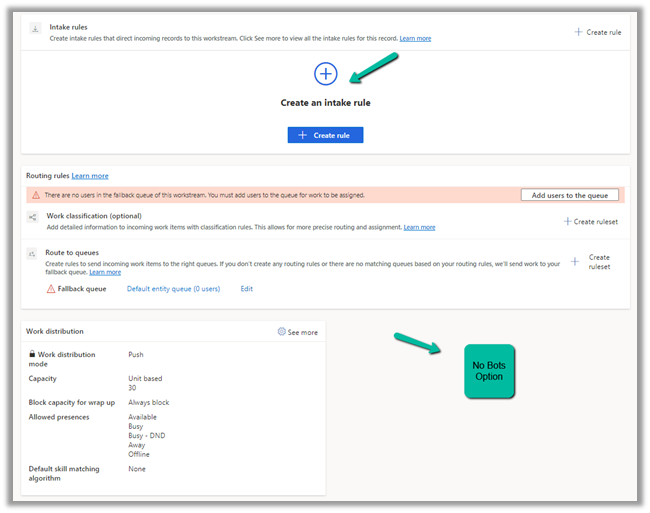
  • Here we can see the options to specify the Intake rules instead of setting up the channel.
  • The routing rules section remains the same.
  • Work distribution doesn’t have the option of Auto Close after Inactivity and Keep same agent for the entire conversation. This is because here we routing the record and do not have any conversation with the customer.
  • The bot is also not available for record-type workstreams.

For Advanced Settings, we only have the option of Sessions and Agent notifications.

The other sections Context Variables, Smart assist bots, and Quick replies are not available that we saw for messaging type workstream, considering we are not having any conversation here.

  • Now let us check for the Voice type of workstream.

  • Here we get the same options as we have for workstream type messaging except Auto Close after Inactivity and Keep same agent for entire conversation, as expected.

And in advanced settings, the only difference when compared to the messaging channel is that there is no section for quick replies.

In a nutshell,

Settings / Options  

Messaging 

Record 

Voice 

Description

Options

Setup up channel 

Intake Rules 

Setup Voice

Set up the corresponding channels or intake rules.

Routing Rules 


Work Classification

(optional) 

Y 

Y 

Y 

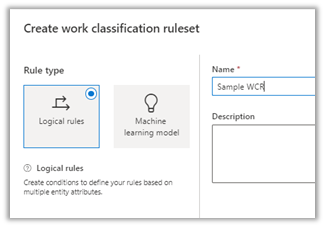
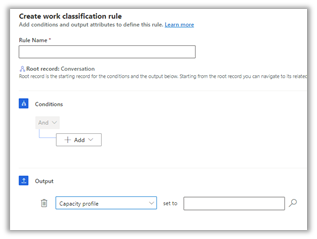
Work classification allows us to define conditions and add additional information as output attributes for optimum assignment of the work item.

It can be based on Logical rules or Machine Learning models.

https://learn.microsoft.com/en-us/dynamics365/customer-service/configure-work-classification


Route to queues 

Y 

Y 

Y 

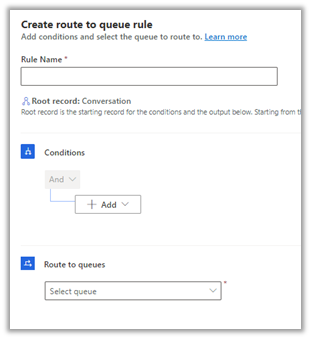
In Routing Rules we can define conditions/rules which when matched, route the incoming work item to the queue. If no rules match fallback queue will be used.

https://learn.microsoft.com/en-us/dynamics365/customer-service/configure-route-to-queue-rules


Work distribution 


Auto-close after inactivity 

Y *

N 

N 

We can define the period in minutes (days), after which the inactive conversation will be moved to the closed state.

Work distribution mode 

Y 

Y 

Y 

Push or Pick as defined while creating the workstream. Cannot be edited.

Capacity 

Y 

Y 

Y 

Can be either Unit or Profile based

https://learn.microsoft.com/en-us/dynamics365/customer-service/capacity-profiles

https://learn.microsoft.com/en-us/dynamics365/customer-service/capacity-profiles?tabs=customerservicehub#multiple-capacity-profiles-in-a-single-workstream

Block capacity for wrap up 

Y 

Y 

Y 

By default – Always Block. We can specify Don’t block or from 1 minute to 60 minutes, the duration for which agent capacity is blocked while the conversation is in Wrap Up state.


If we select Don’t block, the agent’s capacity will be immediately released when Conversation moves to Wrap State.

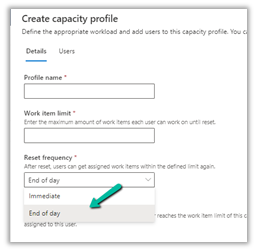
Doesn’t apply i.e. capacity won’t reset for End of day capacity profile.


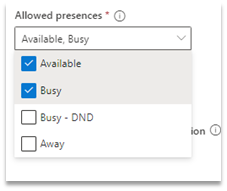
Allowed presences 

Y 

Y 

Y 

The presence values, which agent can be assigned. Out of the box we have Available, Busy, Busy – DND, Away.

We can also define custom presence – https://learn.microsoft.com/en-us/dynamics365/customer-service/presence-custom-presence


Default skill matching algorithm 

Y 

Y 

Y 

None, Exact Match, Closet Match.

Keep same agent for entire conversation

Y*

N 

N 

If we want the conversation to be assigned to the originally assigned agent when re-initiated after some time

https://learn.microsoft.com/en-us/dynamics365/customer-service/create-workstreams?tabs=customerserviceadmincenter#agent-affinity


Only available for Push type work distribution.

Bot (optional)

Y 

N

Y 

This option allows adding a bot to the workstream.

All incoming work items will be routed to the bot first.


Only available for Push type work distribution.

Advanced Settings 


Sessions

Y 

Y

Y 

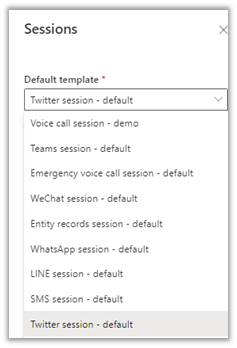
We can use out of the box template defined or create our own session template to be used.

Within the session template, we can define

  • The mode of the Communication Panel – Docked, Hidden, Minimized.
  • The application is to be opened in the Anchor tab.
  • Additional tabs to be opened.

https://learn.microsoft.com/en-us/dynamics365/app-profile-manager/session-templates?tabs=customerserviceadmincenter


Agent Notifications

Y 

Y 

Y

We can use the out-of-the-box notification templates defined or can create our notification template.

https://learn.microsoft.com/en-us/dynamics365/app-profile-manager/notification-templates?tabs=customerserviceadmincenter#out-of-the-box-notification-templates


Context Variables

Y 

N 

Y 

We can define context variables of type Text or Number, which can be used in macros and agent scripts and can also be used in routing rules.

https://learn.microsoft.com/en-us/dynamics365/customer-service/manage-context-variables?tabs=customerserviceadmincenter

Smart assit bots

Y 

N 

Y 

We can configure Bot to provide smart assist suggestions to the agents.

Quick Replies

Y 

N 

N 

These are predefined messages, that agents can use to quickly respond to the customers.

https://learn.microsoft.com/en-us/dynamics365/customer-service/create-quick-replies

*not available for non-persistent chat.

In the next posts, we’d delve deeper into each of the options.

Hope it helps..
Advertisements

How to – Clone a record in Dataverse / Dynamics 365 (C#)


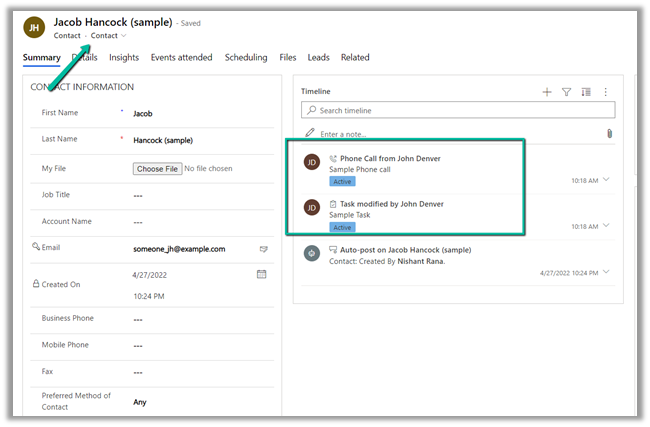
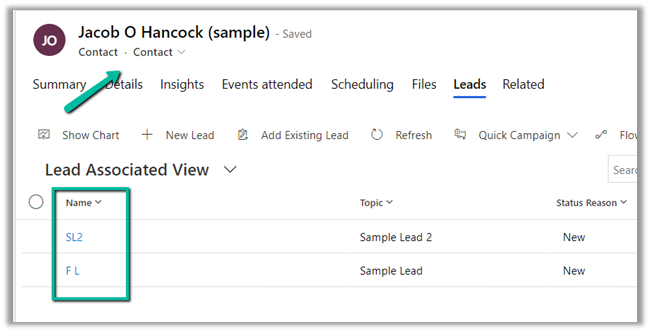
Here we will be cloning the below contact record –

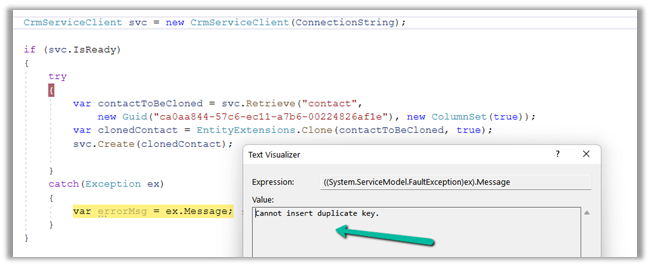
For it, we can make use Clone method of EntityExtensions class

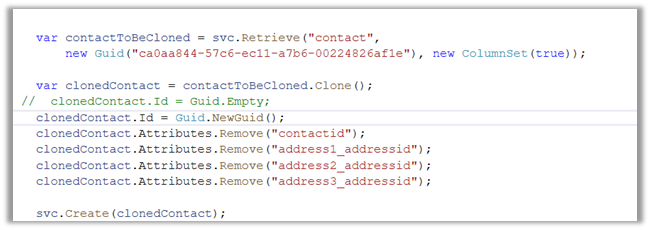
If we run the below code, we will get the “Cannot insert duplicate key” exception.

Because we need to set the ID for the newly cloned record to either empty or a new GUID.

Also, we need to remove the contactid attribute or entity’s id field else we will get the below exception – “Entity Id must be the same as the value set in property bag

Also if we are retrieving all the attributes we need to make sure we remove those attribute which can cause below unique constraint errors.

Sql error: The operation attempted to insert a duplicate value for an attribute with a unique constraint. CRM ErrorCode: -2147012606 Sql ErrorCode: -2146232060 Sql Number: 2627

In case of contact, we had to remove the address id attributes, to get the record cloned.

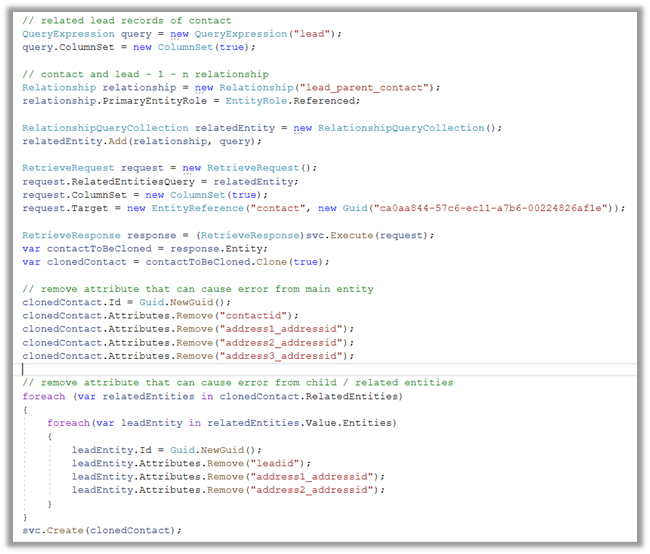
Now let us clone the same contact record with its related leads.

  • Here first we need to retrieve contact along with its associated lead record.
  • Then remove the id attribute that could duplicate issues in the child lead records also.

Please refer the helpful posts –

https://debajmecrm.com/clone-record-dynamics-crm-clone-method/

https://www.inogic.com/blog/2014/08/clone-records-in-dynamics-crm/

https://dyncrmexp.com/2017/10/24/retrieve-primary-entities-along-with-related-entities-with-one-queryexpression/comment-page-1/

https://dynamict.eu/2016/08/09/create-record-with-related-records-in-a-single-request-using-c/

Hope it helps..

 // related lead records of contact
                    QueryExpression query = new QueryExpression("lead");                    
                    query.ColumnSet = new ColumnSet(true);

                    // contact and lead - 1 - n relationship
                    Relationship relationship = new Relationship("lead_parent_contact");
                    relationship.PrimaryEntityRole = EntityRole.Referenced;

                    RelationshipQueryCollection relatedEntity = new RelationshipQueryCollection();
                    relatedEntity.Add(relationship, query);

                    RetrieveRequest request = new RetrieveRequest();
                    request.RelatedEntitiesQuery = relatedEntity;
                    request.ColumnSet = new ColumnSet(true);
                    request.Target = new EntityReference("contact", new Guid("ca0aa844-57c6-ec11-a7b6-00224826af1e"));

                    RetrieveResponse response = (RetrieveResponse)svc.Execute(request);
                    var contactToBeCloned = response.Entity;                   
                    var clonedContact = contactToBeCloned.Clone(true);

                    // remove attribute that can cause error from main entity             
                    clonedContact.Id = Guid.NewGuid();
                    clonedContact.Attributes.Remove("contactid");                    
                    clonedContact.Attributes.Remove("address1_addressid");
                    clonedContact.Attributes.Remove("address2_addressid");
                    clonedContact.Attributes.Remove("address3_addressid");

                    // remove attribute that can cause error from child / related entities
                    foreach (var relatedEntities in clonedContact.RelatedEntities)
                    {
                        foreach(var leadEntity in relatedEntities.Value.Entities)
                        {
                            leadEntity.Id = Guid.NewGuid();
                            leadEntity.Attributes.Remove("leadid");
                            leadEntity.Attributes.Remove("address1_addressid");
                            leadEntity.Attributes.Remove("address2_addressid");
                        }
                    }
                    svc.Create(clonedContact);
Advertisements