Using IntelliSense with Kupp Code Analytics


In the previous posts, we covered the Key Features and Capabilities of Kupp Code Analytics and the Installation and Setup of the Visual Studio Extension.

In this blog post, we’ll cover one of its key features – IntelliSense.

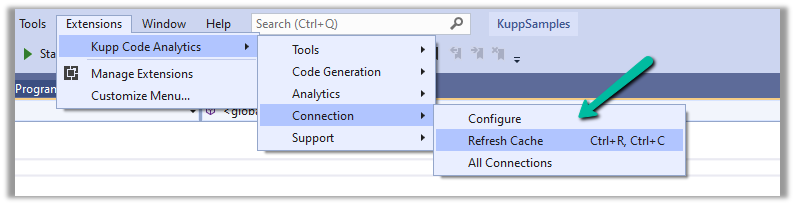
As we saw in the last post the Kupp Analytics tool will download and cache the Metadata of the environment it is configured to, which it uses for IntelliSense.

To refresh the Metadata cache, or configure and manage the connection, navigate to Extensions >> Kupp Code Analytics >> Connection

Let us look at different places where we get the IntelliSense.

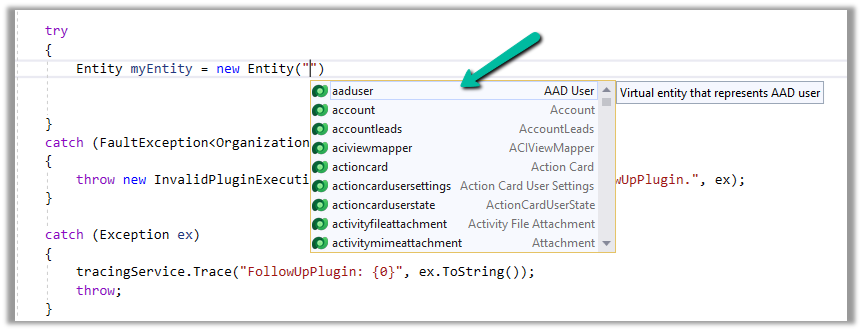
Starting with the entity or table, we can see it suggesting all the tables in that Environment.

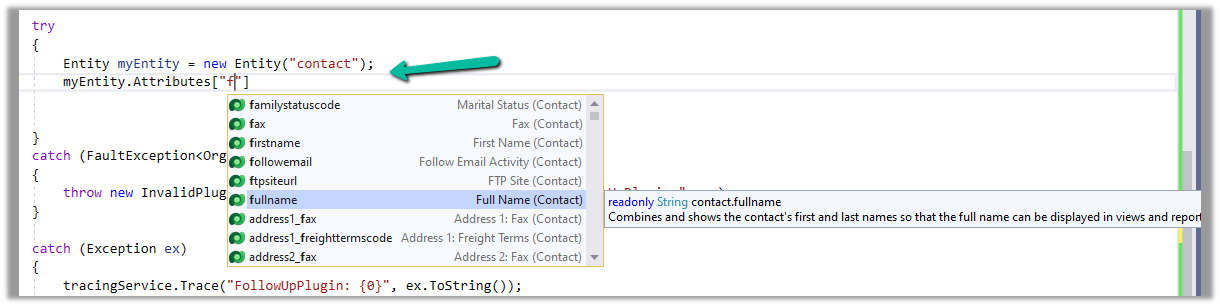
If we have specified the entity name, when it comes to attributes or columns, we can see it suggesting all the attributes specific to that table.

Getting attributes with specific type lists only attributes having the same type.

For EntityReference – we can see it suggesting all the lookup fields.

Same for Money

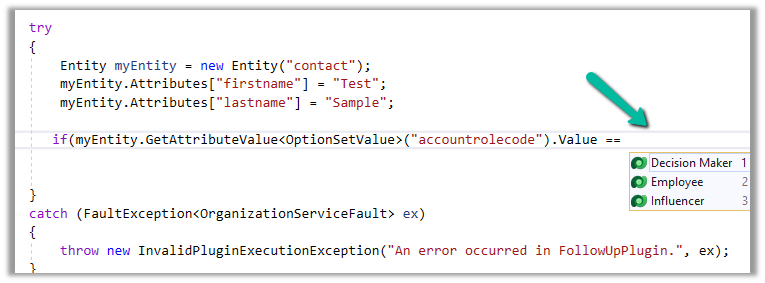
And for OptionSetValue

It also suggests the attribute’s value in the case of Option Sets

IntelliSense also applies to Relationships, we can see it suggesting only contact-related relationships.

Apart from our Plugin and Console Applications (C#), we have the Intellisense feature available for our client-side code as well (JS/TS).

To configure we can navigate to Options >> Kupp Code Analytics >> General

Currently, the IntelliSense support is limited to retrieve operation only.

It suggests,

the name of the entity –

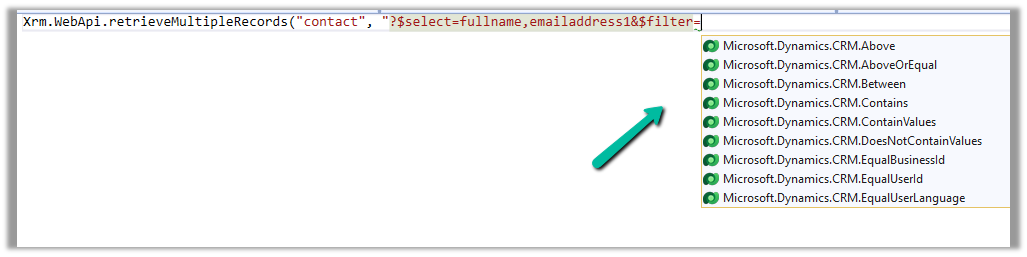
different query options

attributes specific to the entity –

Filter
operators

Query
functions

Thus using the IntelliSense feature that provides real-time suggestions, the development team can code efficiently, reduce typing errors, develop faster, and maintain code consistency.

Get all the details here –

https://docs.kuppsoft.com/Kupp-Code-Analytics/CA-Reference/CA-IntelliSense-(.NET)

https://docs.kuppsoft.com/Kupp-Code-Analytics/CA-Reference/CA-OData-IntelliSense

Hope it helps..

Advertisements

Date Time Fields (Date Only and User Local – Behaviour) in Power Automate (Dataverse)


Recently we faced an issue in our flow that was showing a different date that the date entered by the user for a date time field.

Let us look at the below scenario to understand it.

Say we have the below field Date and Time with Time Zone Adjustment as User Local created in CRM / Dataverse.

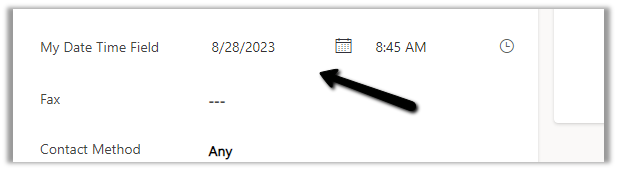
Now user enters the below value in in the field and saves the record which triggers the flow.

The user’s time zone is set as below

Now in our Power Automate flow, we can see the UTC date for it.

2023-08-27T20:00:00Z

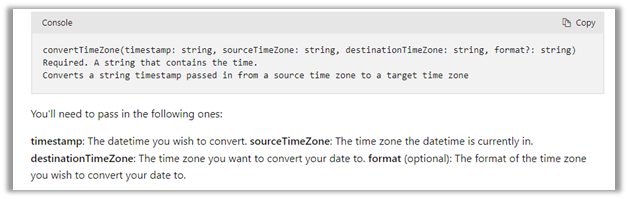
Now to convert to the user’s New Zealand Time Zone we can make use convertTimeZone function here

convertTimeZone(triggerOutputs()?[‘body/cr0e8_mydatetimefield’],’UTC’, ‘New Zealand Standard Time’, ‘MM/dd/yyyy’)

We get the date as expected i.e. 28th

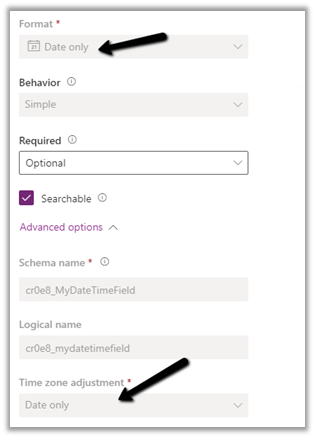
Now let us change the Format of the field to Date Only, and we keep the Time zone adjustment as User Local only.

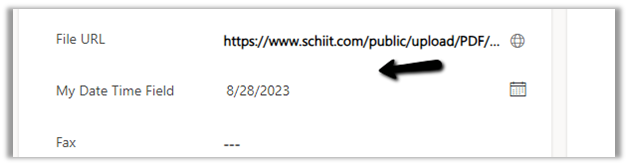
Let us trigger the flow again. (now we don’t have the time part)

We get the date without time part as expected.

But this time the convertTimeZone
function doesn’t work, as we only have the Date part and it is not in the UTC format.

convertTimeZone(triggerOutputs()?[‘body/cr0e8_mydatetimefield’],’UTC’, ‘New Zealand Standard Time’, ‘MM/dd/yyyy’)


Check this thread that talks about it –

https://powerusers.microsoft.com/t5/Building-Flows/Dataverse-Date-only-field-is-set-1-day-off-from-original-value/td-p/805859

Here one quick fix could be to change the Time zone adjustment to Date Only or Time zone independent for that field(i.e. no time zone conversion).

https://learn.microsoft.com/en-us/power-apps/maker/data-platform/behavior-format-date-time-field#date-and-time-column-behavior-and-format

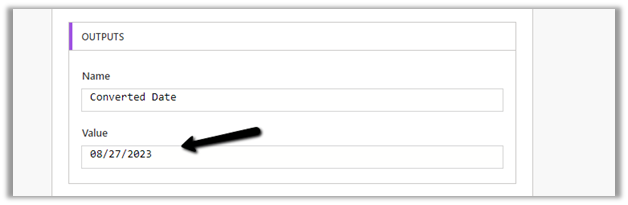
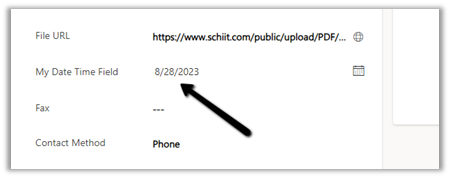
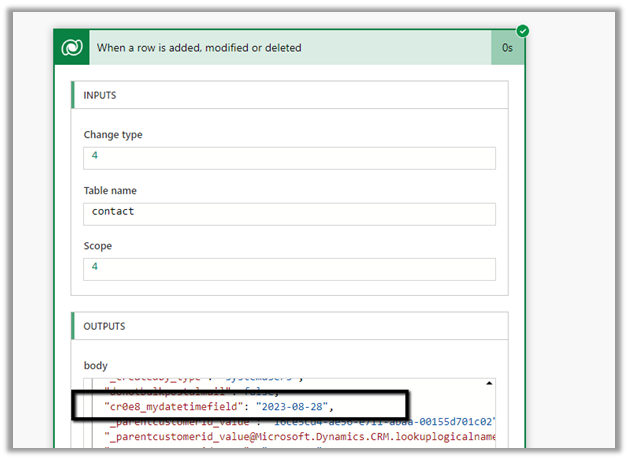
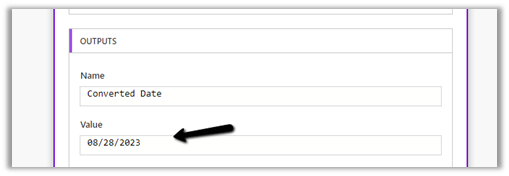
Now triggering the flow again, we get the below values –

as now there is no time zone conversion for that field.

Hope it helps..

Advertisements

Fixed – The ‘CreateMultiple’ method does not support entities of type ‘none’. MessageProcessorCache returned MessageProcessor.Empty in Dataverse / Dynamics 365


Recently while trying to use the new CreateMutipleRequest message we got the below error –

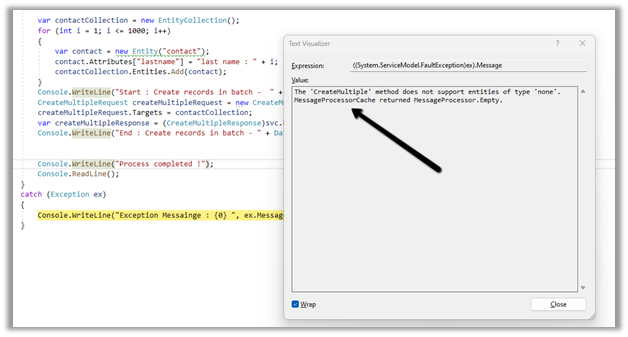
“The ‘CreateMultiple’ method does not support entities of type ‘none’. MessageProcessorCache returned MessageProcessor.Empty”

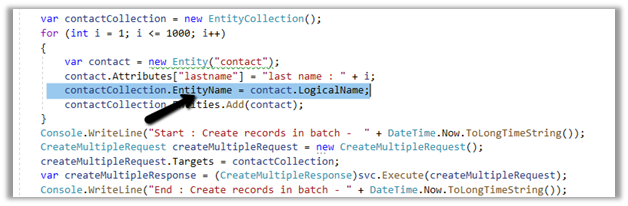
It was because we were not populating the EntityName property of EntityCollection class. Specifying it fixed the issue.

Hope it helps..

Advertisements

Integrating PVA with Omnichannel Live Agent


For part 1 –

Advertisements

Fixed – The domain where this form is embedded might not be enlisted as a domain record for externally hosted forms in Dynamics 365 Marketing


Recently we were getting the below issue for our Marketing Forms hosted on an external website on a particular authenticated domain. The pages were working fine in other authenticated domains.

The domain where this form is embedded might not be enlisted as a domain record for externally hosted forms. Otherwise, a browser extension or plugin may be blocking this form from loading. Review and reload form to continue.”

This particular domain was also shown as authenticated in our Dynamics 365 marketing.

Our website was e.g. https://www.domain.kiwi/ so we had domain.kiwi authenticated in Dynamics 365 Marketing.

Eventually, we had to raise a Microsoft Support Ticket and were instructed to add/ authenticate www.domain.kiwi   (with www.) also, doing so resolved the issue for us.

Also, there seemed like a UI bug in the Marketing which will cut out “www.” automatically when trying to authenticate the domains.

Hope it helps..

Advertisements

Configure Facebook Channel – Omnichannel (Dynamics 365 Customer Service)


To set up the Omnichannel –

To setup Facebook Channel,

Login to https://developers.facebook.com/, create a new account or use an existing developer account

Create a new Facebook App

Select the app type as Business

Provide an appropriate name and create the app.

Select Messenger as the Product for the app.

Next either  add an existing page or create a new one and then add the newly created page in the Messenger >> Settings

Here we created a new page and have added that page.

We can also Generate token for the page, which we will use while configuring Facebook Channel in Dynamics 365.

Click on Generate token and copy the token. Also, save the Page Id below the name of the page.

We will also need App ID and App Secret, which we can get from – Settings >> Basic

Next, we add a few test accounts to the app for testing/using the app. (we are not making the app publicly available or live, which would require and approval process)

Navigate to App Roles >> Roles >> Testers (Add Testers)

Back in Customer Service Admin Center, navigate to Customer Support >> Channels >> Messaging Accounts (Manage)

Add a New Account

Click Next and provide the App ID and Application Secret

Add Facebook Page to the account

Provide the Page name, Page ID, and the Page access token.

With the page successfully added, click on Next

Copy the Callback URL and the Token.

Paste this information in the Messenger product added.

Click on Add Callback URL.

Click on Verify and save

This adds the Webhooks details, click on Add Subscriptions for the Page added.

Select messages

We can see the account added.

Open the record, and navigate to the Facebook Pages tab, there we can see the Provisioning state as Running.

Next, we will create a Channel for this Facebook Account.

Navigate to Customer Support >> Channels >> Messaging (Manage) >> Add Channel

Select Channel as Facebook.

Add an existing workstream or create a new workstream.

Next, select the Facebook Page configured in the previous steps.

Language as English.

We can specify custom automated messages and Post Conversation survey settings here.

Specify the File attachments setting and message tag.

Review and if required edit the details and finally click on Create channel to create the Facebook channel

Next open the workstream created, to specify routing rules, work distribution, bot, etc. to route the customers to the queues/agents.

Here we can create a Route to Queue ruleset to route the messages on the Facebook page to a specific Queue.

Create the ruleset record.

Next, Create a rule. We can define the conditions here (right now we are keeping it blank) and routing to the Default messaging Queue (we can create a specific queue and add only the required users).

Make sure you have added users to the Queue and assigned Omnichannel Agent security roles.

We can update the default Work distribution properties.

Now sending the message from the Facebook Messenger, will pop up the notification for the agent logged into Customer Service Workspace.

Accept the notification to start the conversation.

Refer to the below articles-

https://learn.microsoft.com/en-us/dynamics365/customer-service/configure-facebook-channel?tabs=customerserviceadmincenter

Hope it helps..
Advertisements