How to – Export Dataverse (Dynamics 365) data to Azure SQL using Azure Data Factory pipeline template


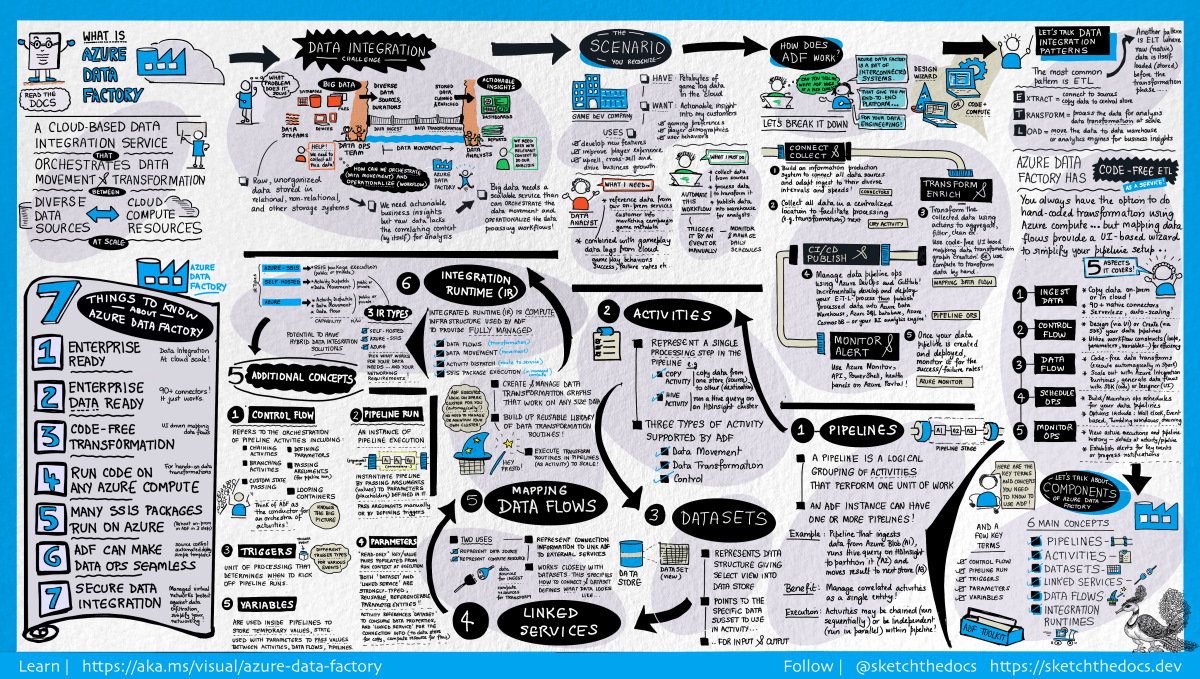
[Visual Guide to Azure Data Factory - https://acloudguru.com/blog/engineering/a-visual-guide-to-azure-data-factory]

Using the new Azure Data Factory pipeline template – Copy Dataverse data from Azure Data Lake to Azure SQL – we can now easily export the Dataverse data to Azure SQL Database.

https://docs.microsoft.com/en-us/power-platform-release-plan/2021wave1/data-platform/export-dataverse-data-azure-sql-database

Check other posts on Azure Data Factory

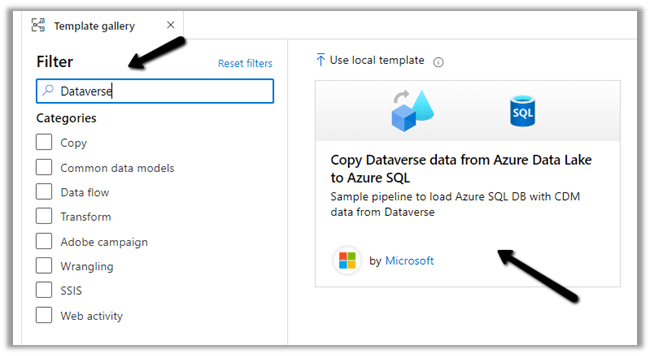
Select Pipeline from template option inside the Data Factory

Search for Dataverse and select the Copy Dataverse data from Azure Data Lake to Azure SQL template
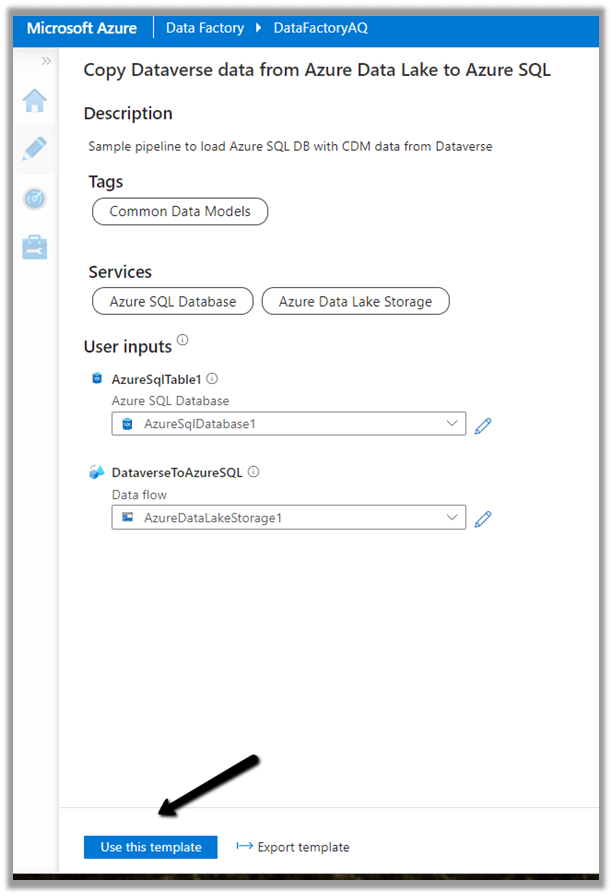
Let us specify the User Inputs required by the template – i.e. Azure SQL Database and the Data Lake Storage.

First we have created the linked service for the Azure SQL Database.

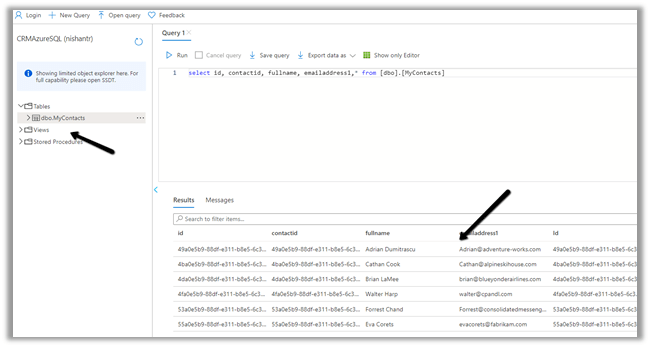
We’d use it to connect to the below table MyContacts.

Similarly create a linked service to Azure Data Lake Gen 2, which holds our Dataverse data.

Get the URL from the Container’s property. (replace blob with dfs in the URL)

To get the storage account key, select Access Keys >> Show Keys >> Copy the Key for the Storage Account.

Here we have already configured Azure Synapse Link for Dataverse

https://nishantrana.me/2020/09/07/export-data-from-common-data-service-to-azure-data-lake-storage-gen2/

Now as we have defined the User Inputs, select Use this template.
Navigate to the data flow created – DataverseToAzureSQL

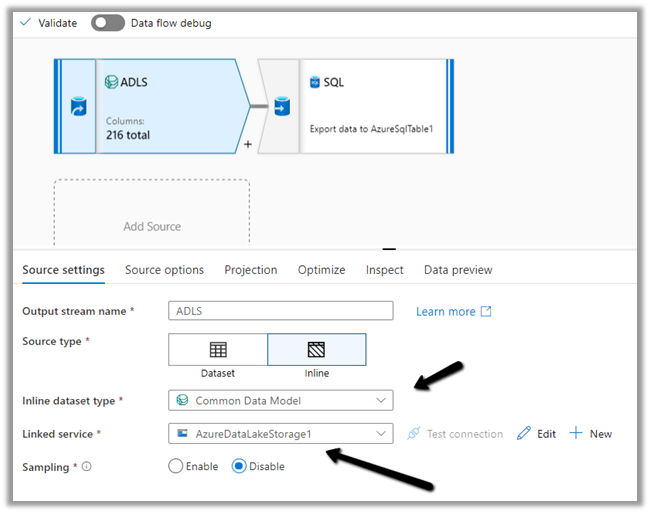
Select our source ADLS and check and configure its properties.

Source Settings

Here we have the Inline dataset type set to Common Data Model and the Linked service is the AzureDataLakeStorage1 we created earlier.
Source Option

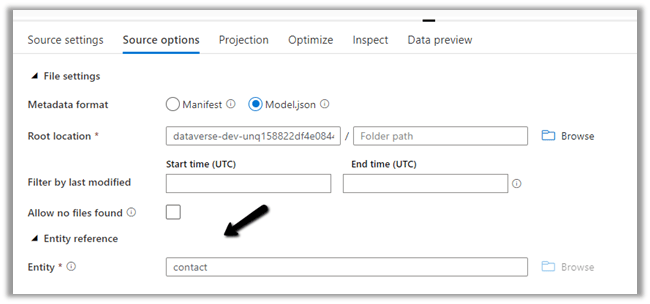
Specify the Dataverse folder for the Root Location.

Here we have specified the contact entity from our Data Lake Storage.
Projection

In the projection we have cleared the generated schema using Clear Schema, also selected Schema options >> Allow schema drift


We have enabled Allow schema drift option which will create the required columns in the destination Azure SQL Table.

Optimize

Inspect
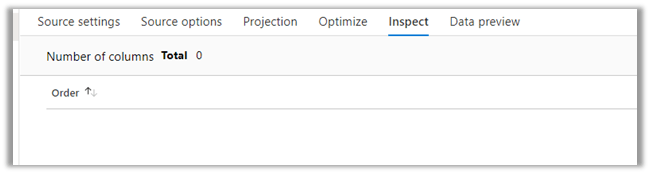
Data preview

As we have not turned on Debug mode, there is nothing to preview
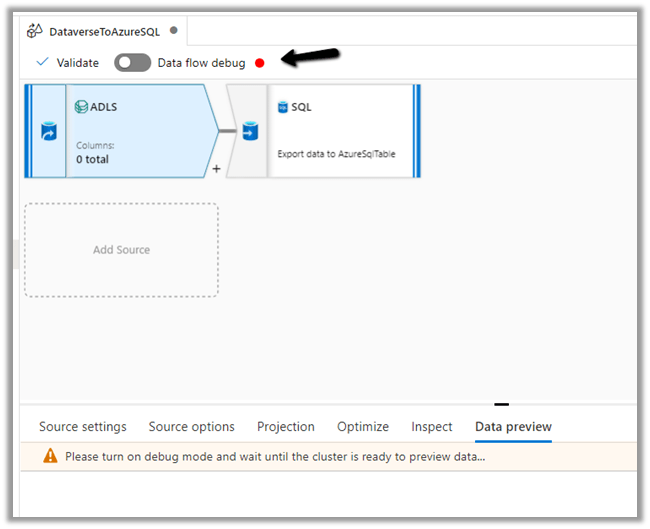
Now let us move to our Destination – SQL.

Sink

Here we have AzureSQLTable dataset connected to contact table in Azure SQL and have checked Allow schema drift option.


Below is our AzureSQLTable Dataset connected to the MyContacts table.

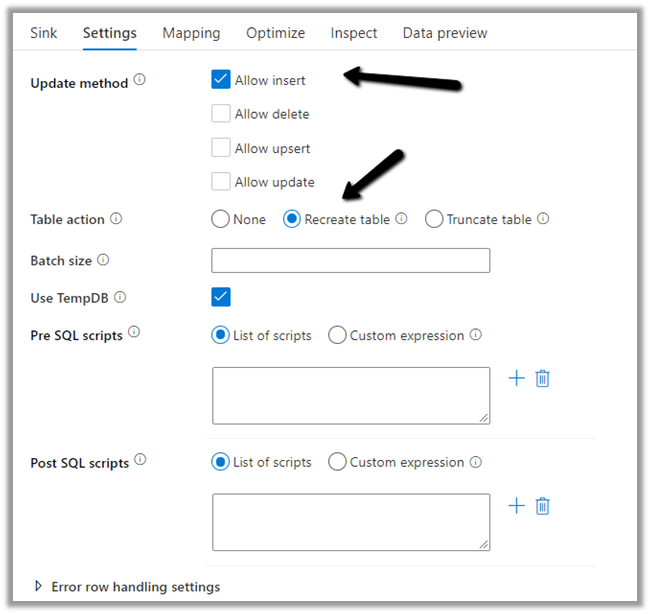
Settings

Here we have selected Allow Insert as the Update Method and Table
action as Recreate table – as we want the destination table to be re-created dynamically based on the source.

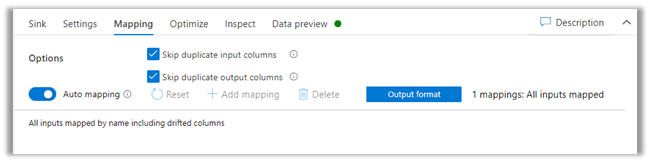
Mapping

We have left it to Auto mapping.
Optimize

Inspect

Data preview

Let us Publish All our changes and Debug our pipeline.

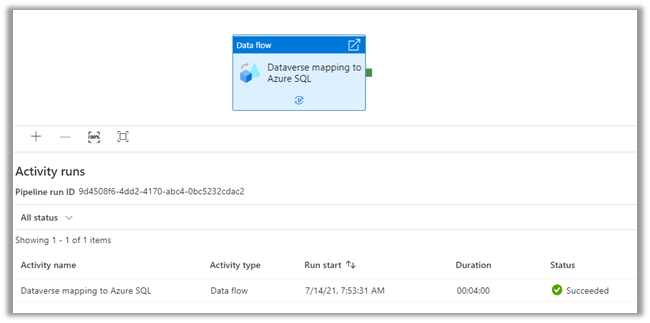
Let us monitor our pipeline run.

We can see that pipeline has run successfully and took around 4 minutes.
We can see the contact’s data copied to our Azure SQL successfully.
So here we covered the insert operation, in the next posts we’d see how we can configure update, upsert and delete operation.

Also, check

Posts on Azure Data Factory

Posts on Azure Data Lake

Hope it helps..

How to – Get the size of tables in Dataverse / Dynamics 365


Using the Capacity page in the Power Platform Admin Center we can extract the details of size occupied by table (in MB) within a particular environment.

Login to the admin portal and navigate to Capacity

https://admin.powerplatform.microsoft.com/resources/capacity

Select the Dataverse tab and click on Details or in case of trial click on the Trial tab

Here we have selected the details (graph) option for one of the environments.

Select Download all tables option for the Top database capacity use, by table chart


We can see the details within the extracted CSV file.

Get all the details here

https://docs.microsoft.com/en-us/power-platform/admin/capacity-storage#environment-storage-capacity-details

Hope it helps..

Advertisements

Solved- Currently, Dynamics 365 apps can only be enabled for your default region error


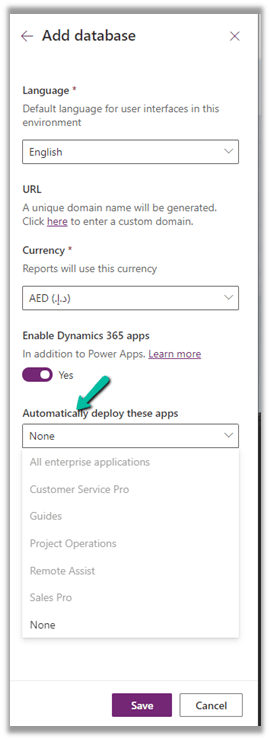
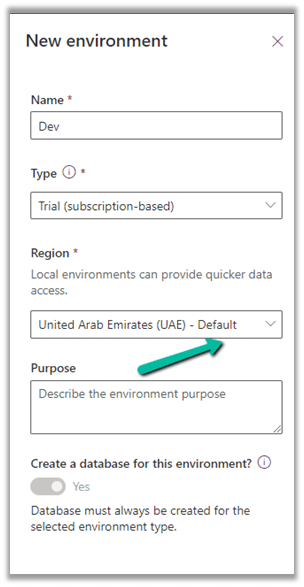
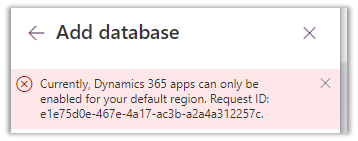
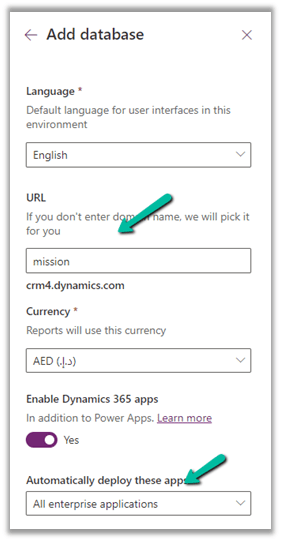
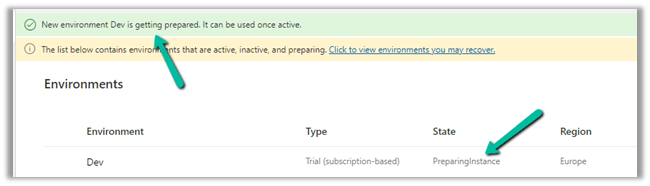
While trying to add a new Trial (subscription-based) on a Dynamics 365 Trial environment, we were getting the below error

Currently, Dynamics 365 apps can only be enabled for your default region

The default region was UAE for the other environments 

Even for the Azure Synapse Link – it was showing the default region as UAE North

In our case selecting the Region to Europe allowed us to create a Trial (subscription-based).

Get all the details herehttps://docs.microsoft.com/en-us/power-platform/admin/create-environment

https://community.dynamics.com/365/f/dynamics-365-general-forum/395813/dynamics-365-apps-can-only-be-activated-for-your-default-region

Hope it helps..

Advertisements
Advertisements

How to – Optimize Delete operation – Dataverse / Dynamics 365


Recently we had to delete records for one of our entities, and we tried out different combinations of batch sizes and the number of threads with 25000 records as a sample to find the optimum setting.

Below is our sample SSIS Package (uses KingswaySoft Dynamics 365 Tool Kit), it retrieves 25000 record’s GUID (Contact table / entity) and then distributes it equally among 3 different CRM Destination Component running under different users (CRM Connection Managers).

How to – improve data migration performance – SSIS & Azure Data Factory (Dataverse / Dynamics 365)

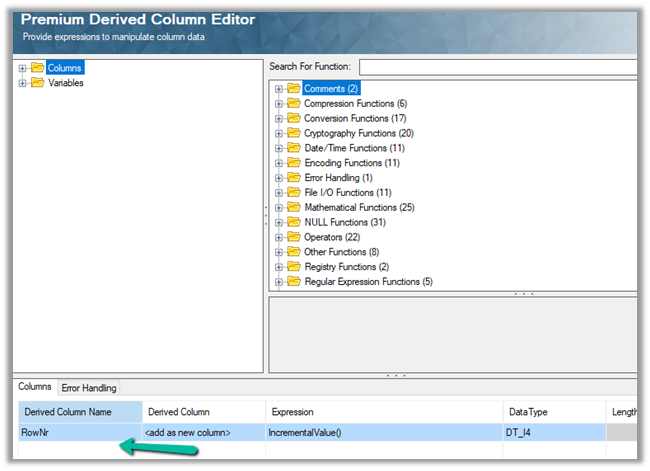
Below is our Premium Derived Column where we have added a new column with expression IncrementValue()

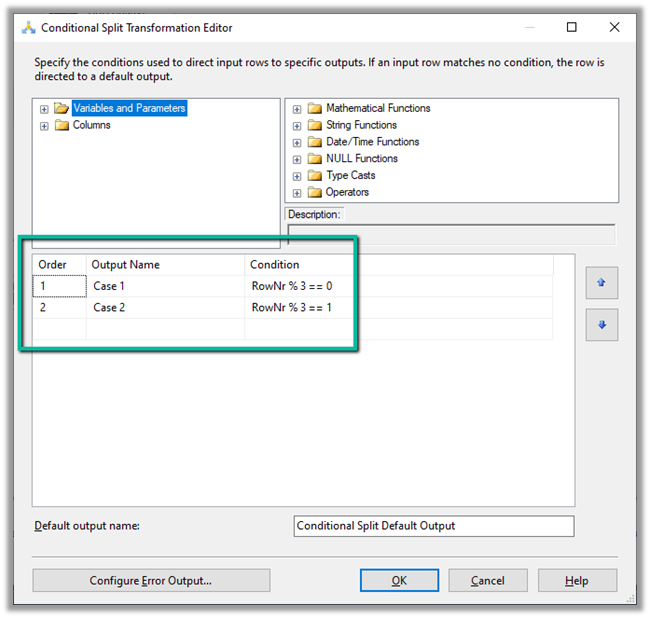
In Conditional Split component, we are then using this new column added to distrubute the output across three CRM Destination Component, each using a different CRM Connection Managers running under different application users.

We first started with 10 batch size and 20 thread followed by different combinations after that à

Below were our findings ->

Records Count Batch Size Thread Parallel Users Elapsed Time
25000 10 20 3 00:15:58.578
25000 10 15 3 00:14:43.734
25000 10 10 3 00:16:06.438
25000 10 5 3 00:23:52.094
25000 10 15 2 00:18.55.012
25000 10 15 1 00:39:15.828
25000 20 30 1 00:39:12.781

As we can see the Batch size 10 and thread around 15 gave us the best performance. However, evert environment / conditions will would be different so we should try out different combinations before finalizing.

SSIS and Microsoft Dynamics 365

Hope it helps..

Advertisements

Sample code (C#) for Multi-Table Lookup / Polymorphic Lookup attribute in Dataverse / Dynamics 365


For creating multi-table lookup we already have an XrmToolBox plugin Polymorphic Lookup Creator which we should be using ideally, but in case somebody wants to try it out, the below shared sample code can be referred.

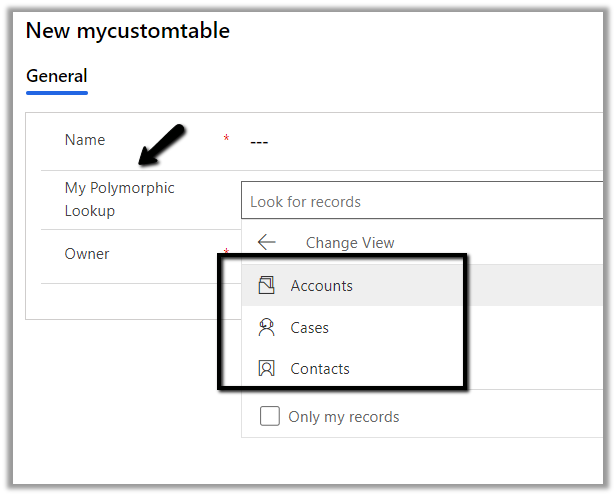
Below is our custom table named mycustomtable to which we’d add a multi-table lookup which references case, contact and account entity.

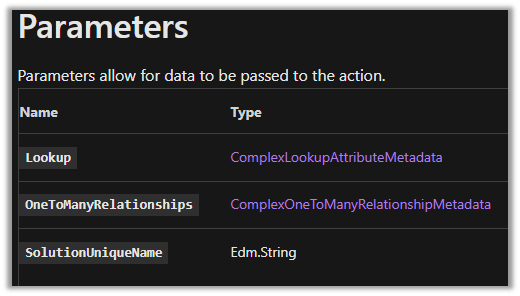
We need to call CreatePolymorphicLookupAttribute Action, which expects 3 parameters

Below is the sample code to create the polymorphic lookup.

string ConnectionString = "AuthType = OAuth; " +
                  "AppId=51f81489-12ee-4a9e-aaae-a2591f45987d; " +
                  "Username=user@domain.onmicrosoft.com; " +
                  "Password=pwd; " +
                  "RedirectUri=app://58145B91-0C36-4500-8554-080854F2AC97;" +
                  "Url = https://orgname.crm4.dynamics.com/;";


 CrmServiceClient svc = new CrmServiceClient(ConnectionString);

            if (svc.IsReady)
            {
                // Create PolymorphicLookupAttribute 
                // with mycustomtable custom entity / table
                // referencing case, contact and account entity
                var varOrgRequest = new OrganizationRequest();

                // specify the request name
                varOrgRequest.RequestName = "CreatePolymorphicLookupAttribute";

                // specify lookup attribute details
                varOrgRequest.Parameters["Lookup"] = new LookupAttributeMetadata()
                {
                    SchemaName = "crf82_mypolymorphiclookup",
                    DisplayName = new Label("My Polymorphic Lookup", 1033)
                };

                // referencing entity is our custom entity named my custom table
                // referenced entity is incident
                var oneToManyRelation1 = new OneToManyRelationshipMetadata();
                oneToManyRelation1.ReferencingEntity = "crf82_mycustomtable";
                oneToManyRelation1.ReferencedEntity = "incident";
                oneToManyRelation1.SchemaName = "crf82_mycustomtable_crf82_incident";

                // referencing entity is our custom entity named my custom table
                // referenced entity is contact
                var oneToManyRelation2 = new OneToManyRelationshipMetadata();
                oneToManyRelation2.ReferencingEntity = "crf82_mycustomtable";
                oneToManyRelation2.ReferencedEntity = "contact";
                oneToManyRelation2.SchemaName = "crf82_mycustomtable_crf82_contact";


                // referencing entity is our custom entity named my custom table
                // referenced entity is account
                var oneToManyRelation3 = new OneToManyRelationshipMetadata();
                oneToManyRelation3.ReferencingEntity = "crf82_mycustomtable";
                oneToManyRelation3.ReferencedEntity = "account";
                oneToManyRelation3.SchemaName = "crf82_mycustomtable_crf82_account";

                // populate OneToManyRelationships parameter of CreatePolymorphicLookupAttribute request
                varOrgRequest.Parameters["OneToManyRelationships"] = new OneToManyRelationshipMetadata[]
                {
                    oneToManyRelation1, oneToManyRelation2, oneToManyRelation3
                };

                // specify the existing solution name 
                varOrgRequest.Parameters["SolutionUniqueName"] = "MySolution";

                var response = svc.Execute(varOrgRequest);
            }

The lookup à

Sample code to add a new relationship to an existing lookup.

                var createOneToManyRelationshipRequest = new CreateOneToManyRequest();

                // referencing entity is our custom entity named mycustomtable
                // referenced entity is contact - add the entity to be added
                var oneToManyRelationAdd = new OneToManyRelationshipMetadata();
                oneToManyRelationAdd.ReferencingEntity = "crf82_mycustomtable";
                oneToManyRelationAdd.ReferencedEntity = "contact";
                oneToManyRelationAdd.SchemaName = "crf82_mycustomtable_crf82_contact";

                createOneToManyRelationshipRequest.OneToManyRelationship = oneToManyRelationAdd;


                // specify lookup attribute details to which new relationship is to be added
                createOneToManyRelationshipRequest.Parameters["Lookup"] = new LookupAttributeMetadata()
                {
                    SchemaName = "crf82_mypolymorphiclookup",
                    DisplayName = new Label("My Polymorphic Lookup", 1033)
                };


                var createOneToManyRelationshipResponse = svc.Execute(createOneToManyRelationshipRequest);

Sample code to remove relationship from an existing lookup.

 var deleteRelationShip = new DeleteRelationshipRequest();
                // specify schema name of the relationship 
                deleteRelationShip.Name = "crf82_mycustomtable_crf82_contact1";
                svc.Execute(deleteRelationShip);

Sample code to delete the lookup

  // User delete attribute request 
                DeleteAttributeRequest varDelRequest = new DeleteAttributeRequest();

                // specify the entity name
                varDelRequest.EntityLogicalName = "crf82_mycustomtable";

                // specify the schema name of the entity
                varDelRequest.LogicalName = "crf82_mymultitablelookup";
                svc.Execute(varDelRequest);

Get all the details here –

https://docs.microsoft.com/en-us/powerapps/developer/data-platform/webapi/multitable-lookup?branch=pr-en-us-4448

Hope it helps..
Advertisements

Sample AppId / ClientId and RedirectUri for quick prototyping (Dataverse / Dynamics 365)


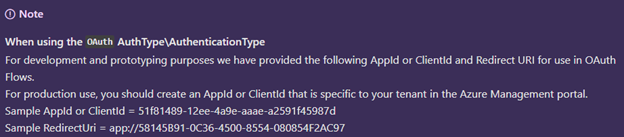
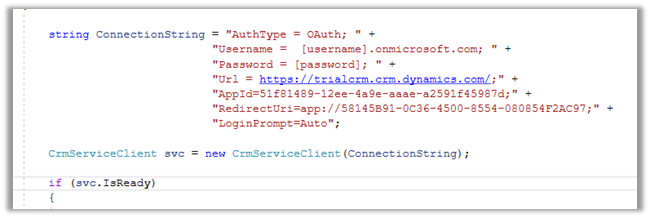
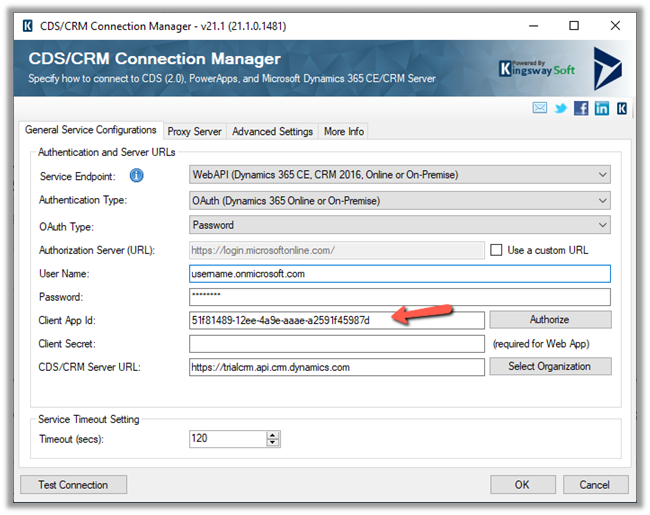
At times we want to quickly try out few things (PoC) by writing a console application or running an SSIS package etc., there we can use the sample ClientId and RedirectUri provided by Microsoft, instead of registering the application in Azure AD / creating Application User 

  • Sample AppId or ClientId = 51f81489-12ee-4a9e-aaae-a2591f45987d
  • Sample RedirectUri = app://58145B91-0C36-4500-8554-080854F2AC97

https://docs.microsoft.com/en-us/powerapps/developer/data-platform/xrm-tooling/use-connection-strings-xrm-tooling-connect

Connection String within a console app à

CDS /CRM Connection Manager of KingswaySoft ->

or use Interactive Login –  https://nishantrana.me/2021/07/01/interactive-login-option-in-cds-crm-connection-manager-in-kingswaysoft-dynamics-365-integration-toolkit/

Also check out -Sample Code (Dynamics 365 Web API) https://nishantrana.me/2021/01/06/sample-code-dynamics-365-web-api-organization-service/

Hope it helps..

 private void Form1_Load(object sender, EventArgs e)
        {

           string ConnectionString = "AuthType = OAuth; " +
           "Username =  [username].onmicrosoft.com; " +
           "Password = [password]; " +
           "Url = https://[org].crm.dynamics.com/;" +
           "AppId=51f81489-12ee-4a9e-aaae-a2591f45987d;" +
           "RedirectUri=app://58145B91-0C36-4500-8554-080854F2AC97;" +
           "LoginPrompt=Auto";

            CrmServiceClient svc = new CrmServiceClient(ConnectionString);

            if (svc.IsReady)
            {
              
                 // do the needful

            }
        }
Advertisements