How to setup – Azure Synapse Link – Microsoft Dataverse


Azure Synapse Link (earlier known as Export to Data Lake Service) provides seamless integration of DataVerse with Azure Synapse Analytics, thus making it easy for users to do ad-hoc analysis using the familiar T-SQL with Synapse Studio, build Power BI Reports using Azure Synapse Analytics Connector or use Azure Spark in Azure Synapse for analytics.

As a first step, we need to create the Azure Synapse Workspace.

Login to Azure Portal (https://portal.azure.com/ ) with appropriate roles and create a Synapse workspace.

https://docs.microsoft.com/en-us/azure/synapse-analytics/get-started-create-workspace

Wait for the deployment to be complete. Below are the resources created as part of the deployment.

Login to the maker portal (https://make.powerapps.com/ ) and select the appropriate environment

Click on Azure Synapse Link and check the Connect to your Azure Synapse Analytics workspace (preview) and specify the storage account created in the previous step

Here we have selected the Contact and System User table for export.

On clicking Save, we got this error couple of times, even though the account being used was Owner across the Azure resources. Trying save 3-4 times more, allowed the link to be created.

Click on Go to Azure Synapse Analytics workspace, opens the Azure Synapse Studio

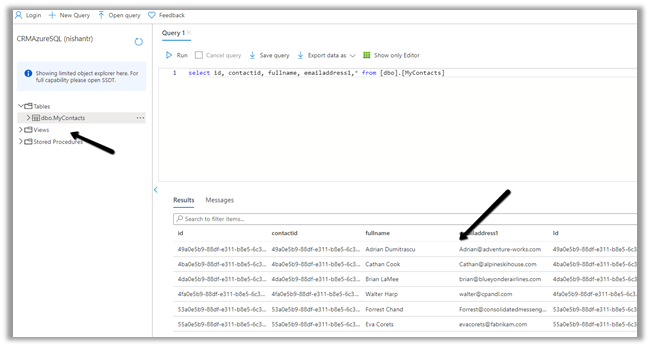
Within Synapse Studio we can see our Dataverse Database and run query.

Similarly, we create a Power BI report with Azure Synapse Analytics (SQL DW) connector.

Copy the Serverless SQL endpoint of the Synapse workspace.

Select the Direct Query option.

https://azure.microsoft.com/en-gb/blog/power-your-business-applications-data-with-analytical-and-predictive-insights/

Hope it helps..

Advertisements

How to – improve data migration performance – SSIS & Azure Data Factory (Dataverse / Dynamics 365)


In one of our projects, we were executing SSIS Packages (KingswaySoft’s Dynamics 365 SSIS Integration Toolkit) under Azure-SSIS Integration Runtime in Azure Data Factory.

Check out –

Deploy and run SSIS Package in Azure Data Factory

Deploy and run SSIS Packages that use KingswaySoft’s SSIS Integration Toolkit on Azure Data Factory.

After trying out different combinations, we eventually settled with batch size as 10 and thread as 15.

https://nishantrana.me/2021/06/08/data-migration-optimum-batch-size-and-threads-for-maximum-throughput-microsoft-dataverse-dynamics-365/

Also, we used multiplexing – running the CRM Destination Component under different application users.

To be precise, 4 in our case and we can increase it get further  improvement in the throughput.

And also based on the recommendation of our Microsoft’s Fast Track Architect we raised a Microsoft ticket to increase the number of web servers allocated from 2 to 3.

Below were our findings,

the earlier run was using batch size as 100 and thread as 20 with the number of servers as 2.

On updating the batch size to 10 and thread as 15 and with the number of servers allocated increased to 3, there was a huge performance gain.

Check the table below – 

The above table is sample run in the sandbox environment, during the final run in production we got the number of servers allocated, increased to 6, gaining further improvement.

Also, check out the below blog post to understand about the affinity cookie and its affect on performance, in case if we doing migration using custom code –

https://markcarrington.dev/2021/05/26/improving-bulk-dataverse-performance-with-enableaffinitycookie/

Hope it helps..

Advertisements

Modern Model App designer (preview) – Dataverse (Dynamics 365)


A new Model App designer (preview) was added to the platform recently.

It follows a page-based authoring approach and resembles the new UCI.

Within the Maker Portal, while create an new Model-Driven App, we can select Modern App designer (preview)

Provide the name and description to the app and click Create.

Click on Play to see how the default app looks like

Now let us add the lead and contact entity and some dashboards to it.

Click on New Page

Select Table based view and form. The other option is Dashboard.

Search and select Lead and Contact and leave it checked – Show in navigation option

This adds the form(s) and view(s) for the table selected.


We can click on form and view and can either let all the forms and views selected by default or can specify specific views and forms.

“No forms have been explicitly selected. All forms will be available by default.”

Similarly, we can add a Dashboard

Here we have selected 2 dashboards and kept the option – Show in navigation checked.

We can update the title of the Dashboards added.

From the navigation menu, we can arrange the components added -i.e. move them up and down and as well remove them.

We can also add new Group and also the Subarea of type either Table or Dashboard.


Save and Publish the change and click on Play.

Our App is ready.

Similarly, we can edit an existing App in the new preview designer.

We can also Switch to classic 

Our Classic App Designer à

Lastly, the Data section in the new designer allows us to edit our entity/ table.

DataSection

Hope it helps..

Advertisements

How to – Enable Notification in Model-Driven App (Dynamics 365)


By making use of appsetting and settingdefinition table, we can enable notifications in the Model-Driven App. (not sure if it is documented somewhere / or supported way) – so try in a trial environment.

I think the supported way is through customization.xml 

https://docs.microsoft.com/en-us/powerapps/developer/model-driven-apps/clientapi/reference/events/form-onsave#enable-async-onsave-using-app-setting

Thanks to the below post and tweets by Mehdi EL Amri, which describes the steps to be followed.

https://xrmtricks.com/2021/05/26/a-glance-of-the-onload-event-on-a-model-driven-app-form-async-onload-event/

Basically, we need to add a new record inside appsetting table which will have reference to the settingdefinitionid of that particular setting (Alert notification early access) inside settingdefinition table along with id of the app to which we want it to be associated.

  • Let us get the settingdefinitionid for Allow notification early access.

  • App Id for the Sales Hub.

  • Here we are creating a new record through a console application

  • parentappmoduleid – appid of the model driven app
  • settingdefinitionid – id of the specific setting
  • uniquename – name
  • value – set as true

Now let us create a flow on the creation of contact which will send the notification. (create the notification record)

On creating the contact record, we can see the notification inside our Sales Hub.

Settings allow us to enable/disable toasts and set the toast duration as shown below

Hope it helps..
 

Advertisements

Azure Synapse Link / Export to Data Lake Service – Performance (initial sync)


Recently we configured the Export to Data Lake service for one of our projects.

Just sharing the performance, we got during the initial sync.

Entity

Count

Contact

2,36,2581

Custom entity

1,61,3554

The sync started at 11:47 A.M and was completed around 4:50 P.M. – around 5 hours i.e. 300 minutes

Let us consider total records synced as 3975000 – 1613446 + 2362581 + 2 = 3976029.

So the performance here comes down to

  • 795000 records per hour
  • 13250 records per minutes
  • 220 records per second.

Of course, it will vary depending on the specific environment, table / entity type, attributes in it etc. it gives us a rough idea.

Hope it helps..

Advertisements

Retrieving security role privileges changes (audit) using KingswaySoft’s Dynamics 365 SSIS Integration Toolkit


We can specify Source Type as AuditLogs within the CDS Source Component Editor of KingswaySoft to fetch the Audit information.

Get the details :- https://nishantrana.me/2018/10/08/using-kingswaysofts-cds-crm-source-component-to-get-audit-information-in-dynamics-365-ce-ssis/

The Souce TypeAuditLogs includes Output type – Audit Details (Role Privileges), which can be used to fetch any audit information related to security roles.

Audit Details (Role Privileges) contains 4 columns, which we have mapped to columns in excel.

  • AuditId
  • OldRolePrivileges
  • NewRolePrivileges
  • InvalidRolePrivileges

Let us execute the package

The output à

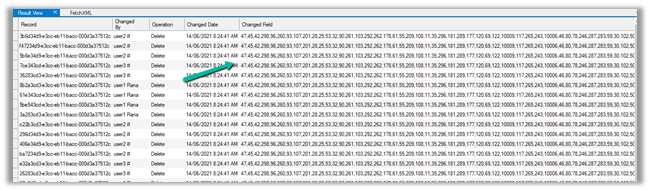
Here, the 1st row is when a new security role was created, the 2nd row is when an existing security role was updated and 3rd row is when a security role was deleted.

To get the complete information we need to combine this information (id which is auditid – first column) with the Primary output.

The columns of the Primary Output

After mapping, let us run the package with the Primary Output type.

Here below we can see the complete details by combining both the output using the auditid column

Note – to get the Audit Details (Role Privileges), we need to use SOAP – Service End Point type.

Also refer –

http://mscrmshop.blogspot.com/2016/06/auditing-security-roles-in-crm.html

http://www.kingswaysoft.com/blog/2019/10/16/Extracting-Audit-Logs-for-Multiple-CRM-Entities

https://nishantrana.me/2018/11/26/ssis-and-microsoft-dynamics-365/

https://community.dynamics.com/crm/b/mscrmcustomization/posts/ms-crm-audit-database-table-details

Hope it helps..
Advertisements