Step by step – Deleting an existing plugin from Plugin Assembly (Dataverse)


Recently we had a requirement to remove an existing plugin, as that was no more required.

Of course, we can simply disable the step here, but then going forward we might end up with too many such plugins and we will always have an overhead to make sure those steps are disabled, whenever we deploy the plugin to other environments,

As a first step, we can remove the plugin class from the project, either exclude or delete

Here, if we try to update the assembly we will get the error about the missing Plugin Type.
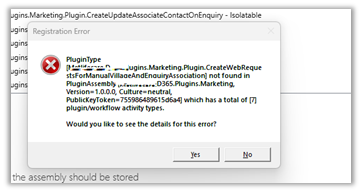
So as a next step, we need to Unregister the plugin from the Assembly through the Plugin Registration Tool.

Now we will be able to update our Plugin Assembly successfully.

Lastly, when we have to move the Solution having this plugin assembly to another environment, we can first remove the same Plugin Type from that environment through the Plugin Registration tool, before importing the solution.

Please refer to the helpful post – https://d365demystified.com/2021/12/19/renaming-or-deleting-a-plugin-in-dynamics-365-crm/

Hope it helps..

Advertisements

Filtering Attributes for Create message – Plugin (Dataverse / Dynamics 365)


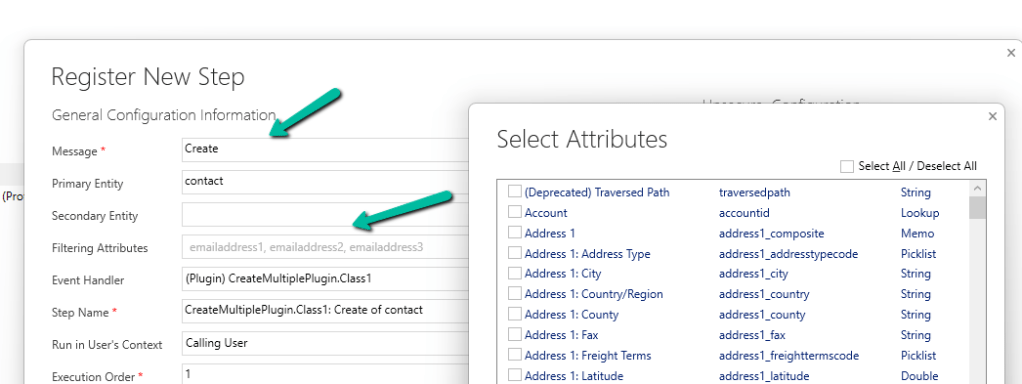
While registering a plugin step, found that we can now specify Filtering Attributes for Create message.

Check the below post for more details –

Advertisements

Use Query Assist Copilot to create Segments (Dynamics 365 Marketing)


Using Query Assist Copilot we can create segments easily through its Natural Language Processing (NLP) capability.

Create a new Segment from Real-Time Marketing >> Audience >> Segments

Specify the segment name and the target audience (either contact or lead)

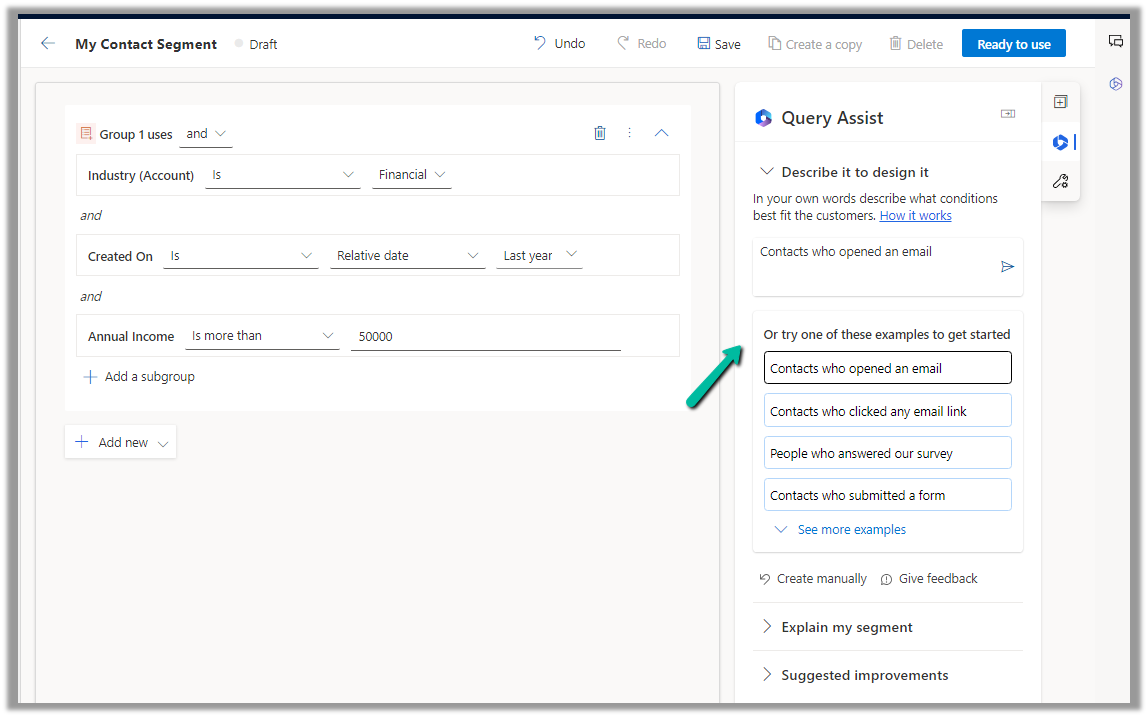
Now in Query Assist, we can specify the details of the segment

It also provides us the suggestions.

Let us select the “Contacts who were created last year and make more than $50K” option and append “who work in Financial Industry to it”.

Clicking on Create will open the segment designer page along with the Query Assist panel, which shows the result of the Query.

Click on Use to use that query result.

We can add further conditions to it.

Here we selected the example “Contact who opened an email

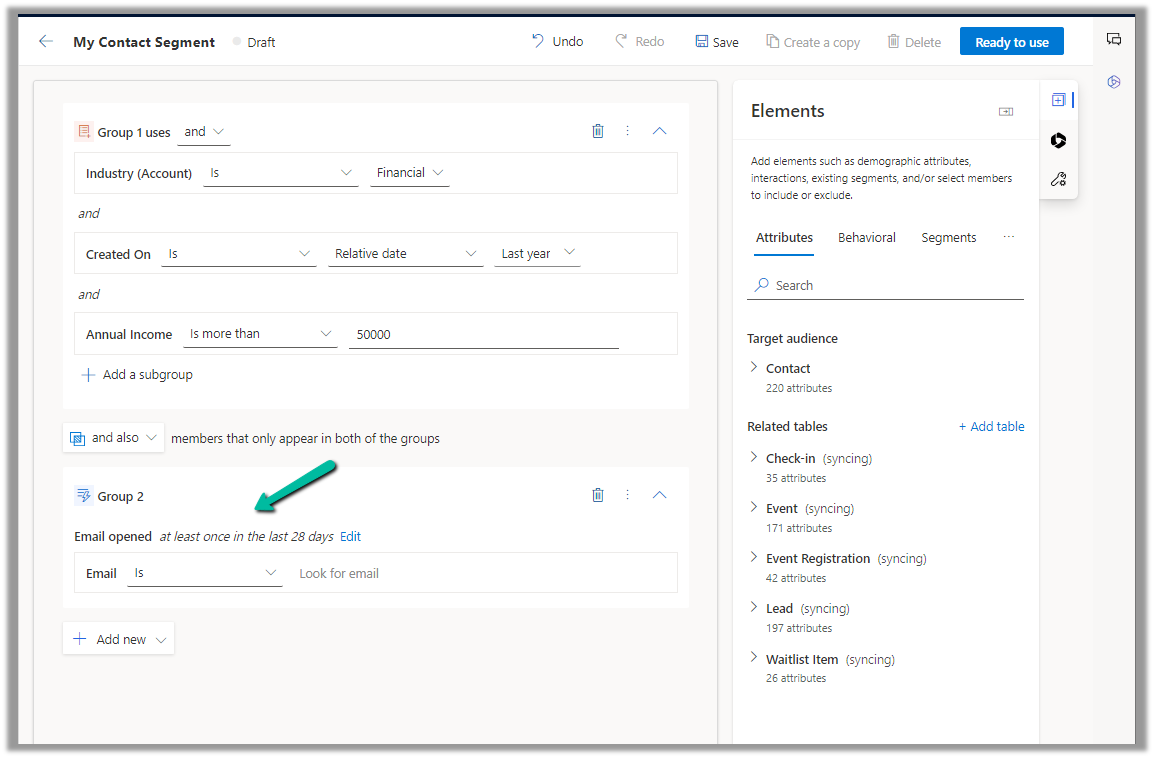
We can then add the result through the “Use” option

The query gets updated with the new condition

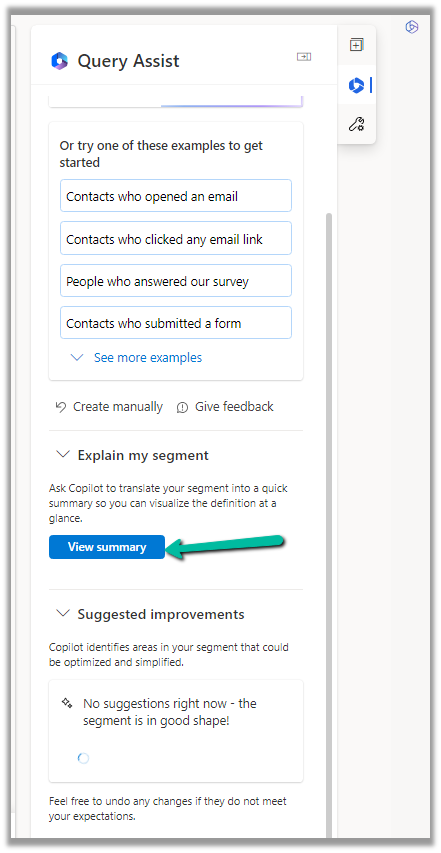
We also get the option to generate a summary for the segment or get suggestions for improving the segment.

Clicking on View Summary generates the summary.

Get all the details here

Hope it helps..
Advertisements

Pin Activities in Timeline – Dynamics 365


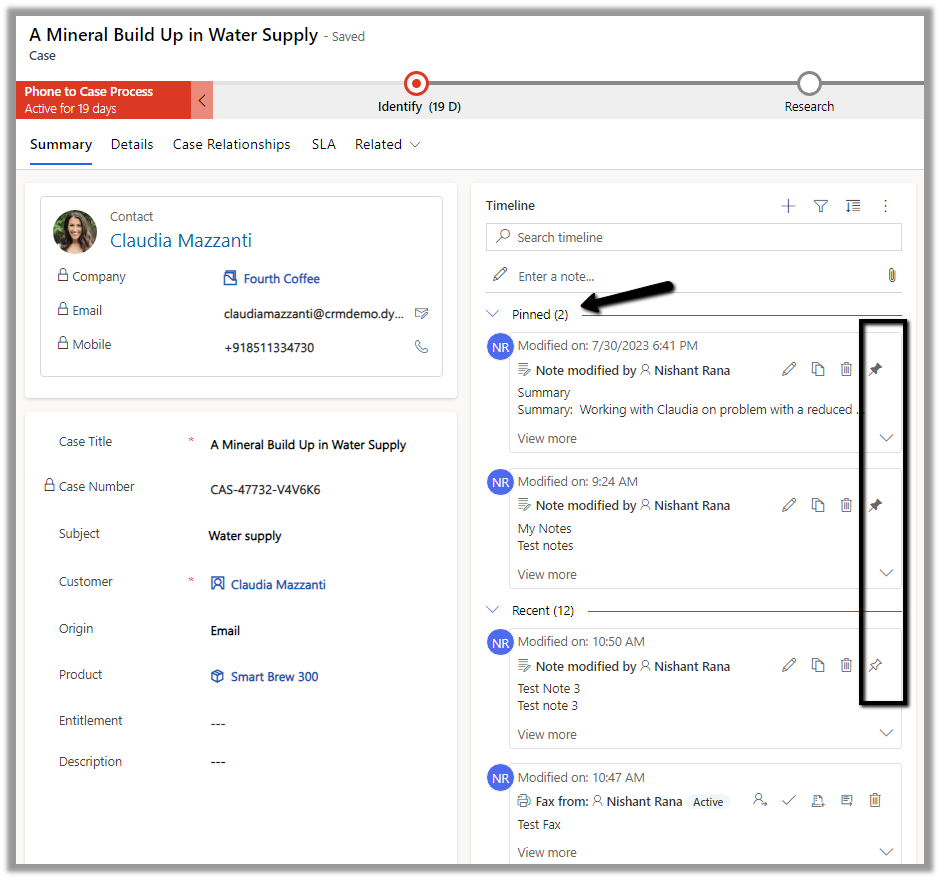
With the 2023 Release Wave 2, as per Microsoft Documentation, we can pin activities such as records to the top of the timeline.

We could see that option available for the Notes in the timeline.

It also shows the number of records pinned.

To unpin it, we need to click the icon again, and the record will move to its original position.

Hope it helps..

Advertisements

How to use – User Multiplexing to get better performance for Data Migration /Integration using KingswaySoft Integration Toolkit for Dynamics 365 (Dataverse / SSIS)


Let us see how we can make use of User Multiplexing to get better performance.

Below is our SSIS Package, which uses Data Spawner to create sample records, 20 K in this case, and CDS Destination to create those records (contact).

Data Spawner is used to create the 20000 contact record.

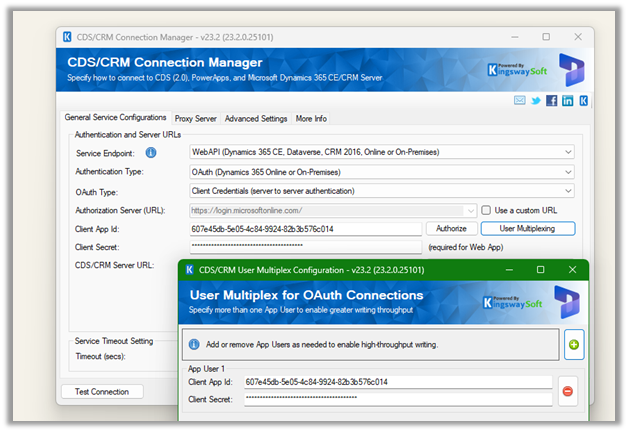
The CRM Connection is using just one application user.

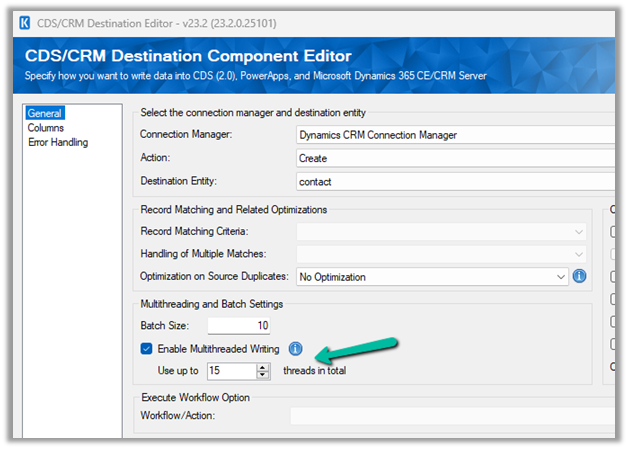
For the Destination Component we have specified,

  • Batch size = 10
  • Thread = 5

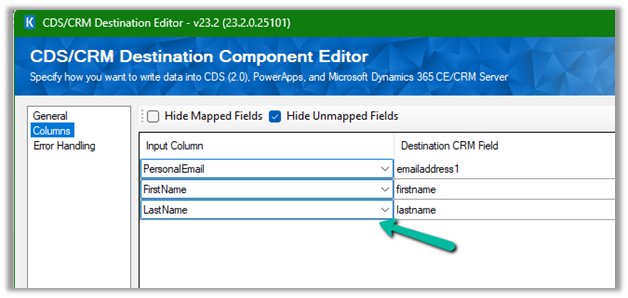
The mapping –

To create 20 K contact records with the above settings took around 20 mins

Now let’s add 2 more application users making it 3 application users in total. We’d keep the batch size and thread the same i.e. 10 and 5.

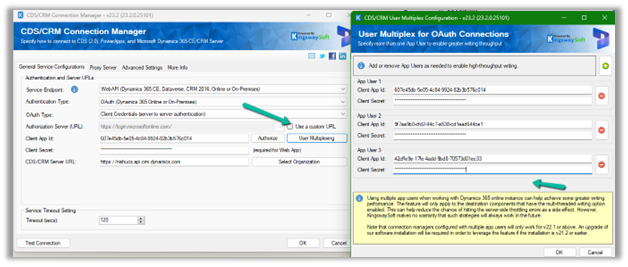
Open the Connection Manager>> User Multiplexing and add 2 more application users configured in the environment.

Let us run it again and observe the performance, this time it took around

11 minutes.

Let us increase the thread to 15 this time and see

It came down to 6 minutes.

Now let us keep the batch size at 10 and thread at 15, but increase the number of application users to 5.

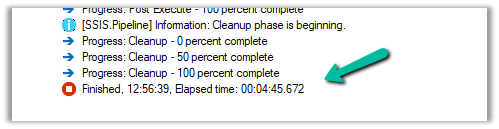
This brought it further down to 4:45

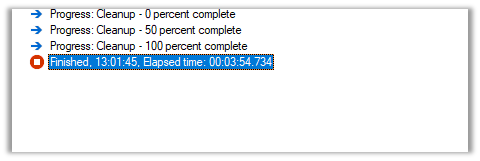
Let us run now with 10 batch sizes, and 5 application users but with 20 threads instead of 15.

It took 3:54 minutes

So to create 20 K contact records –

Batch Size

Thread

Application Users

Execution Time (mins)

10

5

1

19:39

10

5

3

11:17

10

15

3

6:47

10

15

5

4.45

10

20

5

3.54

Thus we need to consider using User Multiplexing (having different connections running under different application users) for better performance.

Get all details here – https://www.kingswaysoft.com/products/ssis-integration-toolkit-for-microsoft-dynamics-365/help-manual/crm/connection-manager

Hope it helps..

Advertisements

Use Sales Copilot to get the summary of a lead and opportunity (Dynamics 365)


Sales Copilot can generate a quick summary of a lead and opportunity record, based on the fields defined in a view.

Allow data movement across regions in the Power Platform Admin Center using Enable copilots and generative AI features outside United States and Switzerland – Power Platform | Microsoft Learn

To enable Sales Copilot, navigate to

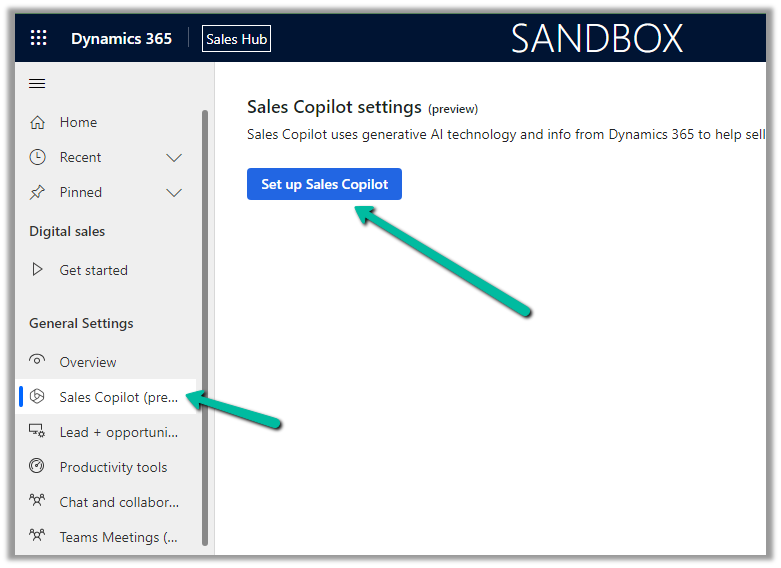
Sales Hub >> App Settings >> Sales Copilot (preview) >> Set up Sales Copilot

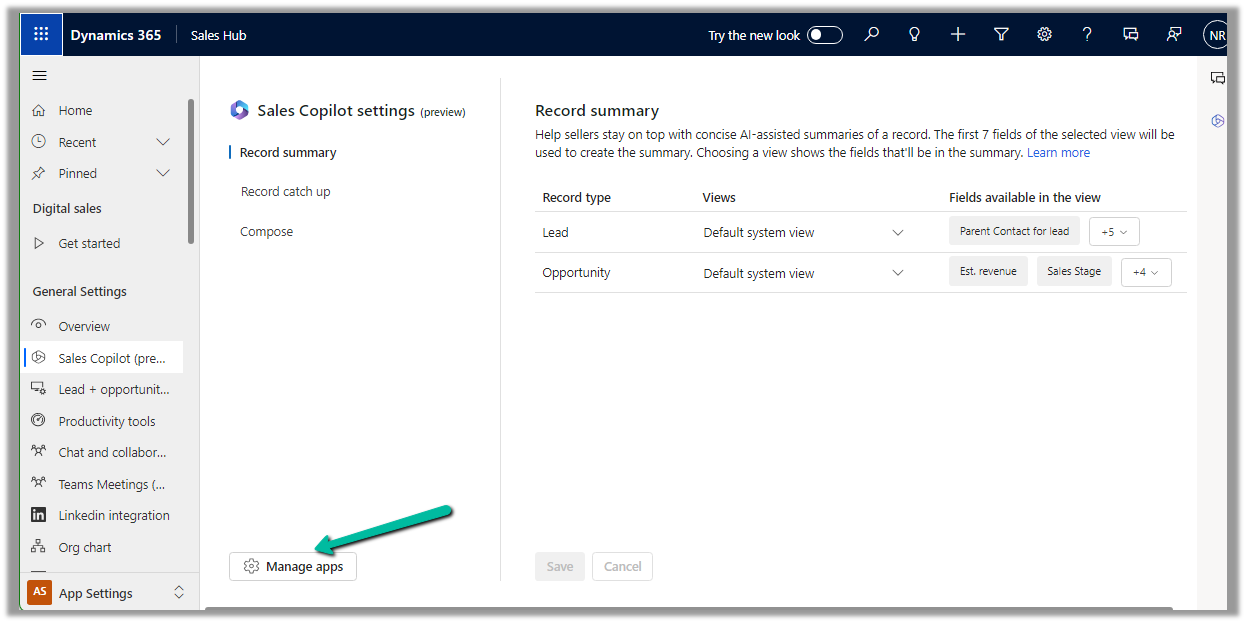
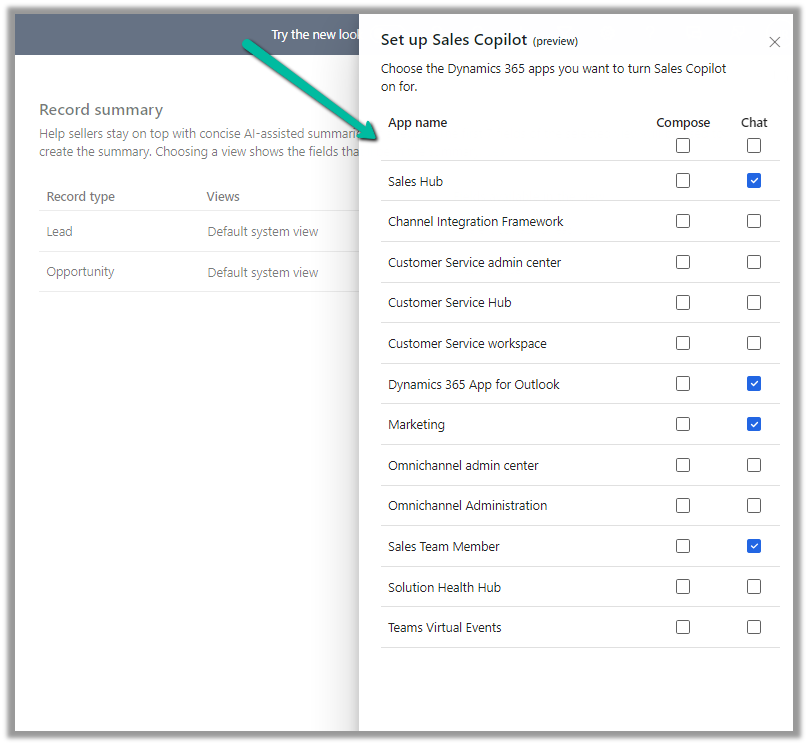
Or if we have already enabled it, we can manage the features provided along with the different apps we want to apply the Sales Copilot using the Manage apps option.

Here we can specify to which apps we want to enable the Compose and Chat feature

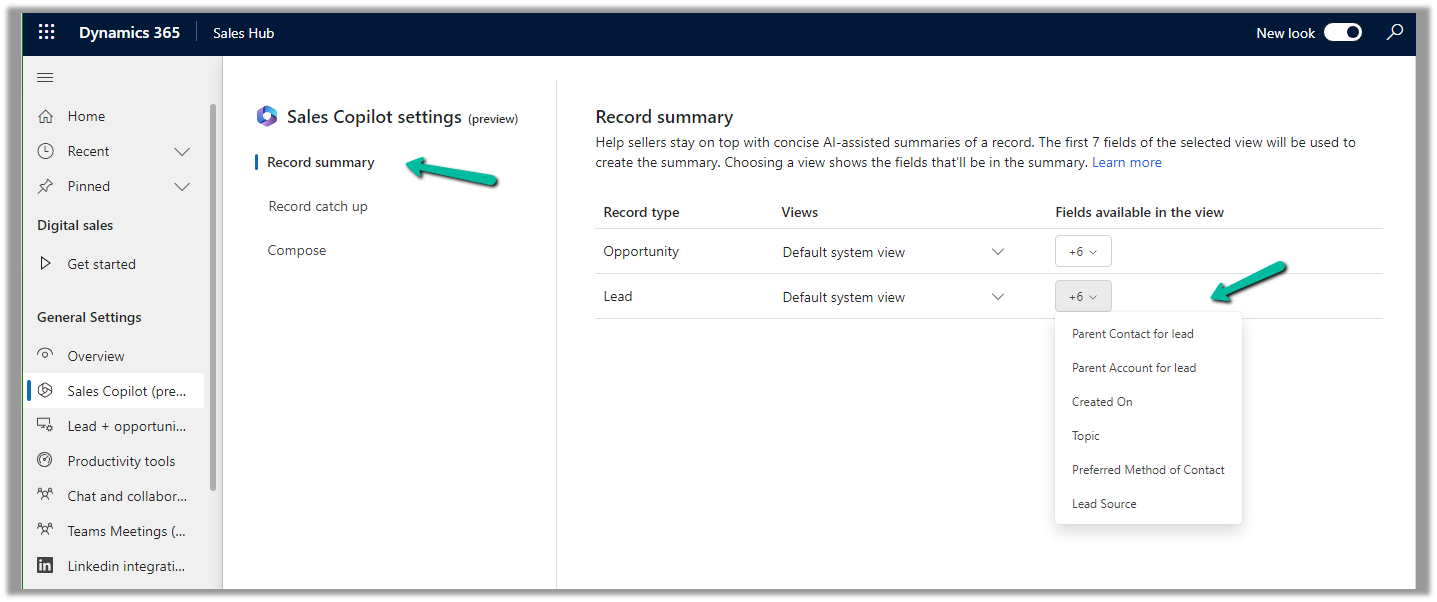
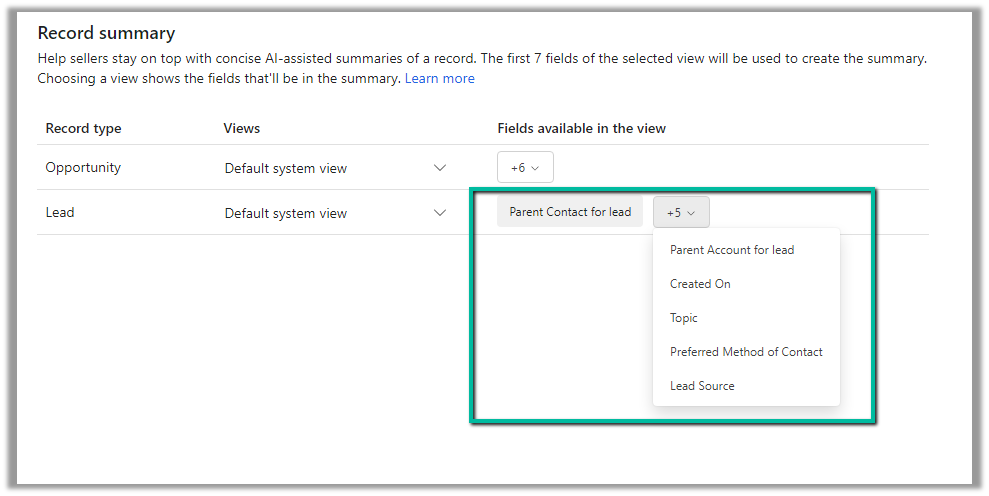
For the Record summary feature, the first 7 fields of the view are considered. We can see “Default System View” selected by default.

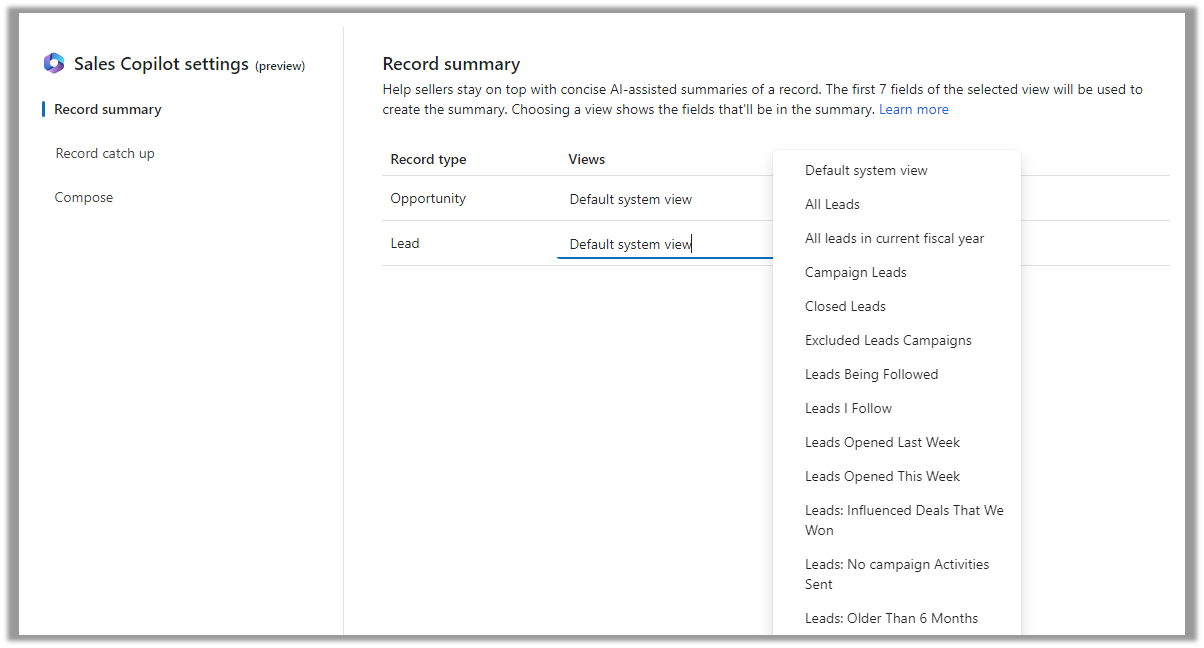
However, we have the option to select a different view, and then the fields of the selected view will be used for the summaries.

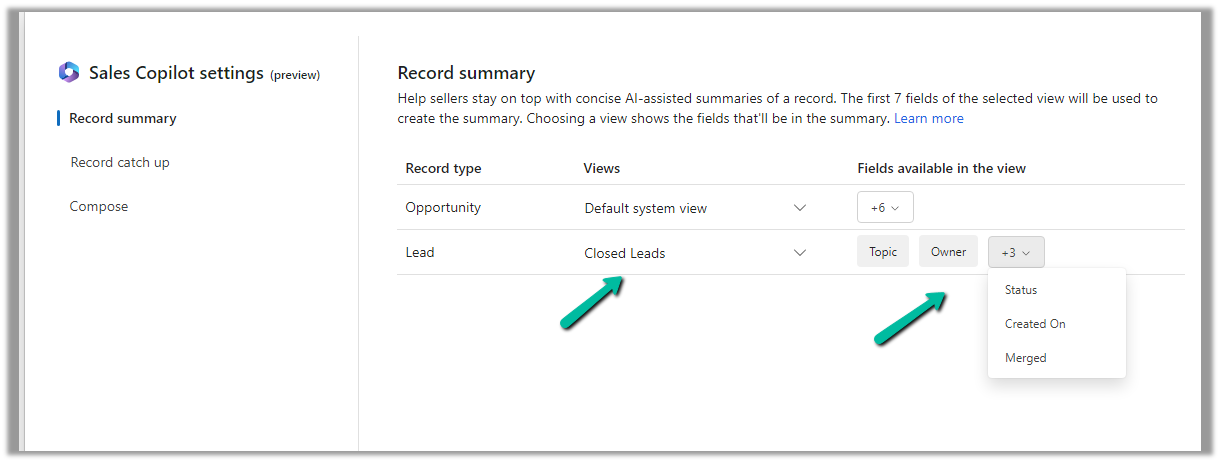
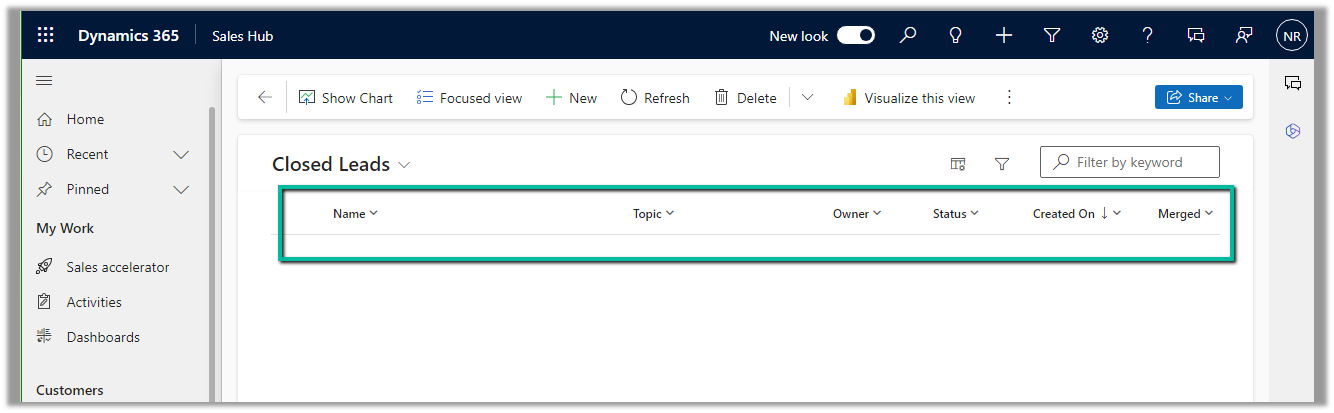
Below if we select the Closed Leads view and we can see it corresponding fields that will be considered for the summaries.

The Closed Leads view

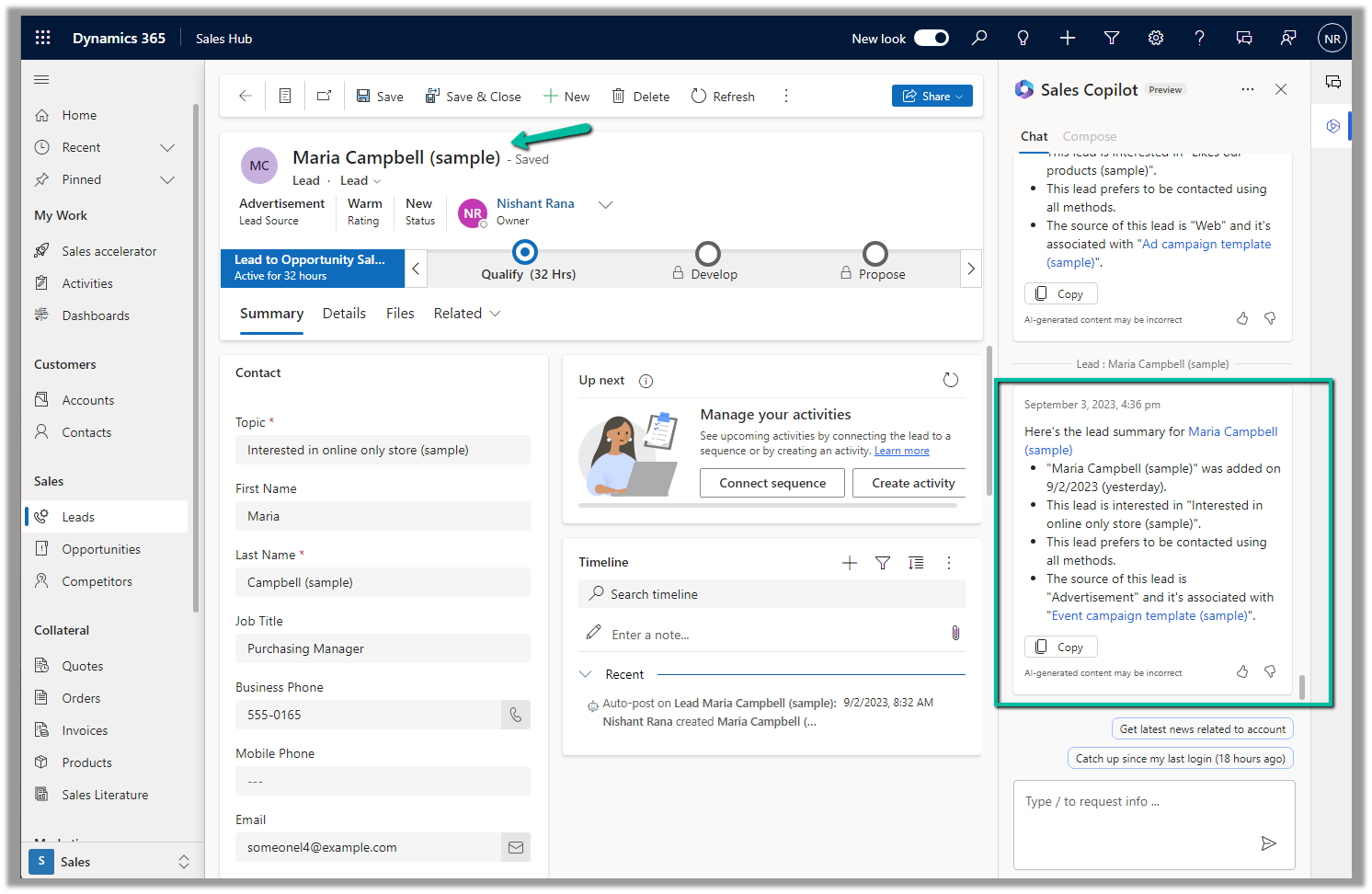
We can open an existing lead or opportunity record, and the Sales Copilot automatically generates the summary for that record.

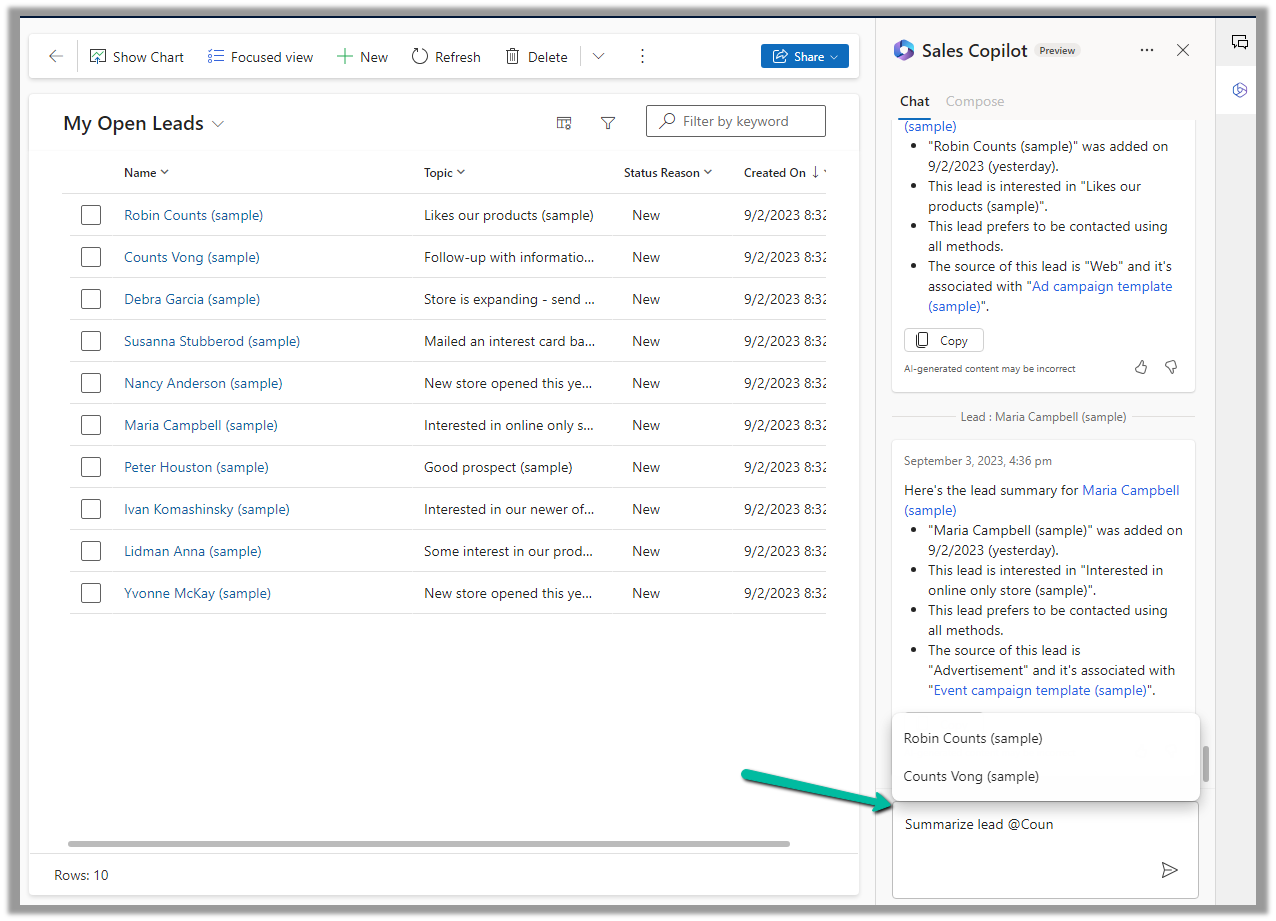
Or if we want to generate summary for a specific lead or opportunity we can use the below prompt.

Summarize lead or Summarize opportunity followed by @ and the record’s name.

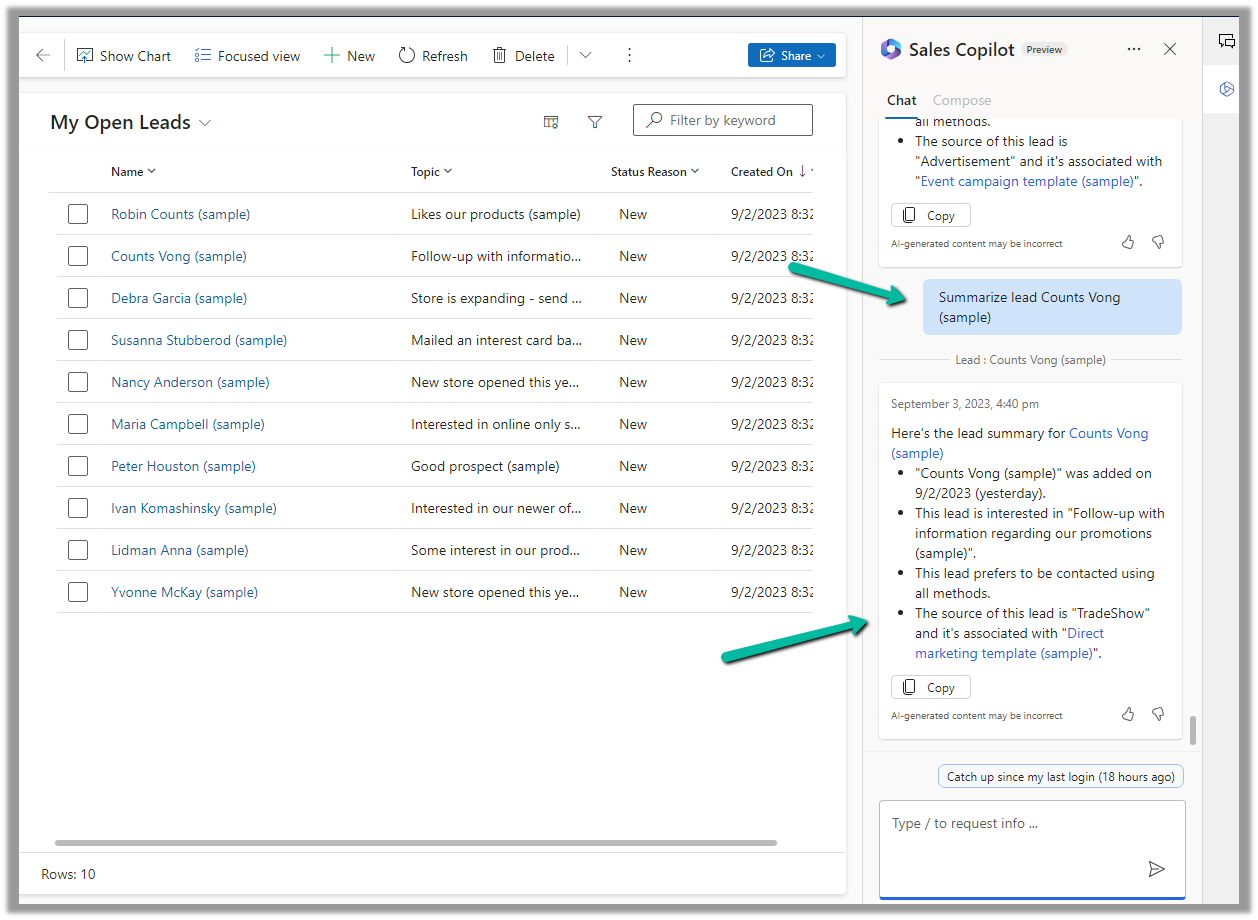
Below is the summary for Counts Vong (sample) lead record.

Here we can see the AI-generated summary making use of Created On, Topic, Preferred Method of contacct, Lead source field etc of Default system view.

Get more details here.

Hope it helps..
Advertisements