Getting started with TypeScript


TypeScript is an open-source programming language developed and maintained by Microsoft.

TypeScript adds Type support to JavaScript, which makes sure type checking is done resulting in fewer bugs, adds autocomplete supports in the TypeScript editor, supports Object Orientation and structuring and packing of the code, etc.

The code written in TypeScript transpiles to JavaScript by TSC i.e. TypeScript Compiler.

The easiest way to install TSC is to install it as a Node.js package using NPM i.e. Node Package Manager at the command line.

Download and install Node.js first if it is not already installed.

https://nodejs.org/

Make sure to include Node.js runtime and npm package manager.
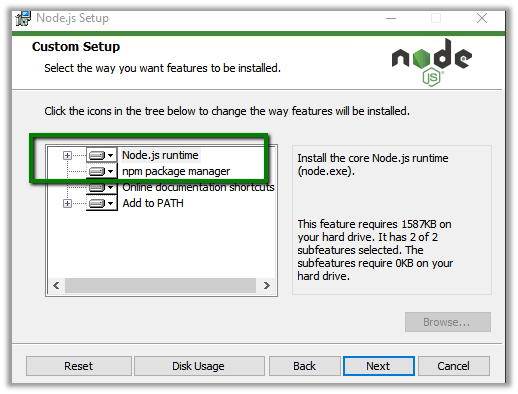
Now to install TSC, open the terminal and type the below command

npm install -g typescript
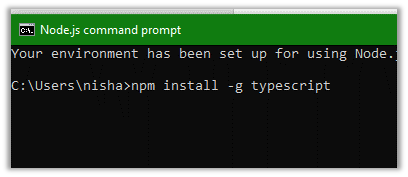
g makes sure that it is installed globally and not just in the directory from which we are running the command.

There are different editors available for TypeScript

Let us see how to configure TypeScript for Visual Studio Code.

Download link for Visual Studio Code (if not already installed)

https://code.visualstudio.com/

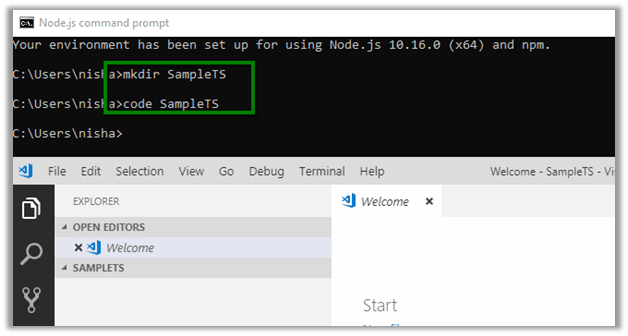
Open Visual Studio Code and select the working folder or

in Node.js command prompt, create the directory and open the visual studio code from there
From file explorer in Visual Studio Code, create the new .ts file
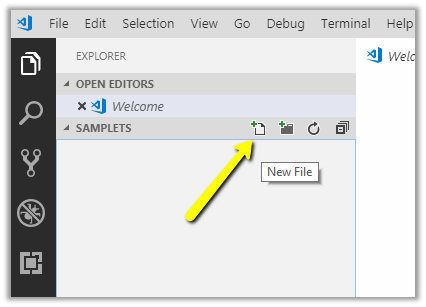
Create the typescript file with the extension .ts and add the JavaScript code

To compile the TypeScript code, open the integrated Terminal in Visual Studio Code and type

tsc <<FileName.js>>
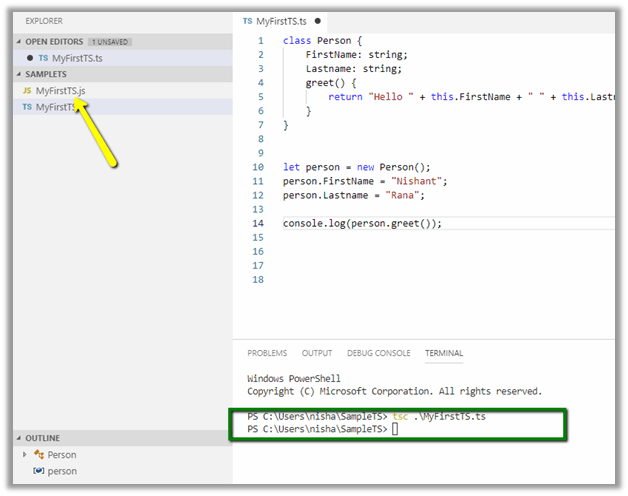

This creates a new corresponding JavaScript file for the TypeScript file.

To run it use the node command

node <<filename>>

We can also modify the TypeScript compiler’s default behavior by adding tsconfig.json.

Here we have added tsconfig.json file in the project with the following code
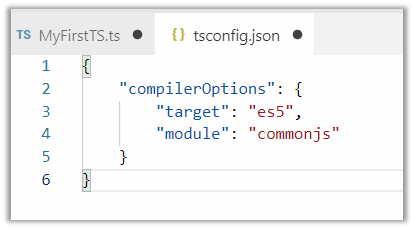
Check below link for different compilerOptions

https://www.typescriptlang.org/docs/handbook/compiler-options.html

To configure the build, execute Run Build Task…
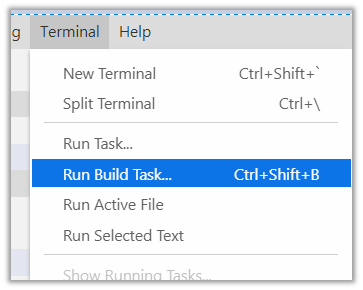
As we have created the tsconfig.json file earlier, we will be presented with the following option

Select tsc: build to run the build task.

If tsc: watch is selected the compiler will watch for the changes in TypeScript files and runs the transpiler whenever the changes are saved.

To set the build or watch task as default, select Configure Default Build Task from the Terminal menu.

On selecting tsc: build task, tasks.json file is added inside .vscode
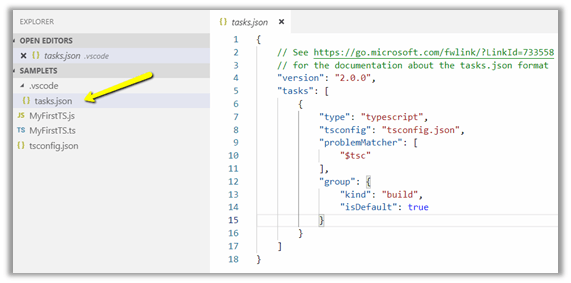
This sets build task as default, so now when we run the Run Build Task, we are not prompted to select a task.

This completes the basic environment setup for using TypeScript with Visual Studio Code.

Hope it helps..

Fixed – Workflows not firing “Waiting For Resources” in Dynamics 365 On-Premise


Recently in one of our environments, we started getting the issue that all our workflows were getting stuck at “Waiting for resources”.

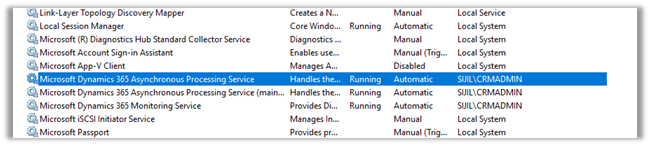
As usual first step was to check if Microsoft Dynamics 365 Asynchronous Processing Service is running it or not.

The service was disabled, so we enabled it. But still, it didn’t fix the issue.

Next thing we tried was as suggested in the below article

https://www.powerobjects.com/blog/2013/03/28/how-to-fix-a-crm-workflow-stuck-in-progress/

The value for AsyncSdkRootDomain was blank which we updated followed by a restart of the service. Still no luck.

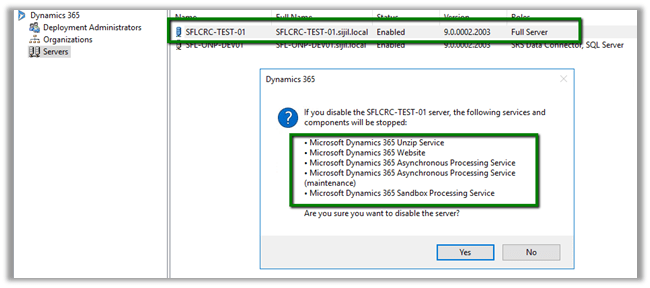
Eventually, we came to know that Servers setting for the roles Full Server were in the disabled state inside the Deployment Manager for the organization.

The reason CRM was still working because these services (including IIS Web Site) were already manually started earlier, however, the status was still disabled for this setting within Deployment Manager. (These settings were done by the network team who were planning to create the replica of these machines, and they wanted to disable the applications and our CRM technical team was unaware of it.)

Enabling it fixed the issue for it.

Hope it helps..
The workflow cannot be published or unpublished by someone who is not its owner error while importing solution in Dynamics 365 CE


Recently after upgrade of our Dynamics 365 CE from 8.2 to 9.1, when the System Administrator tried importing the solution (managed), he got the below error

The workflow cannot be published or unpublished by someone who is not its owner.

Error while importing workflow {ec05f40d-fd14-46ab-96b3-be1f5b108ef3} type Workflow name Marketing List – Update CT Relationship: The workflow cannot be published or unpublished by someone who is not its owner.

What the error says is that the user who is importing the solution needs to be the owner of the workflow that is there in that solution.

http://gonzaloruizcrm.blogspot.com/2011/05/processesworkflow-ownership-faqs.html

https://stackoverflow.com/questions/17159920/crm-2011-ru13-the-workflow-cannot-be-published-or-unpublished-by-someone-who-is

The thing was that we have never got this issue earlier for that System Admin user and we would have imported the solution at least 10 times earlier as well. This time the only thing different was that it was in the newer version 9.1

Changing the owner of the workflow and assigning it to the one who is importing will fix this issue. However interestingly and as expected when we tried importing the same solution using a different system administrator (again not the owner of the workflow in the target system), the import was successful with warning.

“The original workflow definition has been deactivated and replaced”

Read the below post to understand how workflows are managed internally

https://www.inogic.com/blog/2010/11/workflows-behind-the-scene/

Please share your thoughts, if someone has faced this issue recently and how they managed to fix this?

And what caused the issue to the first system admin and worked for the other.

Requesting the backup of Microsoft Dynamics 365 Online Database


In theory, requesting the backup of the online database seems very easy and straightforward. We basically need to raise a support ticket with Microsoft and provide the following details.

  • SQL Version – Standard or Enterprise
  • SQL Year of the version. In our case it was (Microsoft SQL Server 2016 (SP1) (KB3182545) – 13.0.4001.0 (X64) Oct 28 2016 18:17:30 Copyright (c) Microsoft Corporation Standard Edition (64-bit) on Windows Server 2016 Datacenter 6.3 <X64> (Build 14393)
  • Global Admin E-mail Address – to who the backup will be shared.

We had requested the same, some 3 weeks back. In our case, the Database size of our production was around 600 GB out of which 200 GB were occupied by Audit Data. For some business-specific reason, we wanted to have the backup of Audit Data with us before we delete it. Now, this Audit has a separate story with it, when we tried deleting it from UI we got the SQL Time Out issue and on raising the support ticket when Support Team tried the same through back end it, resulted in our Production Server being down briefly for few minutes. We also tried to take the back up through 3rd party tools using SSIS, however again we ran into some issue where the tool was not able to pull the Audit Data for few of the entities.

Well to cut the story short, it is around 21 days after we raised the request, and we are yet to receive the backup of our production database, we have been told that support team is actively working on it and it is because of the large size of the organization.

Will keep posting the update on the backup and the Audit deletion.

The purpose of this blog post was to share that certain things might seem straightforward and would have taken maximum few hours, could still run into issues and challenges causing delays. So, when we plan for it we need to aware of these factors as well.

Hope it helps..
HideCustomAction and Display \ Enable rule in Dynamics 365


Imagine a scenario where we have both the disable rule and HideCustomAction implemented for a ribbon button. Let us see with an example what will happen in this scenario.

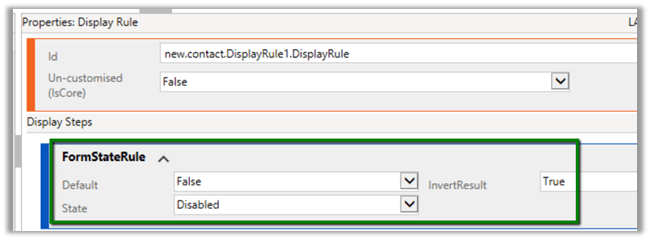
First, let us implement the display rule to hide the Delete button from Contact form when it is in a disabled state.

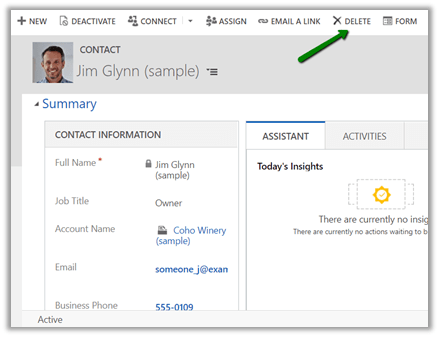
For active record à

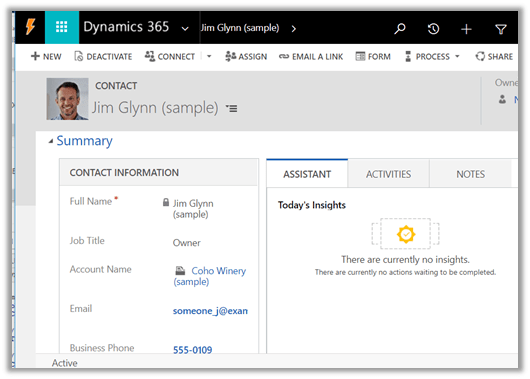
We can see the delete button in the command bar.

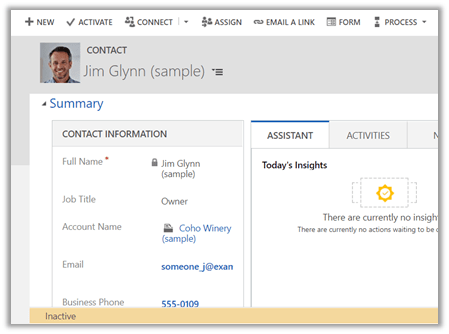
For disabled record à The delete button is not visible.

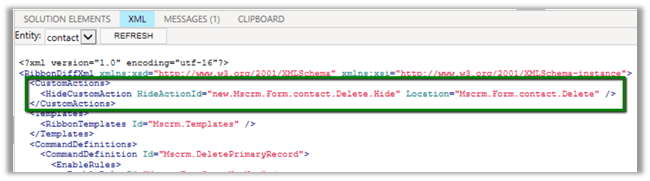
Now let us hide the button using HideCustomAction

Interestingly the Delete button is not available in case of the active contact record this time.

The reason for this is because the HideCustomAction button removes the specified node from the ribbon so that it is not rendered instead of hiding it. Therefore any other enable or display rules are not applied to that button.

https://docs.microsoft.com/en-us/dynamics365/customer-engagement/developer/customize-dev/define-custom-actions-modify-ribbon#hide-custom-actions

Hope it helps..
Different Updating Instance status during Dynamics 365 Upgrade


The day has come when we had scheduled the upgrade of our Dynamics 365 instance Test Instance(from 8.2 to 9.0).

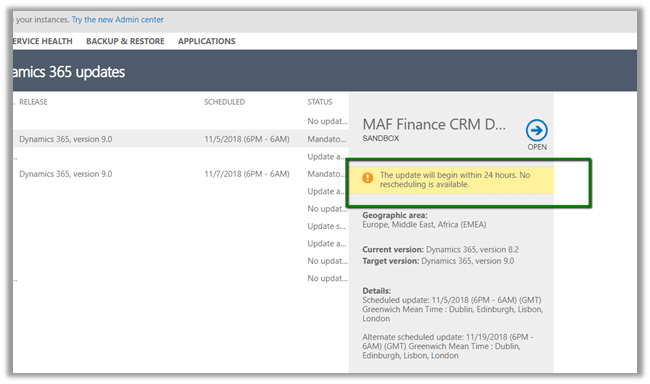
We can see the below message during the scheduled time à “The update will being within 24 hours. No rescheduling is available”.

The following Reschedule Update option will go missing during the scheduled time.

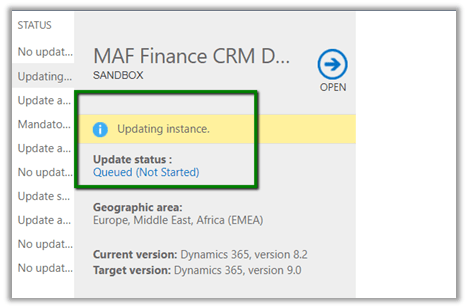
After waiting for few minutes, we see the Update Status as Queue (Not Started)

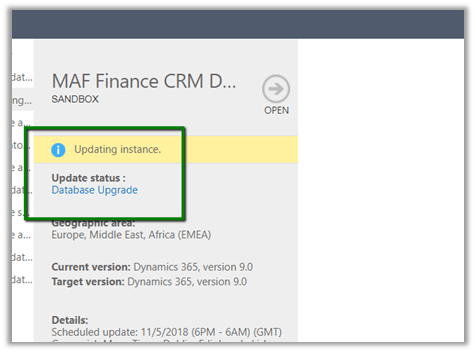
Followed by the status as “Database Upgrade”

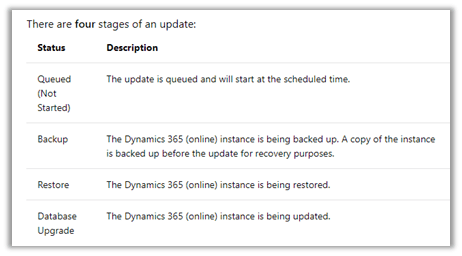
In between the Status message will be Backup and Restore.

https://docs.microsoft.com/en-in/dynamics365/customer-engagement/admin/manage-updates#update-status

Then it kept interchanging the status from Updating Instance (with no status) to Updating Instance – Database Upgrade for close to 2.5 hours.

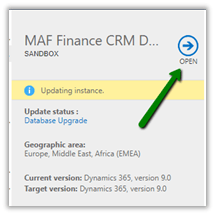
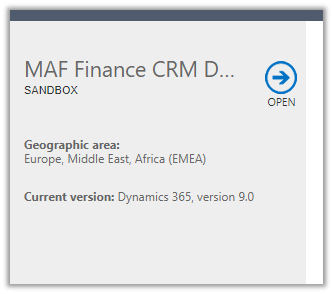
Then although the status was Updating Instance the Open link got enabled after 2.5 hours.

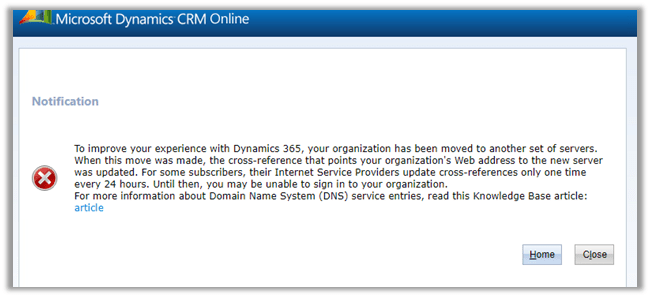
Which opened the following notification

And finally, after 10 minutes or so à

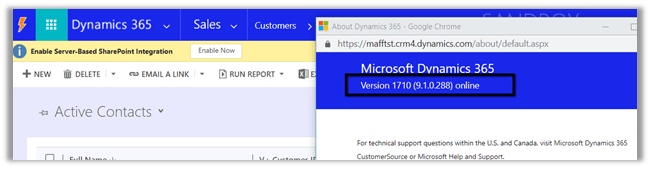
We were all set with version 9.1

In total it took around 3 hours approximately.

Time to enjoy the successful upgrade and explore the new features ..