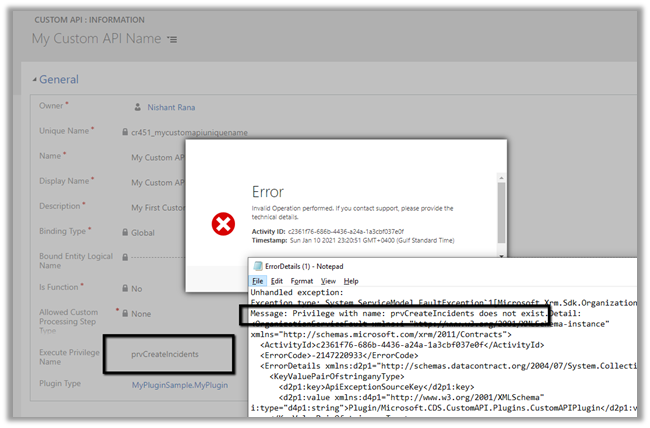
Custom API (preview) allows us to define our custom messages that can be called from web services, similar to Custom Actions. Usually, we would be creating custom workflow actions just to create a new message, to which we can hook our plugin, without defining any logic in the workflow. For this scenario or pattern now we can use Custom API instead.
There are different ways of creating a custom API.
Through the Maker Portal.
Using Web API or Organization Service.
Editing the solution files.
The 3 key entities involved here are
CustomAPI
CustomAPIRequestParameter
CustomAPIResponseProperty
Let us try creating a CustomAPI through the maker portal.
Create a new solution, and click on New and select Custom API
Let us start with a very basic custom action.
Unique Name
This will be the name of the message. Should have the prefix same as solution’s publisher.
Name
The name of the Custom API will show up inside the solution
Display Name
Localized display name of the Custom API
Description
Localized description of the Custom API
Binding Type
Value: 0 Label: Global
Value: 1 Label: Entity
Value: 2 Label: EntityCollection
Bound Entity Logical Name
Logical name of the entity in case of binding type – Entity and EntityCollection.
Is Function
Value: 0 Label: No
Value: 1 Label: Yes
Allowed Custom Processing Step Type
Value: 0 Label: None Meaning: No custom processing steps allowed.
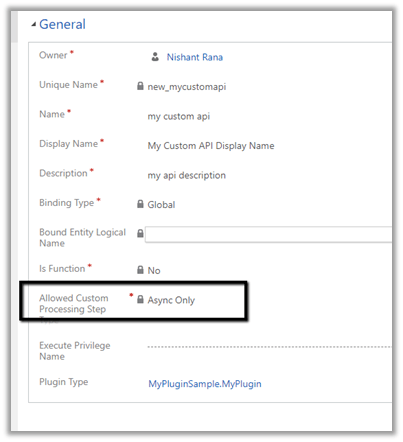
Value: 1 Label: Async Only Meaning: Only asynchronous custom processing steps allowed
Value: 2 Label: Sync and Async Meaning: No restriction. 3rd party plug-ins can add synchronous logic to change the behavior of the message
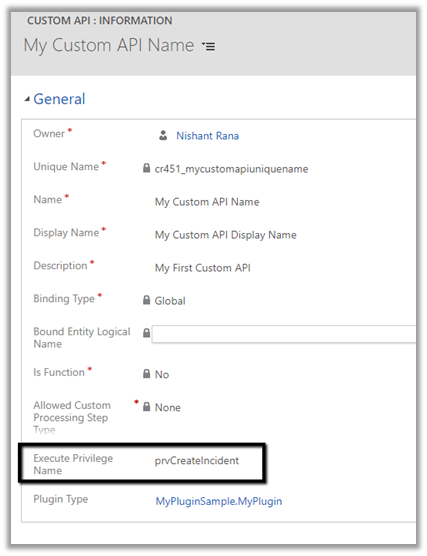
Execute Privilege Name
Name of the Privilege that is required for the execution of the Custom API.
Plugin Type
Reference of the plugin registered for the Custom API
So right now we have a very basic custom API registered of Global type, which doesn’t allow any steps to be registered and doesn’t need any privileges to execute
Let us write a sample plugin and associate with this new message.
Let us register the assembly
Now let us go back to our Custom API record and associate the Plugin registered.
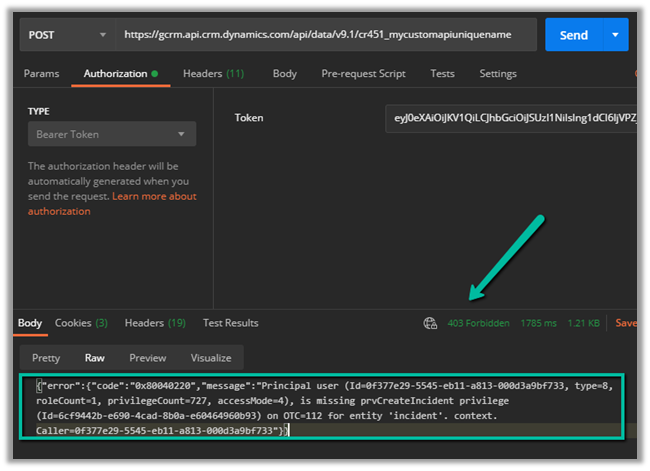
Let us trigger the plugin by calling the Custom API through the Postman.
Let us check the plugin trace log inside Dynamics 365 App.
Recently, we ran into an issue where the Audit History page stopped loading on the form. Interestingly, the problem was limited only to the Account forms. Whenever we tried to open Audit History, we…
We had a business requirement to block the closing of a Quote as Lost under certain conditions. Instead of leaving the quote in an Active state, we wanted the system to explicitly move it…
Accidental data deletion in Dataverse happens more often than we expect. A bulk delete job, an incorrect Power Automate flow, or incorrect manual delete can remove important records in seconds. Instead of restoring the…
In earlier posts, we looked at how to move a Business Process Flow (BPF) stage and finish the process by directly updating the BPF entity instance. In this post, we’ll use RetrieveProcessInstancesRequest and RetrieveActivePathRequest…
In the previous post, we explored how to move a Business Process Flow (BPF) to the next stage using a console application, with the Phone to Case Process as a working example. Advancing the…
In Dynamics 365, Business Process Flows are usually progressed by users through the UI. However, in scenarios like data migration, bulk remediation, or backend automation, we may need to move a BPF stage programmatically.…
In one of our recent Dynamics 365 / Dataverse projects, we ran into one issue with auto-number fields. We had configured an auto-number for the custom_id field on the Opportunity table. The format used…
Recently, we encountered a build error in one of our Dynamics 365 projects where Visual Studio was unable to find metadata files for NuGet packages, even though the packages were installed. CSC : error…
You’ve probably used ChatGPT or Gemini to generate code, write emails, or even debug errors. But what if you could do the same for your Dynamics 365 CRM? No plugins. No clicking around. No…
Recently, while trying to update the Projects table in Finance & Operations using the Fin & Ops Apps actions in Power Automate, we ran into below error: An error has occurred. No resources were…
Navigate to Settings -> Features and turn on the Relevance Search
This places the search bar in the header, making it easy to access while navigating across different pages.
With Relevance search turned off à
On clicking the search icon à we are navigated to the categorized search page.
The search result for the term “alex” with Relevance Search on–
Even before we can enter our query in the search box, the search box displays the recent terms (seems like max 3) used for search along with recent records (seems like max 6) accessed.
Provides increment search or real-time suggestions while we are tying the search term
In my previous blog I explained the issues that I faced while POA entity migration. Here I will explain the whole process that I followed to migrate the personal views with sharing information. I used kingsway soft adapter for my migration process.
We have 2 steps to migrate the data
Source CRM –> Intermediate database.
I enabled “Data Export Services” on the source instance to push the data into intermediate database.
Since “userquery” entity is not available in “Data Export Services”, I Designed a simple SSIS Package with source (Dynamics CRM) and destination (OLE DB) components.
We have to impersonate the owner of the personal view in the Dynamics CRM Source component to read this information.
So we have to run this package multiple times based on the user count.
Intermediate database –> Target CRM
Designed 2 more SSIS Packages to push “userquery” and “principalobjectaccess” (share) information to Target CRM…
Recently, while working with the Projects table from a Finance & Operations (F&O) environment, we ran into an error while using the Get a record action in…
Recently, one of the users reported the following error while trying to generate a PDF for a Quote record in Dynamics 365: Initially, the Export to PDF…
Few weeks back, while working on one of our Power Automate flows, we noticed a banner warning on the HTTP Request trigger step. Microsoft has announced that…
In this post, we’ll look at how we used the ParentContext property in Dynamics 365 plugins to determine if a plugin execution was triggered by another plugin…
Recently, while working with Quotes in Dynamics 365 Sales integrated with Supply Chain Management (SCM) through Dual-write, we encountered an interesting error while trying to activate an…
In Dynamics 365, attribute maps define how data flows from one record to another when creating related records. For example, when creating a Contact from an Account,…
Recently, we observed that one of our flows was getting triggered multiple times in our UAT environment; however, the flow was working properly in our Development environment.…
Recently we observed that our JavaScript code was not working as expected. Now when we write conditions in JavaScript, it’s natural to want to check if a…
When designing Business Process Flows (BPF) in Dataverse, we often want to make certain fields mandatory before users can move to the next stage. A common scenario…
Recently, while trying to copy an environment, we got the following issue – Something happened, and we couldn’t copy to this environment. Please retry. If the issue…
Recently, we faced an interesting import failure while moving a solution containing a Custom API. Solution “Temp Plugin Step Custom API Transfer” failed to import: Lookup value…
The new Dynamics 365 Sales mobile app (preview), has been introduced specifically for the field sellers who need quick access and intuitive management of the customer information on the go while travelling / meeting the customers.
To enable the App, navigate to Advanced Settings from the Sales Hub and then to Administration > System Settings > Mobile Client tab We also need to enable Relevance search on the environment for the mobile app’s search to work.