Integrating PVA with Omnichannel Live Agent


For part 1 –

Advertisements

Getting Started – Installation and Setup Kupp Code Analytics


In the previous post, we covered key features and capabilities of Kupp Code Analytics – the powerful Visual Studio Extension for Power Platform and Dynamics 365 Developers.

You can refer to it here

In this blog post, we’d cover the installation and setup of the Kupp Code Analytics extension.

To get the extension, inside Visual Studio Marketplace, we can search for it and download the appropriate extension.

Below we can see that there are 2 versions of the extension available, one for Visual Studio 2022 and the other for Visual Studio 2019.

Visual Studio 2022 – https://marketplace.visualstudio.com/items?itemName=KuppSoftware.kca2022

Visual Studio 2019https://marketplace.visualstudio.com/items?itemName=KuppSoftware.KuppCodeAnalytics2019

We can also install it from inside Visual Studio, navigate to Extension, search for Kupp Code Analytics, and download the extension.

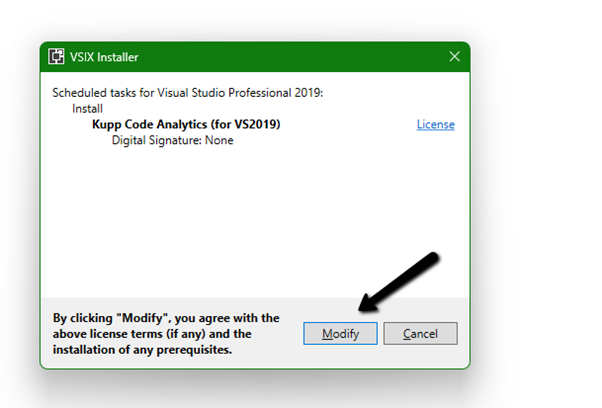
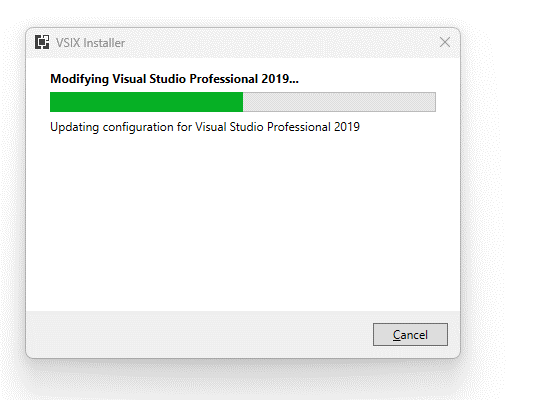
Click on Install / Modify (if already existing) to start/modify the installation.

Below we have successfully installed the extension for Visual Studio 2019.

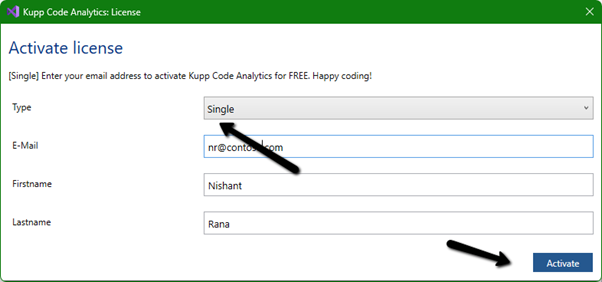
Next, we need to specify and activate the License

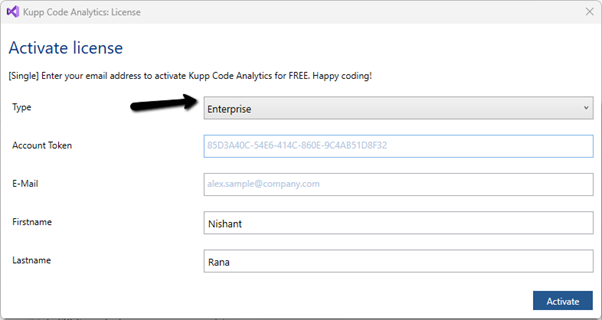
We have 2 types of licenses available for the extension.

Community License (free)– Select type Single, enter the contact details and click on Activate to apply for the community license. Clicking on Activate activates the license instantly.

Enterprise License – This is paid license for the enterprise, that comes with additional features and capabilities not available in the Community license.

We can contact the sales team of Kupp for it – https://kuppsoft.com/contact/

Once added, we can see and manage the license information in Tools >> Options >> Kupp Code Analytics >> License

With Extension Installed, and the license activated, the next step is to configure the tool to connect to our Power Platform / Dynamics 365 Environment.

Navigate to Extensions >> Kupp Code Analytics >> Connection >> Configure

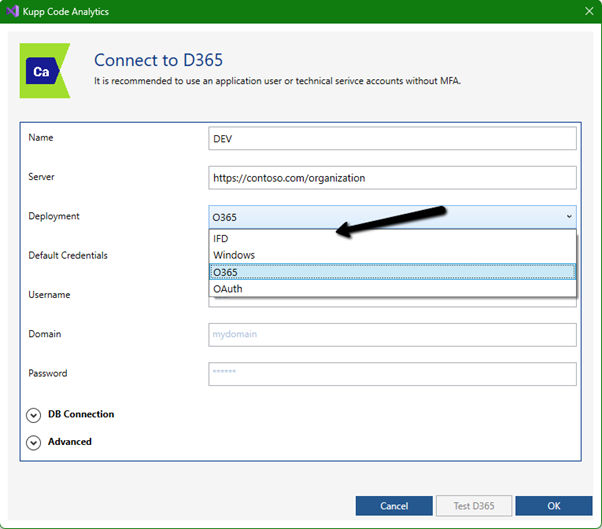
Select the appropriate connection or deployment type

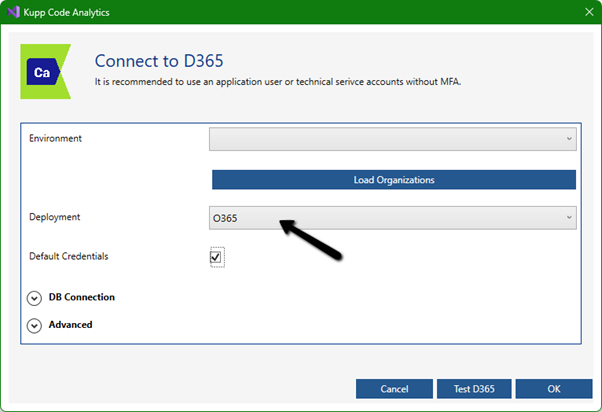
Here to connect to Dynamics 365 Online, we keep the Deployment type as O365 and click on Load Organization

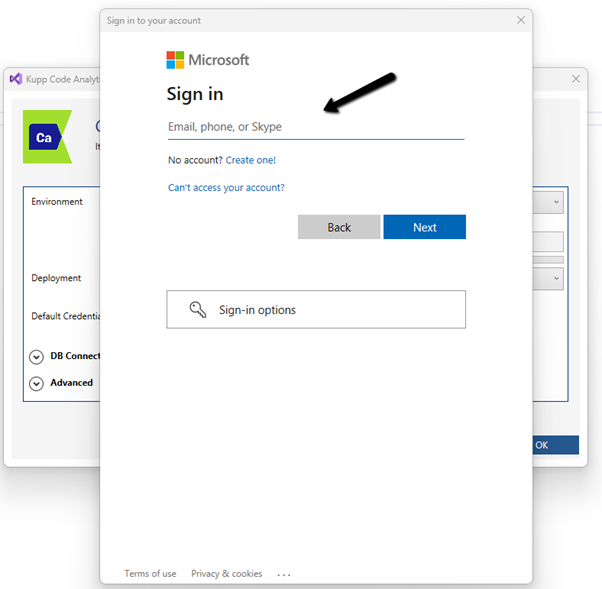
This opens the sign-in dialog where we can provide the appropriate account details.

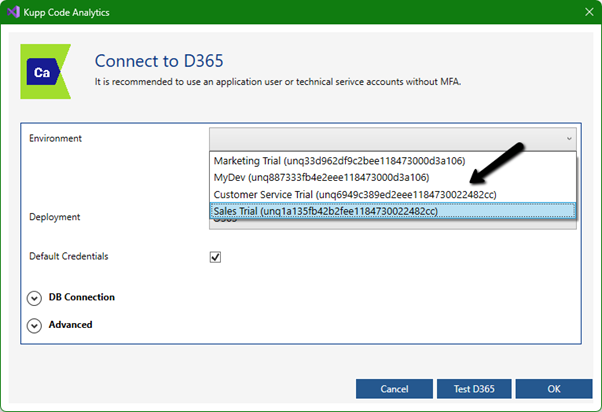
After successful sign-in, we see all the environments populated to which the user has access. Select the environment, we want to connect to.

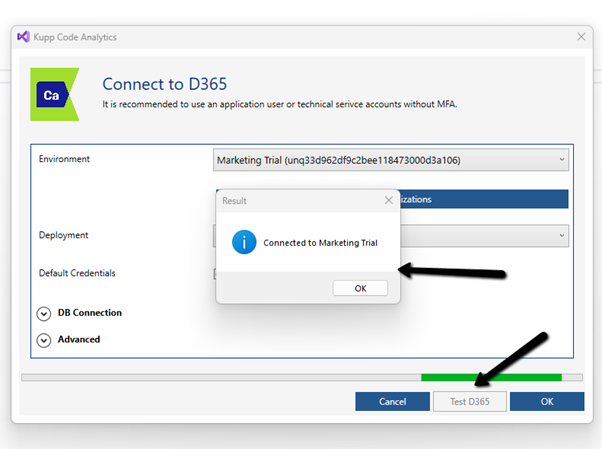
After selecting the environment, we can click on the Test D365 button and test the connection.

On a successful connection, we will get the success message as shown below.

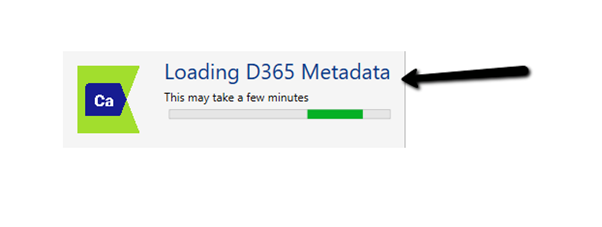
Clicking on OK will close the connection dialog box, and the tool will start the process of downloading the metadata for the environment connected. The download should be complete in a matter of a few seconds.

This completes the installation and configuration part of the extension. In the next blog post, we’d cover the key features of the extension in detail.

Also don’t forget to check out the other intuitive products developed by Kupp Software GmbH –https://kuppsoft.com/our-products/

Hope it helps..

Advertisements

Fixed – We can’t find the form page you’re trying to load – Dynamics 365 Marketing


Recently we saw the below error in one of our marketing forms hosted on the website –

We can’t find the form page you’re trying to load: <div data-editorblocktype=”FormBlock” data-form-block-id=”64d87bc7-279d-ed11-aad1-00224814fd52″></div>. Please check your page setup.


This occurs if the form is not Live.


Making the form “Go live” will fix the issue.


Hope it helps..

Advertisements

Missing dependencies – You’ll need to import the following items to this environment error while importing the solution – Dynamics 365 / Dataverse


Recently while trying to import one of the solutions we got the below error

Missing dependencies. You’ll need to import the following items to this environment.

It was referring to one of the Managed Solutions – DynamicsMKT_PushNotification, managed by Microsoft, for Microsoft Dynamics 365 Marketing.

We realized that the source environment had a higher version installed than the destination environment.

Source – 1.1.25335.61 and destination environment – 1.1.22667.44

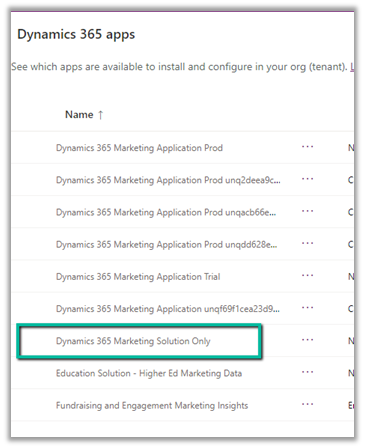
Initially, we thought the error is because the Dev had full marketing app configured i.e. both Solution and Services app configured and the destination had only Dynamics 365 Marketing Solution Only app.

The marketing apps –

After raising the Microsoft Support, we got guidance/advice from the Microsoft Support / Product team that the Dynamics 365 Marketing Solution Only app was not installed in the destination environment and it was a copy of some other environment that had marketing installed. They suggested installing the Dynamics 365 Marketing Solution Only app in the destination environment. After installing the app, we could see the version of the DynamicsMKT_PushNotification solution increased and were able to install our custom solution successfully.

Hope it helps..


Advertisements

Fixed – Canvas App / Custom Page not showing data (Dataverse / PowerApps)


Recently we faced an issue wherein the custom page was not loading any data, however, it was working for users with the System Administrator role.

The gallery control shows the Product details.

There were no errors in the Developer Tools, we tried by giving all Organization level rights to the users on the tables involved etc. but that didn’t help.

Eventually, it all came down to this particular line in the formula used for the Items property of the Gallery Control i.e. Asset Status field (custom field).

We had a field security profile created which had Read set as No and the users were part of that security profile, which explained why it was only working for System Admin users.

Changing the Read access to Yes for that column fixed the issue for us.

Hope it helps..

Advertisements

Get RequiredAttendee (Required) from the Meeting (appointment) table – Power Automate / Dataverse


Below is the sample flow we can use to retrieve the Required (requiredattendees) field’s value from the Meeting table (on the update of the record).

Here we are triggering the flow, if there is an update in the subject field of the meeting record.

Then using the List rows action we are fetching the Activity Parties record associated using the Appointment’s unique identifier and participation mask as 5.

More on participation type mask

And in the last step, we are checking for all the associated Activity Party GUIDs for a specific GUID and then update the record or cancel the record.

Hope it helps..

Advertisements