Advanced configuration settings – Azure Synapse Link / Export to Data Lake service (Dataverse/ Dynamics 365)


The Export to Data Lake service now has some Advanced configuration settings available.

To learn more on Export to Data Lake service

https://nishantrana.me/2020/12/10/posts-on-azure-data-lake/

The new settings allow us to configure how the DataVerse / CRM table data is written to Azure Data Lake.

  • In-Place update or upsert (default)
  • Append Only

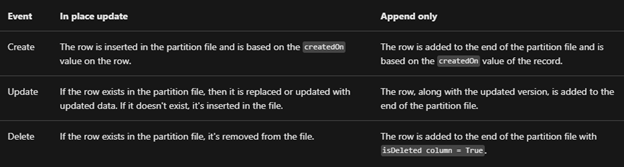
With the in-place update, the default setting, the file will contain the full data set, and any update in the source will update the same in the synced CSV file or the data partition, similarly, any record deleted will delete the row from the data partition, unlike Append Only where a new row will be added in case of both update and delete.

For huge volume of data, Microsoft recommends opting for Append only mode. This mode is also preferable when an organization wants to incrementally review the changed data.
The other option is to define the data partition strategy.

  • By Month (default)
  • By Year

With this option, files generated are partitioned by either year or more granular month-wise, which can be specified per-table basis.

Microsoft recommends Monthly partition if data volume is high.

Now, let us see it in action.

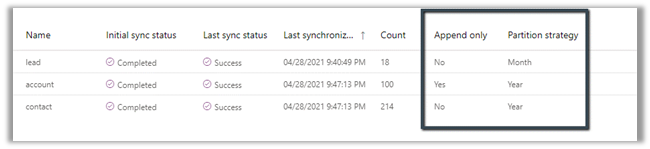
For the Lead table, we haven’t selected the option for advanced configuration settings and are going by default.
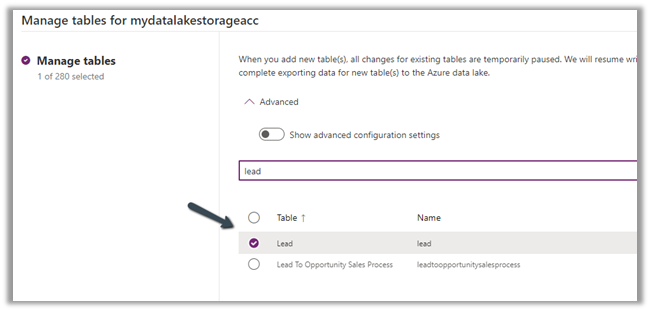
  • Append Only – No
  • Partition Strategy – Month

For contact, we have enabled the advanced configuration settings and opted for Partition Strategy as Year.
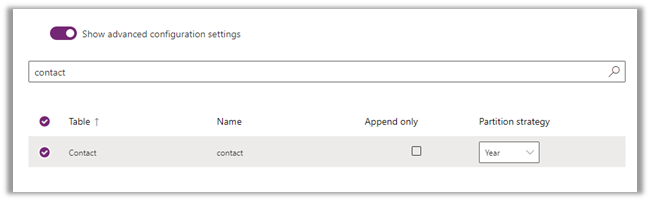

For Account , we have opted for Append Only as true, for which the Partition strategy option is disabled and set as Year.


The final configuration à
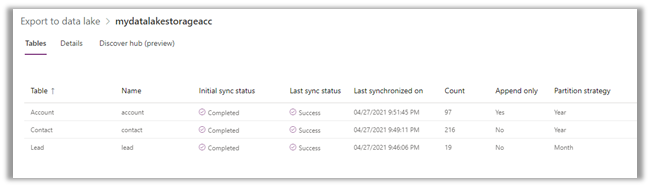
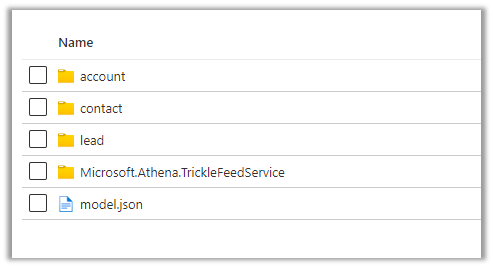
Within the container inside the Storage Account, we can see corresponding folders created per table/entity along with model.json as shown below.
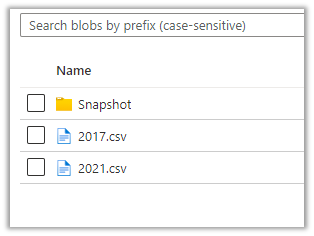
Let us explore the Lead folder –

We can see 2 CSV created with format YYYY-MM.csv i.e. having the month part in it because we had specified Partition Strategy as Month i.e. the default value.

For Contact and Account, the Pattern Strategy was Year, so we have files generated in format YYYY.csv
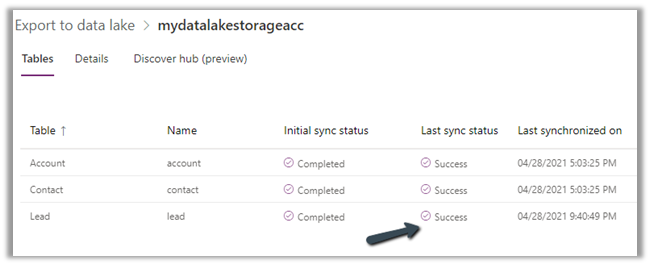
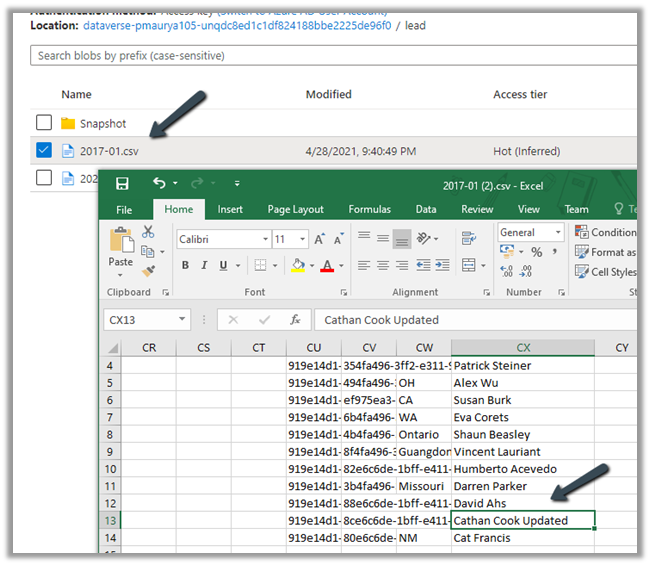
Let us update one of the lead records by appending ‘Updated’ in the last name field.

After the successful sync,
we can see the record updated in the .csv / partition.
The same is the case with the contact record.

Now let us update an account record, it had Append Only specified as Yes.

Here we update the Account Name field from Litware to Litware Updated.
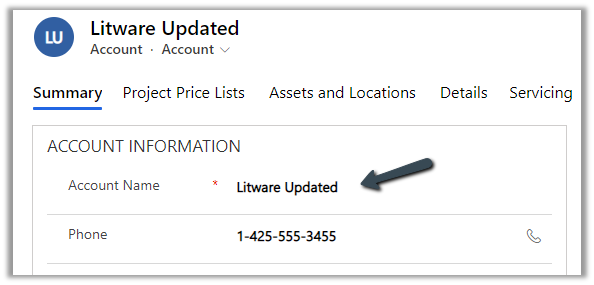
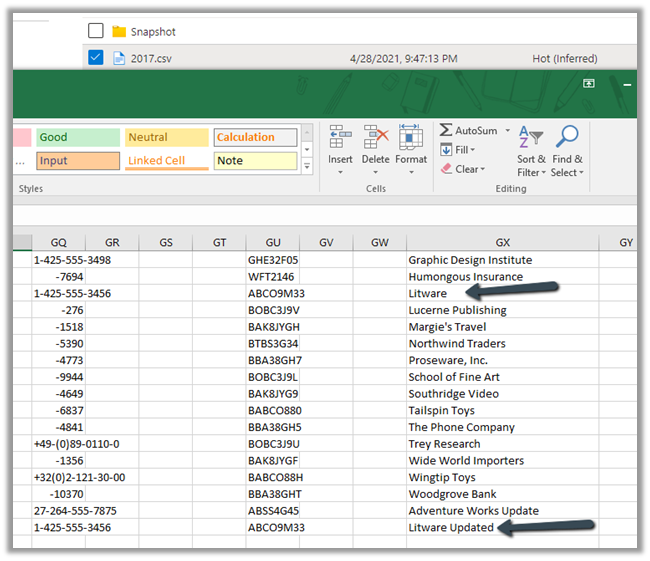
After the sync

We can see a new row appended with the updated record along with the original record.
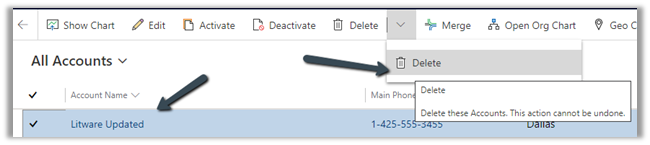
Let us delete the same account record
As expected, being Append Only mode, we can see a new row added for the Litware record.
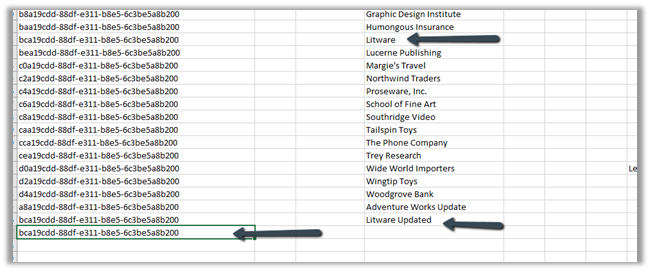
We have 2 additional rows apart from the original row, one created for update and the other for delete action.

Export to Data Lake service is Microsoft’s recommended way of synchronizing Dataverse Data with external storage, and we can see them continuously investing and adding enhancements to it.

Get all the details here –

https://docs.microsoft.com/en-us/powerapps/maker/data-platform/export-to-data-lake#data-partition-strategy

Hope it helps..

Retrieving security role privileges changes (audit) using KingswaySoft’s Dynamics 365 SSIS Integration Toolkit


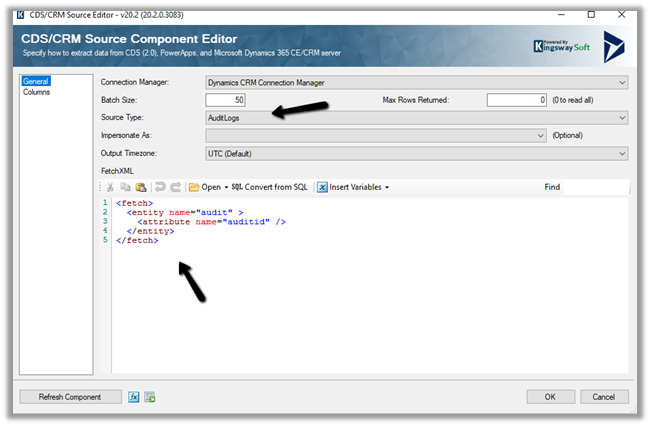
We can specify Source Type as AuditLogs within the CDS Source Component Editor of KingswaySoft to fetch the Audit information.

Get the details :- https://nishantrana.me/2018/10/08/using-kingswaysofts-cds-crm-source-component-to-get-audit-information-in-dynamics-365-ce-ssis/

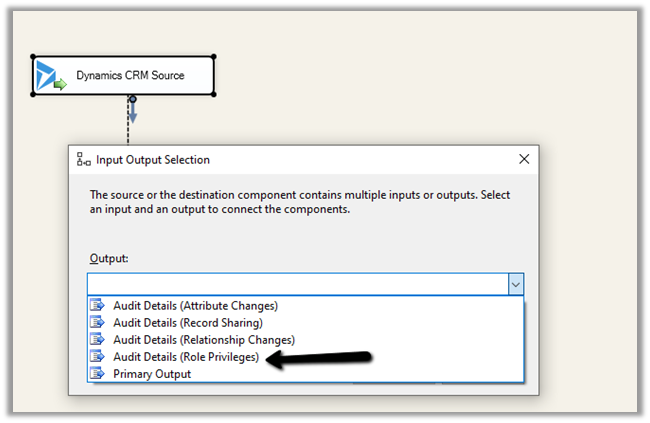
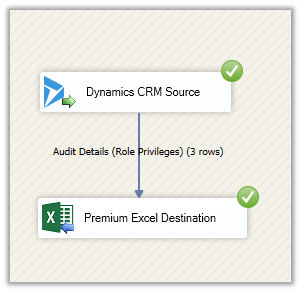
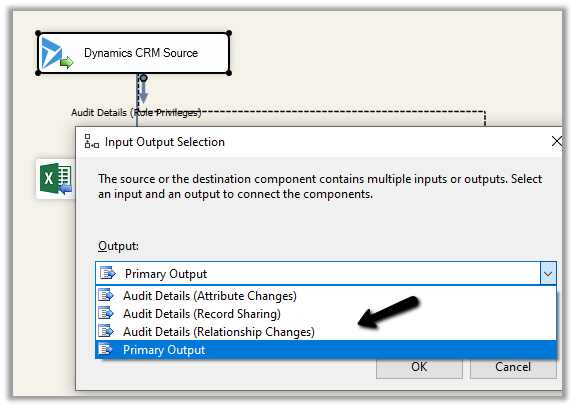
The Souce Type – AuditLogs includes Output type – Audit Details (Role Privileges), which can be used to fetch any audit information related to security roles.

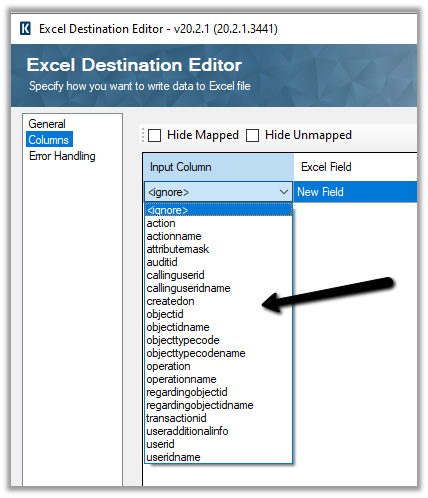
Audit Details (Role Privileges) contains 4 columns, which we have mapped to columns in excel.

  • AuditId
  • OldRolePrivileges
  • NewRolePrivileges
  • InvalidRolePrivileges

Let us execute the package

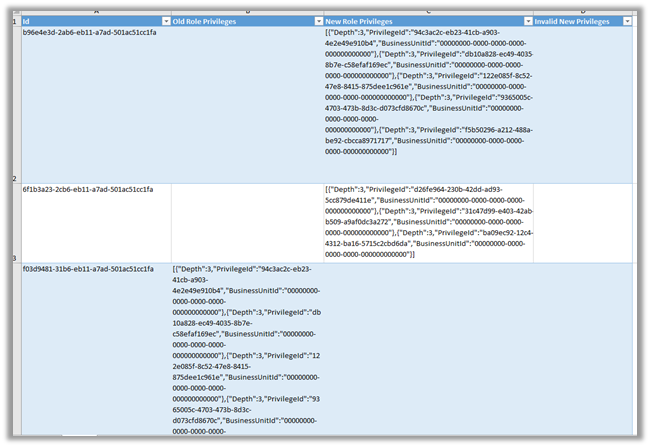
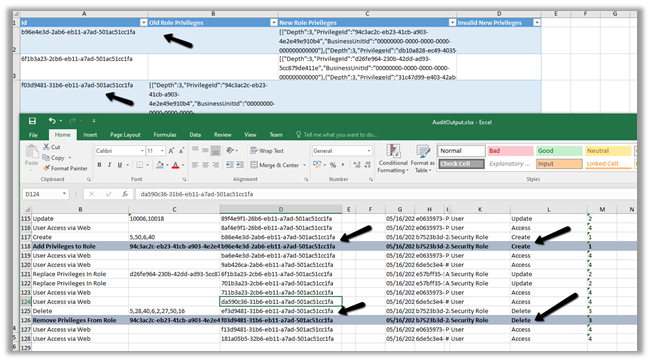
The output à

Here, the 1st row is when a new security role was created, the 2nd row is when an existing security role was updated and 3rd row is when a security role was deleted.

To get the complete information we need to combine this information (id which is auditid – first column) with the Primary output.

The columns of the Primary Output

After mapping, let us run the package with the Primary Output type.

Here below we can see the complete details by combining both the output using the auditid column

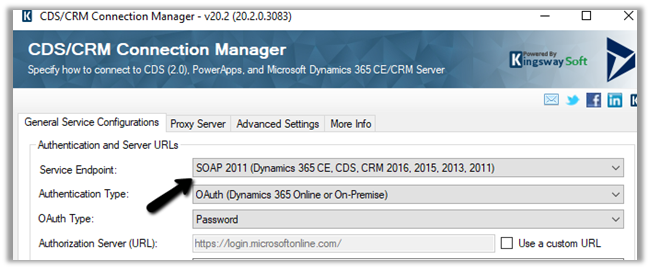
Note – to get the Audit Details (Role Privileges), we need to use SOAP – Service End Point type.

Also refer –

http://mscrmshop.blogspot.com/2016/06/auditing-security-roles-in-crm.html

http://www.kingswaysoft.com/blog/2019/10/16/Extracting-Audit-Logs-for-Multiple-CRM-Entities

https://nishantrana.me/2018/11/26/ssis-and-microsoft-dynamics-365/

https://community.dynamics.com/crm/b/mscrmcustomization/posts/ms-crm-audit-database-table-details

Hope it helps..
Advertisements

Fixed – Initial sync status – Not Started – Azure Synapse Link / Export to Data Lake


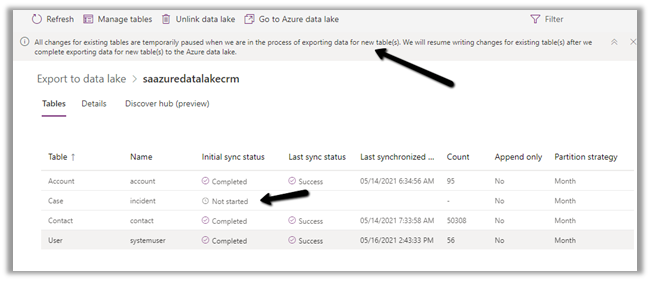
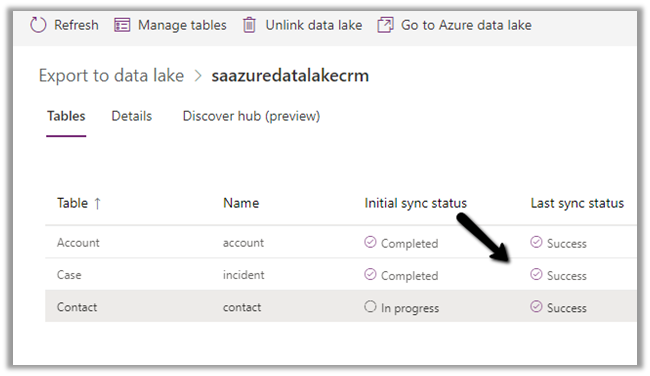
Recently while configuring the Export to Data Lake service, we observed the initial sync status being stuck for one of the tables at Not started.

Manage tables option also was not working

All changes for existing tables are temporarily paused when we are in the process of exporting data for new table(s). We will resume writing changes for existing table(s) after we complete exporting data for new table(s) to the Azure data lake.

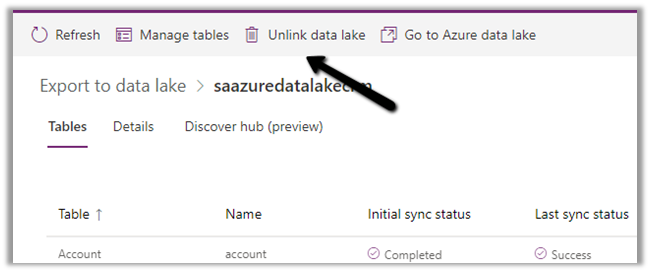
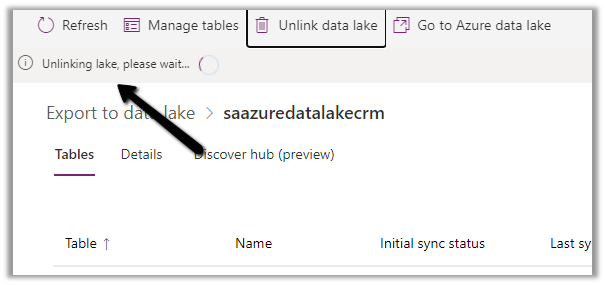
As it was seemed to be stuck forever, we tried Unlinking the data lake and linking it back.

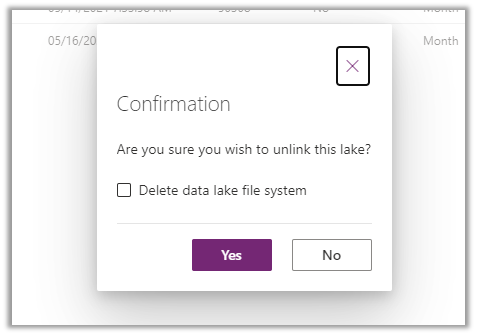
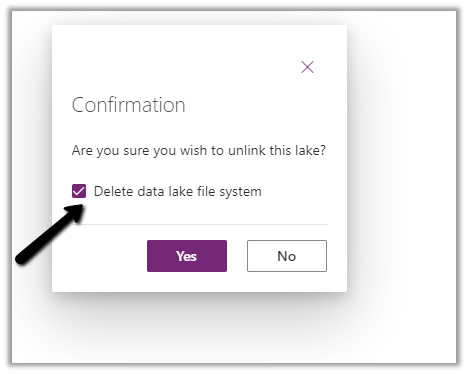
Select Yes

We left the Delete data lake file system unchecked.

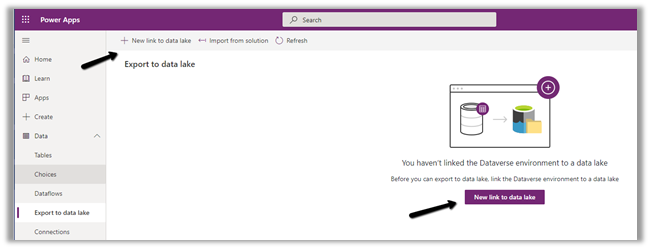
Created a New link to data lake with the same storage account.

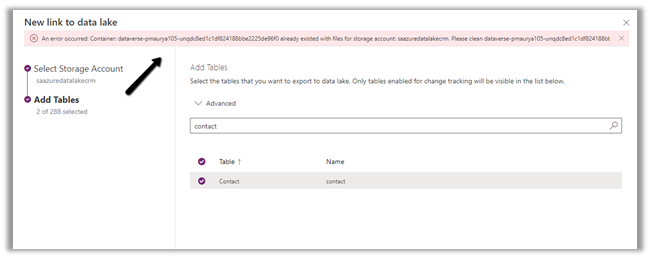
We would get the below error à

An error occurred: Container: dataverse-pmaurya105-unqdc8ed1c1df824188bbe2225de96f0 already existed with files for storage account: saazuredatalakecrm. Please clean dataverse-pmaurya105-unqdc8ed1c1df824188bbe2225de96f0

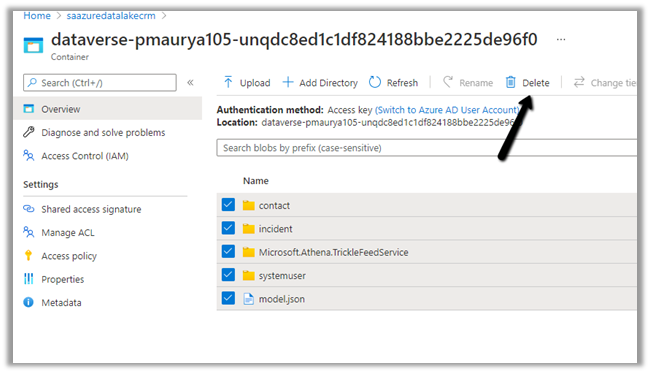
Basically, if we are using the same storage account for linking, we need to first delete or clean the container.

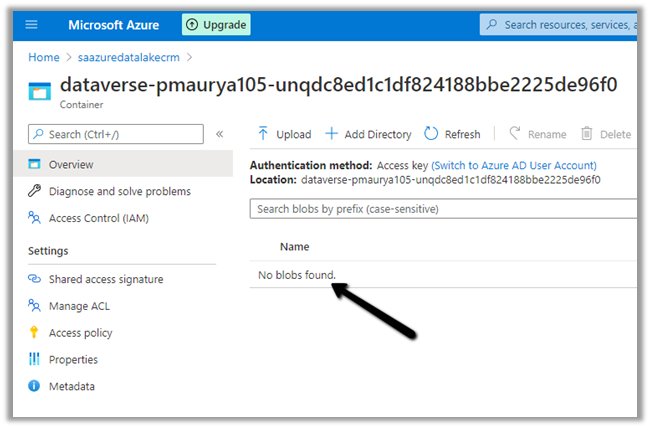
We cleaned the container.

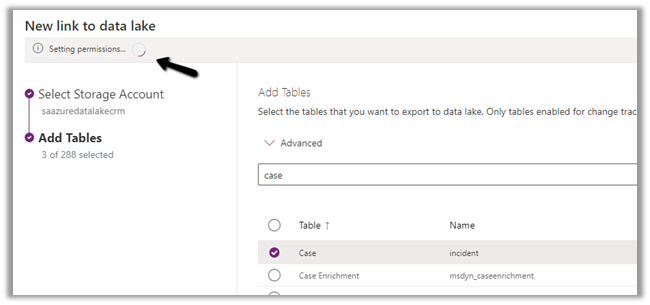
And tried again.

This time it worked

Here we can check the Delete data lake file system option while Unlinking the data lake

This will perform the same step – deleting the files within the container.

If that doesn’t work or is not feasible, we should raise Microsoft Support Ticket.

https://powerusers.microsoft.com/t5/Microsoft-Dataverse/Added-new-Table-to-Export-to-Data-Lake-Now-Sync-is-blocked/m-p/924560#M11400

Check other posts on Azure Data Lake and Dynamics 365 – 

https://nishantrana.me/2020/12/10/posts-on-azure-data-lake/

Hope it helps..

Advertisements

Now Maximum of 10 alternate keys can be defined for an entity/table – 2021 Release Wave 1 – Dynamics 365


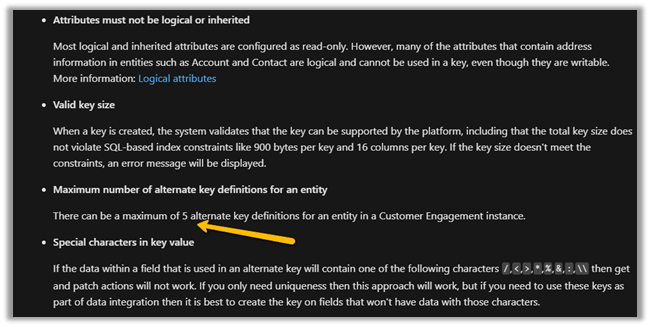
Previously, a maximum of 5 alternate keys could be defined for an entity.

https://docs.microsoft.com/en-us/dynamics365/customerengagement/on-premises/developer/define-alternate-keys-entity#create-alternate-keys

With 2021 Release Wave 1, the limit has been increased to 10.

https://docs.microsoft.com/en-us/power-platform-release-plan/2021wave1/data-platform/increased-alternate-key-limits

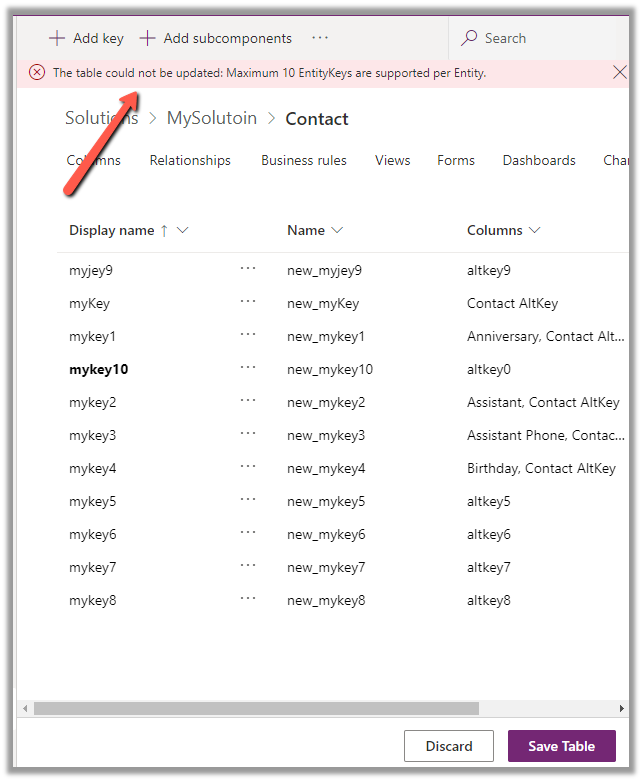
While trying to create the 11th key we will get the below error message as shown below

The table could not be updated: Maximum 10 EntityKeys are supported per Entity.

Check other posts on 2021 Release Wave 1  –

Blog posts on 2021 Release Wave 1 – Dynamics 365

Hope it helps..
Advertisements
Advertisements

How to – Customize Quick Actions in Dynamics 365 CE / Model-driven Power Apps


As part of the enhanced Search Experience, contextual quick actions were introduced in the platform :- https://nishantrana.me/2021/02/09/improved-search-experience-now-adds-quick-actions-2021-release-wave-1-dynamics-365/

E.g. we have Assign, Share, Email quick actions available for Contact, Account, and other entities for the relevance search results.

There can be a maximum of 5 quick actions per entity/table.

The quick actions are a subset of commands available for an entity/table at the Home grid level.

Below are the new rules (Enable Rule) introduced through which these contextual quick actions/commands can be shown or hidden.

  • ShowOnQuickAction – Command will only appear as a Quick Action within Search and will be hidden from the home grid.
  • ShowOnGridAndQuickAction – Command will appear for both Grid and as a quick action.
  • ShowOnGrid – command will only appear for the grid.

To apply these rules, we can use our favorite Ribbon Workbench tool.

Select Customize Command option for the respective command/button within the Home.

Add a new Enable Rule for the command.

Select IsCore as true.

Apply the Enable Rule for the other commands as shown below.

Here we have used the Contact entity/table.

Assign

ShowOnQuickAction

Share

ShowOnGridAndQuickAction

Email a link

ShowOnGrid

Follow

ShowOnGridAndQuickAction

On successful publishing of the above rules, as expected we can see – Assign command hidden and Share, Email a Link and Follow available in the Home grid

And with the quick actions, we can see Assign, Share and Follow available and Email a link command hidden.

Get the details – https://powerapps.microsoft.com/en-us/blog/search-quick-actions-are-now-customizable-in-model-driven-power-apps/

Other posts on 2021 Release Wave 1

https://nishantrana.me/2021/04/21/blog-posts-on-2021-release-wave-1-dynamics-365/

Hope it helps..
 

Advertisements

Duplicate Detection limitations – Dynamics 365


Some time back, had reblogged about Duplicate detection limitations.

The original post – https://crmfunda.wordpress.com/2018/09/26/d365-limitations-of-duplicate-detection-rules/, talks about the below limitations

Let us check each one of them with the enhanced experience that we now have in the platform

  • Duplicate Detection works seamless for Dynamics 365 for Phone app also as shown in the screenshot below.

  • Duplicate detection check kicks in when we qualify the lead

Here, qualifying the lead, pops up Duplicate Detection dialog box listing both the matching Account and Contact record.

We can either choose ignore and save to create a new record or click on continue to merge the record with the selected record(s).

  • On activating a matching inactive contact record,

Duplicate Detection is not triggered.

Duplicate detection can be setup to run on the following events – 

dd

  • While trying to publish 6th Duplicate Detection rule for Account entity,

we get the below exception

System.Web.HttpUnhandledException: Exception of type ‘System.Web.HttpUnhandledException’ was thrown. —> Microsoft.Crm.CrmException: The selected record type already has the maximum number of published rules. Unpublish or delete existing rules for this record type, and then try again.

Thus maximum 5 duplicate detection rules can be published per entity.

More on Duplicate Detection

Hope it helps..

Advertisements