Configure Case Topic Analysis using Cognitive Services Text Analytics (Preview) in Dynamics 365 (online)


“Update – The Cognitive Services Text Analytics Topic Detection API required for this feature will be removed as of August 24, which means this feature will no longer work after that date and a topic analysis run will return an error.

https://technet.microsoft.com/en-us/library/mt752501.aspx

Text Analytics Preview feature is currently available for instances in US region. Topic analysis can be used to automatically identify topics that occurs in cases.

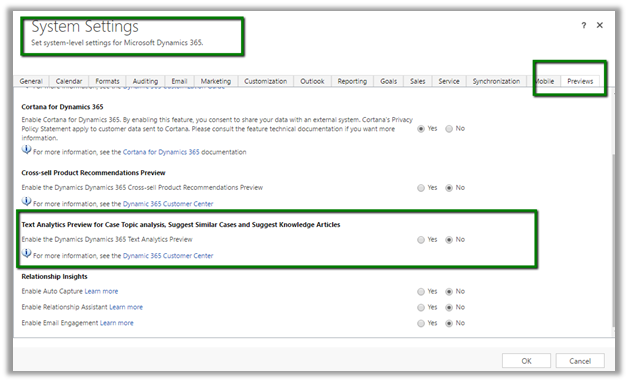
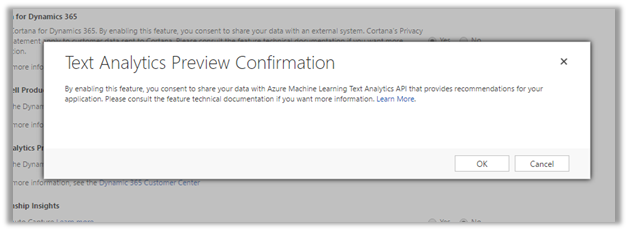
To enable the preview, go to System Settings – Preview tab and select Yes for Text Analytics Preview.

Click OK to confirm.

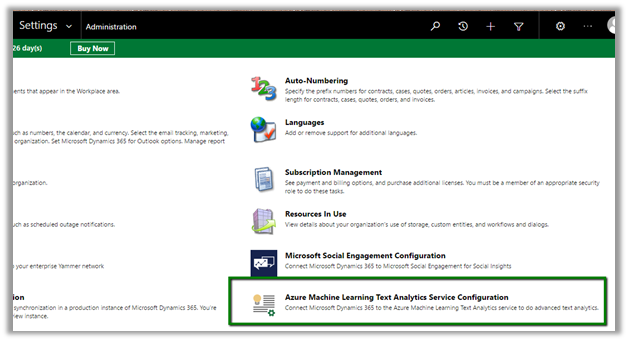
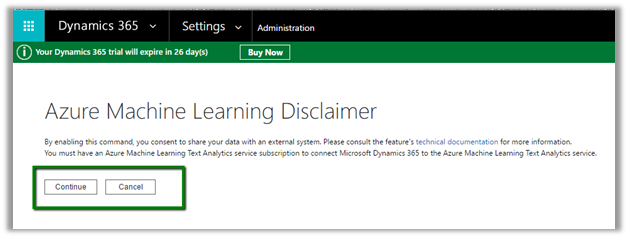
Next go to Administration and click on Azure Machine Learning Text Analytics Service configuration to configure the service.

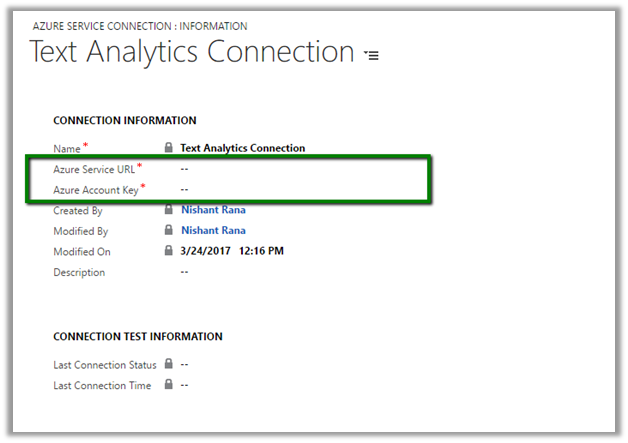
Here we would need the Azure service URL and the Azure Account Key to configure it.

To do so, go to Azure Portal

https://portal.azure.com

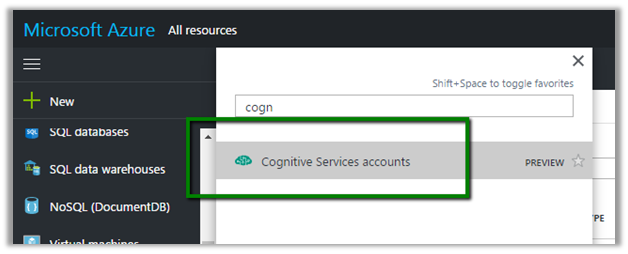
Search for Cognitive Service Accounts

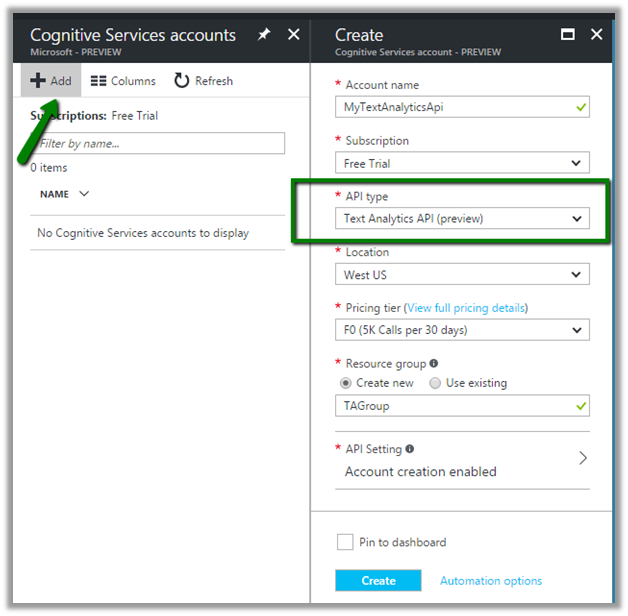
Click on Add and Specify required information.

Select Text Analytics API as API Type.

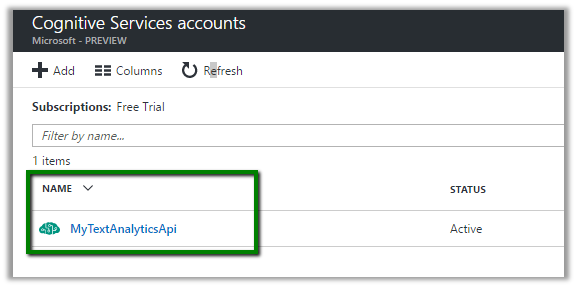
Click on create to create the service account.

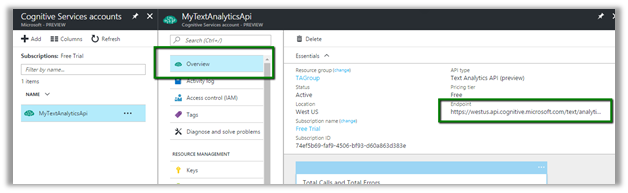
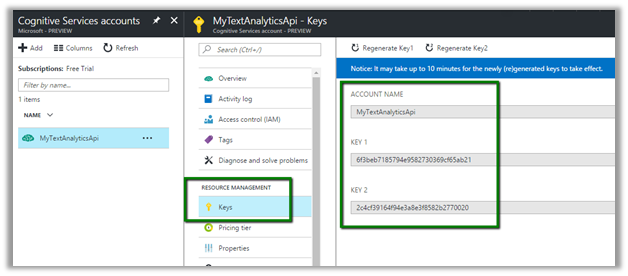
Copy the Endpoint of the created Cognitive service account which will be used as Azure Service URL in CRM.

Similarly select Keys, and copy one of the Key which will be used as Azure Service Key in CRM.

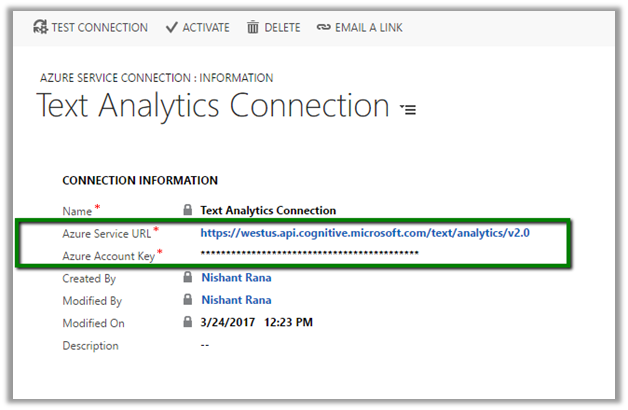
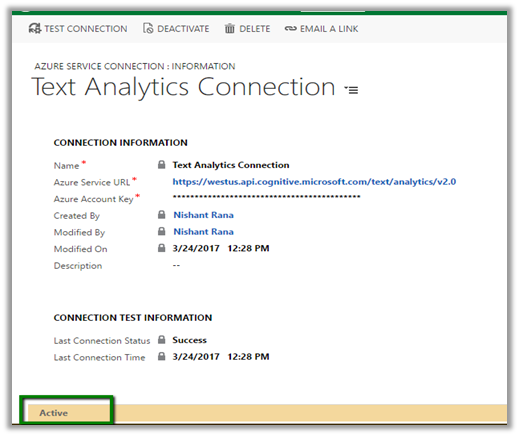
Specify the values in the Text Analytics Connection record.

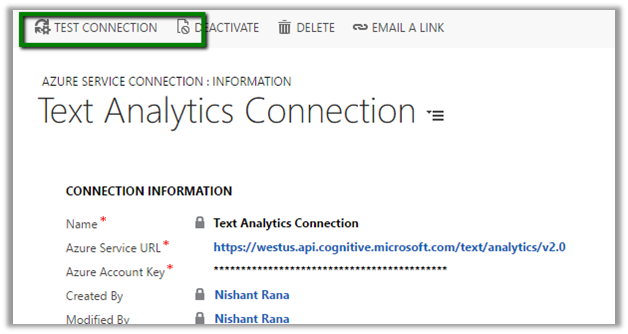
Click on Test Connection to test the connection.

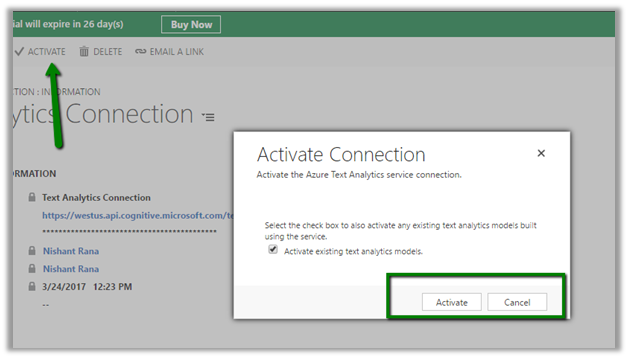
After successful test, click on Activate to activate the connection.

Next let us create a Topic Model which will be used to identify topics occurring in the cases.

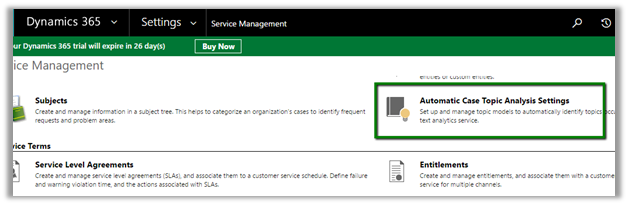
Go to Service Management – Automatic Case Topics Analysis Settings

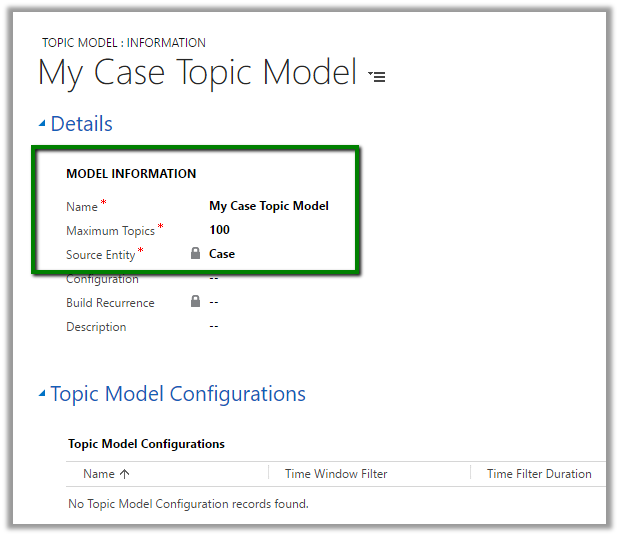
Create a new Topic model record

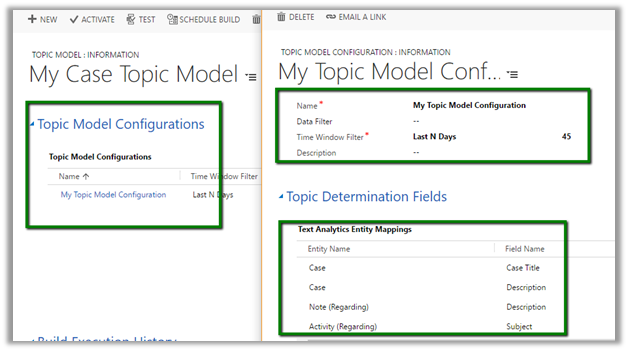
Create a related Topic Model Configuration record.

It auto populates the Topic Determination Fields which we can edit\add.

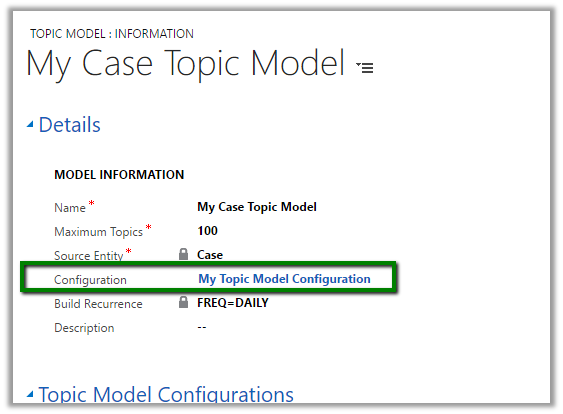
Specify the configuration record created in the Configuration lookup of Topic model record.

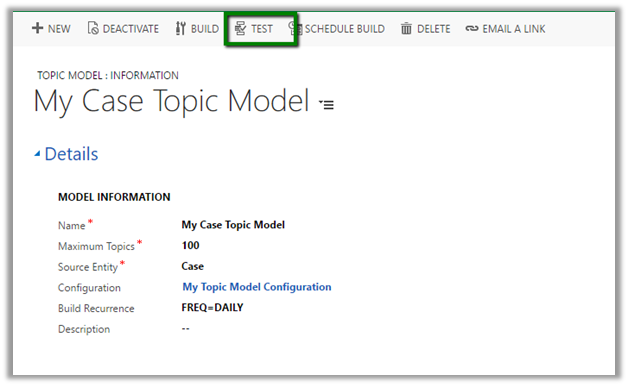
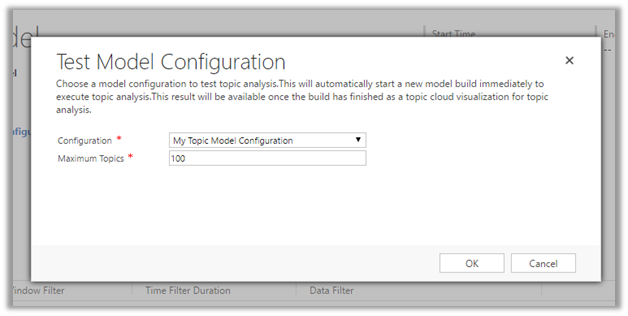
Click on Test to the configuration.

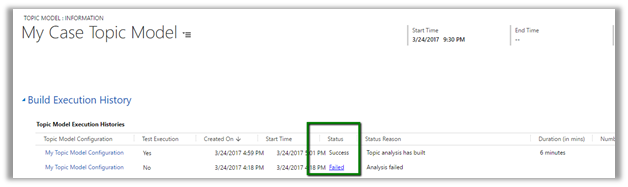
Build Execution History tab shows the status of the test run.

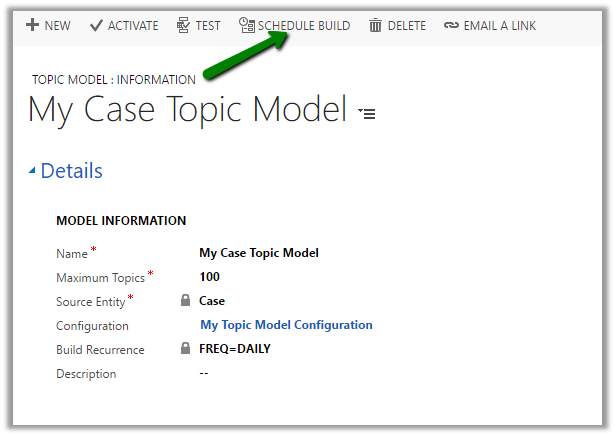
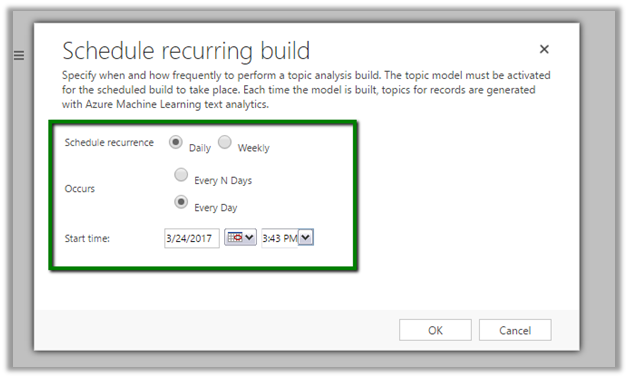
The build can be scheduled.

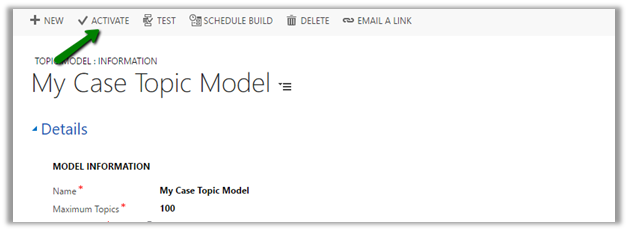
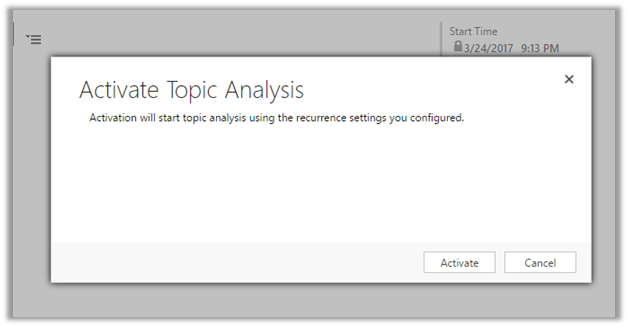
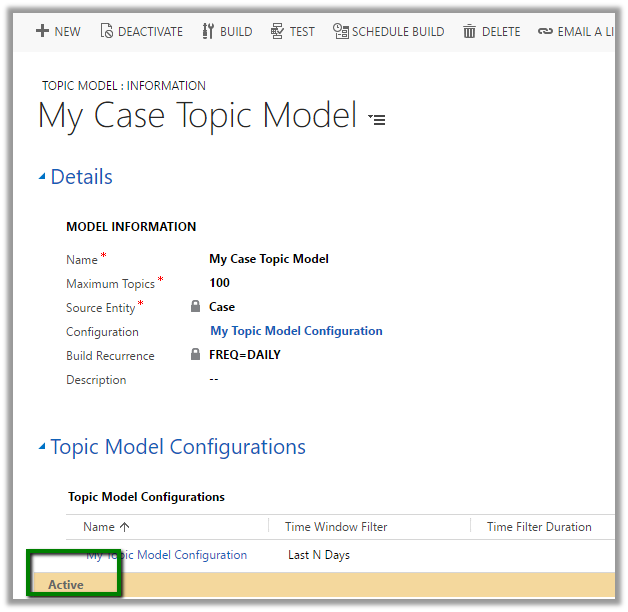
Once we have tested the configuration we can then activate the model.

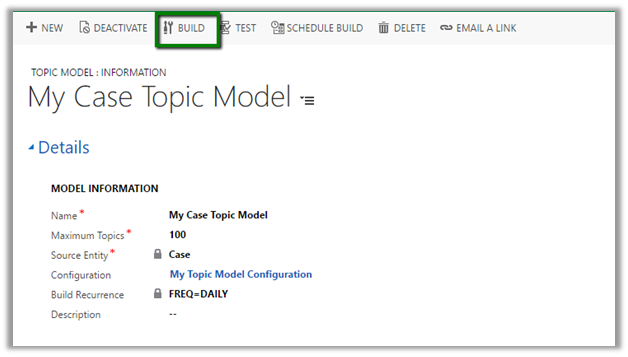
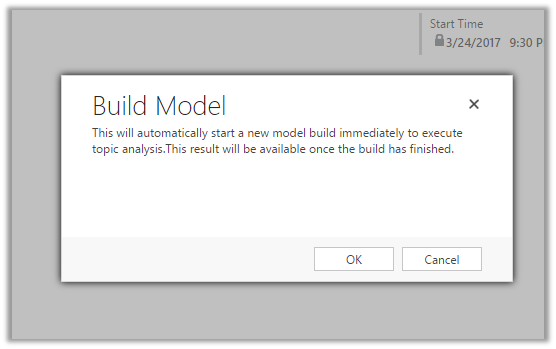
Once Activated, we can them manually trigger the build using Build button

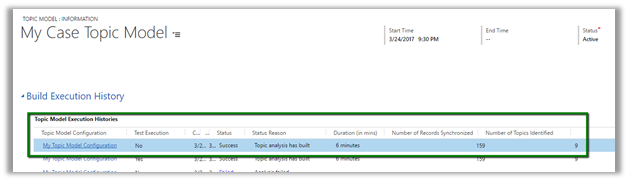
We can check the status of the build in the build execution history tab. Below record shows the build to be succeeded, duration it took i.e. 6 minutes, number of records it synchronized i.e. 159 and topics identified as 9.

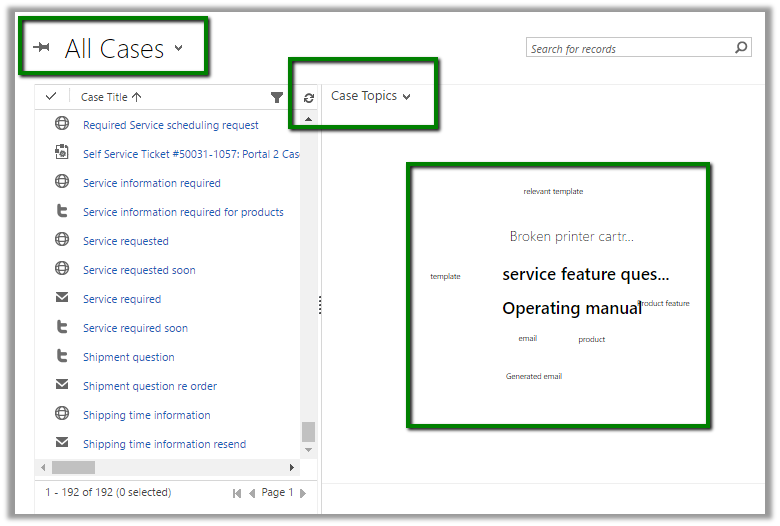
To see it in action, go to Active Cases view and select Case Topics chart which lists the topics.

Hope it helps..

Configure Dynamics 365 and Azure Service Bus Integration (through Queue and QueueClient)


Let us configure Dynamics 365 and Azure Service Bus integration.

Here we would implement a basic scenario, every time a lead is created in CRM we’d pass this execution context information to the queue. The app then reads and shows the information.

As a first step, we need to register a service end point through plugin registration tool.

Here we need to provide the connection string

So, let us create SAS configured Azure service bus namespace and a queue in it.

Go to portal

https://portal.azure.com

Search for Service Bus, provide the required details and click on Create.

Next, we’d create a queue. Inside Service Bus go to Queues and click on plus button create a Queue

Next inside the queue we need to go to Shared Access Policy settings and click on Add button to add a new SAS Key

Next click on connection strings, followed by Add button to add a new SAS Key.

This creates the key. Now copy the connection string.

Paste the connection string in the Plugin Registration tool

It will auto populate all the details. Now click on Save.

This adds a new service end point

Now register a new step – Entity – Lead and Message – Create.

Now to trigger it let us create a lead record in CRM.

A corresponding System Job will have the status.

Back in our queue we can see 1 new message added to it.

To read the message, let us create a simple windows application.

Install the WindowsAzure.ServiceBus package.

The source code for the queue. Here the connection string will be the same which we had specified in the plugin registration tool. The message body is of type RemoteExecutionContext.

The output.

Hope it helps..
How to -Configure Data Export Service in Microsoft Dynamics 365


*Updated 19 Sep – 2018 : Check out this powerful tool DBSync’s CRM connector, which could be used for bi-directional seamless integration of all the popular Application and Database with Microsoft Dynamcis 365- https://www.mydbsync.com/product/microsoft-dynamics-365-crm-integration

Data Export Service is an add-on that allows replicating CRM Online Data to Azure SQL Database.

The below video by expert Scott Durow is the best resource to learn about it

https://www.youtube.com/watch?v=txms2Yvn6Vc

Below are the steps we need to follow to configure it.

  • Go to Settings – Dynamics Marketplace

  • Search for Dynamics 365 Export Service

  • Click on GET IT NOW

  • Click on Agree

  • This will install the Data Export Service solution

  • Back in CRM – Go to Settings – Data Export. (Pop up window will open up a page for Data Export Authentication, so we need to enable pop up)

  • Click on New to create a new Data Export File.

Basically, here we need the Key Vault URL here which stores the database connection string securely.

Clicking on the information icon opens up the dialog box with the below PowerShell script, which needs value for variables like subscription id, key vault name, secret name, tenant id etc.

i.e.

So as a first step here we need to configure Azure Active Directory (if Office 365 and Azure Tenant are separate)

https://docs.microsoft.com/en-us/azure/billing/billing-add-office-365-tenant-to-azure-subscription

  • Next step is to create Azure SQL database. Search for SQL databases in All Resources and click on Add

  • Specify the required information and click Create.

Next we need to create a User that will be used to configure Data Export Service and has appropriate rights in the database

Here the user has been assigned db owner role


For the minimum rights required check the below article

https://technet.microsoft.com/en-us/library/mt744592.aspx

Now let us replace the below placeholders one by one

  • Subscription ID
  • Key Vault Name – NishantDemoKeyVault
  • Secret Name – DataExport
  • Resource Group – DemoRG
  • Location – East US
  • Connection String

  • Organization ID List

KeyVault record created in Azure à

  • Going back to our Export Profile wizard, we need to paste the Key Vault URL

  • Click on Validate

  • Select the entity or entities for which profile needs to be created

  • Select any relationships 

  • Next click on Create and Activate

This creates the profile record in CRM

  • Once Initial Sync Status shows as completed we can see the tables created in the Azure Database.

The records synchronized –

Let us delete the below selected lead records –

Delete Log table will hold the information of the deleted lead records

To create export profile for a custom entity, (say for e.g. entity named Test in our case)

We need to enable Change Tracking in it.

Get all the details here

http://develop1.net/public/post/Dynamic365-Data-Export-Service.aspx

https://technet.microsoft.com/library/a70feedc-12b9-4a2d-baf0-f489cdcc177d

Hope this helps..

Advertisements

Portal Blog Post List


Using Multiple Choice Matrix and Likert Scape Option Sets in Web Form in Dynamics 365.


Let us continue with our previous example wherein we have already setup a sample Survey Web Form and added a Multi choice Field

https://nishantrana.me/2017/03/06/configuring-multiple-choice-field-for-web-form-in-portal-dynamics-365/

Here we would be making use of Multiple Choice Matrix.

For this first let us create 2 option sets in our Survey Entity. We’d put those field in Step 3 Tab.

  • Here we will use the existing global option set for Likert Scale which is added by the Portal in CRM.

Our first field – FacilityLikert Scale Satisfaction.

Our second field

Below are the different Likert Scale Global Option Set available within CRM added by Portal.

Now in the Survey form we have added a section named “Please Rate” and with the newly created fields inside it.

In the Web Form Step corresponding to the Step 3 tab and we added Web Form Metadata records one for each of the fields.

Style Multiple Choice Matrix
Group Name MCM

Refreshing the page in the Portal shows the option sets as Multi Choice Matrix

Hope it helps..
Configuring Multiple Choice field for Web Form in Portal (Dynamics 365)


Let us continue with our previous example and add a Multiple-Choice field for Step 3 Web Form Step as shown below.

https://nishantrana.me/2017/03/06/using-conditional-branching-in-web-form-in-portal-dynamics-365/

To configure this, add a section named “Please select all that applies” to Step 3 Tab and 3 two options (Boolean) fields in the Survey Form.

Now go to Step 3 Web Form Step and add Web Form Metadata for each of these bool fields.

For the poor management field,

  • Style – Multiple Choice
  • Group Name – MyGroup

For the poor salary field, specify the same value for style and group name field

  • Style – Multiple Choice
  • Group Name – MyGroup

Do same for the third two options field.

The main point to remember here is that the Group Name should be same.

Now open the portal page and go to the web form step.

The page shows the newly added Boolean Fields in the Web Form Step as checkboxes.

Hope it helps..
Advertisements