In-app or Push notification – Model-driven App – 2021 Release Wave 1 Power Apps / Dynamics 365


With 2021 Release Wave 1, the in-app notifications feature has been added to the Model-driven app, earlier it was only available for Canvas Apps.

To see it in action à

Login to Power Automate

https://us.flow.microsoft.com/en-us/

Create a new flow, select start from blank – Automated cloud flow, make sure the appropriate environment is selected.

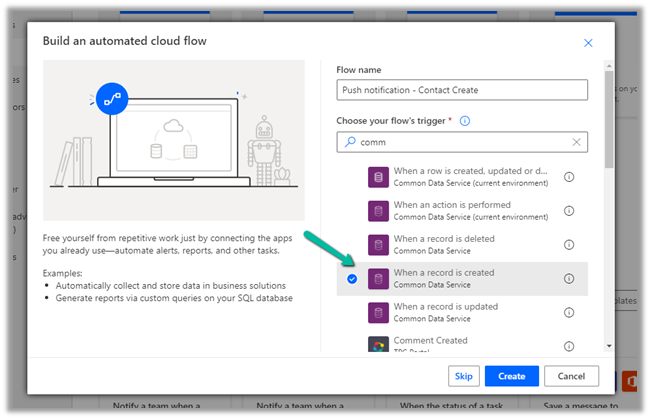
Specify the flow name along with the trigger

Here for the trigger, we have specified the condition as contact creation.

For the action, select Send Push Notification V2 (preview)

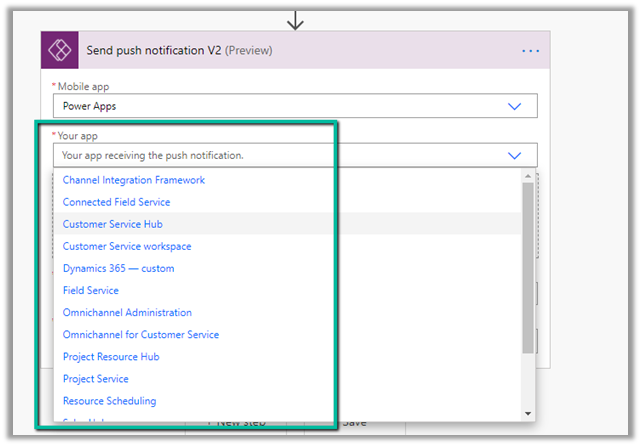
For Mobile App, we can select either Power Apps or Field Service app to send the notifications to.

Here we have selected Power Apps mobile app.

Your app field will list down all the Model-driven apps available for the environment.

In recipients specify the email address and define the message.

In the Open App option, we can specify whether to open the app or not, on tap of the notification.

Finally, we can specify the entity, form for that entity (or view) to be opened.

We are setting the record id (of the contact record created) that should be opened in the form.

Save the flow.

Creating a contact record will trigger the flow and will send the notification to the mobile as shown below.

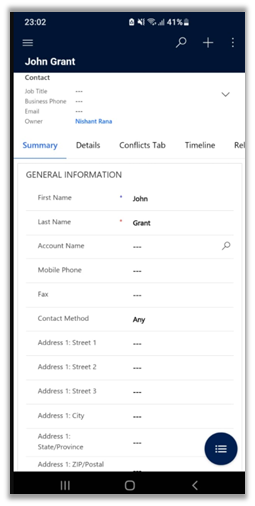
We can click on the notification, which takes us to the record as shown below.

Get all details here

https://powerapps.microsoft.com/es-es/blog/now-available-model-driven-app-push-notifications/

Blog posts on 2021 Release Wave 1 – Dynamics 365

Hope it helps..

Advertisements

How to – Extract attachments from Notes in Dynamics 365 / Dataverse


There are different ways we can extract attachments from notes.

  • We can write an SSIS Package using the Premium Derived Column component of KingswaySoft

https://nishantrana.me/2020/11/09/extract-attachment-from-notes-in-dynamics-365-ce-cds-ssis-kingswaysoft/

  • XrmToolBox has a wonderful plugin – Bulk Attachment Manager

https://www.livingintech.com/2018/02/xrmtoolbox-bulk-attachment-manager.html

The tool can download attachments from both Note and Email, using note’s GUID as the folder name.

  • We can use SDK and write console app or tool.

https://github.com/microsoft/PowerApps-Samples/blob/master/cds/orgsvc/C%23/URDAttachment/URDAttachment/SampleProgram.cs

https://www.c-sharpcorner.com/article/downloading-notes-attachments-using-paginghis-artcile/

Or use the CRM SDK within the script component of SSIS if we are not using KingswaySoft’s CDS Component.

https://nishantrana.me/2020/10/19/connect-to-dynamics-365-through-script-component-ssis/

  • Attachment Downloader Tool –

https://vishalgrade.com/2018/01/22/ms-crm-attachment-downloader/

https://github.com/vgrade/MSCRMAttachmentDownloader

We can update the tool as per our requirement.

  • Use LINQPad for extracting attachment

https://dreamingincrm.com/2018/01/18/export-all-attachments-using-linqpad/

Hope it helps..

Advertisements

Duration to Copy an environment – Dynamics 365


Recently as a part of our deployment activity – we had to copy one of our sandbox environment to another.

https://docs.microsoft.com/en-us/power-platform/admin/copy-environment

And we opted for Customizations and schemas only option

We had performed the activity a few days back and that time we opted for Everything (the environment size was around 3-4 GB) , it took around 40 minutes. So we were expecting the customization and schemas only option would be much faster.

Surprisingly it was more than 4 hours since we initiated the copy and it was still in progress, so we raised the Microsoft Support Ticket with severity A.

https://azure.microsoft.com/en-us/support/plans/response/

However, no sooner we raised the support request, in parallel the copy operation got completed.

Total it took around 4 .5 hours.

The reason as per the support team was that the server could be down for windows maintenance activity being it a weekend – Saturday.

Later at night also, we performed the same copy operation that time it took around 2.5 hours.

And recently 2-3 days after that day, we again performed the copy operation and it took the same 30-40 minutes – this being weekday.

So in case if it is taking more time than usual, you could raise a support ticket or could wait (if that is an option).

Hope it helps..

Advertisements

How to – Use Form Component Control in Dynamics 365 / Power Apps


Form Component Control can be used to update the parent record -through Debajit’s blog post, we came to know about it-  https://debajmecrm.com/how-to-edit-a-parent-record-from-child-record-form-in-dynamics-365-dataverse/

Below is our custom entity/table named Sample Entity having contact’s lookup.

Let us add one more contact field, specify the Form Component control for it

We need to specify the main form to be used as a static value within the QuckForms tag.

entityname will be the schema name of the entity and the id of the main form.

Get the form id in the classic form editor –

And in the new form designer –

Save and publish the change.

We can see the main form of the contact being rendered within the custom entity’s form on the selection of Contact lookup value.

Now let us look at the some of the key points –

  • Only the Main form can be considered while using form component control i.e. only the main form can have the form component control which must be the main form itself. Quick View, Quick Create, and card cannot be used.
  • The form component will only show the first tab of the form. Below is the form we have configured, but it shows only the summary tab.

  • The validation of the embedded parent form still applies as shown below.

  • Data is sent for save independently for each record, which has no defined order.
  • It is not recommended to use the form with Business Process Flow as a form component.
  • Form components cannot have another main form with form components embedded in them. Although we do not get any error, it might be unsupported.

  • The same form can be used across different form components but is not supported as per Microsoft Docs. Here we have embedded the same form inside Account’s form.

Get all the details here

https://docs.microsoft.com/en-us/powerapps/maker/model-driven-apps/form-component-control

Hope it helps..
Advertisements

How to – Create a custom API of type function in Dynamics 365 / Microsoft Dataverse


Continuing our previous posts,

Create Custom API Message –
https://nishantrana.me/2021/01/13/use-custom-api-to-create-custom-messages-in-dynamics-365/

Allowed Custom Processing Step Type Property –

https://nishantrana.me/2021/01/20/allowed-custom-processing-step-type-allowedcustomprocessingsteptype-property-of-custom-api-in-dynamics-365-microsoft-dataverse/

Here we will create a custom API of type function by setting Is Function property as true.

  • The function requires HTTP GET method.
  • The function must include at least one Custom API Response Property defined.
  • The function cannot use Entity or Entity Collection Request Parameter, i.e. Binding Type can only be Global in case of Function.

Let us define a Custom API Response Property and associate it with the custom function defined.

Here we have defined a custom API response property of type Boolean.

The other data type supported are

Below is the plug-in that we will associate with the Custom API message, here we are setting the value of the response parameter.

Associated the plugin to the custom API message

Let us trigger our function using the Postman.

Invoking Custom APIs

https://docs.microsoft.com/en-us/powerapps/developer/data-platform/custom-api#invoking-custom-apis

Plugin trace log –

More information on Custom API

Hope it helps..

Advertisements

Custom API Request Parameter entity in Dynamics 365 / Microsoft Dataverse


Continuing our previous posts on Custom API

Here we will look at the CustomAPIRequestParameter entity.
  • This entity can be used to define input parameters to the Custom API.
  • It is not a mandatory entity for Custom API i.e. we can define a custom API without any input/request or output/response parameter.
  • In the case of multiple parameters, ordering is not important as they are identified using the name.
  • One parameter can be associated with only one Custom API.
  • We can have multiple parameters with the same Unique Name as long as they are associated with different Custom API.

Say e.g. below is our Custom API

And this is our Custom API Request Parameter associated with the above API of type String

The different data type for the request parameter

Below is our plugin registered for the custom message.

We are checking for the input parameter and writing it in the trace log.

Let us call our custom API

And let us check the plugin trace logs.

We can see the message being called successfully.

Get more details –

Create and use Custom APIs

Hope it helps..