Activity Logging – Dynamics 365 Apps


Microsoft 365 Security and Compliance Center – provides easy access to the data and the tools to manage the compliance need of an organization, and also can be used to review the different data processing activities within Dynamics 365 Customer Engagement apps.

It required Microsoft 365 E3 or E5 subscription and is only available for Production environments.

The events logged are –

  • CRUD, Export to Excel, SDK Calls.
  • CRUM and backend activities performed by the support engineer.
  • Report – viewed, exported, multimedia assets shown in the Report

For this first Auditing needs to be enabled in the environment.

Navigate to Settings > Administration > System Settings > Auditing Tab

Navigate to Compliance Center

https://protection.office.com/

Search > Audit Search Log and
Turn on auditing.


To try the new experience within the Compliance center

https://compliance.microsoft.com/auditlogsearch?viewid=Search


After around 1 hour or so, the settings got enabled.


As specified Office 365 logs are being prepared, if we try searching we’d get blank results


Below are the list of Dynamics 365 and Power Apps activities that can be tracked


Around after 3 hours or so – we saw the results appearing.

Export has 2 options –

Save loaded results –

Download all results –

At the same time there we 51 records in Audit Summary View.

Apart from searching for an audit log, we can also define an audit retention policy as shown below

Get the sample files here –

https://drive.google.com/file/d/1akifraP1NCV-KgmA-8ROhm8r4h0tAcLi/view?usp=sharing

https://drive.google.com/file/d/1s_EbJ4hraDl6YEVUCMkOe6bQbXCJu_5-/view?usp=sharing

Get all the details here

https://docs.microsoft.com/en-gb/microsoft-365/compliance/search-the-audit-log-in-security-and-compliance?view=o365-worldwide

Hope it helps..

Advertisements

Check access to a record in Dynamics 365


Using the Check Box button in the command bar, the user can now check the privileges he has on the record.

It also provides the details on how he has that particular privileges on the record, either through Security Roles assigned directly or through the team user is part of or through the Hierarchy security.

To see it in action, open a record and select Check Access

E.g. the below user has Read, Write, Create, Delete, Append, Append To, Assign, Share rights on the contact record, assigned directly as he has the system administrator role.

The admin user can also use the User lookup to check the access of the other users.

Here the test user 1 has rights to the record through the security roles assigned to him directly and also through the team he is part of.

Get all the details here –

https://docs.microsoft.com/en-gb/powerapps/user/access-checker

Blog posts on 2021 Release Wave 1 – Dynamics 365

Hope it helps..

In-app or Push notification – Model-driven App – 2021 Release Wave 1 Power Apps / Dynamics 365


With 2021 Release Wave 1, the in-app notifications feature has been added to the Model-driven app, earlier it was only available for Canvas Apps.

To see it in action à

Login to Power Automate

https://us.flow.microsoft.com/en-us/

Create a new flow, select start from blank – Automated cloud flow, make sure the appropriate environment is selected.

Specify the flow name along with the trigger

Here for the trigger, we have specified the condition as contact creation.

For the action, select Send Push Notification V2 (preview)

For Mobile App, we can select either Power Apps or Field Service app to send the notifications to.

Here we have selected Power Apps mobile app.

Your app field will list down all the Model-driven apps available for the environment.

In recipients specify the email address and define the message.

In the Open App option, we can specify whether to open the app or not, on tap of the notification.

Finally, we can specify the entity, form for that entity (or view) to be opened.

We are setting the record id (of the contact record created) that should be opened in the form.

Save the flow.

Creating a contact record will trigger the flow and will send the notification to the mobile as shown below.

We can click on the notification, which takes us to the record as shown below.

Get all details here

https://powerapps.microsoft.com/es-es/blog/now-available-model-driven-app-push-notifications/

Blog posts on 2021 Release Wave 1 – Dynamics 365

Hope it helps..

Advertisements

How to – Extract attachments from Notes in Dynamics 365 / Dataverse


There are different ways we can extract attachments from notes.

  • We can write an SSIS Package using the Premium Derived Column component of KingswaySoft

https://nishantrana.me/2020/11/09/extract-attachment-from-notes-in-dynamics-365-ce-cds-ssis-kingswaysoft/

  • XrmToolBox has a wonderful plugin – Bulk Attachment Manager

https://www.livingintech.com/2018/02/xrmtoolbox-bulk-attachment-manager.html

The tool can download attachments from both Note and Email, using note’s GUID as the folder name.

  • We can use SDK and write console app or tool.

https://github.com/microsoft/PowerApps-Samples/blob/master/cds/orgsvc/C%23/URDAttachment/URDAttachment/SampleProgram.cs

https://www.c-sharpcorner.com/article/downloading-notes-attachments-using-paginghis-artcile/

Or use the CRM SDK within the script component of SSIS if we are not using KingswaySoft’s CDS Component.

https://nishantrana.me/2020/10/19/connect-to-dynamics-365-through-script-component-ssis/

  • Attachment Downloader Tool

https://vishalgrade.com/2018/01/22/ms-crm-attachment-downloader/

https://github.com/vgrade/MSCRMAttachmentDownloader

We can update the tool as per our requirement.

  • Use LINQPad for extracting attachment

https://dreamingincrm.com/2018/01/18/export-all-attachments-using-linqpad/

Hope it helps..

Advertisements

Duration to Copy an environment – Dynamics 365


Recently as a part of our deployment activity – we had to copy one of our sandbox environment to another.

https://docs.microsoft.com/en-us/power-platform/admin/copy-environment

And we opted for Customizations and schemas only option

We had performed the activity a few days back and that time we opted for Everything (the environment size was around 3-4 GB) , it took around 40 minutes. So we were expecting the customization and schemas only option would be much faster.

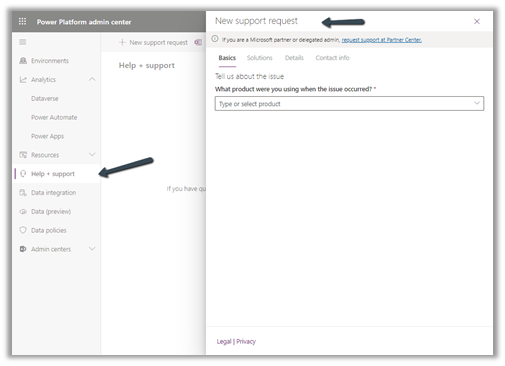
Surprisingly it was more than 4 hours since we initiated the copy and it was still in progress, so we raised the Microsoft Support Ticket with severity A.

https://azure.microsoft.com/en-us/support/plans/response/

However, no sooner we raised the support request, in parallel the copy operation got completed.

Total it took around 4 .5 hours.

The reason as per the support team was that the server could be down for windows maintenance activity being it a weekend – Saturday.

Later at night also, we performed the same copy operation that time it took around 2.5 hours.

And recently 2-3 days after that day, we again performed the copy operation and it took the same 30-40 minutes – this being weekday.

So in case if it is taking more time than usual, you could raise a support ticket or could wait (if that is an option).

Hope it helps..

Advertisements

How to – Use Form Component Control in Dynamics 365 / Power Apps


Form Component Control can be used to update the parent record -through Debajit’s blog post, we came to know about it-  https://debajmecrm.com/how-to-edit-a-parent-record-from-child-record-form-in-dynamics-365-dataverse/

Below is our custom entity/table named Sample Entity having contact’s lookup.

Let us add one more contact field, specify the Form Component control for it

We need to specify the main form to be used as a static value within the QuckForms tag.

entityname will be the schema name of the entity and the id of the main form.

Get the form id in the classic form editor –

And in the new form designer –

Save and publish the change.

We can see the main form of the contact being rendered within the custom entity’s form on the selection of Contact lookup value.

Now let us look at the some of the key points –

  • Only the Main form can be considered while using form component control i.e. only the main form can have the form component control which must be the main form itself. Quick View, Quick Create, and card cannot be used.
  • The form component will only show the first tab of the form. Below is the form we have configured, but it shows only the summary tab.

  • The validation of the embedded parent form still applies as shown below.

  • Data is sent for save independently for each record, which has no defined order.
  • It is not recommended to use the form with Business Process Flow as a form component.
  • Form components cannot have another main form with form components embedded in them. Although we do not get any error, it might be unsupported.

  • The same form can be used across different form components but is not supported as per Microsoft Docs. Here we have embedded the same form inside Account’s form.

Get all the details here

https://docs.microsoft.com/en-us/powerapps/maker/model-driven-apps/form-component-control

Hope it helps..

Advertisements