How to – Create an Instant low-code plug-in (Dataverse) (experimental)


Low-code plug-in is a new experimental feature released by Microsoft, for early adopters, not meant to be used in production. As per Microsoft, “the experimental features can change radically or completely disappear at any time“.

There are 2 types of low-code plug-ins we can write – Instant and Automated.

Instant plug-ins are triggered manually and support parameters, whereas automated plug-in as the name suggests, runs when a particular event (create, update, or delete) occurs on a table and they do not support parameters.

As a prerequisite, we need to first install the Dataverse Accelerator

We can install it from Admin Center >> Resources >> Dynamics 365 Apps

Or from the App Source, look for Dataverse Accelerator and click Get in now.

https://appsource.microsoft.com/en-us/product/dynamics-365/microsoftpowercatarch.dataversekit1?exp=kyyw

Specify the Environment to start the installation. (Should take around 5 minutes)

Open the Dataverse Accelerator App.

Click on + New plugin for the Instant Plugins

Provide the display name and the description for the plugin, and also select the appropriate solution.

We can specify optional Input and Output parameters along with the Expression that uses Power FX formulas to define the logic for the plugin.

Our sample plugin takes City as the Input Parameter and returns the total number of contact records having that same city.

Save the plugin and click on Test.

Provide the value for the input parameter and click on Run.

We can see the status as Success and the output parameter Result having a value of 4.

This completes our plugin.

Now to use it, click on the Integrate tab.

The tab provide us the required details.

We can copy the Power FX expression and use it inside the Canvas App.

We get the output as expected.

Below we are calling it from within the Power Automate Flow from a Perform an unbound action

The result –

Get more details and Check out the known limitations

Hope it helps..

Advertisements

Try the new modern look for the Model-driven app (Preview)


The new modern refreshed look for the Model-driven app can be enabled from Maker Portal >> Model-driven App (Edit) >> Settings >> Upcoming – Try the new look and feel (preview)

The new look makes use of the latest Fluent UI React Components

Or now we see the option to Try the new look in the app itself in the command bar.

Let us look at the changes

  • Grids now have the checkboxes added to it

(open the image in new tab to view it clearly)

  • Infinite scrolling
  • The same grid is applied to Sub Grid and Associated Grids
  • Forms now have a new Command Bar, refreshed BPF, Sections, etc.
  • Form fields now have a background, icon placement, stying changes, etc.

Get all the details here

Hope it helps..

Advertisements

Based on entity behavior for SharePoint Folder – Dynamics 365 / Dataverse


After enabling Server-Based SharePoint Integration,

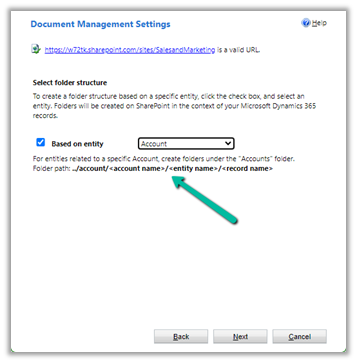
inside Document Management Settings, we can specify folder structure to be based on the entity either Account or Contact.

Here we have opted for Account-based first.

We can see the following folders created on the SharePoint site, that take the table or entity name.

And the records folder for Accounts created with AccountName_GUID format.

And if we open any Contact record >> Files / Documents tab, that will create the account parent folder (if not already created) and the contact folders inside it as shown below.

And if we create the contact record without having an account associated

That will create the folder for the record inside Contact Folder without the Parent Account folder created. (as there was no account associated)

For Case Records, we have the case folders created inside Account folders.

Now let us select the Contact based structure

The contact records are created inside the Contact folder, the account associated is not considered.

For Case also it is same.

For Building, a custom table, which is a child of Contact, we have the Building folder created inside the Contact folder.

Now let us keep Based on entity option unchecked

This creates the corresponding record’s folder inside the table parent folder.

Account –

Contact –

Check some of the interesting articles on SharePoint and Dynamics 365 Integration.

Hope it helps..

Advertisements

Send bulk email / direct email to Customers – Dynamics 365


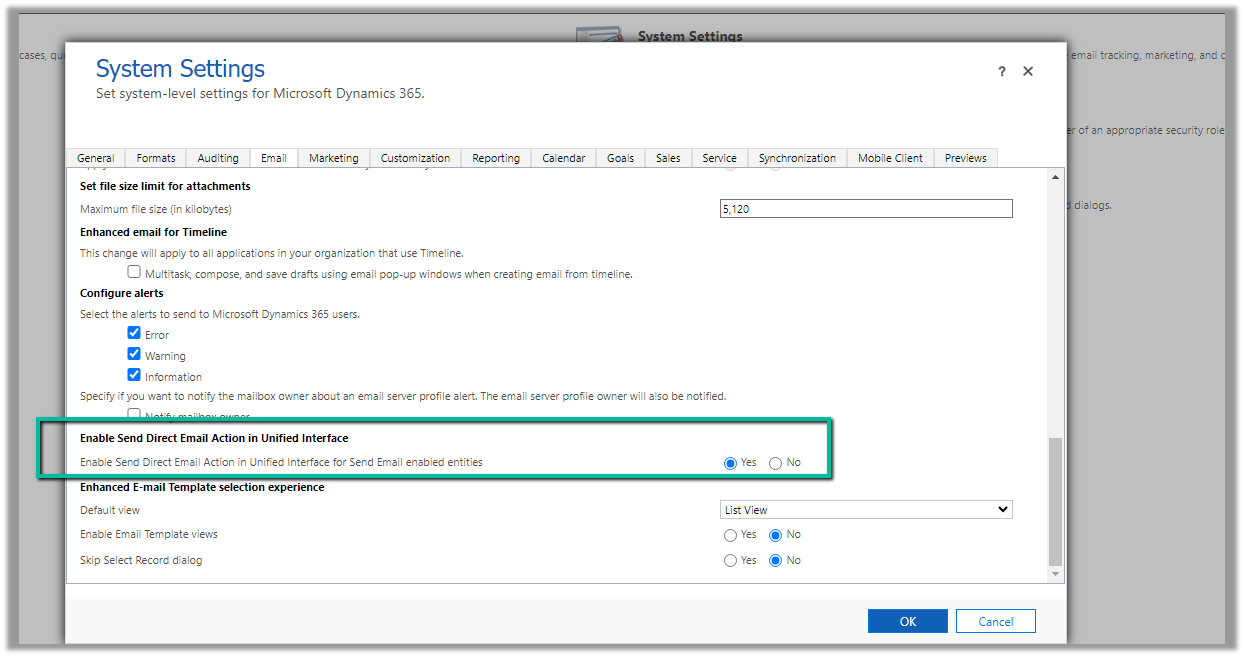
To enable the option of sending bulk email / direct mail in Unified Interface, we can navigate to Settings >> Administration >> System Settings >> Email >> Enabled Send Direct Email Action in Unified Interface

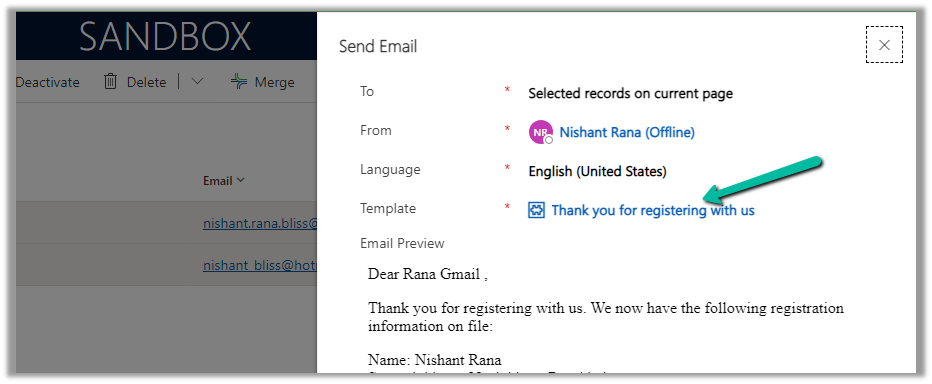
Now on selecting the record(s) of email enabled table, we get the option “Send Direct Email”

We can also specify the Email Template and preview the content before sending.

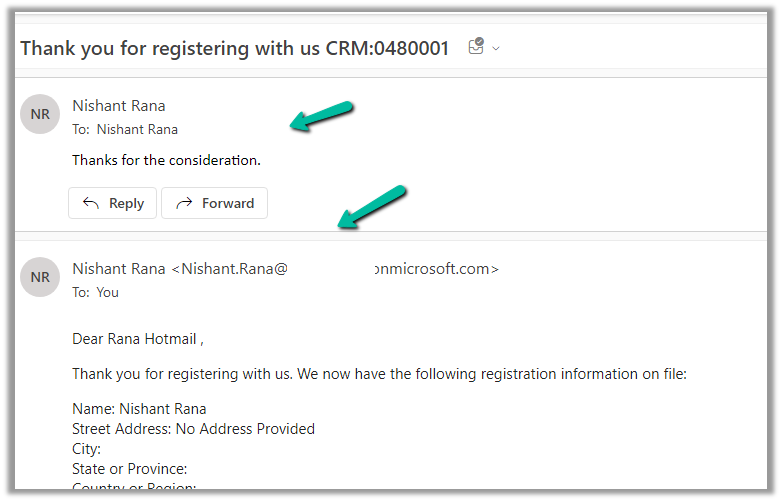
We can see the mail received in the Hotmail account from the CRM user’s email id/mailbox configured.

Here the end-user has also replied to the email.

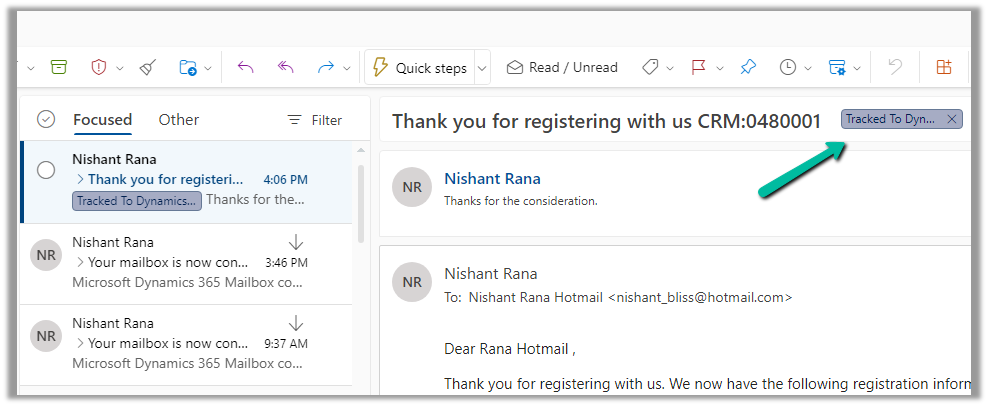
We can see the response / reply automatically “Tracked to Dynamics 365” in the CRM user’s outlook. (based on the CRM user’s Personal Options setting)

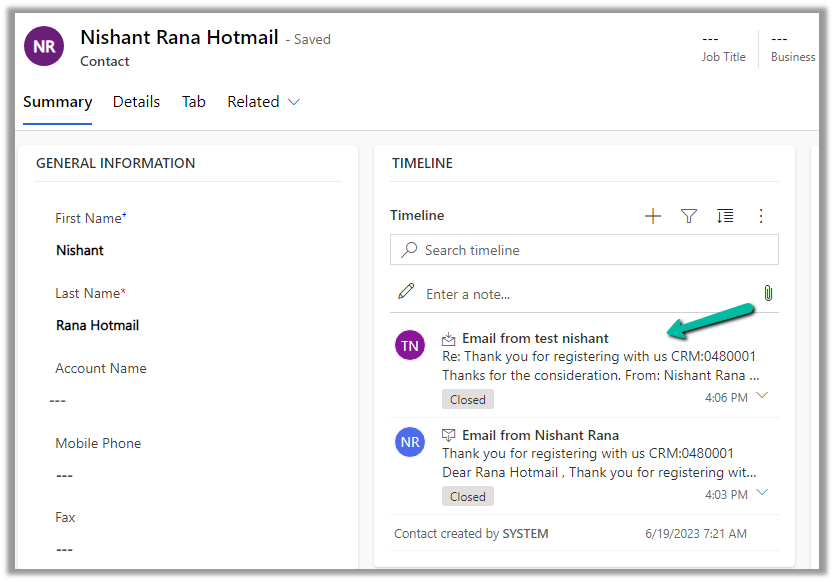
Which creates Email activity (closed status) in the corresponding contact record inside CRM.

More on Tracking Email

Hope it helps..

Advertisements

Fixed – This assets-oce.mkt.dynamics.com page can’t be found in Dynamics 365 Marketing


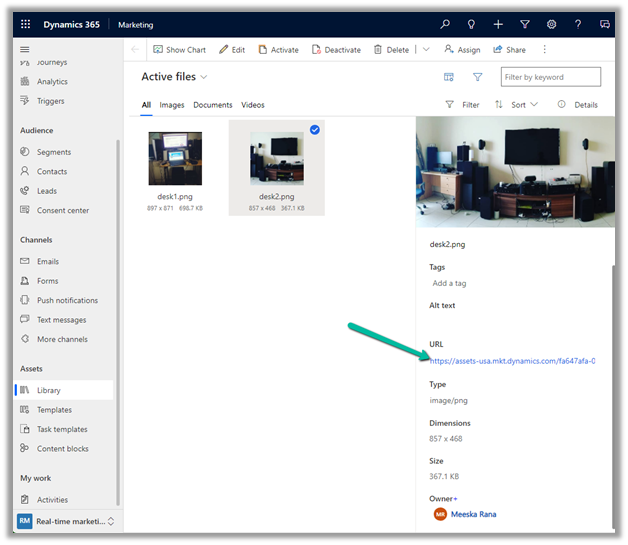
Recently we got the below error while trying to open the files in our Real-time marketing Assets Library.

We raised the Microsoft Support ticket for this and got the issue fixed.

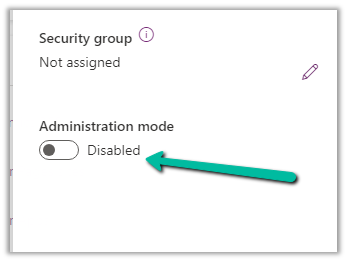
This was because our environment was in Admin mode. (as we were going live so had kept it in admin mode, till we verify it), and there are specific tasks related to processing marketing content, such as resizing image / optimizing image / etc. that requires some Async Service to run in the background which needs the environment to be in the non-admin mode.

Disabling the Admin mode for the environment fixed it.

Hope it helps..

Advertisements

Fixed – We can’t find the form page you’re trying to load – Dynamics 365 Marketing


Recently we saw the below error in one of our marketing forms hosted on the website –

We can’t find the form page you’re trying to load: <div data-editorblocktype=”FormBlock” data-form-block-id=”64d87bc7-279d-ed11-aad1-00224814fd52″></div>. Please check your page setup.


This occurs if the form is not Live.


Making the form “Go live” will fix the issue.


Hope it helps..
Advertisements