Recently while working in TPC, we had a requirement to get the details of the logged in user (which is basically a contact record in CRM).
To do so we can make use tpc.identity object in Client Side.
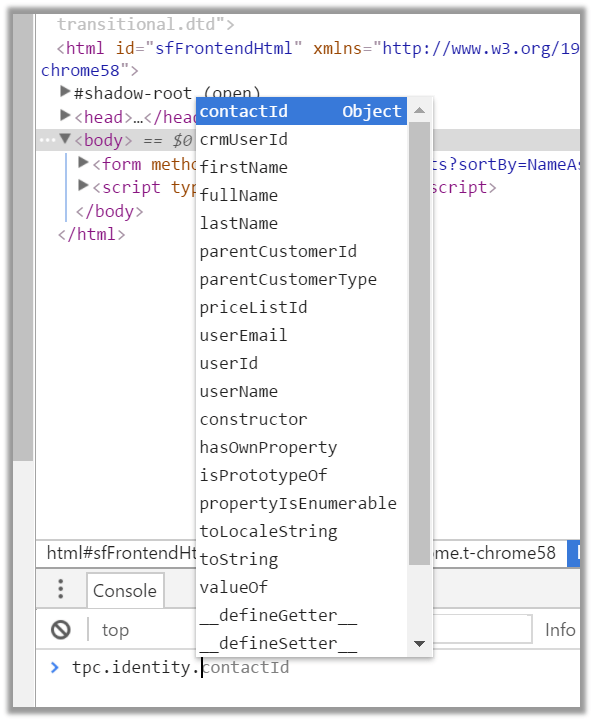
For e.g. contactId

Hope it helps..

Recently while working in TPC, we had a requirement to get the details of the logged in user (which is basically a contact record in CRM).
To do so we can make use tpc.identity object in Client Side.
For e.g. contactId
Hope it helps..

Recently we configured products from CRM to e-commerce setting of The Portal Connector and found that the price for the product was missing.

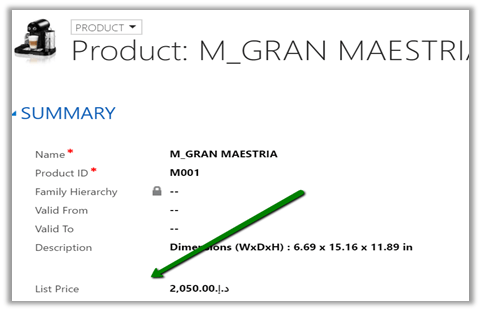
The way to fix this issue is to Open the product form in CRM and add the list price field on the product form and specify the value there.
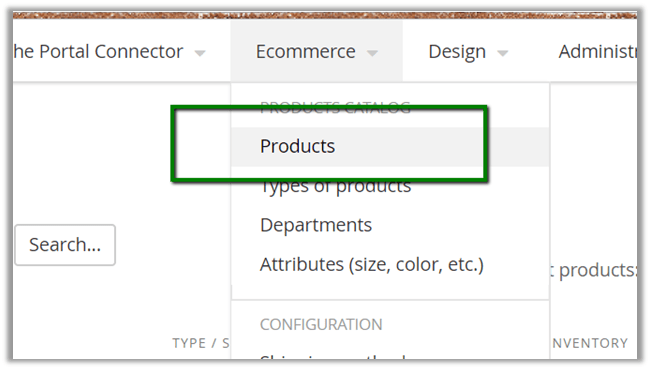
Once value is specified, go to administration – portal connector configuration and click on Resynchronize to update the product record in the portal.


Once synchronization is done, we can see the values updated in the portal.

Hope it helps..

Recently, while trying to convert a case to work order we got the below error.

The immediate thought was to check all the workflow associated to work order and case and see if they all are published, which in fact they were.
Then as suggested here
http://ms-crm-2011-beta.blogspot.ae/2016/11/workflow-must-be-in-published-state.html
we deactivated and activated one of our SLA written against the Work Order entity and it fixed the issue.
Hope it helps..

Sharing a sample code which we can use to upload files to Azure Blog Storage from within a CRM Online Plugin. Here we’d be making use of the REST API to simplify things (instead of using Windows Azure Storage library) in our Plugin.
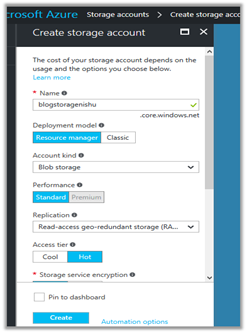
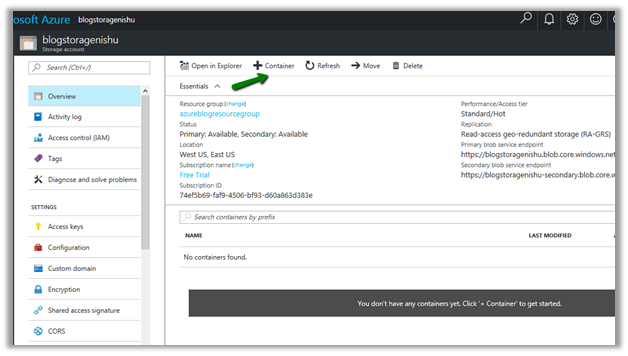
First, we will be creating a storage account of type blob storage and a container inside it.
Log in to Azure Portal
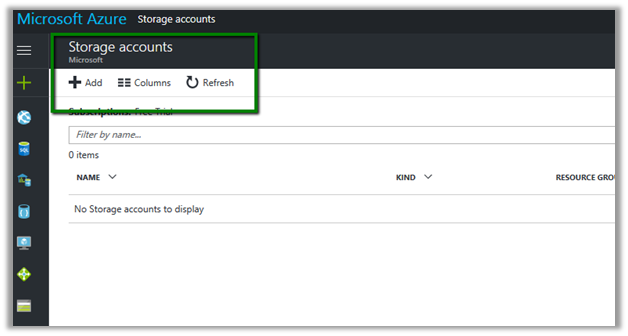
Click on Add to add a new storage account.
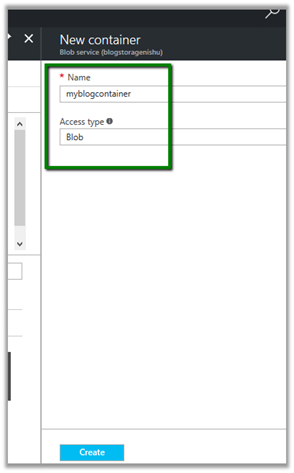
Create a new container in it to store the blob files
In Azure Portal – Storage Account, go to Access Keys and copy the key
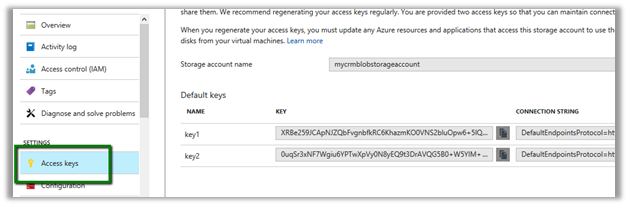
And also note down the storage account name and container name which will be used to construct the URL.

We can also go to container, select its properties and copy the url.

Here we have written the plugin on Create of Annotation, which then retrieves the attachment and uploads its content to the container.
Let us first see it in action.
We have created a new note and attached a text file to it.
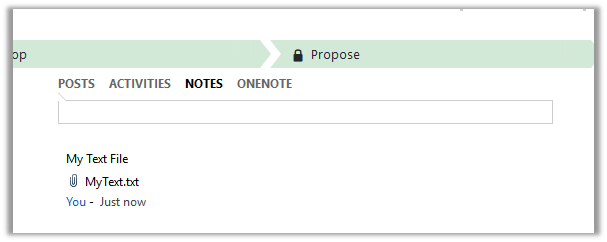
Going back to our portal, we can see the file in our container.
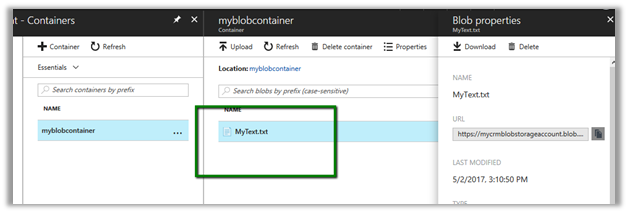
The sample code for the plugin.
<br />
using Microsoft.Xrm.Sdk;<br />
using System;<br />
using System.IO;<br />
using System.Net;<br />
using System.Security.Cryptography;<br />
using System.Text;<br />
namespace MyTestPlugin<br />
{</p>
<p>public class UploadFile : IPlugin<br />
{<br />
public void Execute(IServiceProvider serviceProvider)<br />
{<br />
try<br />
{<br />
// Obtain the execution context from the service provider.<br />
IPluginExecutionContext context = (IPluginExecutionContext)serviceProvider.GetService(typeof(IPluginExecutionContext));</p>
<p>// The InputParameters collection contains all the data passed in the message request.<br />
if (context.InputParameters.Contains("Target") && context.InputParameters["Target"] is Entity)<br />
{<br />
// Obtain the target entity from the input parameters.<br />
Entity noteEntity = (Entity)context.InputParameters["Target"];<br />
byte[] doumentBody = Convert.FromBase64String(noteEntity.Attributes["documentbody"].ToString());<br />
string content = Encoding.UTF8.GetString(doumentBody);<br />
string fileName = noteEntity.Attributes["filename"].ToString();</p>
<p>// Upload the attached text file to Azure Blog Container<br />
UploadFileToAzureBlobStorage(content, fileName);</p>
<p>}<br />
}<br />
catch (Exception ex)<br />
{<br />
throw new InvalidPluginExecutionException(ex.Message);<br />
}<br />
}</p>
<p>void UploadFileToAzureBlobStorage(string content, string fileName)<br />
{</p>
<p>string storageKey = "storagekey";<br />
string storageAccount = "storageaccountname";<br />
string containerName = "strogaecontaninername";<br />
string blobName = fileName;</p>
<p>string method = "PUT";<br />
string sampleContent = content;<br />
int contentLength = Encoding.UTF8.GetByteCount(sampleContent);</p>
<p>string requestUri = $"https://{storageAccount}.blob.core.windows.net/{containerName}/{blobName}";</p>
<p>HttpWebRequest request = (HttpWebRequest)WebRequest.Create(requestUri);</p>
<p>string now = DateTime.UtcNow.ToString("R");</p>
<p>request.Method = method;<br />
request.ContentType = "text/plain; charset=UTF-8";<br />
request.ContentLength = contentLength;</p>
<p>request.Headers.Add("x-ms-version", "2015-12-11");<br />
request.Headers.Add("x-ms-date", now);<br />
request.Headers.Add("x-ms-blob-type", "BlockBlob");<br />
request.Headers.Add("Authorization", AuthorizationHeader(method, now, request, storageAccount, storageKey, containerName, blobName));</p>
<p>using (Stream requestStream = request.GetRequestStream())<br />
{<br />
requestStream.Write(Encoding.UTF8.GetBytes(sampleContent), 0, contentLength);<br />
}</p>
<p>using (HttpWebResponse resp = (HttpWebResponse)request.GetResponse())<br />
{<br />
if(resp.StatusCode == HttpStatusCode.OK)<br />
{<br />
// successfully uploaded<br />
}<br />
}</p>
<p>}</p>
<p>public string AuthorizationHeader(string method, string now, HttpWebRequest request, string storageAccount, string storageKey, string containerName, string blobName)<br />
{<br />
string headerResource = $"x-ms-blob-type:BlockBlob\nx-ms-date:{now}\nx-ms-version:2015-12-11";<br />
string urlResource = $"/{storageAccount}/{containerName}/{blobName}";<br />
string stringToSign = $"{method}\n\n\n{request.ContentLength}\n\n{request.ContentType}\n\n\n\n\n\n\n{headerResource}\n{urlResource}";</p>
<p>HMACSHA256 hmac = new HMACSHA256(Convert.FromBase64String(storageKey));<br />
string signature = Convert.ToBase64String(hmac.ComputeHash(Encoding.UTF8.GetBytes(stringToSign)));</p>
<p>String AuthorizationHeader = String.Format("{0} {1}:{2}", "SharedKey", storageAccount, signature);<br />
return AuthorizationHeader;<br />
}<br />
}</p>
<p>}</p>
<p>
Hope it helps.

Update -26 – Sep- 2018
https://nishantrana.me/2018/09/26/changing-the-target-runtime-version-of-azure-functions/
In our previous post we saw how we can invoke CRM from within the Azure Function.
https://nishantrana.me/2017/04/28/call-dynamics-crm-from-azure-functions/
Using that knowledge, let us now write an Azure Function that will run periodically.
Here we will take a simple example of creating a lead record every 2 minutes. Obviously real world scenario would involve much complex scenario like checking the status of all the open records and update them daily something of that sort.
Another way of writing a scheduled job is using Web Job I have written about it over here.
https://nishantrana.me/2017/03/21/dynamics-crm-web-job-and-azure-scheduler/
Login to Azure Portal and create a new Function App

Create a new function with Timer and CSharp template.

function.json bindings defines the schedule for the timer, it take a CRON expression for value schedule.

CRON Expression format: –

If we want it to run every 2 minute
 ‘
‘
Back to our code let us click on Run and test it.

Now let us quickly plumb the code to create Lead in CRM.
Go to App Service Editor for the Function App and add new a file named project.json which refers to the CRM Nuget Package.


Sample code that creates the lead record in CRM.
using System.Net;
using Microsoft.Xrm.Sdk;
using Microsoft.Xrm.Sdk.Client;

public static void Run(TimerInfo myTimer, TraceWriter log)
{
IServiceManagement orgServiceManagement = ServiceConfigurationFactory.CreateManagement(new Uri("https://nishutrial.crm.dynamics.com/XRMServices/2011/Organization.svc"));

AuthenticationCredentials authCredentials = new AuthenticationCredentials();
authCredentials.ClientCredentials.UserName.UserName = "test@test.onmicrosoft.com";
authCredentials.ClientCredentials.UserName.Password = "*******";
AuthenticationCredentials tokenCredentials = orgServiceManagement.Authenticate(authCredentials);

OrganizationServiceProxy organizationProxy = new OrganizationServiceProxy(orgServiceManagement, tokenCredentials.SecurityTokenResponse);
Entity lead = new Entity("lead");
lead.Attributes["subject"] = "Lead Created at" + DateTime.Now ;
organizationProxy.Create(lead);

log.Info($"C# Timer trigger function executed at: {DateTime.Now}");
}
Inside CRM

To monitor our Azure Function please select Monitor

Click on live event stream to monitor it real-time.
To stop or disable the function, select Manage and click on function state Disabled.


Hope it helps..

Update -26 – Sep- 2018
https://nishantrana.me/2018/09/26/changing-the-target-runtime-version-of-azure-functions/
Let us take a look at a simple Azure Function that refers our CRM assemblies and creates contact record in CRM.
Log in to Azure Portal, search for Function App and create a Function App.

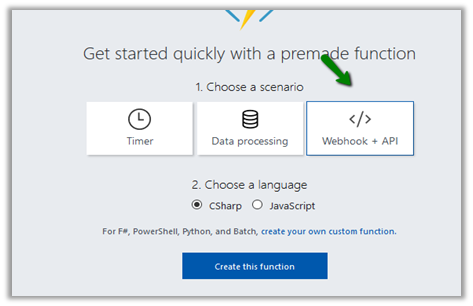
Here we have specified WebHook + API and CSharp Template. Click on Create this function.
Select the function app, go to Platform features tab and click on App Service Editor.

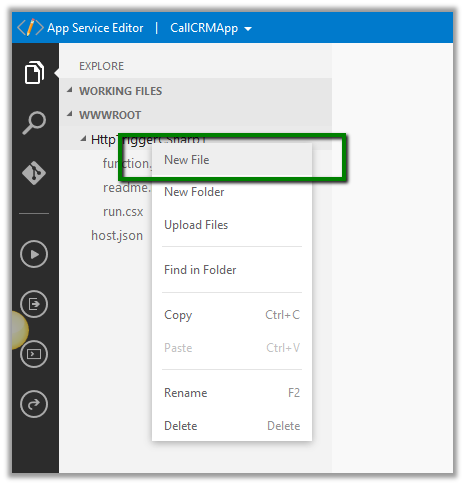
Right click the function and add a new file named project.json. It is within this file we will refer our Nuget Packages that we need in our function.
https://docs.microsoft.com/en-us/azure/azure-functions/functions-reference-csharp
Here we will reference the following Nuget Package for CRM
https://www.nuget.org/packages/Microsoft.CrmSdk.CoreAssemblies/
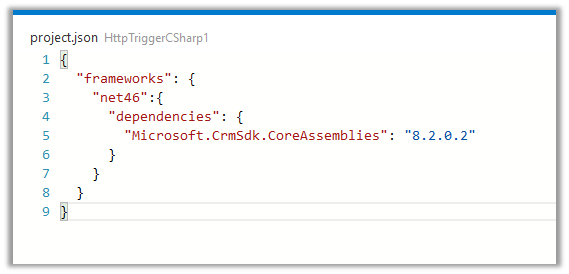
</p>
<p>{<br />
"frameworks": {<br />
"net46":{<br />
"dependencies": {<br />
"Microsoft.CrmSdk.CoreAssemblies": "8.2.0.2"<br />
}<br />
}<br />
}<br />
}</p>
<p>
Back in our Function when we click on Save or Run, we can see the required assemblies being installed in our Log.

The sample code for the Azure Function (just for simplicity the values are all hardcoded)
</p>
<p>using System.Net;<br />
using Microsoft.Xrm.Sdk;<br />
using Microsoft.Xrm.Sdk.Client;</p>
<p>public static async Task Run(HttpRequestMessage req, TraceWriter log)<br />
{<br />
log.Info("C# HTTP trigger function processed a request.");</p>
<p>// parse query parameter<br />
string firstname = req.GetQueryNameValuePairs()<br />
.FirstOrDefault(q => string.Compare(q.Key, "firstname", true) == 0)<br />
.Value;</p>
<p>string lastname = req.GetQueryNameValuePairs()<br />
.FirstOrDefault(q => string.Compare(q.Key, "lastname", true) == 0)<br />
.Value;</p>
<p>IServiceManagement orgServiceManagement = ServiceConfigurationFactory.CreateManagement(new Uri("https://nishutrial.crm.dynamics.com/XRMServices/2011/Organization.svc"));</p>
<p>AuthenticationCredentials authCredentials = new AuthenticationCredentials();<br />
authCredentials.ClientCredentials.UserName.UserName = "abc@abc.onmicrosoft.com";<br />
authCredentials.ClientCredentials.UserName.Password = "*****";<br />
AuthenticationCredentials tokenCredentials = orgServiceManagement.Authenticate(authCredentials);</p>
<p>OrganizationServiceProxy organizationProxy = new OrganizationServiceProxy(orgServiceManagement, tokenCredentials.SecurityTokenResponse);<br />
Entity contact = new Entity("contact");<br />
contact.Attributes["firstname"] = firstname;<br />
contact.Attributes["lastname"] = lastname;<br />
var contactId = organizationProxy.Create(contact);<br />
// Get request body<br />
dynamic data = await req.Content.ReadAsAsync();</p>
<p>string fullname = "";<br />
return fullname == null<br />
? req.CreateResponse(HttpStatusCode.BadRequest, "Please pass a name on the query string or in the request body")<br />
: req.CreateResponse(HttpStatusCode.OK, "Contact created in CRM " + contactId.ToString());<br />
}</p>
<p>
Let us now test our function.
The function expects 2 query string parameter firstname and lastname and creates the contact record in CRM.

In our CRM, we can see the contact record created.

Hope it helps..


