As a first step,
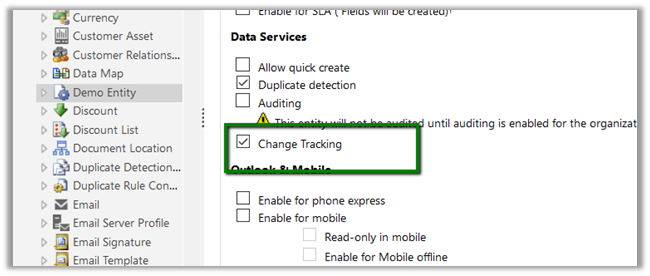
Enable Change Tracking for the entity, custom Demo Entity in our case here.
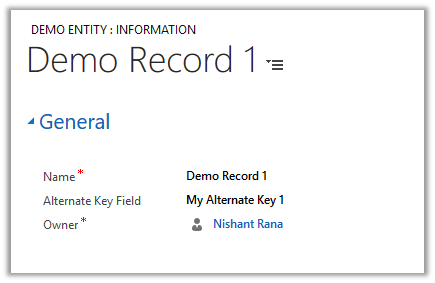
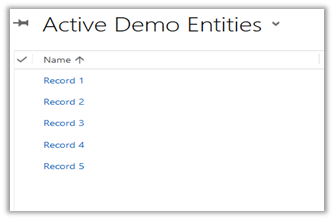
Suppose we have 5 records created for Demo Entity.
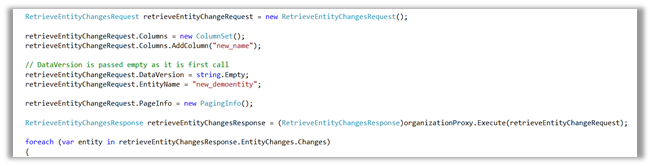
As we are calling it for the first time DataVersion is set as empty.
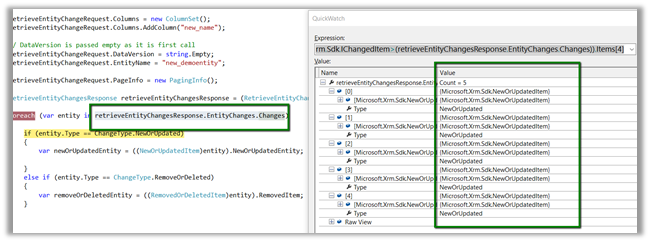
We got all the 5 records as new or updated item.
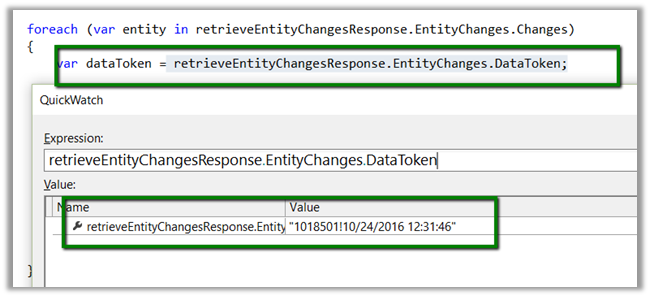
Save the DataToken to be used while determining the changes and to be passed next time.
Now let us delete Record 1 and Record 2 and update Record 5 and run the code again this time passing the DataToken saved
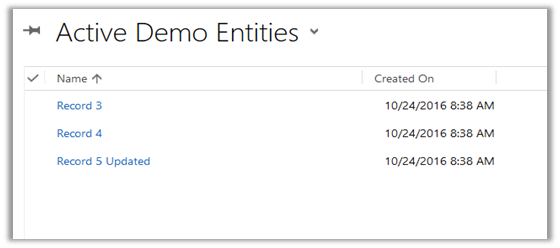
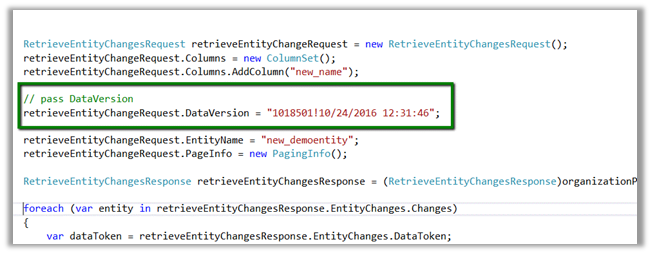
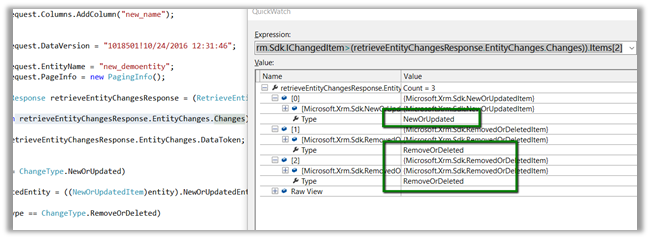
As expected we get 3 changes.
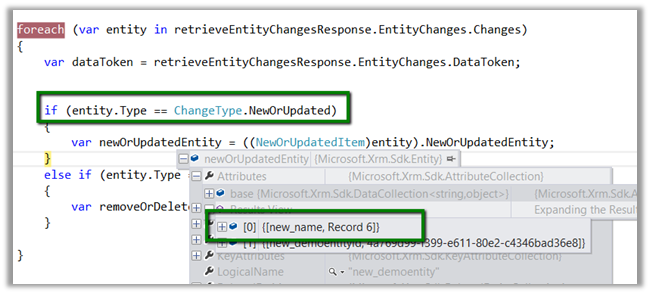
Now suppose we create a new record name Record 6 and still use the old Data Token
As expected we got 4 changes here, which includes the new record 6 as new or update.
Point to remember here is if no version is passed the system will return all the records as new, and system will consider records that are within 90 days, if it is older than 90 days all the records will be returned.
If we have a new record created and deleted before we retrieved for the changes and the record didn’t exist at the time of retrieval, we will still get the record as deleted.
Sample Code
</p>
<p>EntityCollection newOrUpdatedEntityCollection = new EntityCollection();<br />
EntityReferenceCollection removeOrDeletedEntityRefCollection = new EntityReferenceCollection();</p>
<p>RetrieveEntityChangesRequest retrieveEntityChangeRequest = new RetrieveEntityChangesRequest();<br />
retrieveEntityChangeRequest.Columns = new ColumnSet();<br />
retrieveEntityChangeRequest.Columns.AddColumn("new_name");</p>
<p>// pass DataVersion<br />
retrieveEntityChangeRequest.DataVersion = "1018501!10/24/2016 12:31:46";</p>
<p>retrieveEntityChangeRequest.EntityName = "new_demoentity";<br />
retrieveEntityChangeRequest.PageInfo = new PagingInfo();</p>
<p>RetrieveEntityChangesResponse retrieveEntityChangesResponse = (RetrieveEntityChangesResponse)organizationProxy.Execute(retrieveEntityChangeRequest);</p>
<p>foreach (var entity in retrieveEntityChangesResponse.EntityChanges.Changes)<br />
{<br />
var dataToken = retrieveEntityChangesResponse.EntityChanges.DataToken;</p>
<p>if (entity.Type == ChangeType.NewOrUpdated)<br />
{<br />
newOrUpdatedEntityCollection.Entities.Add(((NewOrUpdatedItem)entity).NewOrUpdatedEntity);<br />
}<br />
else if (entity.Type == ChangeType.RemoveOrDeleted)<br />
{<br />
removeOrDeletedEntityRefCollection.Add(((RemovedOrDeletedItem)entity).RemovedItem);<br />
}<br />
}</p>
<p>
Hope it helps ..