ILMerge / Dependent Assemblies in Plugin – System.IO.FileNotFoundException: Could not load file or assembly ‘System.Memory.Data’ – Dynamics 365 / Dataverse


Recently in one of our Plugins, which was using Azure.Storage.Blobs and Azure.Storage.Common libraries to move attachments from notes to Azure Blob Storage suddenly started throwing the below exception. The Plugin had been working fine and had been deployed long back to the production environment.

System.TypeInitializationException: The type initializer for ‘Azure.Response’ threw an exception. —> System.IO.FileNotFoundException: Could not load file or assembly ‘System.Memory.Data, Version=1.0.2.0, Culture=neutral, PublicKeyToken=cc7b13ffcd2ddd51’ or one of its dependencies. The system cannot find the file specified.

We raised the Microsoft Support for it and were informed that the reason for this was there was a platform update over that particular weekend to stop loading the “System.Memory.Data” assembly on the plugin server. And as we hadn’t included that assembly in our package (ILMerge), we started getting the exception.

Also as per Microsoft Docs


So the quick fix at that time was to include (set Copy Local as True) for that System.Memory.Data along with Azure assemblies.

Also now we can look into using Plugin Package to package the dependent assemblies.

Hope it helps..

Advertisements

Implementing No Code Dynamics 365 Service Bus Listener using Logic Apps


How to – Access Dataverse environment storage using SAS Token


We can access our environment’s storage using a SAS token. 

Download – Azure Storage Explorerhttps://azure.microsoft.com/features/storage-explorer/#overview

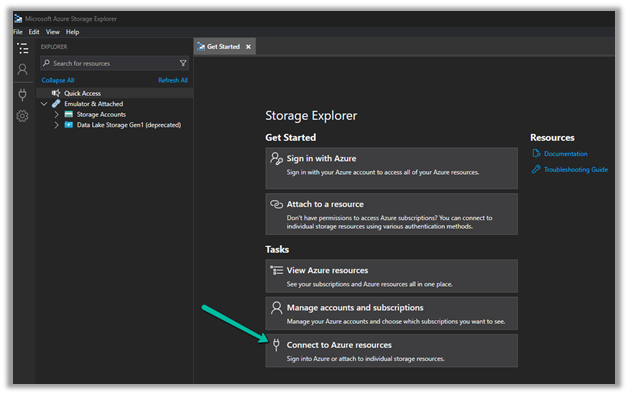
Select Connect to Azure resources option

Select ADLS Gen2 container or directory for the Azure storage type.

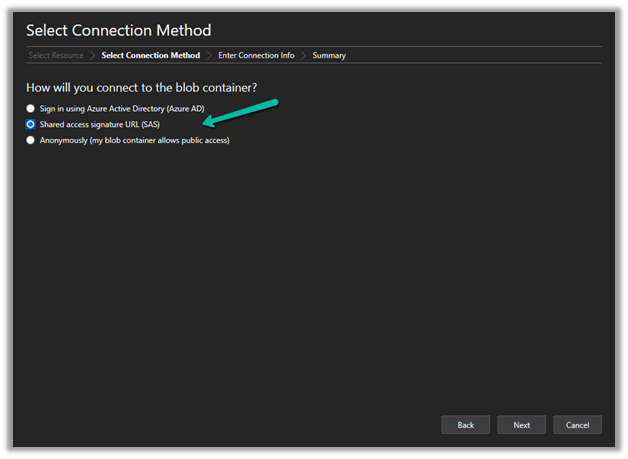
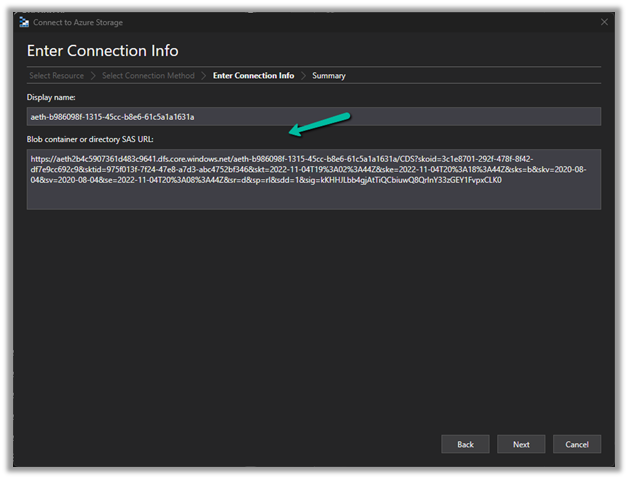
Select the Shared access signature URL for the connection

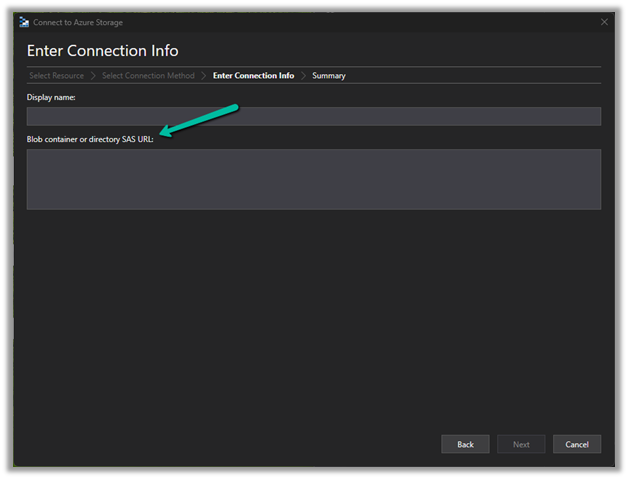
To get the SAS URLhttps://[ContainerURL]/CDS?[SASToken],

we need ContainerURL and SASToken.

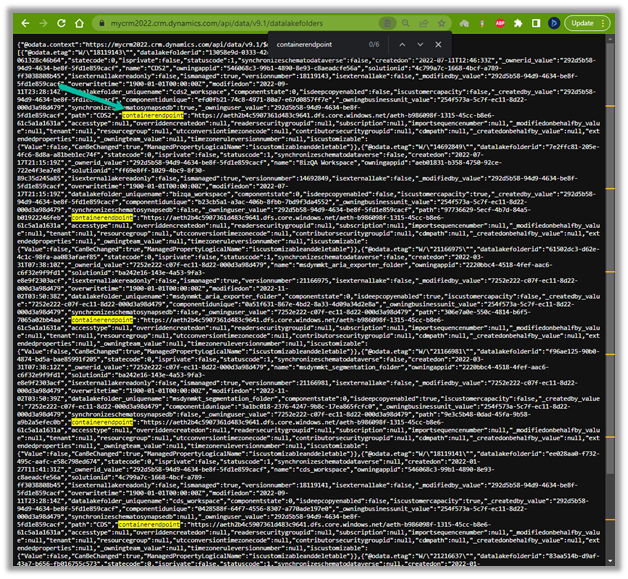
To get Container URL use the below link –

ContainerURL = <a href="https:///api/data/v9.1/datalakefolders”>https://&lt;EnvironmentURL>/api/data/v9.1/datalakefolders

In our case – https://mycrm2022.crm.dynamics.com/api/data/v9.1/datalakefolders

The containerendpoint = https://aeth2b4c5907361d483c9641.dfs.core.windows.net/aeth-b986098f-1315-45cc-b8e6-61c5a1a1631a

Copy the value of containerendpoint (ContainerURL)


Navigate to the below URL by replacing the value of the Environment URL and Container URL

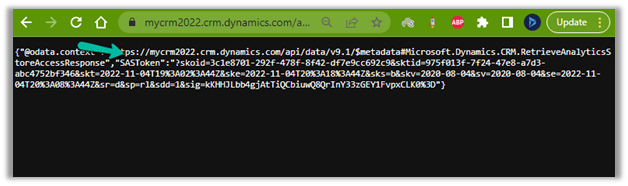
<a href="https:///api/data/v9.1/RetrieveAnalyticsStoreAccess(Url=@a,ResourceType=’Folder&#8217;,Permissions=’Read,List’)?@a=’/CDS”>https://&lt;EnvironmentURL>/api/data/v9.1/RetrieveAnalyticsStoreAccess(Url=@a,ResourceType=’Folder’,Permissions=’Read,List’)?@a='<ContainerURL>/CDS’

i.e.

https://mycrm2022.crm.dynamics.com/api/data/v9.1/RetrieveAnalyticsStoreAccess(Url=@a,ResourceType=’Folder’,Permissions=’Read,List’)?@a=%27https://aeth2b4c5907361d483c9641.dfs.core.windows.net/aeth-b986098f-1315-45cc-b8e6-61c5a1a1631a/CDS%27

to get the SAS token (the SAS Token will expire after 1 hour)


Construct the SAS URL which we will use in the Azure Explorer’s connection info  <a href="https:///CDS?https://<ContainerURL>/CDS?<SASToken&gt;

https://aeth2b4c5907361d483c9641.dfs.core.windows.net/aeth-b986098f-1315-45cc-b8e6-61c5a1a1631a/CDS?skoid=3c1e8701-292f-478f-8f42-df7e9cc692c9&sktid=975f013f-7f24-47e8-a7d3-abc4752bf346&skt=2022-11-04T19%3A02%3A44Z&ske=2022-11-04T20%3A18%3A44Z&sks=b&skv=2020-08-04&sv=2020-08-04&se=2022-11-04T20%3A08%3A44Z&sr=d&sp=rl&sdd=1&sig=kKHHJLbb4gjAtTiQCbiuwQ8QrInY33zGEY1FvpxCLK%03D0

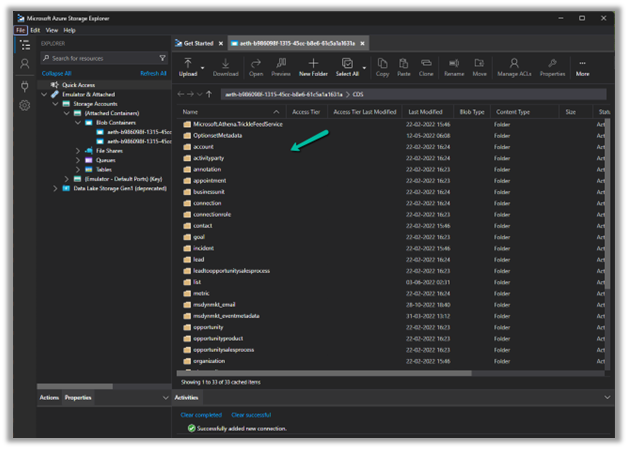
Now we have access to the storage
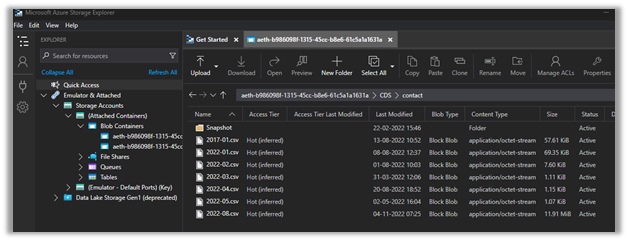
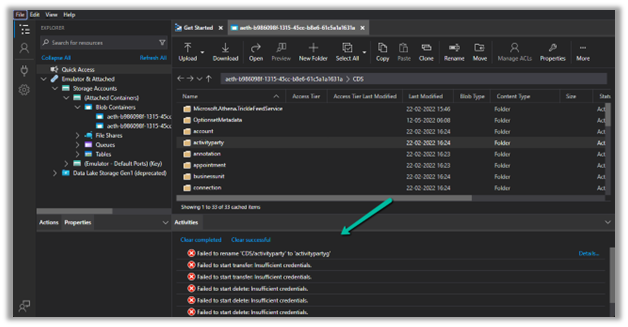
Here we have opened the contact folder just as an example


We only have read-only access, any other access like delete, rename, upload, etc. will fail


Get all the details here – https://learn.microsoft.com/en-us/power-platform/admin/storage-sas-token

Hope it helps..

Advertisements

How to – quickly find Tenant Id https://www.whatismytenantid.com/


Recently we had to find the tenant id, usually, we will log in to Azure Portal and within Azure Active Directory we will get the tenant id.

However, in this case, we only had the user’s email address.

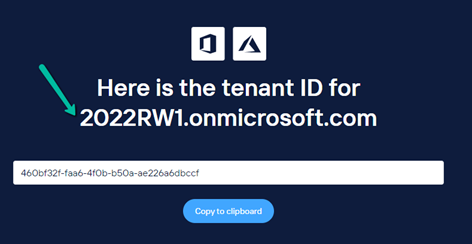
So we had https://www.whatismytenantid.com/ to help us here.

Just enter the domain name, and click on Find my tenant ID.

The result –

The corresponding PowerShell script – https://craigporteous.com/azure-tenant-id-powershell/

Hope it helps..

Advertisements

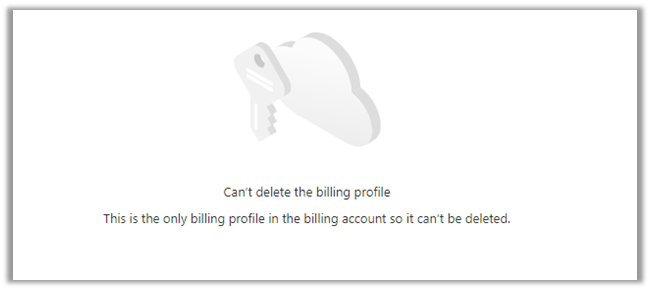
Can’t delete billing profile. This is the only billing profile in the billing account- Azure (Trial)


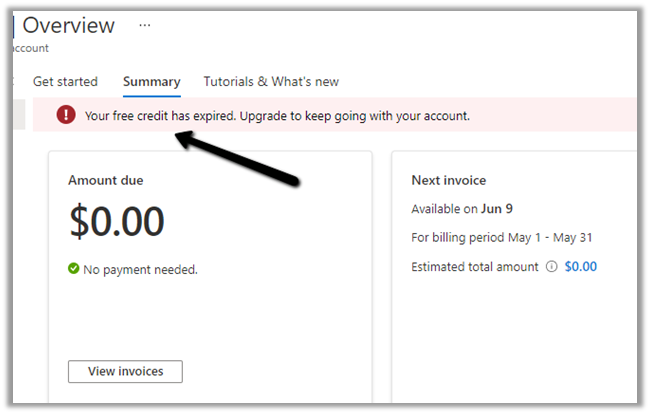
Recently our Azure Subscription using free credit had expired and we wanted to remove the card details associated with the billing.

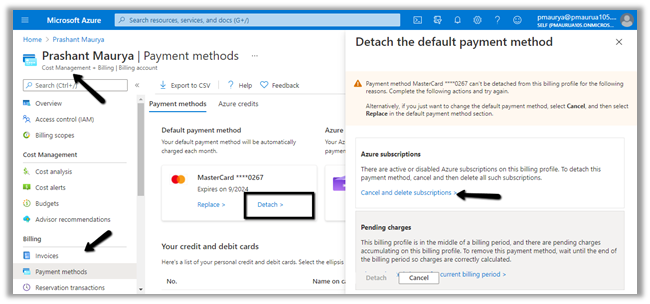
If we try to Detach it (and if the card is being used as the default payment), it will give us the below message

Cost Management >> Payment Methods > > Detach

There are active or disabled Azure subscriptions on this billing profile. To detach this payment method, cancel and then delete all such subscriptions.​”

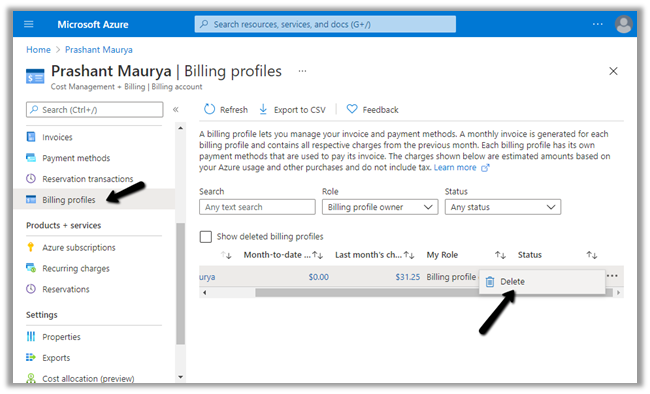
And if we trying to delete the billing profile

Cost Management >> Billing profiles


We would get the below message


So first we need to delete the subscription here.

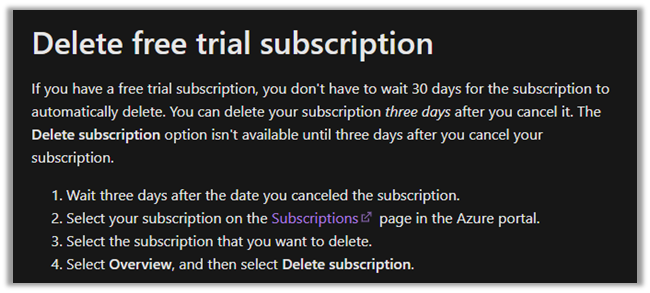
Now again we can only delete the free trial subscription after 3 days of canceling it. So we would have to try deleting the subscription after 3 days.


Trying after 3 days,


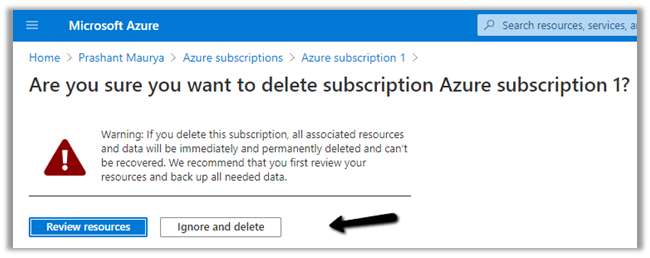
will give us the option to delete the subscription


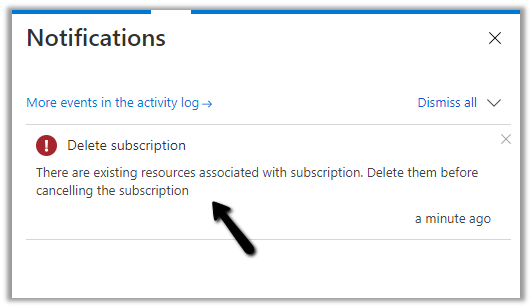
But as we have the resources associated we will have to delete the resources first.


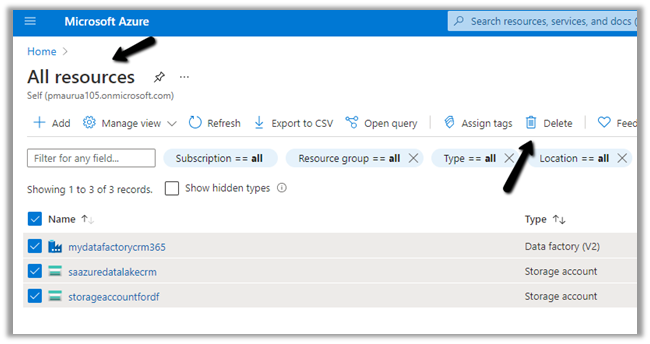
Navigate to All resources and delete the resources first.


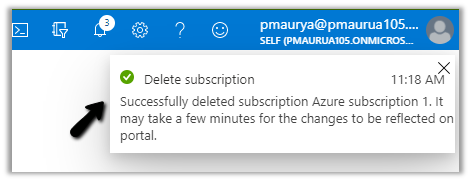
After deleting the resources, deleting the subscription will be successful

Let us now try to detach the card again.

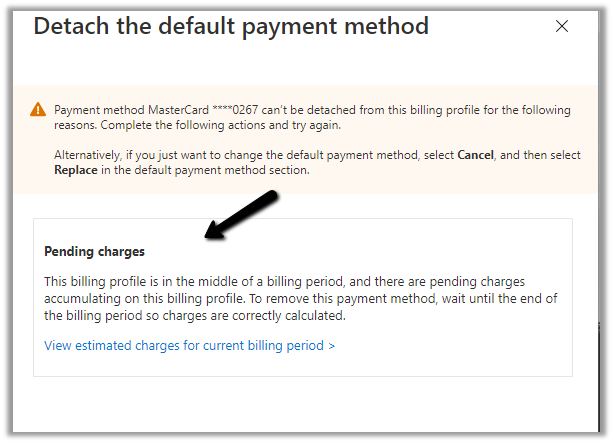
This time the Azure Subscription existing message was gone as we had deleted it, however, we were still not able to detach and it was asking to wait until the end of the billing period.


Instead of waiting till the end of the billing period – next we tried the below option

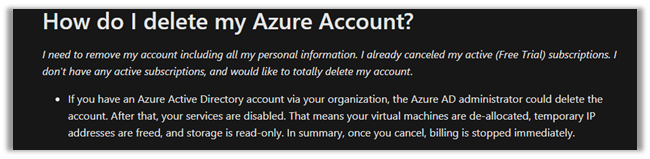
https://docs.microsoft.com/en-us/azure/cost-management-billing/manage/cancel-azure-subscription#how-do-i-delete-my-azure-account


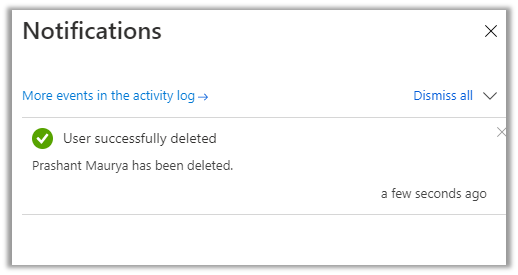
i.e. Deleting the Azure AD Account. (through another admin user’s account)


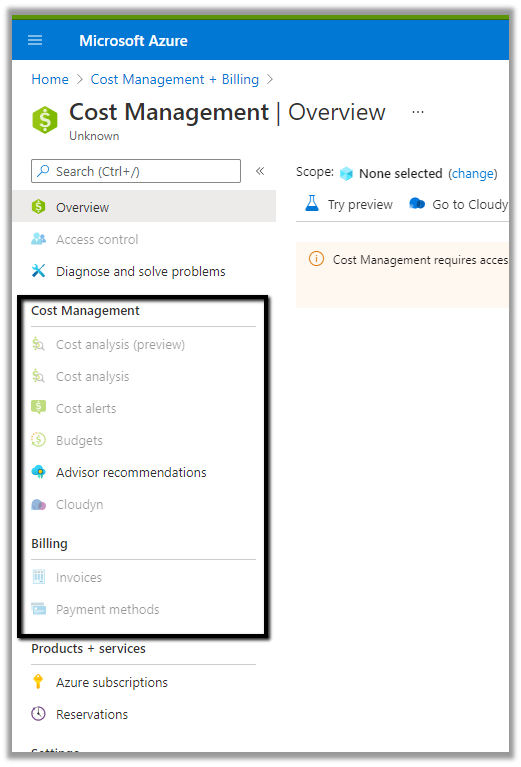
After successful delete, we can see all the options disabled.


So basically the fastest way to remove your personal information from the Azure Free Trial is to cancel the subscription, delete it and then DELETE the account/user.

Hope it helps..

Advertisements

How to setup – Azure Synapse Link – Microsoft Dataverse


Azure Synapse Link (earlier known as Export to Data Lake Service) provides seamless integration of DataVerse with Azure Synapse Analytics, thus making it easy for users to do ad-hoc analysis using the familiar T-SQL with Synapse Studio, build Power BI Reports using Azure Synapse Analytics Connector or use Azure Spark in Azure Synapse for analytics.

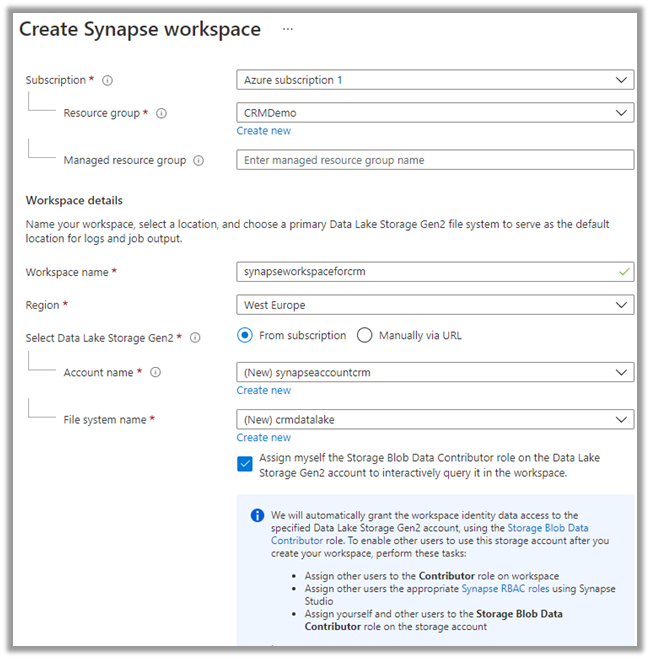
As a first step, we need to create the Azure Synapse Workspace.

Login to Azure Portal (https://portal.azure.com/ ) with appropriate roles and create a Synapse workspace.

https://docs.microsoft.com/en-us/azure/synapse-analytics/get-started-create-workspace

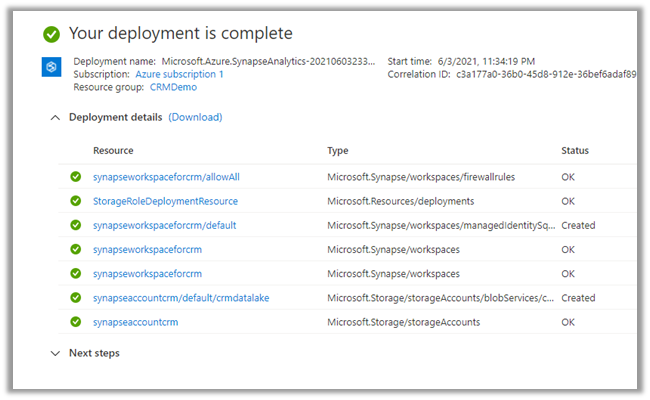
Wait for the deployment to be complete. Below are the resources created as part of the deployment.

Login to the maker portal (https://make.powerapps.com/ ) and select the appropriate environment

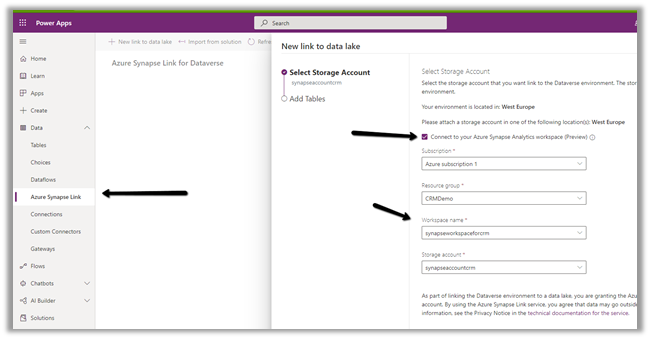
Click on Azure Synapse Link and check the Connect to your Azure Synapse Analytics workspace (preview) and specify the storage account created in the previous step
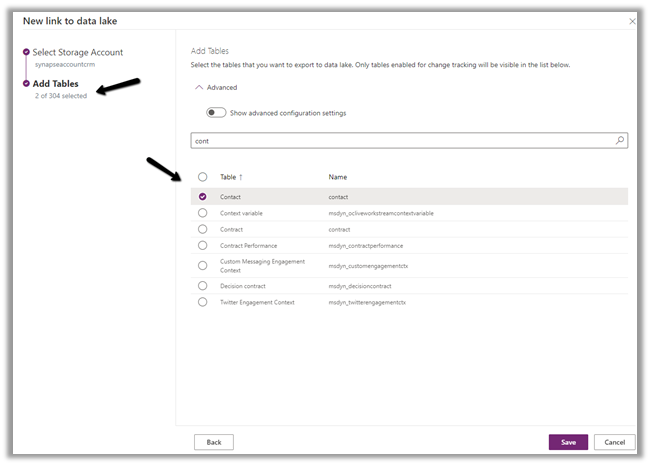
Here we have selected the Contact and System User table for export.

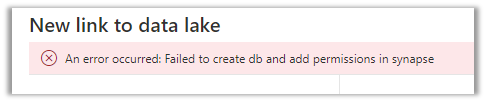
On clicking Save, we got this error couple of times, even though the account being used was Owner across the Azure resources. Trying save 3-4 times more, allowed the link to be created.

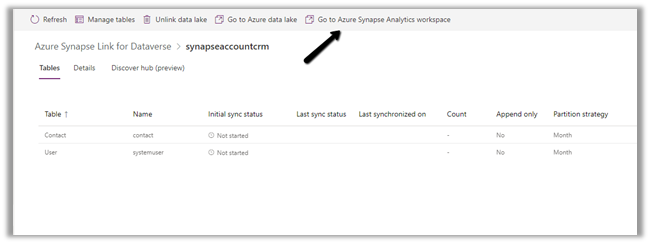
Click on Go to Azure Synapse Analytics workspace, opens the Azure Synapse Studio

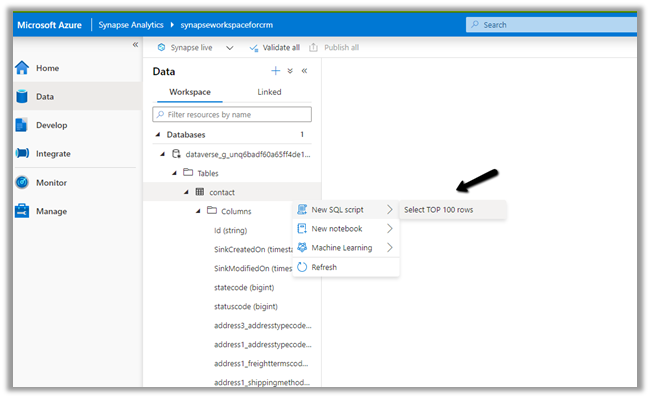
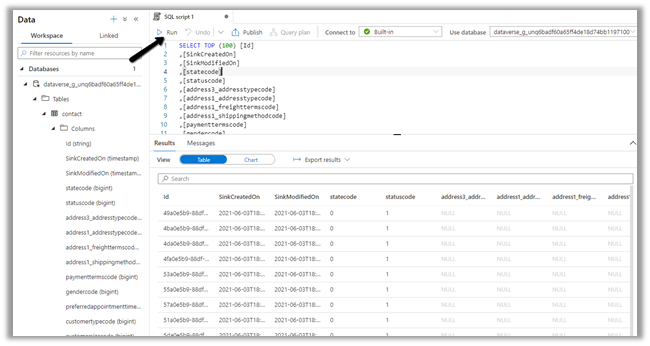
Within Synapse Studio we can see our Dataverse Database and run query.

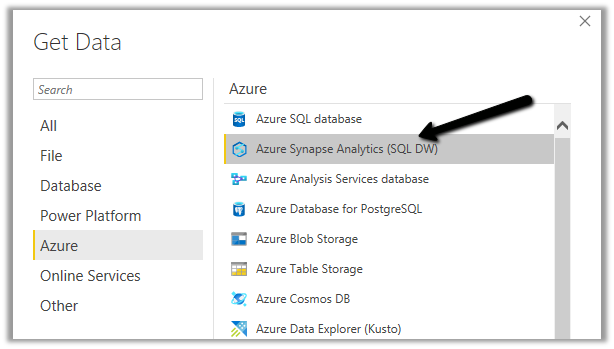
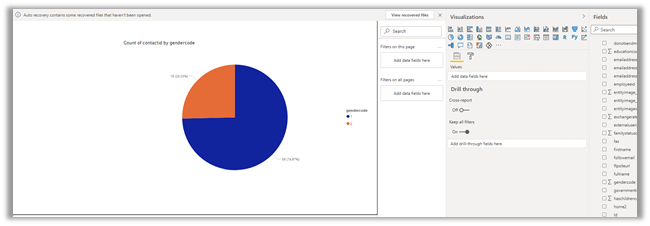
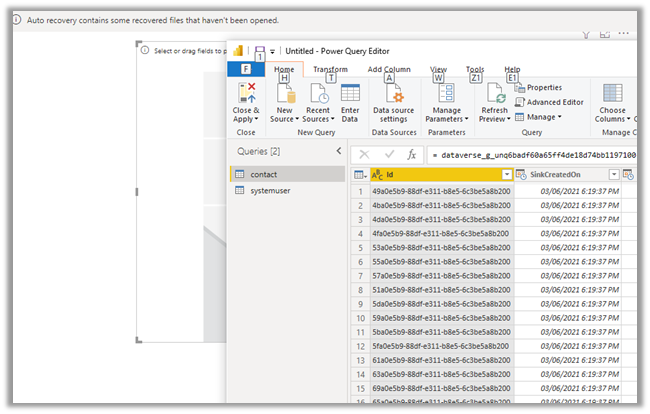
Similarly, we create a Power BI report with Azure Synapse Analytics (SQL DW) connector.

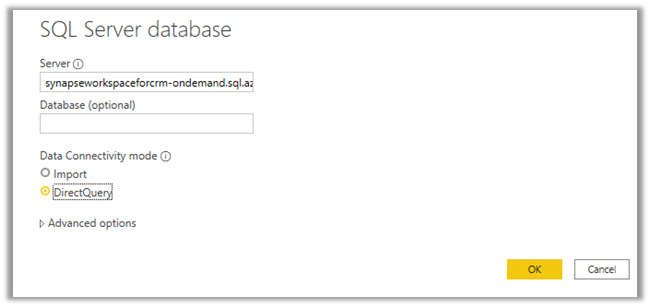
Copy the Serverless SQL endpoint of the Synapse workspace.

Select the Direct Query option.

https://azure.microsoft.com/en-gb/blog/power-your-business-applications-data-with-analytical-and-predictive-insights/

Hope it helps..

Advertisements