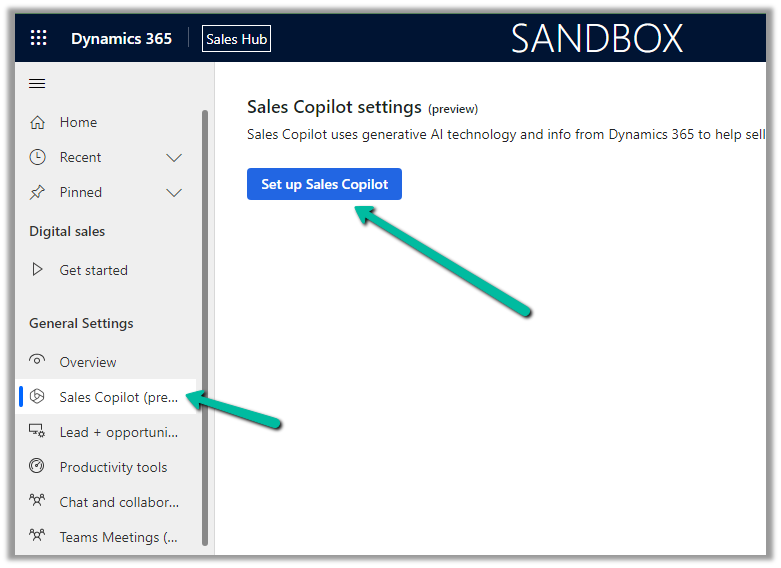
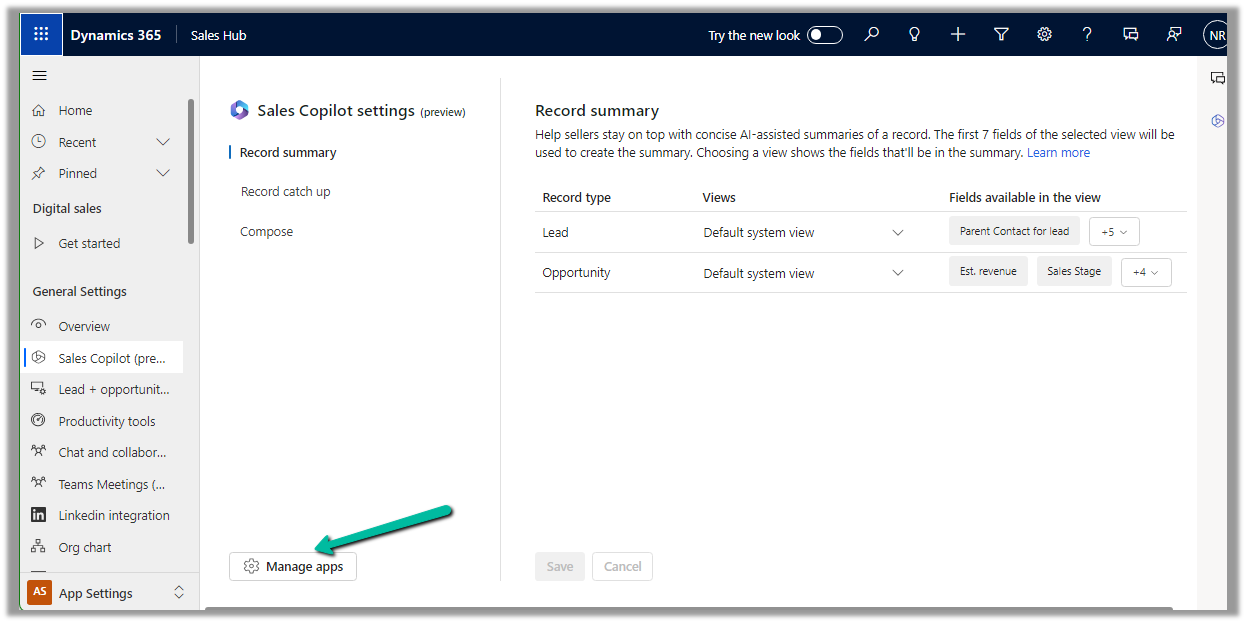
Sales Hub >> App Settings >> Sales Copilot (preview) >> Set up Sales Copilot
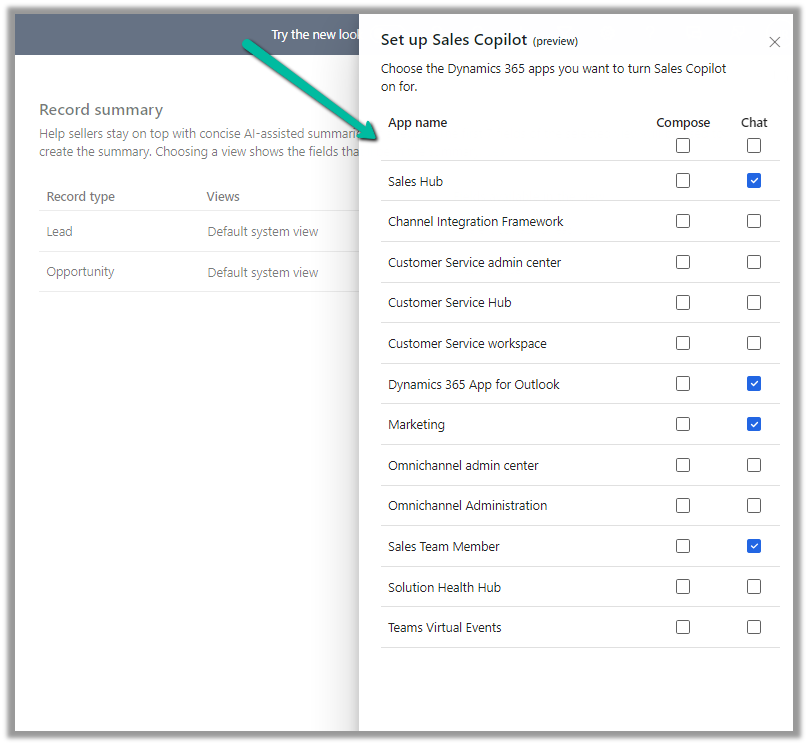
Or if we have already enabled it, we can manage the features provided along with the different apps we want to apply the Sales Copilot using the Manage apps option.
Here we can specify to which apps we want to enable the Compose and Chat feature
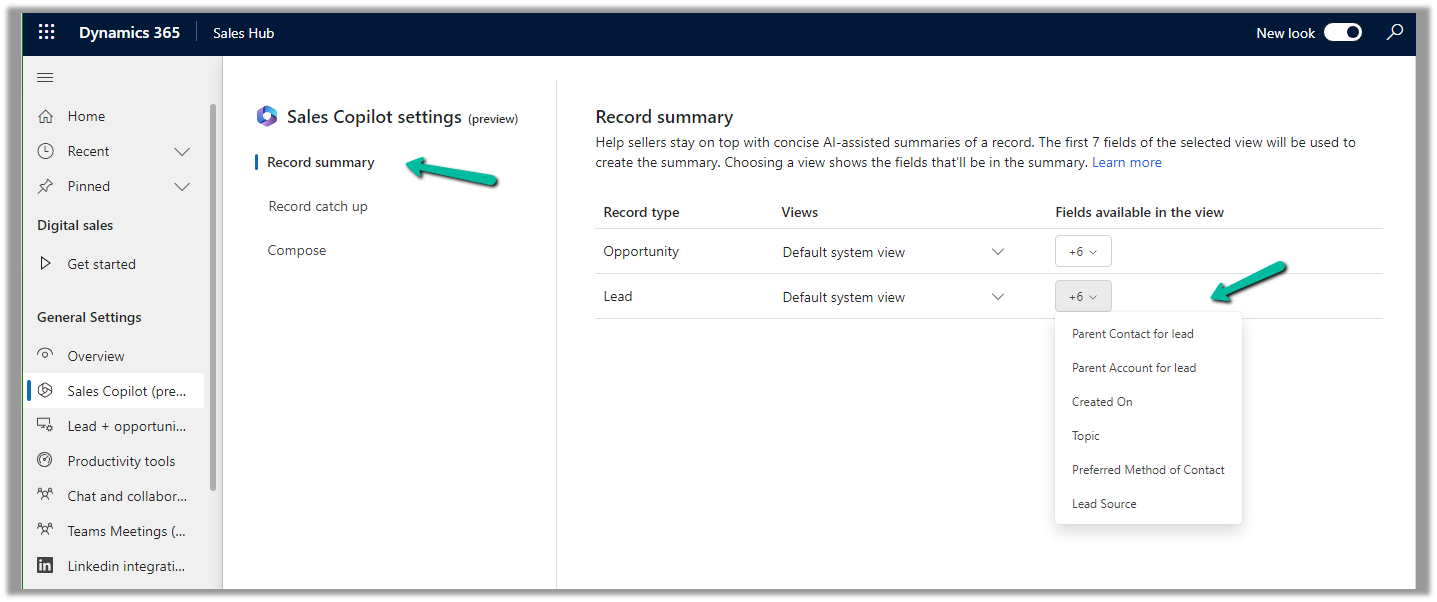
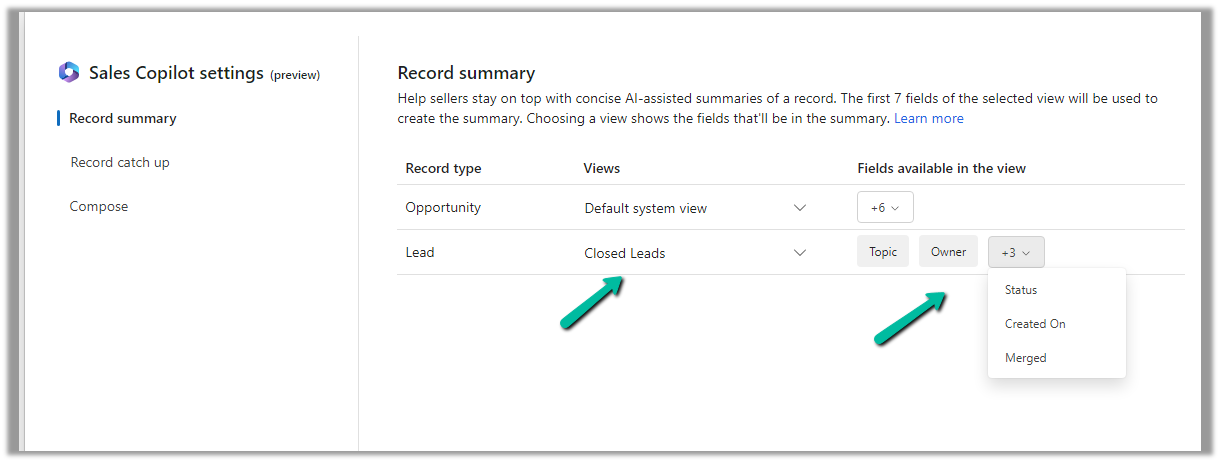
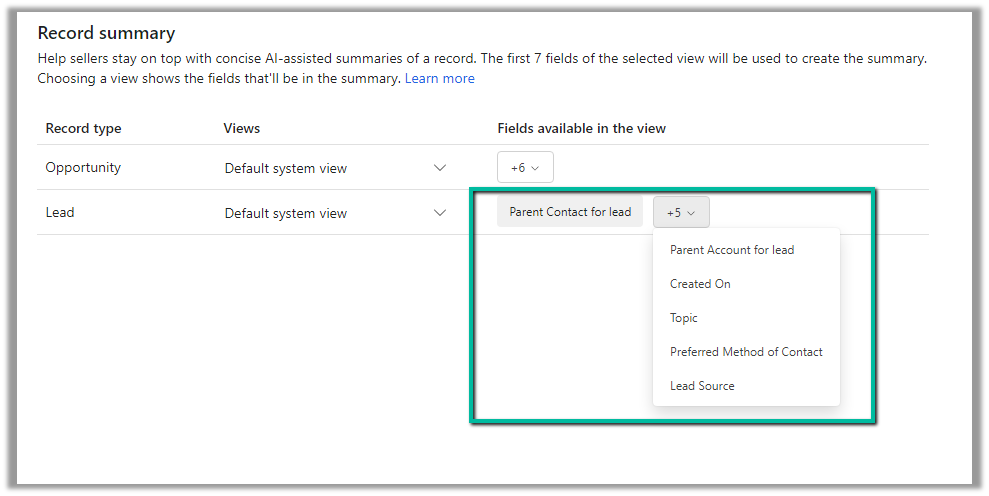
For the Record summary feature, the first 7 fields of the view are considered. We can see “Default System View” selected by default.
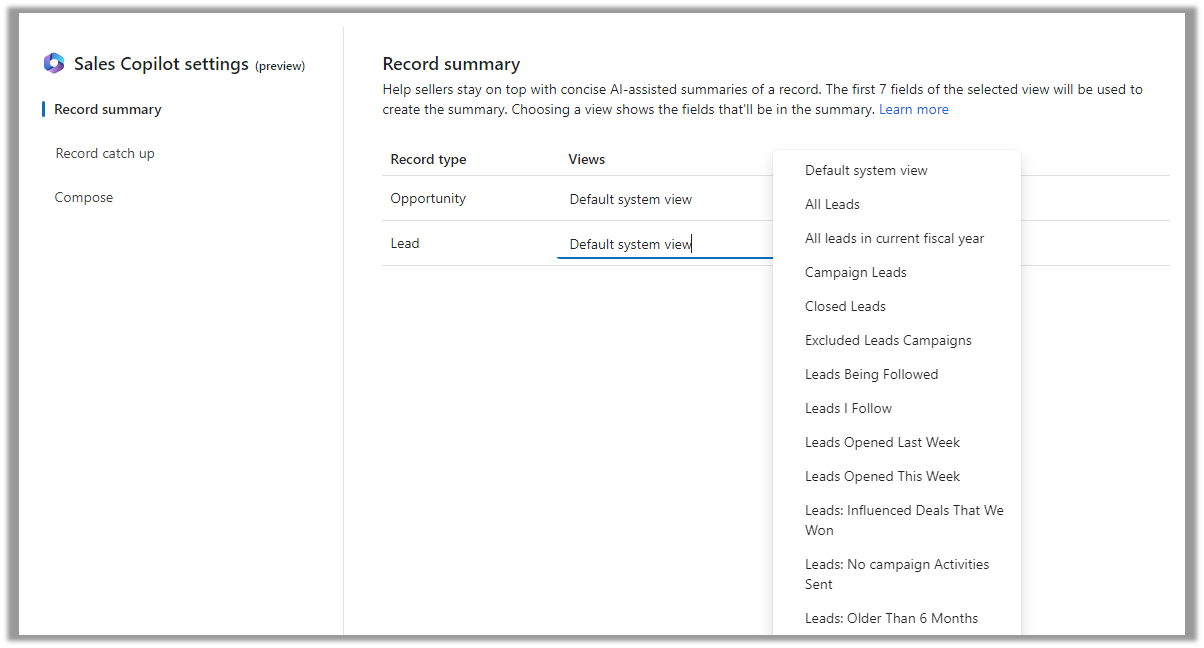
However, we have the option to select a different view, and then the fields of the selected view will be used for the summaries.
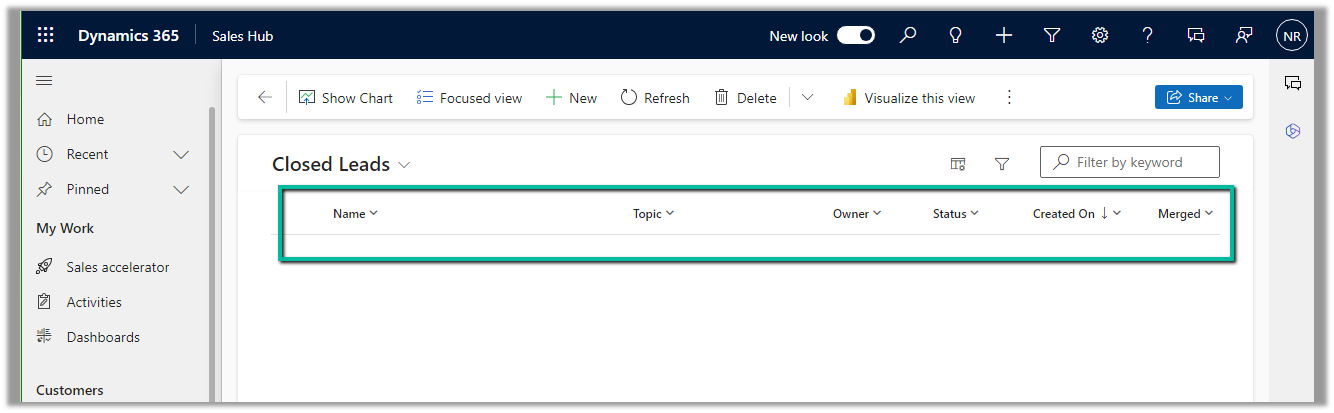
Below if we select the Closed Leads view and we can see it corresponding fields that will be considered for the summaries.
The Closed Leads view
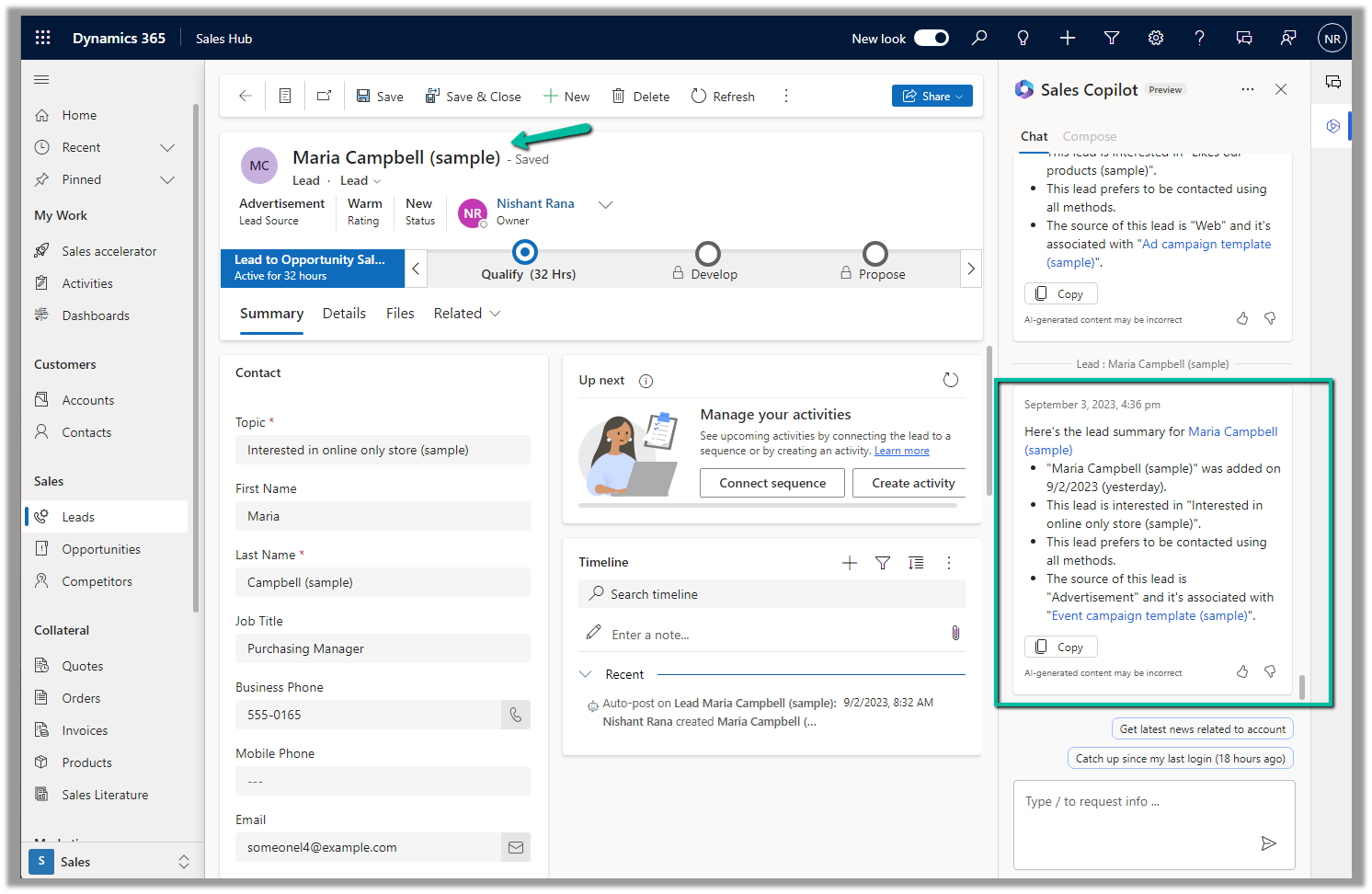
We can open an existing lead or opportunity record, and the Sales Copilot automatically generates the summary for that record.
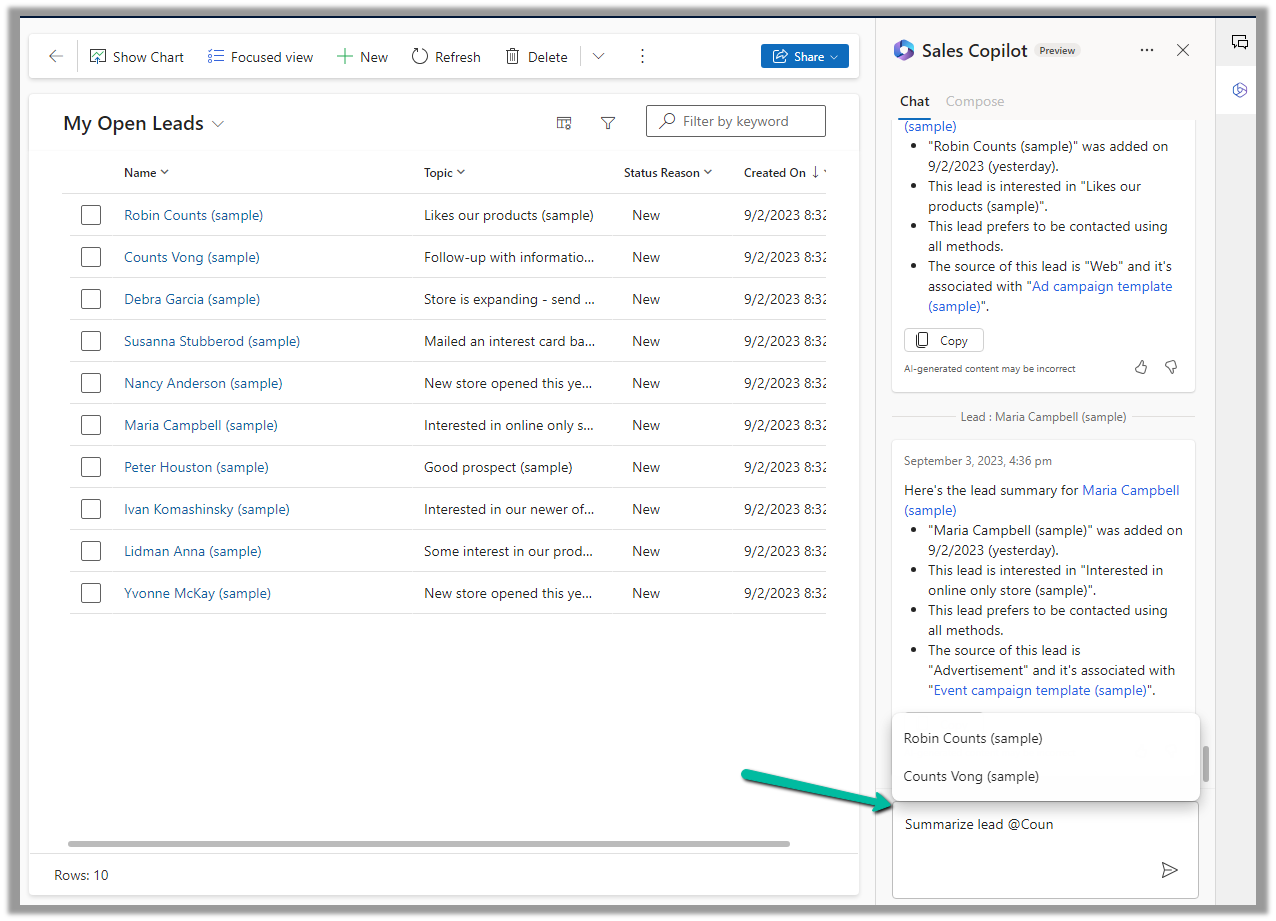
Or if we want to generate summary for a specific lead or opportunity we can use the below prompt.
Summarize lead or Summarize opportunity followed by @ and the record’s name.
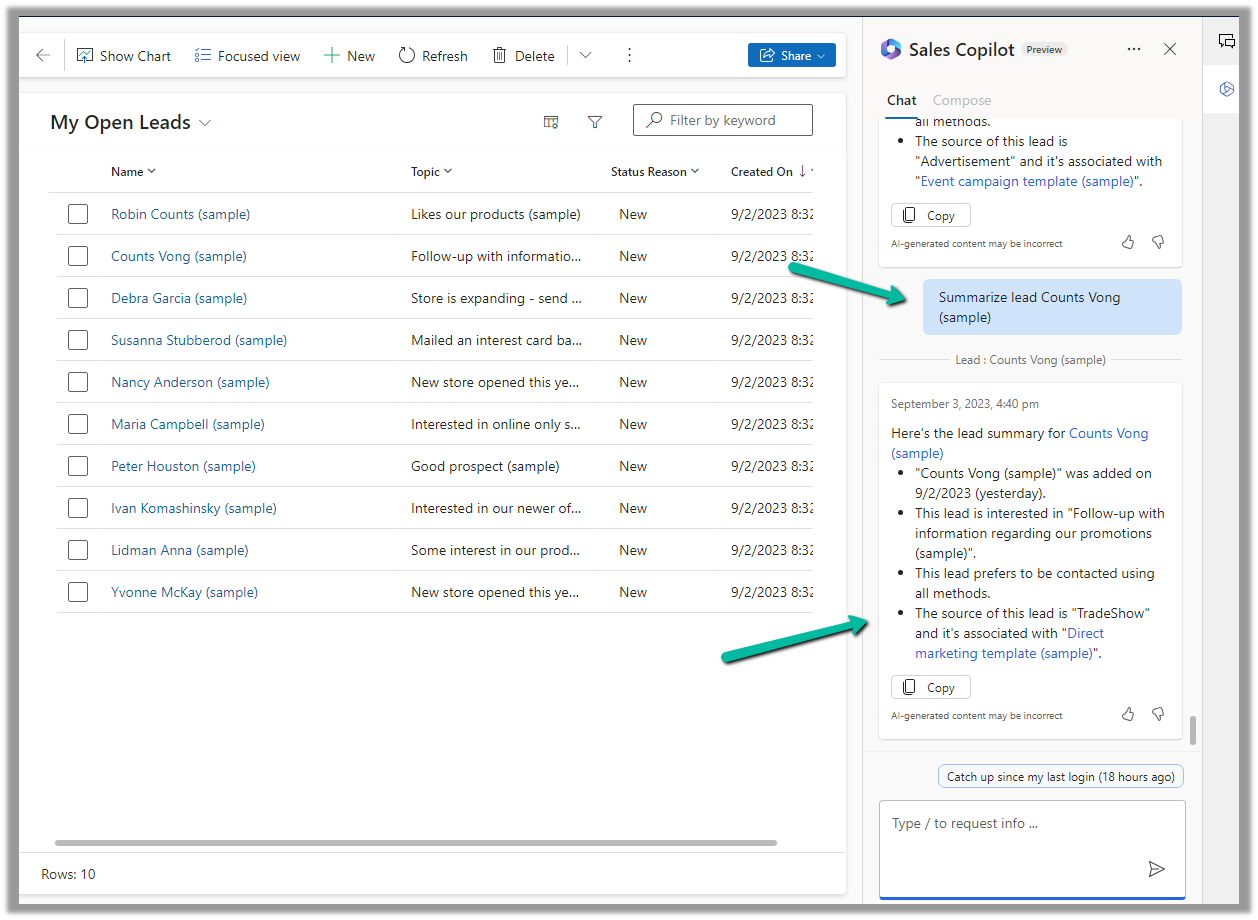
Below is the summary for Counts Vong (sample) lead record.
Here we can see the AI-generated summary making use of Created On, Topic, Preferred Method of contacct, Lead source field etc of Default system view.
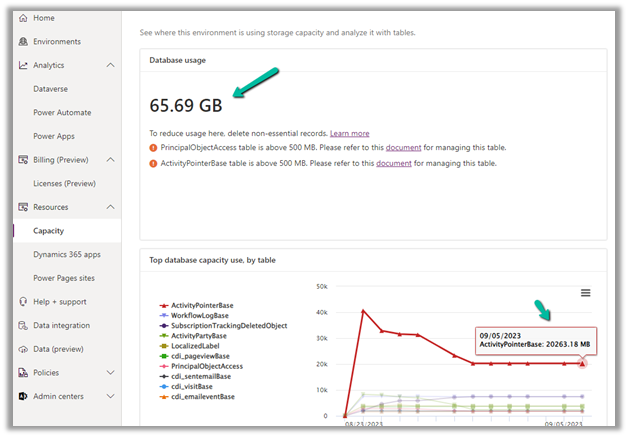
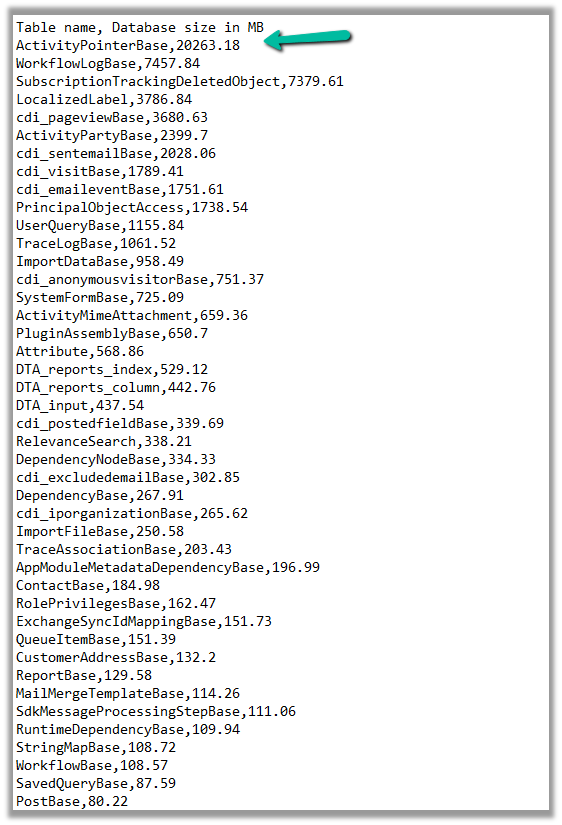
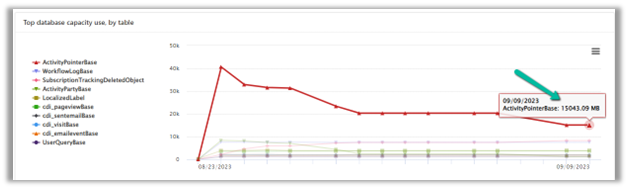
In one of our environments, the ActivityPointBase table was occupying nearly 20 GB. It was earlier 40 GB, and we then deleted email records to bring it down to 20 GB.
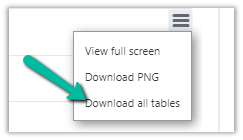
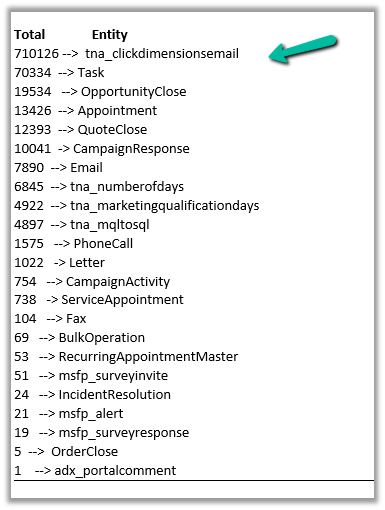
On downloading the table details, we did not get a clear idea of what activity-type table was occupying that much space.
So we raised the Microsoft Support ticket, and they shared with us the breakdown of records occupied by different activity type tables.
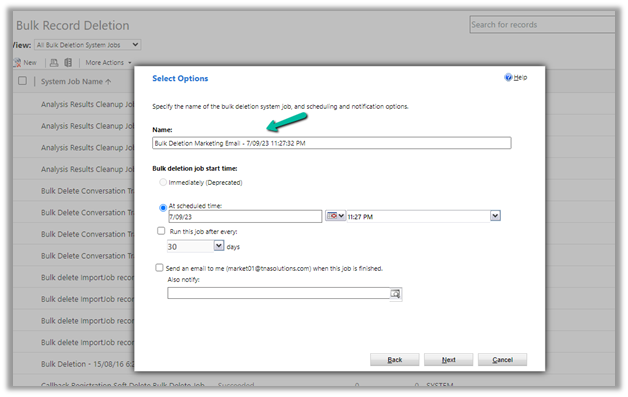
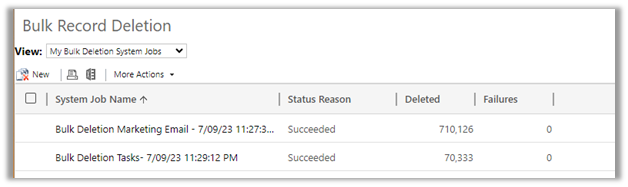
Then we configured our Bulk Deletion Job to delete the corresponding activity type records.
This helped us to bring down the ActivityPointerBase from 20 GB to 15 GB.

















 Nishant Rana's Weblog