Suppose we want to retrieve the value of the source campaign lookup of the lead records.
The schema name of Source Campaign is – campaignid
To get its GUID in the Select columns of list rows we can specify it as
_campaignid_value i.e. _lookupschemaname_value
The other option is if we specify the schema name in select columns then we need to use the expand property to get the GUID as well if we want any other attribute values e.g. text/label of the lookup field.
Recently in one of our flows, we were getting the below error –
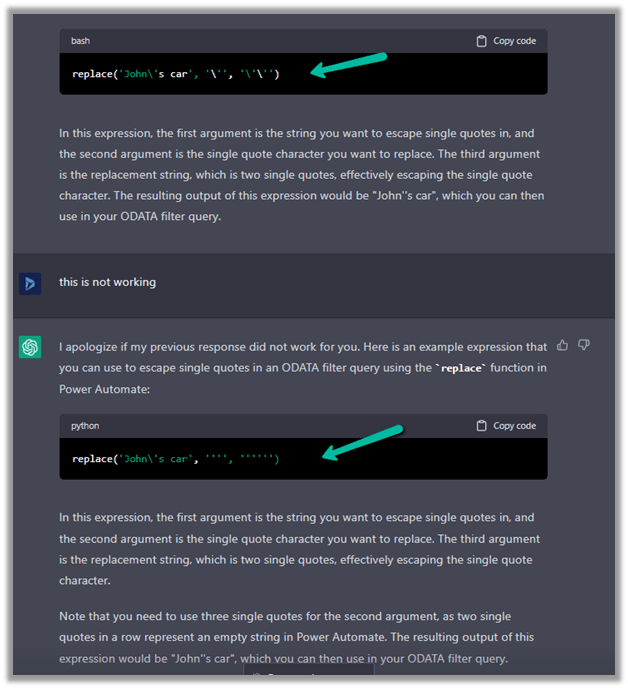
InvalidTemplate. Unable to process template language expressions in action ‘List_rows_:_Region’ inputs at line ‘0’ and column ‘0’: ‘The template language function ‘replace’ expects its first parameter ‘string’ to be a string. The provided value is of type ‘Null’. Please see https://aka.ms/logicexpressions#replace for usage details.’.
One or more fields provided is of type ‘Null’, a different type is expected.
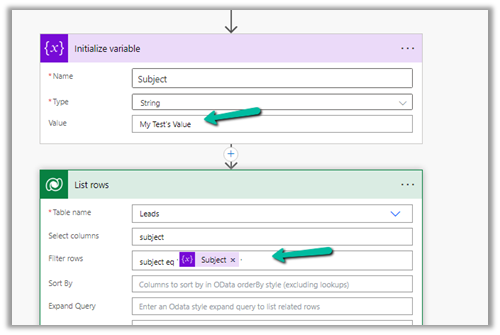
This was because the replace function that we were using for the Filter rows property of List Rows (Dataverse) had the variable value as null.
Similarly, we can use coalesce function to provide a default value.
The coalesce function will evaluate its arguments in order and will return the first non-blank or non-empty value. If all the arguments are blank or empty strings, the function will return blank.
After using the coalesce function, our flow was successful.
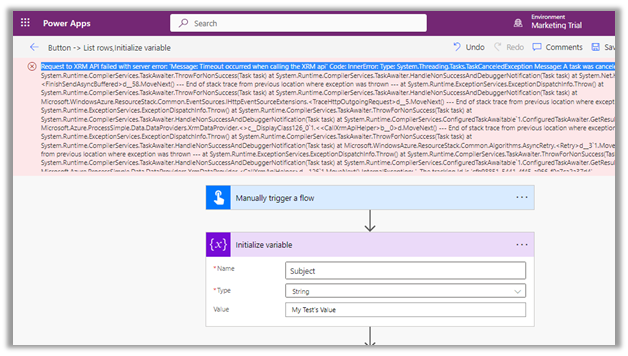
We were getting below Timeout error while trying to save our Power Automate flow.
Request to XRM API failed with server error: ‘Message: Timeout occurred when calling the XRM api’ Code: InnerError: Type: System.Threading.Tasks.TaskCanceledException Message: A task was canceled.
It could be because of some issues at the product end – some outage or server load. It lasted for around 15-20 minutes for us, after which we were able to save and test our flow successfully.
Recently we had a requirement to remove or hide the Approve and Reject buttons from the approval email as we wanted the user to manage it all from the Approval Center.
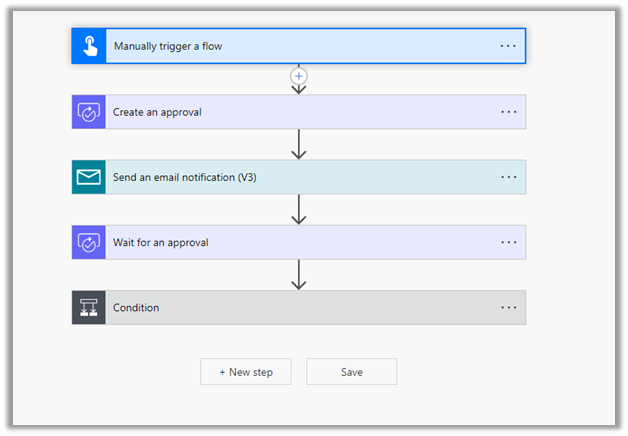
The way we implemented this is by replacing the Start and wait for an approval action with Create an approval, Send email notification and Wait for an approval action.
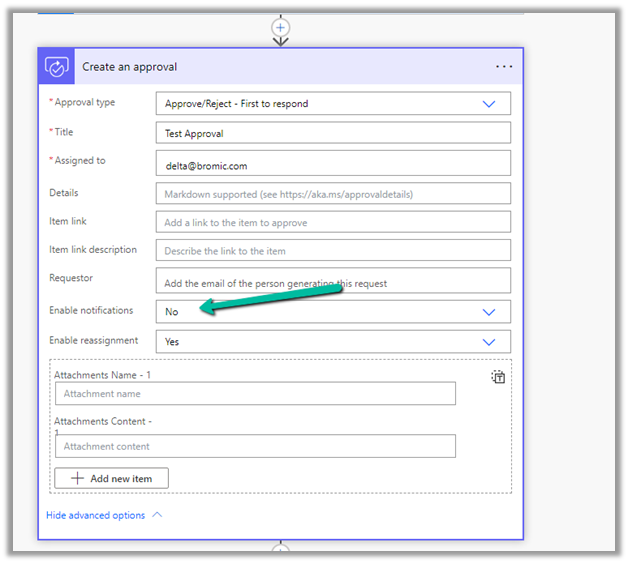
For Create an approval action, set Enable notifications as No this makes sure no email is sent.
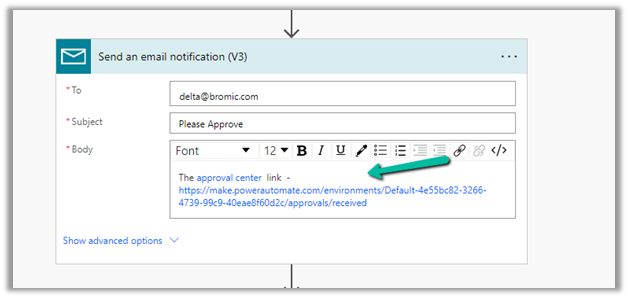
Followed by– in the body, specify Send an email notification the Approval Center link.
Followed by Wait for an approval, specify the Approval ID there.
And the Condition control and the required logic.
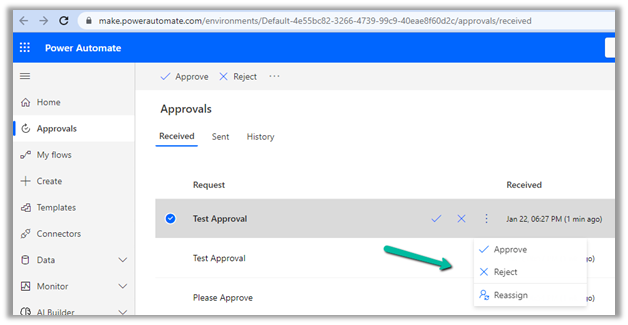
After running the flow, the user will get the email and can click the link to navigate to the Approval center.
The user can then take the required action from within the Approval center.
The flow will wait for the user
Also, check – Implementing approvals with Teams notifications
Recently we were working on Facebook Leads integration with Dynamics 365. Webhook for Leads can be configured to send real-time notifications of the Leads ads changes.
The first step of setting up Webhook requires creating an HTTPS endpoint that can process 2 types of HTTP Requests – Verification and Event notifications.
Here we will see how to configure the Power Automate flow for verification.
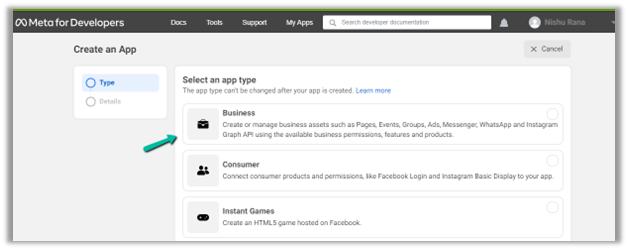
Login to Meta for Developers – Facebook and create an app.
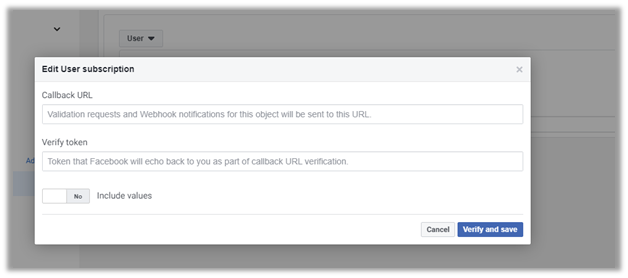
It asks us to specify the Callback URL and Verify token.
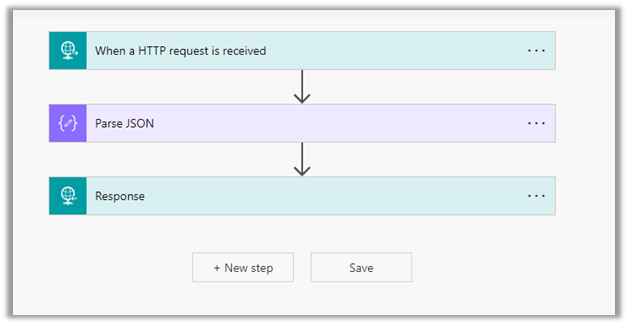
Back in Power Automate create a Flow with Request type Trigger, followed by Parse JSON and Response actions.
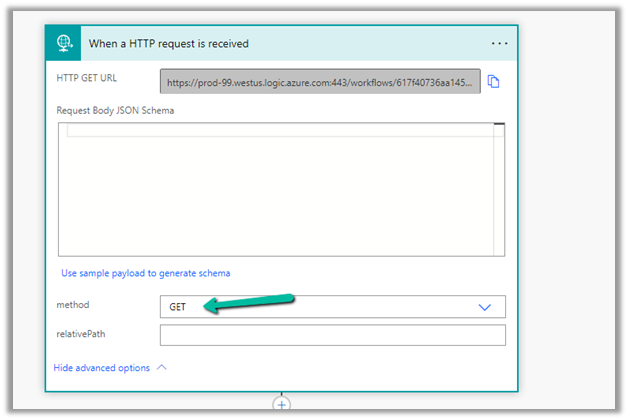
For HTTP Request, select GET as the method, as FB will send a GET request to the endpoint URL, with the verification requests included in the endpoint of the URL.
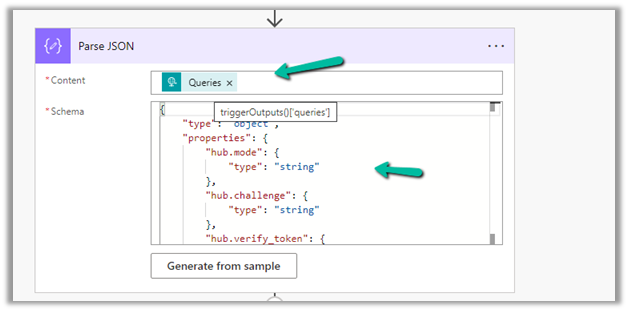
Next, Parse the JSON and specify the Content and Schema
Content –
triggerOutputs()['queries']
Schema –
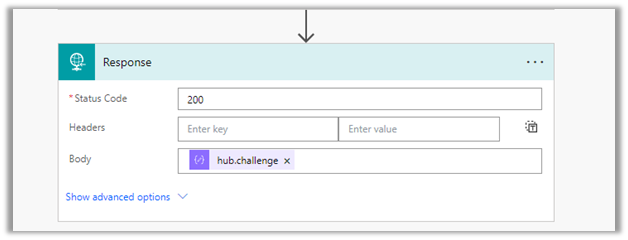
Lastly in Response, set Status Code as 200 and Body as hub.challenge.
Here FB expects the Endpoint to verify the hub.verify_token (which we haven’t set up yet) and respond with hub.challenge value after verification.
Save the Flow, and copy the URL generated for the HTTP Request trigger.
Back in Meta for Developers, in edit user subscription paste the Callback URL and for now in place of token specify any value and click on Verify and Save.
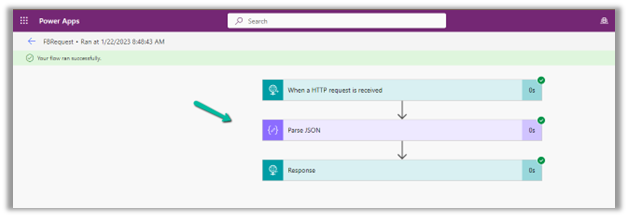
We should now have a Webhook endpoint (Flow) successfully configured
We can also see our Flow ran successfully.
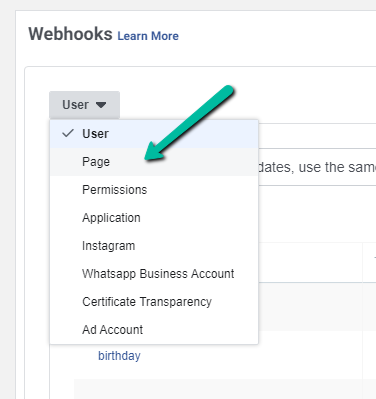
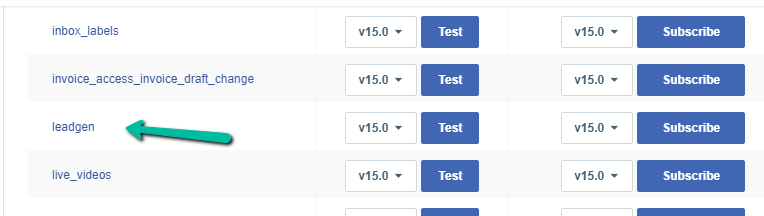
Here in the example we configured the webhook validation for User events, for Facebook Lead we need to configure it for Page, the other options available are Permissions, Application, Instagram etc.

























 We should now have a Webhook endpoint (Flow) successfully configured