How to – enable the enhanced email template editor in Model-driven Apps(Dynamics 365 / Dataverse)


Below is what our existing or current Email Template editor looks like (Sales Hub >> Personal Settings >> Email templates)

Let us now enable the Enhanced Email Template editor for the App / Environment (it is enabled by default for Customer Service workspace and Customer Service Hub apps)

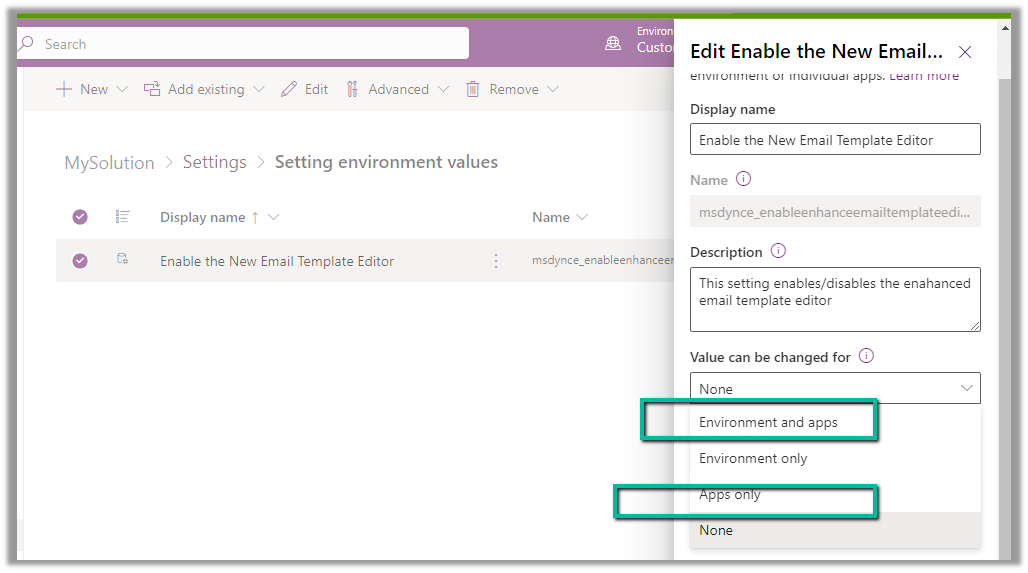
Create or Open an existing solution, Add existing >> Setting >> Enable the New Email Template Editor

We can set the value as Yes for the Setting environment value to apply it for the environment.

To enable it for a specific app, make sure we have the option “Environment and apps” and “Apps Only” selected for Value can be changed for option.
To specify the app(s) for which we want to enable the new email template editor, we need to add that corresponding app to the solution.

Here we have added the Sales Hub.

Add Existing >> App >> Model-driven App >> Sales Hub

On adding the Sales Hub App, we get the option to set the value for the Sales Hub app, which we have set as Yes.


Publish all customization.

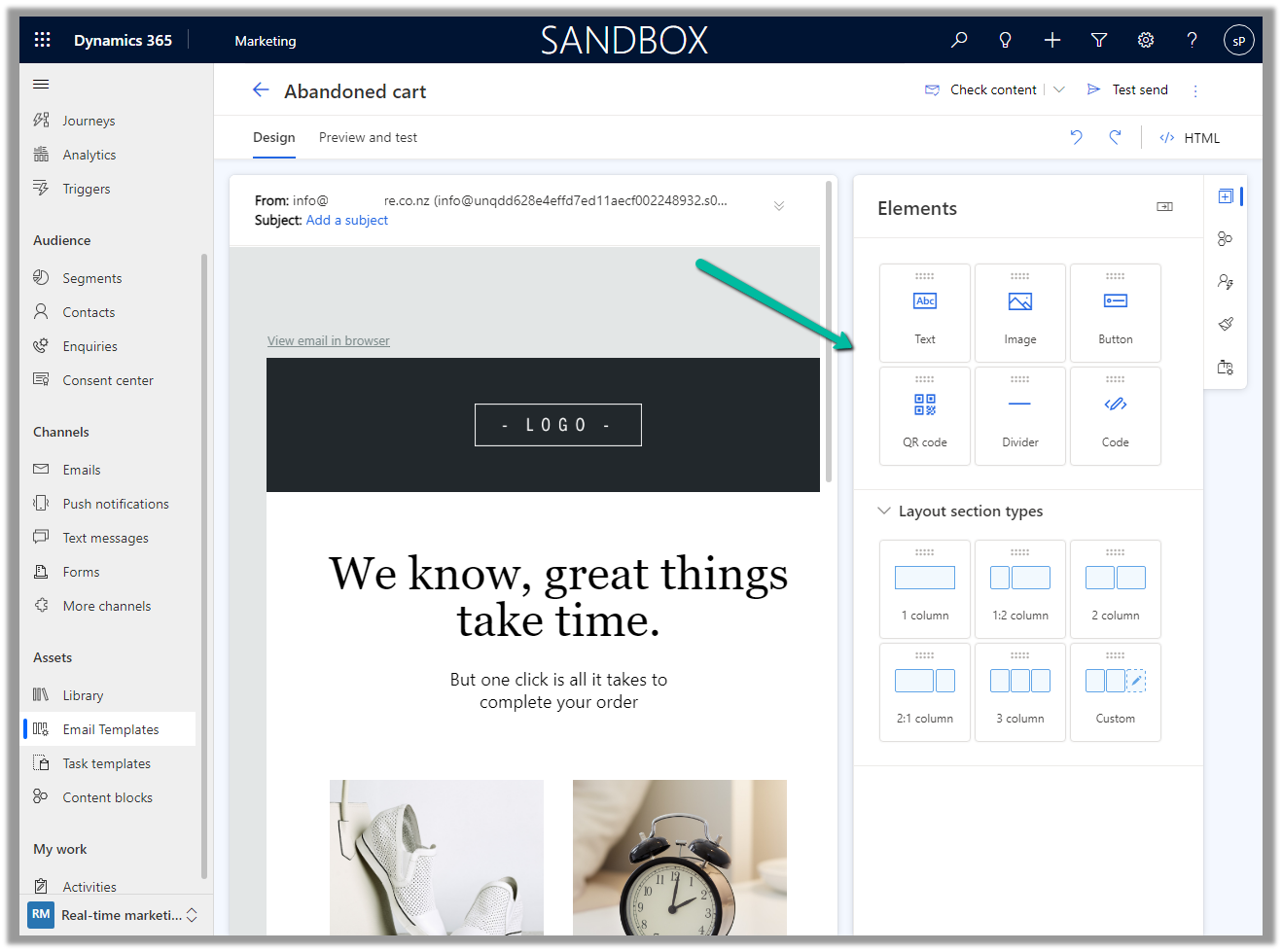
We can now see the new Editor tab added for the new Email Template record inside Sales Hub.
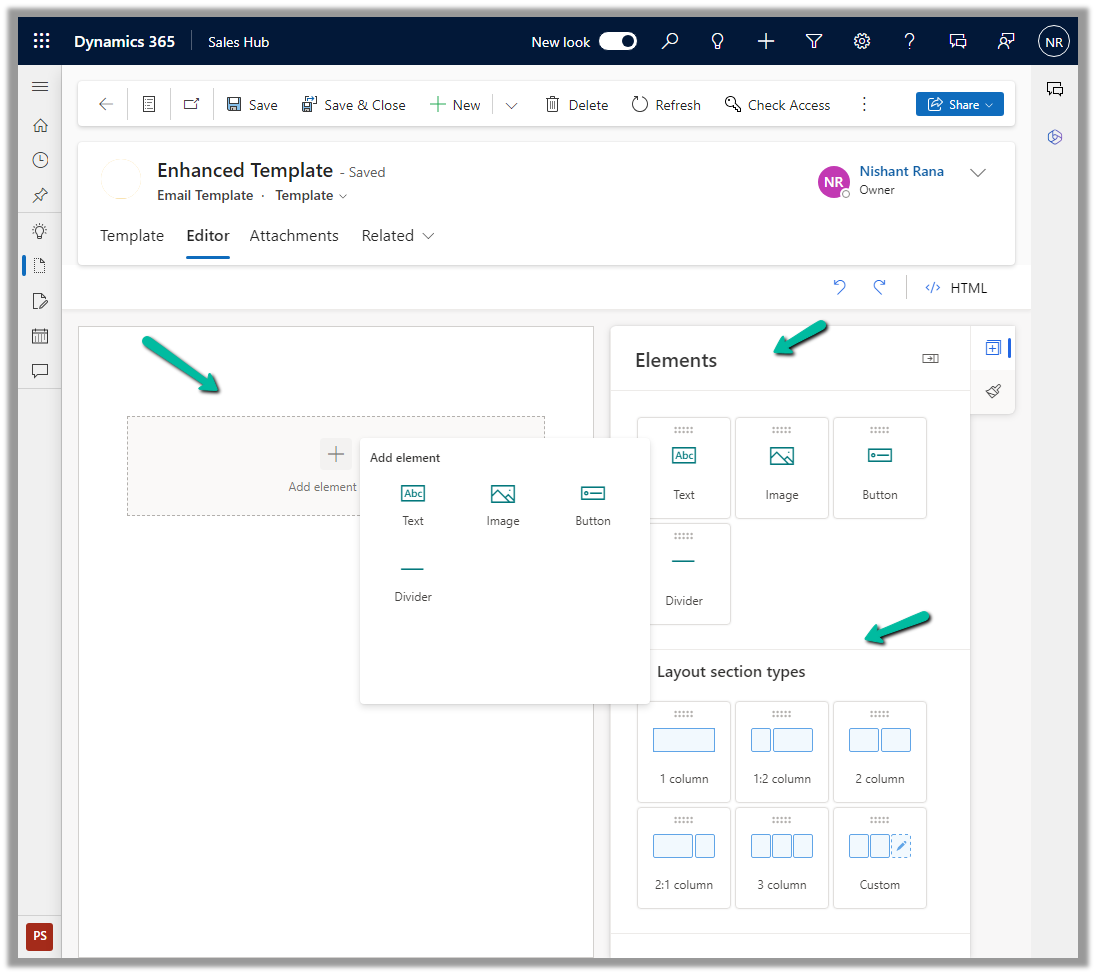
We can drag and drop, and specify properties, of the layout section and elements in the new editor.
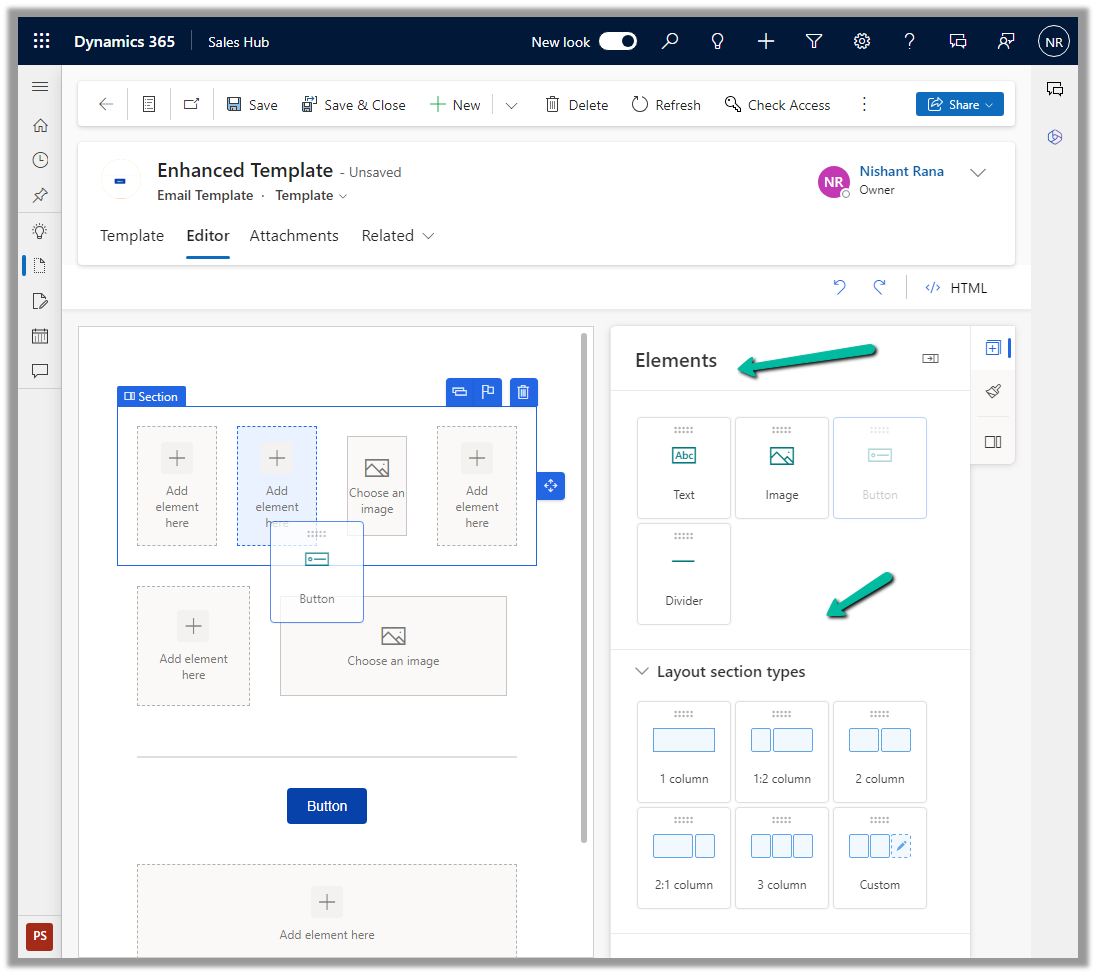
The new email template editor uses the same design as the email editor in Dynamics 365 Marketing, making it more consistent across the different apps in the platform.
Get all the details here.

Hope it helps..

Advertisements

Pin Activities in Timeline – Dynamics 365


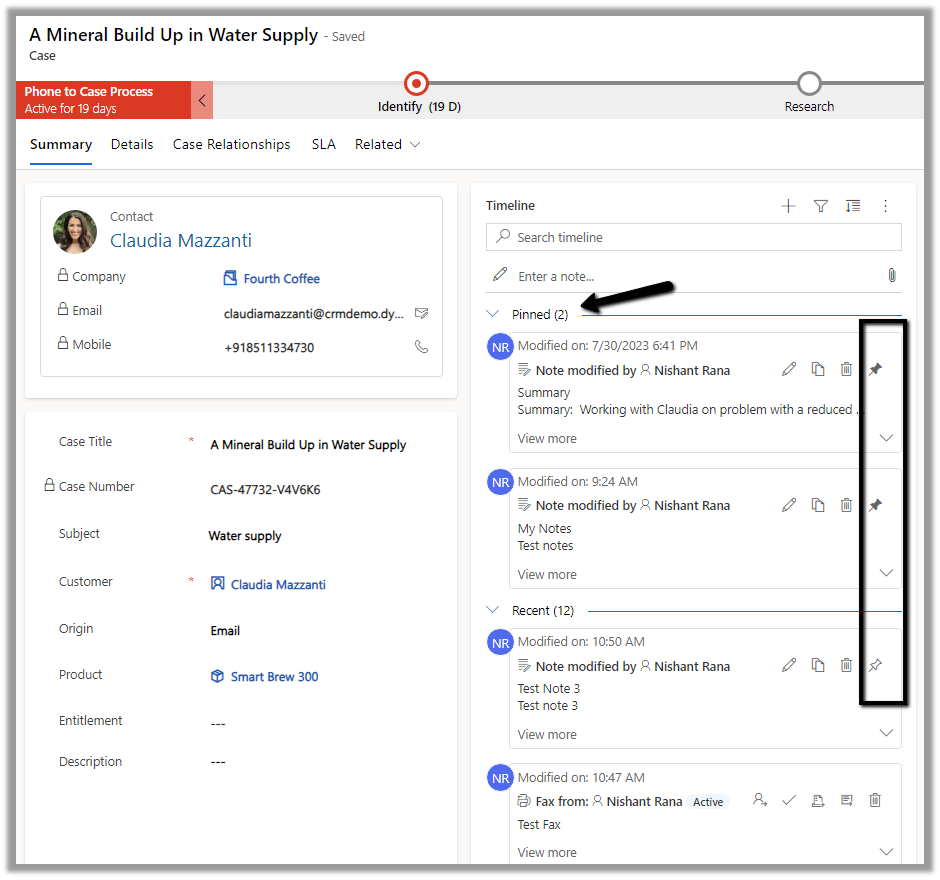
With the 2023 Release Wave 2, as per Microsoft Documentation, we can pin activities such as records to the top of the timeline.

We could see that option available for the Notes in the timeline.

It also shows the number of records pinned.

To unpin it, we need to click the icon again, and the record will move to its original position.

Hope it helps..

Advertisements

Try the new modern look for the Model-driven app (Preview)


The new modern refreshed look for the Model-driven app can be enabled from Maker Portal >> Model-driven App (Edit) >> Settings >> Upcoming – Try the new look and feel (preview)

The new look makes use of the latest Fluent UI React Components

Or now we see the option to Try the new look in the app itself in the command bar.

Let us look at the changes

  • Grids now have the checkboxes added to it

(open the image in new tab to view it clearly)

  • Infinite scrolling
  • The same grid is applied to Sub Grid and Associated Grids
  • Forms now have a new Command Bar, refreshed BPF, Sections, etc.
  • Form fields now have a background, icon placement, stying changes, etc.

Get all the details here

Hope it helps..
Advertisements

Fixed – View Name as Blank in Dynamics 365 / Model-driven app


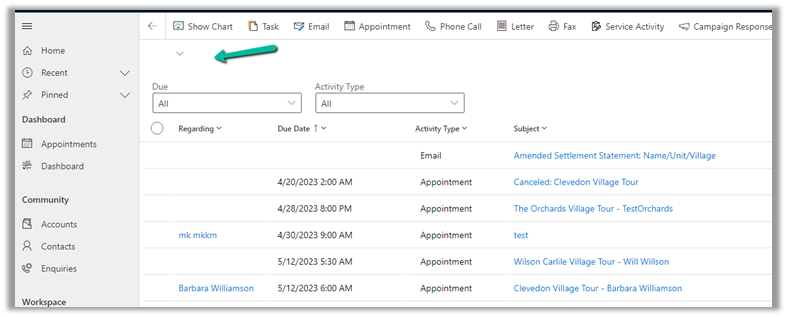
Recently we faced an issue where one of the views was not showing its Name in the app.

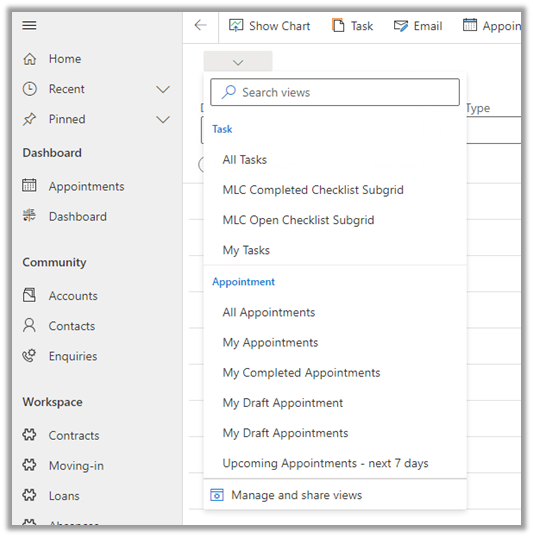
On selecting the View Selector, we were not getting the option to select that view.

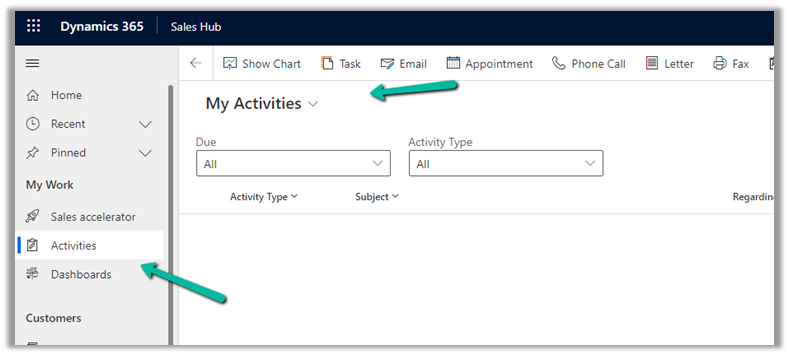
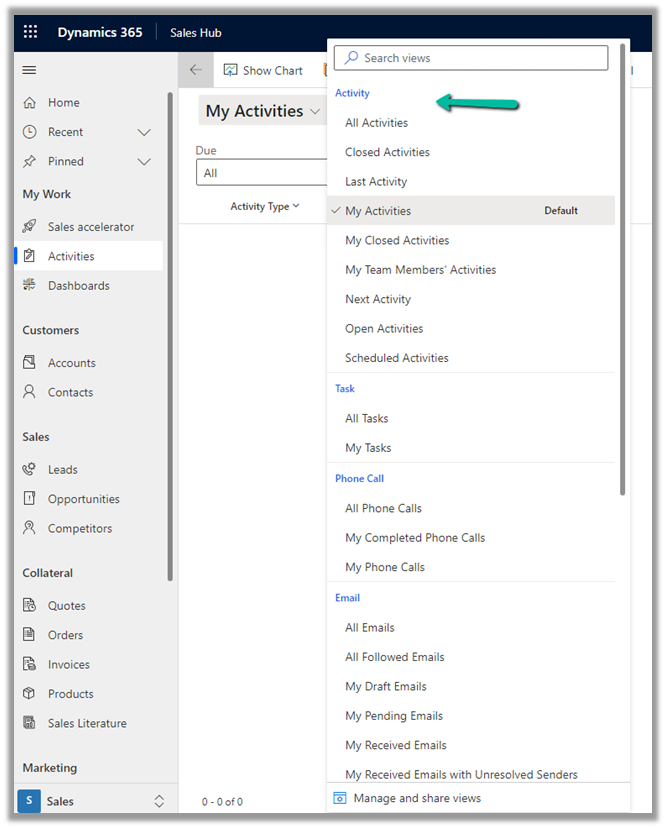
Checking in a Vanilla CRM instance, we can see it is OOB My Activities view.

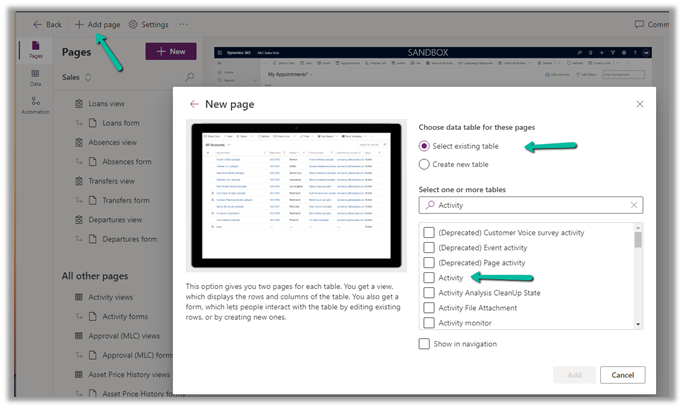
To fix it, we had to edit the App, Add Page >> Dataverse Table >> Select exiting table >> Activity


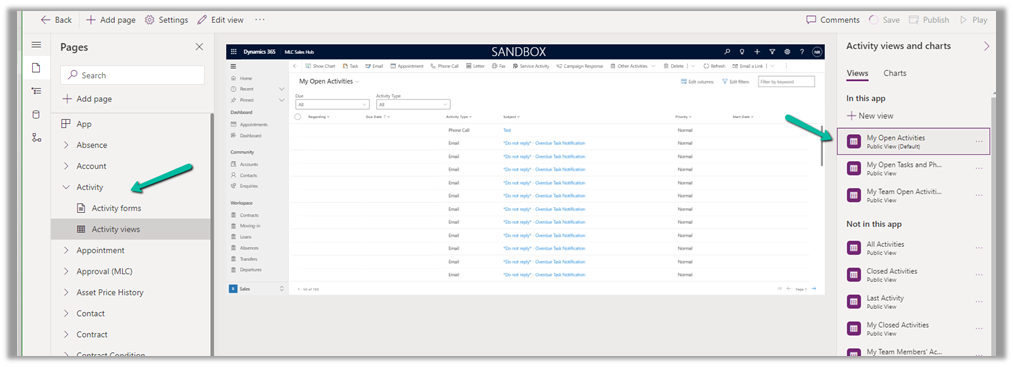
And add that view to that app and publish the changes.

The result –

Hope it helps..
Advertisements

Hide Show Button in Command Bar / Ribbon in Dynamics 365 / Model-Driven App (For Quick Reference)


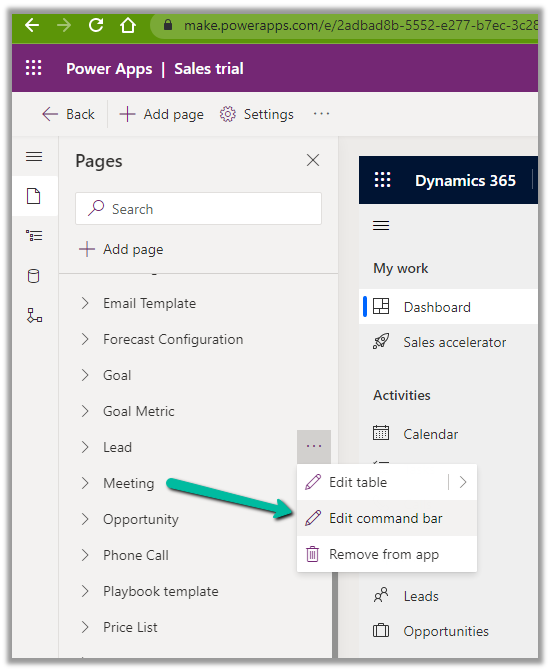
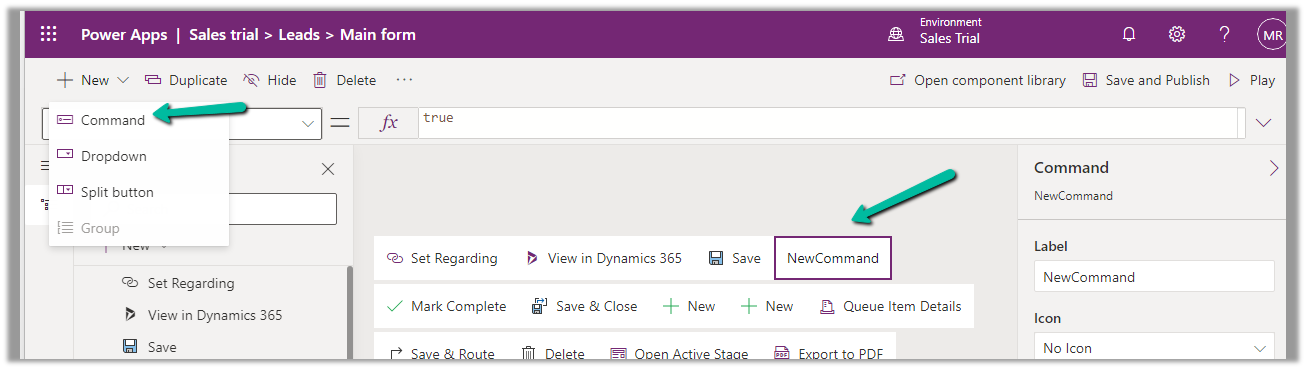
Open the App in the App Designer, select the Edit Command Bar for the table

Also, check the limitations of the Command designer, the important one being that the pre-existing classic commands cannot be customized with the new command designer.

For the new Command added, set its Visible property based on the status of the current selected item/record.

More on Power Fx

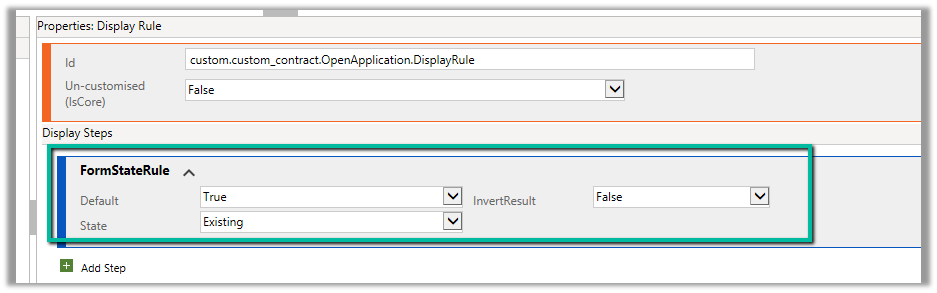
Now similarly if we want to show the button only for an existing record by updating the RibbonDiffXML, we can write the following DisplayRule based on FormStateRule


Hope it helps..


Advertisements

Modernize Business Units / Matrix data access structure -Record ownership across business units (Preview) in Dynamics 365 / Dataverse


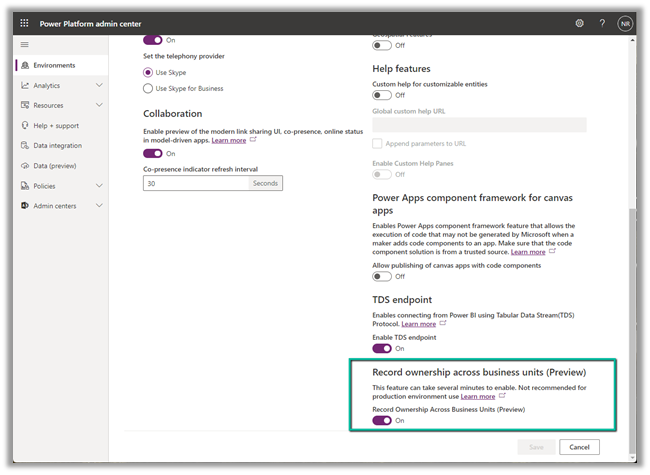
To enable this preview feature, log in to the Power Platform admin center, switch on the

Environment >> Settings >> Features >> Record ownership across business units (Preview)

It took around 5 minutes to enable.

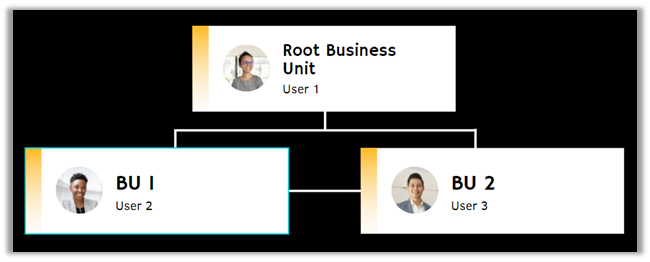
Now let us say we have a BU structure like below.

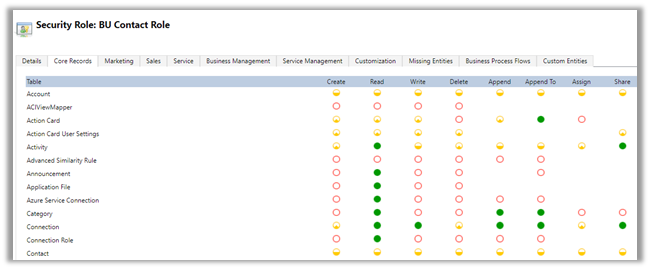
And custom security roles with BU level access to Contact – BU Contact Role.

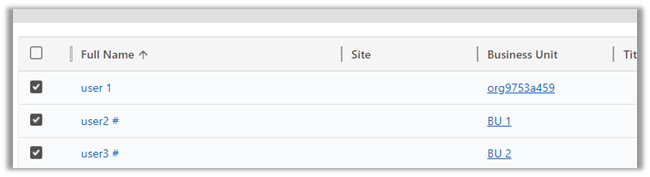
Both user 2 and user 3 have only the BU Contact Role of BU 1 and BU 2 business unit respectively assigned.

Below is the Contact record created by User 2.

As expected User 3 does not have access to the above record.


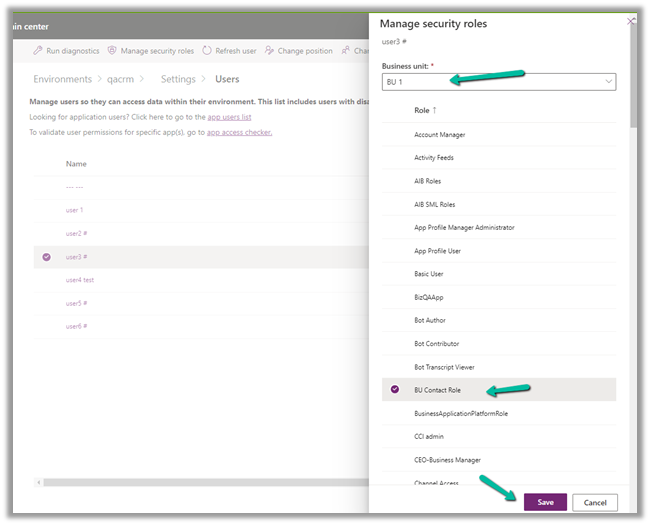
Now let us provide the same BU Contact role to User 3 but this time from BU 1.

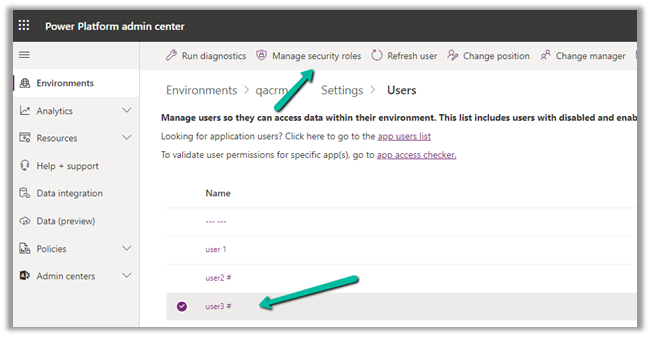
Select the User 3 in Settings >> Users >> Manage Security Roles

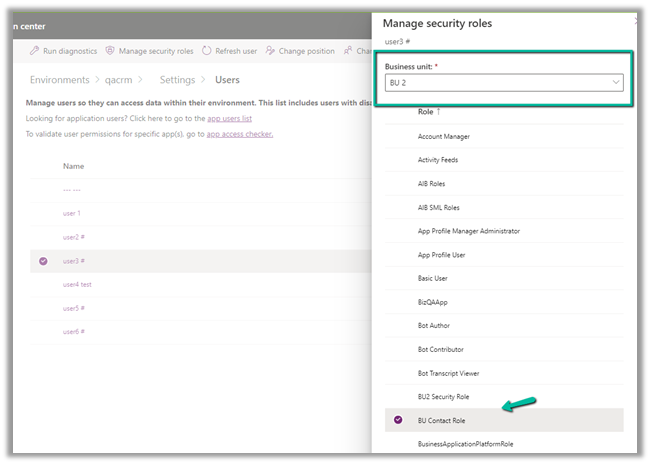
The user has already has BU Contact Role in BU 2. Let us change the Business Unit and assign the same role for BU 1.

Click on Save.

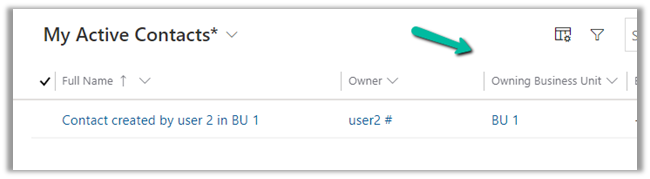
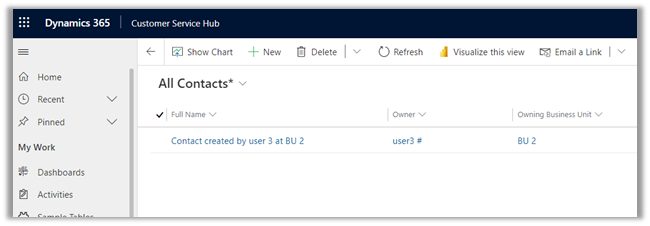
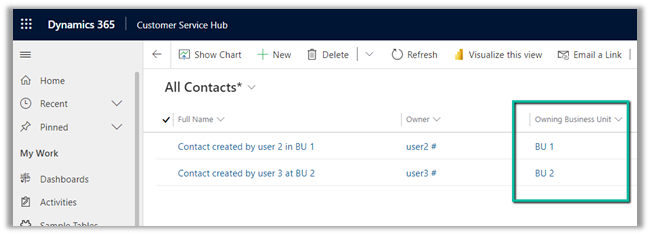
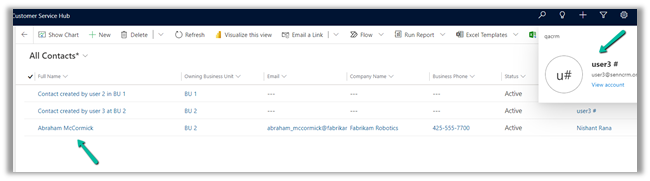
On refreshing the All Contacts view for user 3 now we can see both the records, showing the corresponding owner and the owning business unit the records belong to.

This makes it easy to provide required access to the users across the business unit, without the need of sharing the record or using team access or teams ownership concept here.

With this preview, we can also update the Owning Business Unit field.

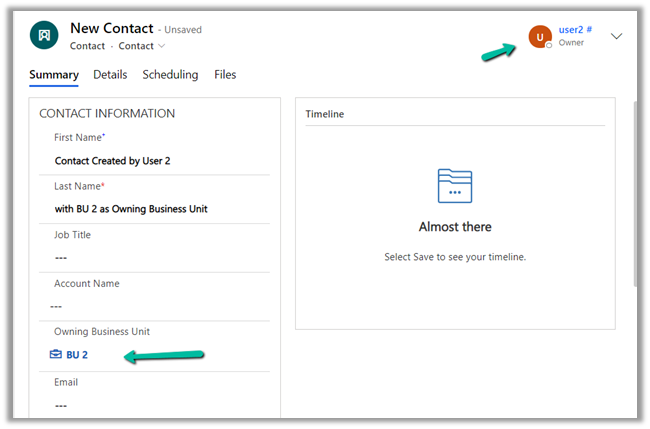
Below the User 2 is creating a new contact record and setting Business Unit as BU 2.

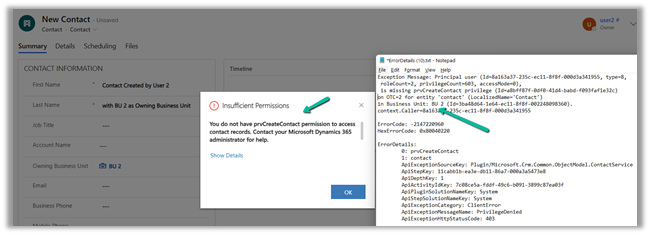
Here it fails because User 2 only has BU level access for Contact Create Rights, and he is trying to create at BU 2.

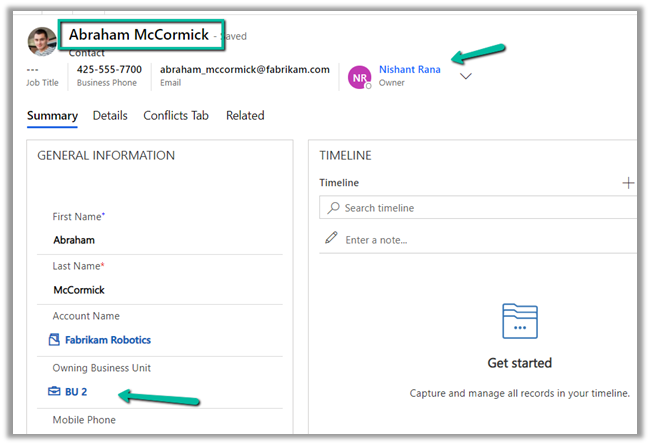
Let us update one of the existing contact records, by setting Owning Business Unit as BU 2, this time through System Administrator user which belongs to the root Business Unit.

As expected the record is available to User 3, as we have set BU 2 as the owing business unit.

Get all the details here –

https://docs.microsoft.com/en-gb/power-platform/admin/wp-security-cds#matrix-data-access-structure-modernize-business-units—preview

Hope it helps..
Advertisements