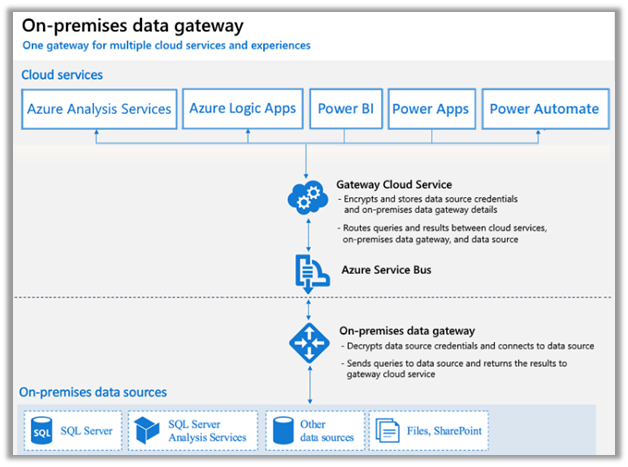
Let us continue our previous post where we created a connection to the below On-Premise SQL Server Database using an On-premises data gateway.
https://nishantrana.me/2020/07/06/configuring-on-premises-data-gateway-to-connect-tosql-server-on-premise-data-source-power-platform/
Here we will use the Power Platform
dataflows to load contact entity in CDS using that same on-prem table.

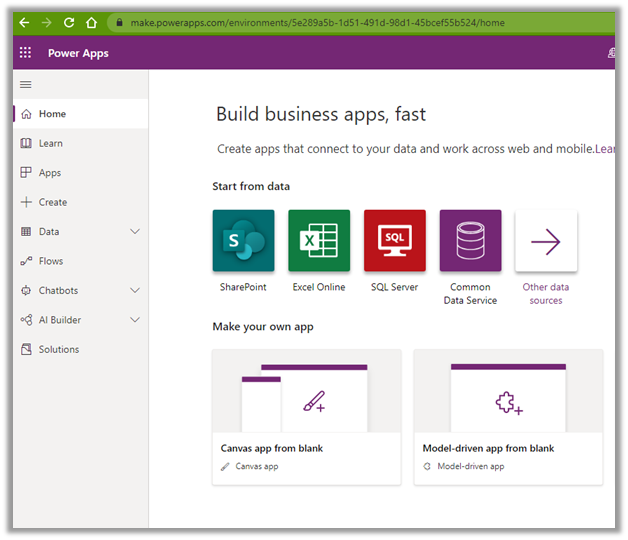
Sign in to Power Apps
https://make.powerapps.com/home
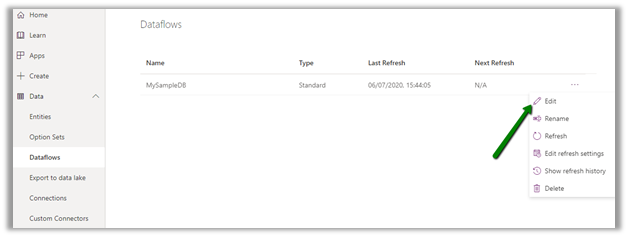
Navigate to Data – Dataflows and create a new dataflow
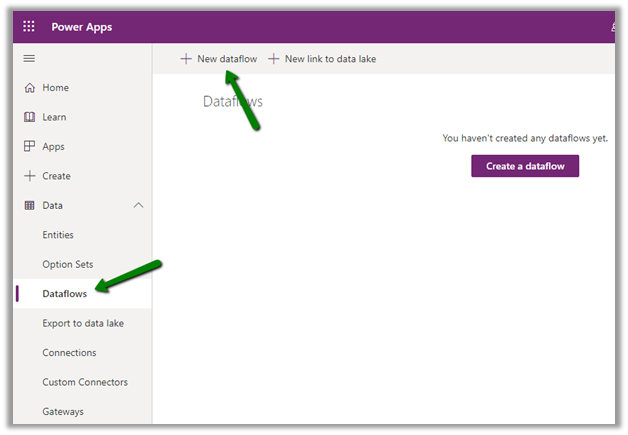
Dataflow can store the entities either in Common Data Service or Azure Data Lake for analytical purposes.
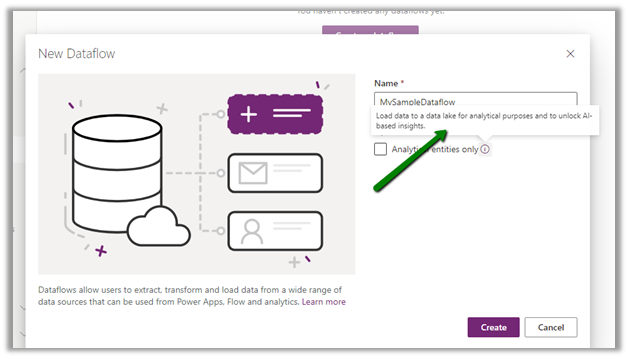
Leave the Analytics entities only checkbox unchecked as we will be saving the entities in the Common Data Service.
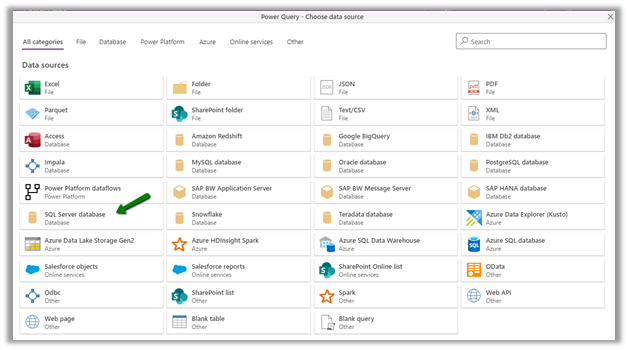
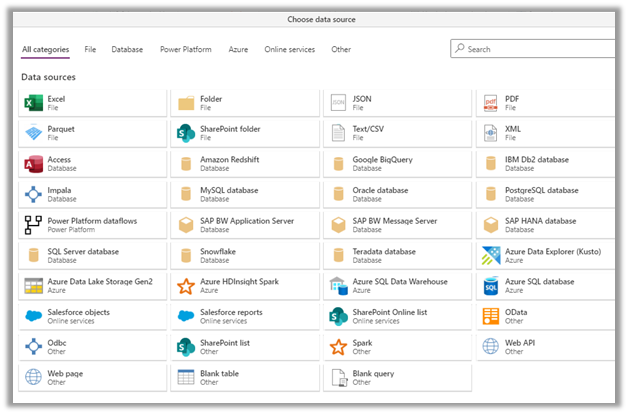
Next, let us specify the data source. Here we have selected SQL Server Database as the source.
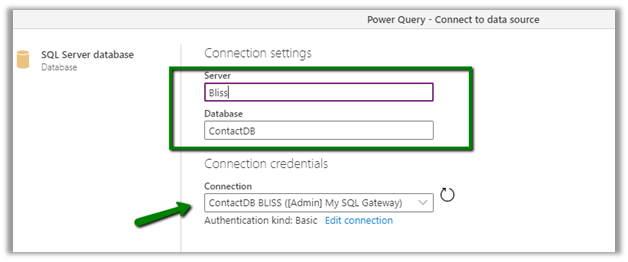
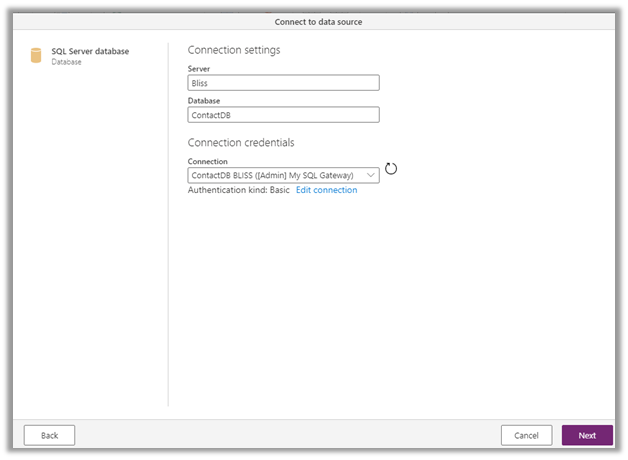
Specify connection details

On specifying the Server and Database details, it will auto-populate the rest of the connection details if already defined.
Select the table and click on Transform data
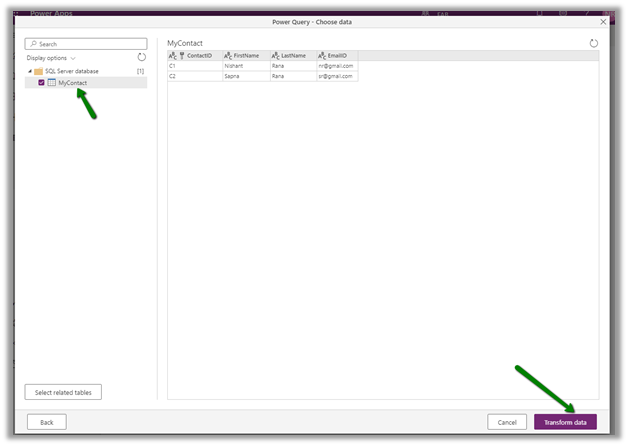
Transform Data give us the option of further refining the data to match the destination.
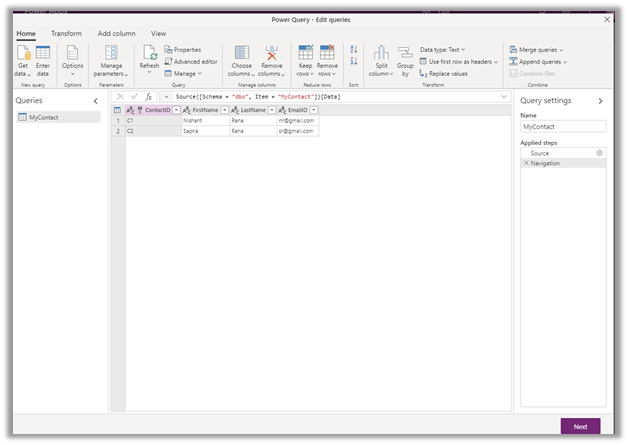
Click on Next and specify the mapping.
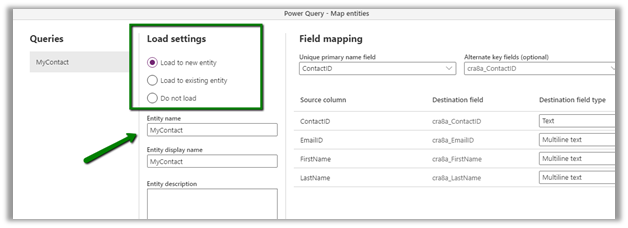
We can either load data in a new entity
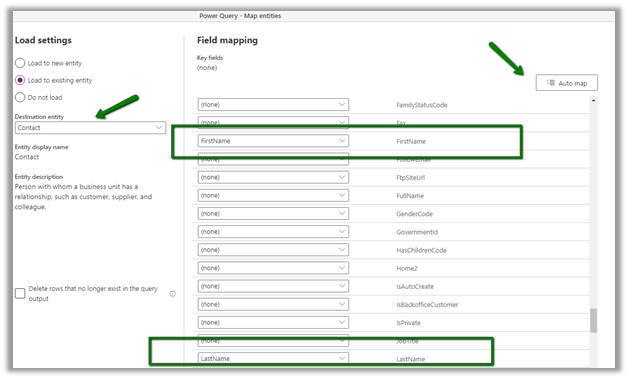
Or load to an existing entity.
Here we have selected contact entity and clicked on Automap option which has mapped FirstName and LastName fields for us. Manually map the email field. Here we have not mapped the ContactID field for now.
Here for Key fields in Field Mapping, it will list down alternate key, if defined for the entity.
Specify the refresh settings. We have kept is as refresh manually.

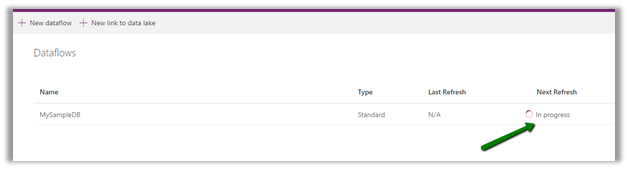
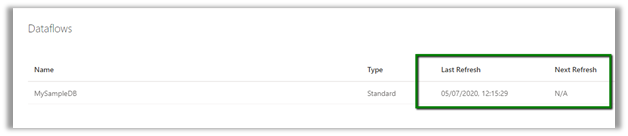
With refresh completed, let us check the contact entity.
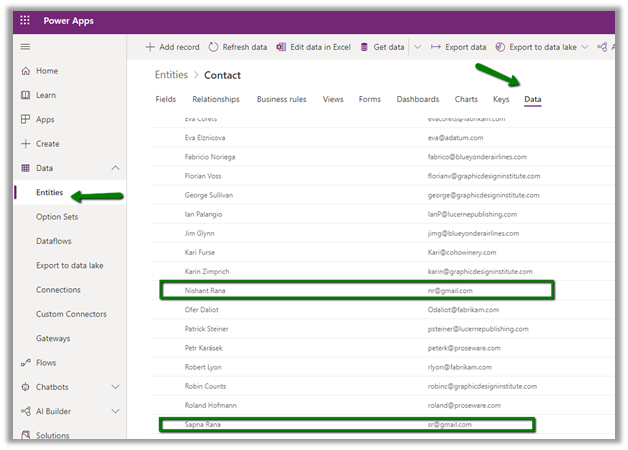
Go to Data – Entities and Data tab, we can see the records added.
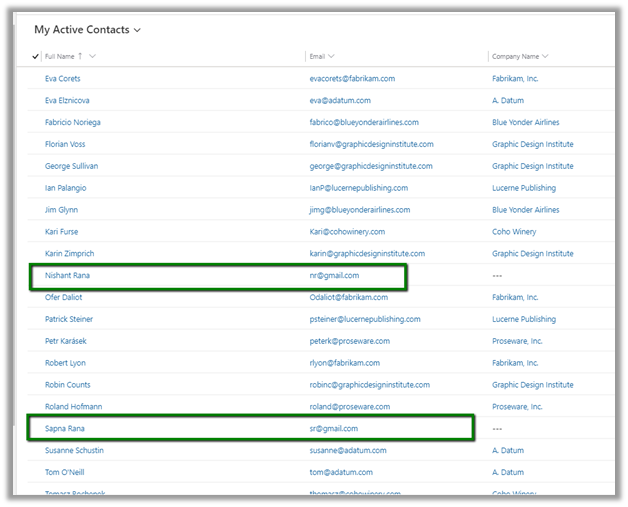
Now let us add one more record in the source database and refresh the dataflow manually.
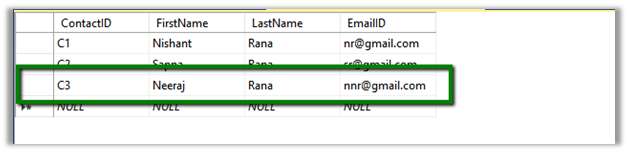

As we had not specified key while defining the data flow, we have all the records created again including the new one.

Now let us define an alternate key for the contact entity.
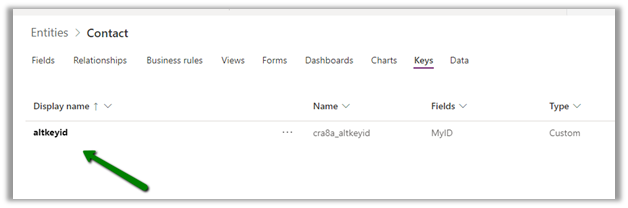
And edit the data flow to map the ContactID field of the source database to the newly created alternate key.
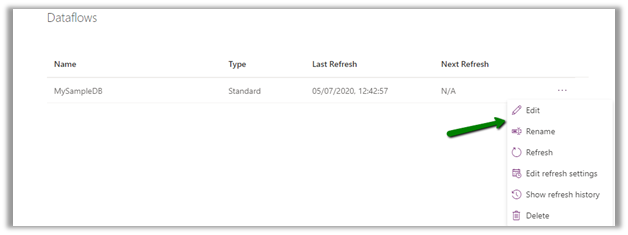
Define the mapping for the alternate key field.

Also, let us delete the old records that were synced. After refresh is done, we can see the records created
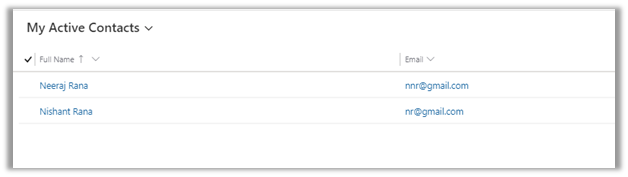
What about the update?
Let us update the record in source and run the refresh

As expected, the record is updated and no duplicate records are created in CDS.
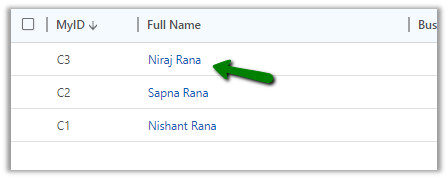
What about delete?
Now let us delete the record in the source and run the refresh
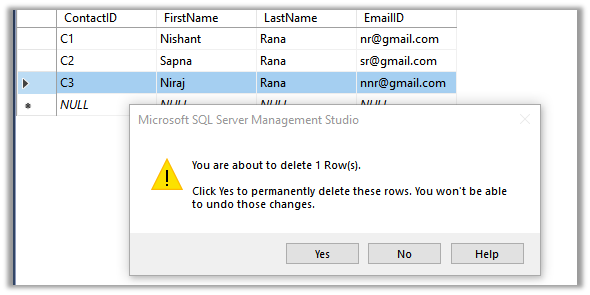
The records are not deleted in the Common Data Service.

What about updates in CDS?
As this is a one-directional flow to load the data from source to destination, any change in CDS will be overridden and will not be synced back to the source SQL Server database on the next refresh run.
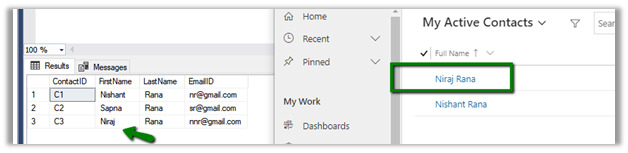
Let us update records in CRM, and run the refresh.

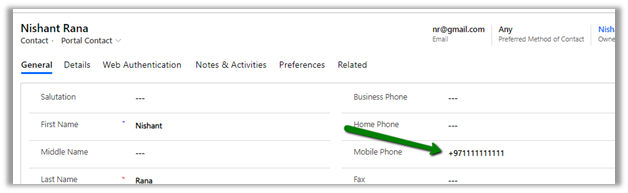
As expected, the record in CDS is updated back with source DB.
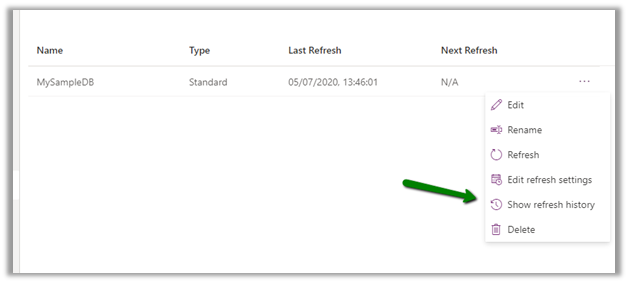
What about the history and log of the refresh?
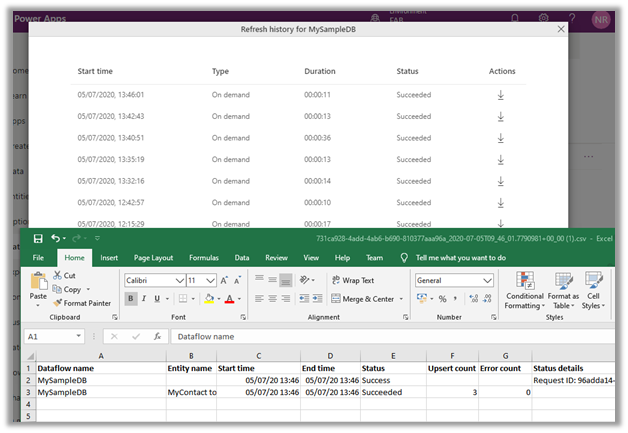
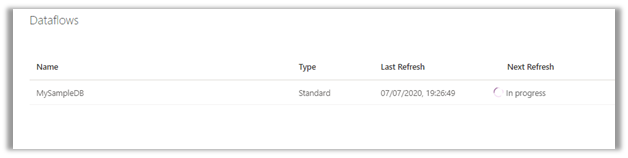
Show refresh history option gives us all the details of the refresh run and the failure and success of the records.
More on the data flow capabilities
https://docs.microsoft.com/en-us/data-integration/dataflows/dataflows-integration-overview#dataflow-capabilities-in-power-platform-services
Also, check out the interesting article below
https://carinaclaesson.com/2020/05/11/alm-for-power-platform-dataflows-the-story-begins/
Hope it helps..

























 Nishant Rana's Weblog