Using FormFlow in Microsoft Bot Framework (Creating lead in CRM)


Let us continue with our previous posts on using Microsoft Bot Framework

Getting Started with Microsoft Bot Framework.

Using Dialogs in Microsoft Bot Framework

To better understand the FormFlow refer to the below article.

https://docs.botframework.com/en-us/csharp/builder/sdkreference/forms.html

Here we will update our Bot Application to use the FormFlow instead of Dialog.

As FormFlow are bound to a model, we will create a model class first.

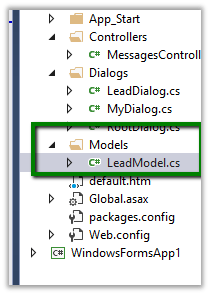
Create a new folder named Model and a new class named LeadModel in it.
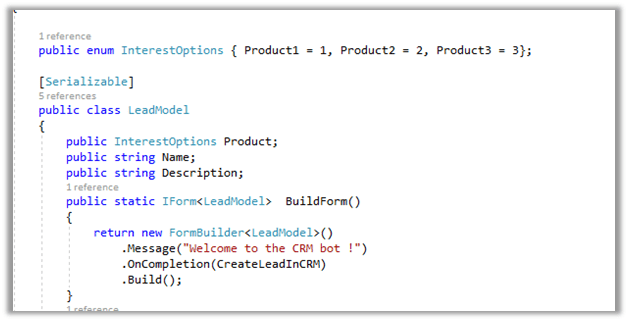
The class has an enum for selecting Product Type. It defines property for capturing Name and Description.

Here we define a static method named BuildForm that returns the IForm of type LeadModel.

The message defines the initial message that will be shown to the user and oncompletion we are defining a callback method that will be called on completion which we will be using to create lead record in CRM.
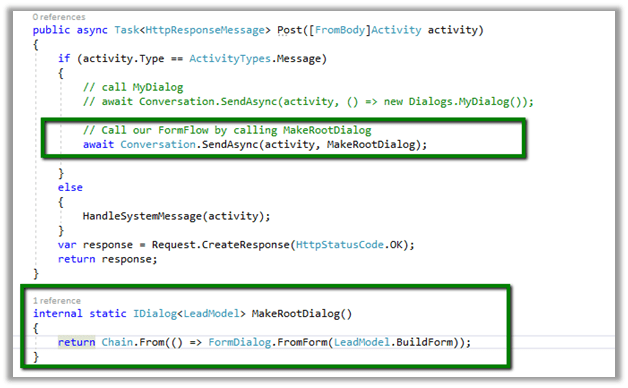
Next update the MessageController.cs to call this Lead Model instead of dialog which we did in our previous post.
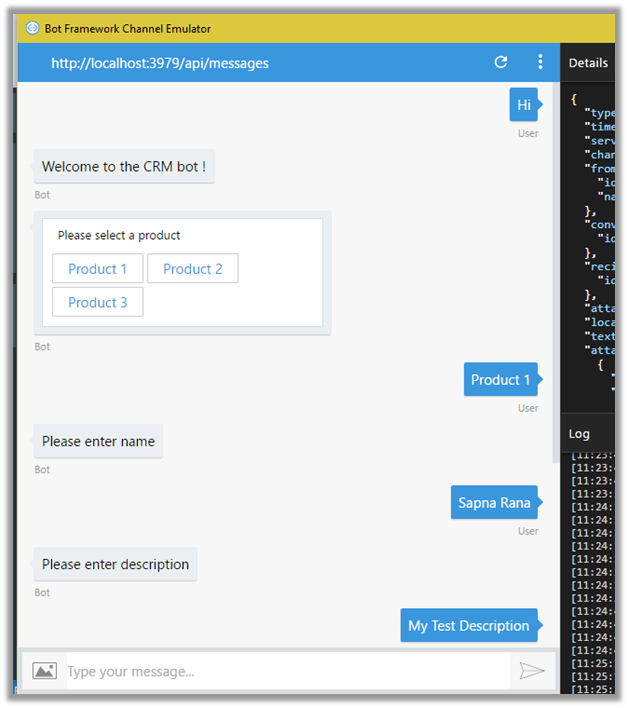
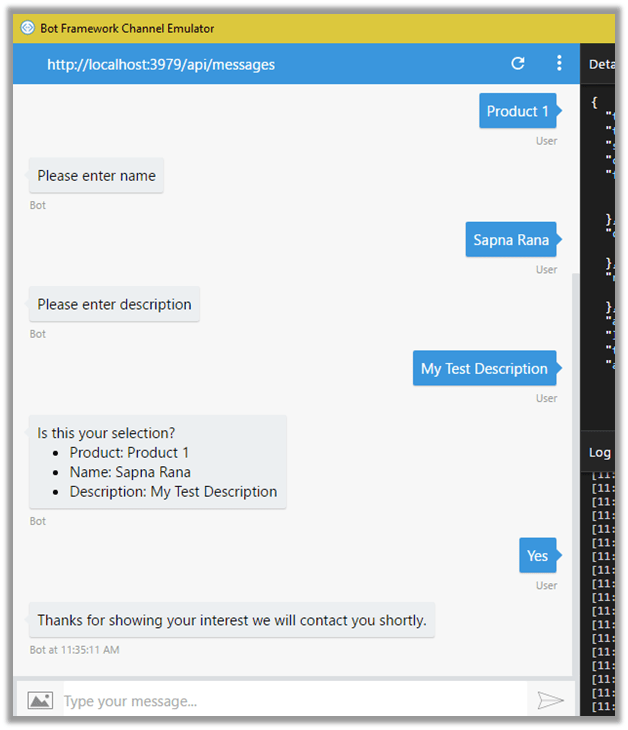
The conversation between the Bot and the User.
The lead record created in CRM.

Source Code –


using Microsoft.Bot.Builder.FormFlow;
using System;
using Microsoft.Bot.Builder.Dialogs;
using System.Threading.Tasks;
using Microsoft.Xrm.Sdk.Client;
using Microsoft.Xrm.Sdk;

namespace Bot_Application1.Models
{

public enum InterestOptions { Product1 = 1, Product2 = 2, Product3 = 3};

[Serializable]
public class LeadModel
{
public InterestOptions Product;
public string Name;
public string Description;
public static IForm<LeadModel> BuildForm()
{
return new FormBuilder<LeadModel>()
.Message("Welcome to the CRM bot !")
.OnCompletion(CreateLeadInCRM)
.Build();
}
private static async Task CreateLeadInCRM(IDialogContext context, LeadModel state)
{
await context.PostAsync("Thanks for showing your interest we will contact you shortly.");
Entity lead = new Entity("lead");
lead.Attributes["subject"] = "Interested in product " + state.Product.ToString();
lead.Attributes["lastname"] = state.Name;
lead.Attributes["description"] = state.Description;
GetOrganizationService().Create(lead);
}

public static OrganizationServiceProxy GetOrganizationService()
{
IServiceManagement<IOrganizationService> orgServiceManagement =
ServiceConfigurationFactory.CreateManagement<IOrganizationService>(new Uri("https://nishantcrm365.crm.dynamics.com/XRMServices/2011/Organization.svc"));
AuthenticationCredentials authCredentials = new AuthenticationCredentials();
authCredentials.ClientCredentials.UserName.UserName = "nishant@nishantcrm365.onmicrosoft.com";
authCredentials.ClientCredentials.UserName.Password = *****";
AuthenticationCredentials tokenCredentials = orgServiceManagement.Authenticate(authCredentials);
return new OrganizationServiceProxy(orgServiceManagement, tokenCredentials.SecurityTokenResponse);
}
}
}


using System.Net;
using System.Net.Http;
using System.Threading.Tasks;
using System.Web.Http;
using Microsoft.Bot.Builder.Dialogs;
using Microsoft.Bot.Connector;
using Microsoft.Bot.Builder.FormFlow;
using Bot_Application1.Models;

namespace Bot_Application1
{
[BotAuthentication]
public class MessagesController : ApiController
{
/// <summary>
/// POST: api/Messages
/// Receive a message from a user and reply to it
/// </summary>
public async Task Post([FromBody]Activity activity)
{
if (activity.Type == ActivityTypes.Message)
{
// call MyDialog
// await Conversation.SendAsync(activity, () => new Dialogs.MyDialog());

// Call our FormFlow by calling MakeRootDialog
await Conversation.SendAsync(activity, MakeRootDialog);

}
else
{
HandleSystemMessage(activity);
}
var response = Request.CreateResponse(HttpStatusCode.OK);
return response;
}

internal static IDialog<LeadModel> MakeRootDialog()
{
return Chain.From(() => FormDialog.FromForm(LeadModel.BuildForm));
}

private Activity HandleSystemMessage(Activity message)
{
if (message.Type == ActivityTypes.DeleteUserData)
{
// Implement user deletion here
// If we handle user deletion, return a real message
}
else if (message.Type == ActivityTypes.ConversationUpdate)
{
// Handle conversation state changes, like members being added and removed
// Use Activity.MembersAdded and Activity.MembersRemoved and Activity.Action for info
// Not available in all channels
}
else if (message.Type == ActivityTypes.ContactRelationUpdate)
{
// Handle add/remove from contact lists
// Activity.From + Activity.Action represent what happened
}
else if (message.Type == ActivityTypes.Typing)
{
// Handle knowing tha the user is typing
}
else if (message.Type == ActivityTypes.Ping)
{
}

return null;
}
}
}

The next posts in this series

Hope it helps

Setting Regarding of a record in Automatic Record Creation and Update Rules in Dynamics 365


Hi,

While implementing a scenario i.e. automatic case creation on phone call create using Automatic Record Creation and Updating Rules, we found that whenever we were setting the Regarding Object in the Phone Call activity, the case record was not getting created.

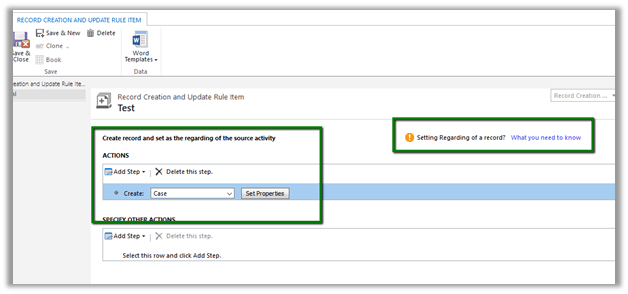
Create Case Rule Item –

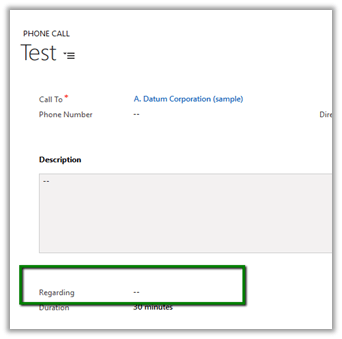
Creating a Phone Call record using Case as Regarding object.

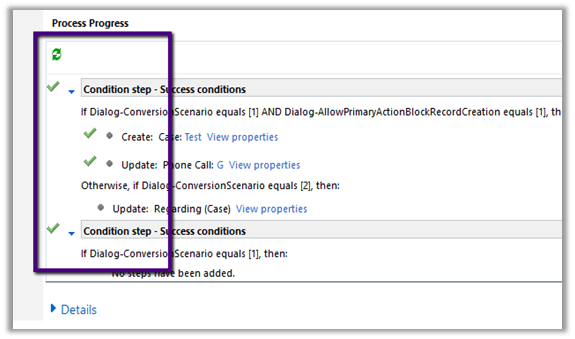
Workflow ran but the case record was not created.

Then we created phone call activity record without setting the regarding object. This time workflow ran and created the case record.

Basically, the workflow creates the case record and updates the Regarding Object in the Phone call record with this newly created case record.

However, if we check the Official documentation

https://www.microsoft.com/en-us/dynamics/crm-customer-center/set-up-rules-to-automatically-create-or-update-records-in-dynamics-365-customer-service.aspx#bkmk_RuleAndQueues

we have this mentioned

However, in our case we created a phone call record with case as regarding object and had case as the entity selected in the Create Record step, in this case also the Action were not executed.

Hope it helps..

Unknown Error or Resource not found for the segment ‘msdyn_FpsAction’ in Schedule Board in Field Service in Dynamics 365.


Hi,

Recently we configured the portal trial instance and installed Partner Field Service portal in it .

However, while trying to access Field Service à Schedule Board, we were getting the below errors

Eventually it turned out that the issue was caused because of the certain processes being in draft state.

The post which helped in fixing this issue

https://glinks.co.uk/2017/01/06/field-services-schedule-board-unknown-error/

Hope it helps..

List of all blog posts on CRM and Azure Integration


Advertisements

Configure Product Recommendations using Recommendations API in Dynamics 365


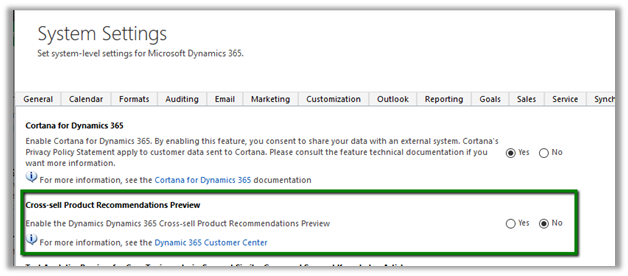
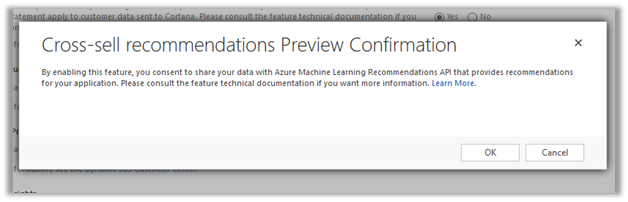
For configuring Product Recommendations first we need to enable the preview –

Go to Settings – Administration – System Settings – Previews

Select Yes and Click on OK.

As a next step, we need to create Cognitive Services for Recommendation API and connect it to CRM.

Go to Portal

https://portal.azure.com

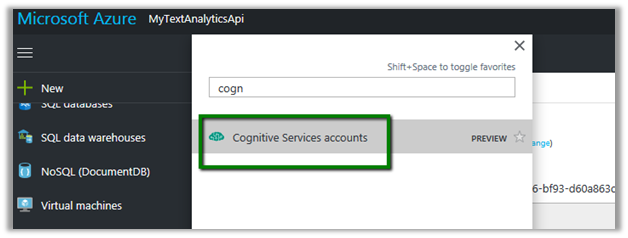
Search and select Cognitive Services Accounts

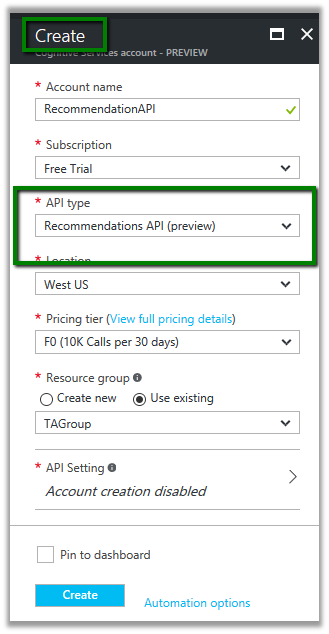
Click on Add

Select Recommendation API and provide other details and click on Create.

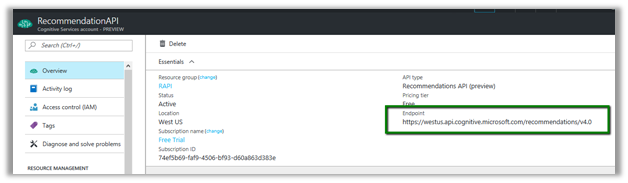
From Overview, note down the Endpoint which will be used to configure the connection in CRM.

From Keys, copy value of the Key which will be used for configuring connection to CRM.

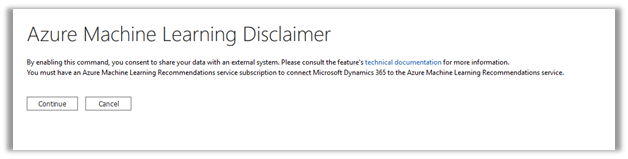
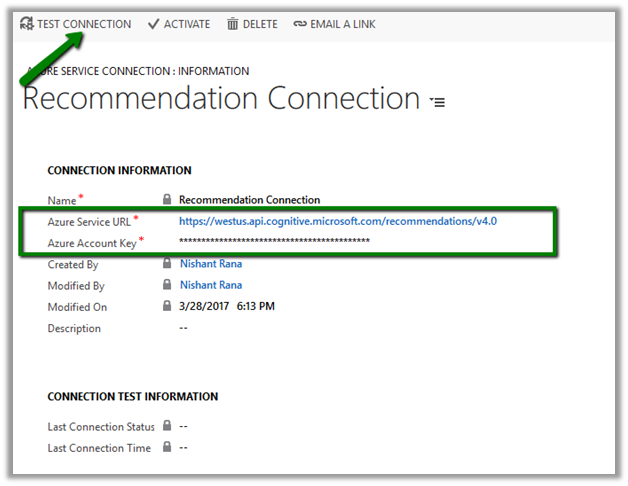
In CRM, go to Settings – Administration and click on Azure Machine Learning Recommendation Service Configuration.

Specify the value for the URL and Key we had noted down earlier, save the record and click on Test Connection to test the connection.

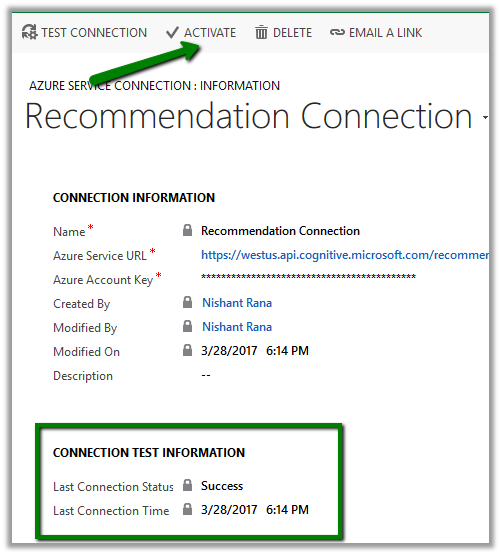
On Successful connection, we’d see Success message for Last Connection Status. Click on Activate to enable the connection.

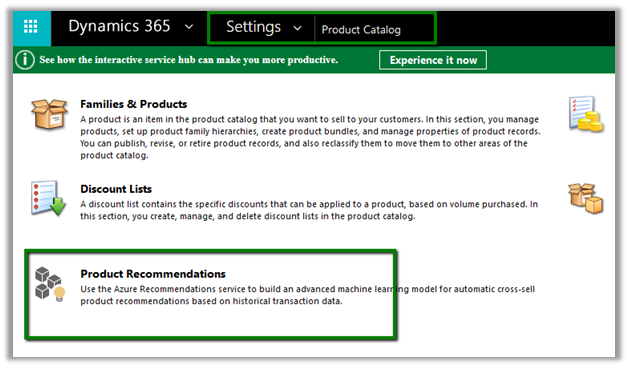
Now we need to define\build the model for recommendations. For this go to Settings – Product Catalog and click on Product Recommendations.

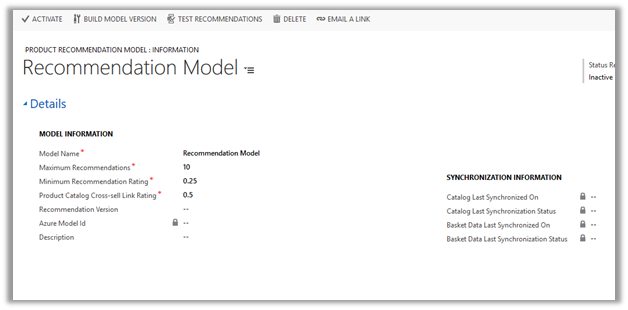
We’d see a recommendation model with default values

The model will have Basked Data Entities already defined. We can edit\add new\ delete these existing configuration records for Basked Data Entities. Basked Data Entities recommendations are based on which products appear together.

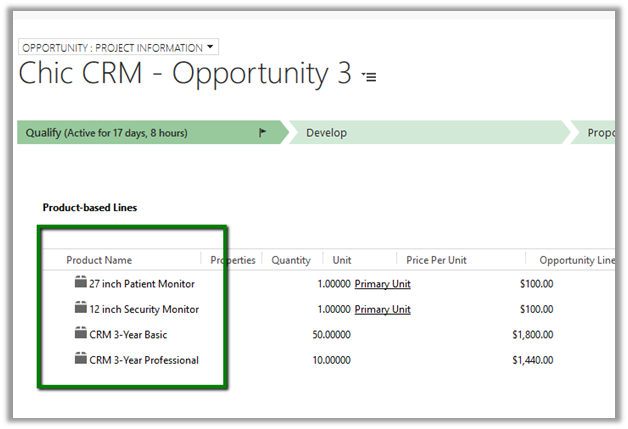
For e.g. in below Opportunity record we can see 27 inch and 12 inch monitor opportunity products appearing together. It will look for all such line items records.

Similarly we have recommendation entities records configured which we can update.

Once done with the configuration, we need to click on Build Model Version to build the model.
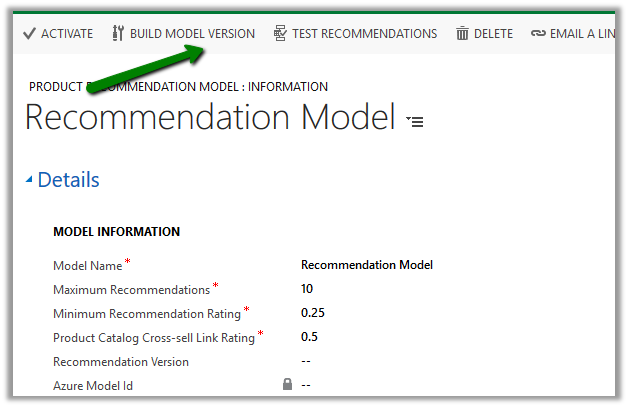
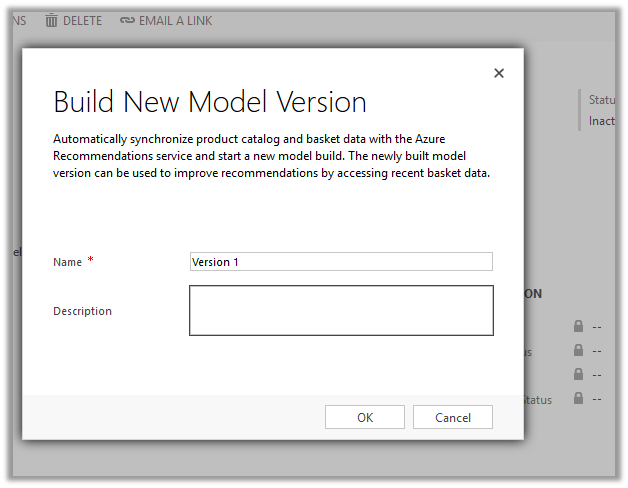
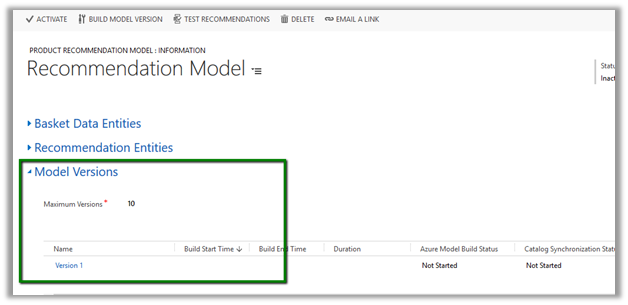
It will create a corresponding model version record.

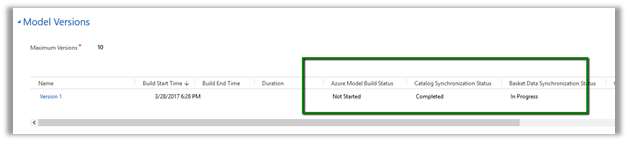
We can check its progress by refreshing it.

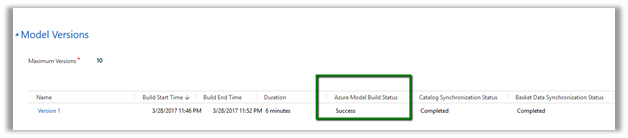
Here the model that we had defined has successfully build and it took around 6 minutes.

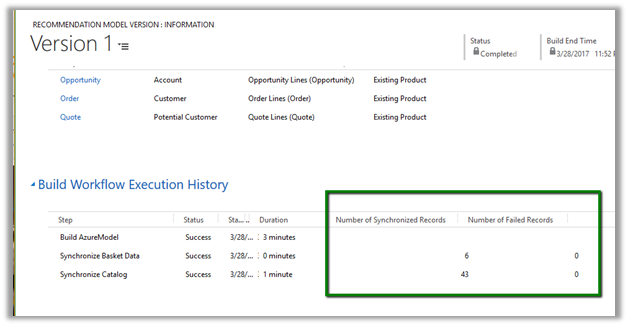
We can click on the Model Version to open the record to get the further details.

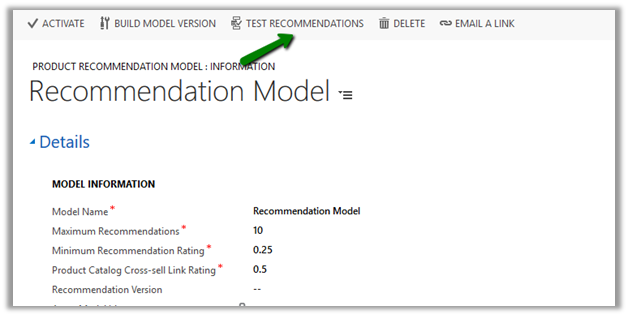
Next step would be to check the recommendations. For this click on Test Recommendations.

Pop up opens wherein we can select the Products and model version and click on Show Result to see what are the product recommendations.

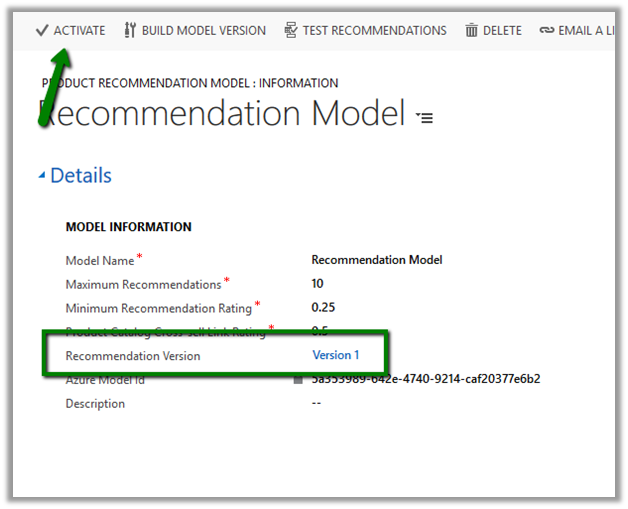
Once satisfied with the test result, click on Activate to enable the recommendations.

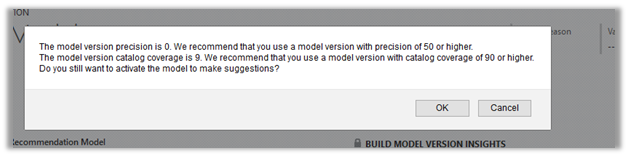
We might get the below message in case we do not have good enough data in our system.

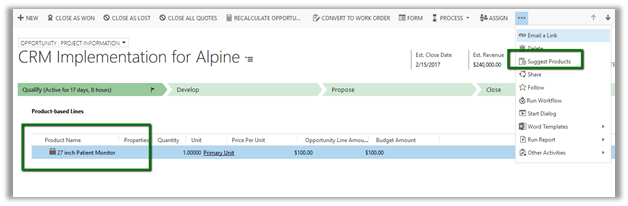
To see it in action, open an existing opportunity record , go to product sub grid and select a product and select Suggest Products.

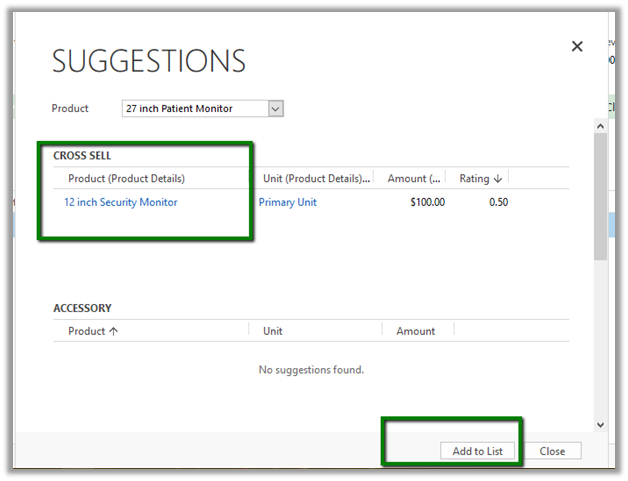
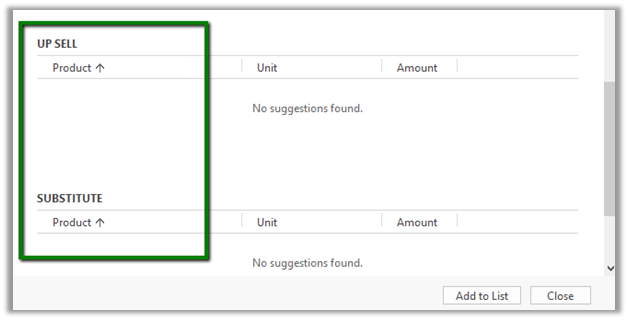
A dialog box opens up that shows the Cross-Sell products and other details.

Get all the details here

https://technet.microsoft.com/library/56b35229-72f8-46ca-bebf-eae023f633c2.aspx

Hope it helps..

Configure Automatically suggest knowledge articles using Cognitive Services Text Analytics (Preview) in Dynamics 365 (online)


As a first step, we need to set up Text Analytics Service and connect it to our CRM Online. Follow the below post for that

https://nishantrana.me/2017/03/24/configure-case-topic-analysis-using-cognitive-services-text-analytics-preview-in-dynamics-365-online/

Next, we need to set up Knowledge Search field settings

For this go to Settings – Service Management and click on Knowledge Search field Settings

There click on New to create a new Search Model record.

Below we have specified case as our source entity. Click on Save.

Next, we need to define Keyword fields for our model, click on + to create a new text analytics entity mapping record.

To keep things simple, we have selected entity as Case and Field as Case Title based on which suggestions will be made. Save the record.

Click on Activate to activate the model.

Next, we need to modify the Case form to include knowledge base suggestions

Open the Conversation Tabs, go to Knowledge Base Search and select Text Analytics for Give Knowledge base suggestions as described below and publish the form

Open any of the case record, go to KB Records. Here based on the Case Title, the text analytics picks up the keyword “Delay” and shows/suggests the corresponding KB Articles matching that keyword.

Get all the details here

https://technet.microsoft.com/en-us/library/mt703319.aspx

Hope it helps..