Recently while working on a plugin, we realized that for a particular column, we were not getting value in the context (on Post Create), the same was the case for Post Update and Post Image.
Also using Retrieve and RetrieveMultipleto fetch its value inside the Plugin didn’t work
Eventually, we realized it was a calculated column, which doesn’t give value inside the Plugin.
If we do RetrieveMultiple and RetrieveMultiple from a console app, outside Plugin, we get the value for that field.
Recently we were writing a plugin that on the creation of a lead updates the originating lead of a contact record. The value was neither getting updated nor we were getting any errors.It was after we spent a good amount of time debugging, realized that this field cannot be updated.So basically, we can specify a value for it during create of contact but cannot update it.
Recently we were working on Facebook Leads integration with Dynamics 365. Webhook for Leads can be configured to send real-time notifications of the Leads ads changes.
The first step of setting up Webhook requires creating an HTTPS endpoint that can process 2 types of HTTP Requests – Verification and Event notifications.
Here we will see how to configure the Power Automate flow for verification.
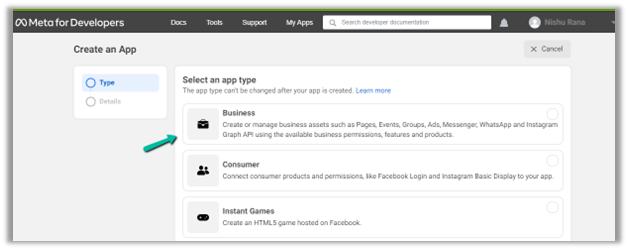
Login to Meta for Developers – Facebook and create an app.
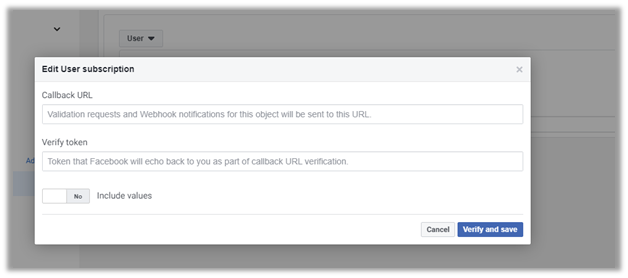
It asks us to specify the Callback URL and Verify token.
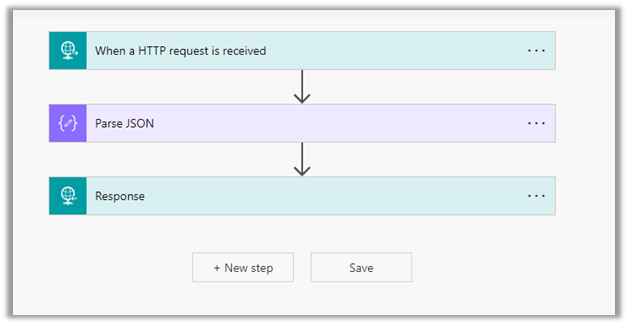
Back in Power Automate create a Flow with Request type Trigger, followed by Parse JSON and Response actions.
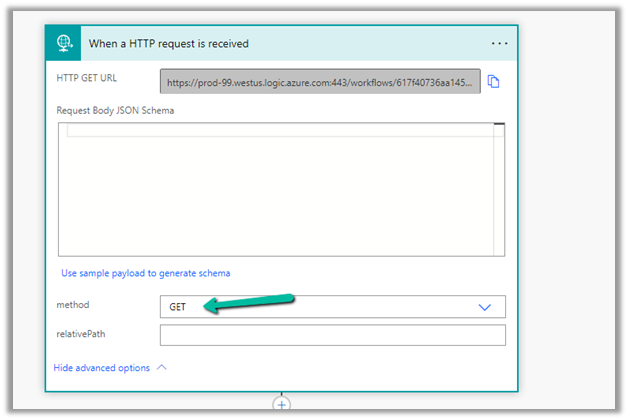
For HTTP Request, select GET as the method, as FB will send a GET request to the endpoint URL, with the verification requests included in the endpoint of the URL.
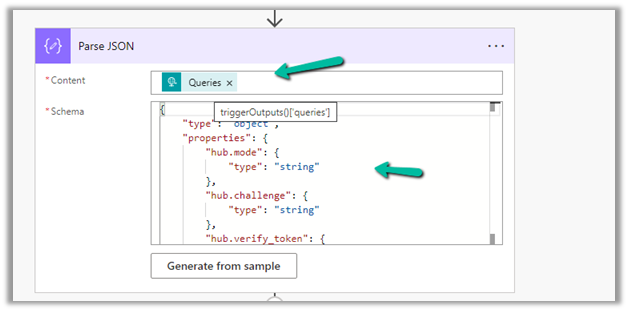
Next, Parse the JSON and specify the Content and Schema
Content –
triggerOutputs()['queries']
Schema –
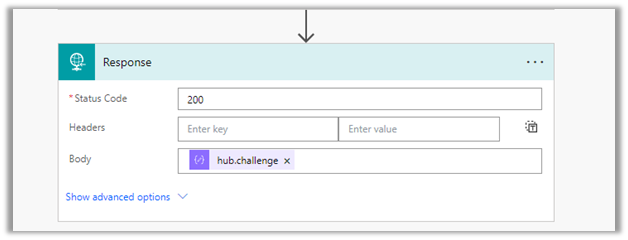
Lastly in Response, set Status Code as 200 and Body as hub.challenge.
Here FB expects the Endpoint to verify the hub.verify_token (which we haven’t set up yet) and respond with hub.challenge value after verification.
Save the Flow, and copy the URL generated for the HTTP Request trigger.
Back in Meta for Developers, in edit user subscription paste the Callback URL and for now in place of token specify any value and click on Verify and Save.
We should now have a Webhook endpoint (Flow) successfully configured
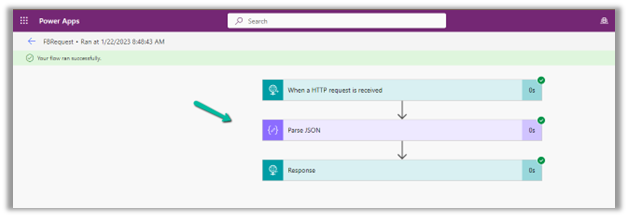
We can also see our Flow ran successfully.
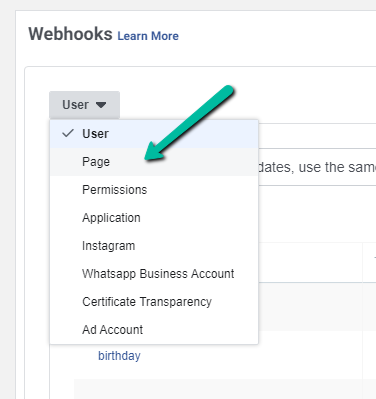
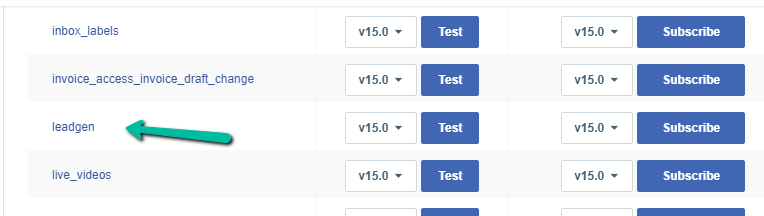
Here in the example we configured the webhook validation for User events, for Facebook Lead we need to configure it for Page, the other options available are Permissions, Application, Instagram etc.
Add a reference to form-loader.js or load.js to access the API.
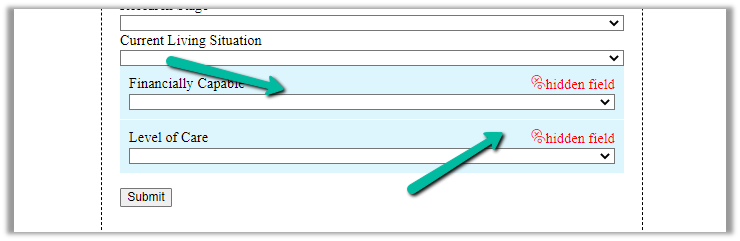
Below is our form with a hidden field in it.
Based on the current living situation (drop down), we want to set the value of the Financially Capable field (bool) – the hidden field’s value as either True or False.
For this, we have added the below script, in the formSubmit event.
formSubmit triggers on form submit before the form submission is sent to the server.
The script – Get the id of the element through browser’s developer tools.
Hope it helps..
  // Extending Marketing form with code
        // formSubmit - Triggers on form submit before the form submission is sent to the server.
        MsCrmMkt.MsCrmFormLoader.on('formSubmit', function (event) {

            // get the id of the elements through developer tools of the browser
            // based on selected current living situation (optionset)
            if (document.getElementById('deb110aa-e266-ed11-9561-000d3ae090c0') != null) {
                var selectedCurrentLivingValue = document.getElementById('deb110aa-e266-ed11-9561-000d3ae090c0').value;
                if (selectedCurrentLivingValue == 881990000) {
                    // set the value of Financially Capable field (boolean)- true / false
                    document.getElementById('dcc46e64-2867-ed11-9561-000d3ae090c0').value = "1";
                }
                else {
                    document.getElementById('dcc46e64-2867-ed11-9561-000d3ae090c0').value = "0";
                }
            }
        });













 We should now have a Webhook endpoint (Flow) successfully configured












 Nishant Rana's Weblog