Use Copilot to create a journey – Dynamics 365 Marketing


We can make use of Copilot to create a journey for us, using everyday conversational language.

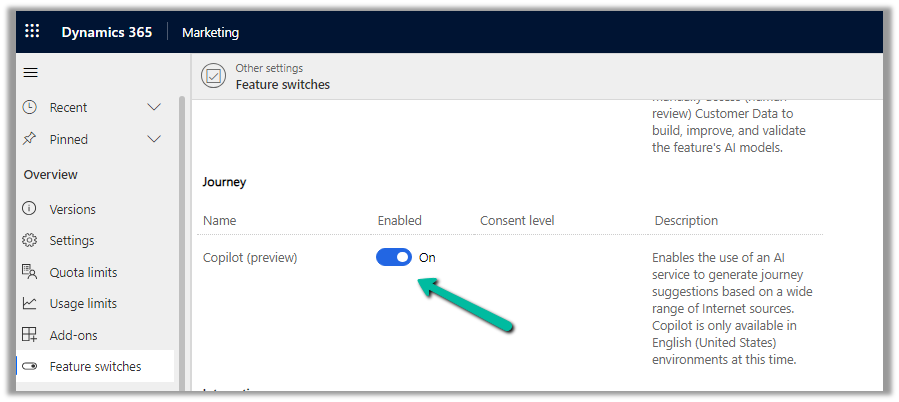
To enable it, navigate to

Settings >> Overview >> Feature Switches >> Journey (Copilot)

Let us see it in action, by creating a new journey record.

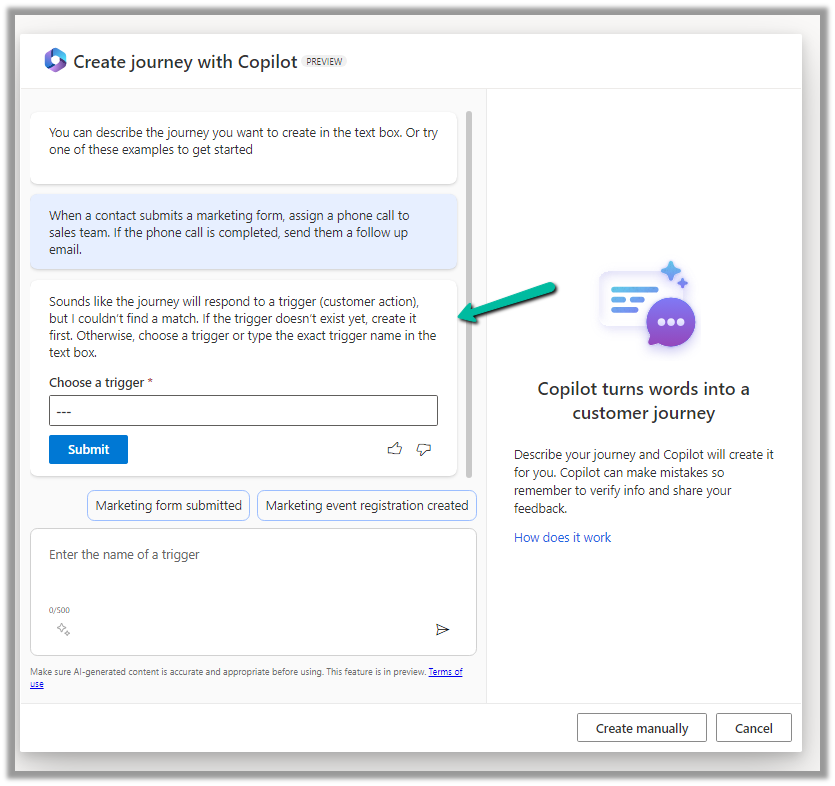
We get the option to select predefined
examples to start with.

Here we have selected the last example “When a contact submits a marketing form, assign a phone call….”

On selecting it, we are presented with the option to specify the Trigger.


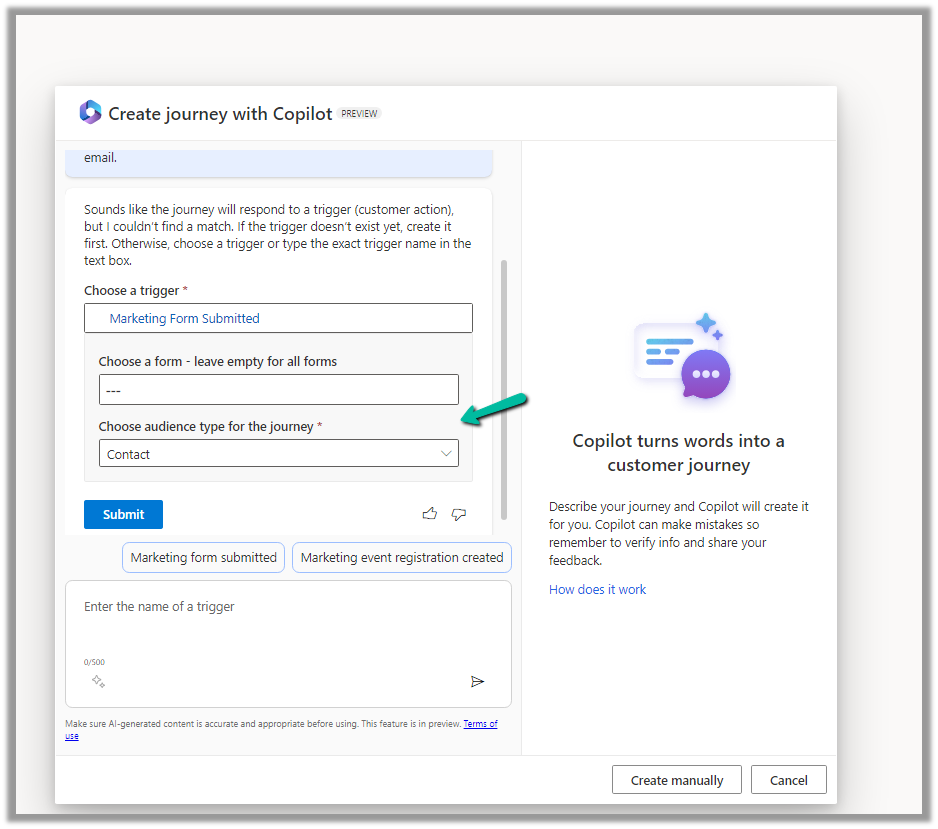
We have selected the existing Marketing Form Submitted trigger record here.

After specifying the trigger, we get the option to specify the marketing form or to leave it empty to run it for all the form submissions and also the audience type, which could be either Contact or Lead.

Clicking on Submit gives the option to review and then eventually Create Journey.

Clicking on Create Journey generates the journey for us.

We can review the journey, add any further content required, modify it, etc.

For example, we need to specify the follow-up email to be sent, before we can save and publish it.

Once we are done with defining the journey, we can publish it.

Get more details here.

Hope it helps..

Advertisements

Use Content Ideas Copilot to generate email content ideas (Dynamics 365 Marketing)


Content Ideas Copilot can be used to quickly generate content ideas for emails based on topics (key points) and tone specified.

To enable it, navigate to Settings >> Feature Switches >> Email Editor (Copilot)

To see it in action, create or open an email record, and open the Copilot panel from the right panel or the email editor’s toolbox.

We can start with any of the suggested topics or select Custom to specify our key points.

Here we have selected the “Promotion” topic, and we can see the corresponding key points specific to it.

We can edit existing key points and add our key points.

We can also specify the Tone for the content.

Clicking on Get Ideas generates the content ideas.

We can review and add the most appropriate content to the email

We can also generate more ideas

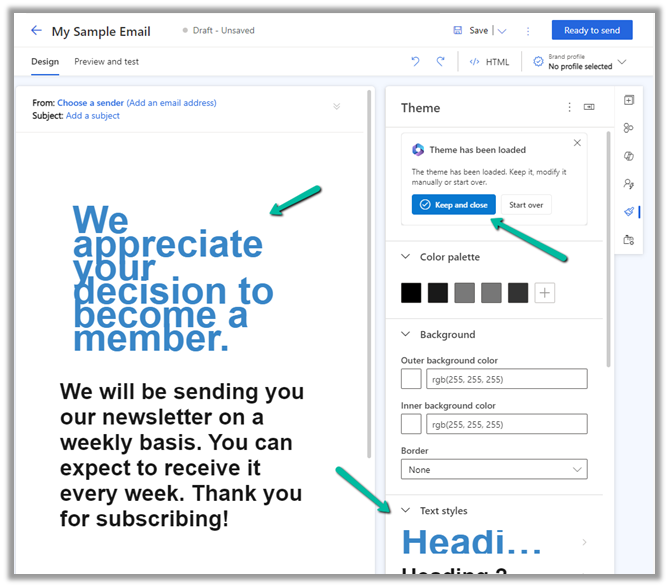
Below we have added one of the ideas to our draft email.

Get all the details here

Hope it helps..

Advertisements

Use Query Assist Copilot to create Segments (Dynamics 365 Marketing)


Using Query Assist Copilot we can create segments easily through its Natural Language Processing (NLP) capability.

Create a new Segment from Real-Time Marketing >> Audience >> Segments

Specify the segment name and the target audience (either contact or lead)

Now in Query Assist, we can specify the details of the segment

It also provides us the suggestions.

Let us select the “Contacts who were created last year and make more than $50K” option and append “who work in Financial Industry to it”.

Clicking on Create will open the segment designer page along with the Query Assist panel, which shows the result of the Query.

Click on Use to use that query result.

We can add further conditions to it.

Here we selected the example “Contact who opened an email

We can then add the result through the “Use” option

The query gets updated with the new condition

We also get the option to generate a summary for the segment or get suggestions for improving the segment.

Clicking on View Summary generates the summary.

Get all the details here

Hope it helps..

Advertisements

Fixed – This assets-oce.mkt.dynamics.com page can’t be found in Dynamics 365 Marketing


Recently we got the below error while trying to open the files in our Real-time marketing Assets Library.

We raised the Microsoft Support ticket for this and got the issue fixed.

This was because our environment was in Admin mode. (as we were going live so had kept it in admin mode, till we verify it), and there are specific tasks related to processing marketing content, such as resizing image / optimizing image / etc. that requires some Async Service to run in the background which needs the environment to be in the non-admin mode.

Disabling the Admin mode for the environment fixed it.

Hope it helps..

Advertisements

Fixed – We can’t find the form page you’re trying to load – Dynamics 365 Marketing


Recently we saw the below error in one of our marketing forms hosted on the website –

We can’t find the form page you’re trying to load: <div data-editorblocktype=”FormBlock” data-form-block-id=”64d87bc7-279d-ed11-aad1-00224814fd52″></div>. Please check your page setup.


This occurs if the form is not Live.


Making the form “Go live” will fix the issue.


Hope it helps..
Advertisements

Fixed – The domain where this form is embedded might not be enlisted as a domain record for externally hosted forms in Dynamics 365 Marketing


Recently we were getting the below issue for our Marketing Forms hosted on an external website on a particular authenticated domain. The pages were working fine in other authenticated domains.

The domain where this form is embedded might not be enlisted as a domain record for externally hosted forms. Otherwise, a browser extension or plugin may be blocking this form from loading. Review and reload form to continue.”

This particular domain was also shown as authenticated in our Dynamics 365 marketing.

Our website was e.g. https://www.domain.kiwi/ so we had domain.kiwi authenticated in Dynamics 365 Marketing.

Eventually, we had to raise a Microsoft Support Ticket and were instructed to add/ authenticate www.domain.kiwi   (with www.) also, doing so resolved the issue for us.

Also, there seemed like a UI bug in the Marketing which will cut out “www.” automatically when trying to authenticate the domains.

Hope it helps..
Advertisements