Fix – Exception in creation of lead (Dynamics 365 Marketing)


We were getting this error in the submission of one of our outbound Marketing forms.

Activity id: e1ede147-efb6-457d-bc19-826c6176a2e4, Request id: jH7xRiEzGFTdZQTbE2fkh9_Z_WtjumCqJERuYZbGSL0_0, Exception: Entity ‘Contact’ With Id = 896b960d-c5d7-4c4d-95c7-a9e226afbf8e Does Not Exist

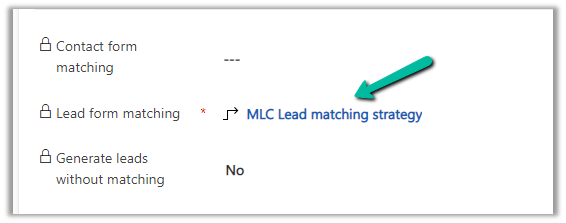
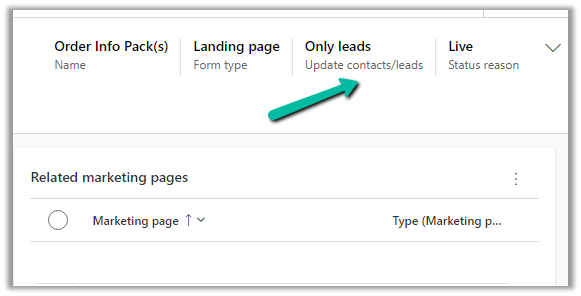
The form had only the Lead form matching defined and Only leads for Update contacts / leads.

So here because of some earlier multiple/different form submissions, a contact got created and stored in the browser’s cookie, which CRM was referring to, and trying to set a Parent Contact for the lead record even though we were having Only leads set for update contact/leads option.

This is the behavior of the product.

https://learn.microsoft.com/en-us/dynamics365/marketing/marketing-forms#createupdate-leads-only

The solution is to delete the cookie or try in incognito or in-private mode or a different browser, and it would work.

This would probably arise because while setting up marketing forms we would do multiple submissions with test data for testing.

Hope it helps..

Advertisements

Fixed – Exception in creation of lead (Dynamics 365 Marketing)


Recently we were getting the below error in one of our marketing forms for form submission record.

Exception in Creation of lead – Activity id: 40ff82fc-bb10-4d30-8671-12683392ccdf, Request id: AsChkx2zn5IKrjHVC4cTb6j-ZkB23D0PqgCdxwi8kEE_0, Exception: An item with the same key has already been added.

This was because we had mistakenly added first name fields twice as the form-matching attribute in the form-matching rule used for that form.

Deleting that extra field resolved the issue for us.

Hope it helps..

Advertisements

How to – Create Marketing form submission record through Flow (Power Automate) – Dynamics 365 Marketing


Recently we were exploring the possibility of creating a marketing form submission record through flow/custom code. Here simply creating the marketing form submission record is not enough, for it to be processed by the platform, we need to call the bound action – msdyncrm_UpdateMarketingFormSubmission with Step = Retry. (And it’s all not an officially supported scenario, so be careful)

Below is how the flow looks like

First, we create a form submission record –

After creating the form submission record, we are creating and associating the marketing field submission records with the values that we want to pass for the form – email, first name, and last name in this case.

And then eventually calling the action –msdyncrm_UpdateMarketingFormSubmission to trigger the submission (resubmit) of the form submission record.

On running the flow, we can see the record created with the status as pending.

Within a few seconds, if the input is correct, we can see the status updated as success

and the corresponding contact/lead created or updated.

Hope it helps..

Advertisements

Stop / Go live Lead Score Model behavior in Dynamics 365 Marketing


Recently we were writing a plugin on the Lead Score table to update the associated lead with Score and the Grade values.

The plugin was on Update of Lead Score (msdyncrm_leadscore_v2) to update lead when the Score Status = Up to date.

The interesting point we observed here was that when we stop the lead scoring model all the associated lead scoring records get deleted, which was kind of different than the usual behavior of related records, where we expect it to get deactivated/disabled.

On clicking the Stop button on the lead scoring model all the associated lead score records will get deleted.

All lead score records deleted :-

And now as soon as we Go live, the new lead score records get created back.

It starts the process of creating the records immediately.

Hope it helps..


Advertisements

How to – enable marketing interactions in lead and contact timeline – Dynamics 365 Marketing


To view marketing interactions, we need to add a custom connector to the timeline of the lead and the contact form. This step is only required if we are using custom forms and not the out-the-box marketing forms for lead and contact.

The OOB Form already has this connector defined.

Open the form for customization, select the timeline control, scroll down to Advanced >> Additional Settings >> Custom connectors, and click on Add connector.

Specify Constructor and Resource Path and save the record.

  • Constructor: msdynmkt_DynamicsMktTimelineInteractionAnalytics.TimelineInteractionAnalyticsResource
  • Resource path: msdynmkt_DynamicsMktTimelineInteractionAnalytics

Save the form and publish it.

We can see the marketing interactions being displayed in the timeline.

Hope it helps..

Advertisements

Use the Marketing only field to identify automatically generated marketing contact records – Dynamics 365 Marketing


The form-matching strategy defines what field(s) will be used to find the matching record.

Can be found at – Dynamics 365 Marketing >> Settings >> Lead Management >> Form Matching (Outbound)

We then associate the form-matching record with a marketing form.

So if a contact with the same email address is found, the record will be updated, if not then a new contact record will be created, on form submission.

Now to identify these auto-created contact records, we can make use of the out-of-the-box Marketing Only Boolean field. The system populates this field for the contact records created as part of marketing form submission.

We can find the field in the Contact form – Details tab >> Marketing Section.

Read more on marketing only flag

Hope it helps..

Advertisements