Using Form fill Assist Toolbar to streamline data entry in Power Apps


We tried the AI Form Filling Assistance feature in model-driven Power Apps and found it very helpful. One part that we liked the most was the toolbar and file (preview). This makes it much easier to fill forms using information from uploaded documents.

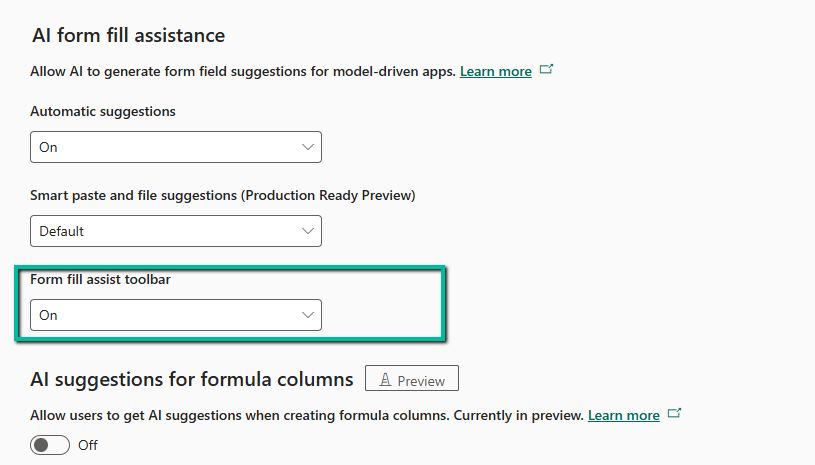
To enable this feature, go to:

Environment → Settings → Features → Form fill assist toolbar (AI Form Fill Assistance)

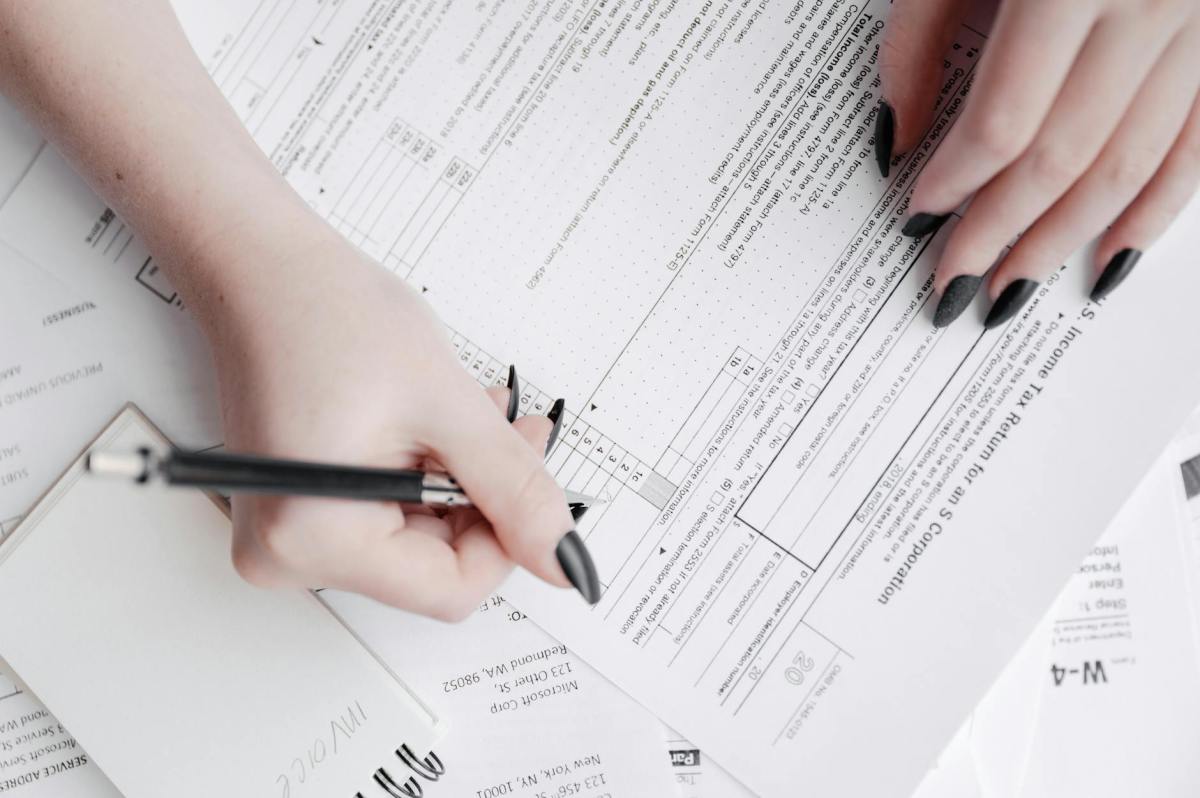
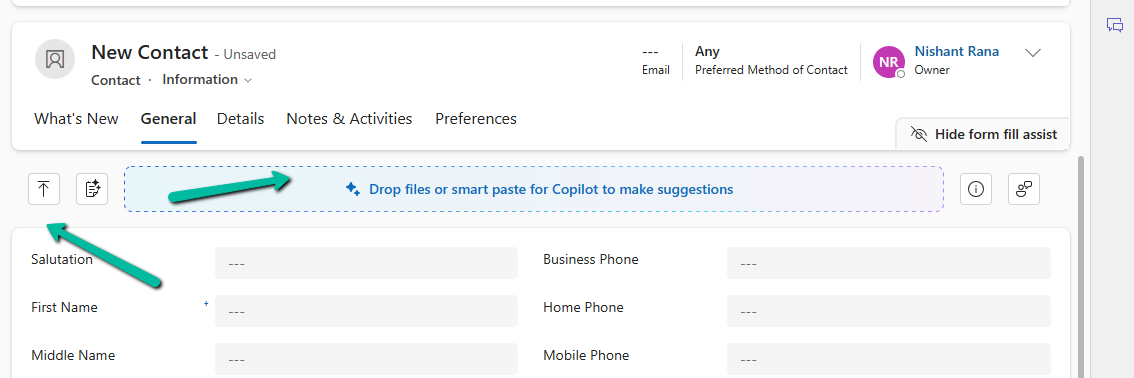
Once enabled, we can simply upload or drag and drop a file — like a PDF, Word document, or image — and the assistant will read the file and suggest values for different form fields.

A screenshot of a computer

AI-generated content may be incorrect.

When we upload / drop a file like a PDF, Word, or image, the assistant reads the file and gives us suggestions to fill the form.

A screenshot of a computer

AI-generated content may be incorrect.

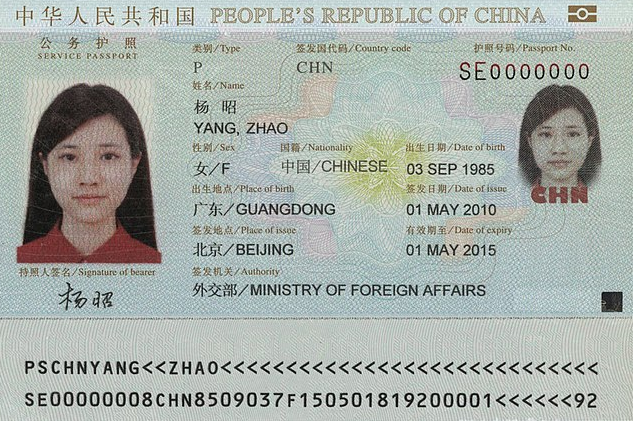
For example, if we upload the following file:

A close-up of a foreign passport

AI-generated content may be incorrect.

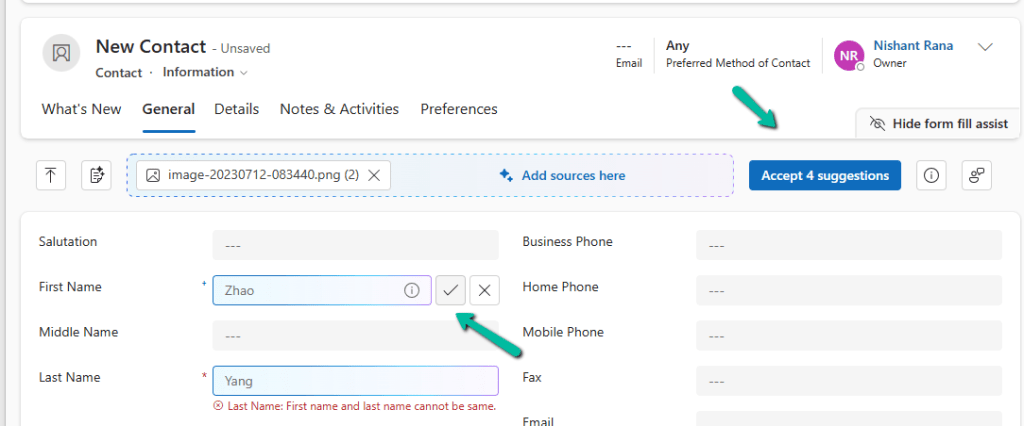
We can see that the assistant picks up values like First Name, Last Name, City, and Country, and populates them into our contact record.

Either we can accept all the suggestions using the Accept suggestions button on the tool bar or can select the suggested value for the individual fields by clicking yes next to it.

The assistant works at the tab level. For example, if we switch to the Details tab and upload the same image again, we might see fields like Birthday get populated — depending on what data is available and which fields are present in that tab.

The different file types supported are – .txt, .docx, .csv, .pdf, .png, .jpg, .jpeg, .bmp.

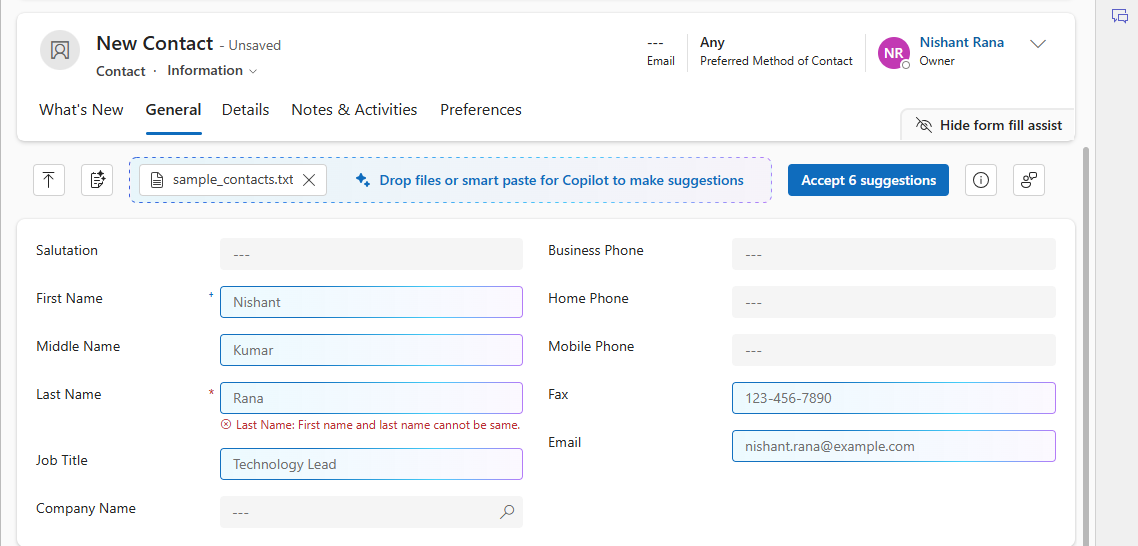
Let us now try uploading the below text file.

A screenshot of a computer

AI-generated content may be incorrect.

We can see it picking the first record and populating the details on the form.

A screenshot of a computer

AI-generated content may be incorrect.

This makes it simple and fast to enter data — especially when we are working with leads, contacts, or records that are usually based on data from documents or scanned forms.

Get more information

Hope it helps..

Advertisements

“Solution manifest import: FAILURE: Solution patch with version already exists. Updating patch is not supported.” – Power Platform / Dynamics 365


While importing a patch (unmanaged) solution we got the below error –

“Solution ‘abc_Configuration’ failed to import: Solution manifest import: FAILURE: Solution patch with version 1.6.1.1 already exists. Updating patch is not supported.”

A screenshot of a computer

Description automatically generated

This is because Dataverse does not allow updating an existing patch solution with the same version number. Dataverse treats patches as immutable once imported. So if a patch already exists in the target environment, we cannot re-import a patch with the same version. Unlike full solutions, patches cannot be updated or overwritten—they must be uniquely versioned.

To fix this we can increase the Patch Version in our source environment. Here we incremented the patch version (from 1.6.1.1 → 1.6.1.2). Exported the patch again and imported it into the target environment.

Dataverse considers each patch version as unique, so increasing the version allows re-import.

Below we can see the new version of the patch imported replacing the old one.

A screenshot of a computer

Description automatically generated

Hope it helps..
Advertisements

Fixed – Real-time marketing form’s Standalone page submitting to a different environment – (Dynamics 365 Customer Insights – Journeys)


Recently we migrated the Real-time marketing forms from our Dev environment to UAT environment using the Configuration Migration Tool. Here what we noticed was on submitting the form using the standalone page in UAT, the submissions were going back to the Dev environment instead of UAT.

A screenshot of a computer

Description automatically generated

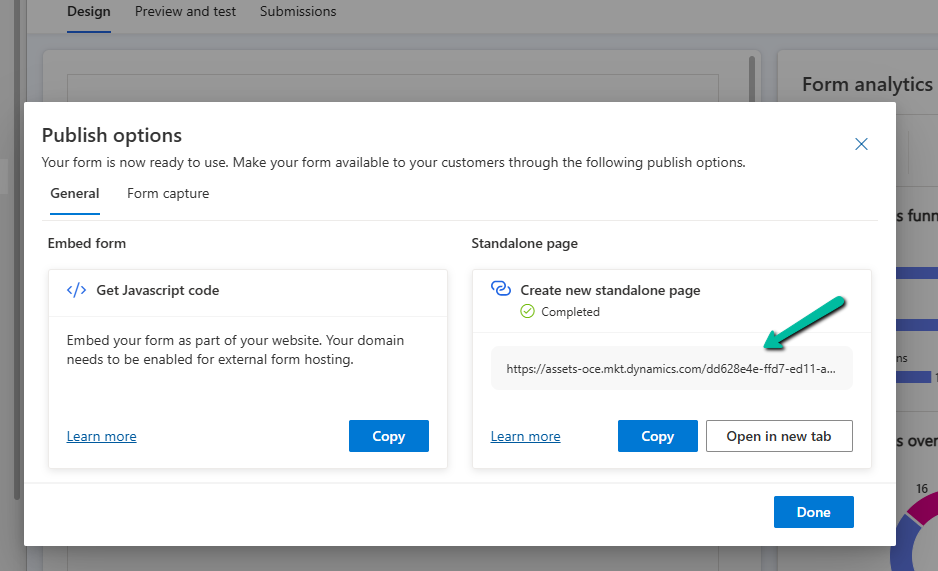
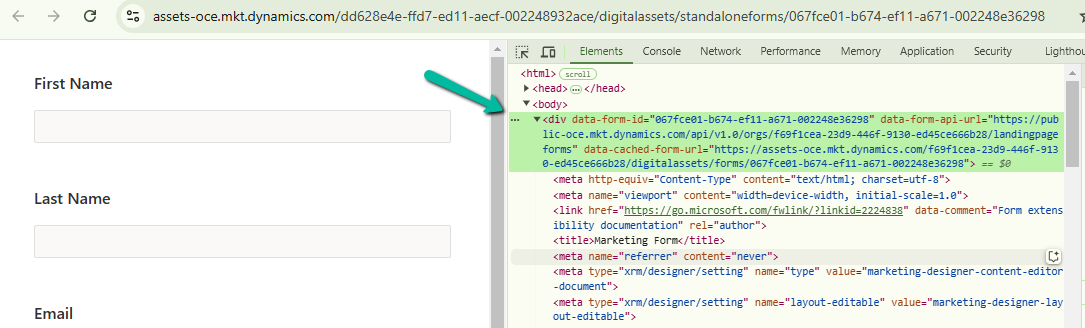
This was because the data-form-api-url and data-cached-form-url property of msdynmkt_standalonehtml field of msdynmkt_marketingform record was still referencing the organization id of the Dev environment instead of UAT.

A computer screen shot of a computer screen

Description automatically generated
<div data-form-id='167fce01-b674-ef11-a671-002248e36298'
data-form-api-url='https://public-oce.mkt.dynamics.com/api/v1.0/orgs/f69f1cea-23d9-446f-9130-ed45ce666b28/landingpageforms'
data-cached-form-url='https://assets-oce.mkt.dynamics.com/f69f1cea-23d9-446f-9130-ed45ce666b28/digitalassets/forms/xxxfce01-b674-ef11-a671-002248e36298' ></div>

The f69f1cea-23d9-446f-9130-ed45ce666b28 is the development environment’s organization ID.

This information is stored in the msdynmkt_standalonehtml field of msdynmkt_marketingform record.

select msdynmkt_marketingformid,msdynmkt_standalonehtml,* from msdynmkt_marketingform where msdynmkt_marketingformid = ‘formGUID’

A screen shot of a computer

Description automatically generated

A screenshot of a computer
Description automatically generated

To fix we replaced the Dev’s Organization ID = f69f1cea-23d9-446f-9130-ed45ce666b28 with UAT’s Organization ID = dd628e4e-ffd7-ed11-aecf-002248932ace

<div data-form-id='167fce01-b674-ef11-a671-002248e36298'
data-form-api-url='https://public-oce.mkt.dynamics.com/api/v1.0/orgs/dd628e4e-ffd7-ed11-aecf-002248932ace/landingpageforms'
data-cached-form-url='https://assets-oce.mkt.dynamics.com/dd628e4e-ffd7-ed11-aecf-002248932ace/digitalassets/forms/xxxfce01-b674-ef11-a671-002248e36298' >

And updated the marketing form record.

Red text on a white background

Description automatically generated
update msdynmkt_marketingform
set msdynmkt_standalonehtml = '<div data-form-id=''067fce01-b674-ef11-a671-002248e36298''
 data-form-api-url=''https://public-oce.mkt.dynamics.com/api/v1.0/orgs/dd628e4e-ffd7-ed11-aecf-002248932ace/landingpageforms'' 
 data-cached-form-url=''https://assets-oce.mkt.dynamics.com/dd628e4e-ffd7-ed11-aecf-002248932ace/digitalassets/forms/067fce01-b674-ef11-a671-002248e36298'' >
 </div><script src = ''https://cxppusa1formui01cdnsa01-endpoint.azureedge.net/oce/FormLoader/FormLoader.bundle.js''></script>'
where msdynmkt_marketingformid = '067fce01-b674-ef11-a671-002248e36298'

After the update we can see submission reflecting back to the correct UAT environment.

A screenshot of a computer

Description automatically generated

The query we used to update all the forms with UAT’s Id

-- replace Dev Org ID with UAT Org ID in all the marketing forms 
UPDATE msdynmkt_marketingform
SET msdynmkt_standalonehtml = REPLACE(msdynmkt_standalonehtml, 'f69f1cea-23d9-446f-9130-ed45ce666b28', 'dd628e4e-ffd7-ed11-aecf-002248932ace')
where msdynmkt_standalonehtml is not null 

Hope it helps..
Advertisements

Use the new Associated Grid Control to display details of other tables in subgrids – Model-driven App / Dynamics 365


With the Associated Grid Control we can configure and show up four subgrids in the form, making it a more intuitive and cleaner form layout, with ease of navigation.

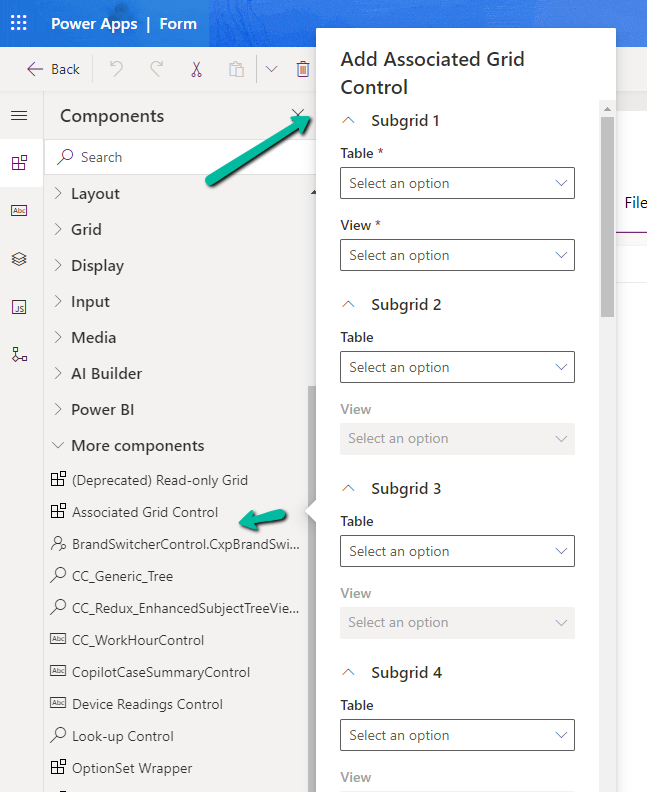
Below we are adding the Associated Grid Control component to the Contact’s form.

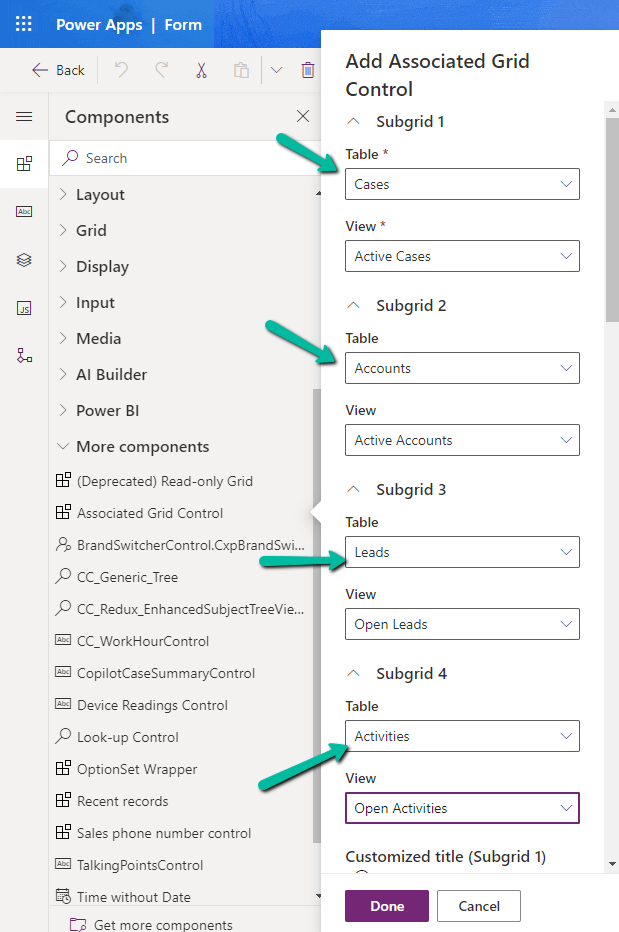
Here we have specified the Subgrid Tables and Views to begin with.

A screenshot of a computer

Description automatically generated

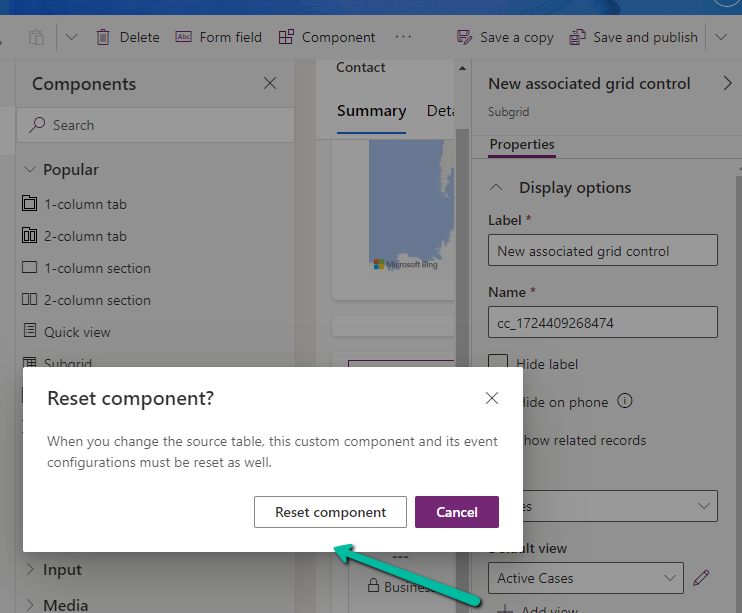
For the 1st subgrid specified we can set the specific options from the properties pane. Here let us try checking the Show related rows properties for the cases subgrid.

On doing so, we get the below message.

It basically reset the 1st subgrid’s table to Accounts from Case, the rest of the configuration remains unchanged.

A screenshot of a computer

Description automatically generated

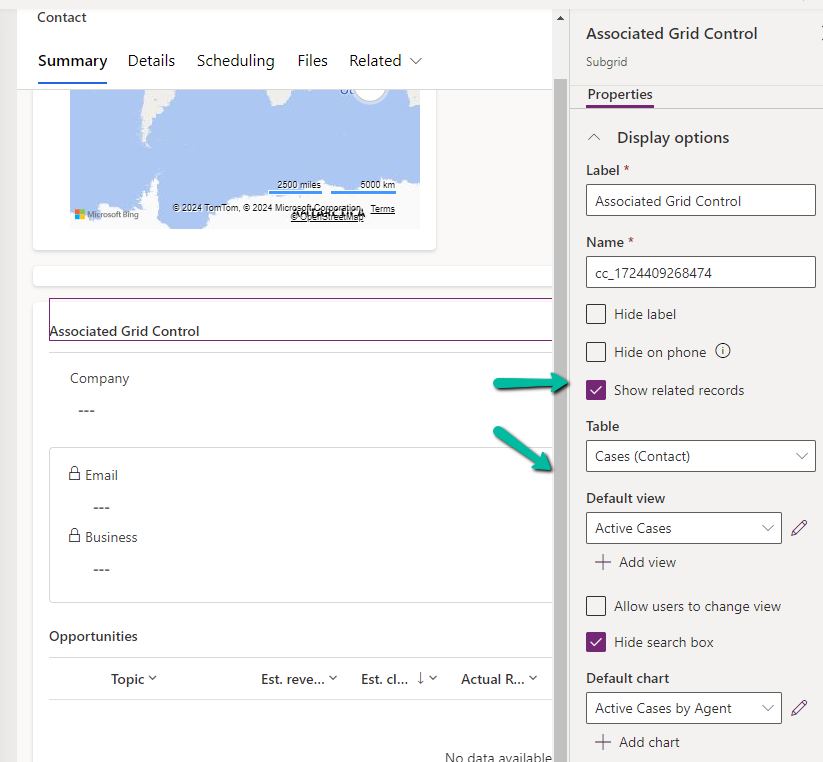
Let us change it back to Cases and select the appropriate view.

A screenshot of a contact page

Description automatically generated

Let us save and publish the change.

Now in the Contact form we can see the grid control with 4 different subgrids as configured.

The Active Cases shows the associated cases.

A screenshot of a computer

Description automatically generated

However, that is not the case with other subgrids as they show all the records.

A screenshot of a computer

Description automatically generated

To filter it to show the associated records we need to specify the relationship name while configuring the component.

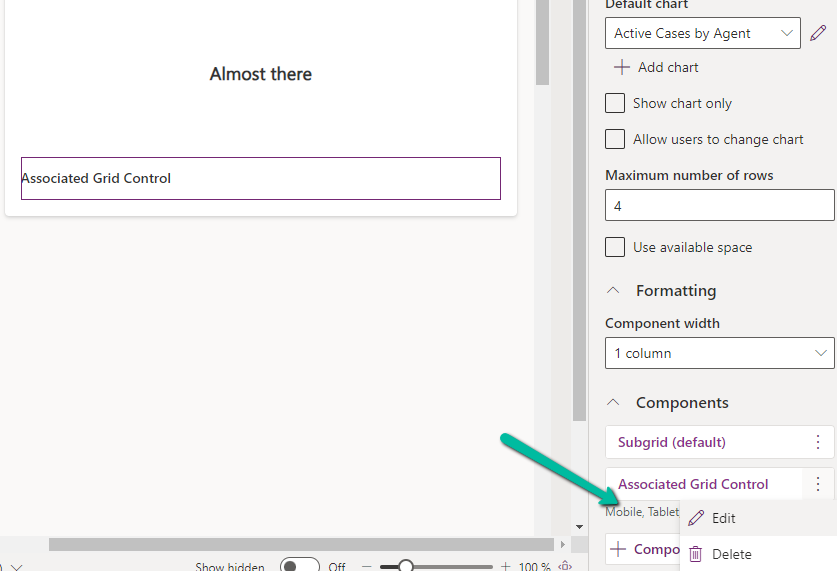
Let us edit the component.

A screenshot of a computer

Description automatically generated

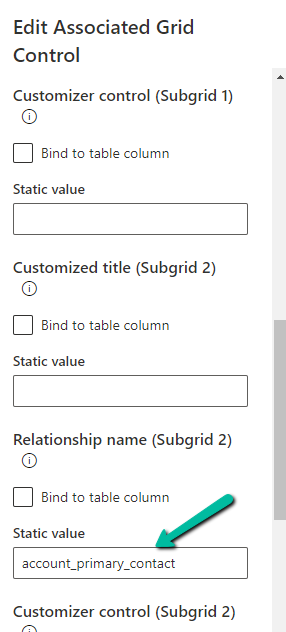
Below we specified the relationship name for the subgrid 2 i.e Accounts.

A screenshot of a computer

Description automatically generated

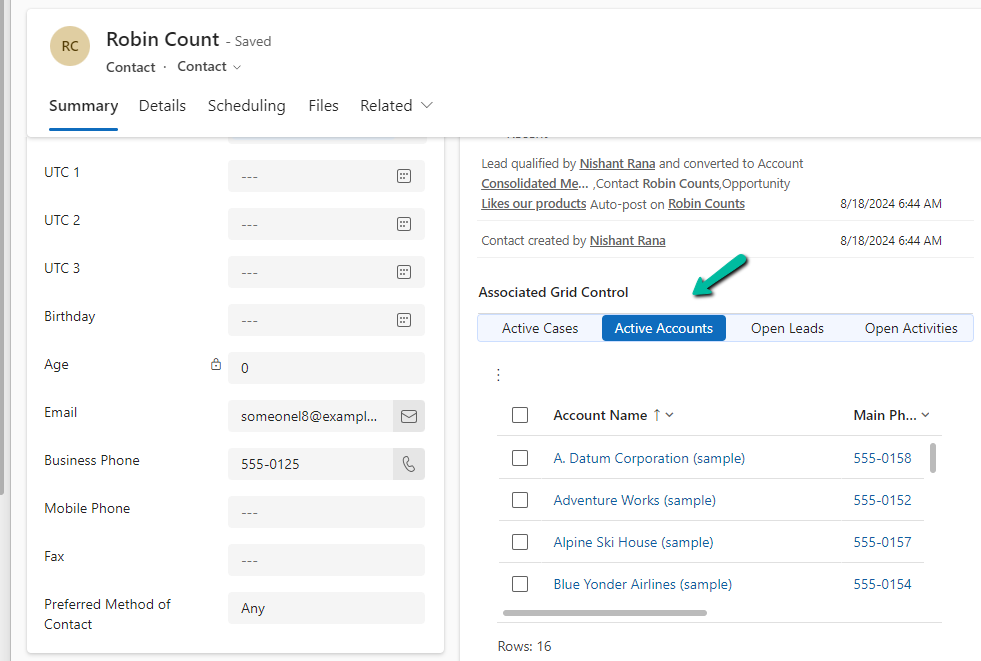
As expected, this time we can see Active Accounts filtered to show only those account records where the contact is associated as the primary contact.

A screenshot of a computer
Description automatically generated

Get all the details here

Also check –

Due Open Activities Control – https://nishantrana.me/2023/05/09/due-open-activities-control-dynamics-365/

Notes Control – https://nishantrana.me/2023/05/10/notes-control-dynamics-365/

Attachment Control – https://nishantrana.me/2023/05/08/new-attachment-control-dynamics-365/

OptionSet Wrapper Component – Use OptionSet Wrapper component to show color-coded options on the form

Hope it helps..
Advertisements

Select record quickly inside Lookup control – Model-driven app /Dynamics 365


There is a small enhancement added to the Lookup Control as part of Release Wave 2.

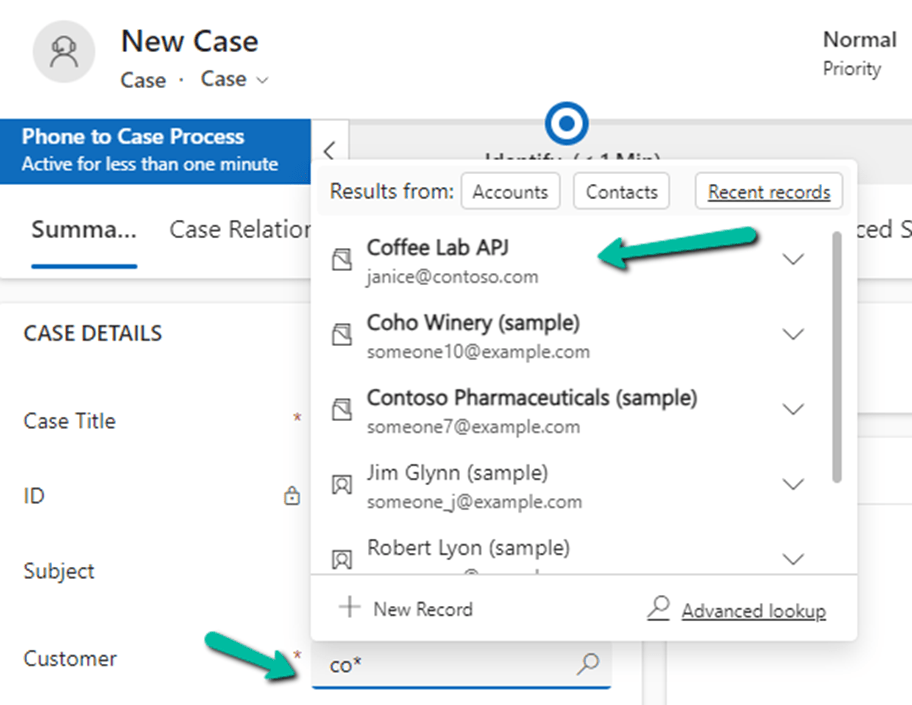
After performing a search for a specific record inside the Lookup Control dropdown menu, e.g. we have performed a search on “co*” on the Customer Lookup for Case.

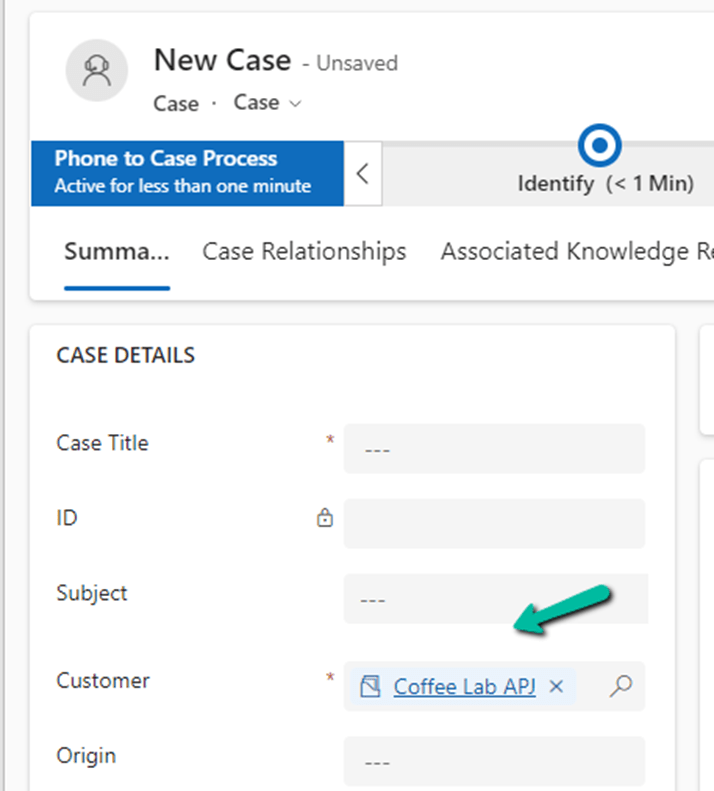
We can press Enter to have the first item in the list selected.

Get more details

Hope it helps..

Advertisements

Resizing of side panes now possible – 2024 Release Wave 2 (Model-driven apps / Dynamics 365)


With 2024 Release Wave 2, now we can resize the side panes inside the Model-driven app.

Side panes are used for Teams chat, Copilot Chat, loading Web Resource, etc.

With Release Wave 2 enabled, we get the option to drag and adjust the size.

A screenshot of a computer

Description automatically generated

Below we have dragged it to maximum size.

A screenshot of a computer

Description automatically generated

Get all details

Hope it helps.. 
Advertisements