How to – Use Business Rules to Disable / Read-only fields in Editable Grid (Dynamics 365 / CRM)


In the previous post, we saw how to use Field Level Security and JavaScript to disable field/column in the Editable Grid Control.

How to – Disable / Read Only fields in Editable Grid control (Dynamics 365 / CRM) – Nishant Rana’s Weblog

We can also use Business Rules to achieve the same.

Here we will be disabling the email field.

Below is our sample business rule to lock the email field.

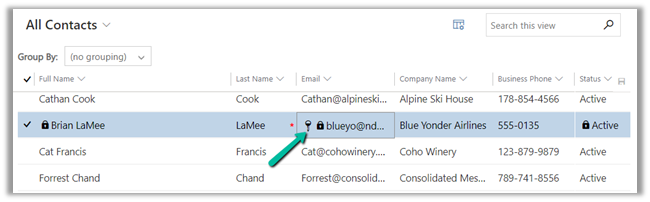
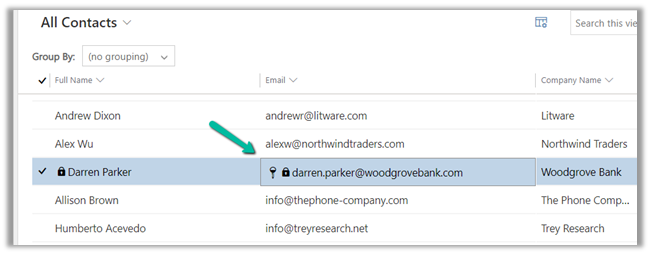
The result – we have the field locked/disabled in the editable grid control.
Couple of things we need to take care of

1st the field that we are using in the condition inside business rule, last name in our case, should be there in the view.

And the Scope of the Business Rule should be either – Entity or All Forms.

Also check  – https://nishantrana.me/2022/02/15/power-apps-grid-control-in-model-driven-apps-dynamics-365-crm/

Hope it helps..

Advertisements

How to – Disable / Read Only fields in Editable Grid control (Dynamics 365 / CRM)


Say for e.g. we have a requirement to make a certain field or column in the Editable Grid as read-only.

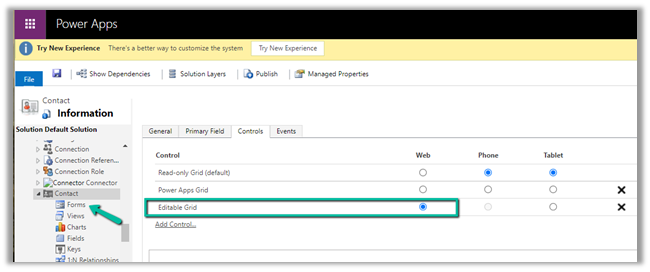
Here we have enabled Editable Grid control for Contact table.

Below are the 2 ways of achieving it –

Here we are taking the email field as an example.

  • Field level security

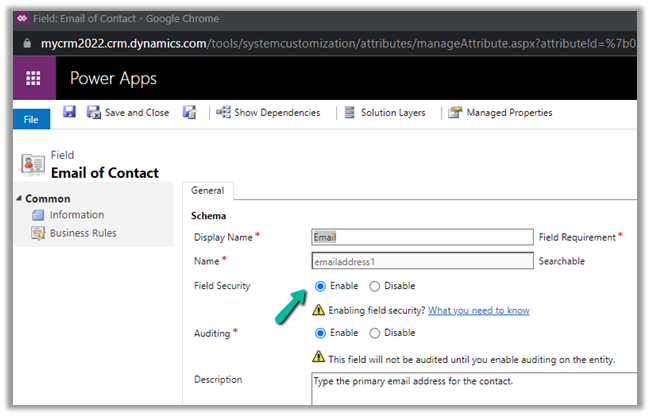
We have enabled Field Security on the Email field.

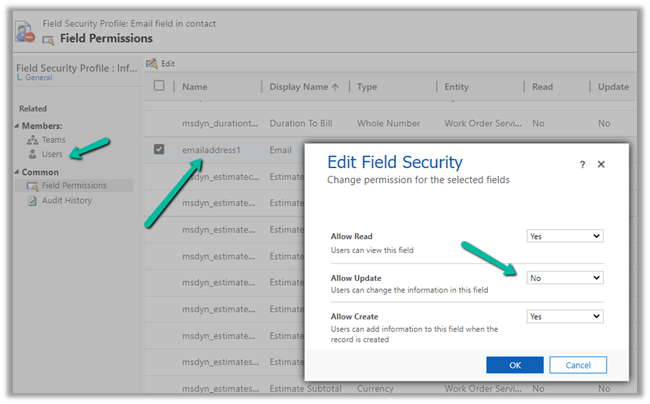
And we have set Allow Read and Allow Create as Yes and Allow Update as No.

And added the appropriate users or teams to which this profile should apply.

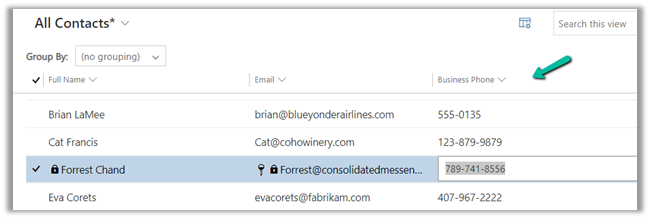
Now when the user tries to make changes in the email field, it comes as locked.

The other fields still come as editable as we have not enabled them for field security.

  • The other option is JavaScript on the OnRecordSelect event

Code –

function onGridRowSelected(context) {
    context
        .getFormContext()
        .getData()
        .getEntity()
        .attributes.forEach(function (attr) {
            if (attr.getName() === "emailaddress1") {
                attr.controls.forEach(function (myField) {
                    myField.setDisabled(true);
                });
            }
        });
}

The result –

Also check  – https://nishantrana.me/2022/02/15/power-apps-grid-control-in-model-driven-apps-dynamics-365-crm/

Hope it helps..

Advertisements

How to – Free up File Usage – Dataverse Storage Capacity (Dynamics 365 / CRM)


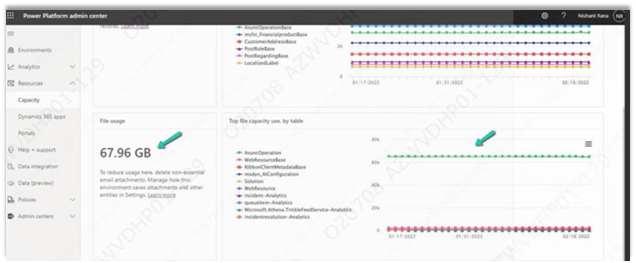
Recently we saw File usage for one of the environments reaching around 68 GB.

We managed to bring it down to around 10 GB or so by (Microsoft Support quickly helped us by sharing the required details here)

  • Deleting the System Job of Type Workflow with Status as Successful.
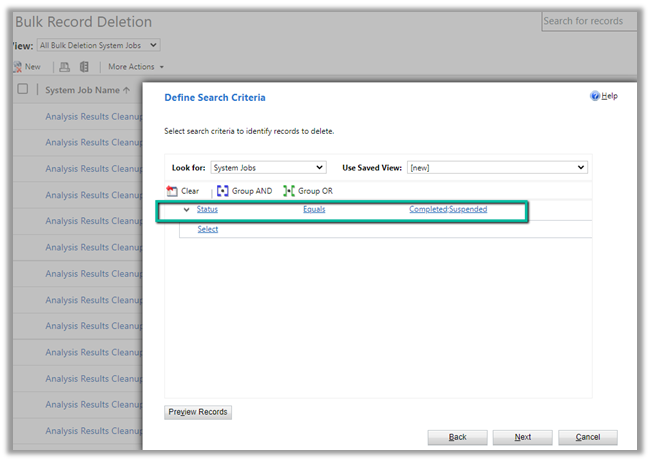
  • We ran Bulk Deletion Job to delete successful and suspended System Jobs.

     Settings >> Data Management >> Bulk Record Deletion

  • We can also delete attachments or emails or notes having attachments either through Advanced Find or Bulk Deletion job if not using them.
  • Uninstalled the Analytics Solution for Sales to delete the analytics data.

https://docs.microsoft.com/en-us/dynamics365/sales/uninstall-sales-insights#how-to-uninstall-sales-insights

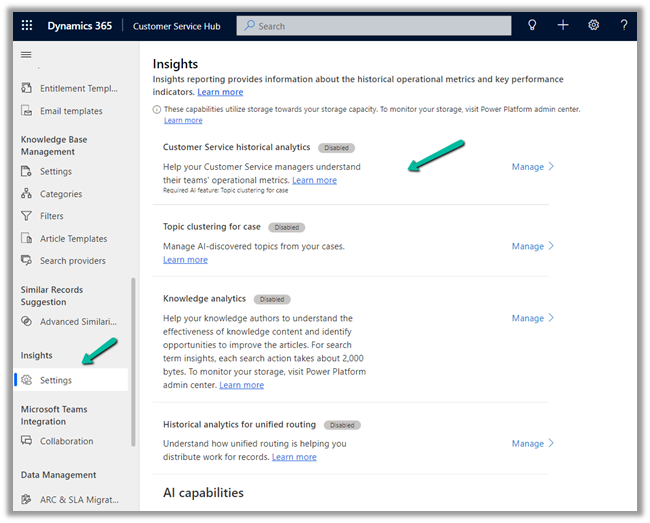
  • Disabled the Analytics / Insights for Customer Service Hub.

Customer Service Hub >> Service Management >> Insights (Settings)

Nicely explained here –

https://community.dynamics.com/365/f/dynamics-365-general-forum/416139/customer-guide-how-to-reduce-consumption-of–analytics-tables

Also, check

https://docs.microsoft.com/en-us/power-platform/admin/free-storage-space

Hope it helps..

Advertisements

Microsoft.Crm.CrmException: An application user’s access mode cannot be changed error in Dataverse (Dynamics 365 / CRM)


Just a short one –

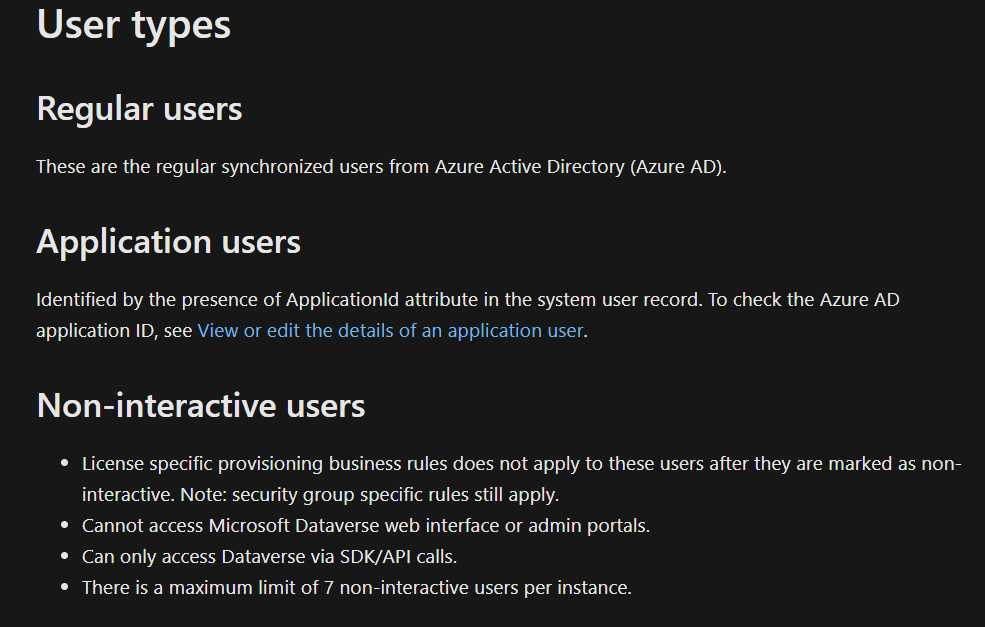
As the error message suggests “An application user’s access mode cannot be changed “, it is not possible to change the Access mode of an application user from Non-interactive to either administrative or Read-write.

While trying to change the Application User’s Access Mode to Read-Write, the error message –

Get all the details about different type of users –

https://docs.microsoft.com/en-us/power-platform/admin/create-users#user-types

also check – https://community.dynamics.com/365/sales/f/dynamics-365-for-sales-forum/367844/when-uisng-non-interactive-users-when-using-application-users

Hope it helps..

Advertisements
Sample Code – Update format of Autonumber attribute in Dataverse (Dynamics 365 / CRM)


At times we may have a requirement to update the format of the Auto Number dynamically / programmatically so that the new set of records take up the new format.

Let us understand through a simple example.

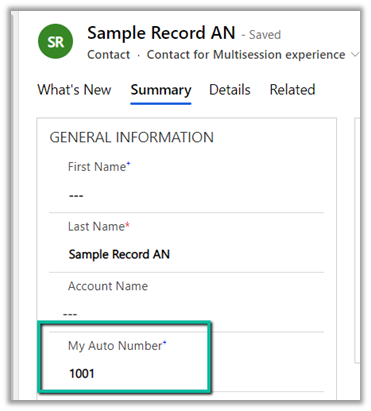
Right now for the below field, we have the auto-number format set as

{SEQNUM:4}


Below is the sample code to update the auto-number format programmatically.

It makes use of our RetrieveAttribute and UpdateAttribute requests.

https://docs.microsoft.com/en-us/dynamics365/customerengagement/on-premises/developer/create-auto-number-attributes?view=op-9-1#autonumberformat-options

We have retrieved the attribute then have specified a new auto number format, followed by update request.

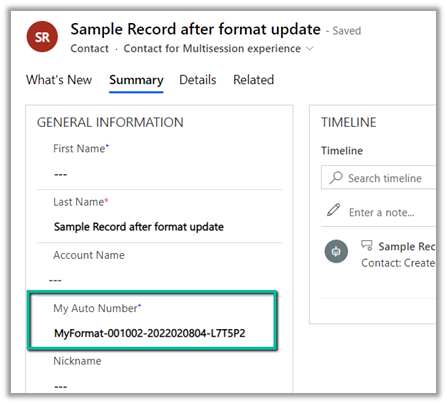
After executing the above code successfully, and creating a new contact record we can see the new number generated as per the specified format.

Sample Code

        string ConnectionString = "AuthType = OAuth; " +
              "AppId=51f81489-12ee-4a9e-aaae-a2591f45987d; " +
              "Username=test@test.onmicrosoft.com; " +
              "Password=test; " +
              "RedirectUri=app://58145B91-0C36-4500-8554-080854F2AC97;" +
              "Url = https://test.crm.dynamics.com/;";


        CrmServiceClient svc = new CrmServiceClient(ConnectionString);

        if (svc.IsReady)
        {
            var retAttributeRequest = ((RetrieveAttributeResponse)
                             svc.Execute(new RetrieveAttributeRequest
                             {
                                 EntityLogicalName = "contact",
                                 LogicalName = "cr59f_myautonumber",
                                 RetrieveAsIfPublished = true
                             })).AttributeMetadata;

            retAttributeRequest.AutoNumberFormat = "MyFormat-{SEQNUM:6}-{DATETIMEUTC:yyyyMMddhh}-{RANDSTRING:6}";

            var updateAttrRequest = new UpdateAttributeRequest
            {
                EntityName = "contact",
                Attribute = retAttributeRequest
            };

            var updateAttrResponse = (UpdateAttributeResponse)
                svc.Execute(updateAttrRequest);

Check other posts on Auto Number attribute –

Hope it helps..

Advertisements

How to – Delete Data Source in Dynamics 365 Customer Insights


While trying to delete a data source we might below error if we have already used it for Match and Merge for defining the customer profile.

“Couldn’t delete data source. To process, remove its entities from: Match, Merge.”

Click on Enrichment

Navigate to Match.

Here also we cannot remove the entities in Unify as we have already used them in Merge.

So let us navigate to Merge.

Select all the fields from the DataSource (CRMDataSource in our case) which we want to delete, and click on Exclude.

Save the changes.

Now navigate back to Match and we will get the option to remove the CRMDataSource.

However, we will still not see the option to save the change as we just have 2 entities there.

Here we can add a different data source’s entity, e.g. we added the contact from our test data source.

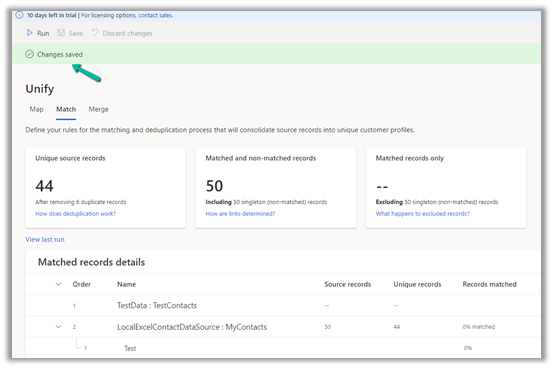
And saved the changes.

Now as the last step we need to remove the entity from the Map also.

Click on Edit fields and unselect the entity, followed by Apply.

Navigating back to Data Sources, we were able to delete the Data Source successfully now.

So in short, if we need to delete a data source, which we have configured for customer profile, we need to first remove its references from Merge, Match and than Map.

Hope it helps..

Advertisements