Using Sales Copilot, we catch up on updates to a lead and opportunity record since the last seven days or the last login.
We can use the prompt catchup with lead or catchup with opportunity followed by @ and the name of the record.
Sales Copilot uses Audit History to show the recent updates.
Allow data movement across regions in the Power Platform Admin Center using Enable copilots and generative AI features outside United States and Switzerland – Power Platform | Microsoft Learn
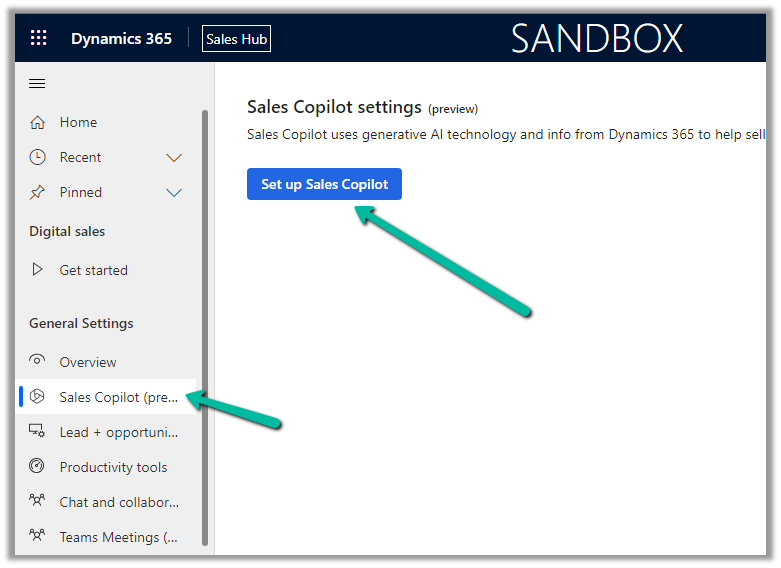
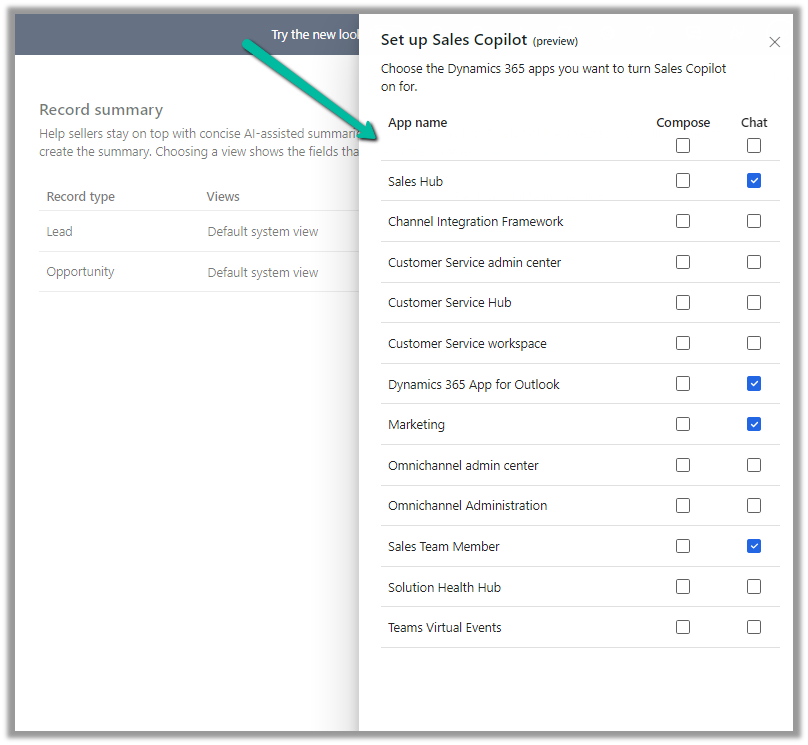
To enable Sales Copilot, navigate to
Sales Hub >> App Settings >> Sales Copilot (preview) >> Set up Sales Copilot
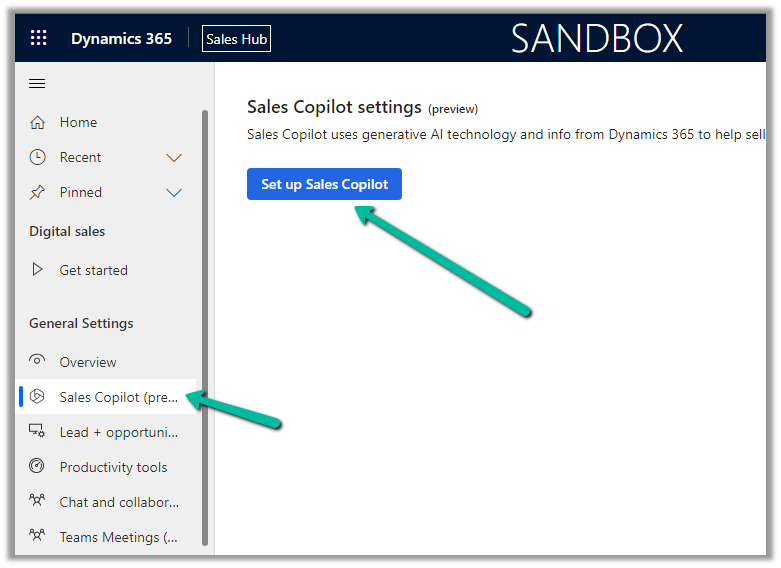
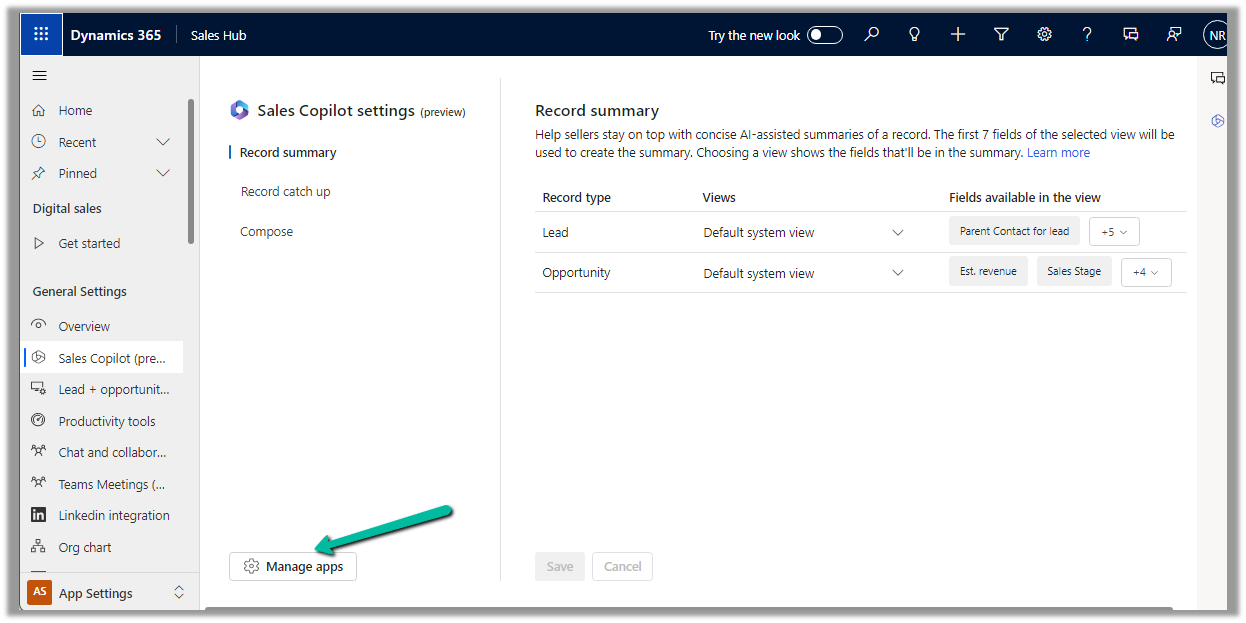
Or if we have already enabled it, we can manage the features provided along with the different apps we want to apply the Sales Copilot using the Manage apps option.

Here we can specify to which apps we want to enable the Compose and Chat feature.

For the Record catch-up feature, the first 10 fields of the view are considered. We can see “Default System View” selected by default.

However, we have the option to select a different view, and then the fields of the selected view will be used for generating the catchup content.
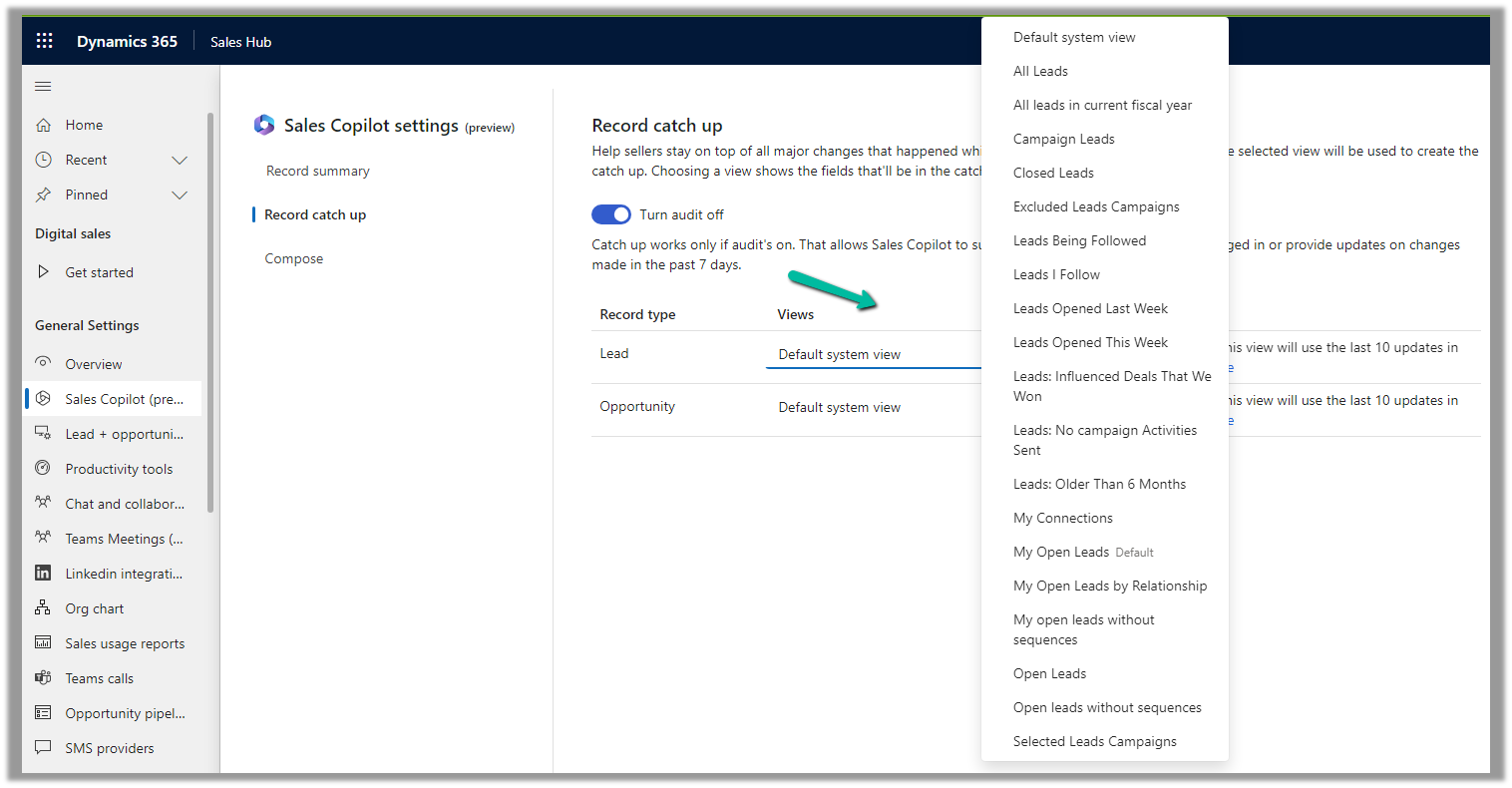
Below if we select the Open Opportunities view, we can see its corresponding fields that will be considered for the catchup.

We can open an existing lead or opportunity record or from the Chat tab of Sales Copilot can use catchup with opportunity prompt as shown below to get the updates.
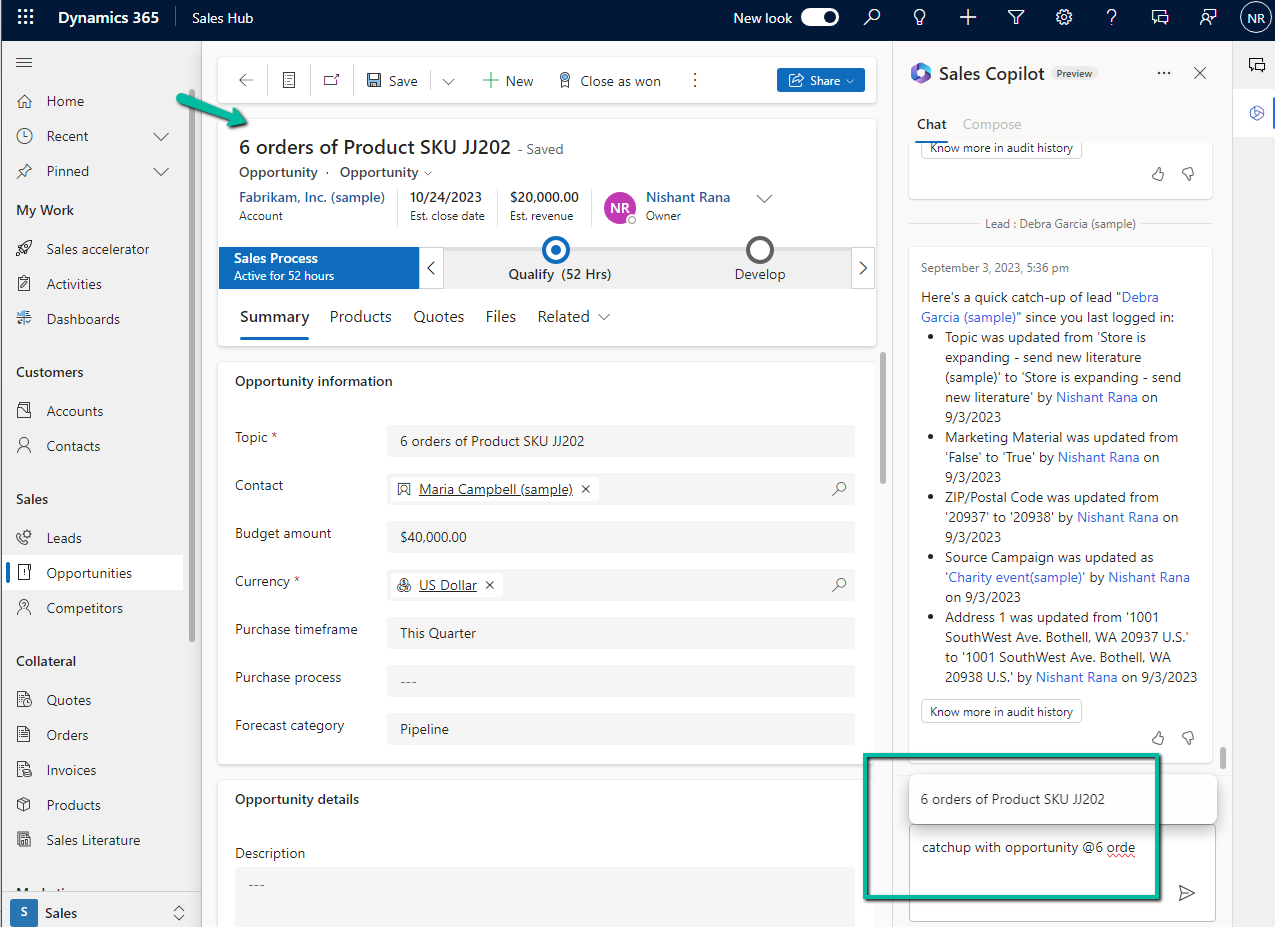
We can see the catch-up details generated.
Also, we see another prompt – “Catch up since my last
login (16 hours ago)”, along with “catchup with lead or opportunity” prompt

If there are no updates to a record in the last 16 hours, we get the below message.

Get more details here.
Hope it helps..








 3. Create a new Document Location record, associating the Account document location with the parent location record. Here we are specifying the same folder name in the relative URL.
 4. Lastly, we are associating these 2 new records.