A glance of the “OnLoad” event on a Model Driven App form (Async OnLoad event)


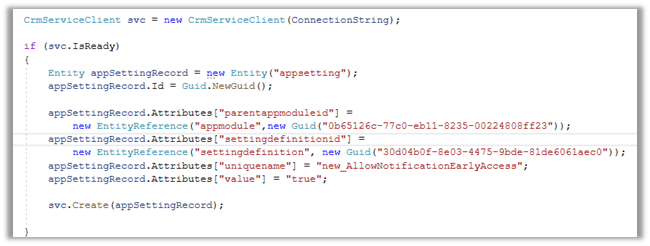
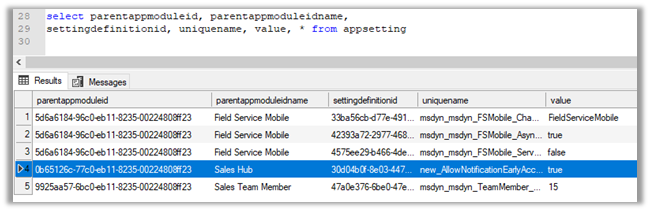
Interesting article that shows usage of appsetting and settingdefinition in DataVerse

Mehdi El Amri's avatarXRM Tricks (Power Platform & Dynamics CRM )

This blog will discuss a potential upcoming feature that is related to the “OnLoad” event of the forms for a model driven app. The goal is to look at the process of turning this event from synchronous to asynchronous using the “app settings” component. Also, some benefits of implementing an asynchronous logic on the “OnLoad” event will be illustrated.

Please note that, at the time of writing, the documentation points out that the “OnLoad” event is only synchronous. So, not all the following is supported yet. Hopefully this new feature will be documented and available to everyone soon.


Microsoft Docs (OnLoad Event):


The form OnLoad events are synchronous. However, you should not make synchronous network requests in an OnLoad event handler. This can cause a slow save experience and an unresponsive app. Instead, you should asynchronous network requests. Using asynchronous requests will dramatically improve the performance of form loads…

View original post 495 more words

Azure Synapse Link / Export to Data Lake Service – Performance (initial sync)


Recently we configured the Export to Data Lake service for one of our projects.

Just sharing the performance, we got during the initial sync.

Entity

Count

Contact

2,36,2581

Custom entity

1,61,3554

The sync started at 11:47 A.M and was completed around 4:50 P.M. – around 5 hours i.e. 300 minutes

Let us consider total records synced as 3975000 – 1613446 + 2362581 + 2 = 3976029.

So the performance here comes down to

  • 795000 records per hour
  • 13250 records per minutes
  • 220 records per second.

Of course, it will vary depending on the specific environment, table / entity type, attributes in it etc. it gives us a rough idea.

Hope it helps..

Advertisements

Dataverse | Bypass Custom Business Logic


Great post on BypassCustomPluginExecution. If we are using KingswaySoft we can consider using Process Optimization options to disable relevant plugin execution – https://nishantrana.me/2020/11/12/process-optimization-dynamics-365-ce-crm-cds-ssis-integration-toolkit-kingswaysoft/

Rajeev Pentyala's avatarRajeev Pentyala – Technical Blog on Power Platform, Azure and AI

There are times when you want to be able to perform data operations without having custom business logic applied. Especially during complex data migration scenarios, we would not want our custom business logic (i.e., Sync Plug-ins/Real time Workflows) to be triggered.

The manual option to disable custom logic is,

  • We have to locate and disable the custom plug-ins. But this means that the logic will be disabled for all users while those plug-ins are disabled. It also means that you have to take care to only disable the right plug-ins and remember to re-enable them when you are done.

Now using BypassCustomPluginExecution option we can disable custom business logic programmatically.

About BypassCustomPluginExecution:

When you send requests that bypass custom business logic, all synchronous plug-ins and real-time workflows are disabled except:

  • Plug-ins which are part of the core Microsoft Dataverse system or part of a solution where Microsoft is the…

View original post 309 more words
Advanced configuration settings – Azure Synapse Link / Export to Data Lake service (Dataverse/ Dynamics 365)


The Export to Data Lake service now has some Advanced configuration settings available.

To learn more on Export to Data Lake service

https://nishantrana.me/2020/12/10/posts-on-azure-data-lake/

The new settings allow us to configure how the DataVerse / CRM table data is written to Azure Data Lake.

  • In-Place update or upsert (default)
  • Append Only

With the in-place update, the default setting, the file will contain the full data set, and any update in the source will update the same in the synced CSV file or the data partition, similarly, any record deleted will delete the row from the data partition, unlike Append Only where a new row will be added in case of both update and delete.

For huge volume of data, Microsoft recommends opting for Append only mode. This mode is also preferable when an organization wants to incrementally review the changed data.

The other option is to define the data partition strategy.

  • By Month (default)
  • By Year

With this option, files generated are partitioned by either year or more granular month-wise, which can be specified per-table basis.

Microsoft recommends Monthly partition if data volume is high.

Now, let us see it in action.

For the Lead table, we haven’t selected the option for advanced configuration settings and are going by default.

  • Append Only – No
  • Partition Strategy – Month

For contact, we have enabled the advanced configuration settings and opted for Partition Strategy as Year.

For Account , we have opted for Append Only as true, for which the Partition strategy option is disabled and set as Year.

The final configuration à

Within the container inside the Storage Account, we can see corresponding folders created per table/entity along with model.json as shown below.

Let us explore the Lead folder –

We can see 2 CSV created with format YYYY-MM.csv i.e. having the month part in it because we had specified Partition Strategy as Month i.e. the default value.

For Contact and Account, the Pattern Strategy was Year, so we have files generated in format YYYY.csv

Let us update one of the lead records by appending ‘Updated’ in the last name field.

After the successful sync,

we can see the record updated in the .csv / partition.

The same is the case with the contact record.

Now let us update an account record, it had Append Only specified as Yes.

Here we update the Account Name field from Litware to Litware Updated.

After the sync

We can see a new row appended with the updated record along with the original record.

Let us delete the same account record

As expected, being Append Only mode, we can see a new row added for the Litware record.

We have 2 additional rows apart from the original row, one created for update and the other for delete action.

Export to Data Lake service is Microsoft’s recommended way of synchronizing Dataverse Data with external storage, and we can see them continuously investing and adding enhancements to it.

Get all the details here –

https://docs.microsoft.com/en-us/powerapps/maker/data-platform/export-to-data-lake#data-partition-strategy

Hope it helps..

ADFS Time out settings for Microsoft Dynamics CRM


Marcello Tonarelli's avatarMarcello Tonarelli Blog

Active Directory Federation Services (ADFS) is used by Microsoft Dynamics CRM for an Internet Facing Deployment (IFD).  Relying Parties are used to allow users to be authenticated when trying to access Microsoft Dynamics CRM.

Your session has expired

The default settings require users to re-authenticate every hour if there is no activity.  This can quickly become annoying if users have to sign in to CRM several times a day.  ADFS gives administrators the ability to increase the timeout and reduce the need for users to repeatedly sign in through out the day.

Your session has expired

Your session has expired

Update the timeout using Microsoft PowerShell

To change the timeout value, you will need to update the TokenLifetime value.  This is achieved using PowerShell.  Before you open PowerShell, you will need to find the name of each Relying Party.

Step 1: Find out the name of the relying party

  1. Open AD FS Management
  2. Navigate to…

View original post 116 more words

Retrieving security role privileges changes (audit) using KingswaySoft’s Dynamics 365 SSIS Integration Toolkit
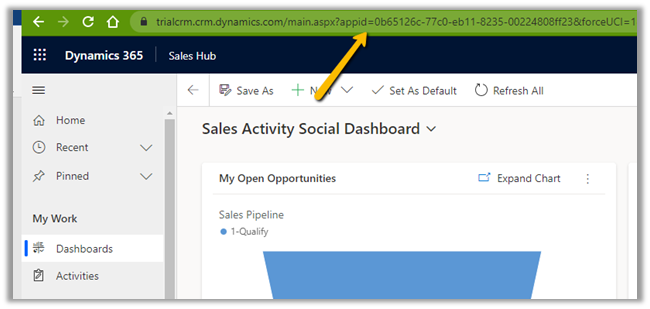

We can specify Source Type as AuditLogs within the CDS Source Component Editor of KingswaySoft to fetch the Audit information.

Get the details :- https://nishantrana.me/2018/10/08/using-kingswaysofts-cds-crm-source-component-to-get-audit-information-in-dynamics-365-ce-ssis/

The Souce TypeAuditLogs includes Output type – Audit Details (Role Privileges), which can be used to fetch any audit information related to security roles.

Audit Details (Role Privileges) contains 4 columns, which we have mapped to columns in excel.

  • AuditId
  • OldRolePrivileges
  • NewRolePrivileges
  • InvalidRolePrivileges

Let us execute the package

The output à

Here, the 1st row is when a new security role was created, the 2nd row is when an existing security role was updated and 3rd row is when a security role was deleted.

To get the complete information we need to combine this information (id which is auditid – first column) with the Primary output.

The columns of the Primary Output

After mapping, let us run the package with the Primary Output type.

Here below we can see the complete details by combining both the output using the auditid column

Note – to get the Audit Details (Role Privileges), we need to use SOAP – Service End Point type.

Also refer –

http://mscrmshop.blogspot.com/2016/06/auditing-security-roles-in-crm.html

http://www.kingswaysoft.com/blog/2019/10/16/Extracting-Audit-Logs-for-Multiple-CRM-Entities

https://nishantrana.me/2018/11/26/ssis-and-microsoft-dynamics-365/

https://community.dynamics.com/crm/b/mscrmcustomization/posts/ms-crm-audit-database-table-details

Hope it helps..

Advertisements