I recently came across a small but useful addition to the Dynamics 365 / Power Apps lookup experience: the Drawer Lookup Control.
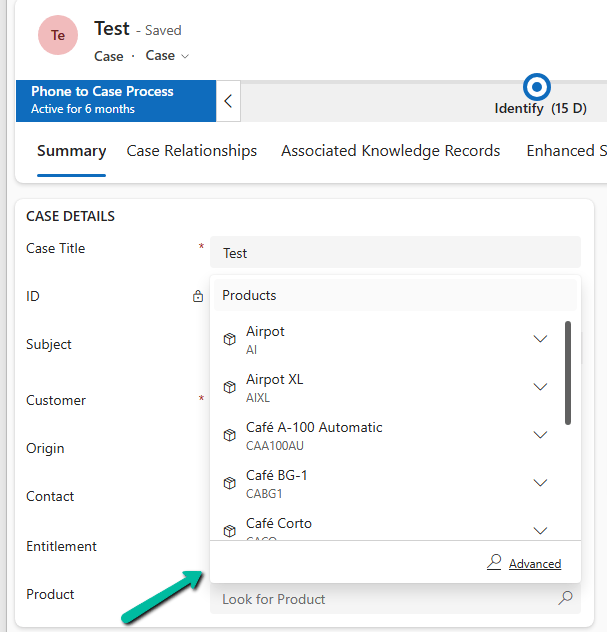
With the standard lookup, selecting a value typically opens the familiar lookup experience.
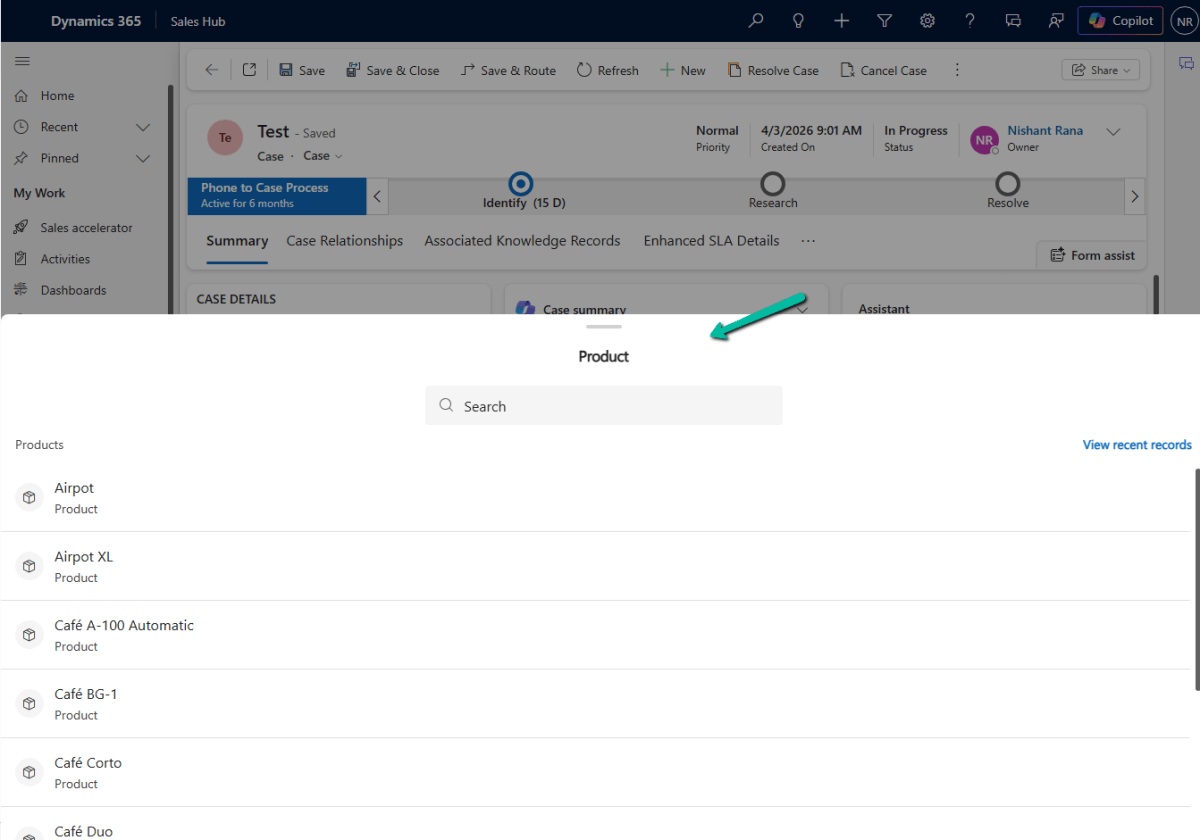
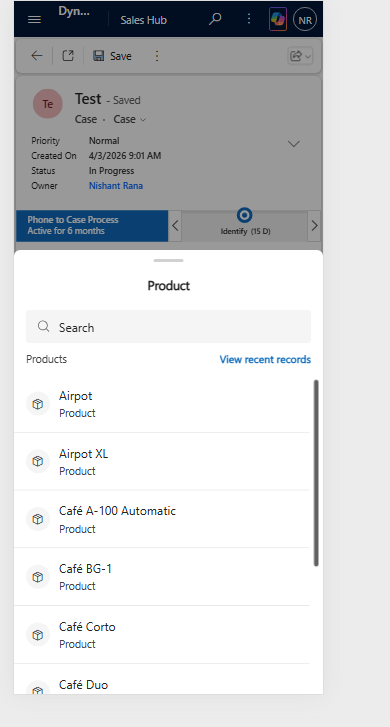
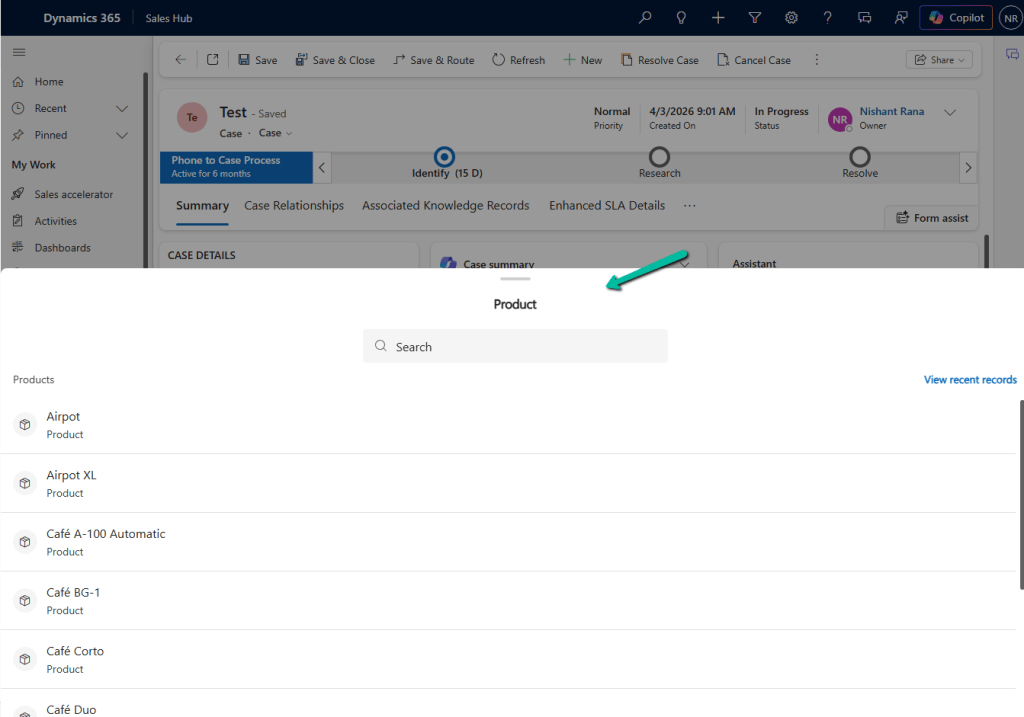
With Drawer Lookup, the records are displayed in a bottom-sheet style drawer, making it easier to search and select a record on a phone or tablet.
This is how it would look on Web –
How to Configure It
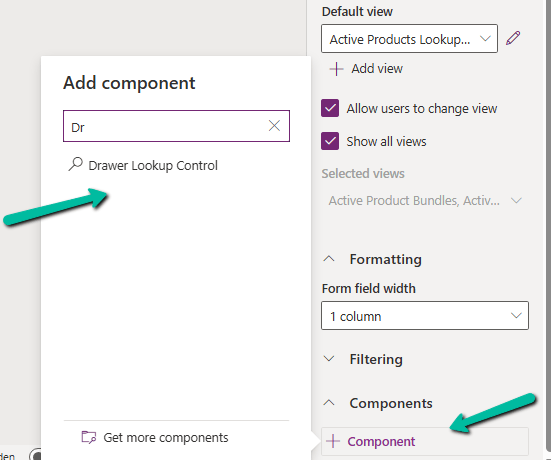
The configuration is quite simple. Open the form in Power Apps, select the lookup field, and go to Components.
Select:
+ Component → Drawer Lookup Control
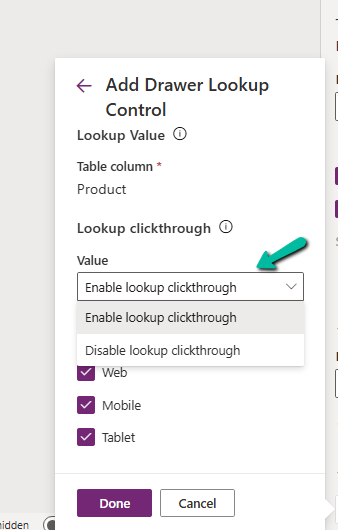
We can then configure the lookup click-through behavior:
Enable lookup clickthrough
Disable lookup clickthrough
The control can also be enabled for the Web, Mobile, and Tablet experiences.
This is especially useful when we have forms that are frequently used from mobile devices, and users need to select records from lookup lists like leads, contacts, accounts, work orders etc.
The Disable lookup clickthrough option can also help prevent users from accidentally navigating away from the current form when interacting with a lookup value.
It is a relatively small UI enhancement, but for mobile-heavy Dynamics 365 implementations, these small improvements can make the experience noticeably cleaner. If we have forms that are heavily used on phones or tablets, Drawer Lookup Control is definitely worth trying.
Recently we had a requirement to export the working hours of Bookable Resources from Dynamics 365 for a specified date range and make that information available to a third-party system.
Rather than reading the underlying calendar rules and building our own logic to calculate the working hours, we looked at using the platform capabilities provided by Dynamics 365 and used the Dataverse ExpandCalendar function
How it works
We first retrieve the Bookable Resources from Dynamics 365 and identify the calendar associated with each resource.
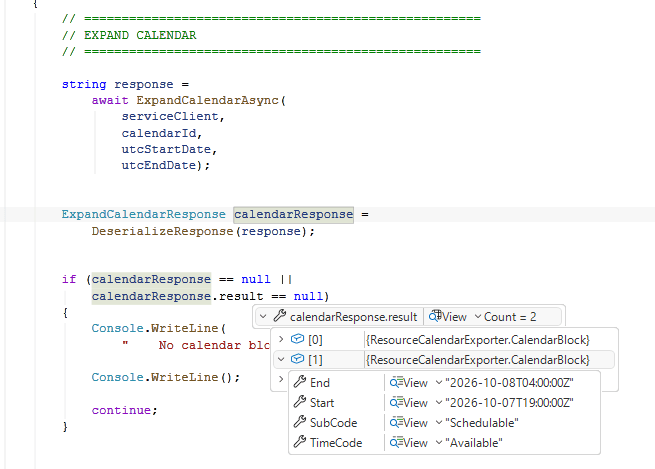
For each calendar, we call the Dataverse ExpandCalendar function for the required date range. Dynamics 365 expands the calendar rules and returns the resulting calendar blocks, including the start and end times along with information such as TimeCode and SubCode.
We then process these results and export the required information to a CSV file.
This approach means we do not need to recreate the calendar rules and recurrence logic ourselves. Dynamics 365 does the calendar expansion for us, and we simply consume the resulting calendar blocks.
Why use ExpandCalendar?
A Bookable Resource calendar is not simply a list of start and end times. Calendar rules can repeat over time and can include changes or exceptions. Building a separate calendar engine to interpret those rules would duplicate logic that Dynamics 365 already understands.
With ExpandCalendar, we provide the calendar and the date range, and Dynamics 365 returns the expanded calendar information for that period.
This makes the solution smaller and easier to maintain, particularly when the calendar configuration changes in Dynamics 365.
Getting the Bookable Resources
The first step is to retrieve the Bookable Resources that we want to process. The important fields for this example are the resource ID, resource name, and calendar ID.
The calendar ID is important because it is the calendar that we pass to ExpandCalendar.
Calling ExpandCalendar
The ExpandCalendar function is exposed through the Dataverse Web API. In a .NET console application using Microsoft.PowerPlatform.Dataverse.Client, we can execute the Web API request through the ServiceClient.
The exact request shape can vary depending on the Dataverse API version and implementation, so the ExpandCalendar Web API documentation should be used as the authoritative reference for the request parameters.
Working with the response
The response contains the expanded calendar blocks for the requested period. A simplified response can look like this:
For each block, we can capture the start and end time together with TimeCode and SubCode. The application can then transform these results into the format required by the consuming system.
Working hours vs actual availability
One important distinction is that expanded calendar information should not automatically be treated as the complete scheduling availability of a resource.
ExpandCalendar gives us the expanded calendar information for the requested period. Actual scheduling availability can also be affected by existing bookings, requirements, constraints, and other scheduling factors.
If the requirement is to determine when a resource can actually be booked, the Field Service resource availability APIs should be considered instead. For a requirement focused on exporting configured calendar or working-hour information, ExpandCalendar is a good fit.
Recently, we needed to remove the legacy Resco MobileCRM (Woodford) managed solution from a Dynamics 365 Field Service environment.
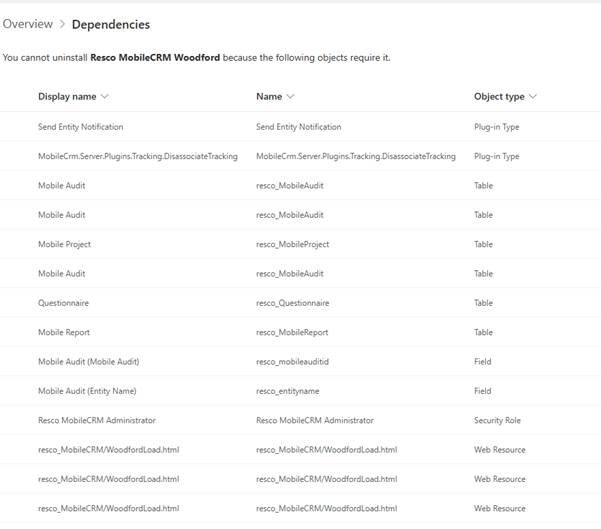
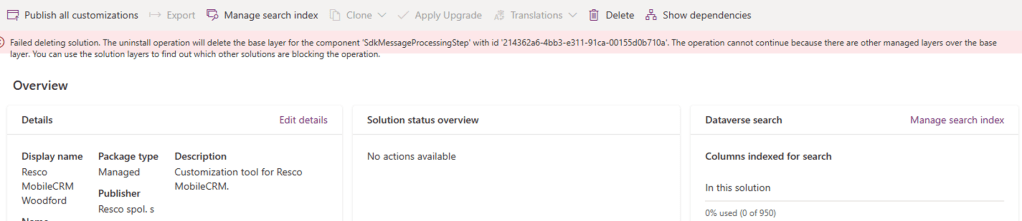
Although the uninstall initially appeared straightforward, when we attempted to uninstall the Woodford solution, Dynamics 365 displayed a list of dependencies that needed to be addressed before.
The dependencies included references from model-driven apps, site maps, security roles, workflows, plug-in steps and managed solutions.
One of the first dependencies we identified was a set of Resco tables that were still included in a model-driven application. These included Mobile Project, Mobile Audit, Questionnaire, and Mobile Report. Removing these tables from the application eliminated the app-related dependencies.
The next set of dependencies came from site maps. The Mobile CRM navigation area was still present in multiple site maps and needed to be removed. Once the references were removed and the changes published, the related site map dependencies disappeared.
The dependency report also showed a dependency on the Resco MobileCRM Administrator security role. The role was being referenced from a form, and removing that reference resolved the dependency.
Another dependency involved the following plug-in step:
After stopping and deleting the workflow, the dependency was removed.
At this point, most of the dependencies had been addressed, but the uninstall was still blocked by process and flow dependencies associated with Resco entities.
After further investigation, we found that these dependencies were originating from legacy geofencing functionality. Uninstalling the Geofence Alerts managed solution removed the remaining process and flow dependencies.
At this point, the dependency report showed no remaining blockers.
Despite the dependency report being clean, the uninstall continued to fail with the following error:
The uninstall operation will delete the base layer for the component ‘SdkMessageProcessingStep’. The operation cannot continue because there are other managed layers over the base layer.
The error referenced a plug-in step associated with a Resco entity. Since the dependency report was now clean, we investigated the component using the Solution Layers feature.
The layer information showed that Woodford was providing the base layer, while another managed solution named msdyn_FSMNotifications had installed a managed layer on top of that component.
This explained why Dataverse would not allow the Woodford base layer to be removed.
After uninstalling the dependent managed solution, the layer dependency was removed.
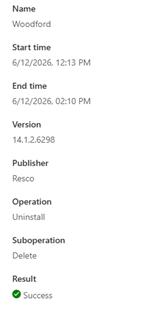
We then re-tried the Woodford uninstall, and this time it completed successfully.
One interesting observation was that the uninstall itself took approximately two hours to complete after it was started.
The key takeaway from this exercise is that a clean dependency report does not always mean a managed solution can be removed. If the uninstall fails with a managed layer error, reviewing the Solution Layers for the component referenced in the error message can quickly identify the actual blocking solution.
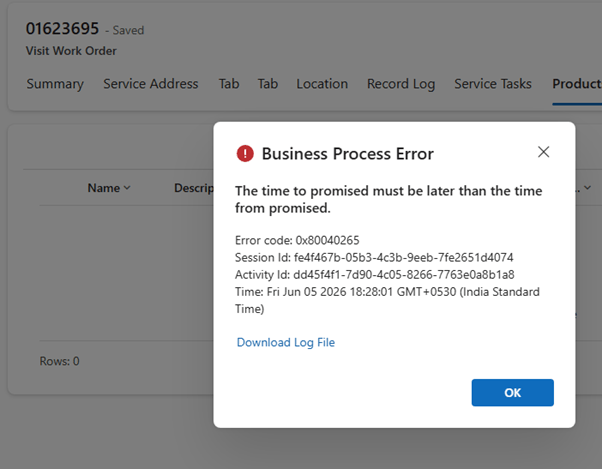
While attempting to delete a historical Dynamics 365 Field Service Work Order, we encountered the following error:
Exception Message: The time to promised must be later than the time from promised.
ErrorCode: -2147220891
HexErrorCode: 0x80040265
Error Details: {“errorCode”:2147746405,”message”:”The time to promised must be later than the time from promised.”,”code”:2147746405,”raw”:”{\”_errorCode\”:2147746405,\”_errorFault\”:{\”_responseXml\”:null,\”_errorCode\”:2147746405,\”_innerFault\”:{\”_responseXml\”:null,\”_errorCode\”:0,\”_innerFault\”:null,\”_callStack\”:null,\”_responseText\”:null,\”_annotations\”:null,\”_hasCustomerInfo\”:false,\”_messages\”:[\”The time to promised must be later than the time from promised.\”]},\”_callStack\”:null,\”_responseText\”:\”{\\\”error\\\”:{\\\”code\\\”:\\\”0x80040265\\\”,\\\”message\\\”:\\\”The time to promised must be later than the time from promised.\\\”,\\\”@Microsoft.PowerApps.CDS.ErrorDetails.ApiExceptionSourceKey\\\”:\\\”Plugin/Microsoft.Dynamics.FieldService.FieldServicePlugin\\\”,\\\”@Microsoft.PowerApps.CDS.ErrorDetails.ApiStepKey\\\”:\\\”919f17c2-2931-4b27-b6b2-daaf91aaaaf8\\\”,\\\”@Microsoft.PowerApps.CDS.ErrorDetails.ApiDepthKey\\\”:\\\”1\\\”,\\\”@Microsoft.PowerApps.CDS.ErrorDetails.ApiActivityIdKey\\\”:\\\”1642f2af-356e-45c3-b971-42b11e9e91d9\\\”,\\\”@Microsoft.PowerApps.CDS.ErrorDetails.ApiPluginSolutionNameKey\\\”:\\\”
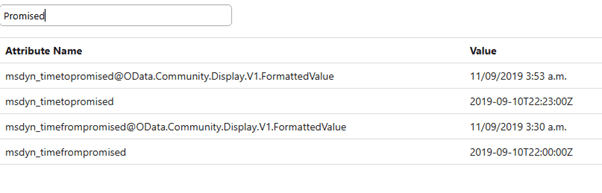
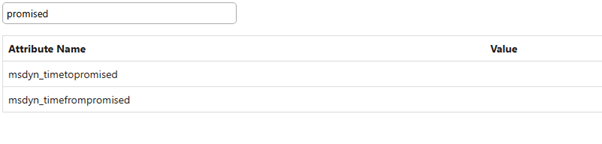
At first, the error suggested that the Work Order contained invalid promise dates. We reviewed the values stored on the record and found that Time To Promised was already later than Time From Promised.
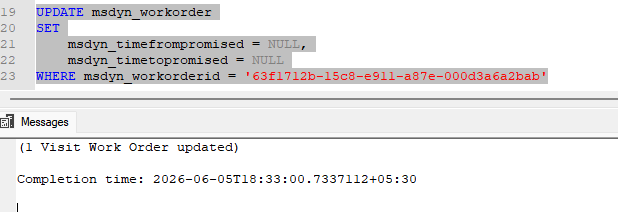
Since the values appeared valid, we attempted to clear both fields using SQL 4 CDS:
The update completed successfully and both fields were set to NULL.
However, deleting the Work Order still resulted in the same error.
Changing the Work Order Status to Cancelled also didn’t help.
After further testing, we changed the Record Status from Active to Inactive. Once the record was inactive, the Work Order could be deleted successfully.
Based on the plugin trace, deleting the Work Order triggered an internal update before the delete operation was executed. It appears that when the Work Order was Active, additional Field Service validations were performed, resulting in the promised date error even after the fields were cleared.
After changing the record to Inactive, the delete operation likely followed a different validation path, allowing the Work Order to be deleted successfully.
Recently, we got the following error while booking a resource in our schedule board. We earlier got the same error while trying to delete bookable resource booking records.
We could not figure out the workflow or SLA that could be responsible for the issue.
Eventually, turning on the Use Enhanced Background Processing (Preview) option in Field Service Settings >> Other fixed the issue for us.
Use Enhanced Background Processing (Preview)
In Field Service, a bunch of background jobs take care of things like managing Agreements. Normally, this uses the tried-and-tested workflows. However, we can flip on the new preview option that uses Power Automate Flows instead. This can help in tricky cases—like when the Agreement owner no longer has access to Dynamics 365. We could see this option enabled in our other environments, and this environment was a copy of one of them, so that could be the reason it worked in our case.
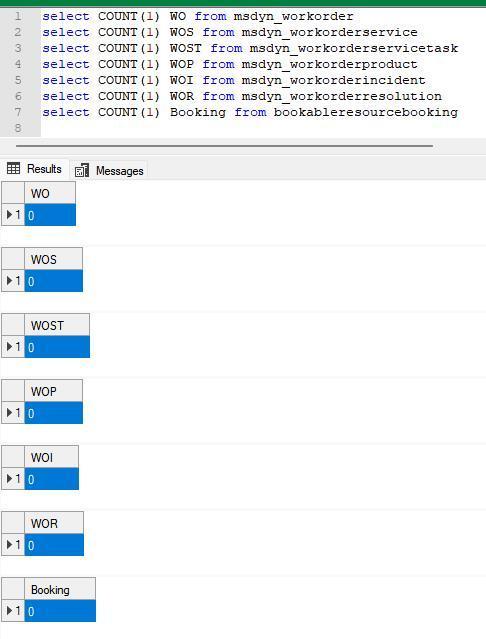
Recently we were cleaning some of the work orders and related records in one of our environments. However when trying to delete the bookable resource booking record, we were getting the below error. Deleting booking records is required if we want to delete the associated work order record.
We verified all the processes – workflows, SLA, and also checked the system’s plugin code, but could not figure out what was causing this error.
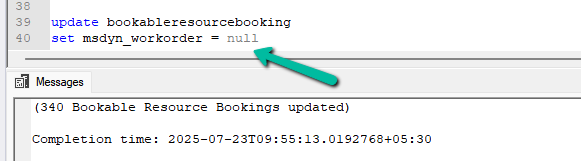
Eventually, to delete the booking records, we cleared the associated work orders first for them.
This then allowed us to delete the work orders and associated records