How to – Create Custom API and Implement using plugin C#


Nice step by step guide.
Check out other posts on Custom API – https://nishantrana.me/category/custom-api/

Ajit Patra's avatarAjit Patra

In this blog, we’ll see how to create custom API in maker portal and write plugin to implement it. We’ll take the example of refreshing roll up field on demand. This API will take 3 parameters:

  1. TargetEntity: Name of the entity containing the roll up field
  2. TargetId: GUID of the record
  3. Field: Name of the roll up field to be refreshed

In the plugin we’ll write the code to execute request to refresh roll up field. We’ll test the custom API using Postman.
So, let’s get started.

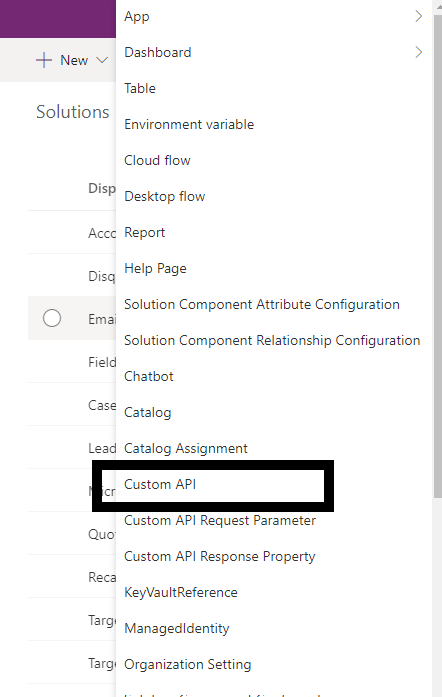
Go to Solutions -> Click on New -> Select Custom API.

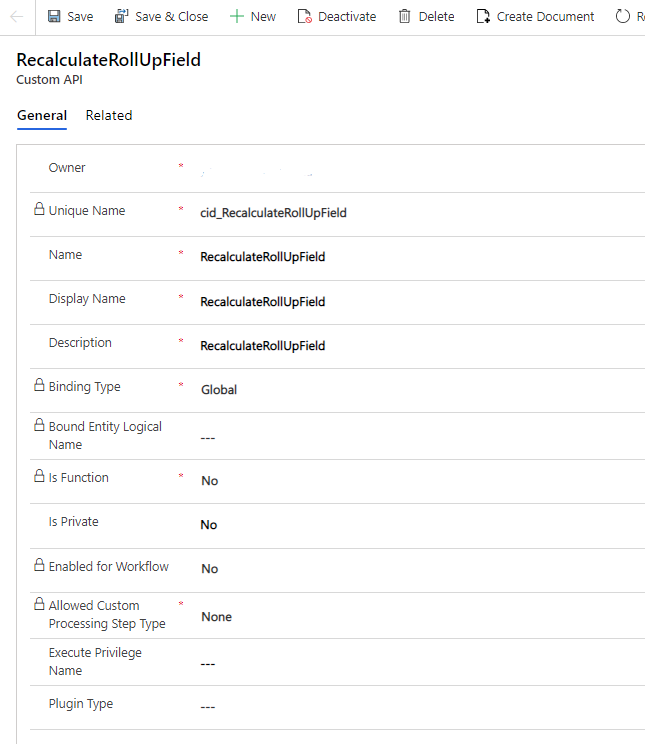
Fill the details of the custom API record as shown below:

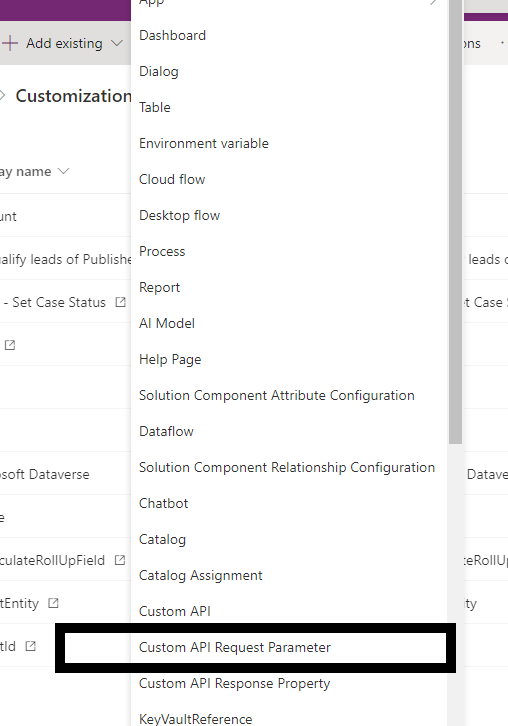
Once the custom API is created, in the Solution, Click New -> Select Custom API Request Parameter.

The first parameter TargetEntity is of String Type. Fill the details as shown below:

Similarly, create the second parameter TargetId which…

View original post 260 more words

How to – Export Dataverse (Dynamics 365) data to Azure SQL using Azure Data Factory pipeline template


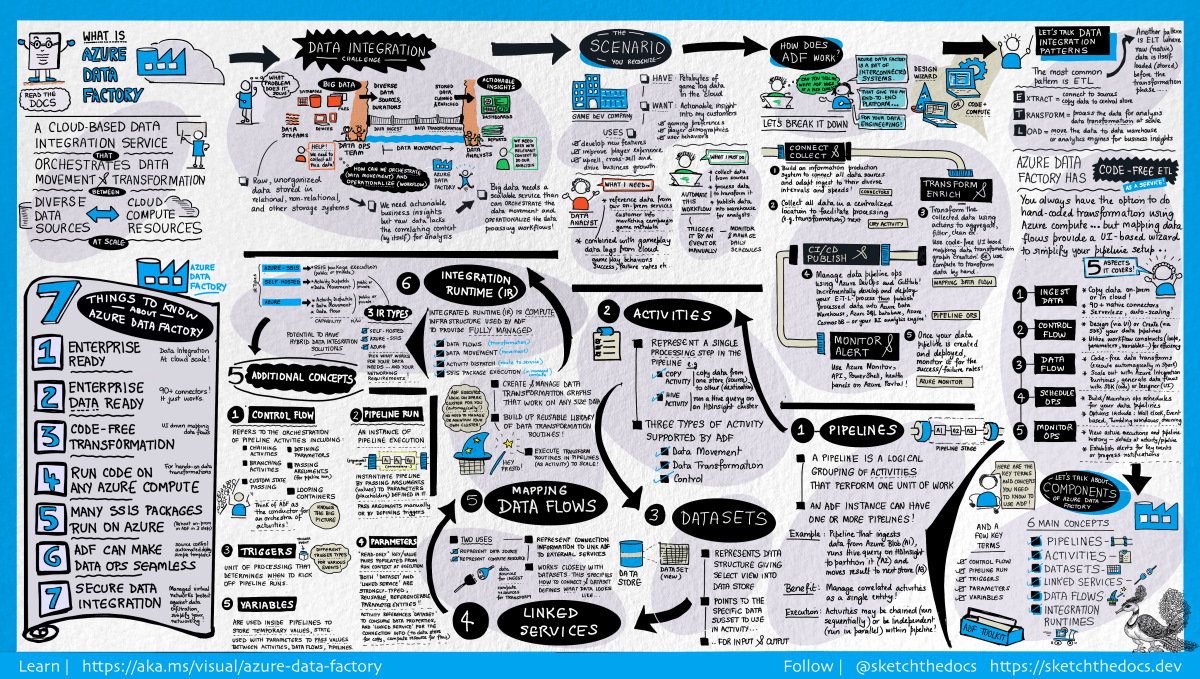
[Visual Guide to Azure Data Factory - https://acloudguru.com/blog/engineering/a-visual-guide-to-azure-data-factory]

Using the new Azure Data Factory pipeline template – Copy Dataverse data from Azure Data Lake to Azure SQL – we can now easily export the Dataverse data to Azure SQL Database.

https://docs.microsoft.com/en-us/power-platform-release-plan/2021wave1/data-platform/export-dataverse-data-azure-sql-database

Check other posts on Azure Data Factory

Select Pipeline from template option inside the Data Factory

Search for Dataverse and select the Copy Dataverse data from Azure Data Lake to Azure SQL template
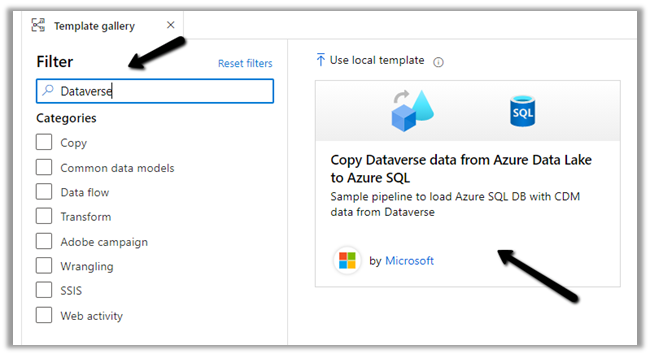
Let us specify the User Inputs required by the template – i.e. Azure SQL Database and the Data Lake Storage.
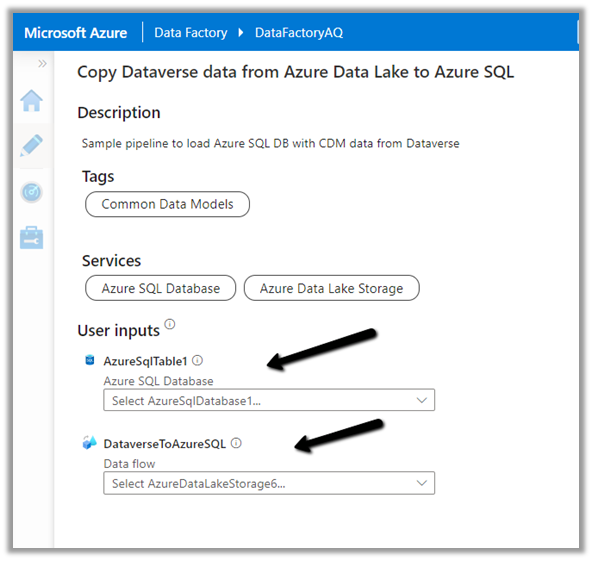
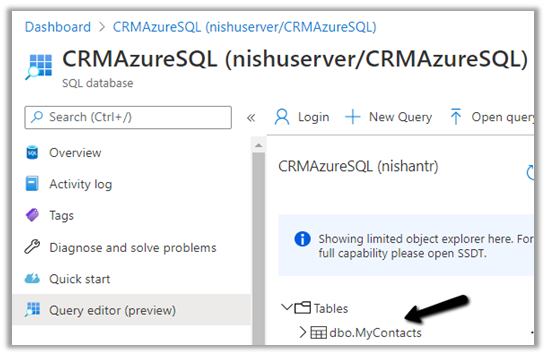
First we have created the linked service for the Azure SQL Database.

We’d use it to connect to the below table MyContacts.
Similarly create a linked service to Azure Data Lake Gen 2, which holds our Dataverse data.
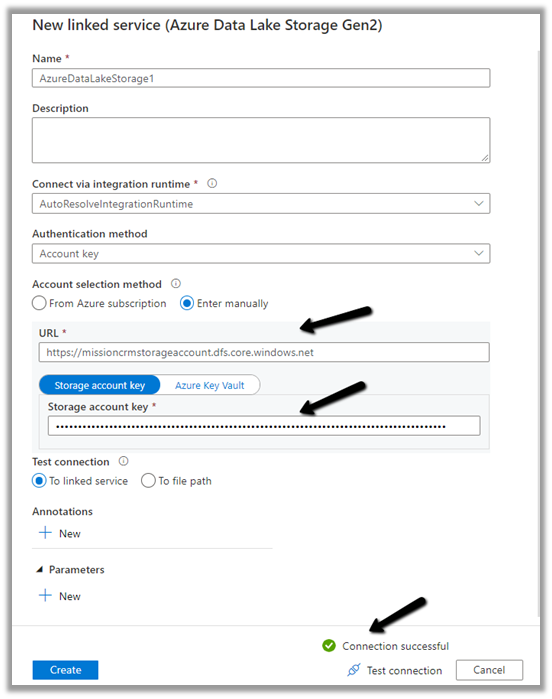
Get the URL from the Container’s property. (replace blob with dfs in the URL)

To get the storage account key, select Access Keys >> Show Keys >> Copy the Key for the Storage Account.

Here we have already configured Azure Synapse Link for Dataverse

https://nishantrana.me/2020/09/07/export-data-from-common-data-service-to-azure-data-lake-storage-gen2/

Now as we have defined the User Inputs, select Use this template.

Navigate to the data flow created – DataverseToAzureSQL

Select our source ADLS and check and configure its properties.

Source Settings

Here we have the Inline dataset type set to Common Data Model and the Linked service is the AzureDataLakeStorage1 we created earlier.

Source Option

Specify the Dataverse folder for the Root Location.
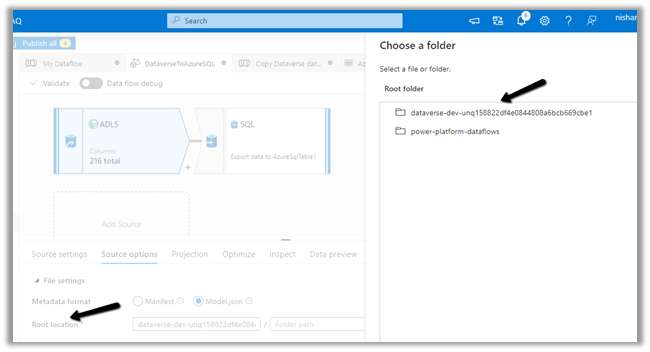
Here we have specified the contact entity from our Data Lake Storage.

Projection

In the projection we have cleared the generated schema using Clear Schema, also selected Schema options >> Allow schema drift


We have enabled Allow schema drift option which will create the required columns in the destination Azure SQL Table.

Optimize

Inspect

Data preview

As we have not turned on Debug mode, there is nothing to preview
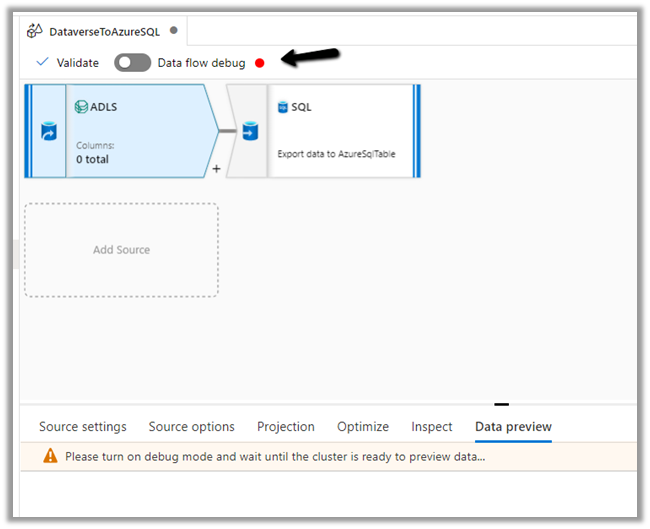
Now let us move to our Destination – SQL.

Sink

Here we have AzureSQLTable dataset connected to contact table in Azure SQL and have checked Allow schema drift option.


Below is our AzureSQLTable Dataset connected to the MyContacts table.

Settings

Here we have selected Allow Insert as the Update Method and Table
action as Recreate table – as we want the destination table to be re-created dynamically based on the source.

Mapping

We have left it to Auto mapping.

Optimize

Inspect

Data preview

Let us Publish All our changes and Debug our pipeline.

Let us monitor our pipeline run.
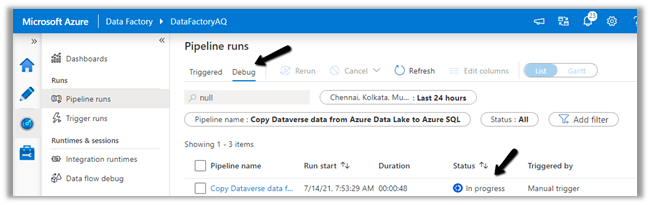
We can see that pipeline has run successfully and took around 4 minutes.

We can see the contact’s data copied to our Azure SQL successfully.
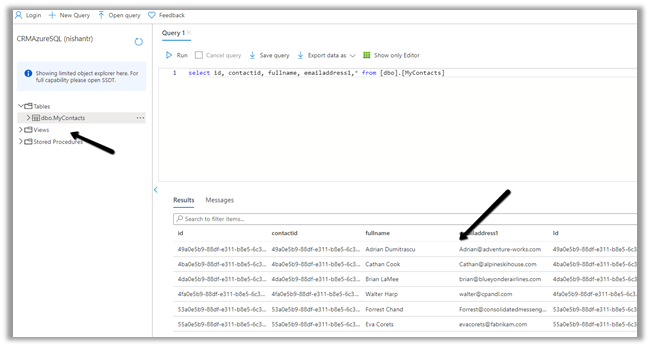
So here we covered the insert operation, in the next posts we’d see how we can configure update, upsert and delete operation.

Also, check

Posts on Azure Data Factory

Posts on Azure Data Lake

Hope it helps..

Wave 2 Gives a New Look to Views


Karan Khosla's avatarKKIT365

Remember the time you needed to add a column to a view but were worried about spoiling the layering of the solutions so ended up using the Advance find to edit columns and create a personal view ?

Well say goodbye to this problem now !! Microsoft has made things so much easier !!

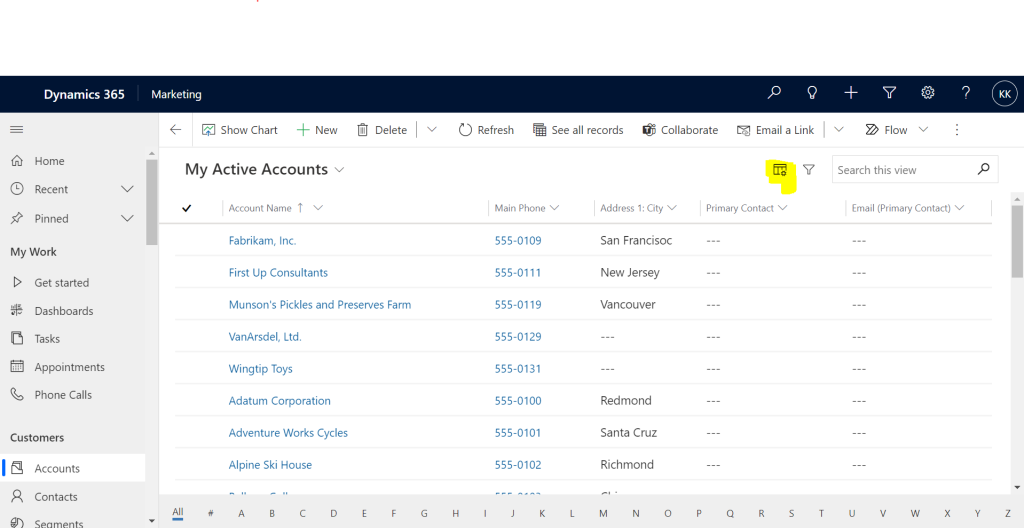
Now you can add column’s on the fly with the column editor !

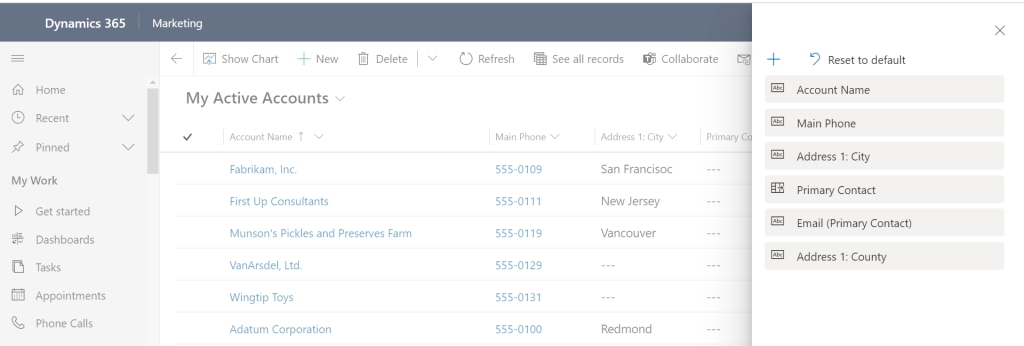
Clicking on this button gives you a list of fields you would want to add as column’s

These changes are temporary and reverting to the original view is easy too !! Clicking on reset to default does the trick !

The Second amazing feature that will resolve a lot of confusion is the “Default” tag in views, the views dropdown now tell you which view is default !! Let’s compare the old UI to the New UI

Old ( The default view is…

View original post 138 more words

How to – Get the size of tables in Dataverse / Dynamics 365


Using the Capacity page in the Power Platform Admin Center we can extract the details of size occupied by table (in MB) within a particular environment.

Login to the admin portal and navigate to Capacity

https://admin.powerplatform.microsoft.com/resources/capacity

Select the Dataverse tab and click on Details or in case of trial click on the Trial tab

Here we have selected the details (graph) option for one of the environments.

Select Download all tables option for the Top database capacity use, by table chart


We can see the details within the extracted CSV file.

Get all the details here

https://docs.microsoft.com/en-us/power-platform/admin/capacity-storage#environment-storage-capacity-details

Hope it helps..

Advertisements

Solved- Currently, Dynamics 365 apps can only be enabled for your default region error


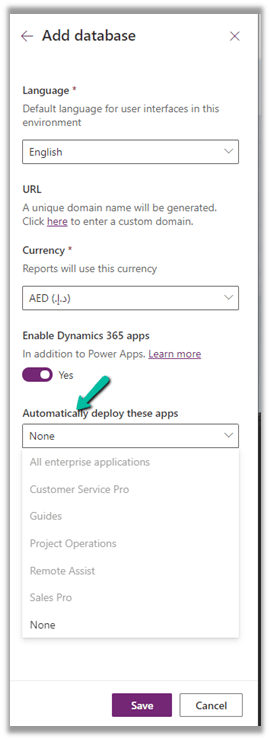
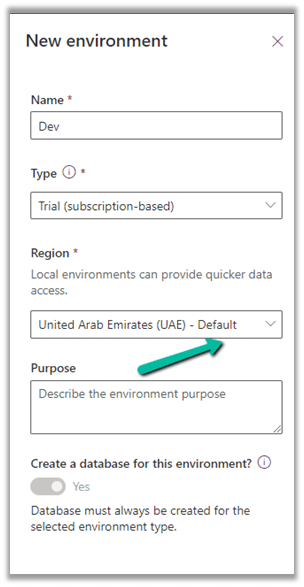
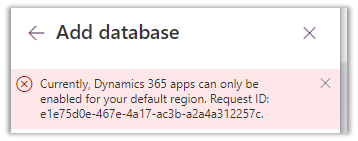
While trying to add a new Trial (subscription-based) on a Dynamics 365 Trial environment, we were getting the below error

Currently, Dynamics 365 apps can only be enabled for your default region

The default region was UAE for the other environments 

Even for the Azure Synapse Link – it was showing the default region as UAE North

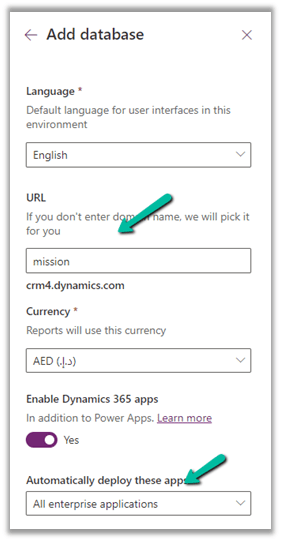
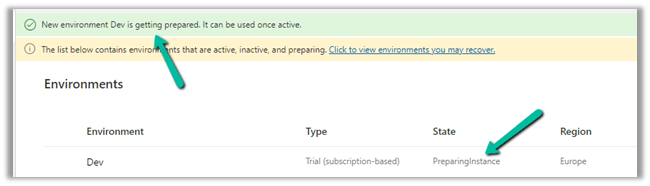
In our case selecting the Region to Europe allowed us to create a Trial (subscription-based).

Get all the details herehttps://docs.microsoft.com/en-us/power-platform/admin/create-environment

https://community.dynamics.com/365/f/dynamics-365-general-forum/395813/dynamics-365-apps-can-only-be-activated-for-your-default-region

Hope it helps..

Advertisements
Advertisements